
Installing the CINNOX Desktop App (PWA)
Installing the CINNOX Desktop App
While CINNOX operates as a web-based service, staff members can install the platform as a Progressive Web App (PWA) on their desktop computers. This creates a dedicated, distraction-free application window and adds a quick-launch shortcut to your desktop taskbar or system dock.
Prerequisites
To install the desktop application layout, ensure you are using a supported desktop browser:
- Google Chrome (Version 74 or later)
- Microsoft Edge
Installation Steps (First-Time Setup)
-
Navigate to your company's dedicated CINNOX Dashboard (Workspace) URL (e.g.,
https://example.cinnox.com/) using your desktop browser. -
Log in using your registered staff credentials.
-
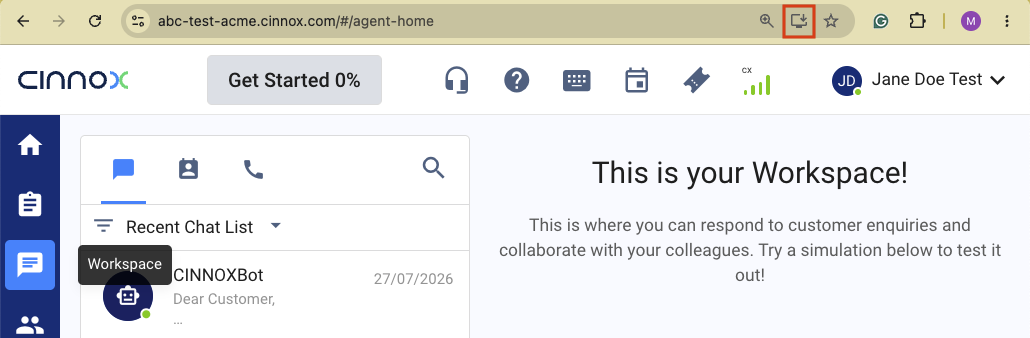
Look at the right-hand side of your browser's address bar (URL bar):
- On Google Chrome: Click the Desktop Monitor icon with a down arrow inside the URL bar, or click the three vertical dots menu and select Install CINNOX.
- On Microsoft Edge: Click the App icon (three squares and a plus sign) inside the URL bar.
-
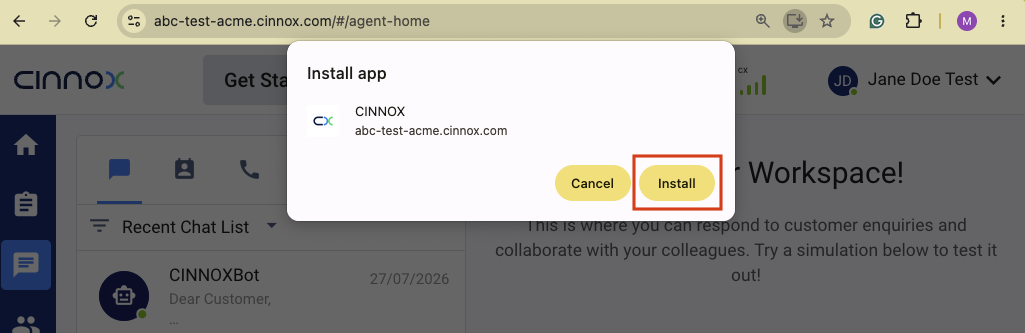
Click Install on the browser confirmation prompt.
- The dashboard will immediately relaunch in its own native app window, and a CINNOX launcher icon will be saved to your computer.
- The dashboard will immediately relaunch in its own native app window, and a CINNOX launcher icon will be saved to your computer.
Reopening the App (Subsequent Visits)
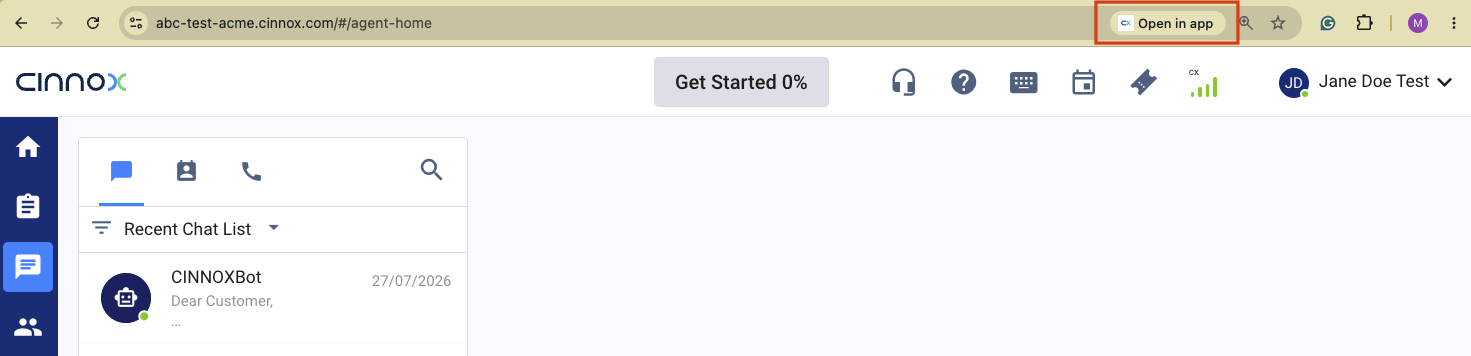
- Once the app is successfully installed on your machine, revisiting the web dashboard link in your browser will display an "Open in App" prompt in the address bar. Clicking this will instantly bridge your browser tab over to your standalone desktop app window.
Pinning CINNOX & Managing Notifications
To make launching CINNOX even faster, you can pin the installed app directly to your computer's taskbar, dock, or desktop interface.
For Windows Users
Once the CINNOX desktop window opens for the first time:
- Pin to Taskbar: Right-click the CINNOX icon on your bottom taskbar and select Pin to taskbar.
- Create Desktop Shortcut:
- Open your Windows Start Menu and type CINNOX.
- Right-click the CINNOX app icon and select Open file location.
- Right-click the CINNOX shortcut file, select Show more options (if on Windows 11), then choose Send to > Desktop (create shortcut).
For macOS Users
Once the CINNOX desktop opens for the first time:
-
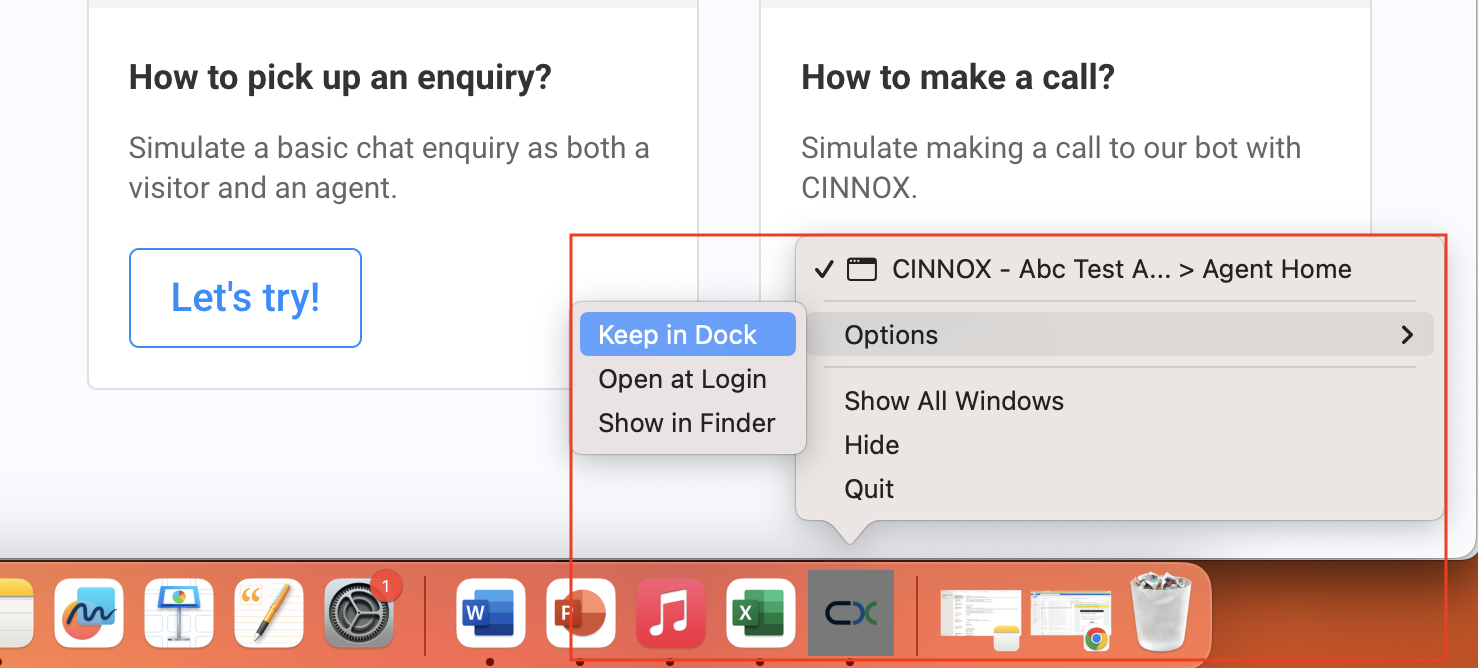
Keep in Dock: Right-click (or Two-finger click) the CINNOX icon in your Dock, hover over Options, and click Keep in Dock
-
Open at Login: In addition, click Open at Login to automatically launch CINNOX whenever you turn on or restart your Mac.
- Add to Applications Folder: Progressive Web Apps (PWAs) are automatically saved to a folder named
**Chrome Apps**or**Edge Apps**inside your personal user directory. You can drag the icon from there directly onto your Desktop if you prefer a desktop shortcut.
App Icon Badge Notifications
- The CINNOX desktop app supports native notification badges. When you have unread messages or active enquiry rooms requiring immediate attention, a red counter bubble will appear directly on the CINNOX icon in your taskbar or dock.
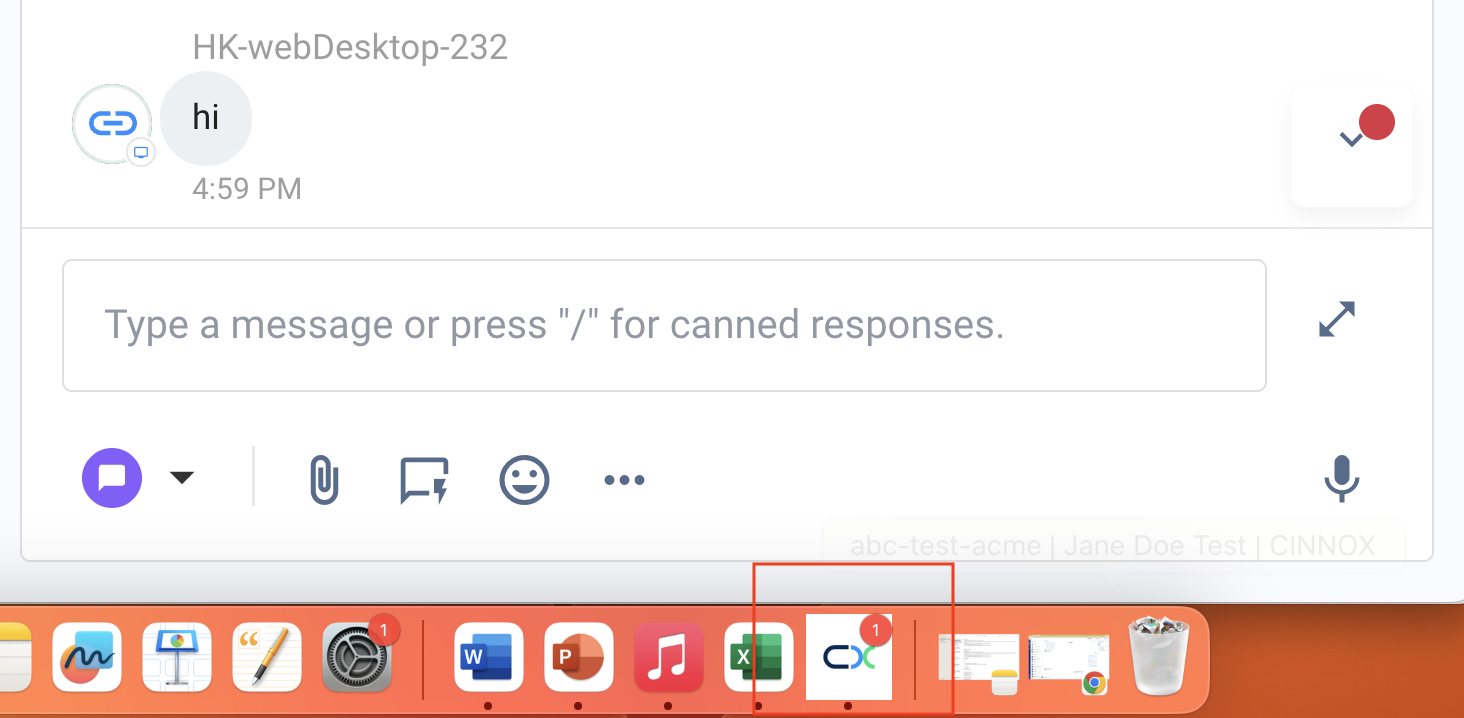
*Note: Ensure the toggle for Badge application icon is turned ON.