
Virtual Number with Multilevel Routing
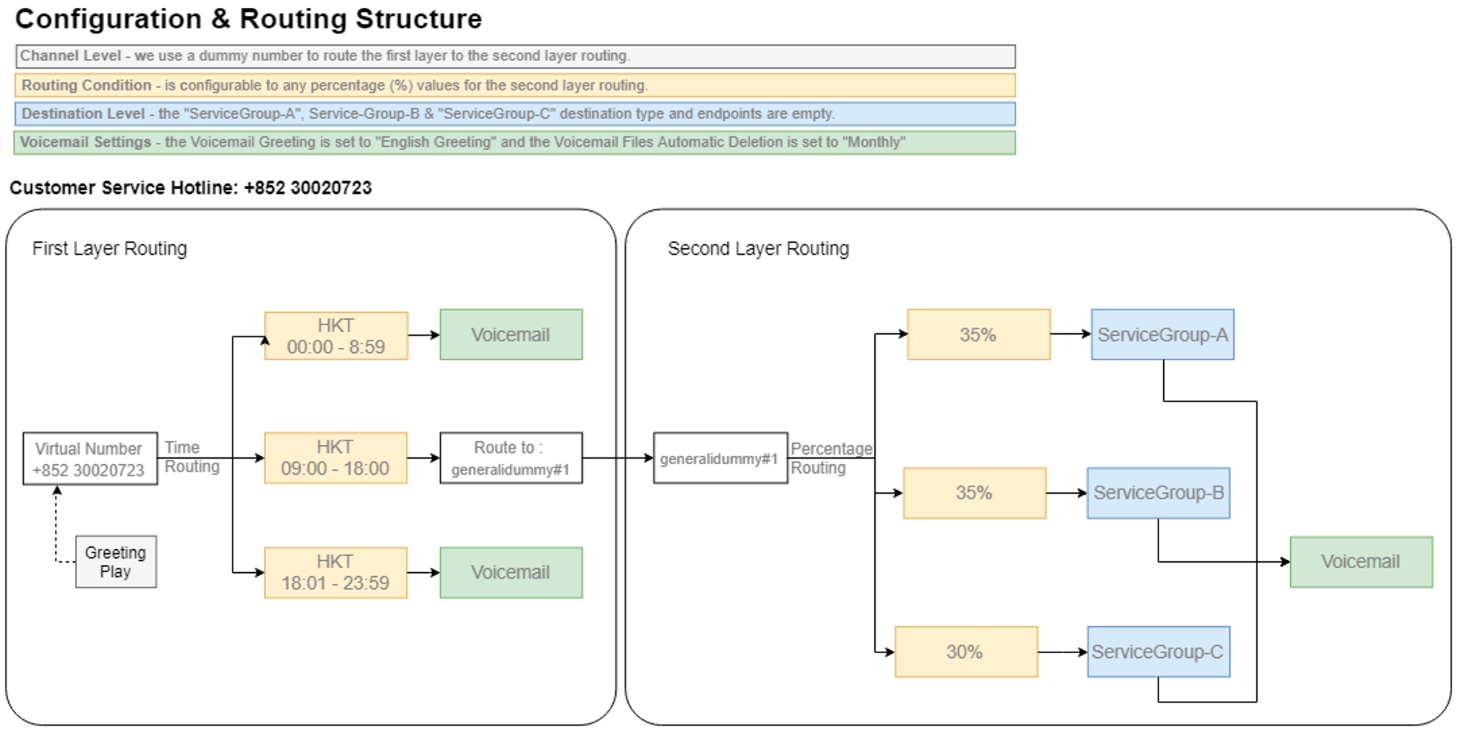
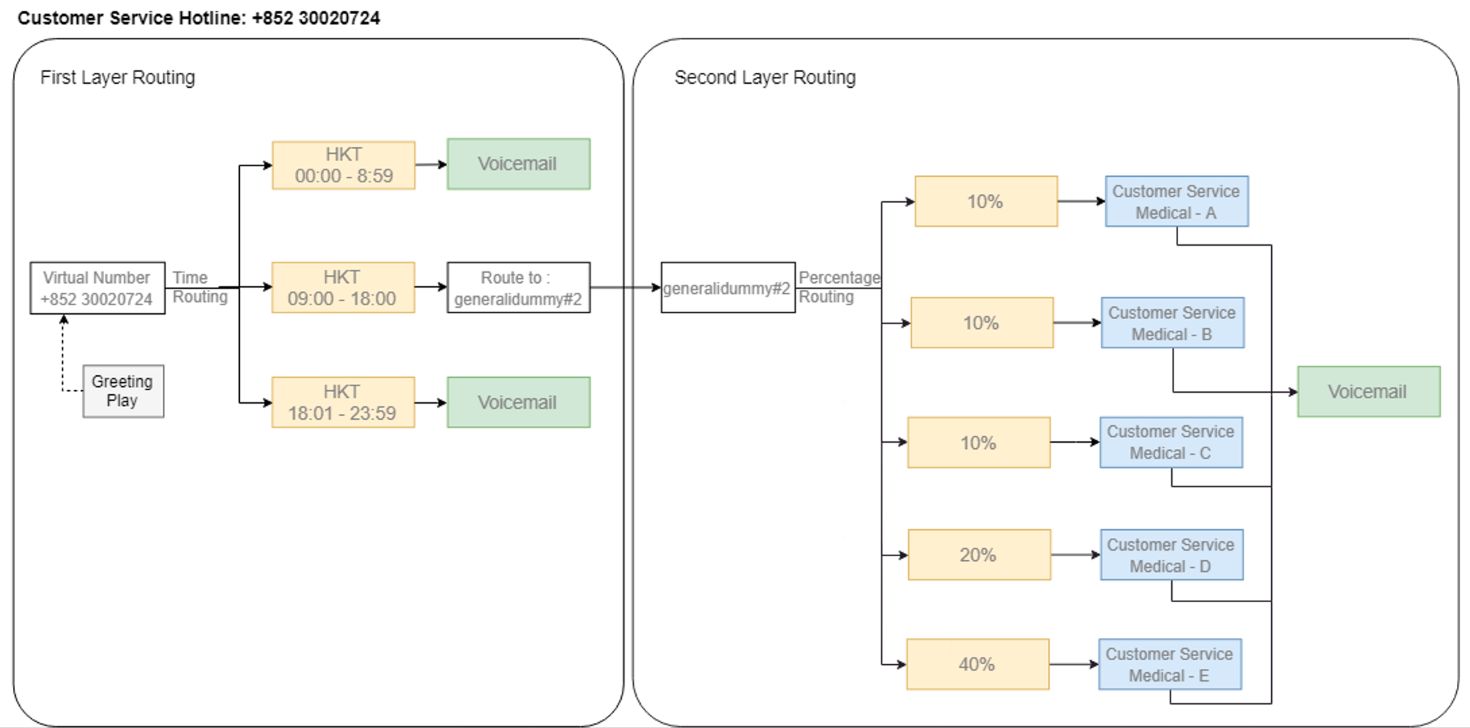
We set two (2) routing scenarios for the multilevel routing and performed the following steps.
For the 2 Virtual Numbers:
- 85230020723
- 85230020724
The configuration and routing structure looks like this:
Scenario #1
Scenarios #2
📘
When the customers call "85230020723 and 85230020724 ", the greeting plays, and the waiting time last 90 seconds until the staff agent answers the call.
The voicemail is enabled for the customers to leave a message when the staff agents are unavailable to attend their enquiry.
Destination Types and Endpoints
❗️
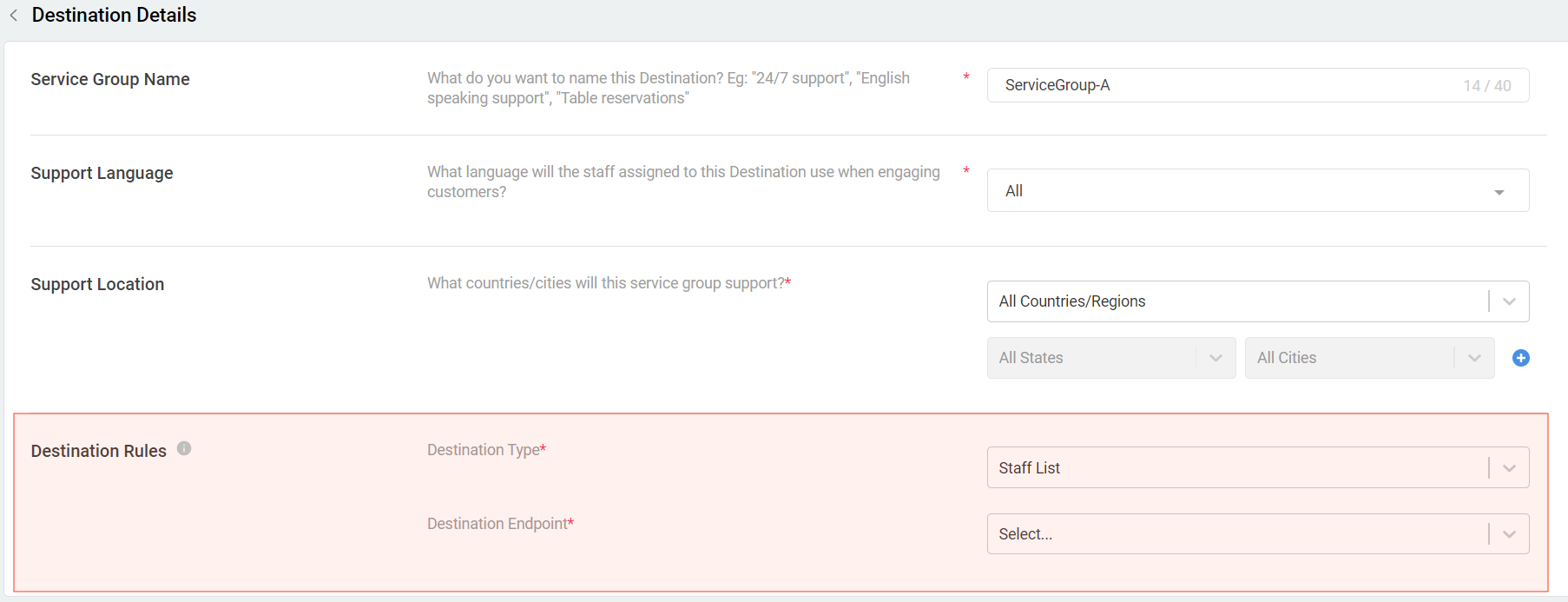
To complete the routing flow for 85230020723, you will need to add the Destination types and endpoints of your Destination ServiceGroup-A to ServiceGroup-C.
For 85230020724, you will need to add the Destination types and endpoints of Service Group - Customer Service Medical - A to Customer Service Medical - E.
- From the CINNOX Dashboard menu, go to Destination. The created destinations are listed alphabetically.
- Search for ServiceGroup-A Destination.
- Click Edit and add the Destination Rules (type and endpoint).
Please repeat steps 2 and 3 for ServiceGroup-B, ServiceGroup-C and Customer Service Medical - A to Customer Service Medical - E Destinations.
🚧
Service Groups created in your Destination are named MULTI LEVEL to Dummy#1 and MULTI LEVEL to DUMMY #2. Please do not delete these Destinations.

First Layer Routing
The first layer routing configuration is maintained in our backend to define this specific routing flow. Please contact your account manager if you wish to change the first layer routing settings for the Virtual Numbers 85230020723 and 85230020724.
Second Layer Routing
You can change the voicemail greeting, the file's automatic deletion settings, and the routing conditions and destination types and endpoints of the dummy number generalidummy#1 and generalidummy#2 as your second layer routing.
- From the CINNOX Dashboard menu, go to Channels > Numbers. The Virtual Numbers tab displays by default.
- From the list of Virtual Numbers, find and click the target dummy number (generalidummy#1 or generalidummy#2)
- Click Edit for the Routing Settings
Voicemail
- Voicemail Greeting: You can change the greeting by selecting an existing greeting or adding a new greeting by clicking "(+) Add new greeting" and uploading an MP3 file or using the Text-to-Speech powered by Google.
- Voicemail Files Automatic Deletion: You can automatically select how often you want to clean up your voicemail recordings. Options available are - every week, every two weeks, monthly (the default value) and quarterly.
🚧
Please do not disable Voicemail in the settings. If you need to do so, please contact your account manager.
Routing Rules
🚧
Please keep the Percentage Routing as for the Routing Rules for the Second Layer Routing.
- On the Every %, you can change the numeric value representing the percentage.
- You can change the Destination as you wish to set.
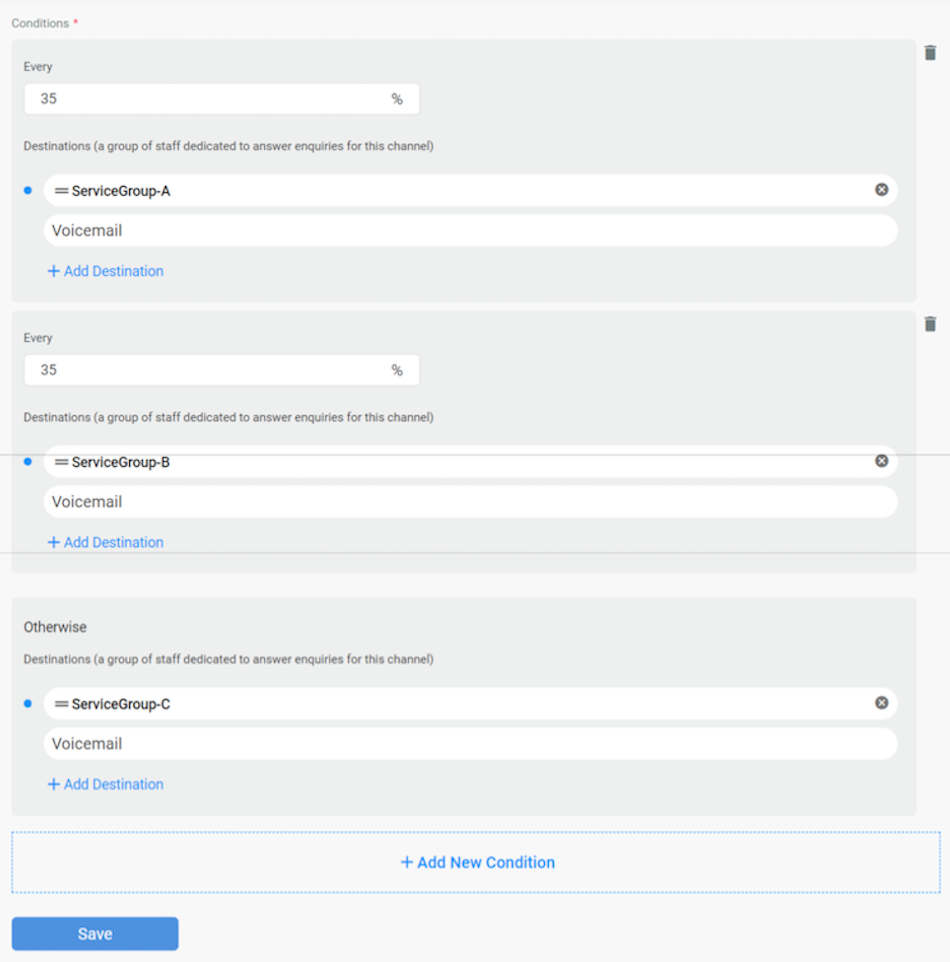
Example of Routing Rules % - Second Layer
Important Notice
🚧
Keep the routing conditions and destinations of the first layer routing as it is.
Do not disable Voicemail and keep the Percentage Routing rule as it is for the second layer routing.
Any edits or changes made will make the whole multilevel routing fail. Please contact your account manager if you wish to change any of the routing settings.The system automatically picks up the call right after the call has been established and the greeting plays. This means the call usage starts even before the agent picks up the call.