
My Account - Staff Profile
The My Account tab in the CINNOX App lets you configure and manage your personal information, device and app settings. It has the following sections:
- Profile
- Settings
- My Direct Link
- Help & Support
- Sign Out
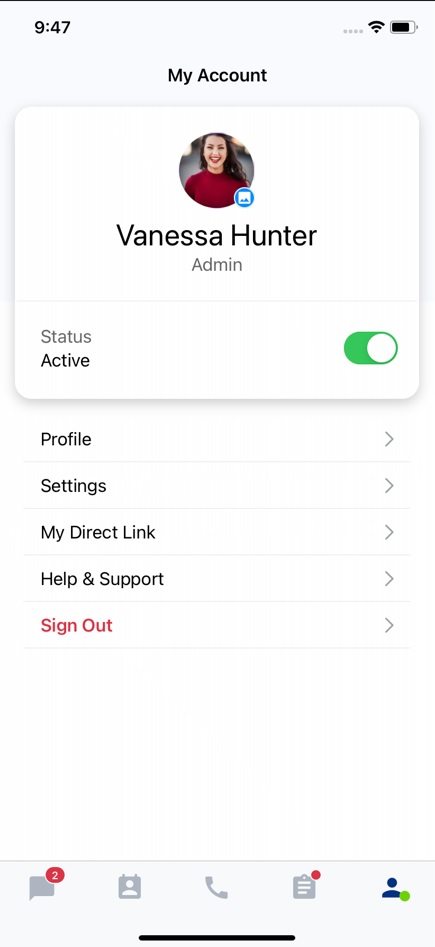
Profile Image (Avatar)
The profile image or avatar is your default display picture that will appear in all your interactions.
To change your profile image:
- Tap your current avatar. This will open your device's image library.
- On your image library, select a photo, then resize and reposition it to fit the image border.
- Tap Choose.
Status
To know more about setting your availability status in the CINNOX App, refer to this guide, Setting Up Your Availability Status.
Profile
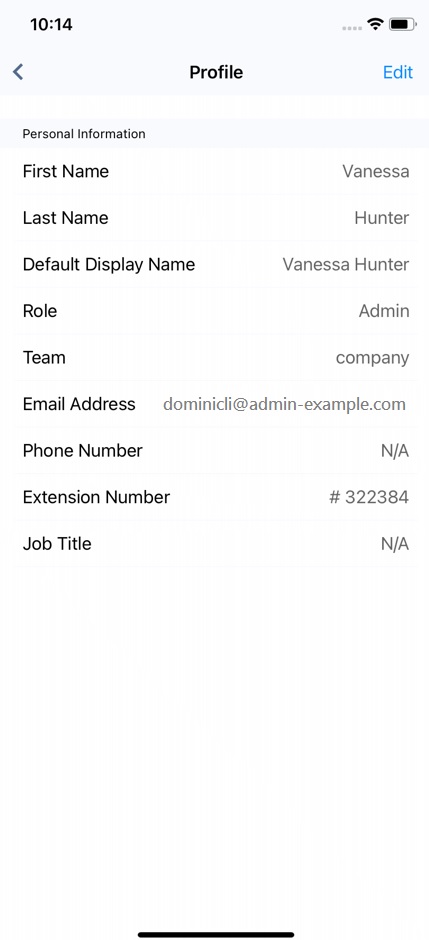
Tapping Profile displays the following details:
Personal Information
- First Name
- Last Name
- Default Display Name
- Role
- Team
- Email Address
- Phone Number
- Extension Number
- Job Title
Editing Personal Information
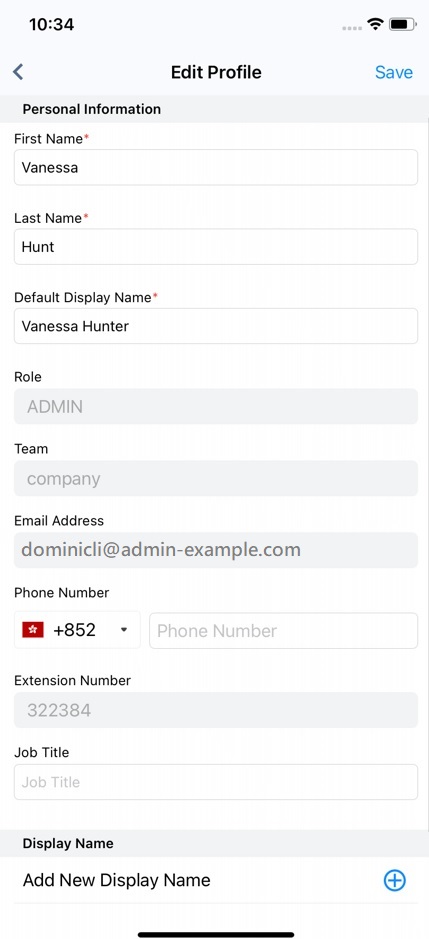
You can edit the following details in your Profile:
- Image (Avatar)
- First Name and Last Name
- Default Display Name
- Phone Number
- Job Title
To edit your details:
- Tap Edit at the screen's top right corner.
- Go through each field that you want to update.
- Tap Save.
Editing Display Name
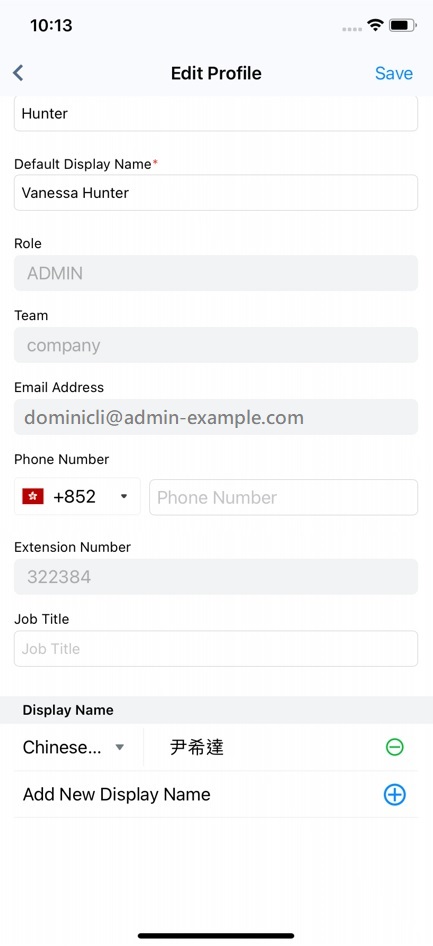
You can add and update your Display Name to your visitors and customers.
- Language selected.
- Display the name for each selected Language.
Settings
Tapping Settings will display the following details.
Settings
Number Settings
- Use Service Numbers as the Caller ID of your Staff members.
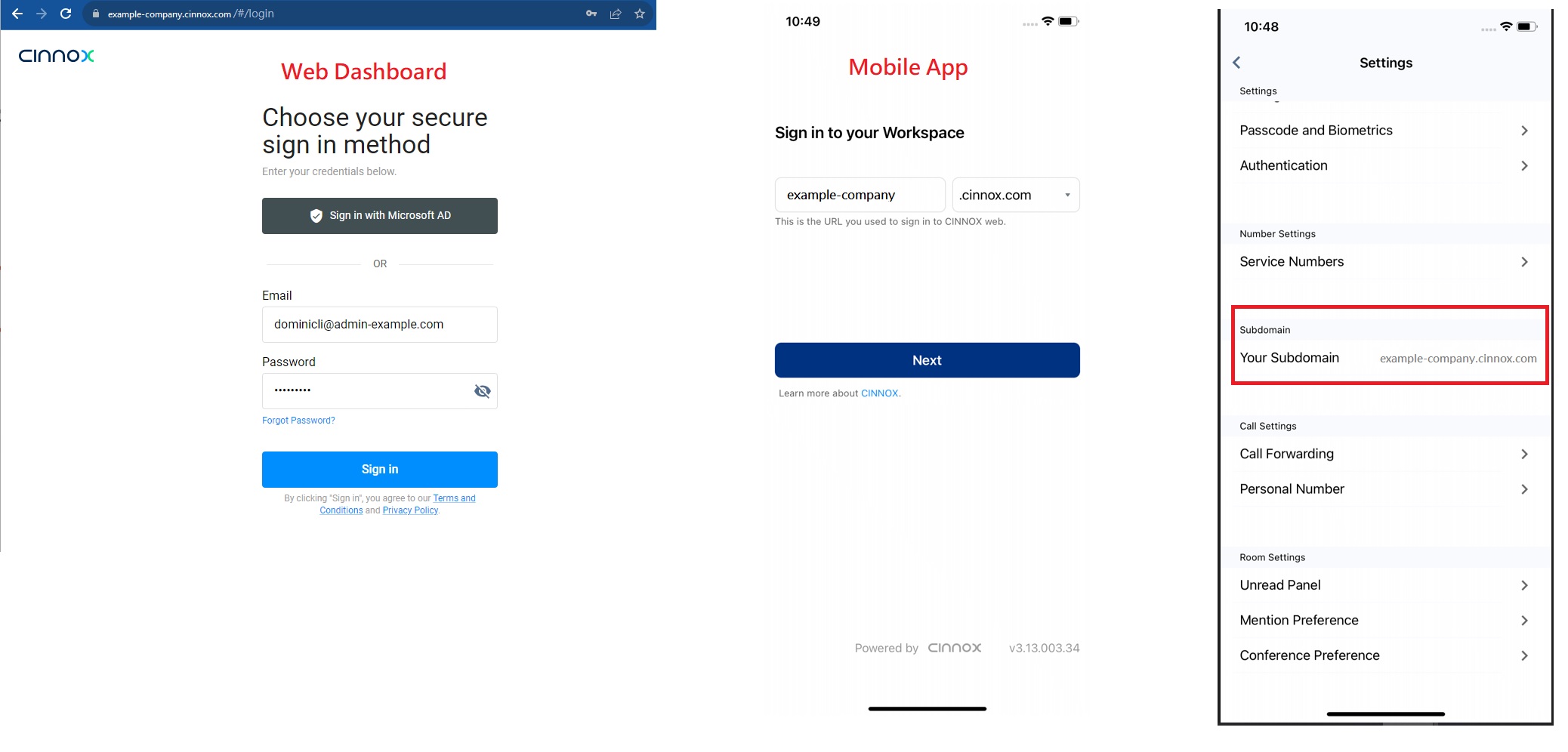
Subdomain
A subdomain is the URL portion before the "main" domain name.
In CINNOX, it is the login instance or URL of your CINNOX service.
- Your Subdomain: e.g., example-company, typically the Subdomain is the name of a corporate company.
- Domain Name: cinnox.com or cinnox.cn
To find your Subdomain in your CINNOX App, navigate to My Account > Settings.
Calling Settings
- Call Forwarding
- Personal Number as your Personal Caller ID
Room Settings
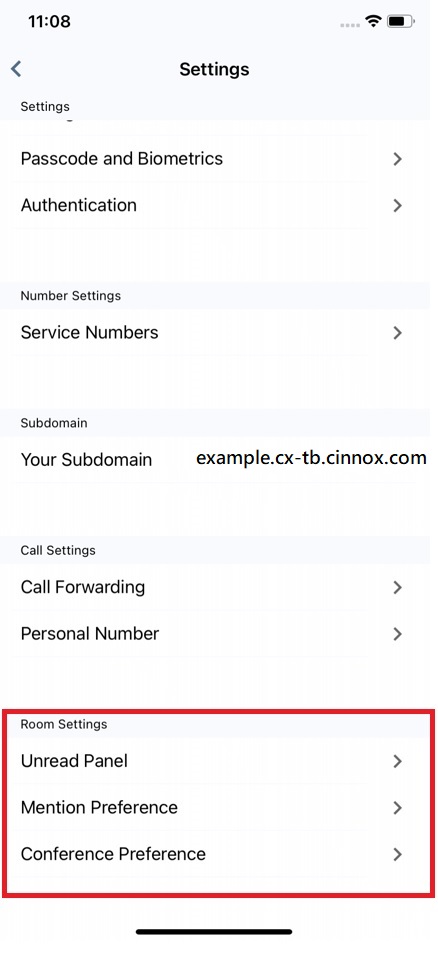
Language
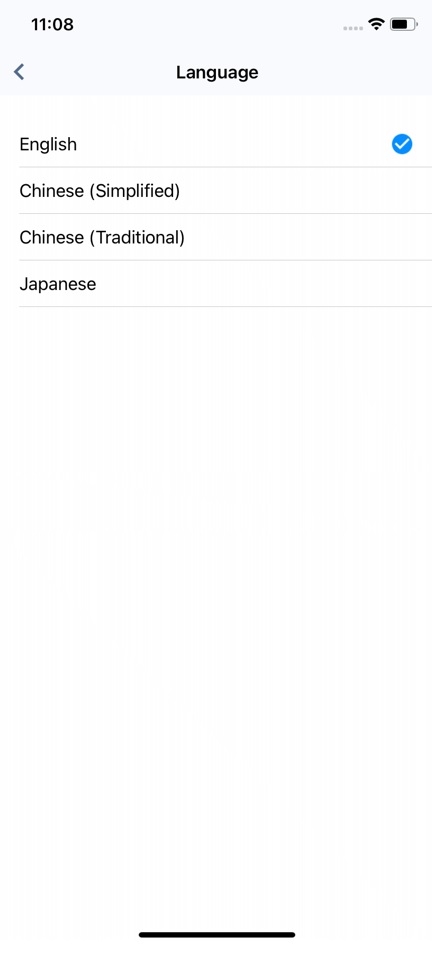
To change the display language:
- On the Settings screen, tap Language.
- Choose and tap any of the following supported languages:
- English
- Chinese (Simplified)
- Chinese (Traditional)
- Japanese
Tapping the selected language will immediately change the display language of your CINNOX App and Dashboard.
Timezone
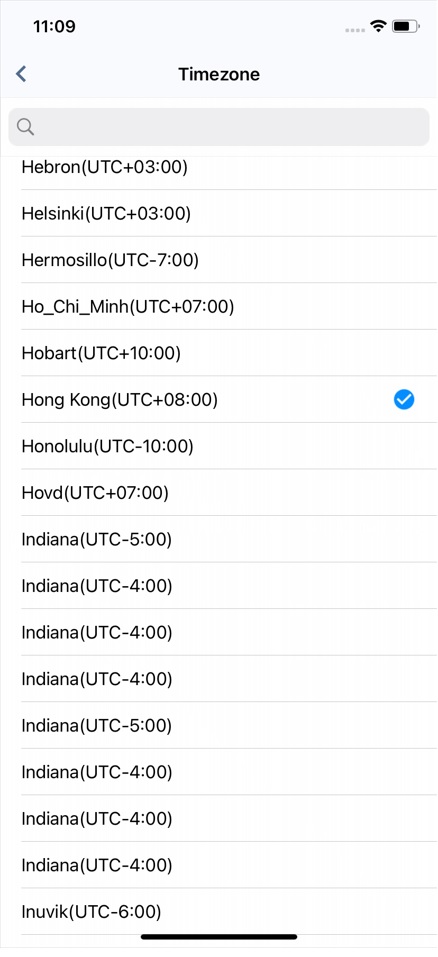
To change the Timezone:
- On the Settings screen, tap Timezone.
- On the Timezone list that will appear, choose and tap your preferred Timezone. This will immediately change the Timezone of your CINNOX App and Dashboard.
My Direct Link (.com and .cn Web link)
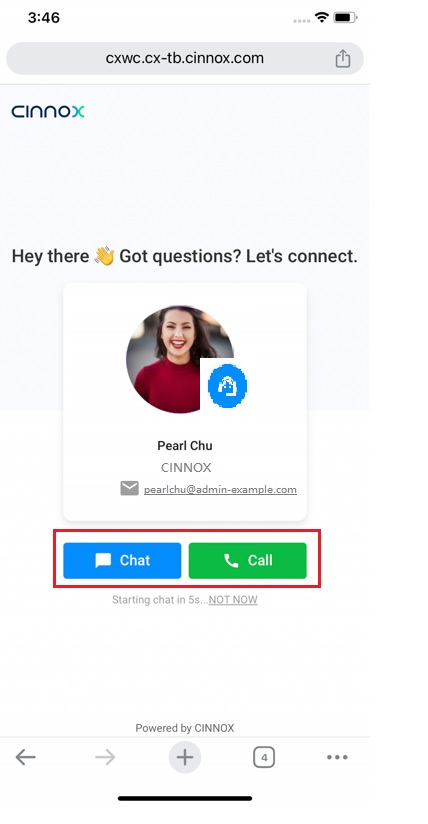
Let your customers find you directly with your Web Link, answer their chat or call enquiries when they open your web link to reach out to you.
Web Link displays your web links for enquiries.
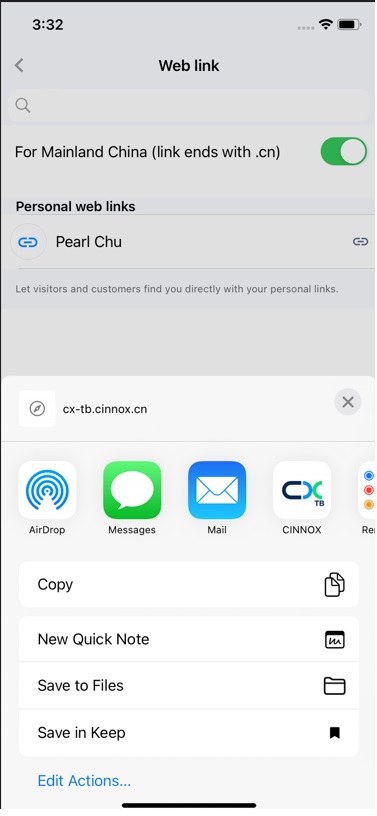
You can copy the web links to share them with your visitors and contacts as personal call and chat IDs that they can use to reach out to you.
Web link with .com
By default, your staff web link is with .com, which is best for visitors, customers and other contacts outside Mainland China.
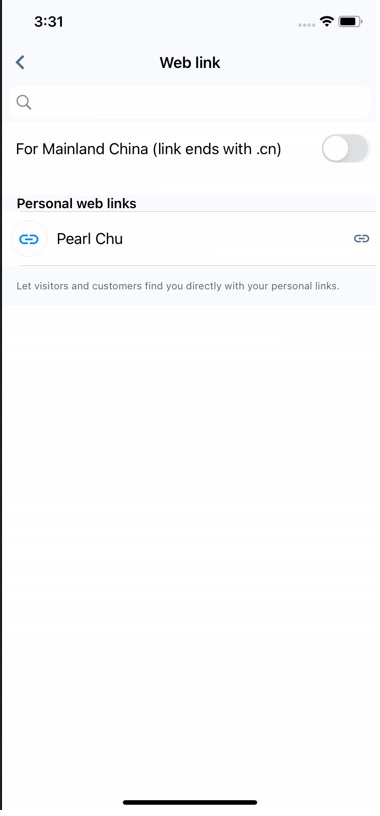
Web link with .cn
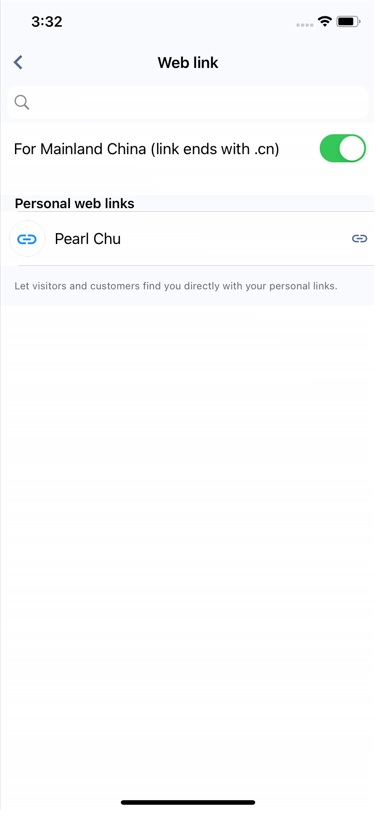
Your staff web link with .cn is best for visitors, customers and other contacts inside Mainland China.
- Toggle on the For Mainland China (link ends with .cn) button to change the weblink to .cn.
- On the pop-up window that will appear, choose the third-party messaging app you wish to share the web link with.
- After opening the web link, visitors can select Chat or Call to interact with agents for enquiries.
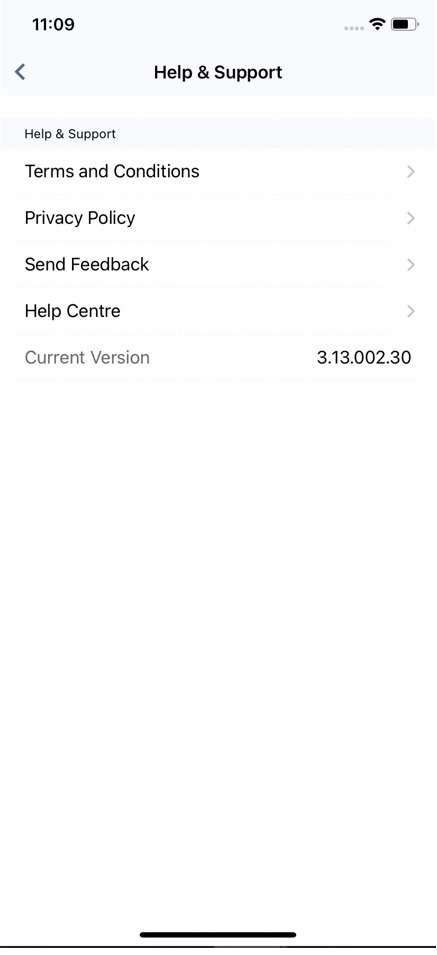
Help & Support
Tapping Help & Support will lead you to the following links, documents, and forms:
Sign Out
How to sign out in the CINNOX Mobile app? Refer to the App Sign Out section of this Guide.