
Labelling an Enquiry
Labels help you and your team organise and categorise your visitors and customers' enquiries in CINNOX.
Staff may recheck or refer to an enquiry while attending their current enquiry and see how many enquiries have the same topic, category, group or level. So, the enquiries can be listed with a label name for future reference. Staff can label or remove the label of enquiries when attending an enquiry in the Workspace or label and unlabel them on the Enquiry Overview page.
How to label an Enquiry?
Workspace - Enquiry chat room
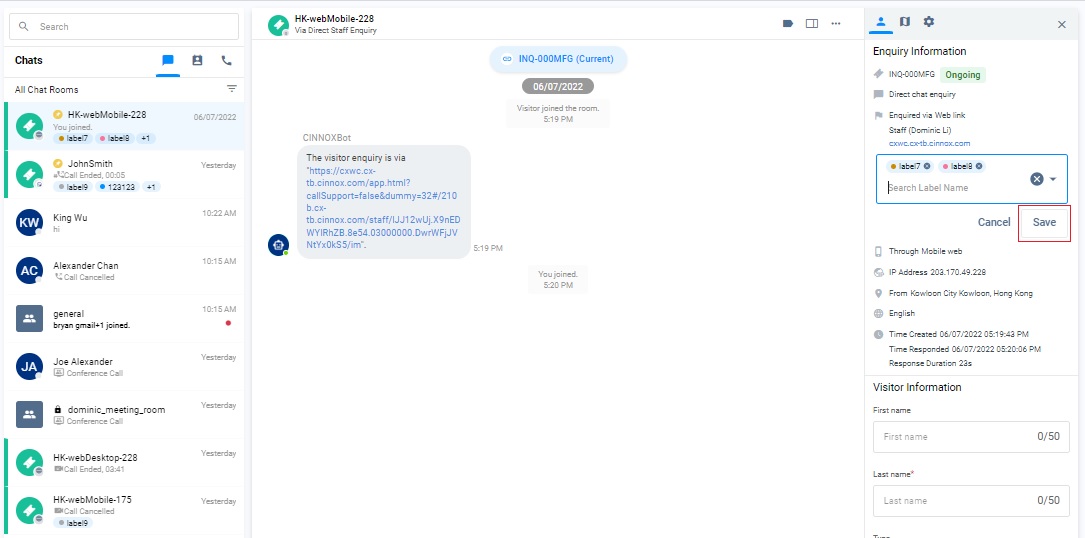
- Navigate to Workspace, then click on the chatroom where you will label the enquiry.
- Click on the Label icon at the top-right of the Chat Panel, and the Enquiry Information panel will open.
- Search and select the required label, then click the Save button.
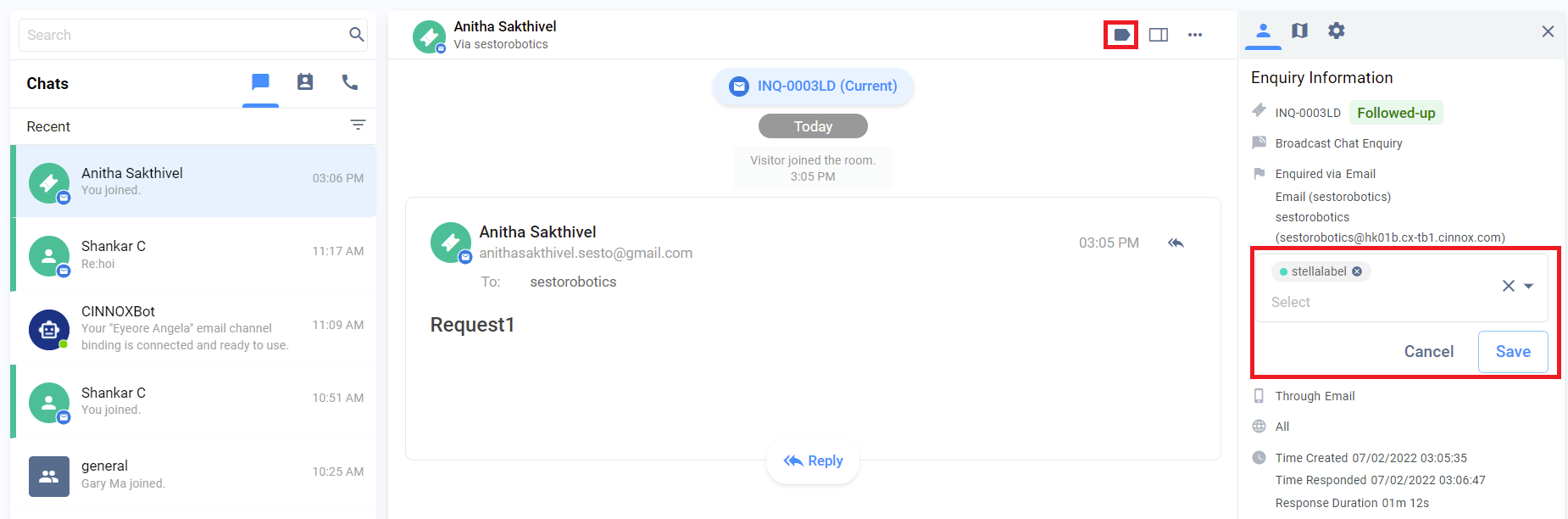
Label the enquiry - Workspace
👍
AI Suggested Label helps you minimise repeated tasks and enhance visitor experience during the labelling process. Please refer to the Using AI Suggested Label and Topic page for more details.
Enquiry Overview
Staff can label the enquiry on the Enquiry Overview page. Enquiries can be labelled with any status, such as Handling, Missed and Closed Enquiries.
- Navigate to the Enquiries Overview.
- Click and open the enquiry to be labelled.
- Select the required label (s) in the Enquiry Information Panel and click the Save button.
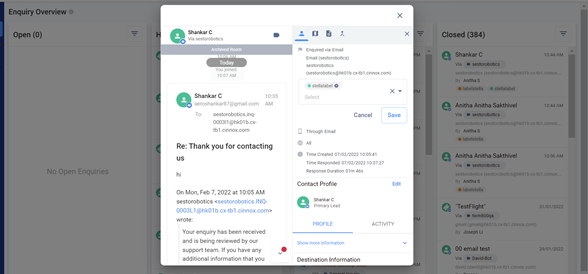
Label the enquiry - Enquiry Overview
How to Filter Enquiries Using a Label?
Filtering of enquiries using Labels will narrow down your search related to a specific type of enquiry. You can filter one or more labels from the enquiry. Enquiries without Labels can be filtered using the Label name Blank.
Enquiry Overview
- Navigate to the Enquiry Overview.
- Click on the Filter icon. Select the label condition and then the label from the drop-down list in the filter.
- Click on the Apply button.
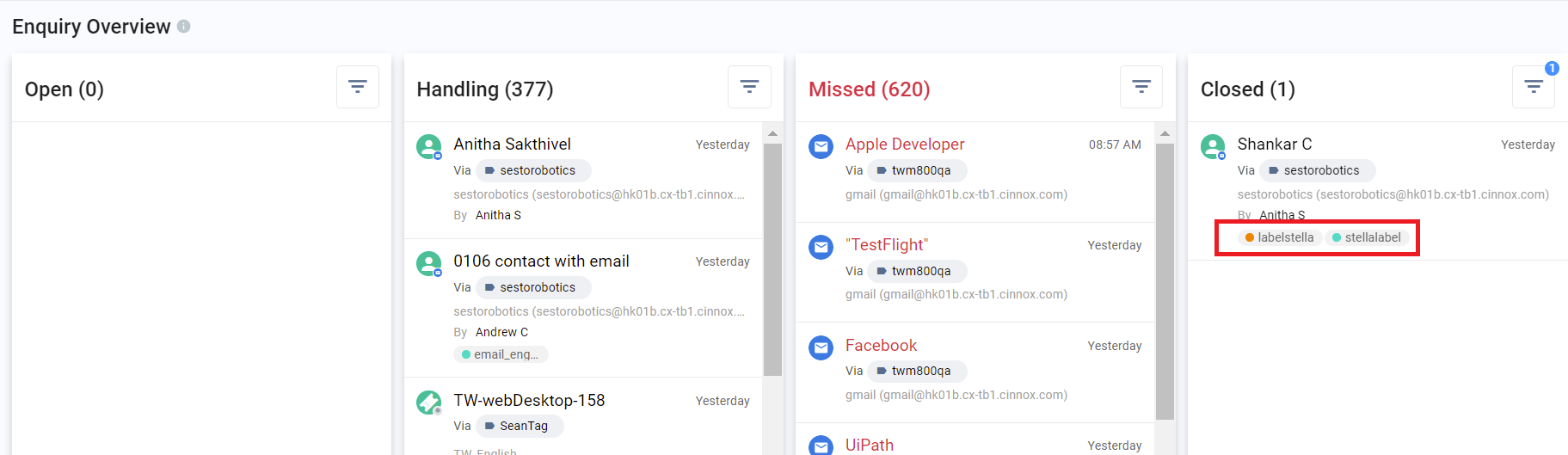
Filter - Enquiries
Enquiry Report Details
- Navigate to the Enquiry Report.
- Click on the Filter icon. Select the label condition and then the label from the drop-down list in the filter.
- Click on the Apply button.
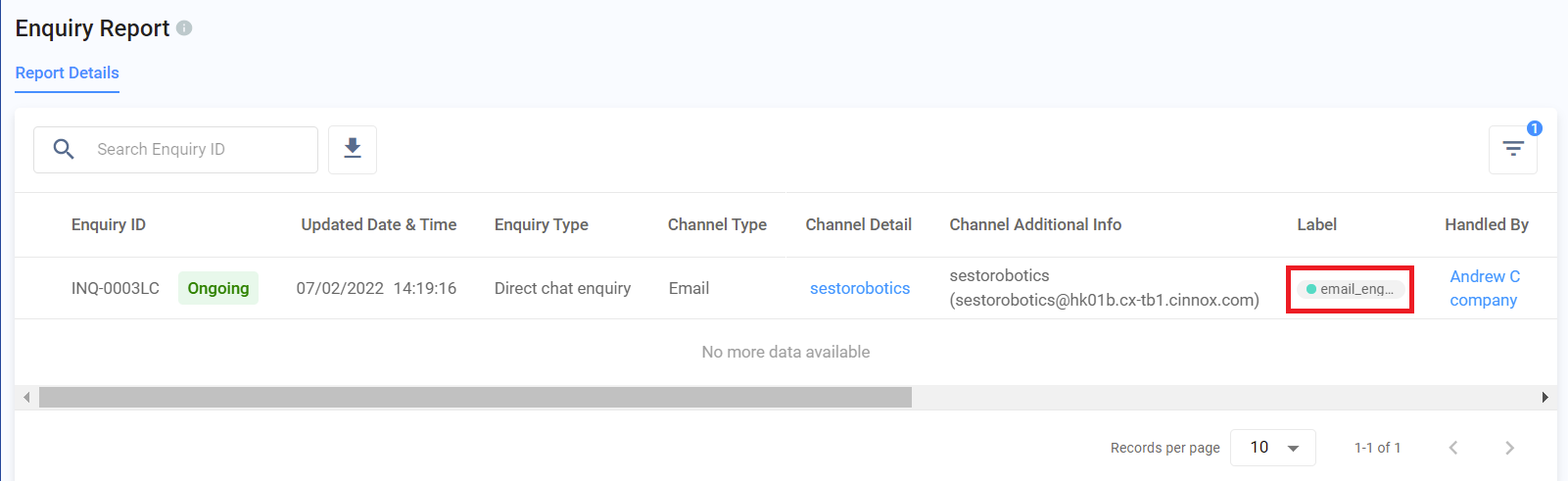
Filter - Enquiry Report
How to Remove Label from Enquiries?
Workspace - Enquiry chat room
To remove the label of an enquiry:
- Navigate to Workspace.
- Click on the chatroom where you will need unlabeled the enquiry.
- Click on the Label icon at the top-right of the Chat Panel, and the Enquiry Information panel will open.
- Select the required label and click the Cross (X) icon beside the label.
- Click on Save.
Enquiry Overview
Staff can remove the label of an enquiry on the Enquiry Overview page. Removing labels to an enquiry is available for Ongoing, Followed-Up (Handling), Missed and Closed Enquiries.
- Navigate to the Enquiries Overview.
- Click and open the enquiry to remove the label.
- Click on the + Label icon.
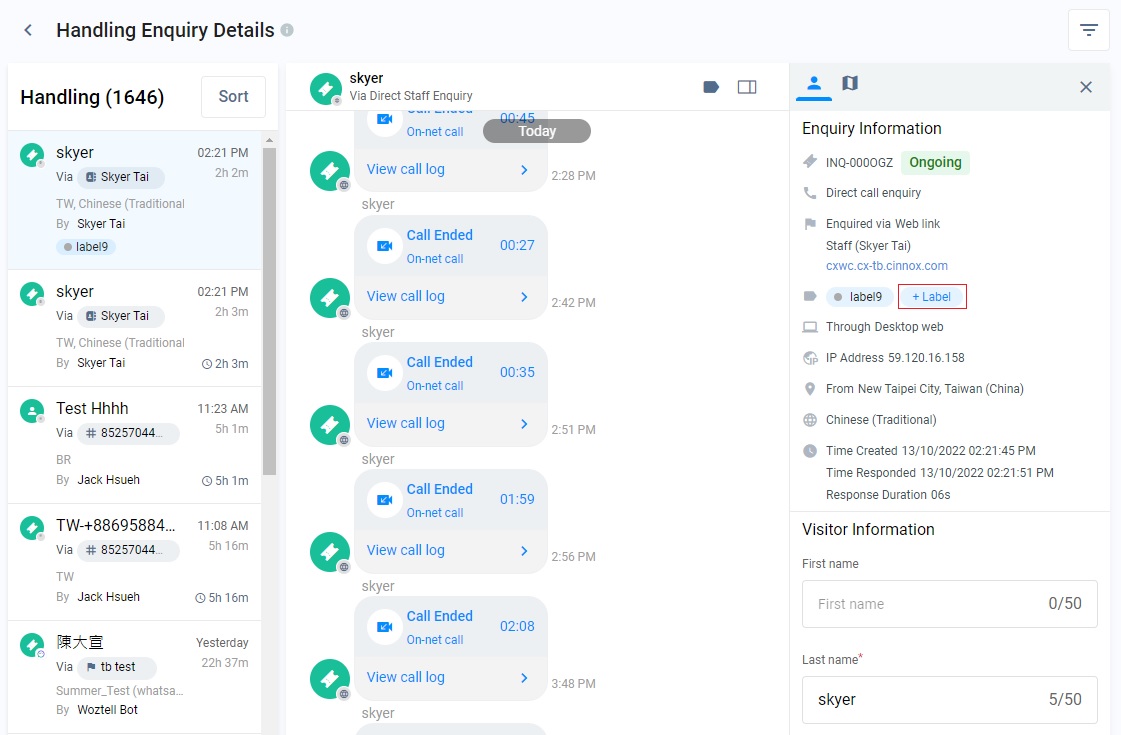
- Select the required label and click the Cross (X) icon beside the label.
- Click on Save.
Tips
📘
- You can also view the enquiries' labels for the saved contacts in the External Contacts > Activity Tab > Enquiry History.
- You can select more than one label during a search.
- When you use the filter,
- Condition "Matches exact label" from the drop-down list filters enquiries with all the selected labels.
- Condition " Matches all labels" from the drop-down list filters all enquiries with any chosen labels.
- The label "Blank" in the drop-down list filters the enquiries with no labels.