
Scheduling Conference Call
CINNOX Scheduled Conference lets you arrange a call in advance by setting the conference topic, start date and time, end date and time, adding the conference description and inviting participants to the conference with the calendar integration. After scheduling the conference, you can edit the conference details, immediately start the scheduled conference ahead of schedule and cancel the conference for your need.
Schedule a Conference
To schedule a conference:
- Log in to your CINNOX Mobile App account. Navigate to the Utility tab.
- First Option: Tap the + icon at the screen's top right.
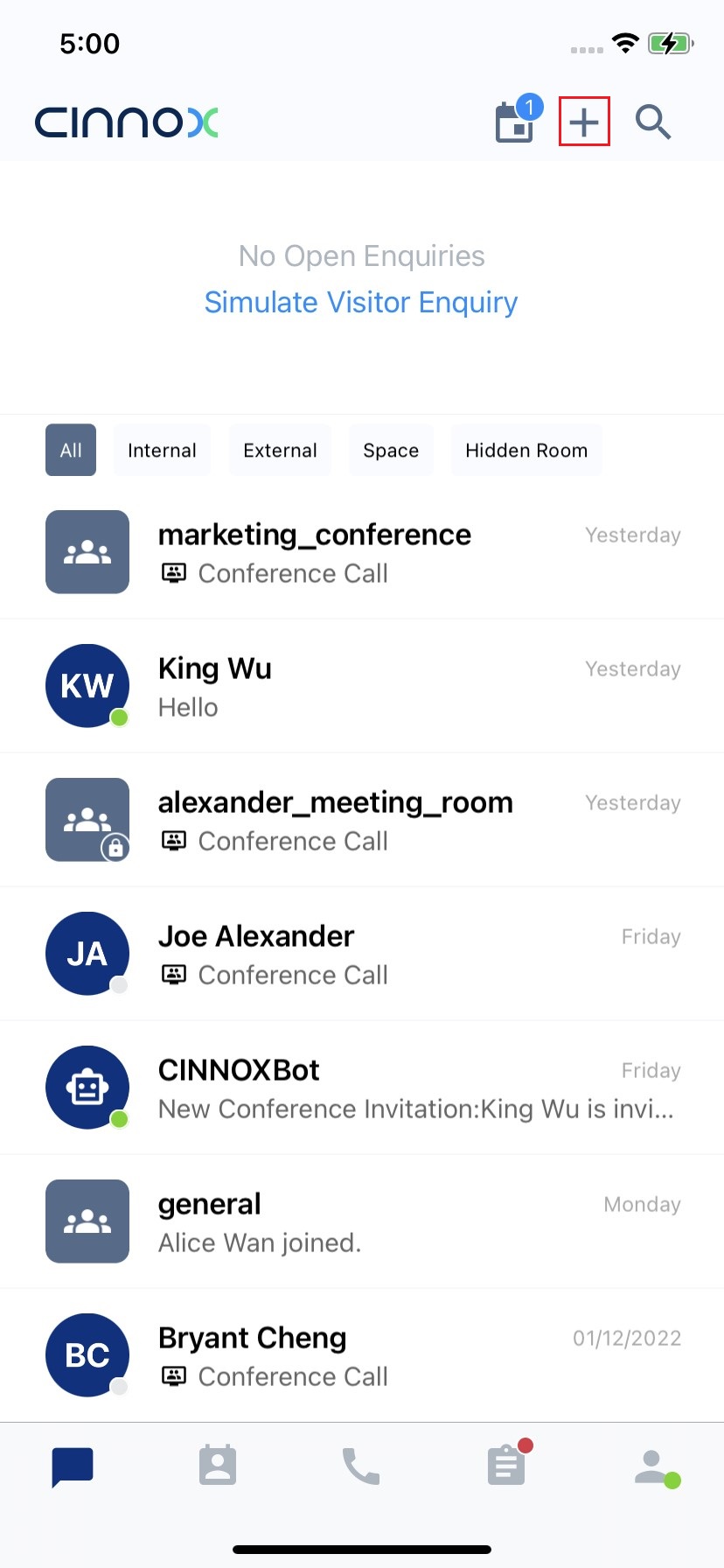
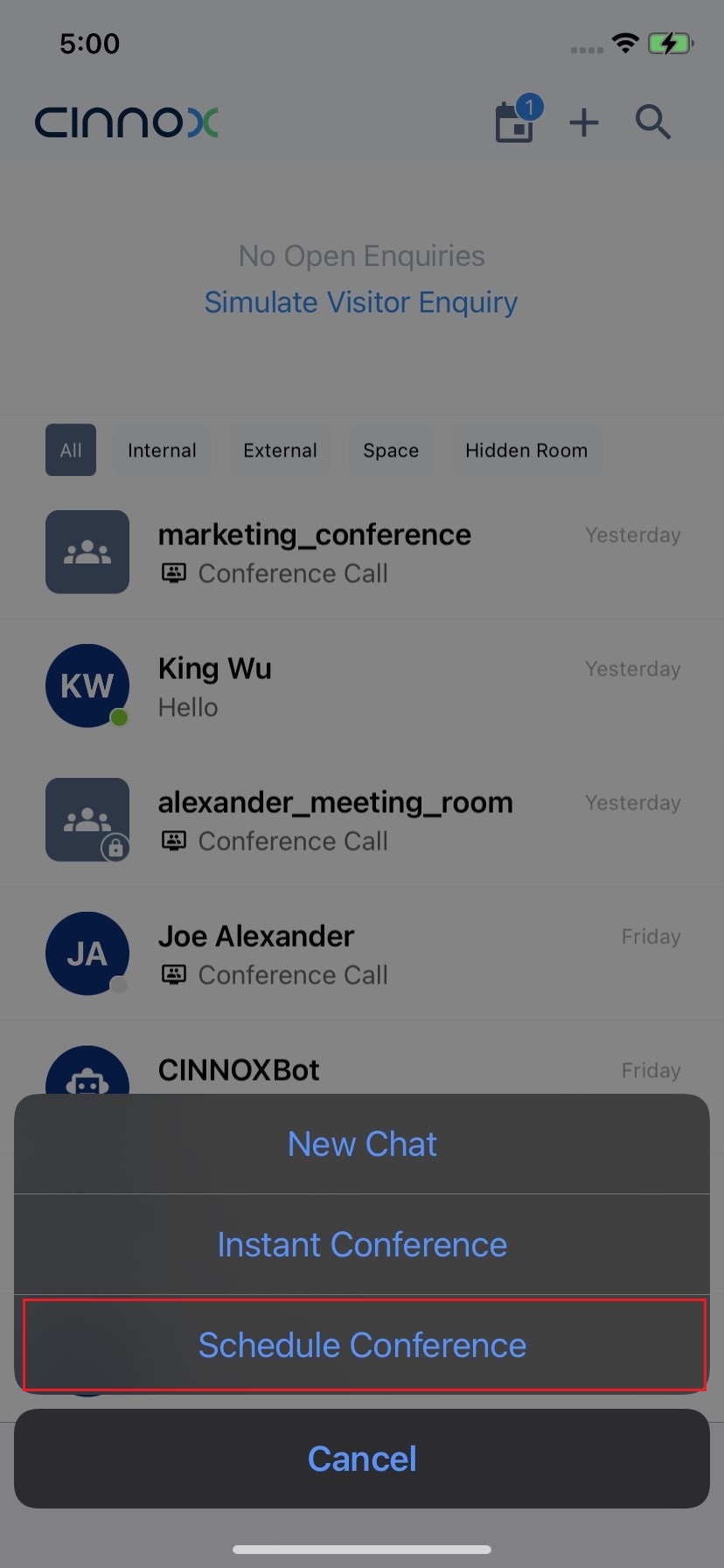
- Select Schedule Conference.
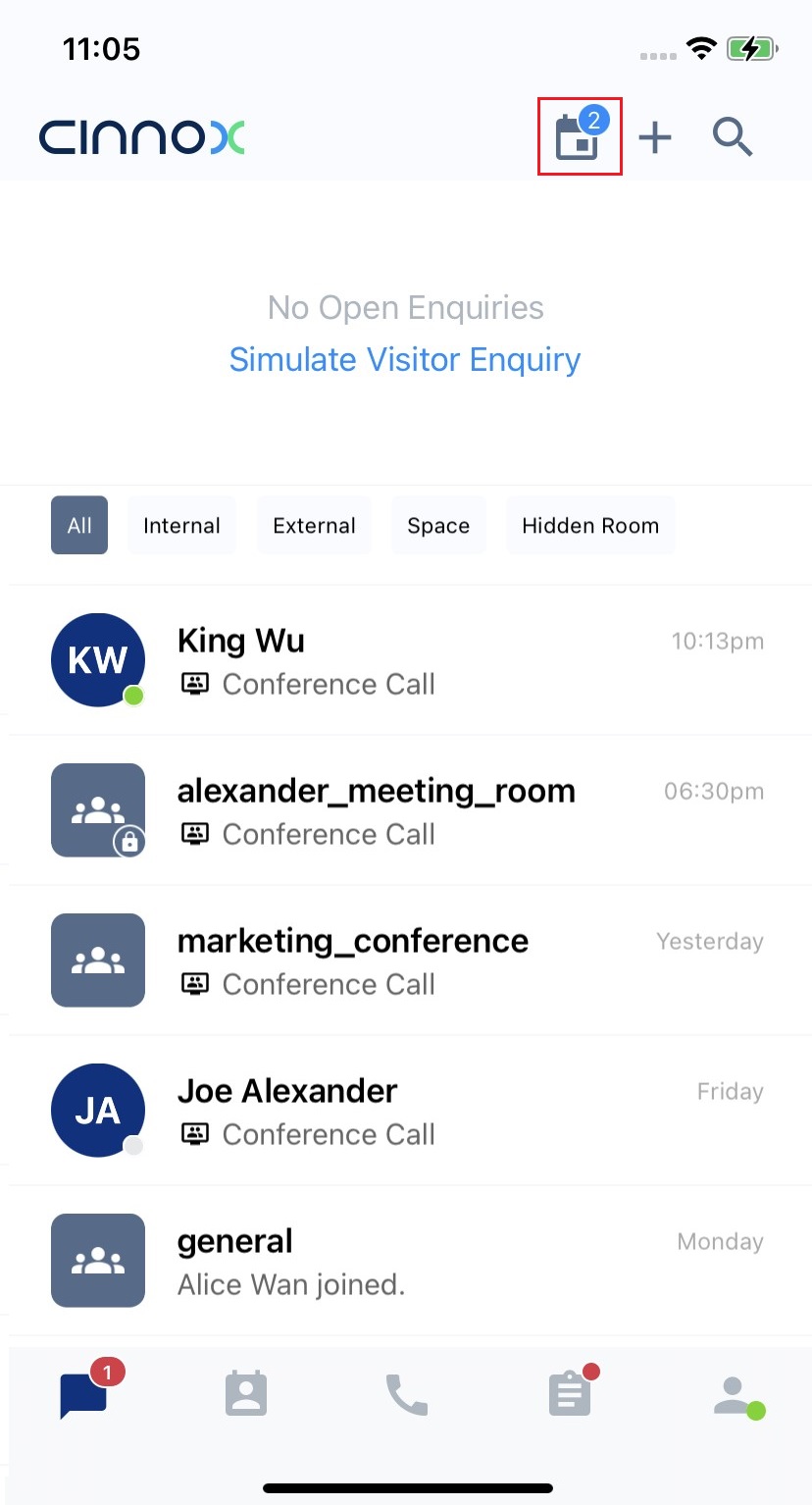
- Second Option: Tap the Scheduled Conference icon at the screen's top right.
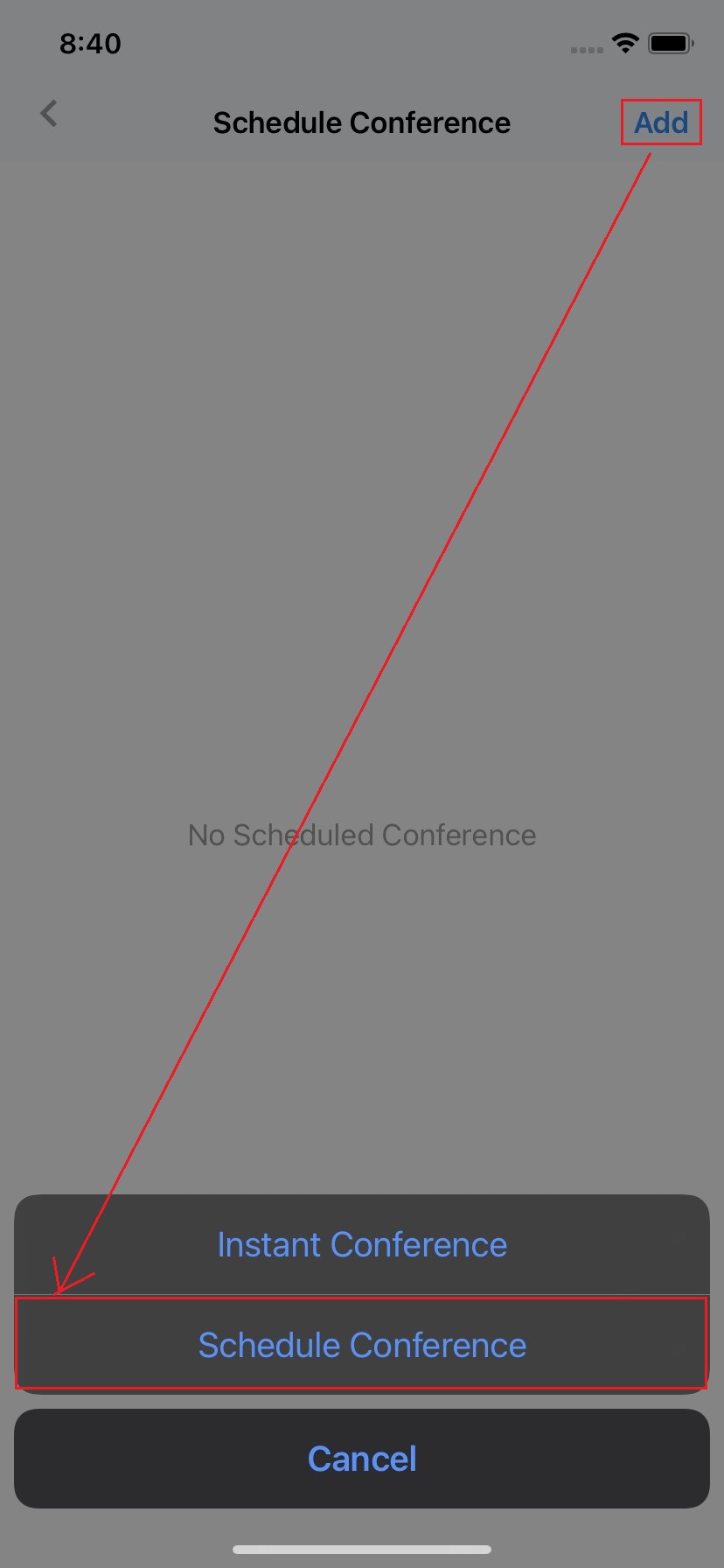
- Tap Add and select Schedule Conference .
In the Recent Chat Room
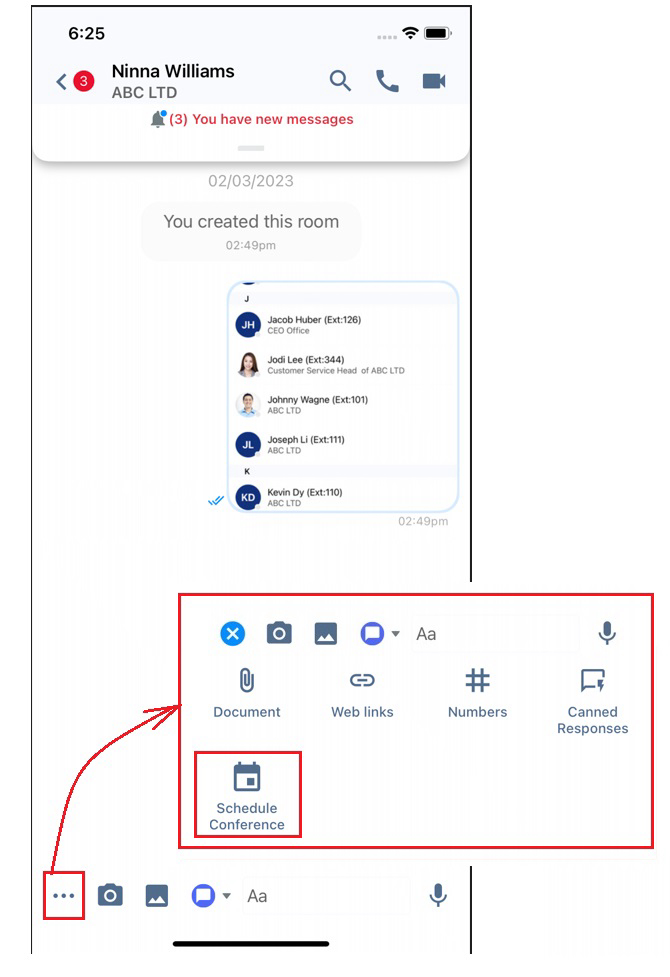
Third Option: In your Recent Chat Room
- Enquiry chat room with your visitor
- 1-1 chat room with your colleague
- Private or public group spaces with your team
Tap the 3-dot menu ... besides the input bar, then select Schedule Conference.
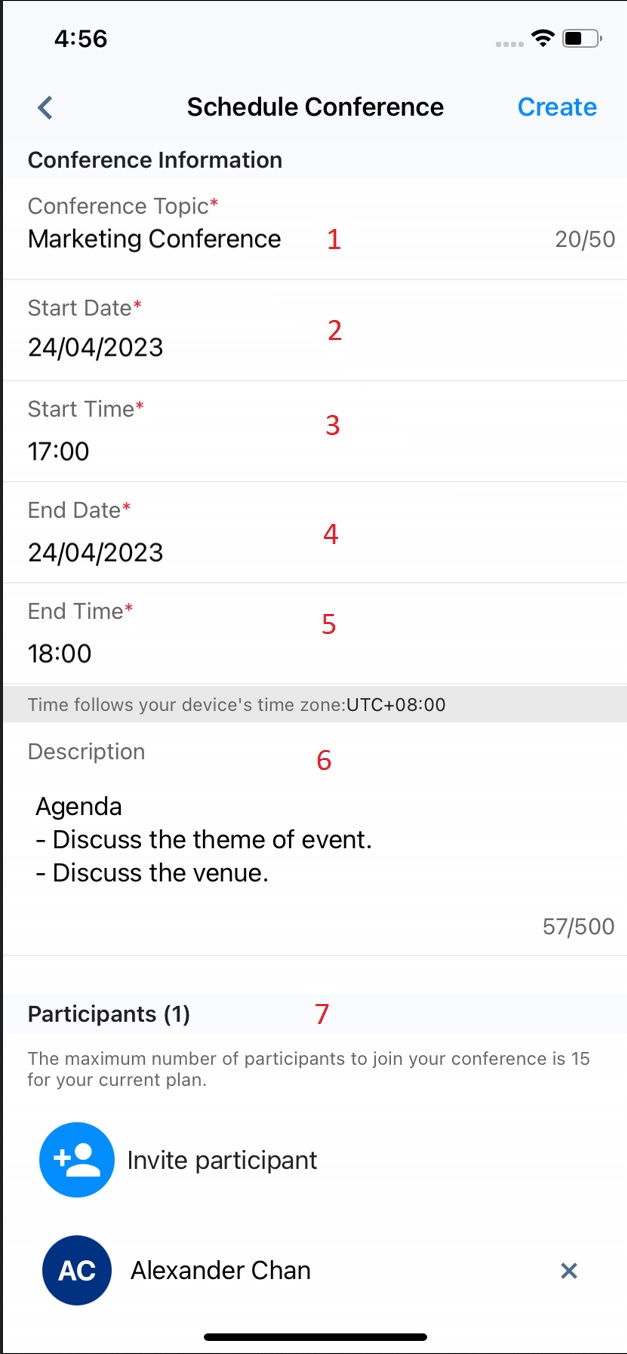
The Schedule Conference Details will appear.
| # | Item Name | Description |
|---|---|---|
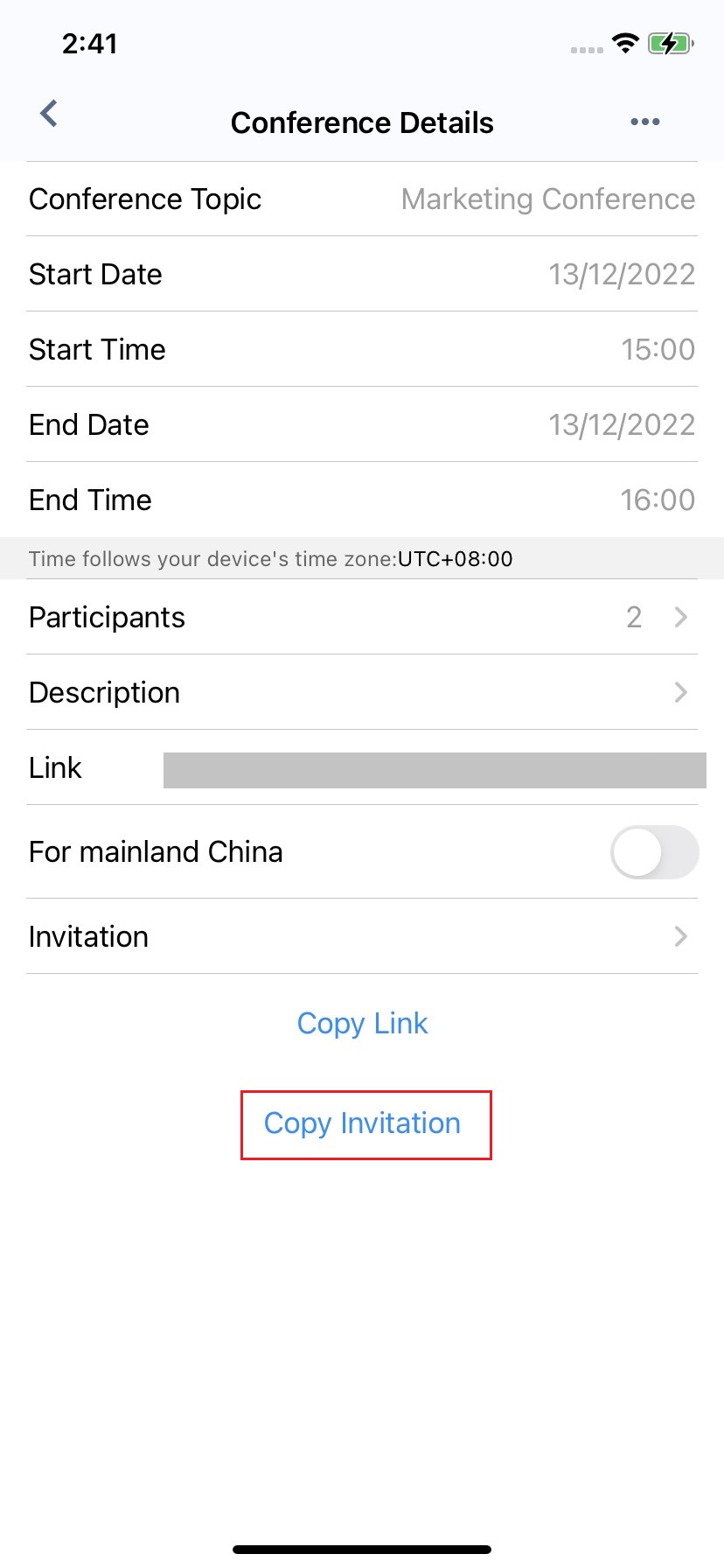
| 1 | Conference Topic | Add the topic of your call. It is up to 50 chars. The default topic includes your (Staff Name) and the CINNOX conference. E.g., Marketing Conference |
| 2 | Start Date | The Start Date of the conference. The pre-set Start Date is the current date. |
| 3 | Start Time | The Start Time of the conference, The pre-set Start Time is the next o'clock of the current time. E.g., When you set the Start Time at 10:15, the pre-set Start Time will be 11:00 of the current date. |
| 4 | End Date | The End Date of the conference. The pre-set End Date is the current date. |
| 5 | End Time | The End Time of the conference. The pre-set End Time is pre-set 1 hour after the Start Time of the current date. E.g., When the pre-set Start Time is 10:00, the pre-set End Time will be 11:00 of the current date. |
| 6 | Description | Add the agenda of your meeting,but optional. It s up to 500 chars. |
| 7 | Participants | Search to add your colleagues as your participants. The maximum no. of participants to join your conference depends on your current plan. |
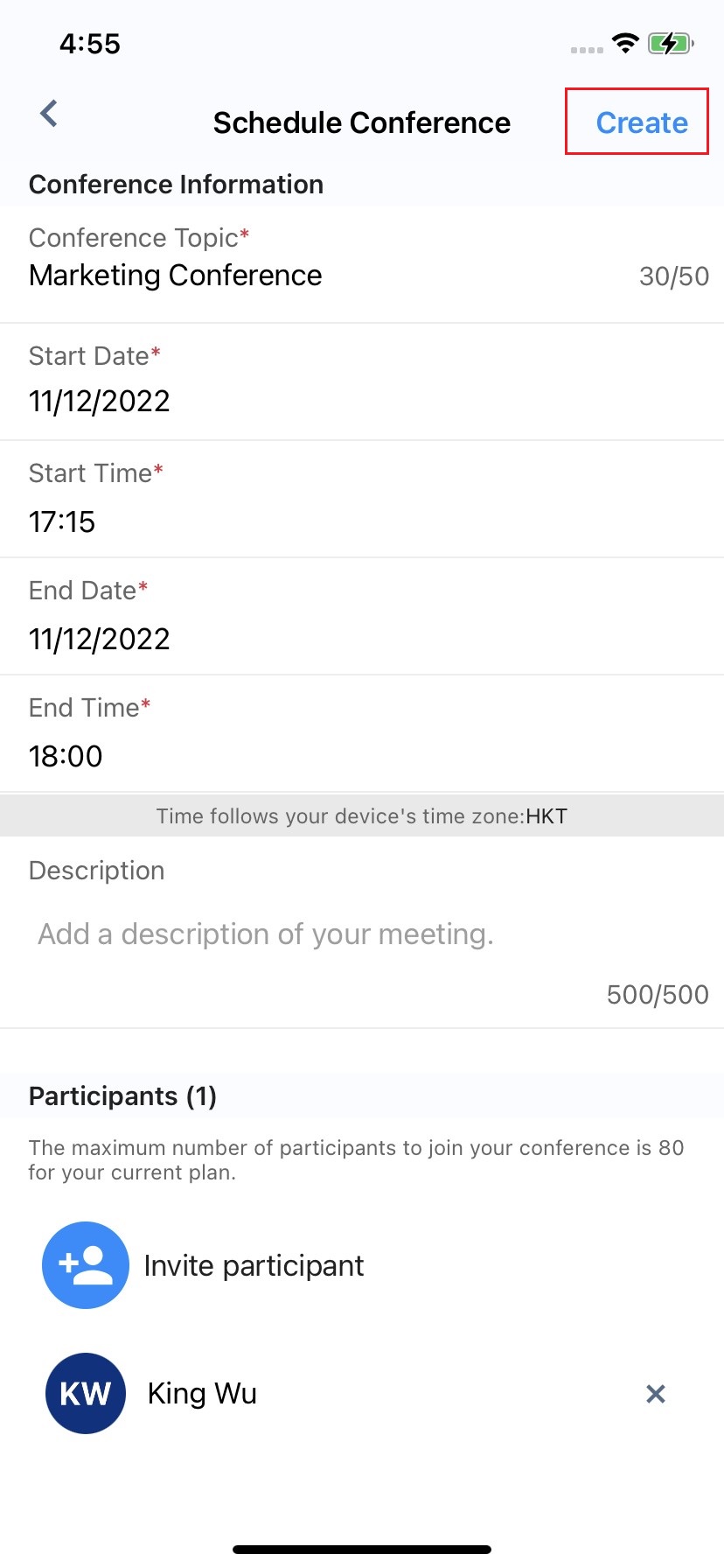
- If your Schedule Conference details are all set, tap Create.
📘
IMPORTANT
- The maximum number of participants to join your scheduled conference depends on your service plan. Please contact your account manager if you need to increase your participant numbers.
- The order of the scheduled conference details is based on the created date and time of the scheduled conference.
- When you edit the scheduled call details, e.g., the Start and End Date and Time in CINNOX, please ensure you edit your Calendar and resend it to your participants. Otherwise, when you edit the call details in your Calendar, please also ensure you edit the call details in CINNOX.
- Like any other App, it does not have Update and Delete Sync to the Calendar after the scheduled call has been created.
- When a scheduled call has been cancelled or ended, a participant tries to join; there will be a toast message Sorry. The scheduled conference does not exist. Please get in touch with the host. appearing in the Workspace.
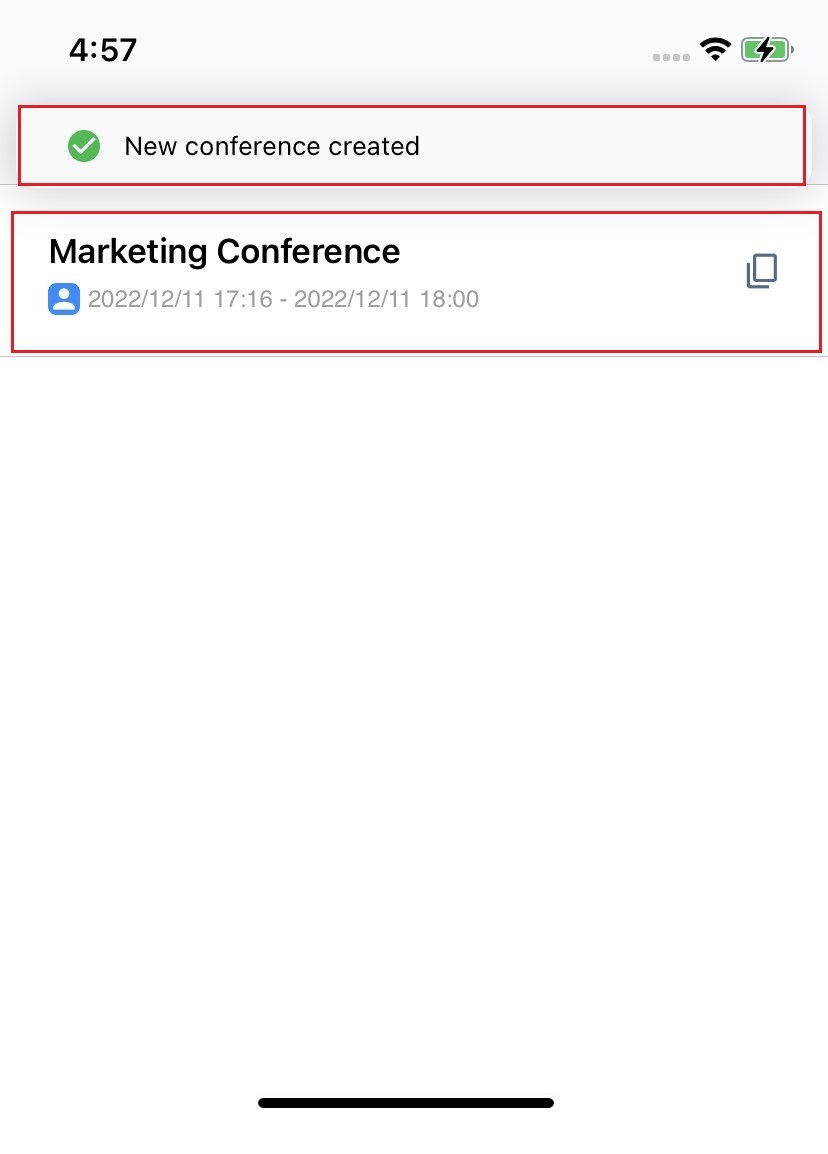
- The scheduled conference is, and a toast message New conference created will be displayed.
📘
Next, CINNOX will find the installed Calendar on your device, find the default, and open it to create a new event with your scheduled conference details.
With Calendar
- Ensure you allow CINNOX to access your Device's Calendar.
- If more than one Calendar has been installed for Android devices, select one calendar app, like Google Calendar or Outlook Calendar, to which you want to create your new event.
- CINNOX will create a new event for your Calendar. You can modify the event details if needed.
- Tap Add located at the top right corner.
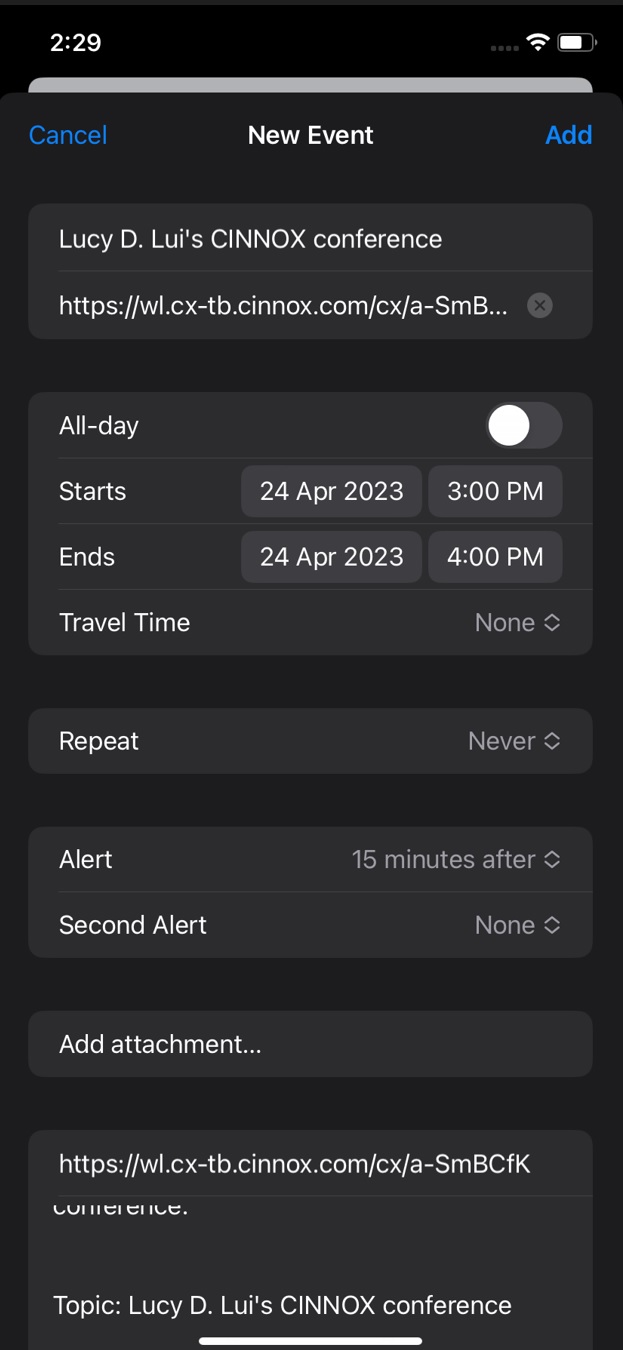
The event details of your scheduled conference are successfully added to your default calendar.
- The scheduled conference participants will receive a system message that they are invited to the scheduled conference once the conference is successfully scheduled.
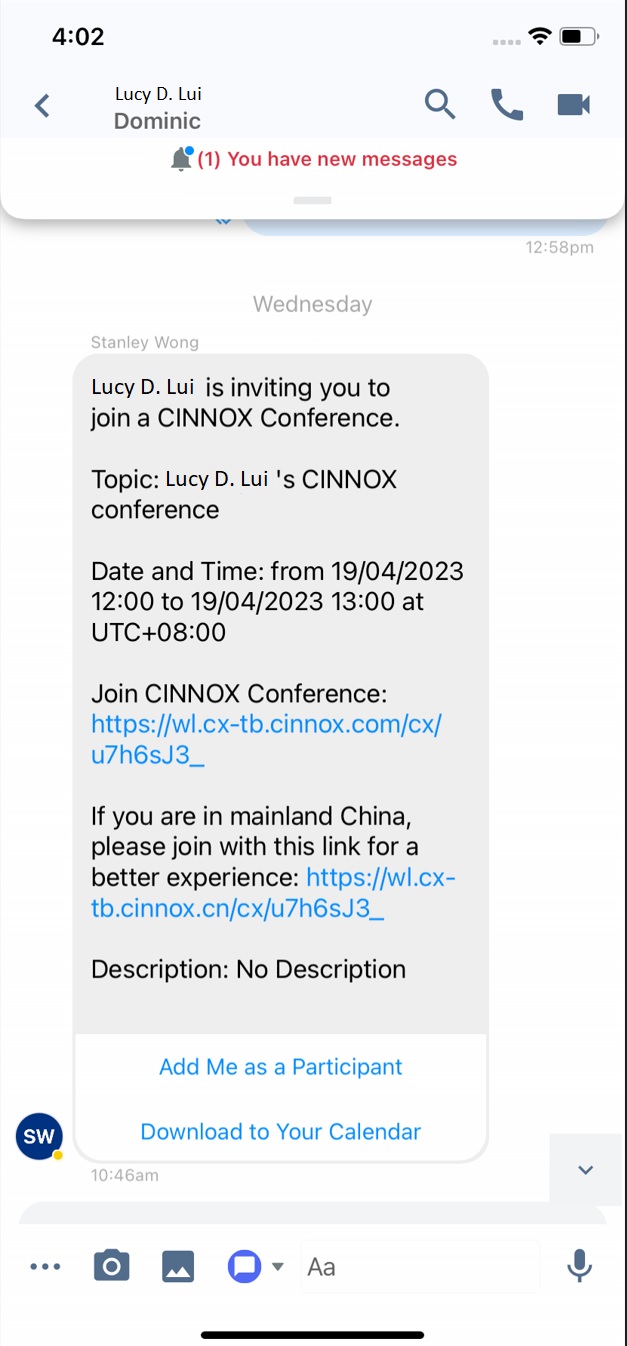
- Tap Add Me as a Participant for the members in the Space to add themselves to the scheduled conference call.
- Tap Download to My Calendar to download the ICS file to add to their calendars as a new event.
✍️
Android and iOS Device
- Suppose you're using an Android or iOS device, and the app cannot detect a calendar app or hasn't been granted the required access. In that case, you'll need to choose an email app to which you can send the details for your new event.
- Suppose neither a calendar nor an email app is detected. In that case, you'll be redirected to the Scheduled Conference page. A toast message will appear informing you that no calendar or email app is available on your device.
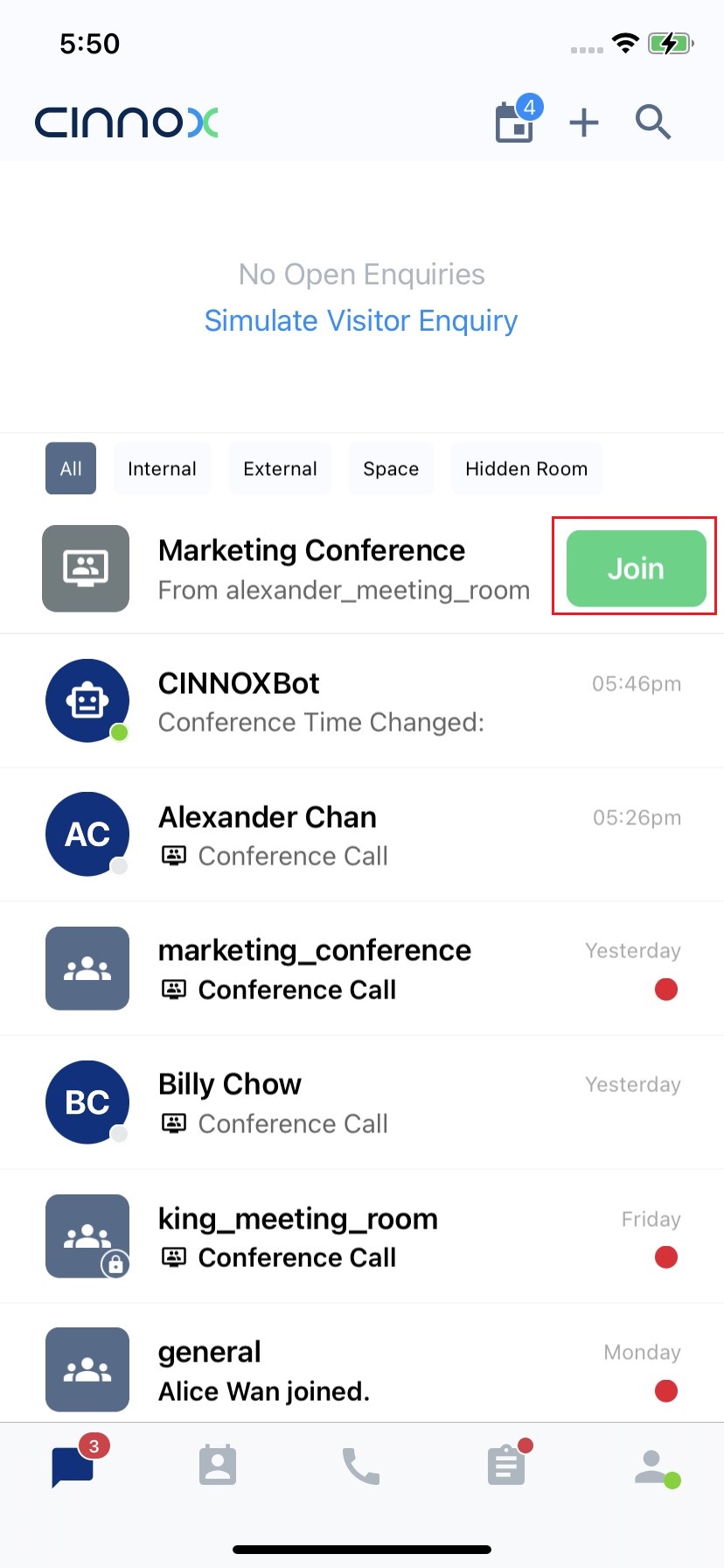
- When the conference starts at the scheduled time, the host and the participants can tap Join in the Workspace.
Manage the Conference
Edit the Conference
The host can edit the scheduled conference.
- Login to your CINNOX account. Navigate to the Utility tab on your screen.
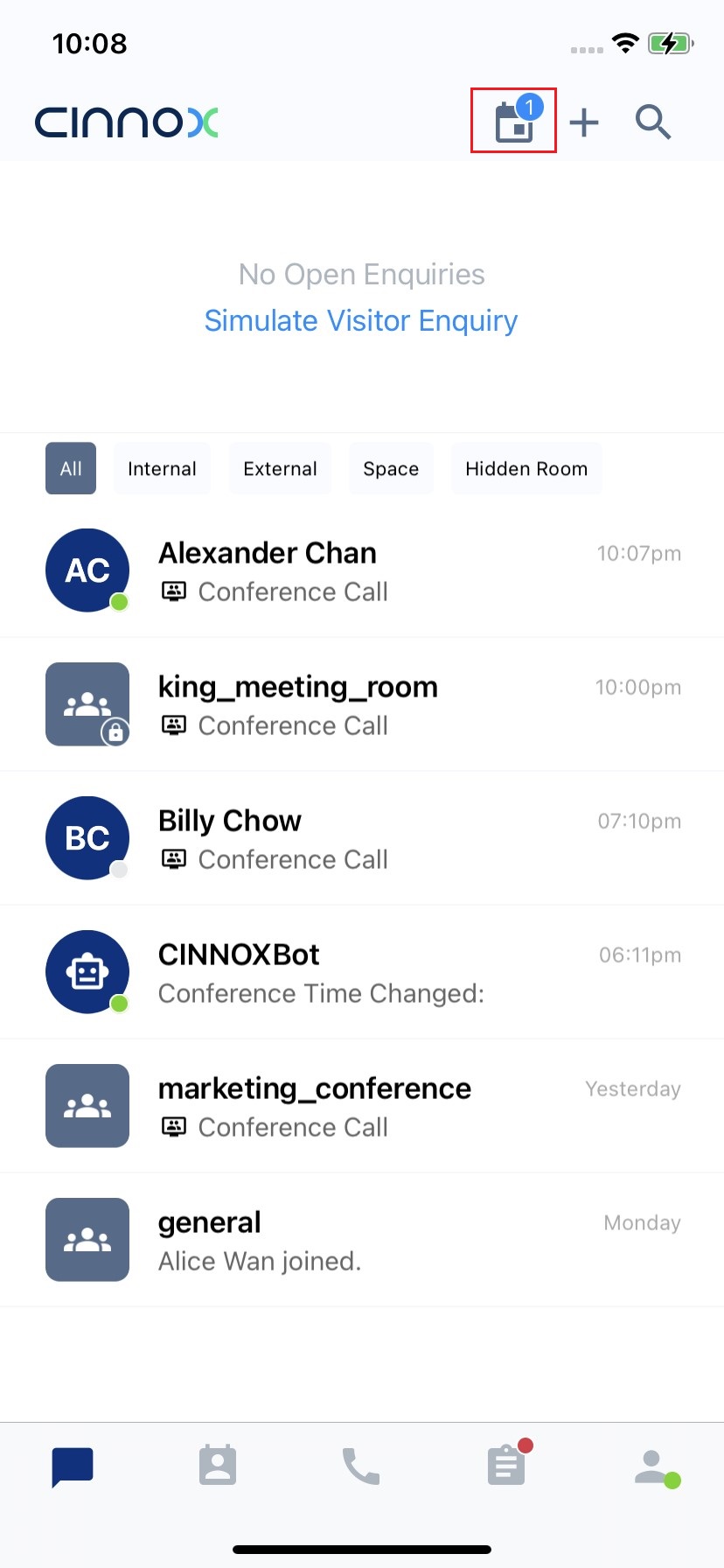
- Tap the Scheduled Conference icon.
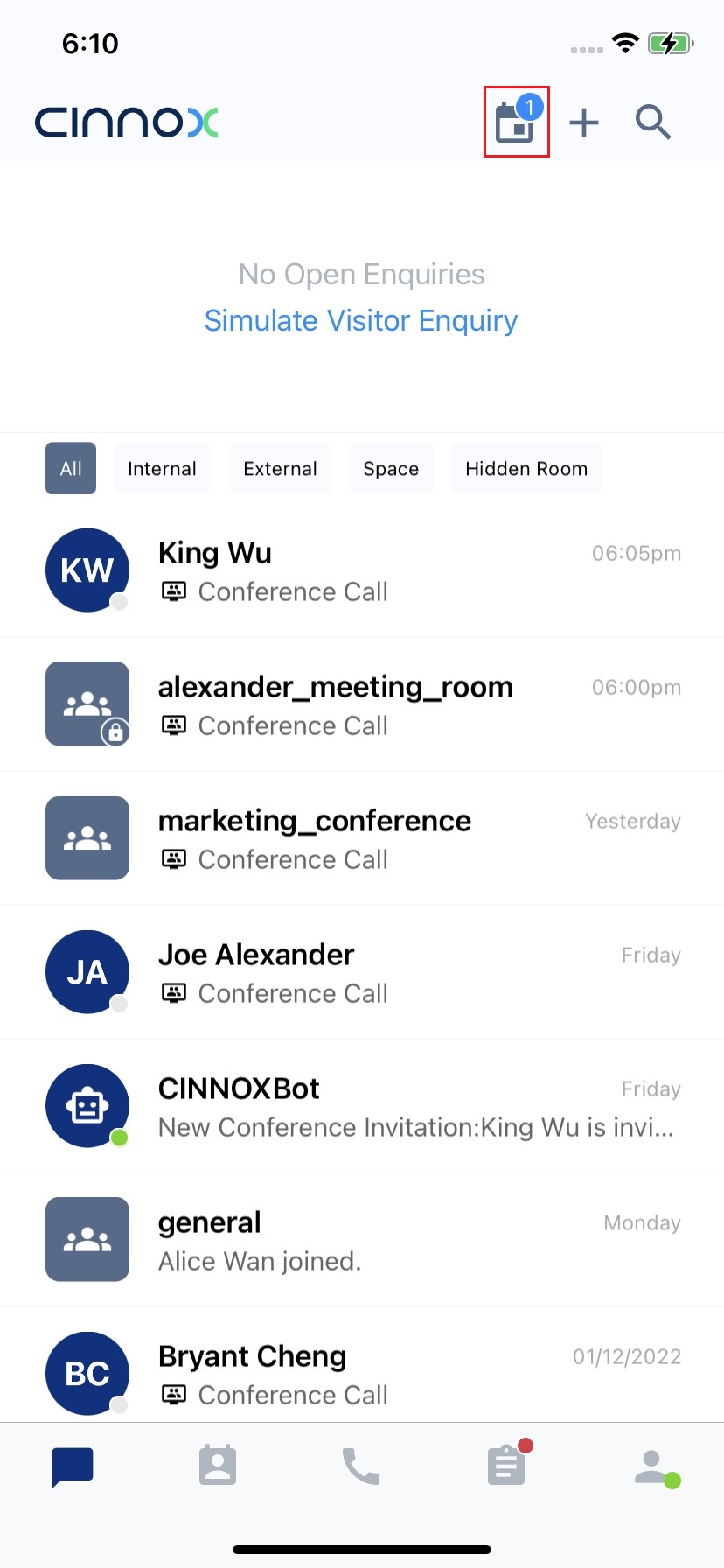
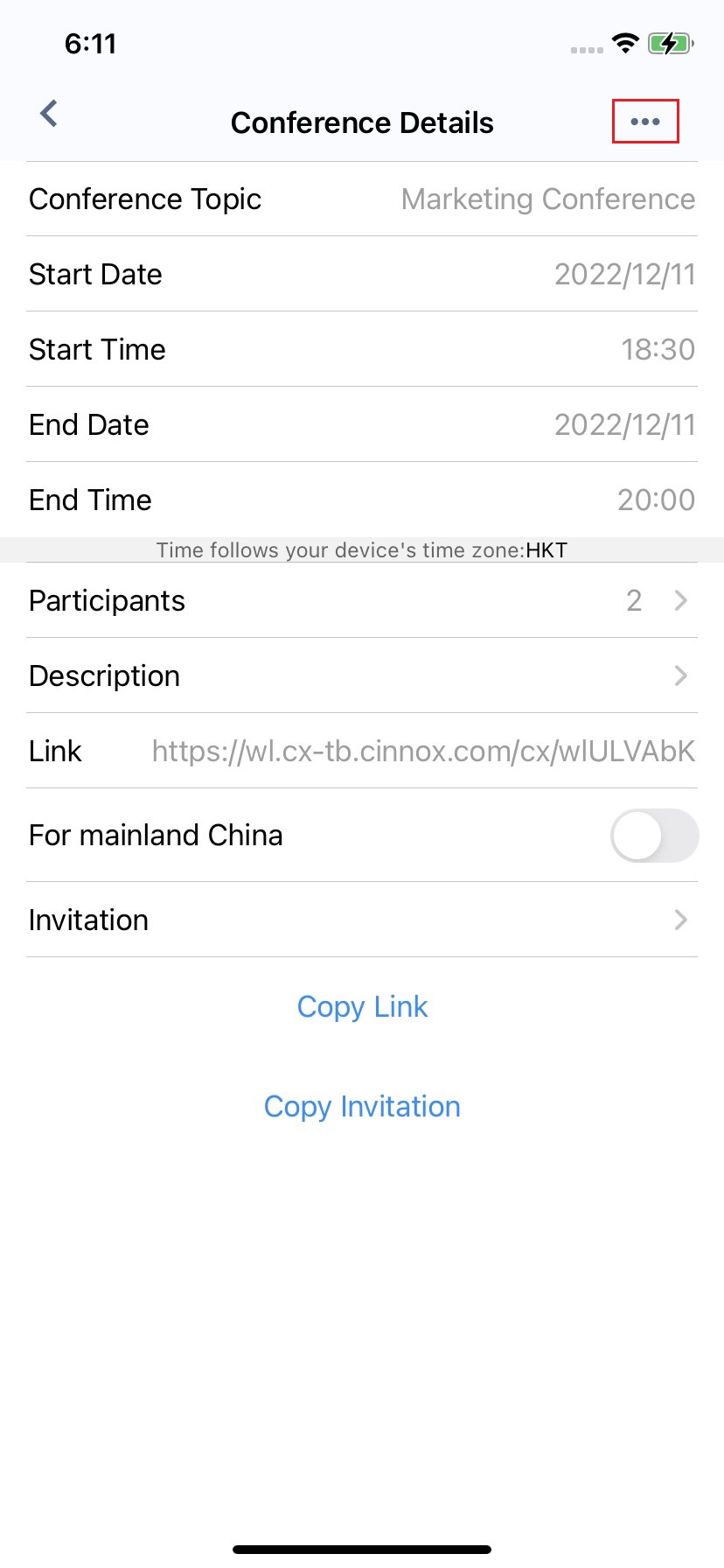
- Tap More(...) on the top right corner of the screen.
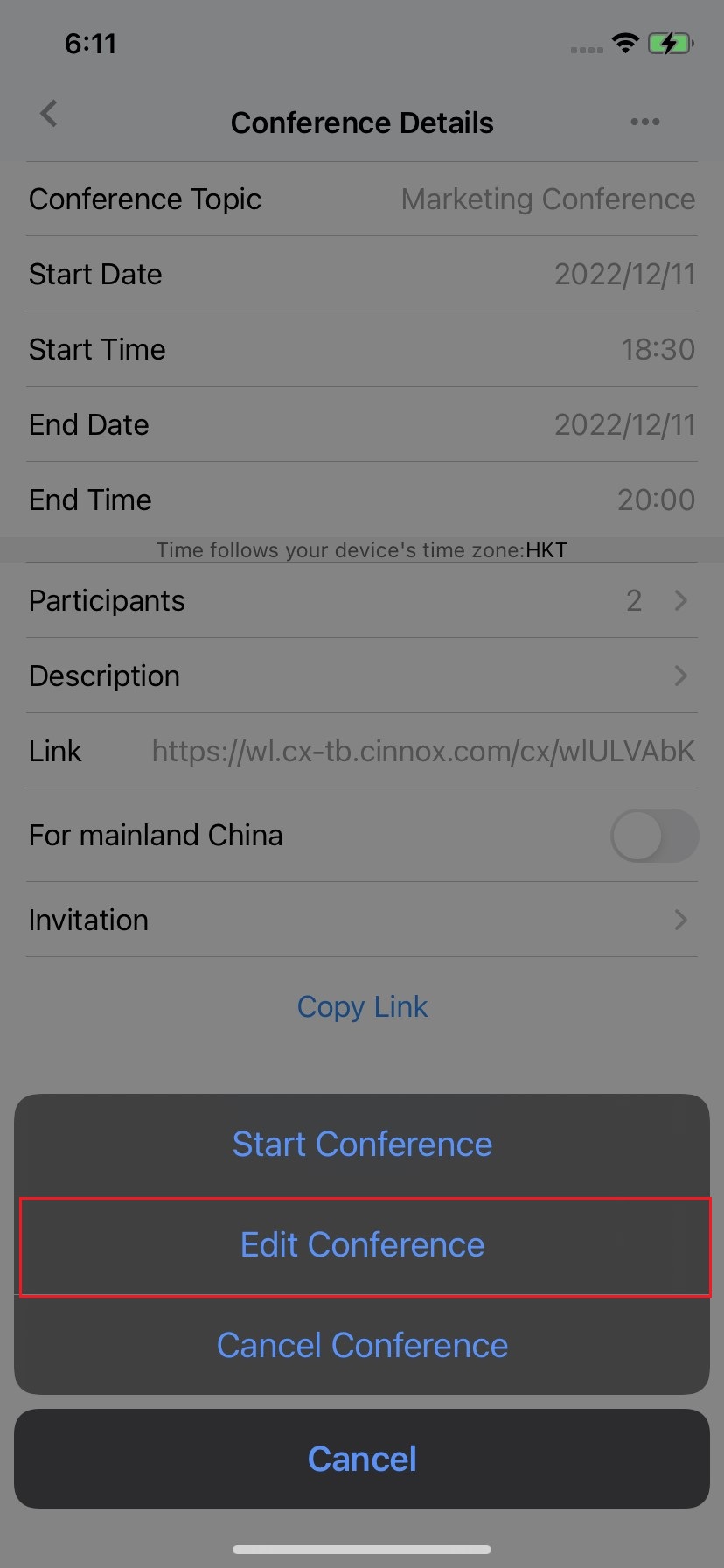
- Tap Edit Conference for the scheduled conference you are required to edit.
-
Tap More(...) on the top right corner of the screen.
-
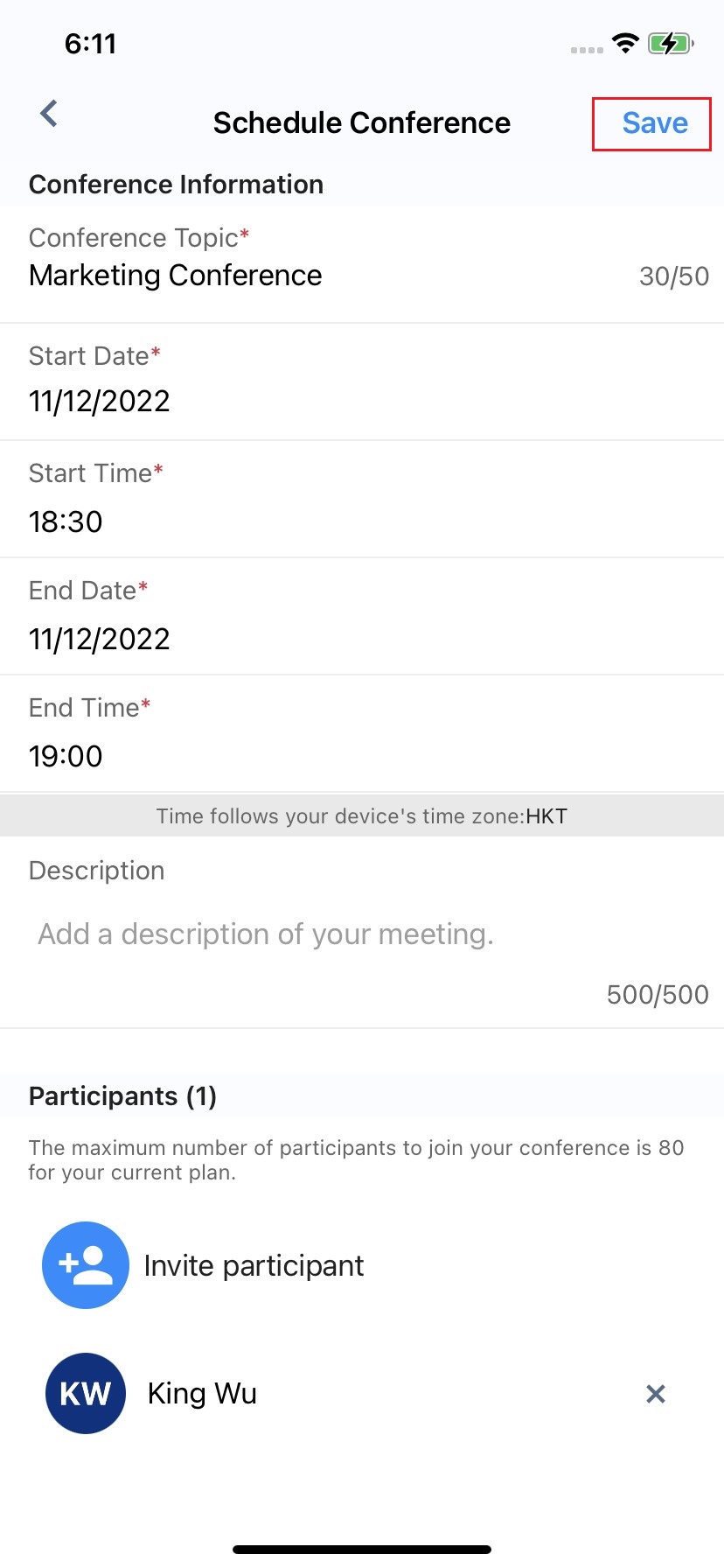
You can edit the scheduled conference details, including the Conference Topic, Start Date, Start Time, End Date and End Time, Description and Participants.
-
Tap Save after editing the details.
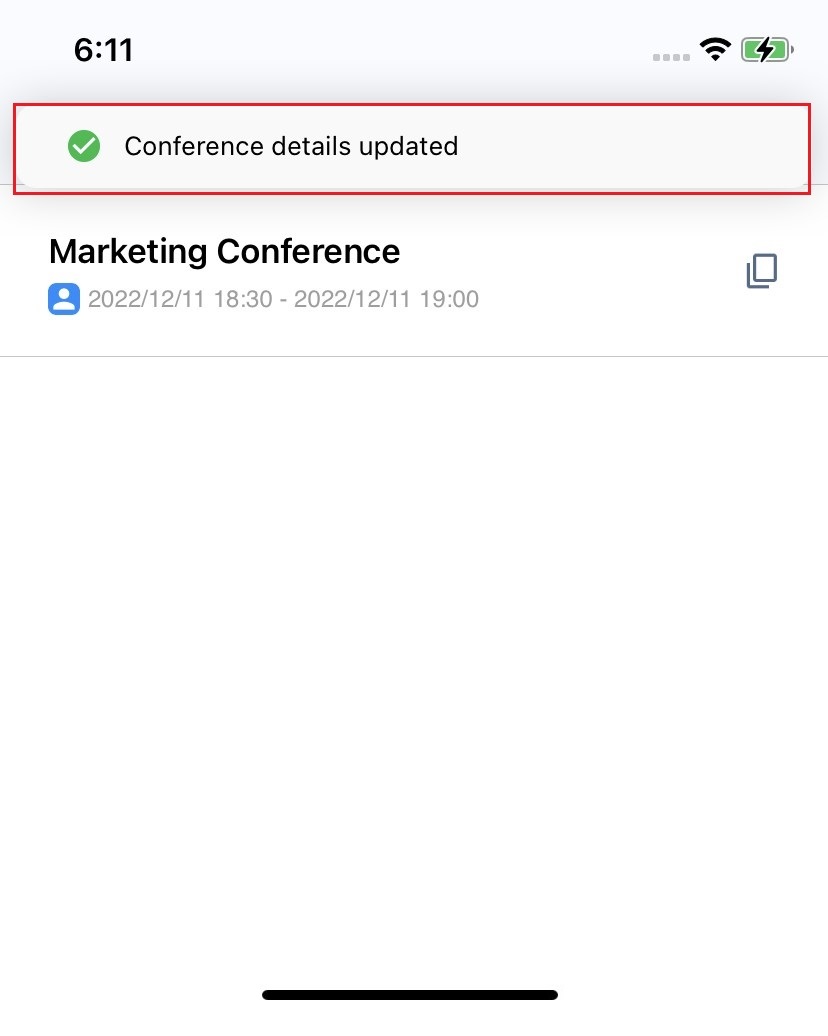
- The toast message appears to the host to indicate Conference details updated.
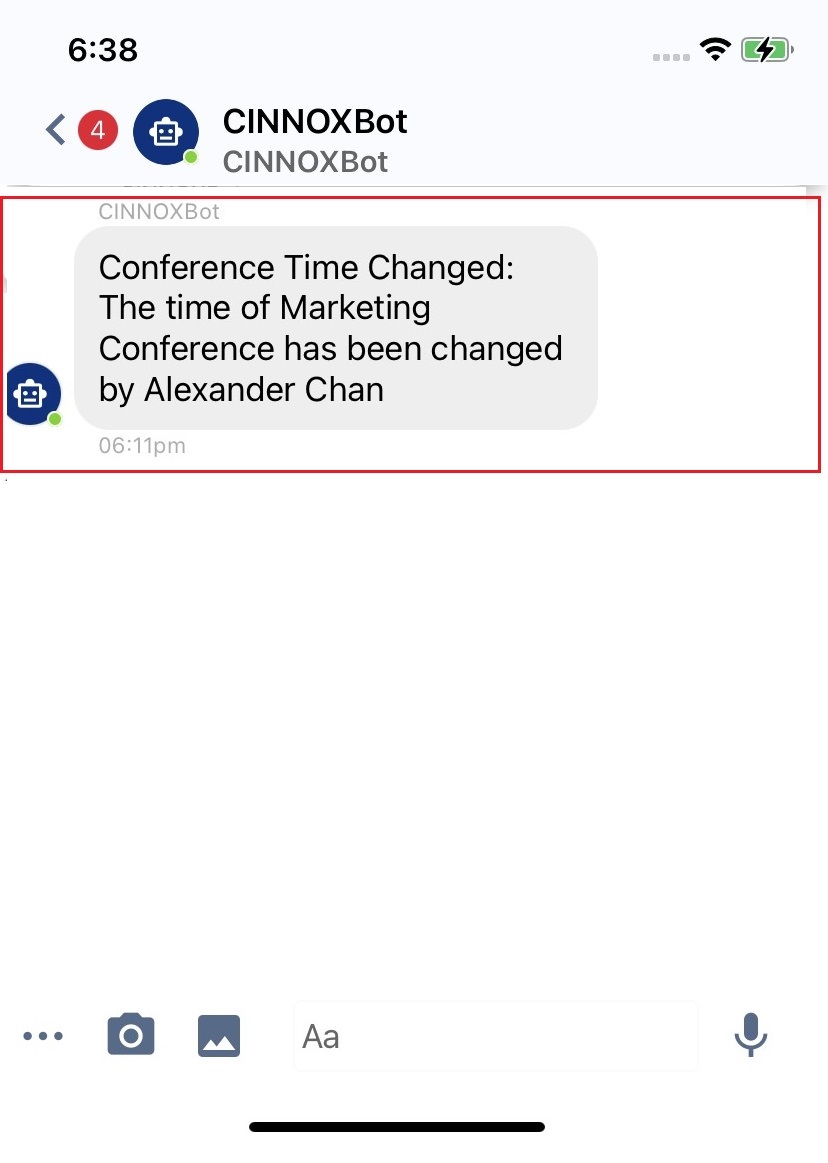
After editing the scheduled conference, the system message will show the edited details of the scheduled conference.
Start the Conference ahead of schedule
- Login to your CINNOX account. Navigate to the Utility tab on your screen.
- Tap the Scheduled Conference icon.
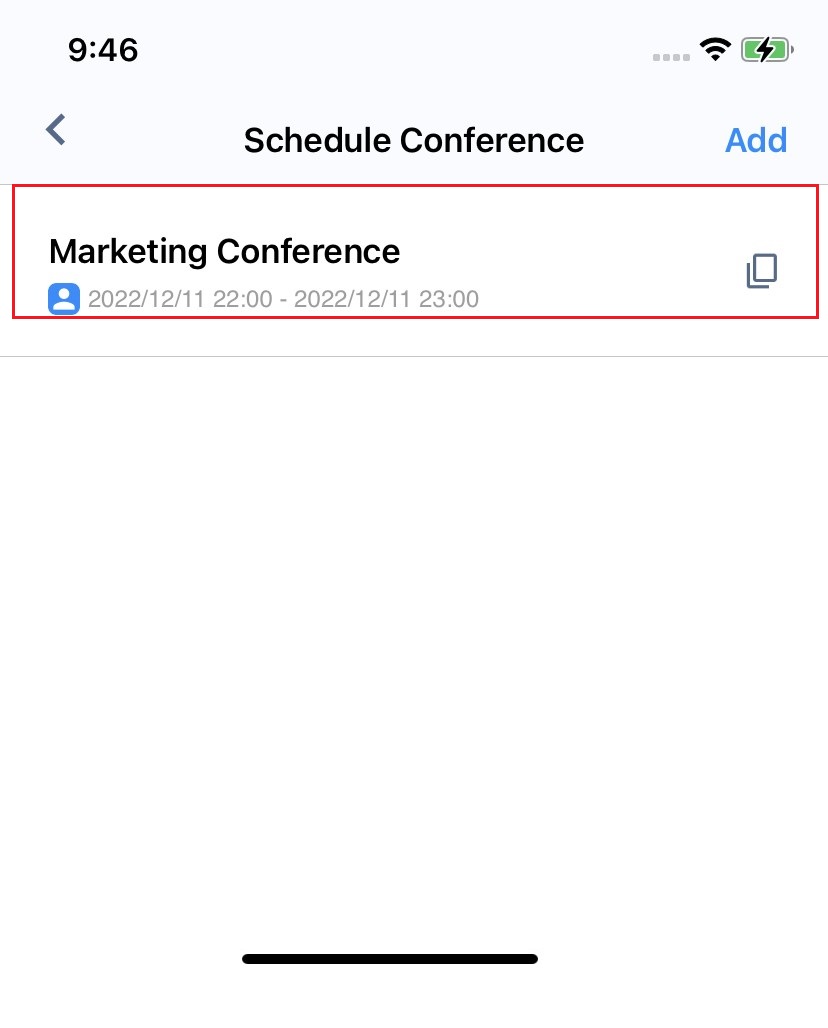
- Tap the scheduled conference you are going to start now.
- Tap More (...).
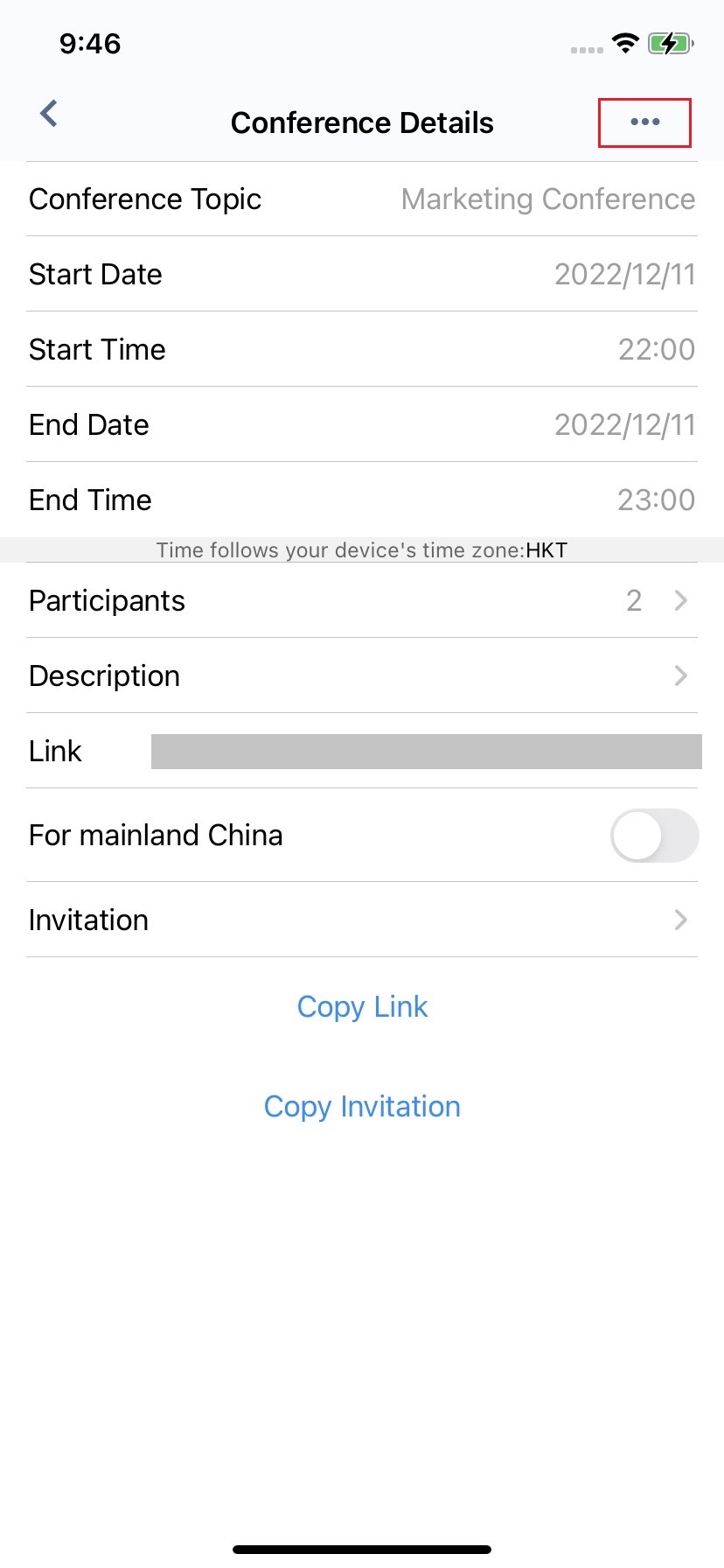
- Select Start Conference.
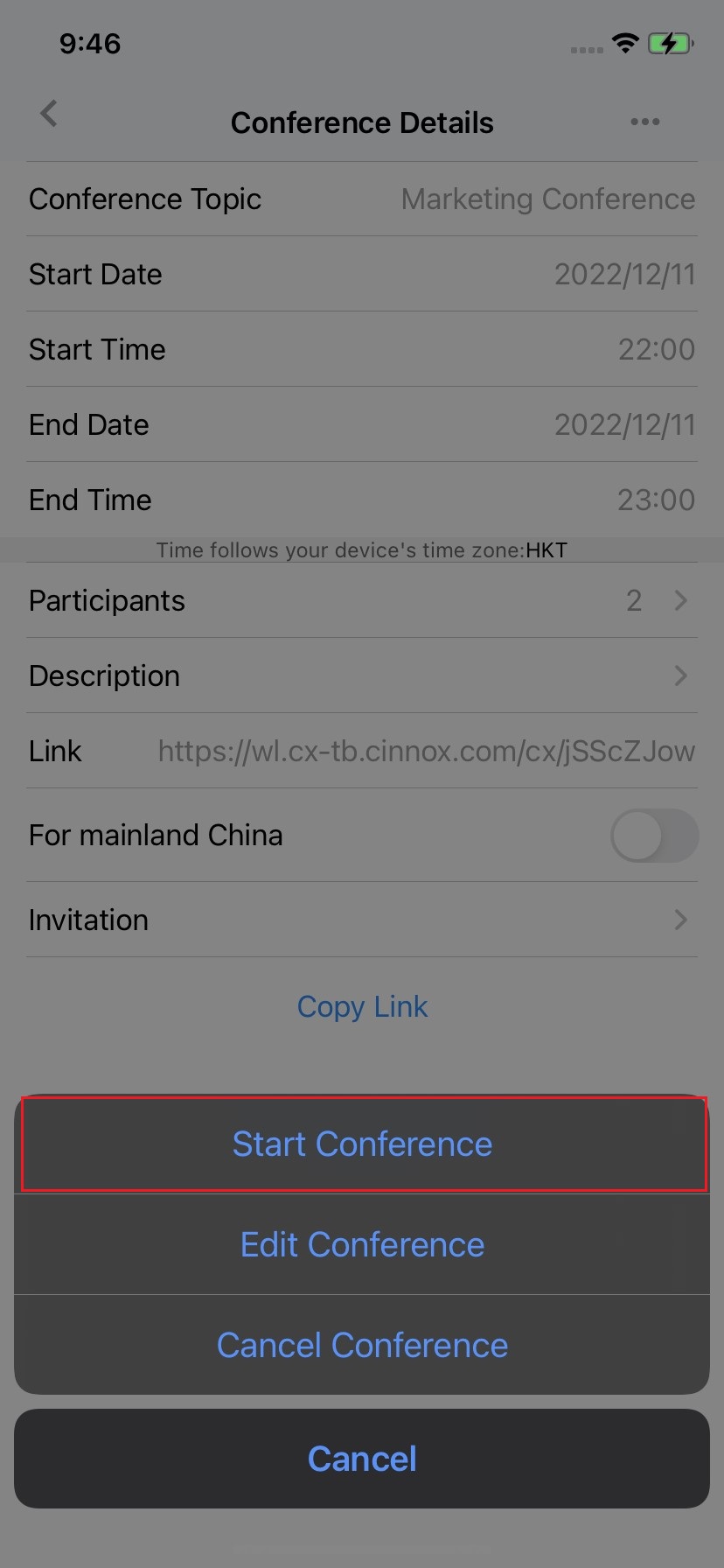
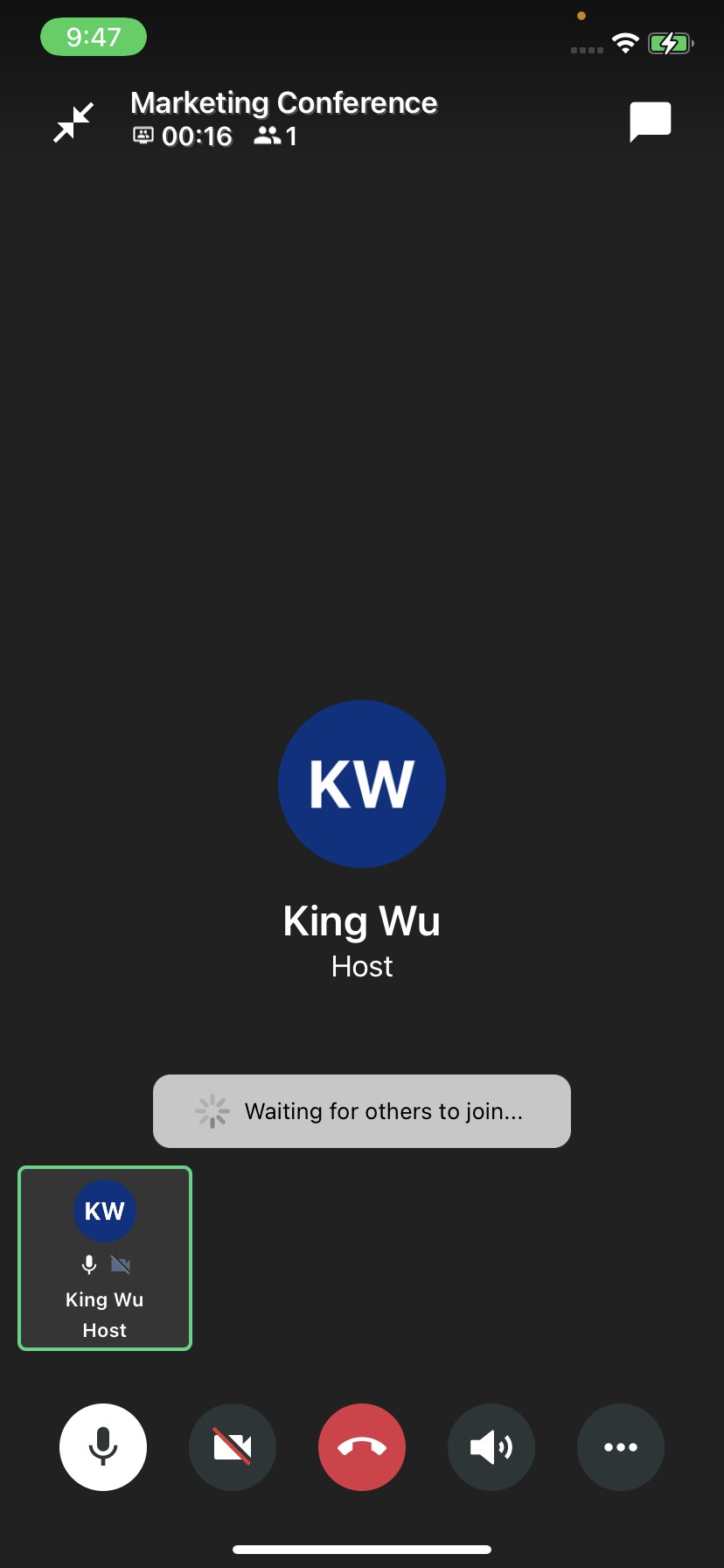
- The scheduled conference will immediately start after the participant joins the conference.
Cancel the Conference
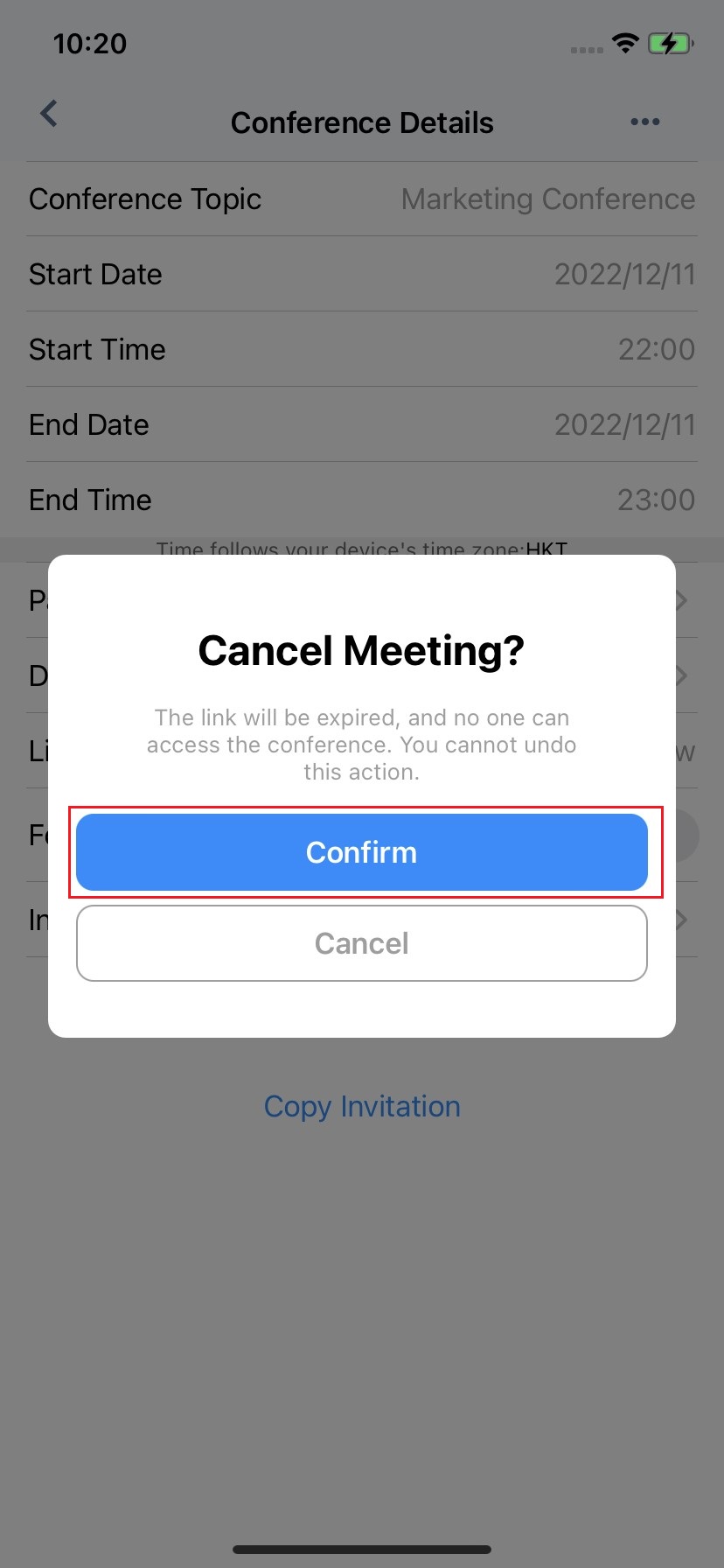
The host can cancel the scheduled conference, and no one can access this cancelled conference.
- Login to your CINNOX account. Navigate to the Utility tab on your screen.
- Tap the Scheduled Conference icon.
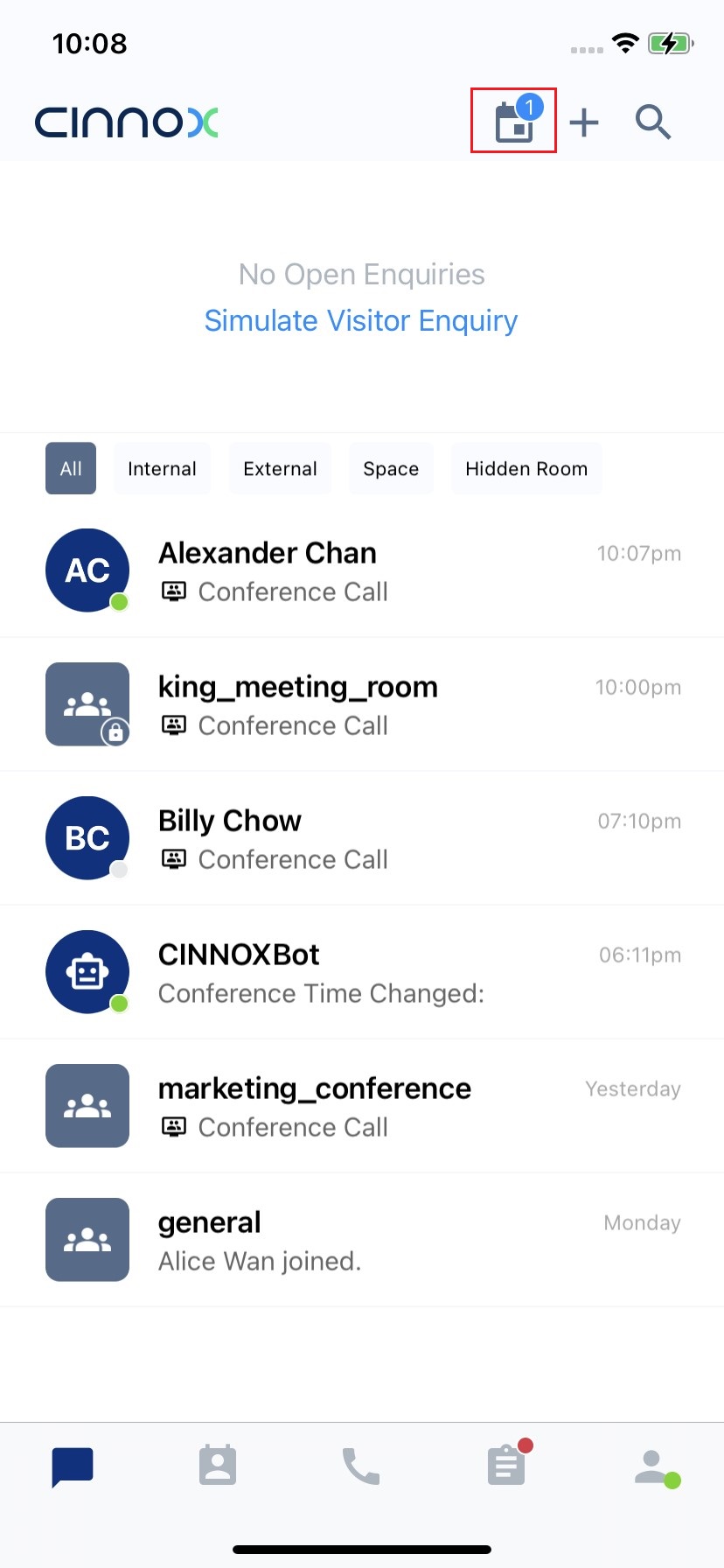
- Tap the scheduled conference you are going to cancel now.
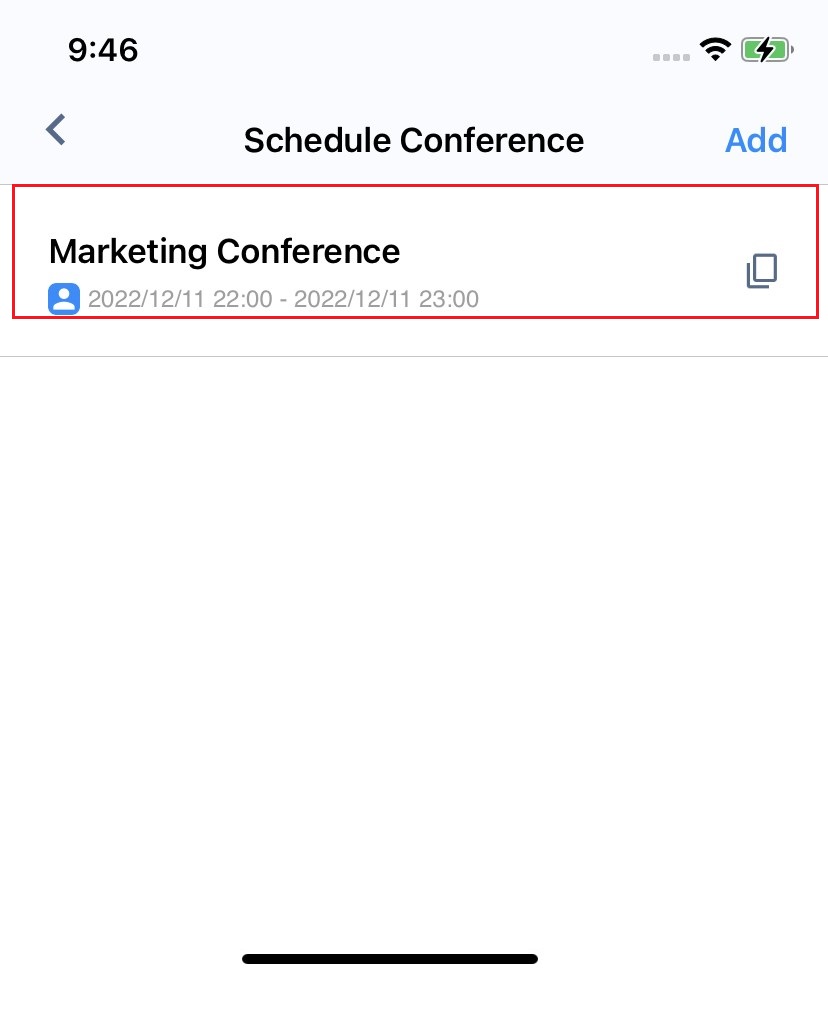
- Tap More (...).
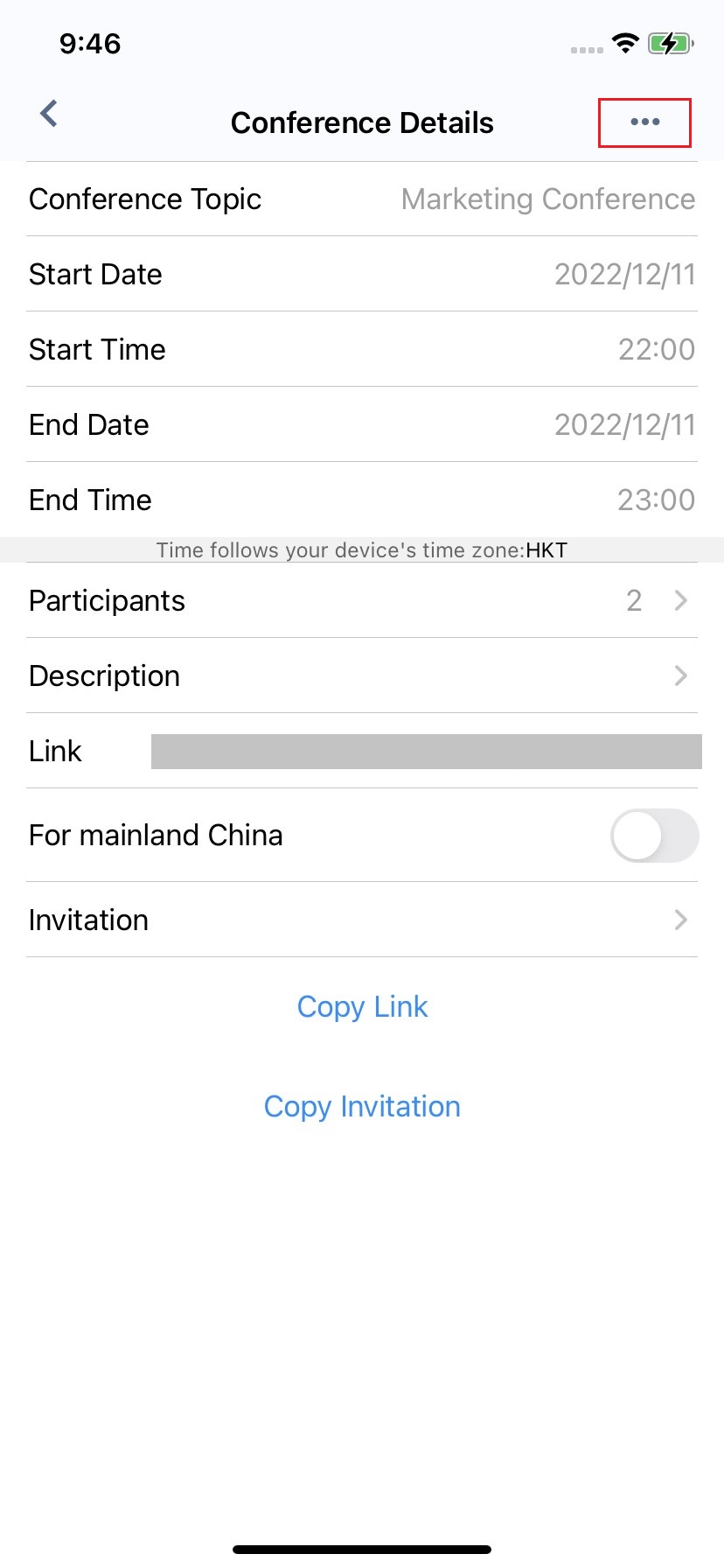
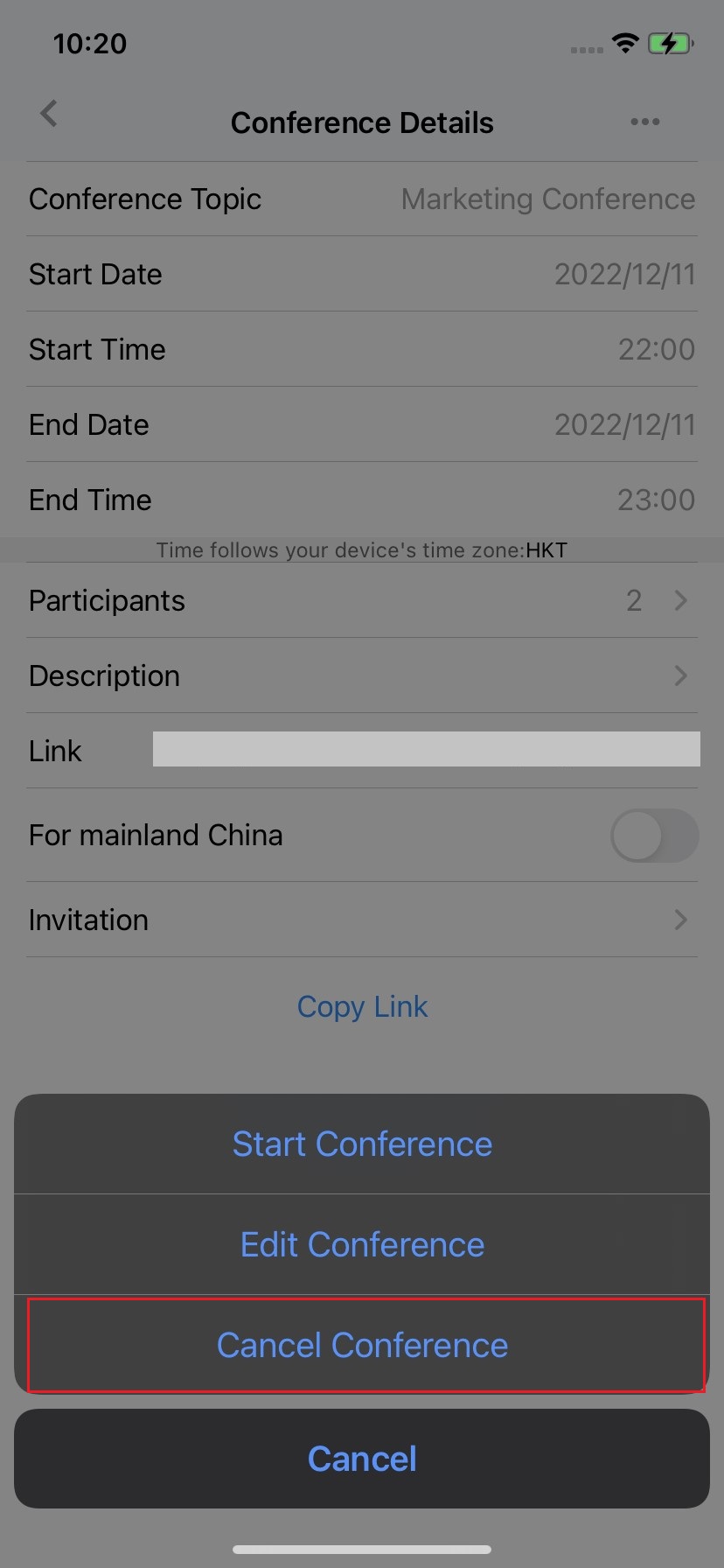
- Tap Cancel Conference.
- Tap Confirm to confirm the conference cancellation.
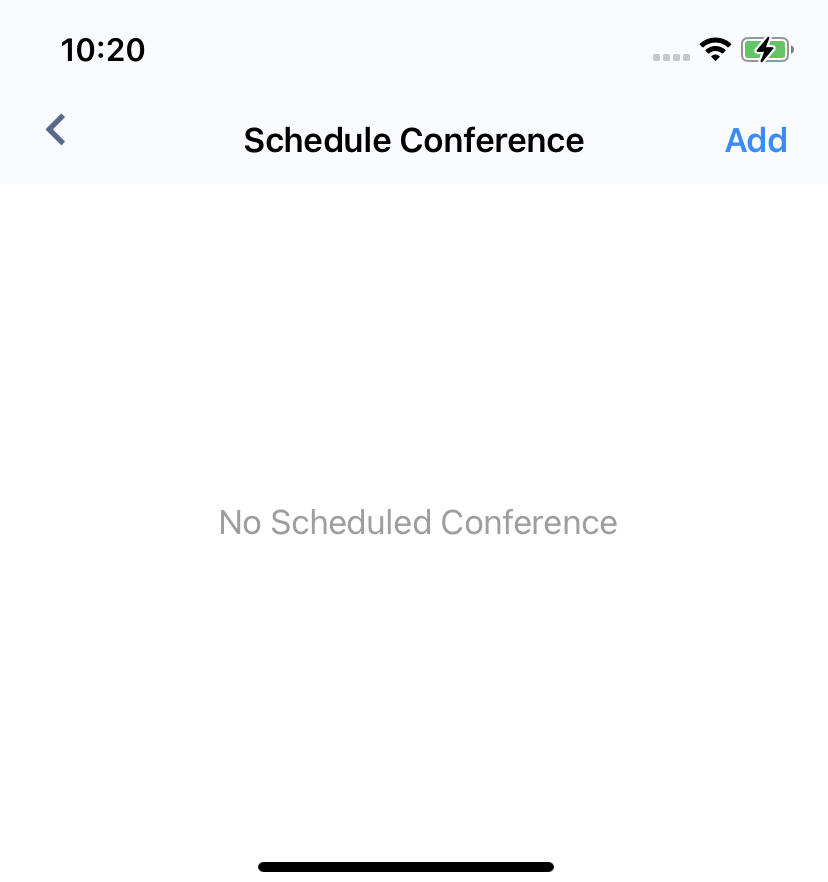
- After the scheduled conference is cancelled, it will not be listed on both the host's or participant's side.
Invite staff to the Conference
The host and the participant can invite other staff to the conference.
- Login to your CINNOX account. Navigate to the Utility tab on your screen.
- Tap the Scheduled Conference icon.
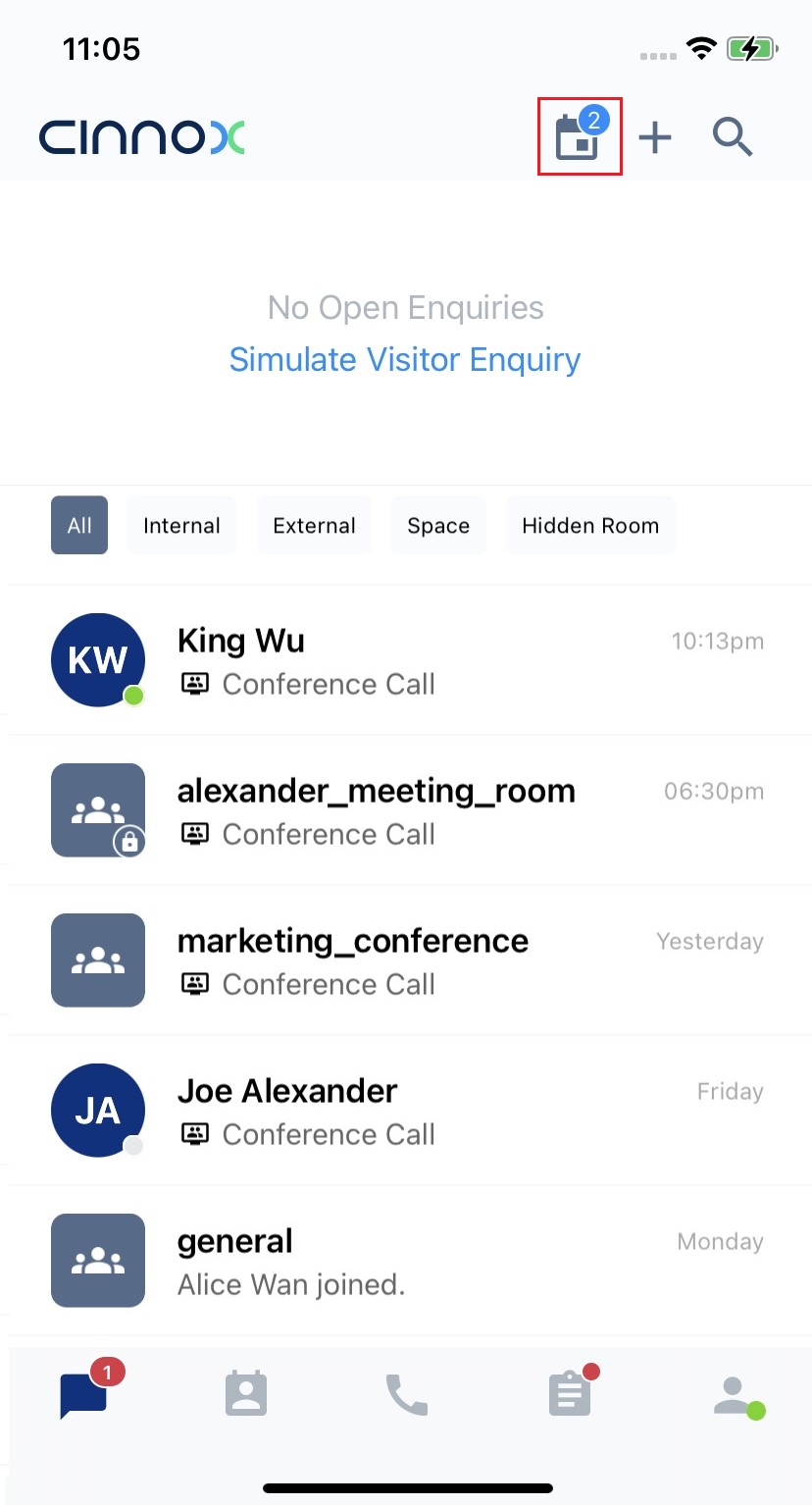
- Select the scheduled conference you are going to invite other staff.
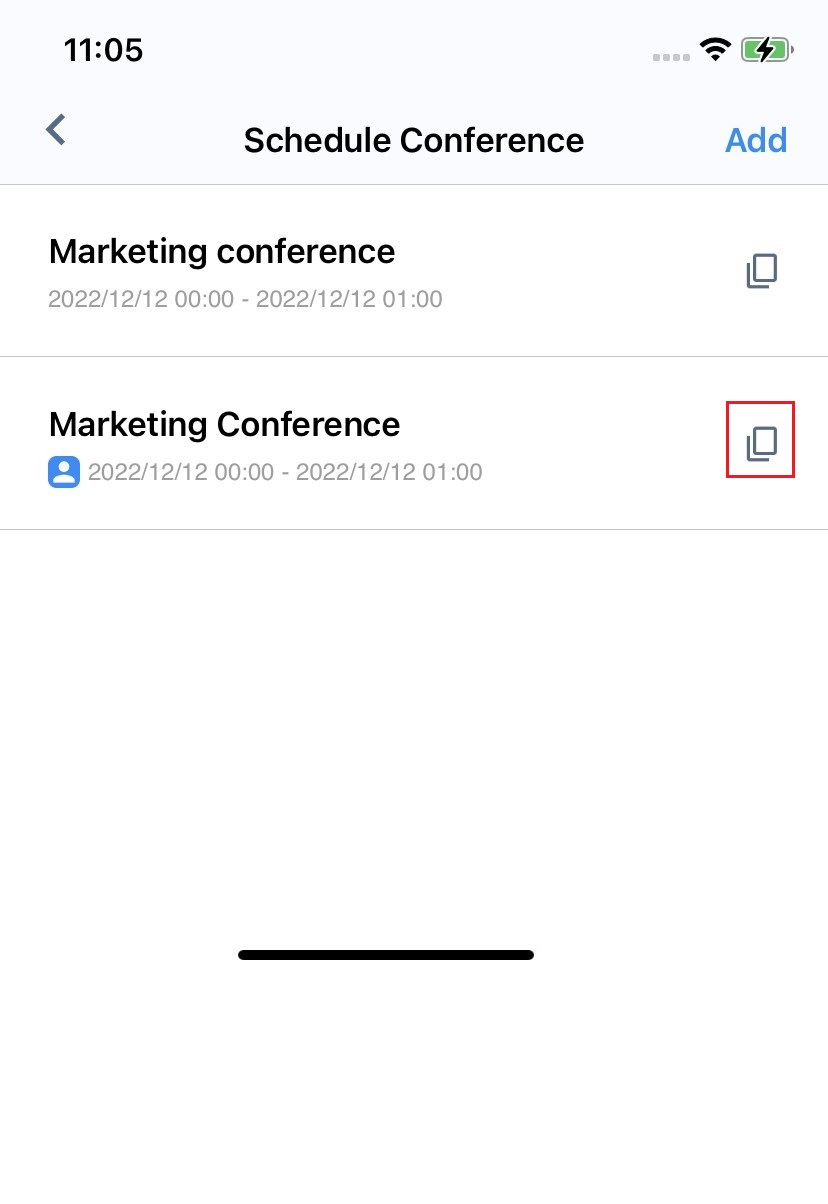
- Tap Copy Invitation.
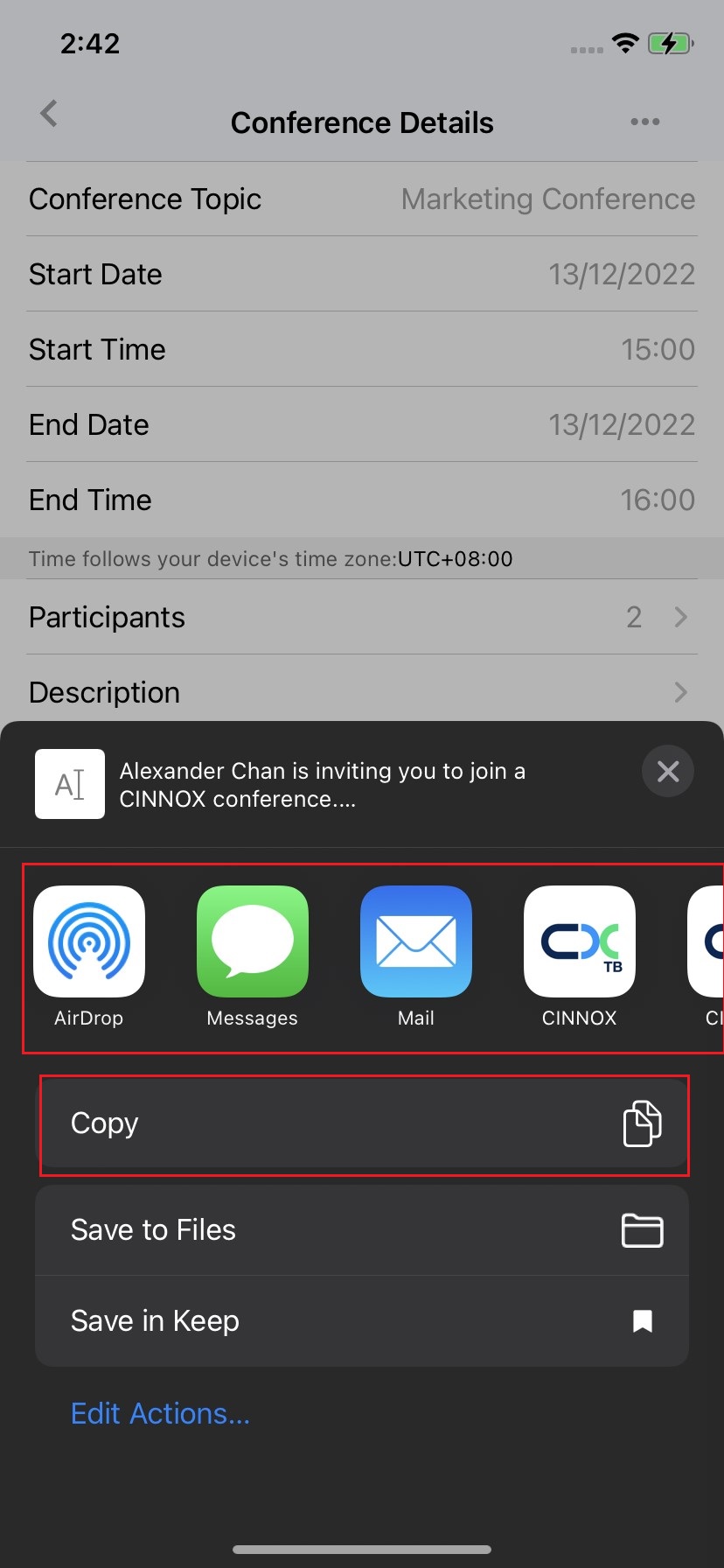
- Tap Copy to copy the invitation. You can select other apps where you also like to paste the invitation.
- Paste the invitation to the text input bar of the staff member you will invite to the scheduled conference and tap Enter.
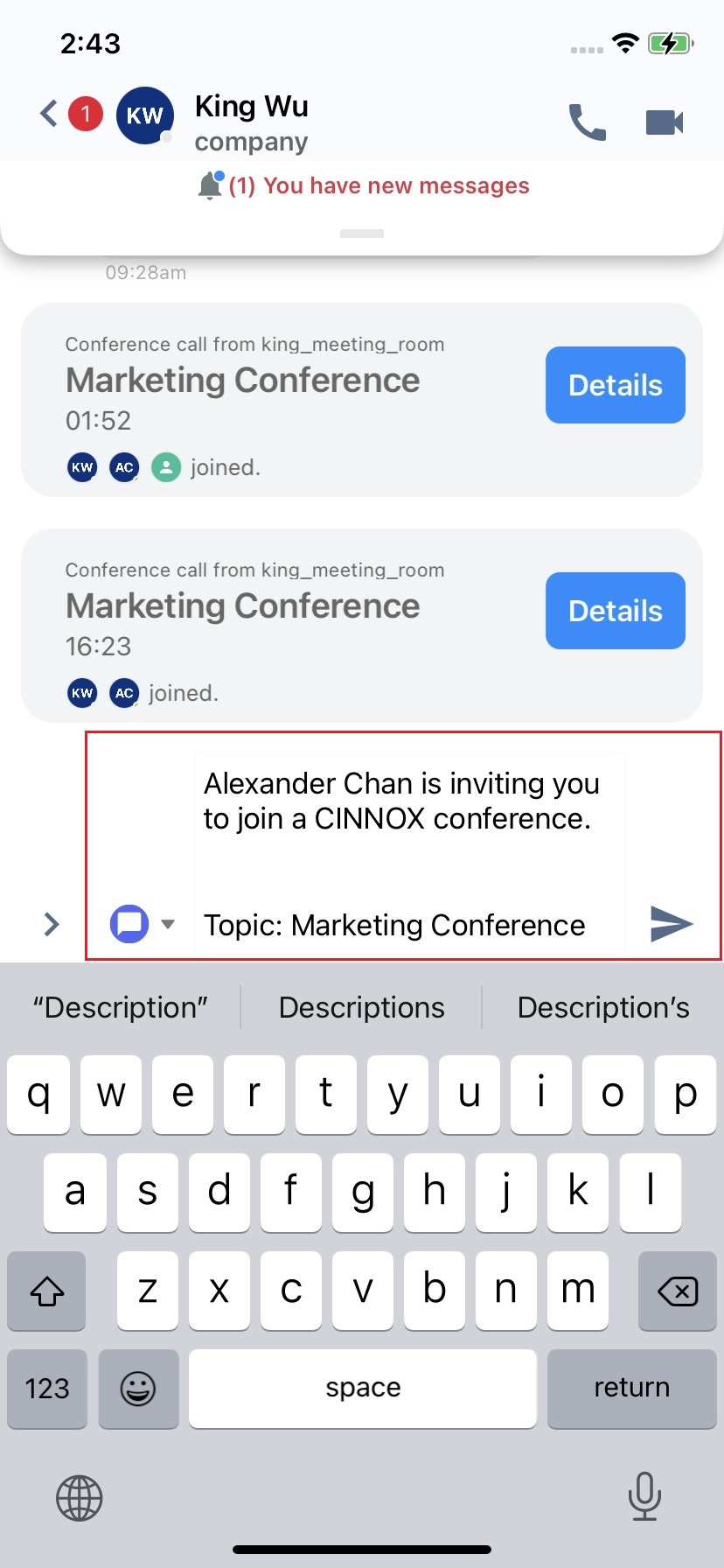
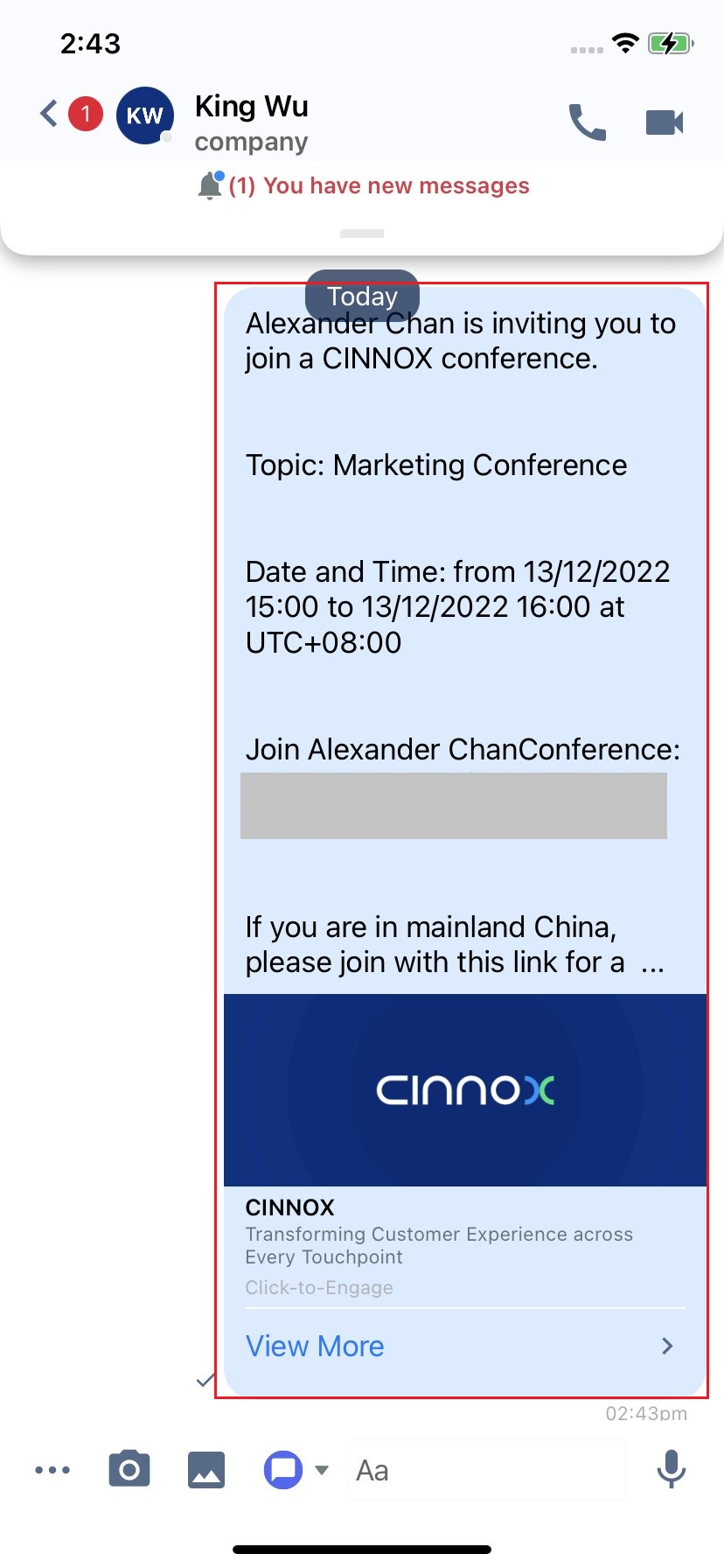
- The invitation is successfully pasted in the participant's chat room.
📘
If the participants are in Mainland China, tap the conference link with .cn to join the scheduled conference for a better experience.
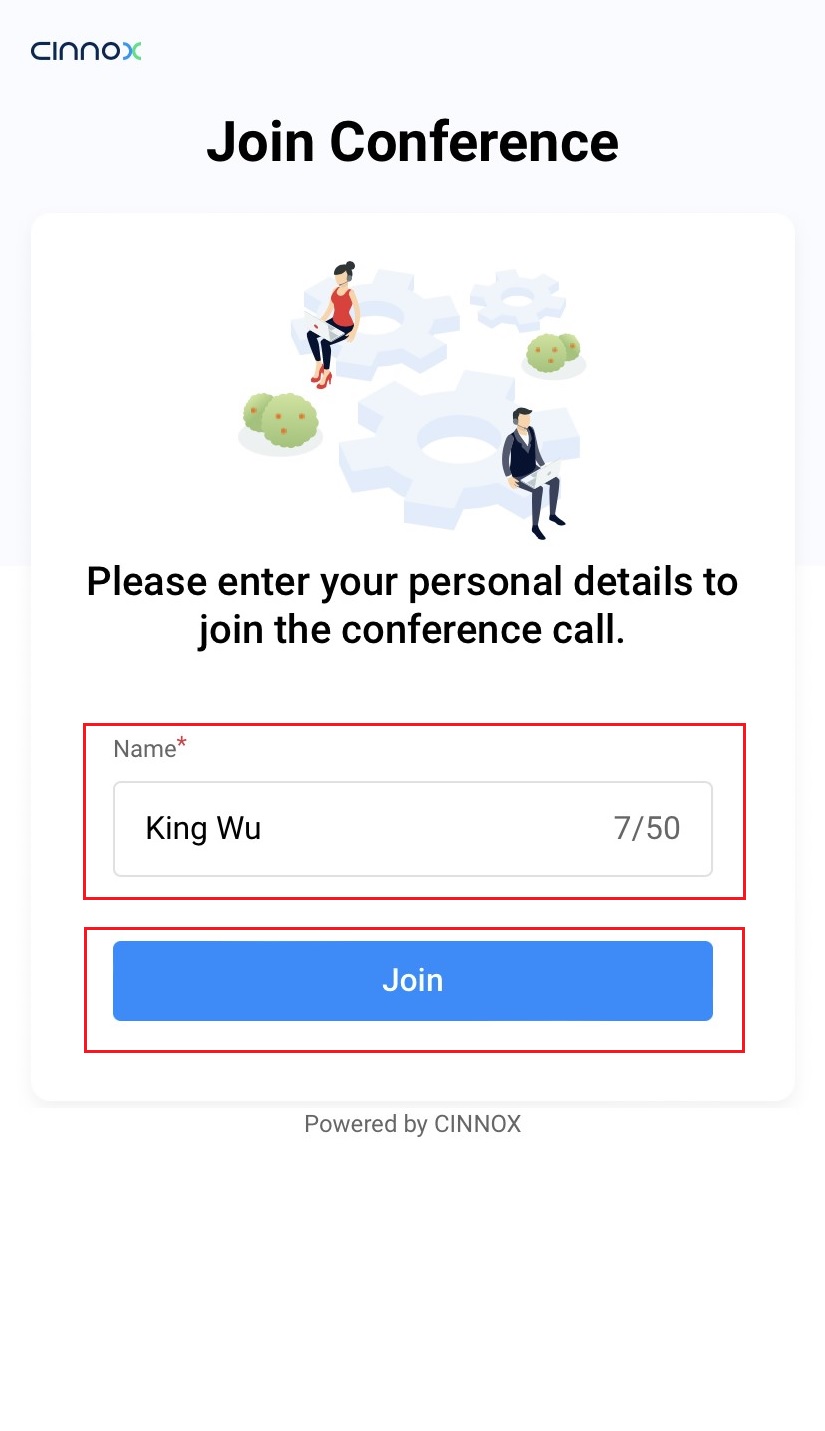
- When the scheduled conference starts, the participants can enter their names and click Join.
Decline and Revoke the declined conference invitation
Decline the invitation to the Scheduled Conference:
Being a participant in the scheduled conference, you are allowed to decline the scheduled conference.
- Login to your CINNOX account. Nav gate to the Utility tab on your screen.
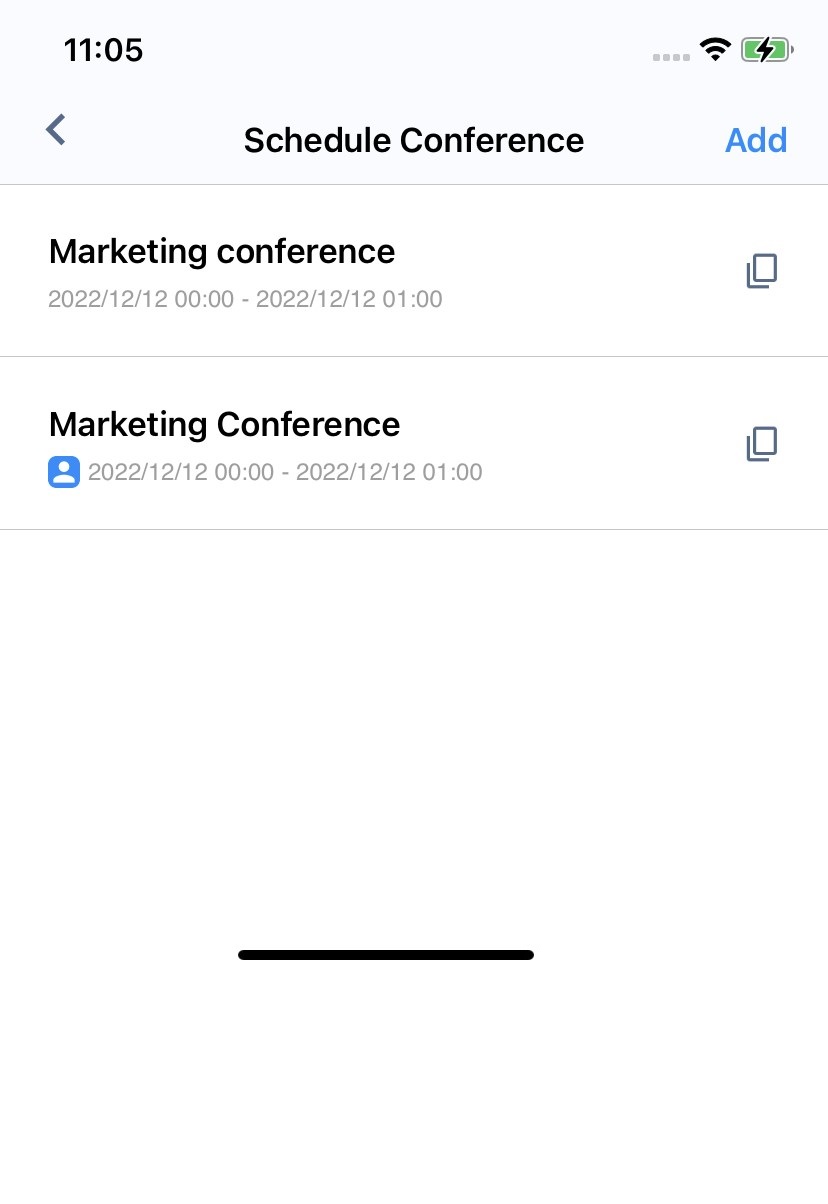
- Tap the Scheduled Conference icon.
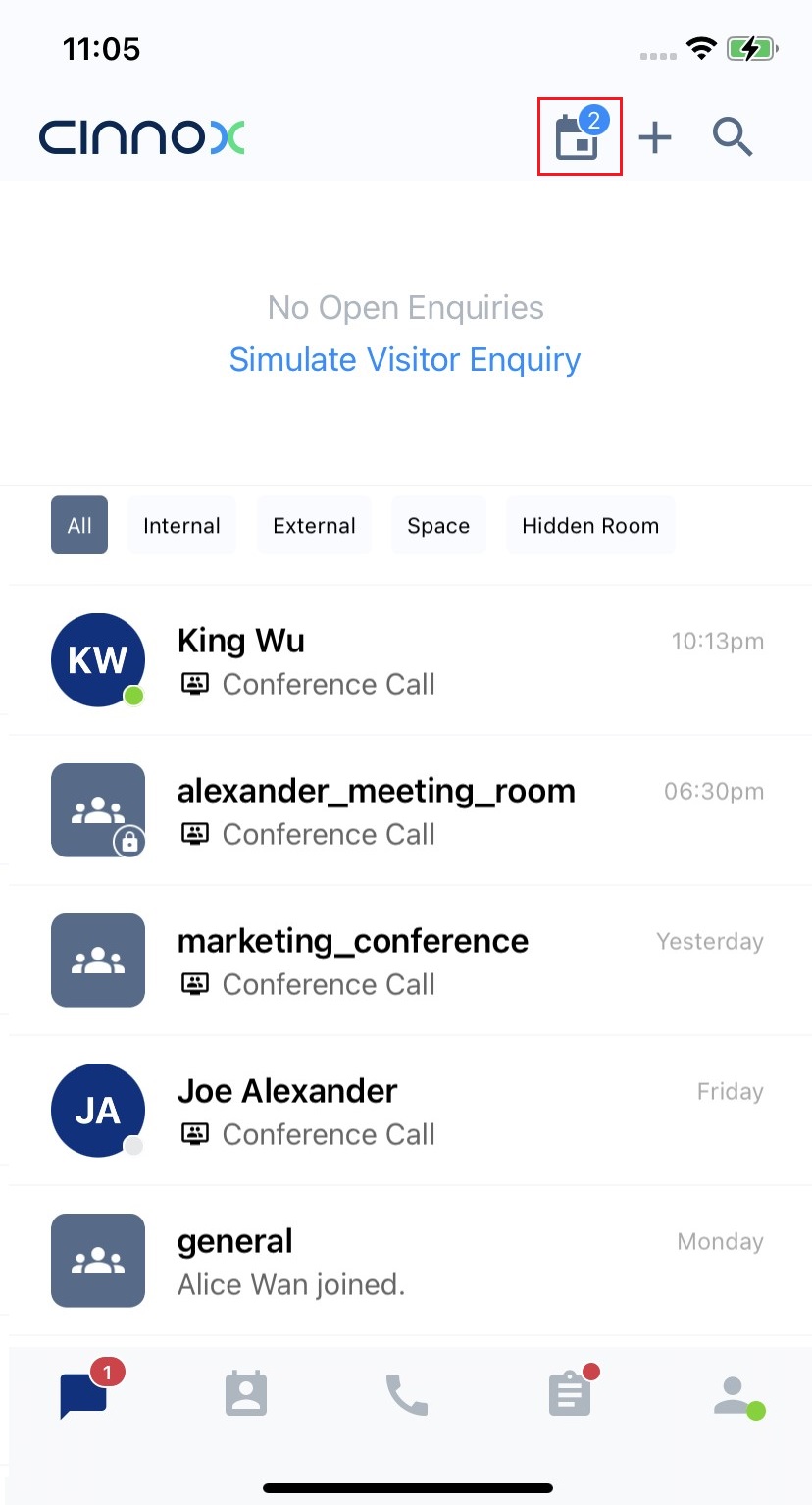
- Select the scheduled conference you declined to.
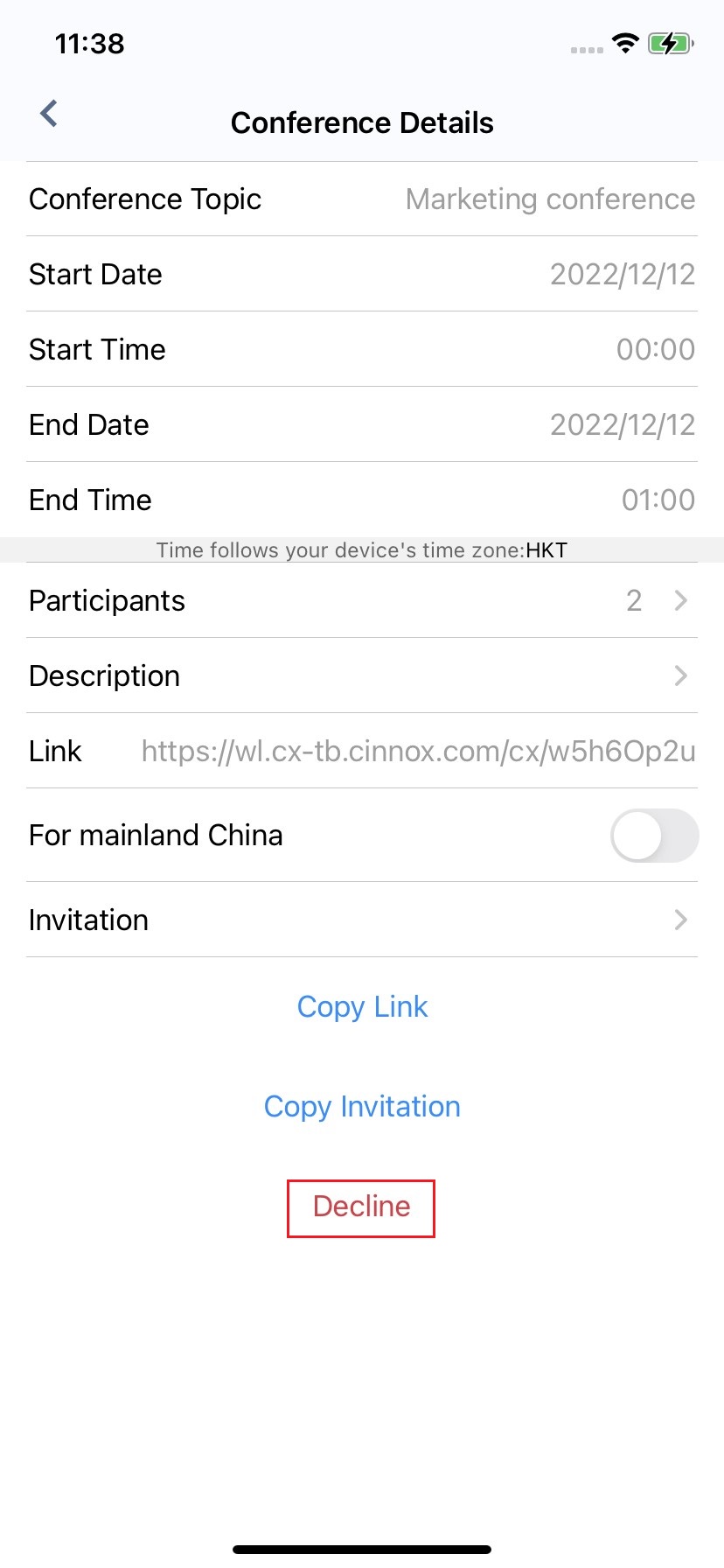
- Tap Decline.
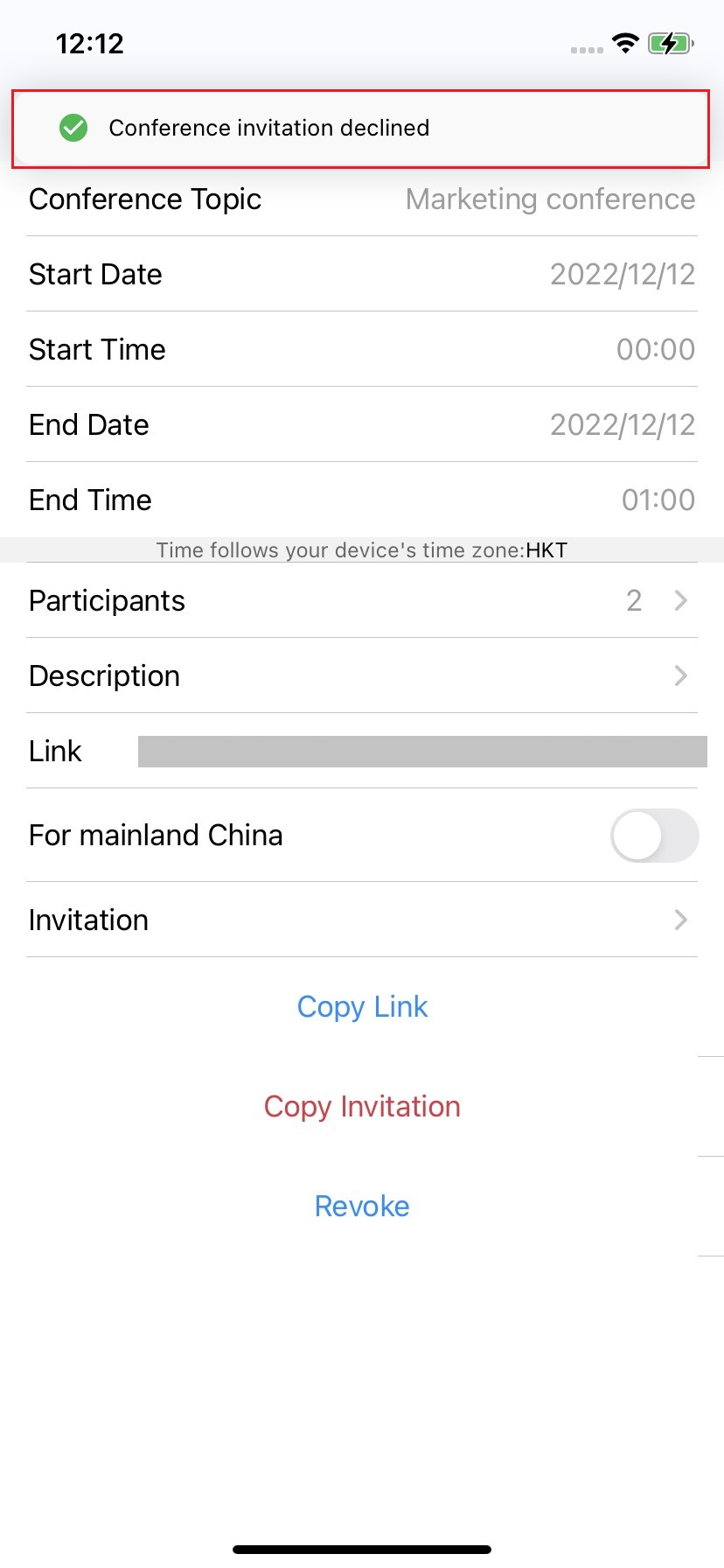
- The toast message indicates Conference invitation declined.
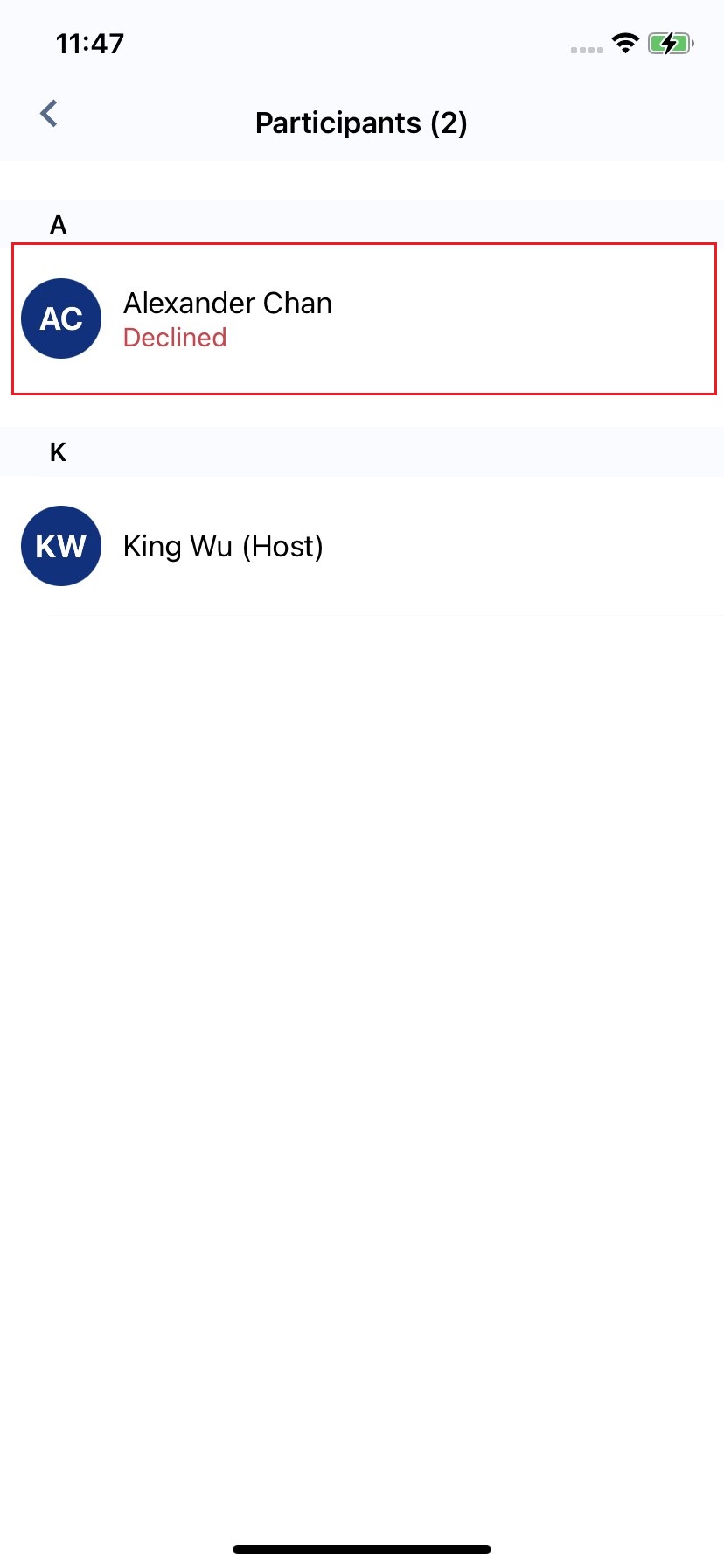
- The scheduled conference details show the declined participants in the scheduled Conference.
- After you declined the scheduled Conference, when the scheduled Conference starts, the corresponding conference details indicate the scheduled Conference is Ongoing.
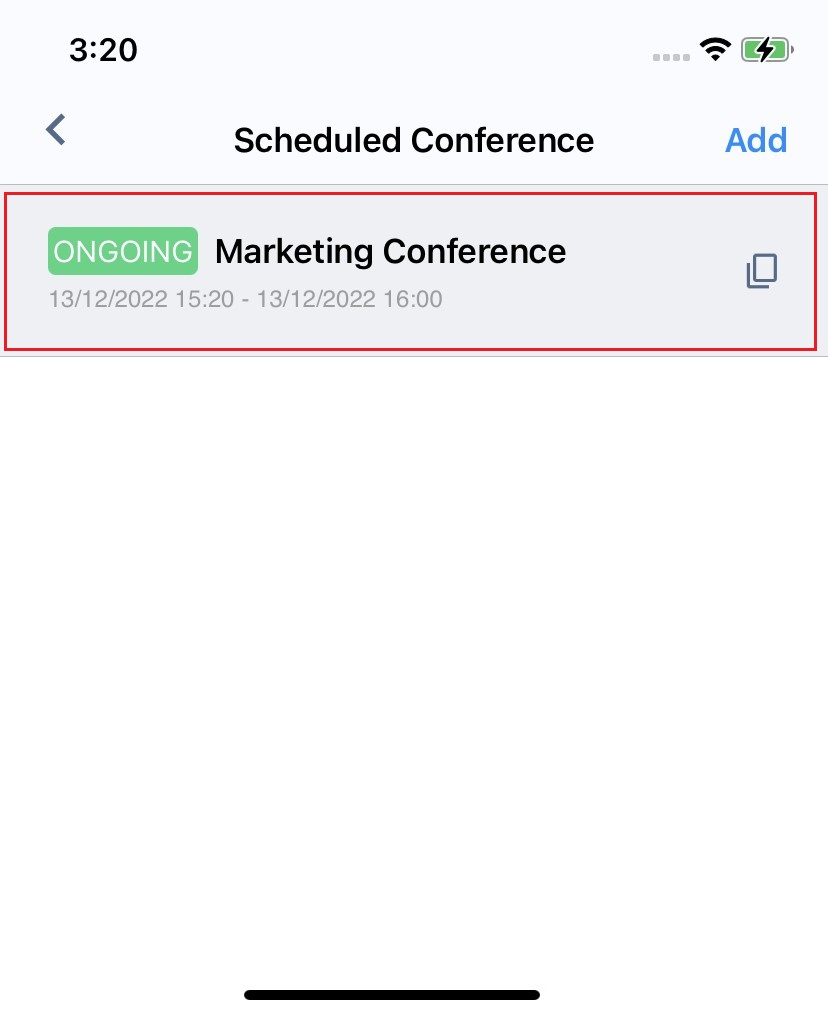
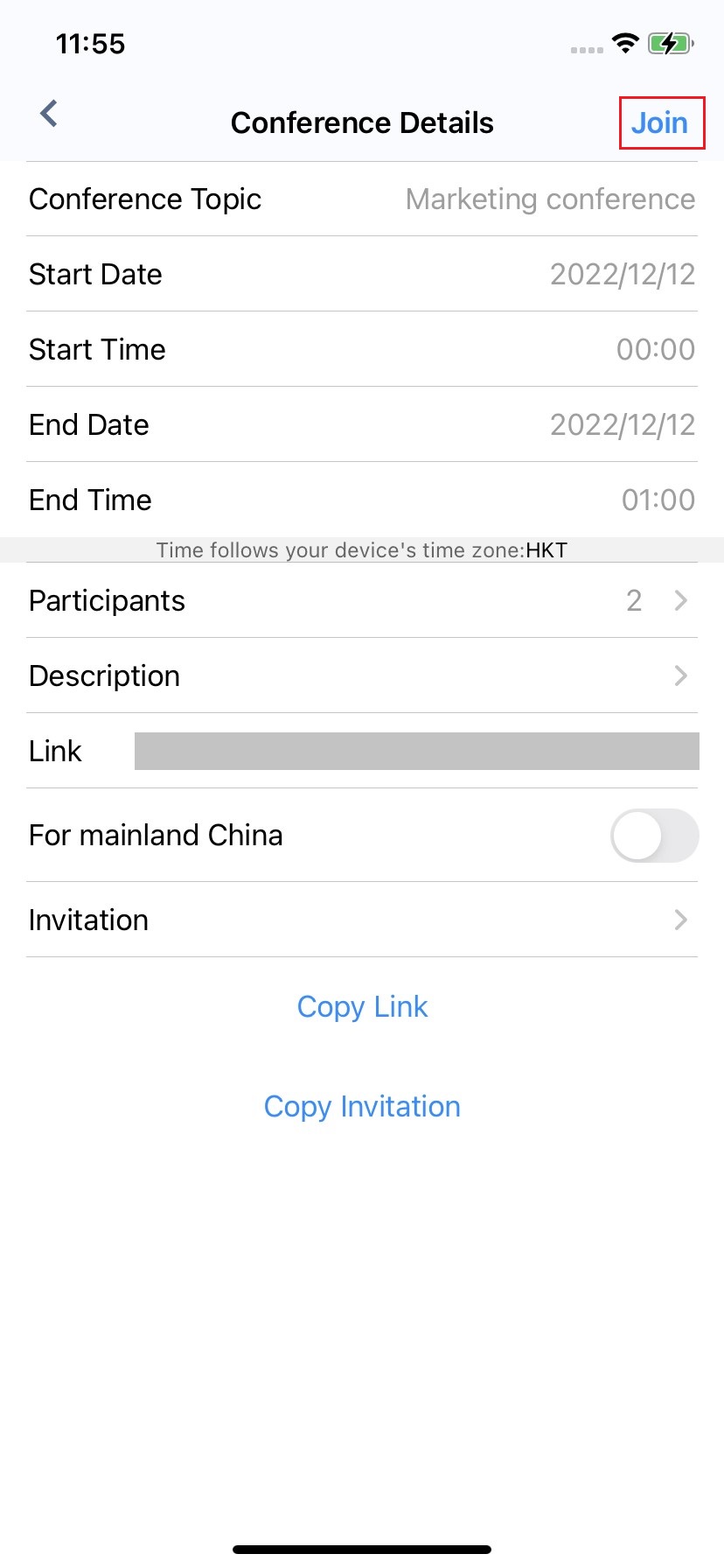
- Declining the scheduled Conference, you can still click Join on the Conference Details page to join the scheduled Conference if necessary.
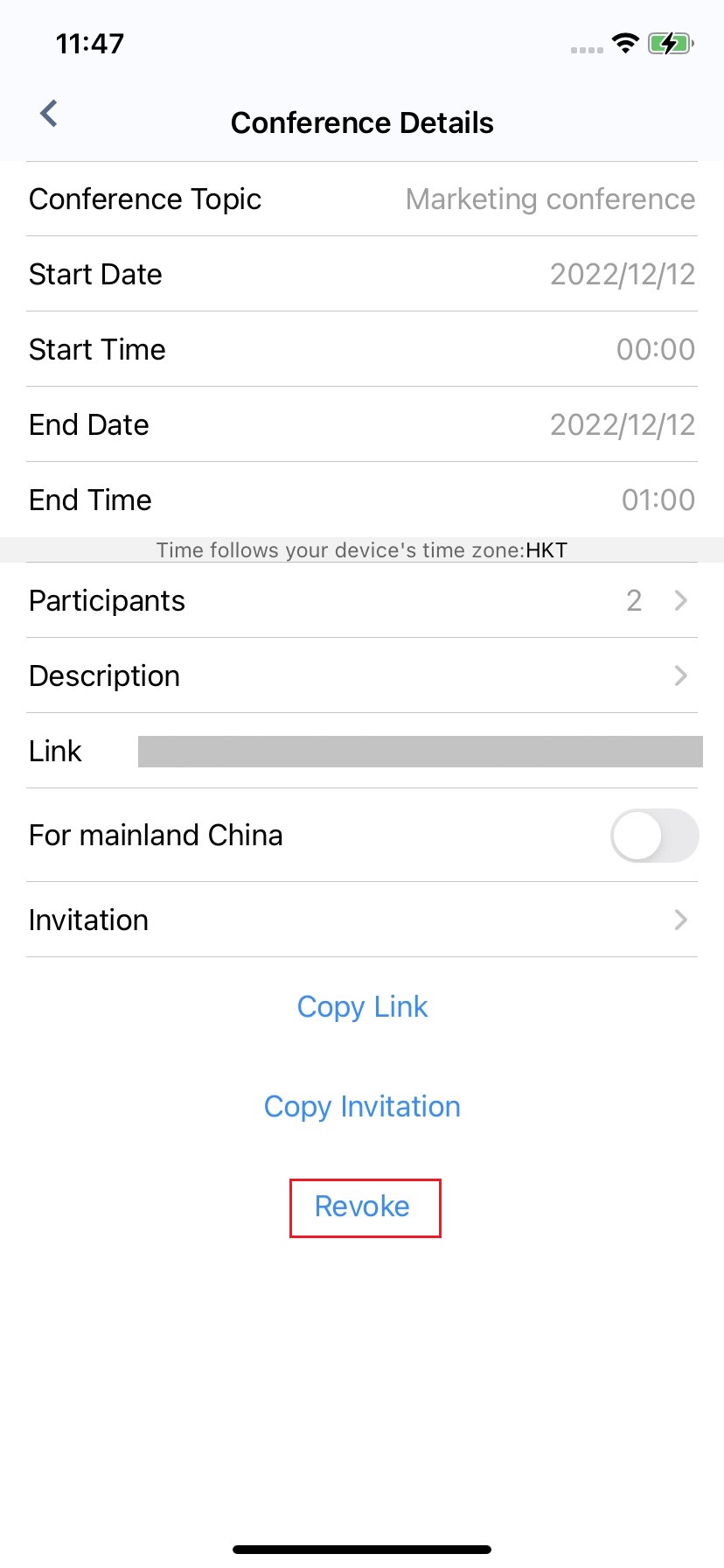
To revoke the declined invitation to join the Conference:
Declining the scheduled Conference, you are allowed to join it again.
- Log in to your CINNOX account. Navigate to the Utility tab on your screen.
- Tap the Scheduled Conference icon.
- Tap Revoke. The toast message shows Successful, meaning that you successfully joined the scheduled Conference again.
📘
Declining the scheduled conference invitation, you will not receive its notification.
Notifications
📘
As a participant, you will receive a notification when:
- You were invited to a scheduled conference.
- The conference schedule date or time has changed.
- You were removed from the scheduled conference.
- When the scheduled conference starts, CINNOX launches a conference call room and notifies the members of the Space to join the conference.
- Staff members can click Join to join the conference call from their CINNOX Dashboard.
Ongoing Conference Call
📘
The conference call will automatically end when only one or no participant was in the room for 10 minutes.
Create an Instant Conference
📘
Scheduled conference NEXT PHASE
📘
- Calendar View
- Search and filter scheduled conference
- Recurring scheduled conference
- Waiting room and pre-configuration settings for participants
- Options to display conference more information, such as location and attachment
- Allowing visitors to book a demo and generate scheduled conference
- More invitation & integration methods, such as via SMS, 3rd party and Open API