
Workspace
Workspace is where your customer support, engagement, and team collaboration occur. In the Workspace, you can pick up and serve visitor and customer queries through chat and call in different channels. Initiate the conversation with your contacts by sending an SMS or calling them. Plus, you can collaborate with your colleagues 1-on-1 via group chat and conference calling.
Workspace composed of four (4) divided panels:
- Utility Panel
- Enquiry Panel
- Chat Room Panel
- Room Information Panel
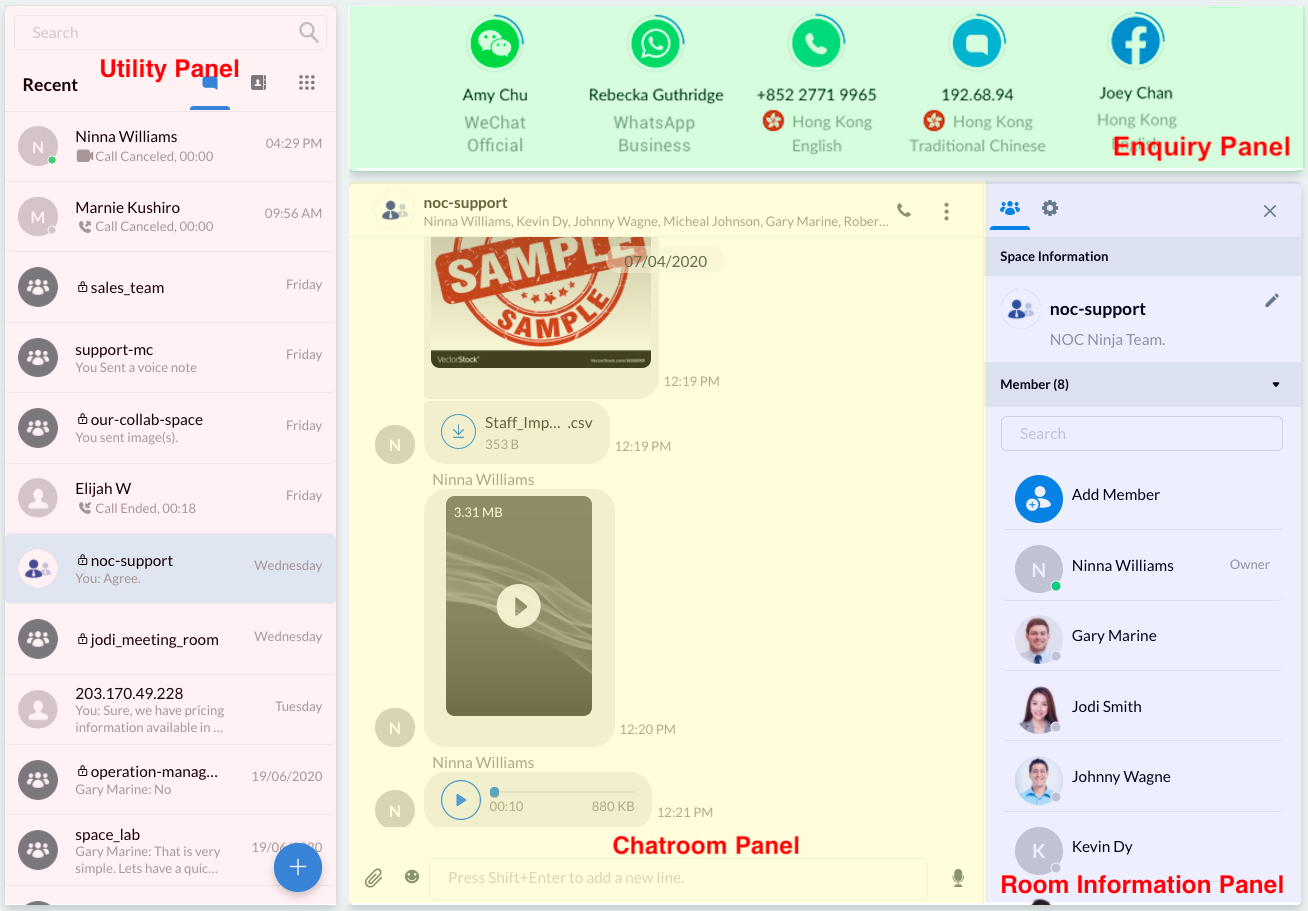
Utility Panel
The Utility Panel has the following areas and functions:
i. Recent
ii. New Chat and New Conference
iii. Contacts
iv. Dial Pad
v. Search
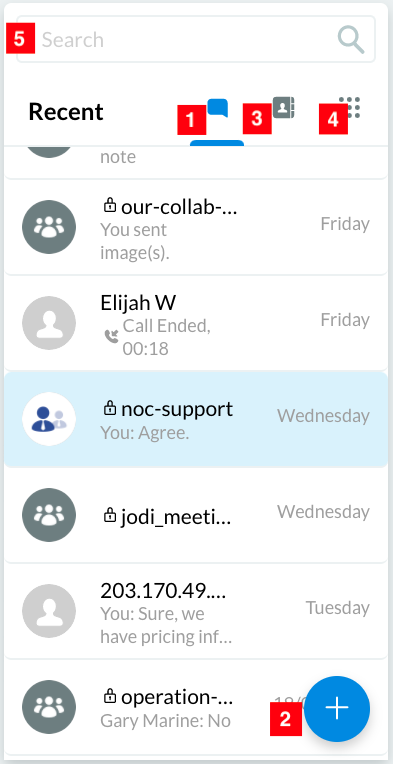
i. Recent Chats
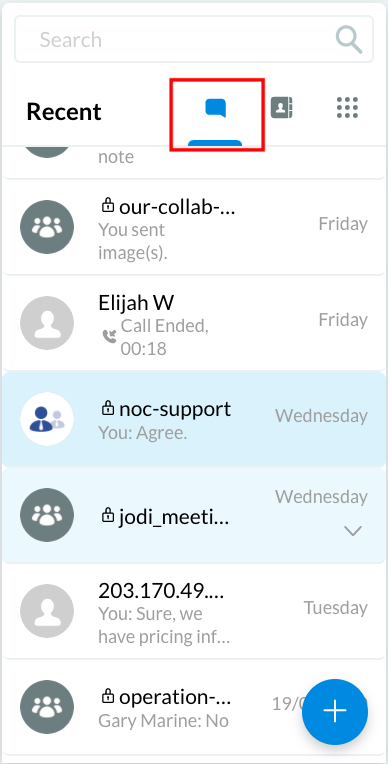
The Recent area displays all the rooms where you have ongoing calls and chat conversations with customers, visitors, and fellow staff members.
📘
An enquiry chat room will disappear from the Recent Chats area of your Utility panel once you or your > visitor resolves or closes the enquiry.
For more details, refer to the Closing an Enquiry section of this Guide
ii. a New Chat
The New Chat feature lets you create a new 1-to-1 chat room or group Space for internal conversations with fellow staff members.
To have a 1-to-1 chat
- Click the (+) button, then click the New Chat button.
- On the Staff List window that will pop out, select the staff member you would like to converse with.
- Click on the Create button.
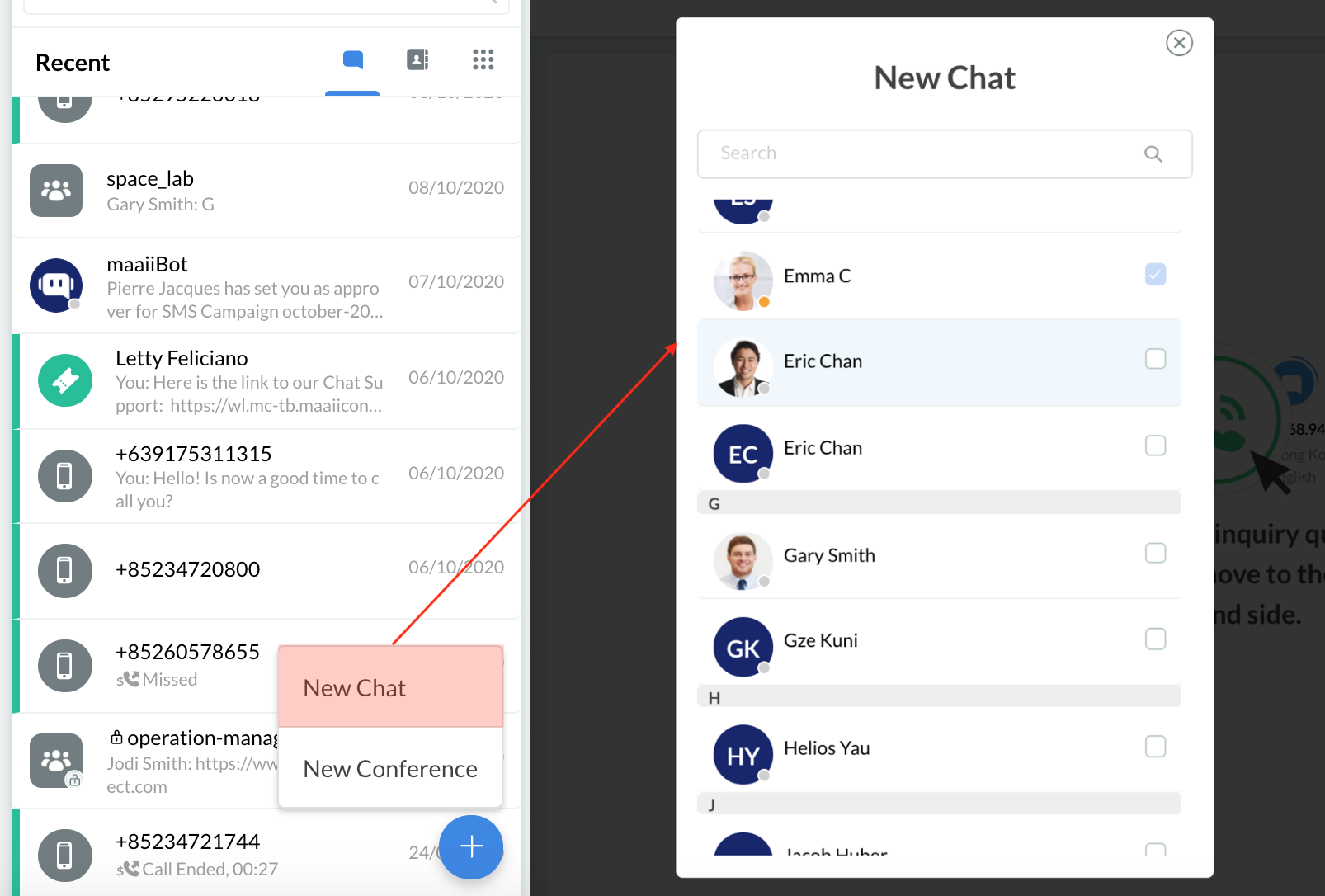
To create a new Space:
- Click the (+) button, then click on New Chat.
- On the Staff List window that will pop out, select the staff members you want to invite to the new group Space, then click on Next.
- Please fill out your Space details, check its settings, and click on Create.
For more details about Spaces, refer to this Guide's Space for Internal Group Chat section.
ii.b New Conference
The New Conference feature lets you create an instant conference meeting.
To start an instant conference meeting:
- Click the (+) button and then the New Meeting.
- On the Instant Meeting window that will pop up, type in the Conference Topic. The default conference topic is [Your Name]'s meeting.
- Click on the Create button.
For more details about instant meetings, refer to this Guide's Conference call section.
iii. Contacts
The Contact List provides information about your Staff (internal) and external contacts.
For more details, refer to this Guide's Contacts section.
iv. Dial Pad
The dial pad feature opens a full-scale keypad that lets you dial a phone number or search for your external contacts' phone numbers and dial them.
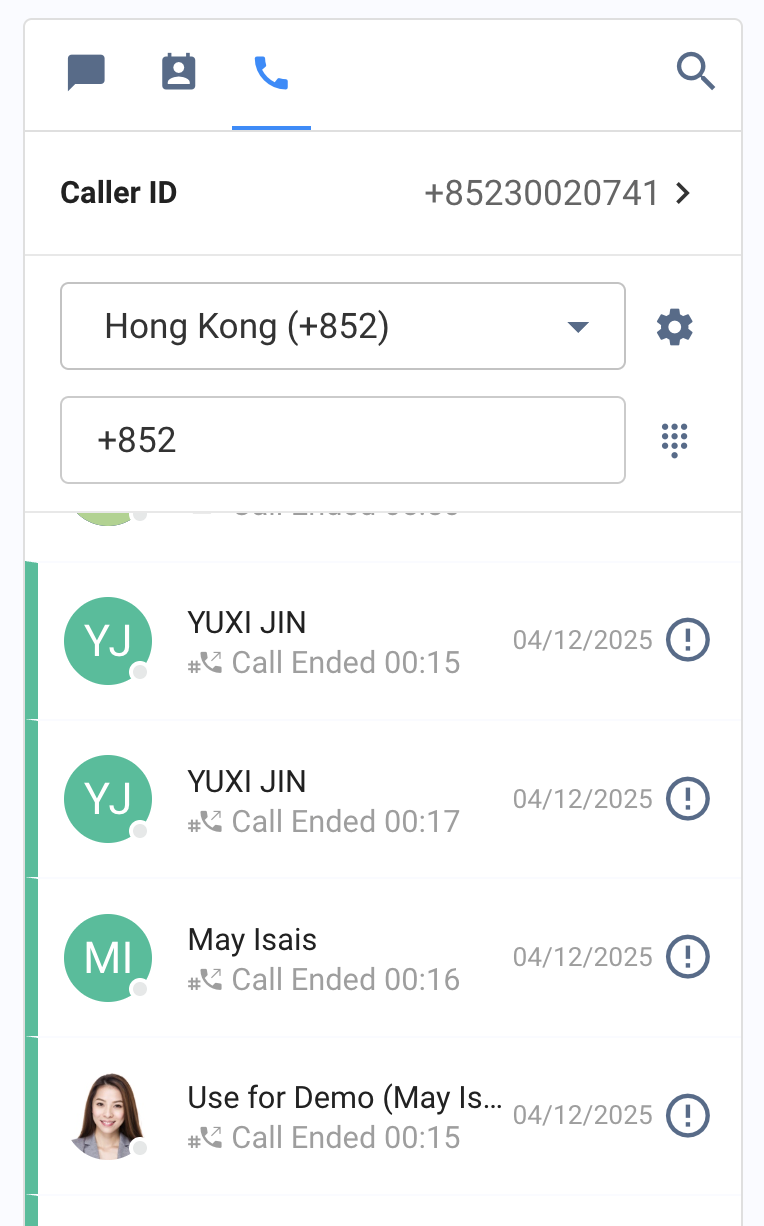
At first, you will need to set your caller ID before making an off-net call, such as your phone number.
- You can set your Caller ID by bringing your company phone numbers as your Service Numbers or by selecting from the Virtual Number - Local Number Type available on your CINNOX service.
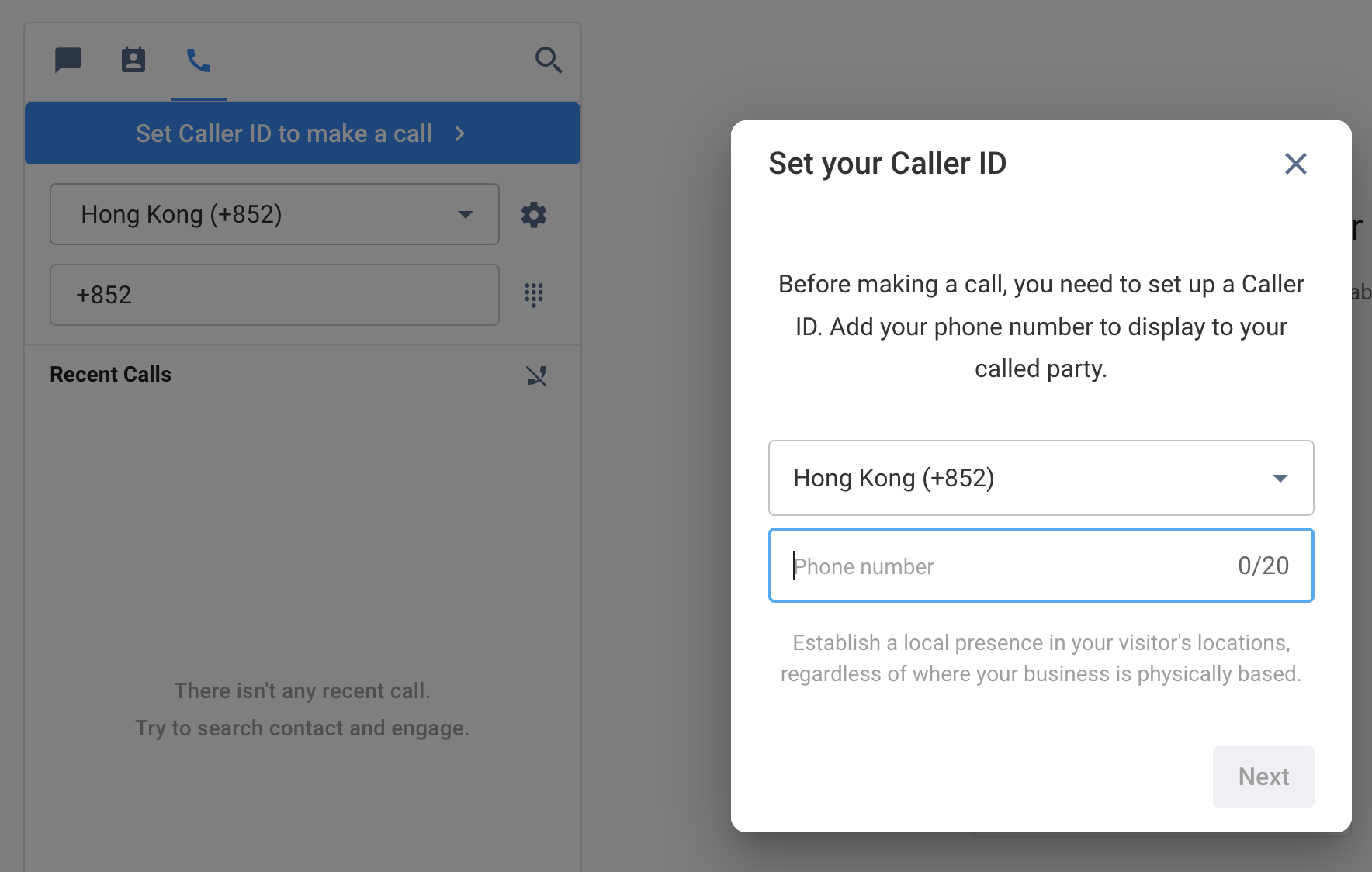
To add your phone number as your Caller ID:
- On the Workspace > Utility Panel > Call Icon, then click to set your caller ID.
- On the pop-up window, enter the phone number, then click on Next. CINNOX will then send an SMS verification code to the number you entered.
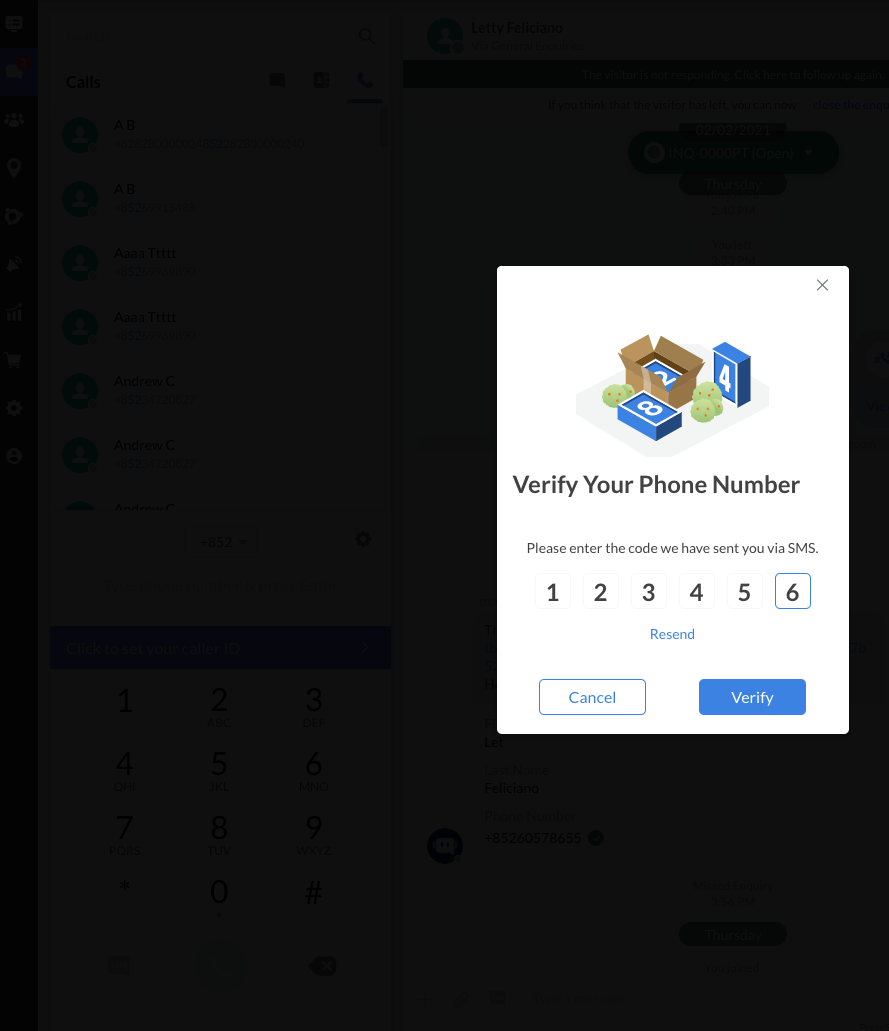
- Enter the six-digit code on the pop-up window we've sent you to your phone number, then click on Verify.
📘
Click on Resend if you have not received an SMS verification.
You are only allowed to make three failed attempts to verify the number. After the third failed attempt, you >need to wait for 10 minutes before you can try again.
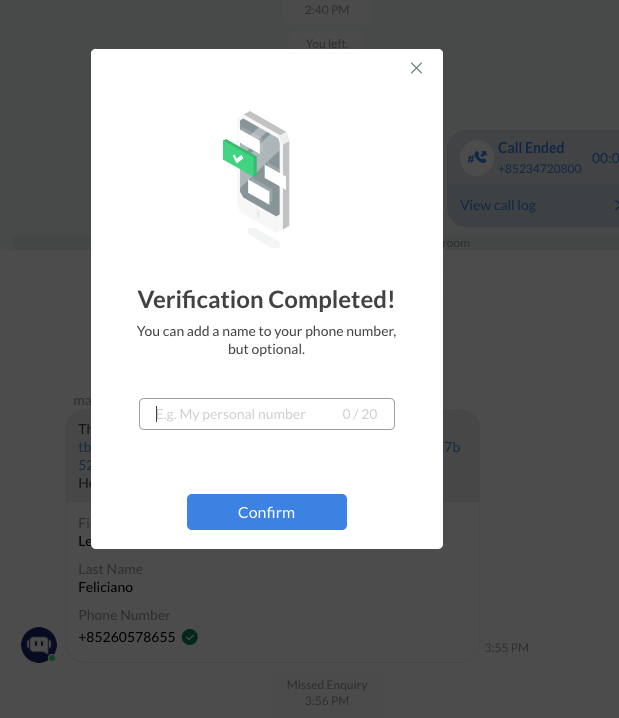
- Once the verification is completed, you can name your Caller ID, but optional.
Dial Pad - Off-net Calls
You can make off-net calls using the dial pad.
- On your Workspace, go to the Utility panel, then click on the Calls tab. Your dialpad displays your Recent Calls - on-net and off-net calls with your internal and external contacts and numbers
- Select for the Caller ID
- Enter the phone number or name to call. As you enter the phone number or name, the recent list will filter the list accordingly.
- Click the call icon to initiate the call.
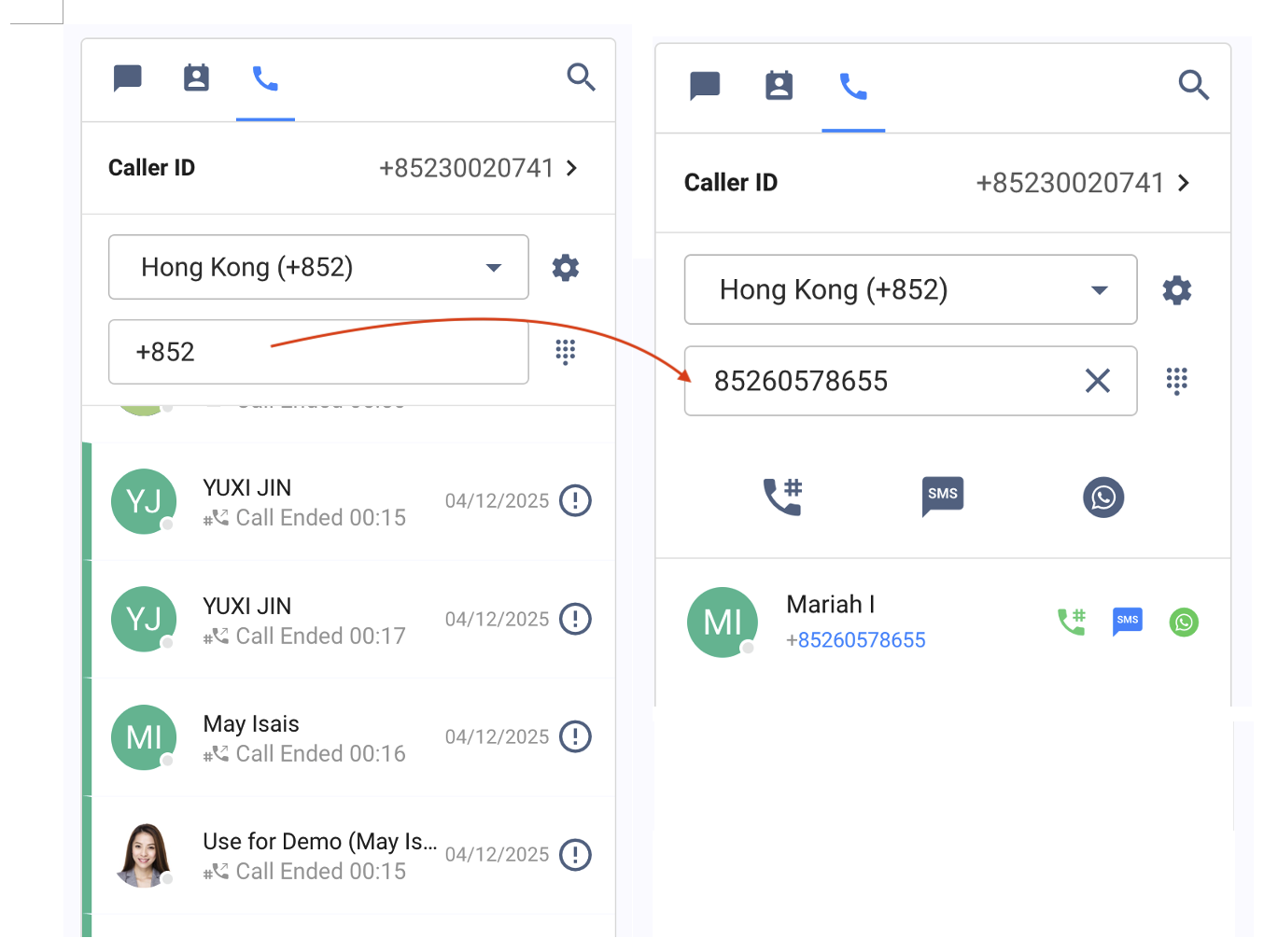
- Alternatively, you can send SMS and WhatsApp to a contact or number from the Dial Pad.
- Click the SMS icon to start sending SMS
- Click the WhatsApp icon to start sending a WhatsApp Message
- For more details and settings, please check our Making Calls with Dial Pad detailed guide.
v. Search
The Search function lets you search for messages, chat rooms, Spaces, and contacts in your Recent Connections area.
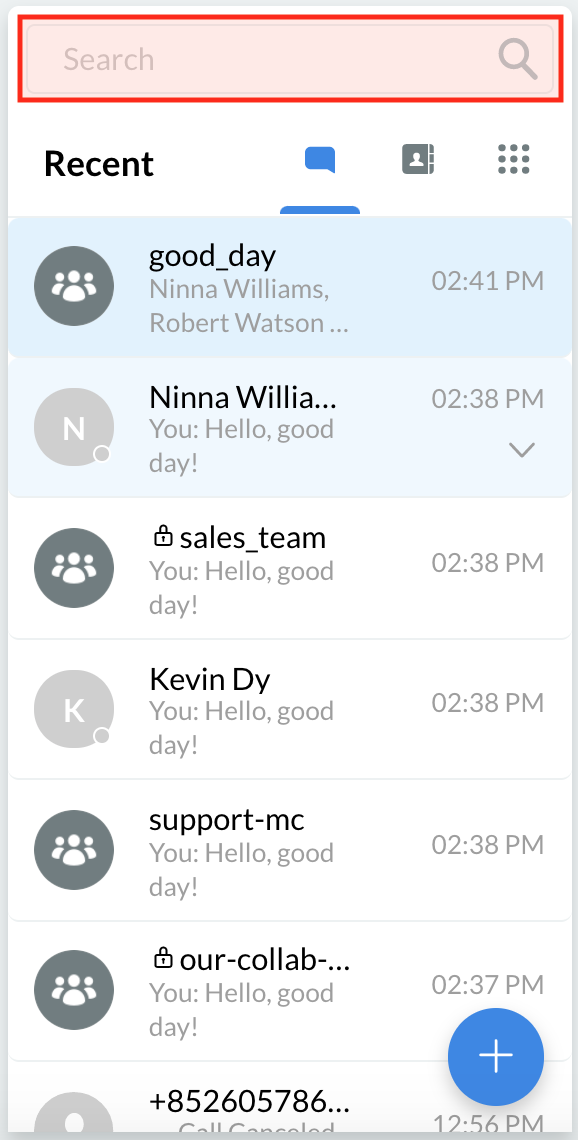
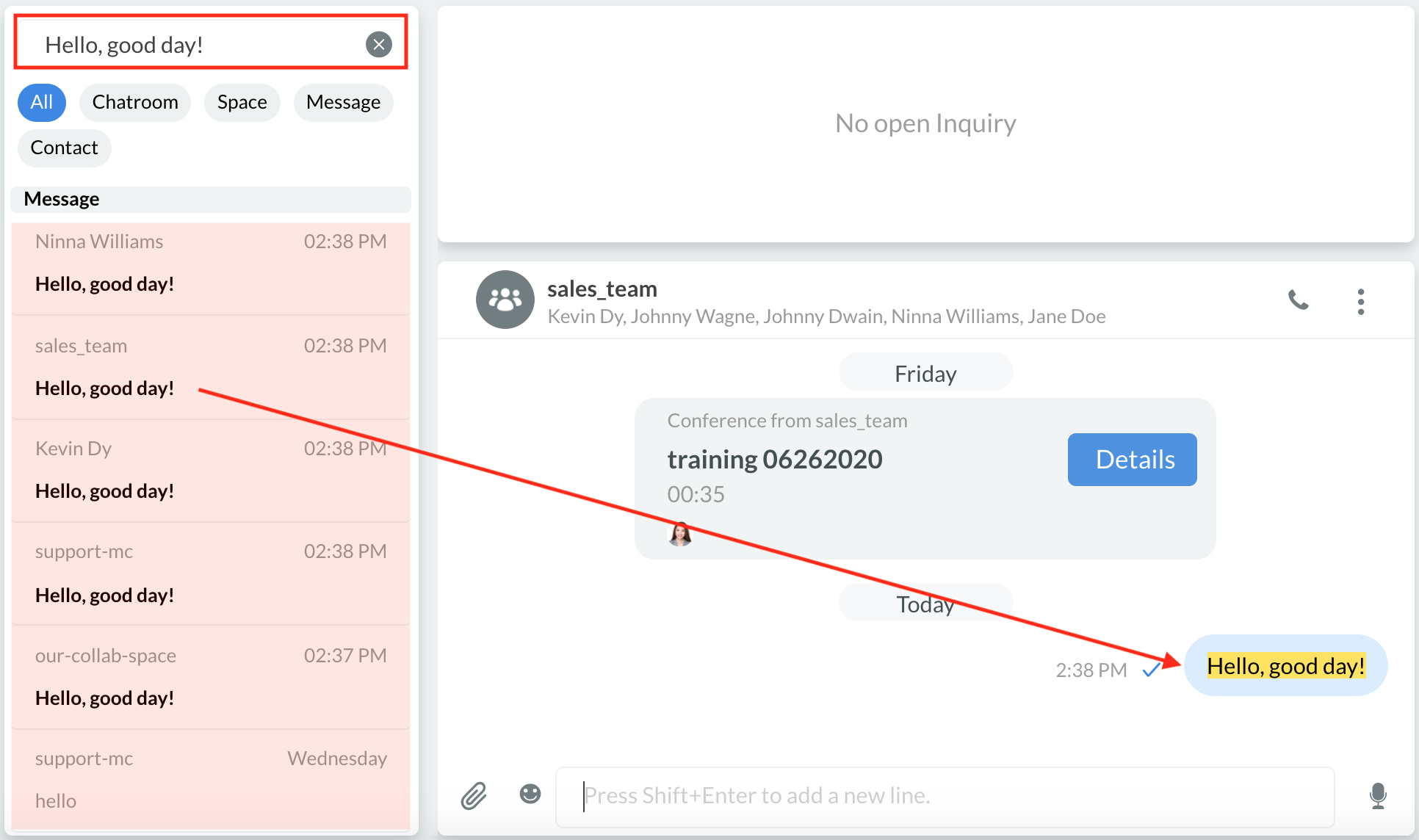
- Start a search by putting your cursor on the search field and typing the keywords you seek.
- The search results will display items in your Recent Connections that match the keywords. The results are filtered according to the following locations where they were found:
- Chat rooms
- Spaces
- Messages
- Contacts
Enquiry Panel
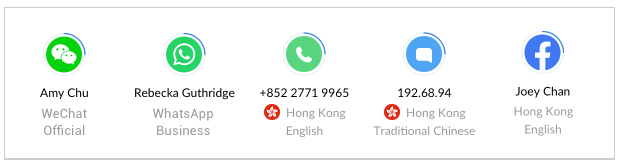
The Open Enquiry Panel displays all open calls and chat enquiries from visitors and customers. Each enquiry has the following details:
- Enquiry type
- Visitor name or visitor ID
- Visitor location and country/territory flag
- Language
📘
An open enquiry displays in the Enquiry Panel until a staff member has picked up the enquiry or reached the maximum waiting time.
The maximum waiting time is as follows:
- Broadcast Call Enquiry = 30 seconds
- Broadcast Chat Enquiry = 60 seconds
- Direct Call Enquiry = 90 seconds
- Direct Chat Enquiry = 60 seconds
Depending on your preferences, you may show or hide the Open Enquiry Panel.
Please refer to this Guide's Enquiry Centre section for more details.
Chat Room Panel
The panel in the CINNOX Workspace where staff members can send/receive instant messages and share files such as images, videos, documents, voice messages, or SMS texts to their customers or colleagues.
Please refer to this Guide's Chat Room section for more details.
Room Information Panel
The panel in the CINNOX Workspace where each connection would have corresponded type of room, such as:
- Enquiry Room for visitor and customer enquiries
- Direct Room for Staff-Staff and Engagements
- Space for an internal group chat room
Please refer to this Guide's > Chat Room - Room Information section for more details.