Salesforce Contacts in CINNOX App
Sync your Salesforce contacts with CINNOX for seamless conversation
CINNOX allows you to synchronize and connect your contacts between Salesforce and CINNOX. Seamlessly manage conversations and engagements within your CINNOX account, eliminating the need to switch between applications. With the successful integration of Salesforce Production and CINNOX by the staff admin, staff members can conveniently access their Salesforce user account directly within the CINNOX Mobile App. Enhance your team's communication and customer service today with CINNOX's all-encompassing communications solutions.
Connect your applications to increase your efficiency, productivity and response to opportunities. Manage all of your customer information & interactions on a single platform.
Sync and link your contacts, automatically log enquiries as cases and calls as tasks between Salesforce and CINNOX efficiently and manage the conversations and engagements in your CINNOX account without switching between applications.
When the Staff admin successfully integrates Salesforce Production and CINNOX, the staff members can log in to their Salesforce user account inside their CINNOX Dashboard or Mobile App.
Refer to the Integrating Salesforce section of this Guide for details on the prerequisites and the Salesforce and CINNOX integration steps.
Staff Salesforce Login in CINNOX App
- Log in to your CINNOX Mobile App using your staff account
- Navigate to My Account > Integration
- Tap Settings
- Toggle ON the Salesforce Contacts
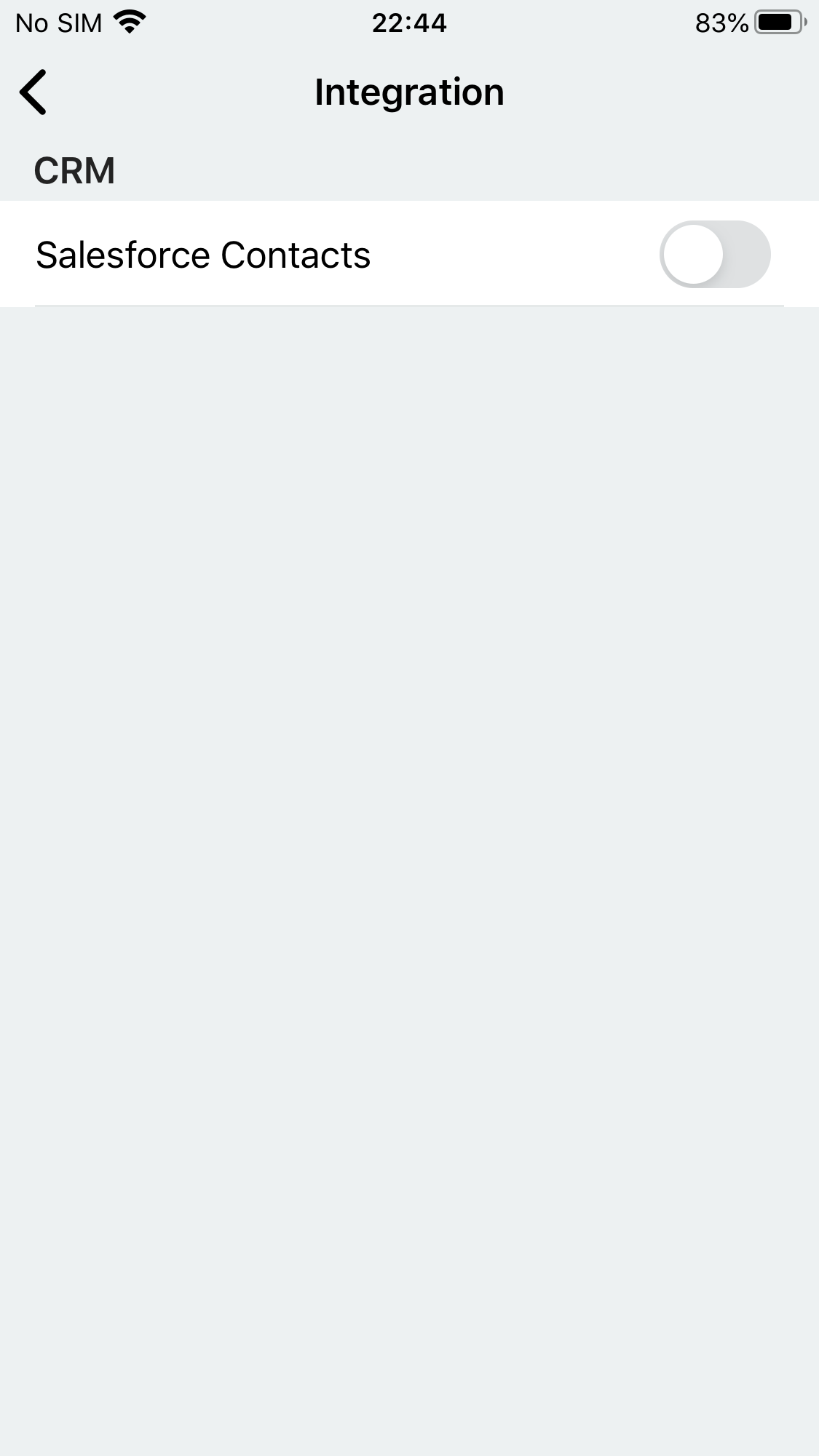
Staff logs enable CRM - Salesforce.
- A pop-up window will appear, asking you to log in to your Salesforce account to authorise CINNOX.
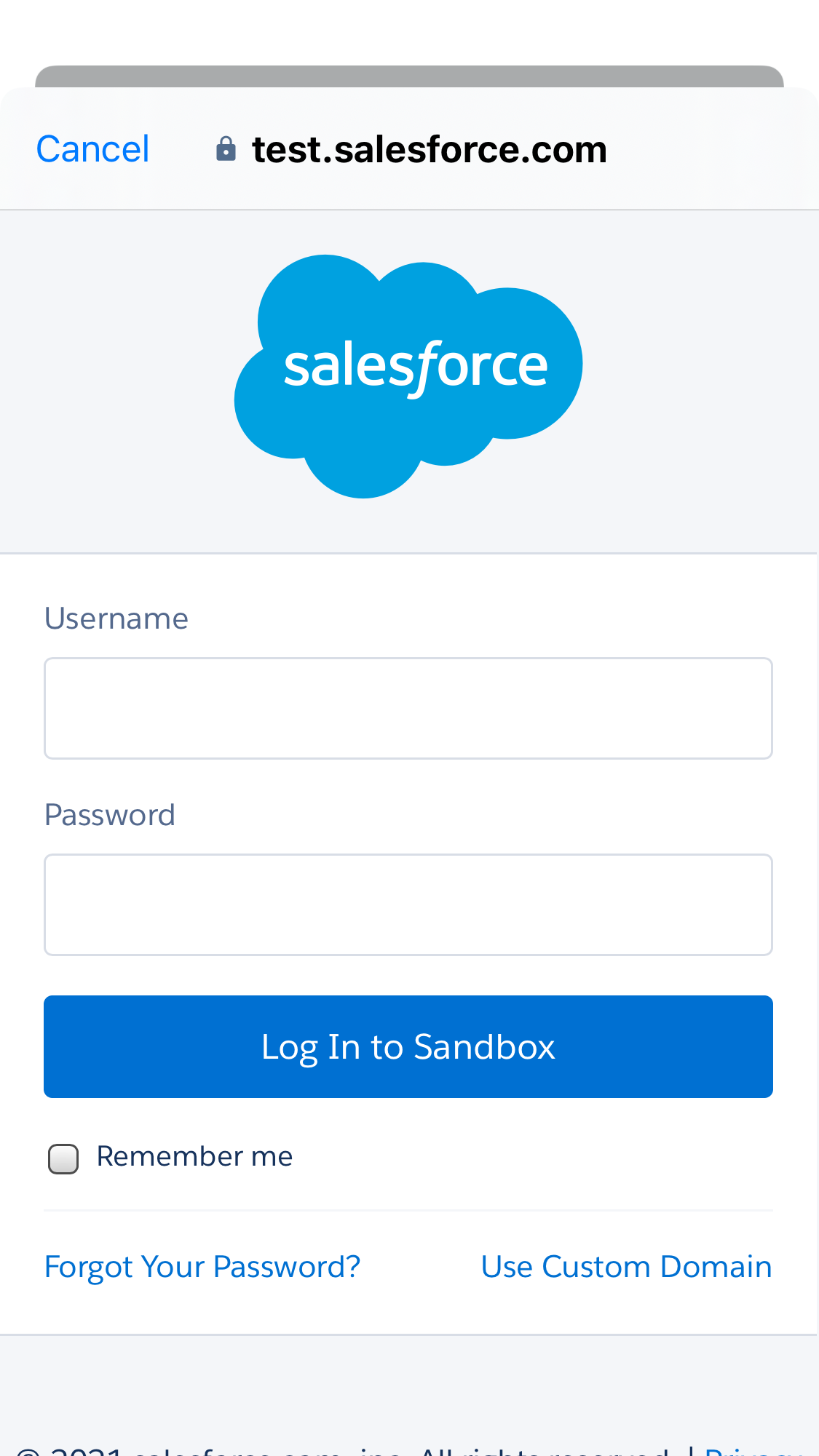
Staff logs in to their Salesforce account
Note: If it is the first logging of your Salesforce account to a device and browser, Salesforce will require the verification code sent to your email.
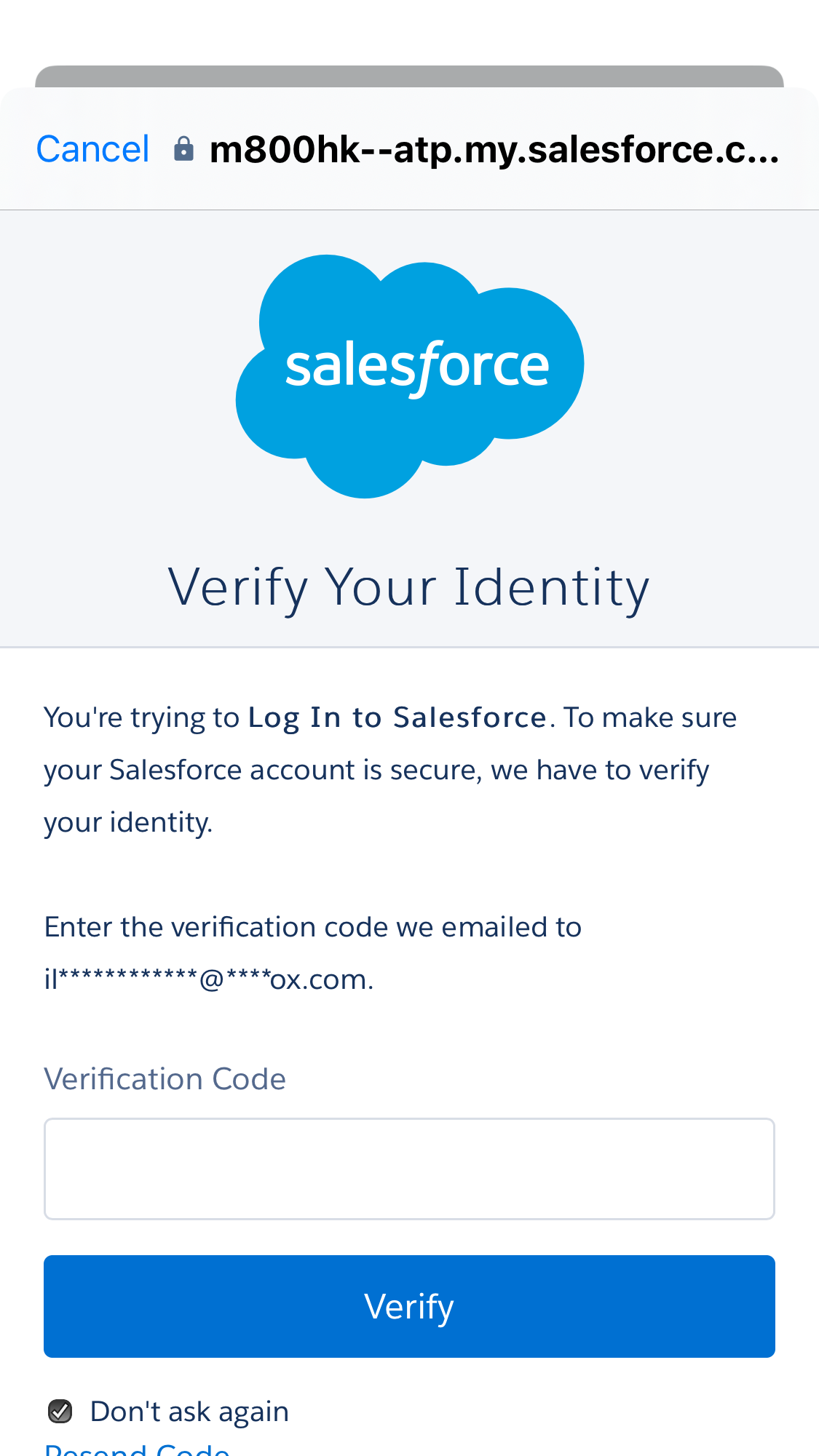
Salesforce Requires Verification Code
- A successful toast message will appear Salesforce and CINNOX Contacts synced successfully.
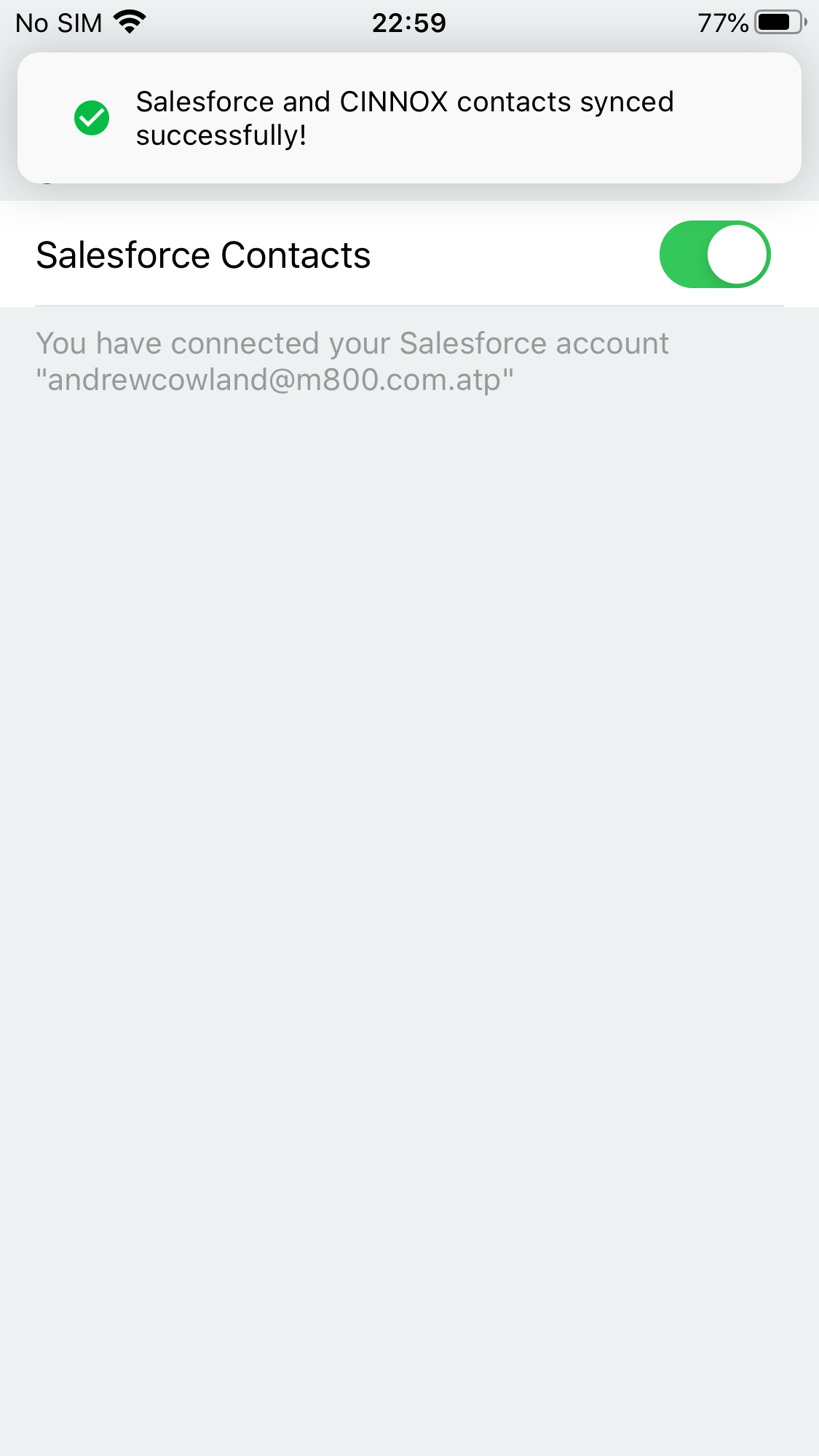
Login and Contact Synced Successfully
👍
Alternatively, you can click Connect in the message from CINNOXBOT that "Salesforce integration has now been enabled. You can sync your contacts between Salesforce and CINNOX."
Features available when CINNOX and Salesforce Integrated
Salesforce Contact Information displays in CINNOX Enquiry
When a customer with a verified phone number sends an enquiry and is matched with a Salesforce Contact phone number, it will show in CINNOX as the Enquiry Contact Profile.
The Salesforce icon is displayed in the call view.
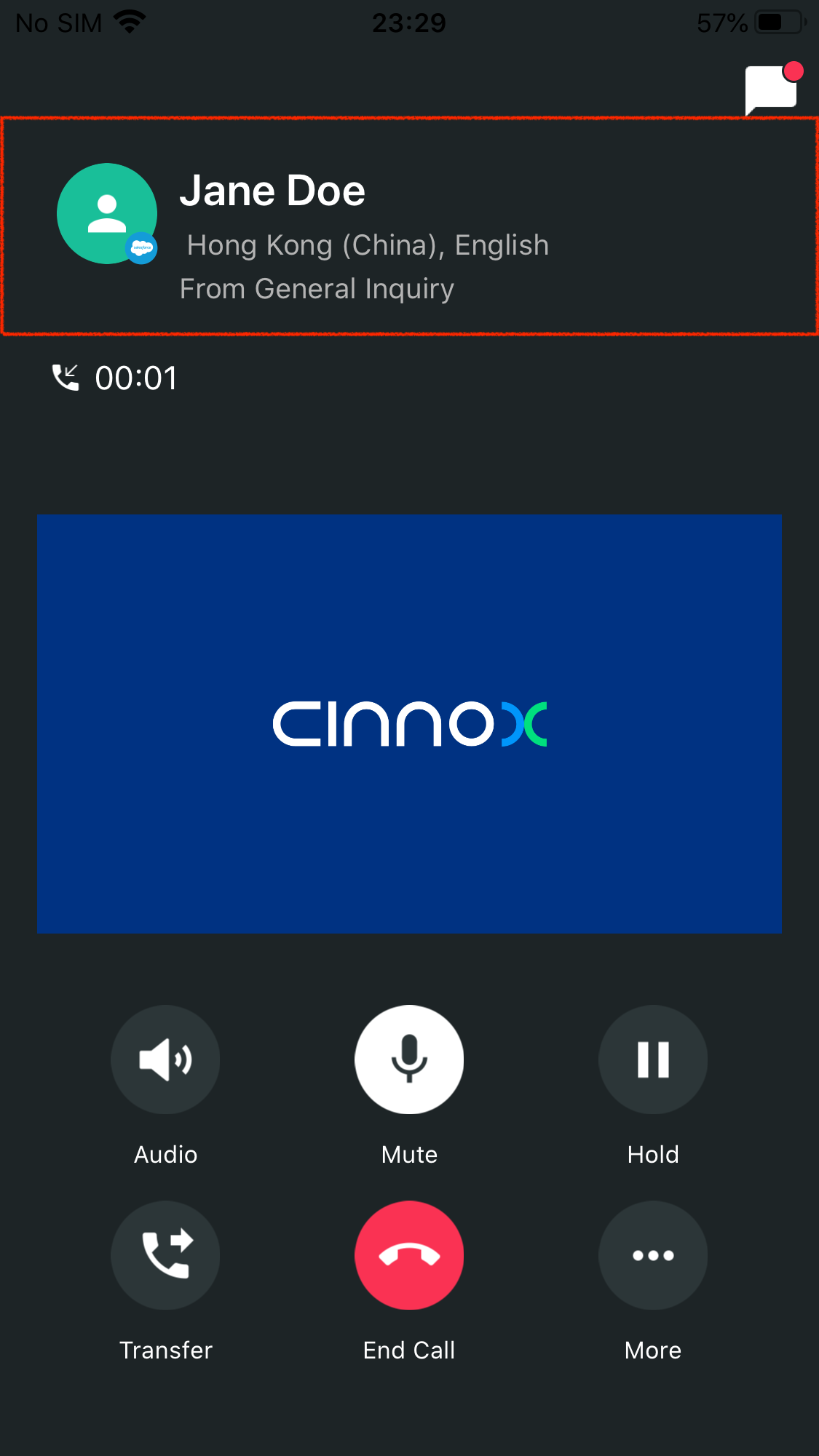
Salesforce contact open an enquiry
Synchronous Contacts
Synchronise your Salesforce contacts in CINNOX and vice versa to view all your contacts on a single platform.
Contact field mapping between CINNOX & Salesforce allows for automatically syncing records between these two applications.
Salesforce Contacts in your Contact Management
- Navigate to Contact - Salesforce tab
All of your Salesforce contacts are listed here.
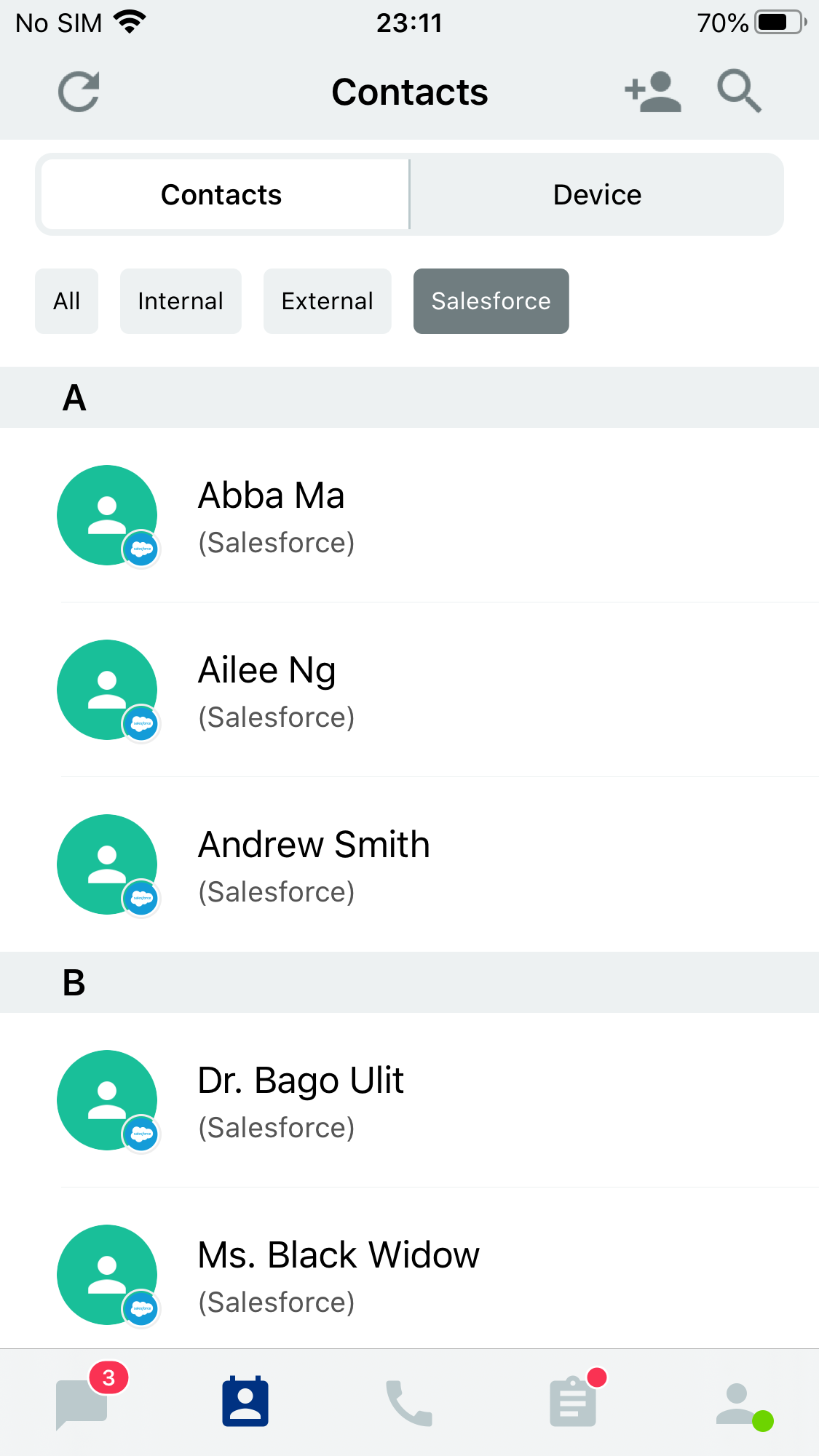
Salesforce Contacts in App
Salesforce Contacts in your Contacts
- Navigate to Contacts - Salesforce Contacts section will appear in the Contact List.
All of your Salesforce contacts are listed here.
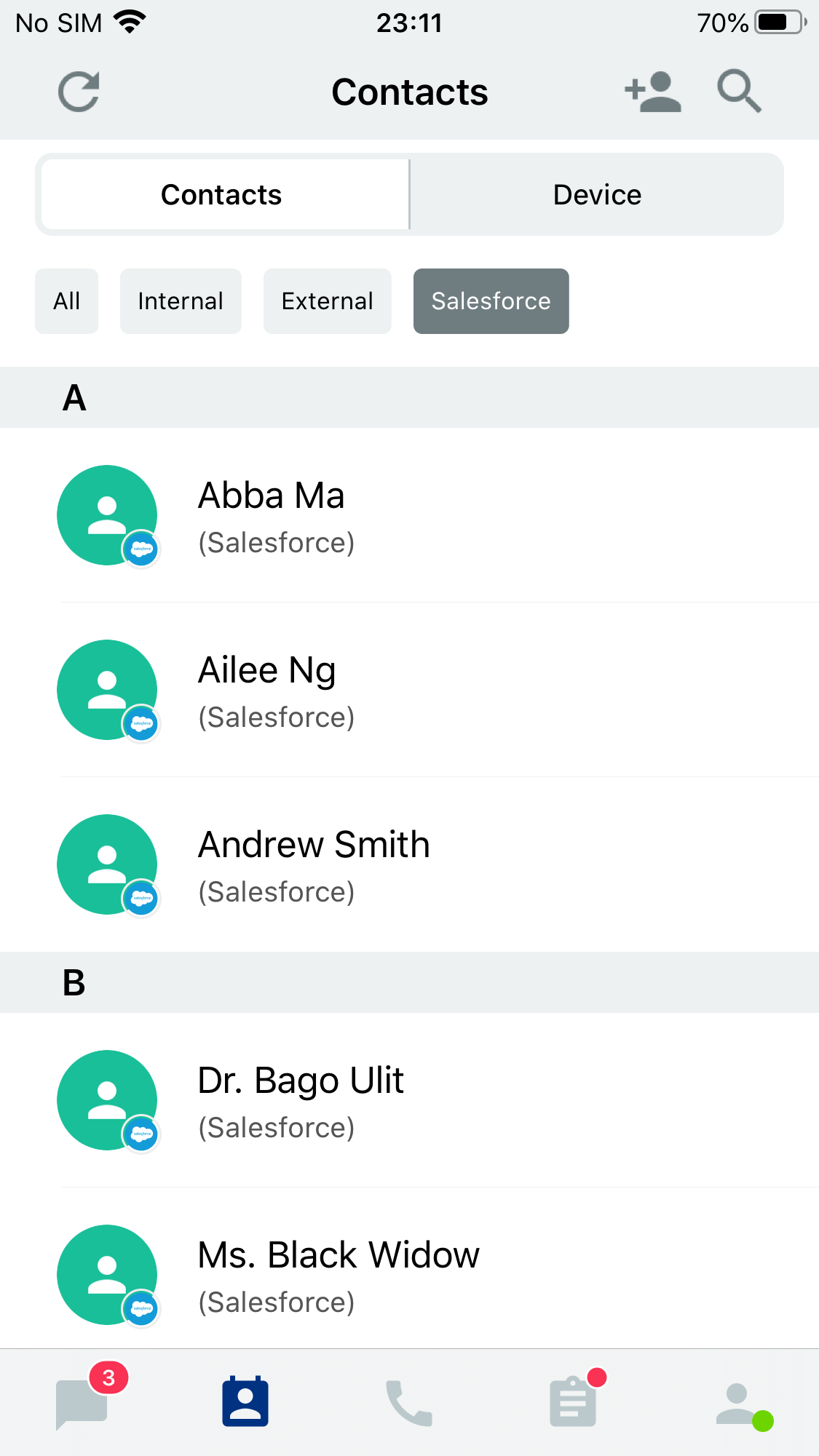
Search Salesforce Contacts in App
Create Contact
When you create a new external contact, it will also link and create in your Salesforce account.
- Navigate to Contact
- Tap Create icon
- Fill in the Information you have for the new Contact
- Tap Create
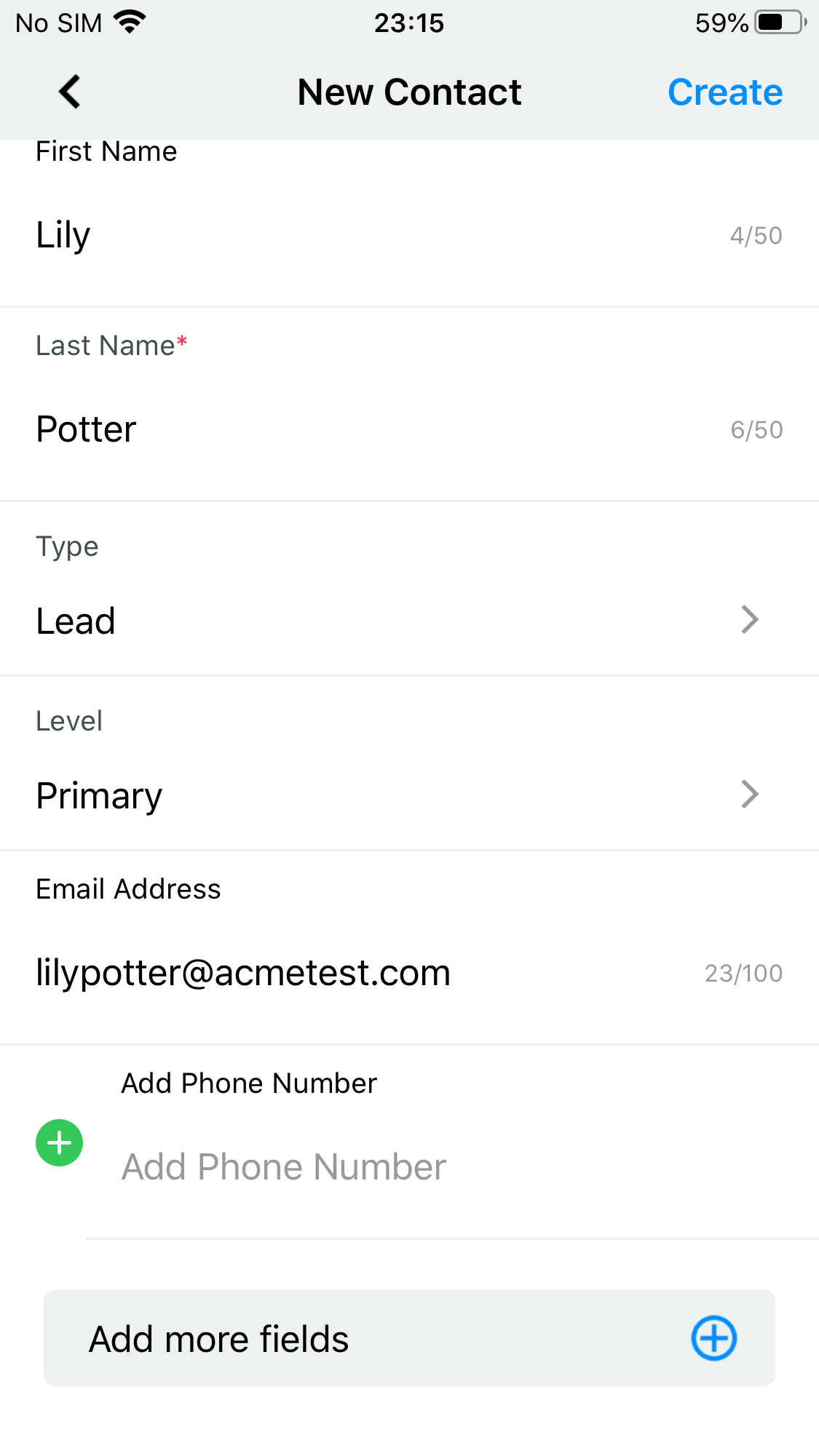
Create New Contact
The newly created Contact appears in the CINNOX External Contacts and Salesforce Contacts.

Newly created Contact in CINNOX, saved in Salesforce, too.
Search Contact
You can search and view your Salesforce contacts in CINNOX.
- Navigate to Contacts
- Type the first or last name, phone number or email address of the Contact you want to search.
- The related search contacts will appear in the results.
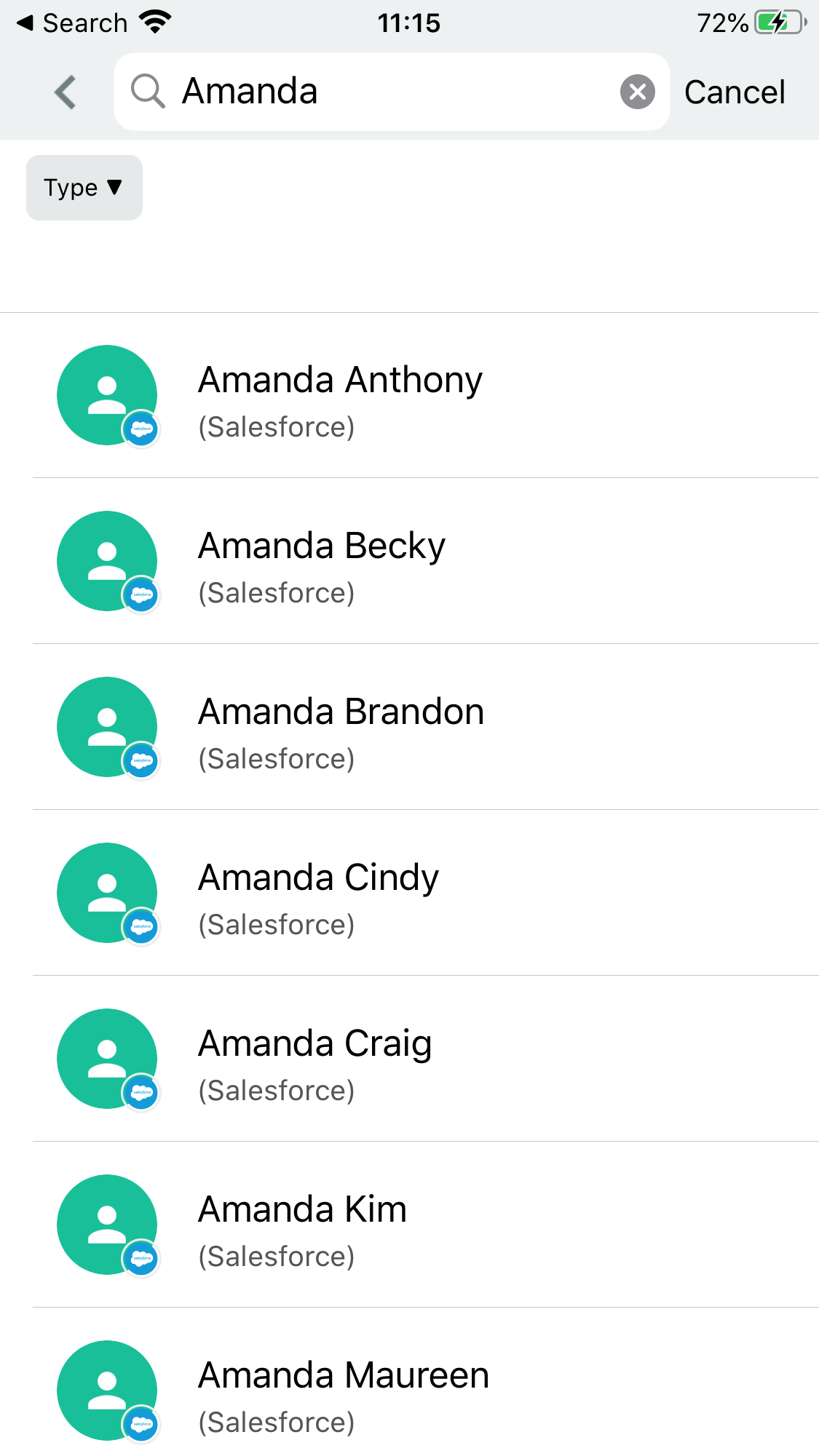
Search Salesforce Contacts in the Workspace
Afterwards, you can view the Information of the searched Contact and more on the Salesforce side.
- Tap the contact name to display the contacts profile.
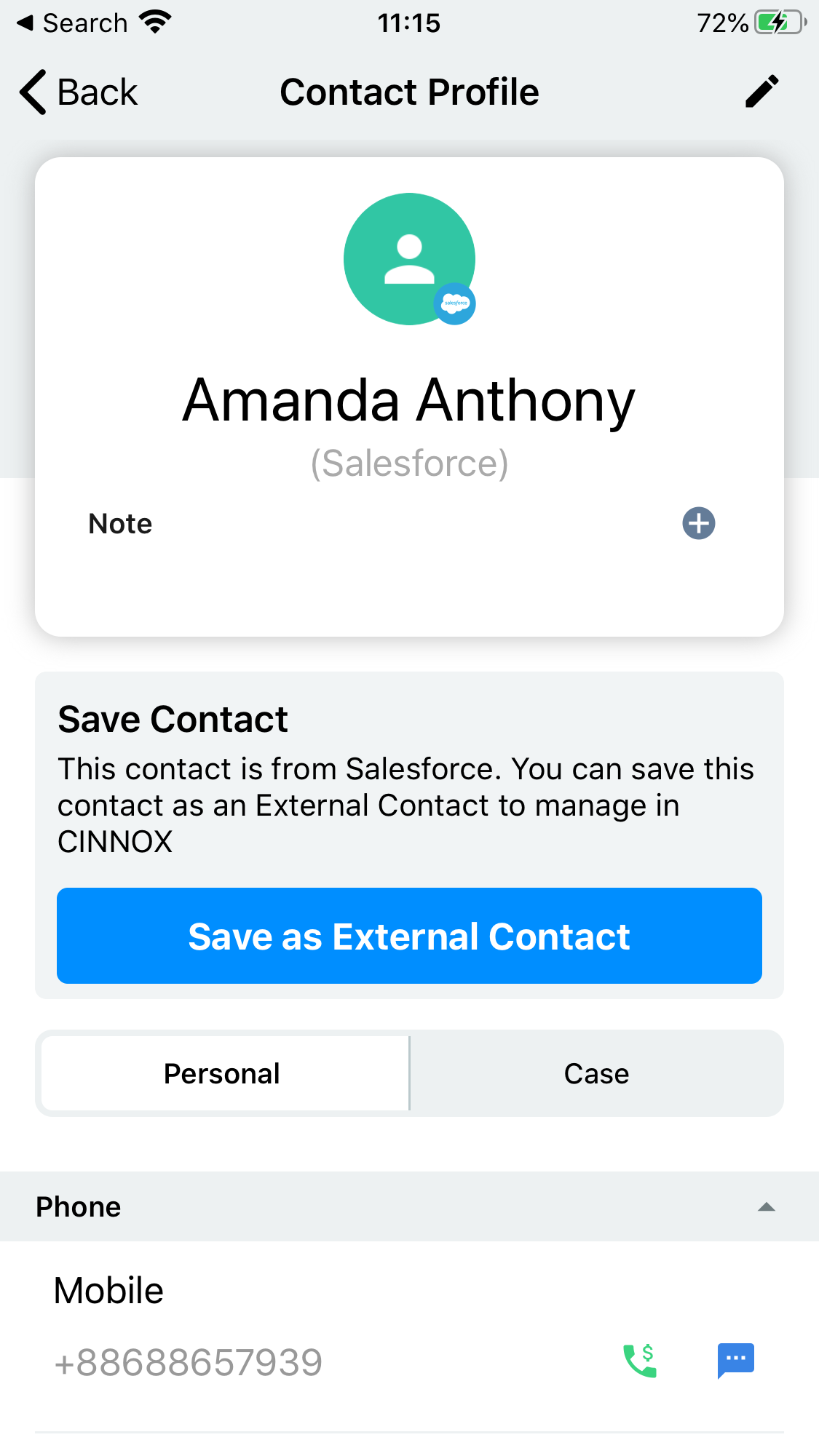
View Salesforce Contacts in CINNOX
- Tap View more in Salesforce. A new tab will appear in your browser to display the Contact on the Salesforce side.
Update Contact
You can update the Information of your Salesforce contact in CINNOX.
- Navigate to Contacts > Salesforce Contacts
- Tap the contact name to display the Contacts Profile
- Tap Edit icon
- Fill in or edit the fields that require updates
- Tap Save
- The updated details will be saved in Salesforce, too.
Automate CINNOX Enquiry to Salesforce Case
Your Contact's Enquiry will be automatically saved as a Contact's Case in Salesforce with information, status and chat history.
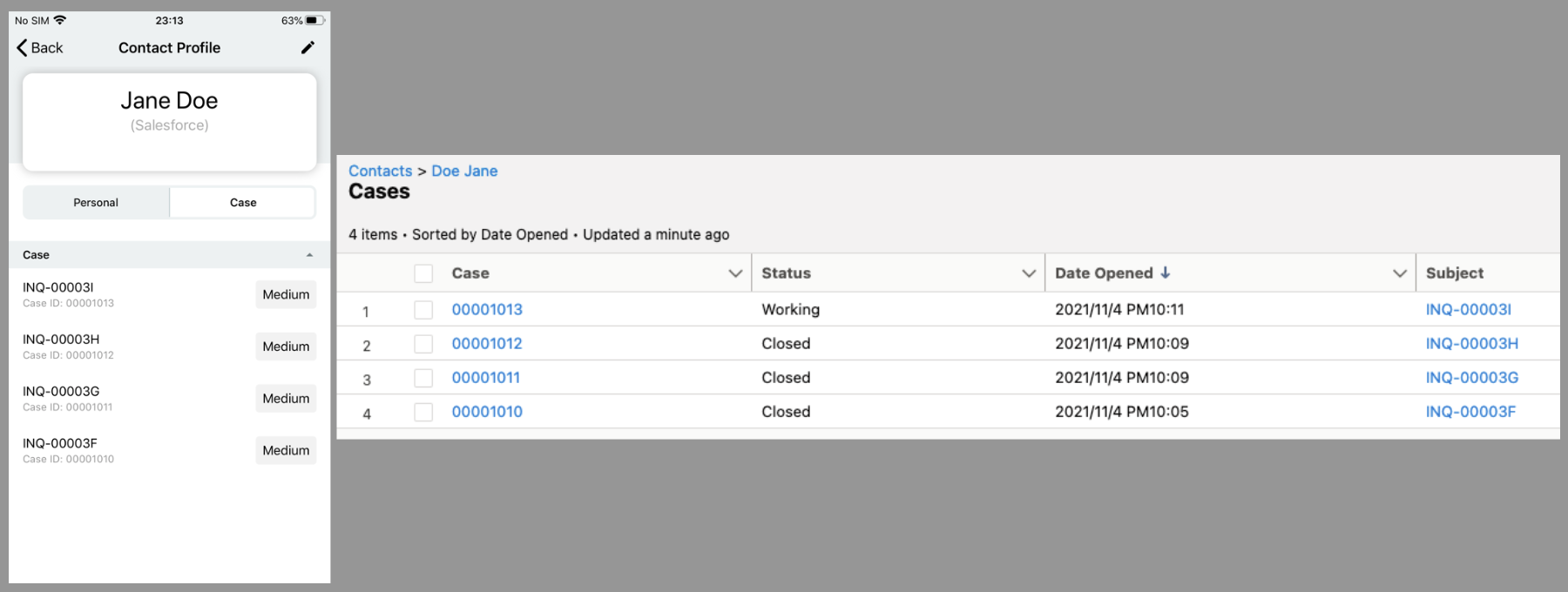
CINNOX Enquiries - Salesforce Cases
Automate CINNOX Call to Salesforce Task
Your Call inside the Enquiry is saved as a Task in Salesforce.
The call log is posted in the Task Details.
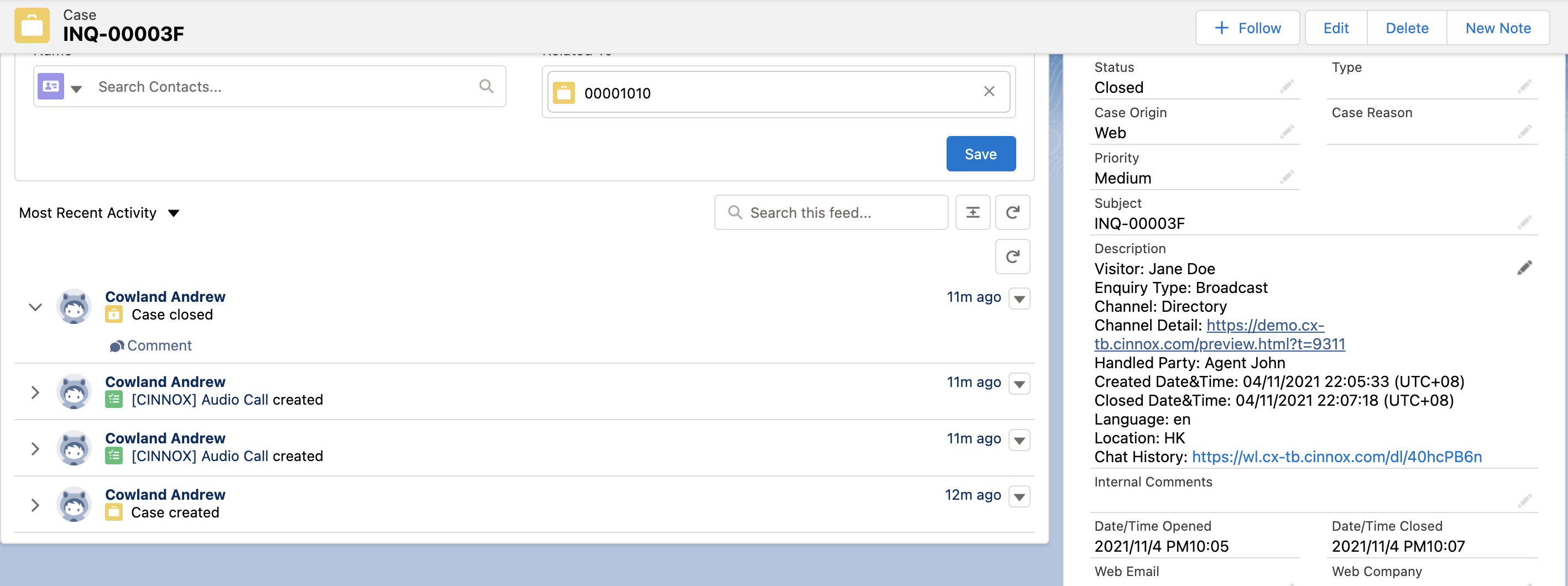
CINNXO Call Log - Salesforce Activity Call Log
Link and Update Contacts
You can link between a CINNOX External Contact and Salesforce Contact.
One possible scenario is that your CINNOX External Contact is the same as your Salesforce Contact.
- Navigate to Contact Management > Salesforce Contacts
- Tap the contact name to display the contacts details on to link
- Tap Merge / Link Contact
- On the pop-up window, select the Salesforce Contacts tab
- Select the Contact to link with
- Select the fields you want to keep from each Contact if one has Information that the other does not.
- Tap Save
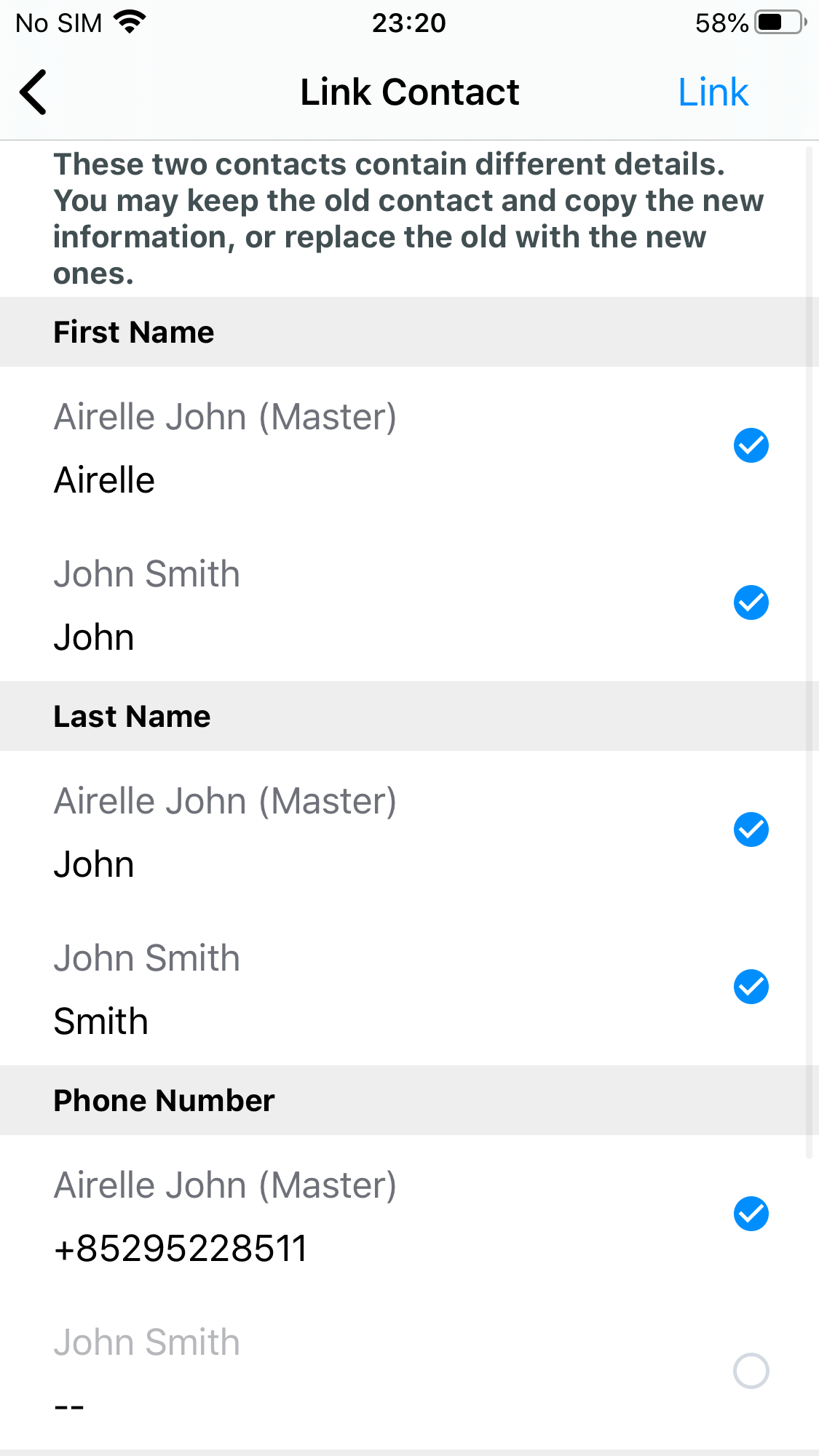
Link CINNOX and Salesforce Contacts
Unlink Linked Contacts
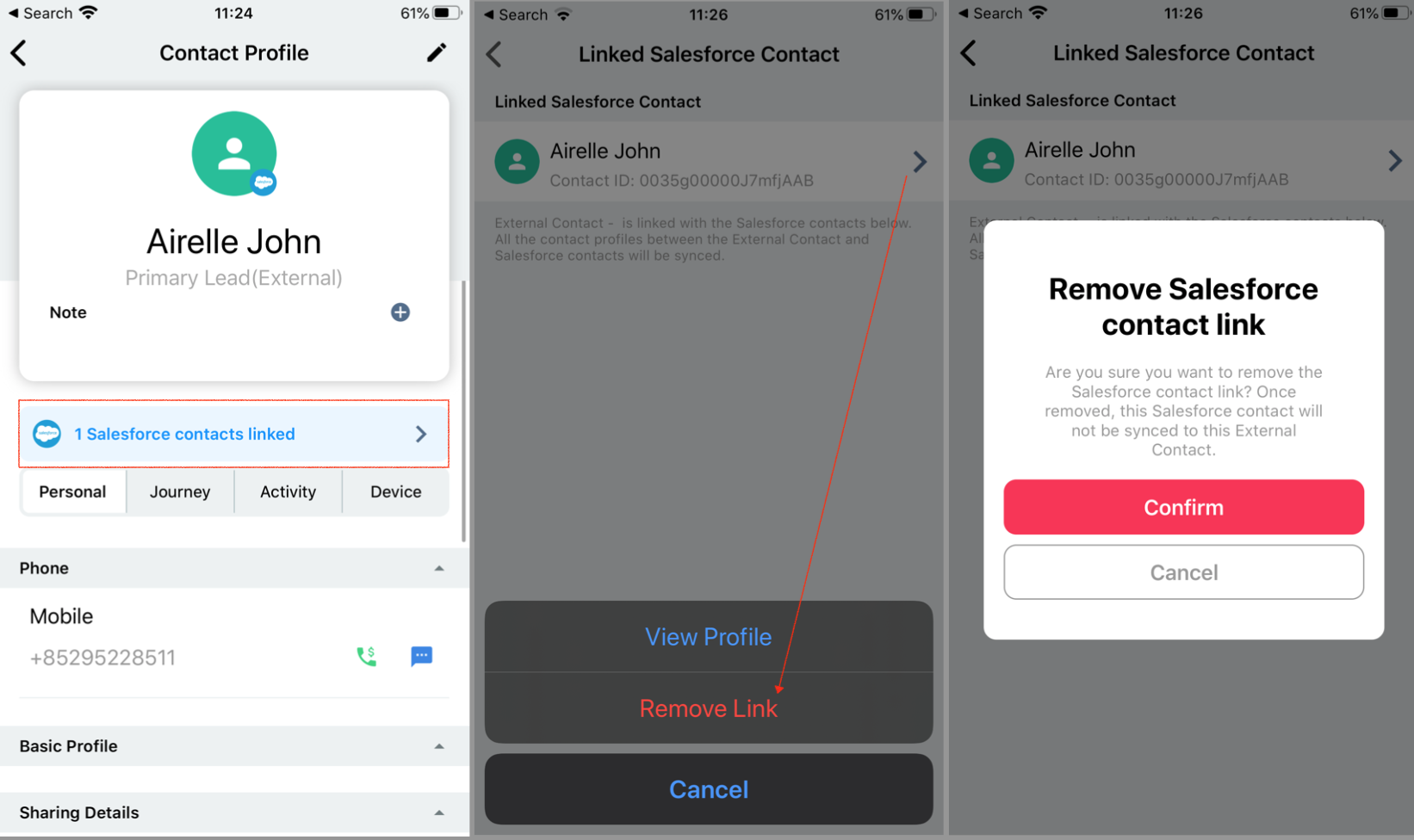
You can remove the linkage between the two linked contacts if necessary.
- Navigate to the Contacts
- Find the contact name with the linked Contact
- Open the Contact Profile page
- Tap the 1 Salesforce contact linked
- Linked Salesforce Contact page display
- Tap > near the contact name
- Tap Remove Link
- A pop-up page will display to confirm the unlink of the 2 contacts
- Tap Confirm