
Search...
Menu
Sharing Files
In the CINNOX chat room, staff members and visitors may share the following files:
- Images
- Videos
- Documents
- Voice Messages
Sharing Images, Videos, and Documents
There are two ways to share images, videos, and documents:
- By browsing and selecting files from folders
- By dragging and dropping files on the chat room window
To browse and select a file:
- On the chat room panel of your Workspace, click on the File icon located on the left side of the input text bar.
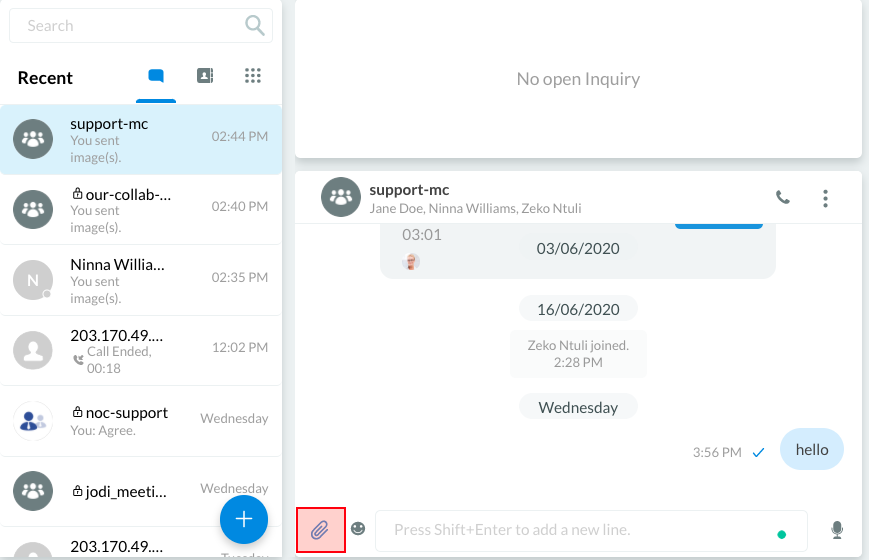
Sharing a file
- On the open file dialogue that will appear, browse for and click to highlight the file you wish to share, then click on Open.
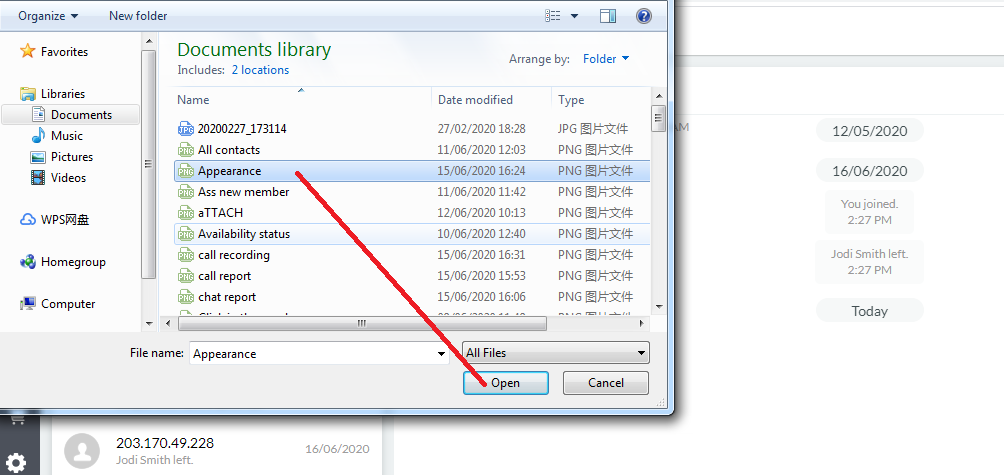
Browsing and selecting a file
- Once the file is in the upload tray, click the Send icon on the right side of your input text bar.
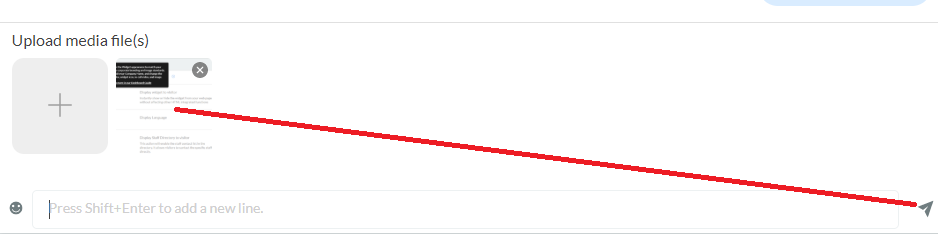
Share images, videos, or files
To drag and drop a file:
- Drag the file you wish to share from another window, then drop it into your Workspace chat room panel.
- Once the file is in the upload tray, click the Send icon on the right side of your input text bar.
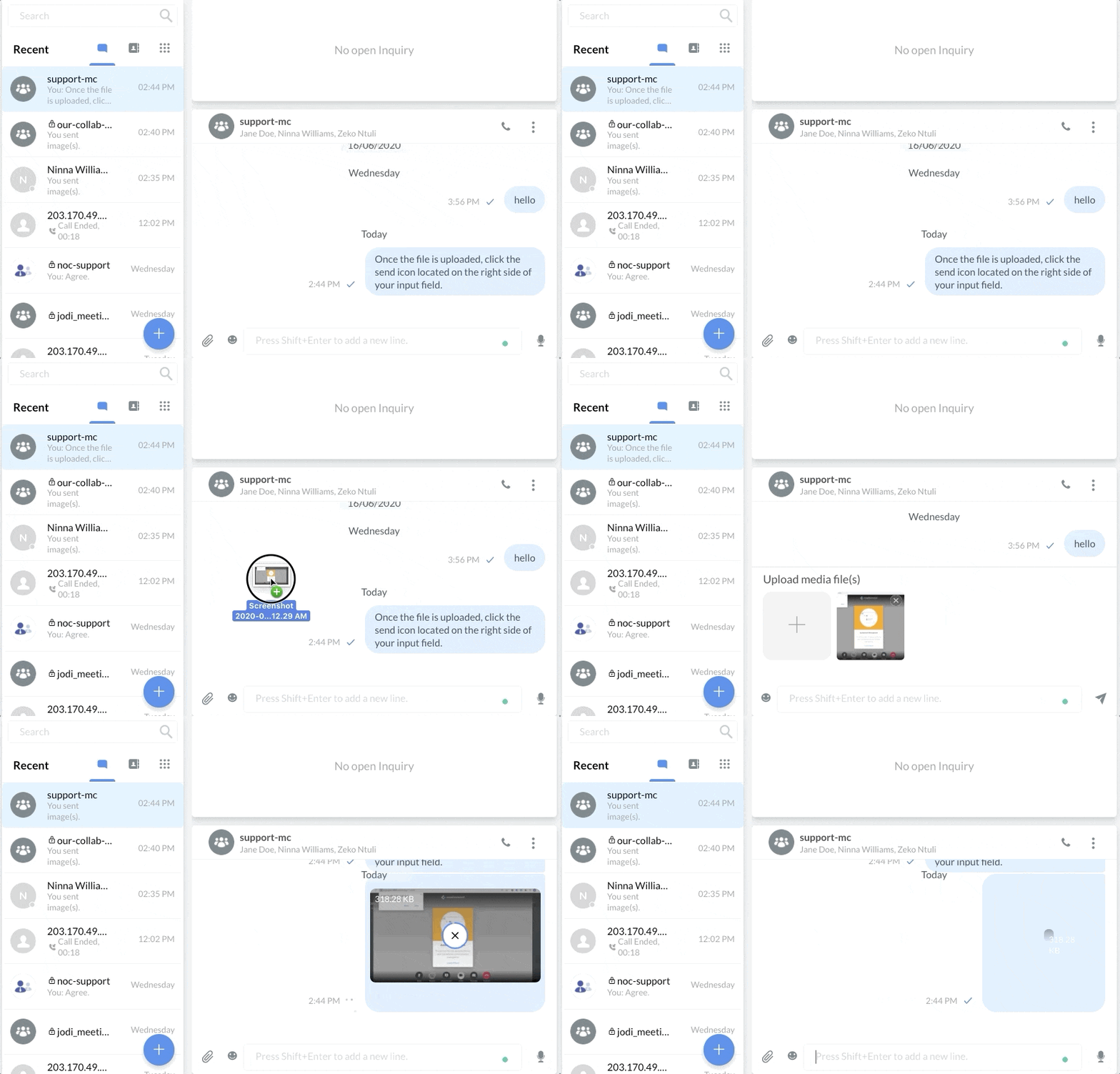
Drag-and-drop a file
Sending Voice Messages
To record and send voice messages:
- On the chat room panel of your Workspace, click on the Microphone icon located on the right side of the text input bar.
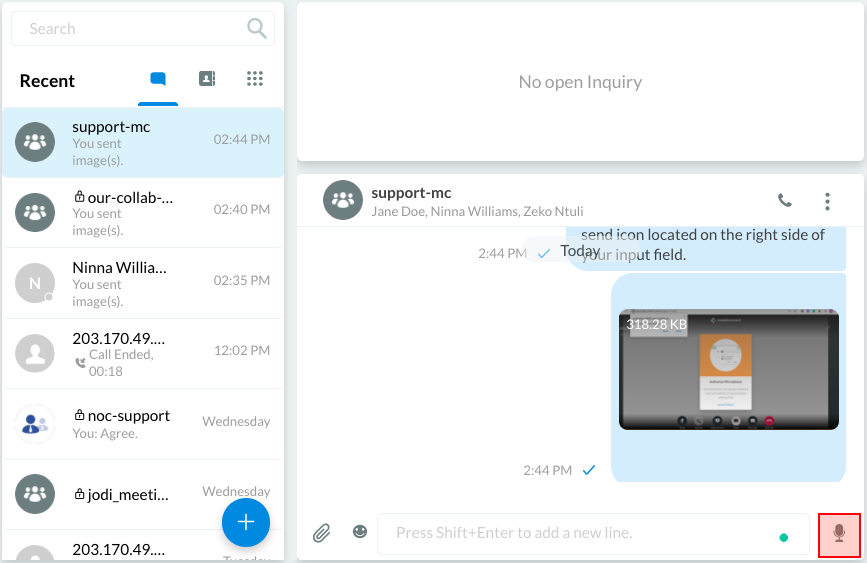
Sending a voice message
- Record your voice message, then click the Checkmark icon to send it.
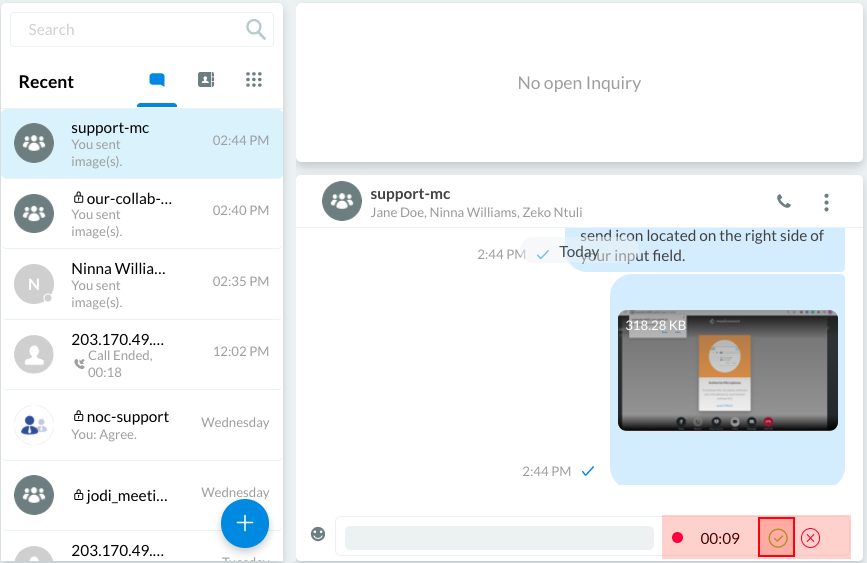
Recording a voice message
📘
Share files max of 10 at a time.
Visitors can share files up to 20 MB in size, while staff members can share 200 MB.A voice message cannot be longer than 3 minutes.
Previous
Labelling an Enquiry
Next
Space (Group Chat)
Last modified: 2025-12-16
Outline