
Connecting Wechat
Looking for an Omnichannel Customer Service Solution?
Our competitive plans and high-quality service enable you to effortlessly handle customer enquiries and engage with them from any device, anywhere in the world. We've got you covered, from WeChat, WhatsApp, and Facebook Messenger to other social media channels, live chat and calls, local and international calls, and emails. Simplify your customer service and enhance your reach with CINNOX.
Connect your WeChat Official Account to your CINNOX service. Your visitors and customers' messages on your WeChat Account become social enquiries in your CINNOX service, which any of your staff can attend as one-on-one conversations.
📘
What is the WeChat Official Account (公众号)?
WeChat Official Account (公众号) includes Subscription Account (订阅号) and Service Account (服务号).
❗️
Mini APP (小程序) & WeChat Work (WeCom) (企业微信) are not supported
Mini APP (小程序) & WeChat Work (企业微信) (also named WeCom) are not WeChat Official Accounts. Therefore, it is not supported to integrate with CINNOX.
👍
Use of WeChat Sandbox
If you don't have an official WeChat account yet but want to test how the integration of WeChat and CINNOX works, try the CINNOX - WeChat Sandbox
to test it out.
🚧
Reminder:
- After the activation, it will automatically forward your visitors' and customers' WeChat Official Account messages to your CINNOX account.
- Automatic replies and custom menus in the WeChat Official Account Platform will no longer apply. See How to Reactivate or Edit Custom Menu
after enabling Developer Mode.- Changes in any settings in the WeChat Official Account Platforms will affect your CINNOX WeChat channel. Please follow the instructions on configuring and enabling the Basic Configuration Settings if you change any configurations.
Here is a simple flow to set up your CINNOX and WeChat Official Account (WOA).
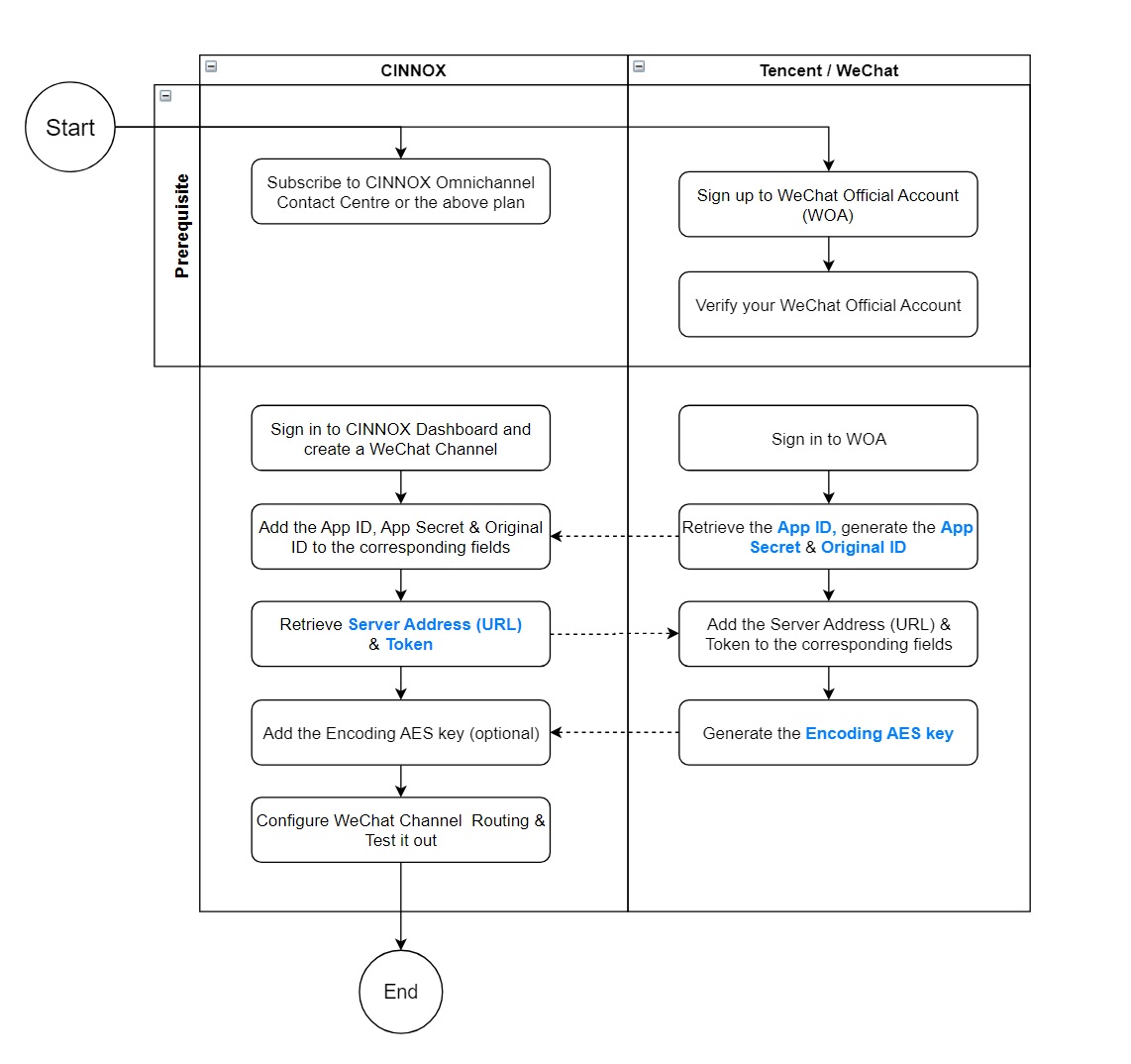
Refer to the following step-by-step for the configuration.
Step 1: Sign in to the WeChat Official Accounts Platform
- Go to the login page of the WeChat Official Account Platform.
- You may change the platform's language setting to the one you want to use (1).
- If you do not have a WeChat account, you may register for one before proceeding to the next step (2). Refer to the Guide the WeChat Open Platform provided (available in Chinese language only).
- If you already have an existing WeChat account, ensure it has Administration Access to your Official Account, then authorise it by scanning the QR Code on the Official Accounts Platform page (3).
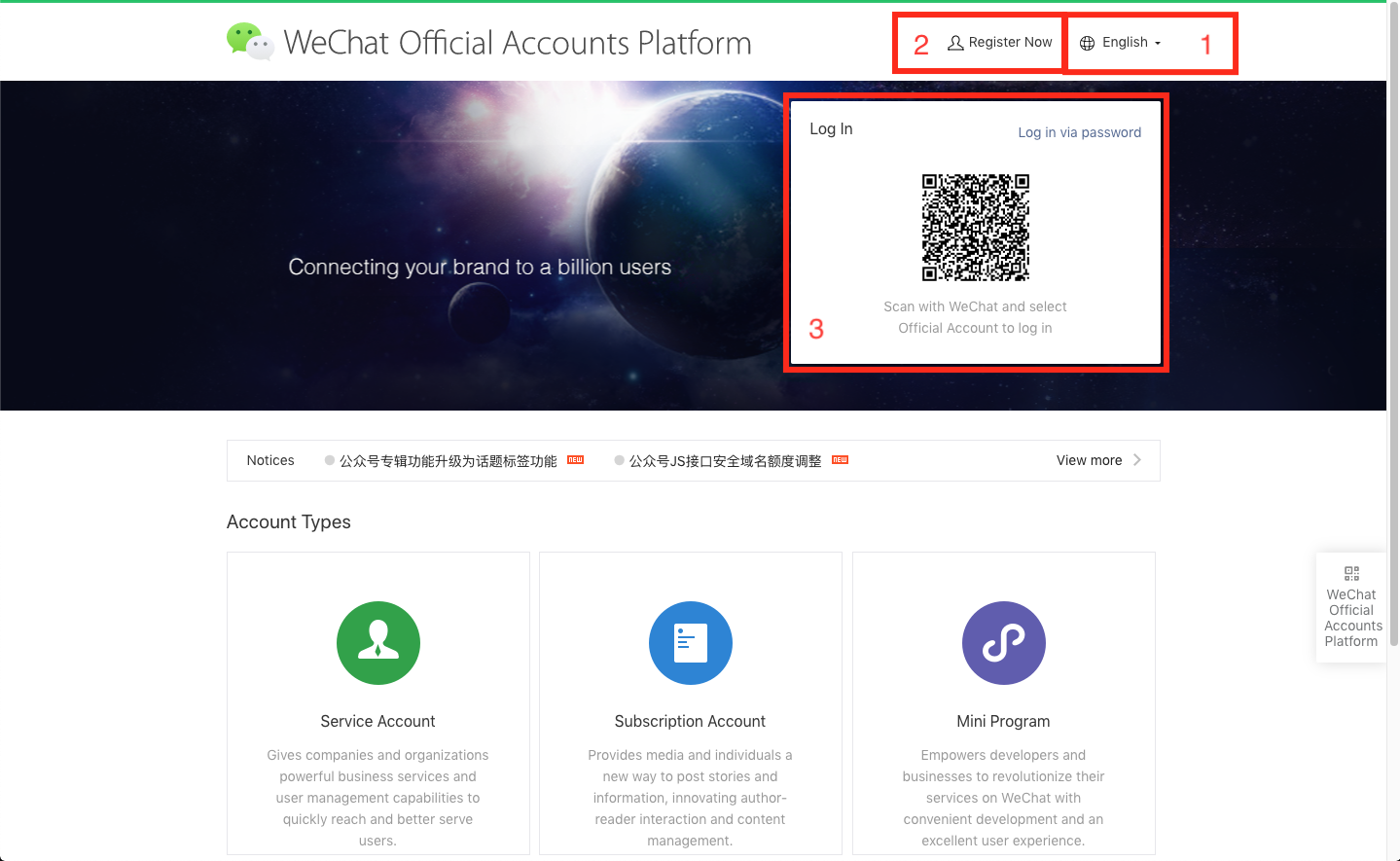
WeChat Official Accounts Platform
Step 2: Navigate to Basic Configuration
- After you have successfully logged in, go to Development > Basic Configuration (开发 > 基本配置).
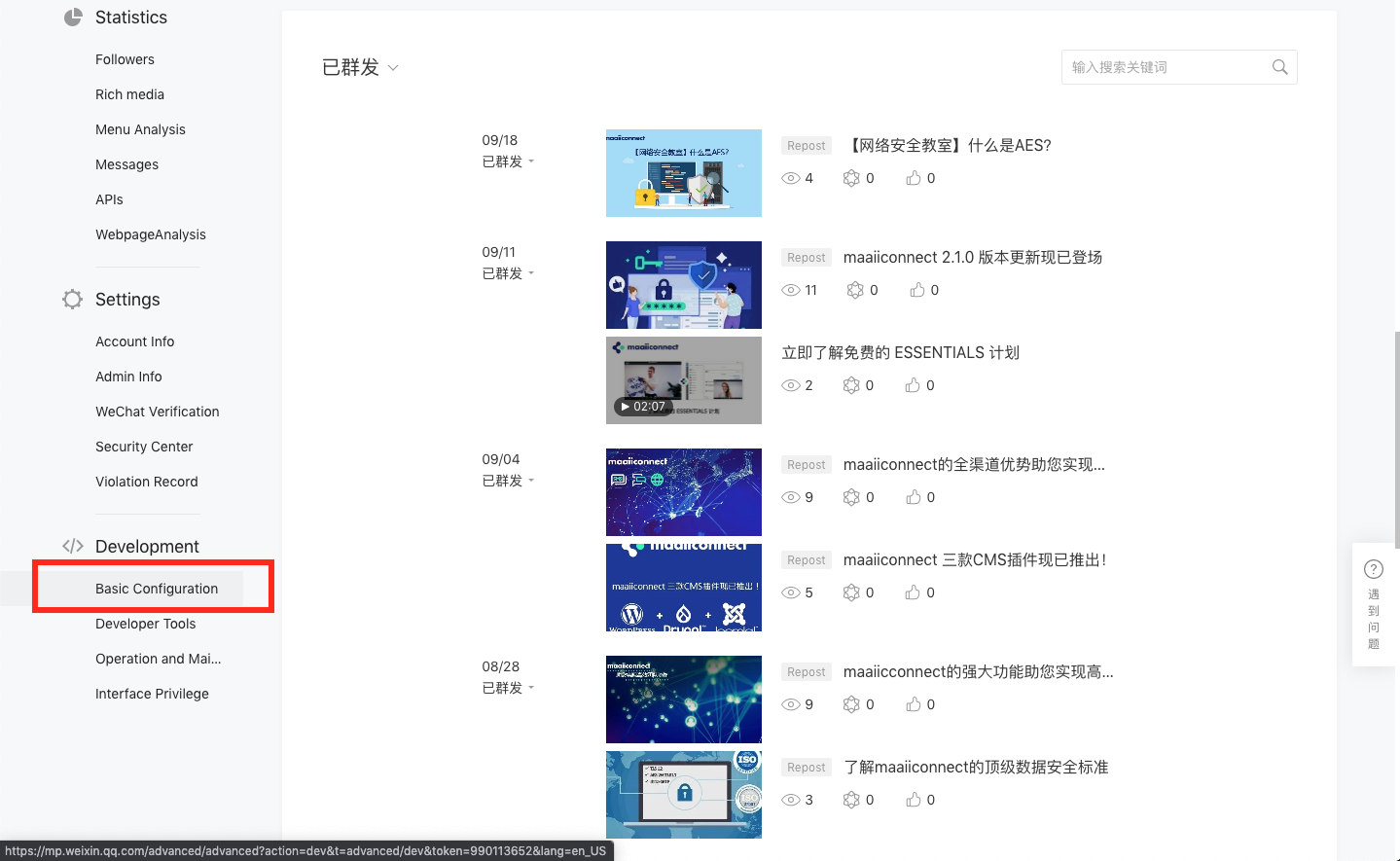
Navigating to Basic Configuration
Setting up the Basic Configuration the first time
If it is your first time setting up, click on Change Configuration (修改配置) to update the basic configuration settings (1) and refer to Step 3: Setting up the Basic Configuration.
Basic Configuration already setup
If you have already changed the Basic Configuration, click Enable (启用) for your settings to take effect (2) and refer to Step 4: Enable Basic Configuration.
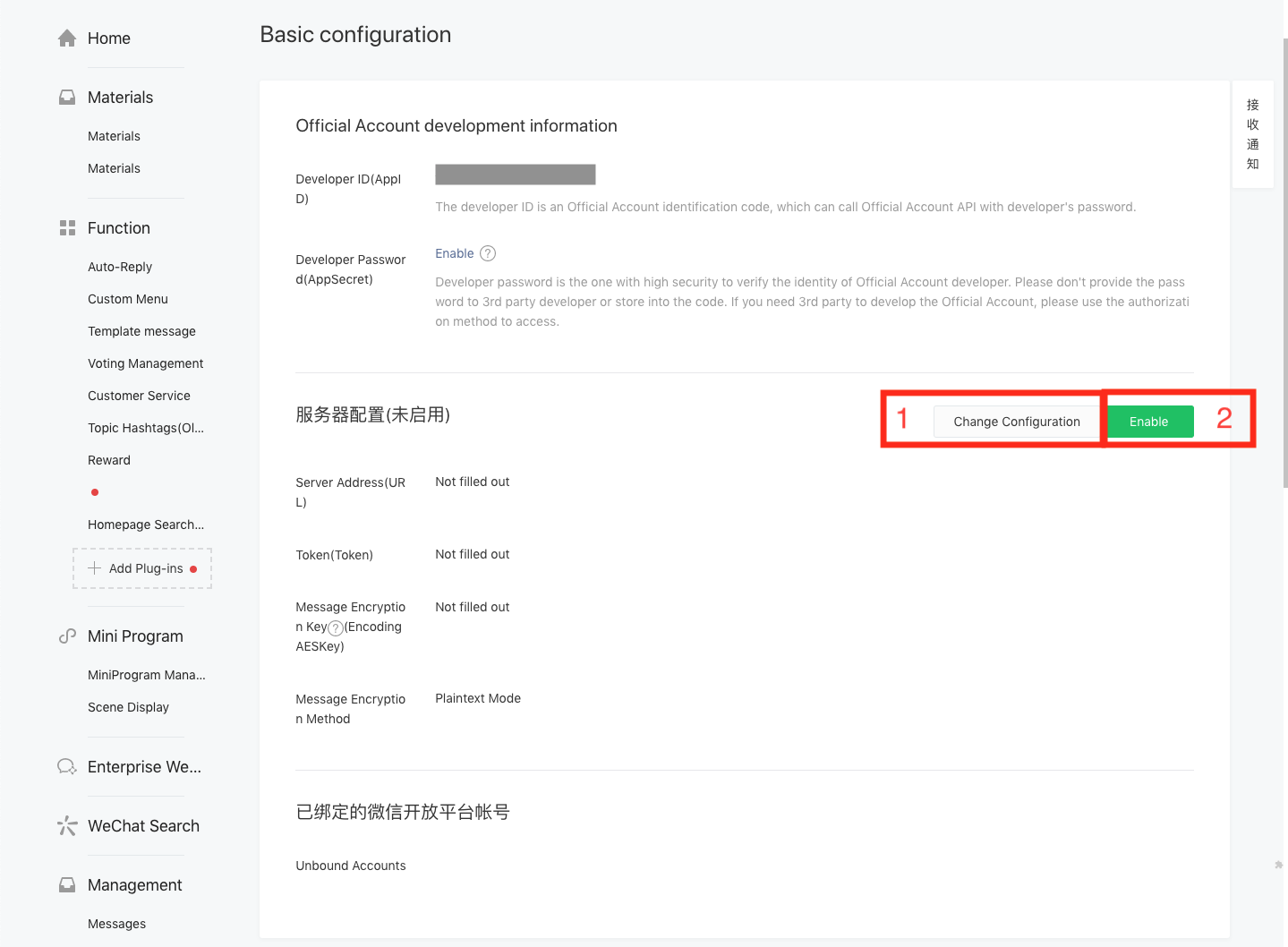
Basic Configuration Page
Step 3: Connect your WeChat Official Account to CINNOX
From the CINNOX Dashboard navigation menu, go to Administration > Channels > Social.
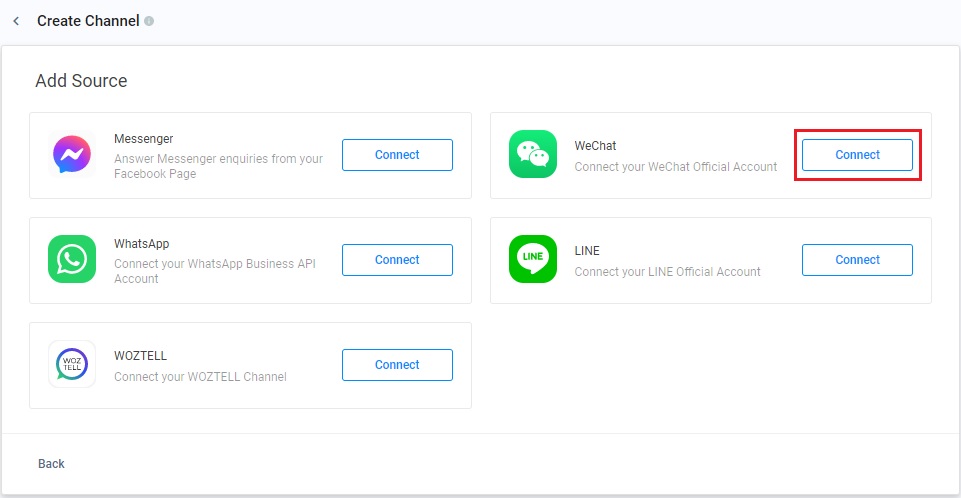
- Click the Connect Social button in the top-right corner of the Social page.
- Click Connect to WeChat.
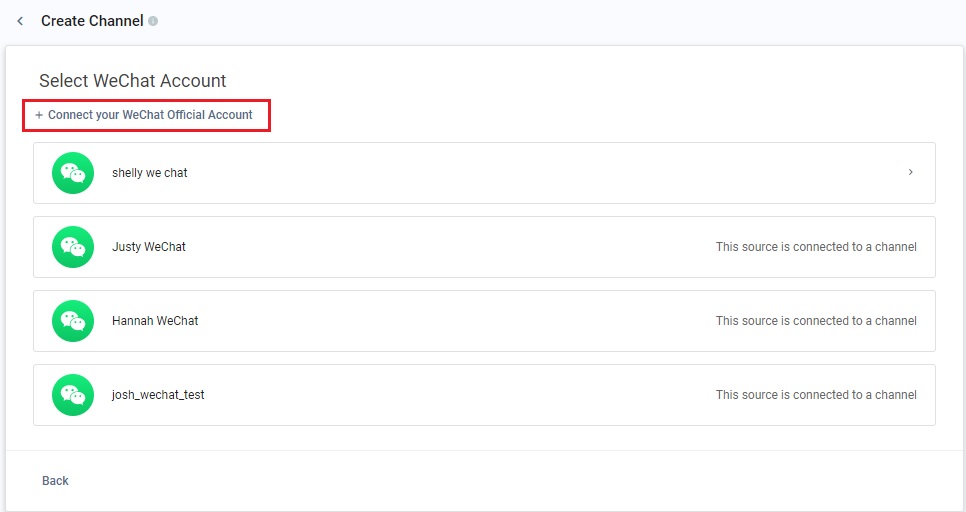
On the Select WeChat page, click +Connect your WeChat Official Account.
Setting up a new WeChat channel
On the Connect your WeChat Official Account to CINNOX page, you have to sign in to your WeChat dashboard to fill in the following fields:
- Official Account Name - you can input your WeChat Official Account name.
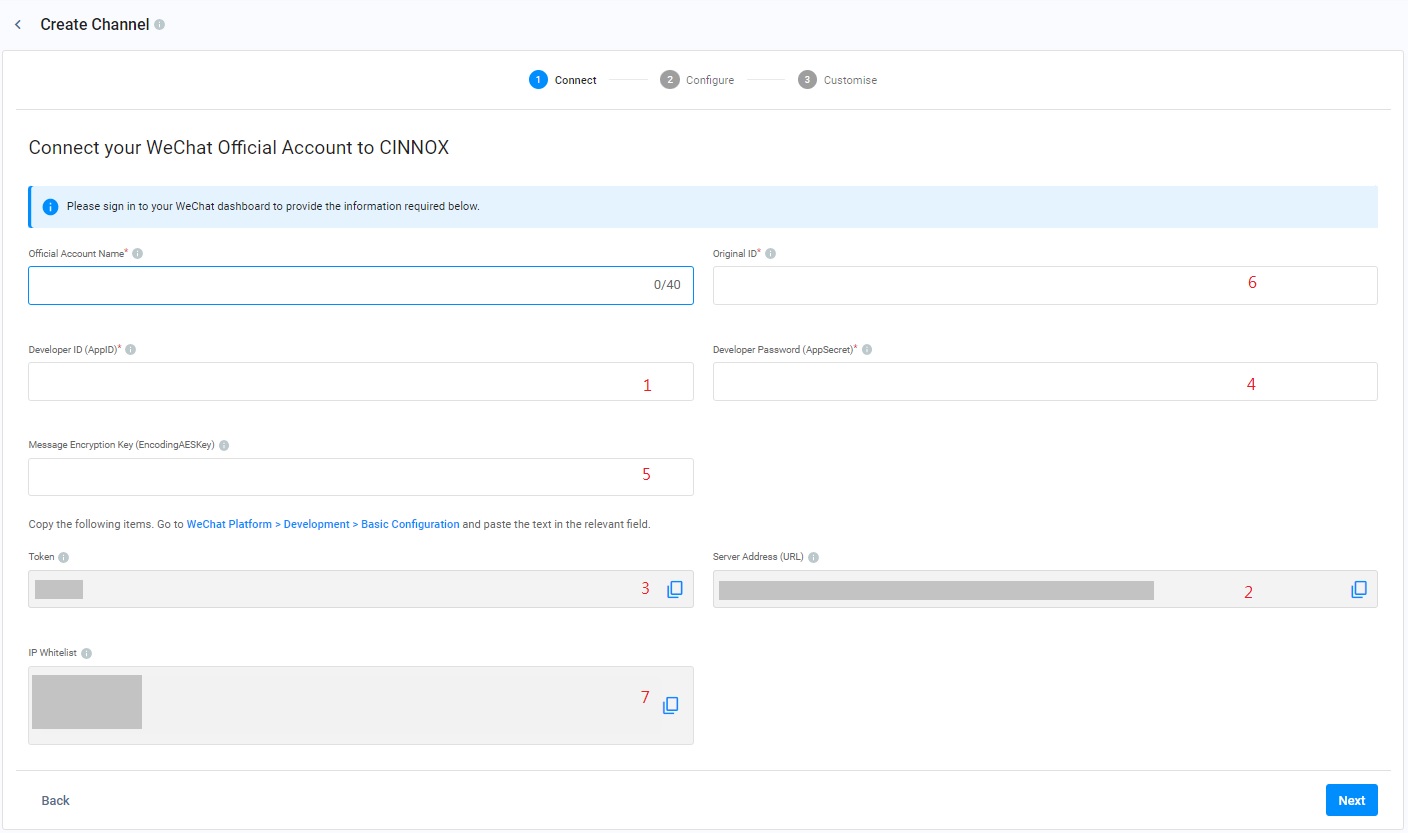
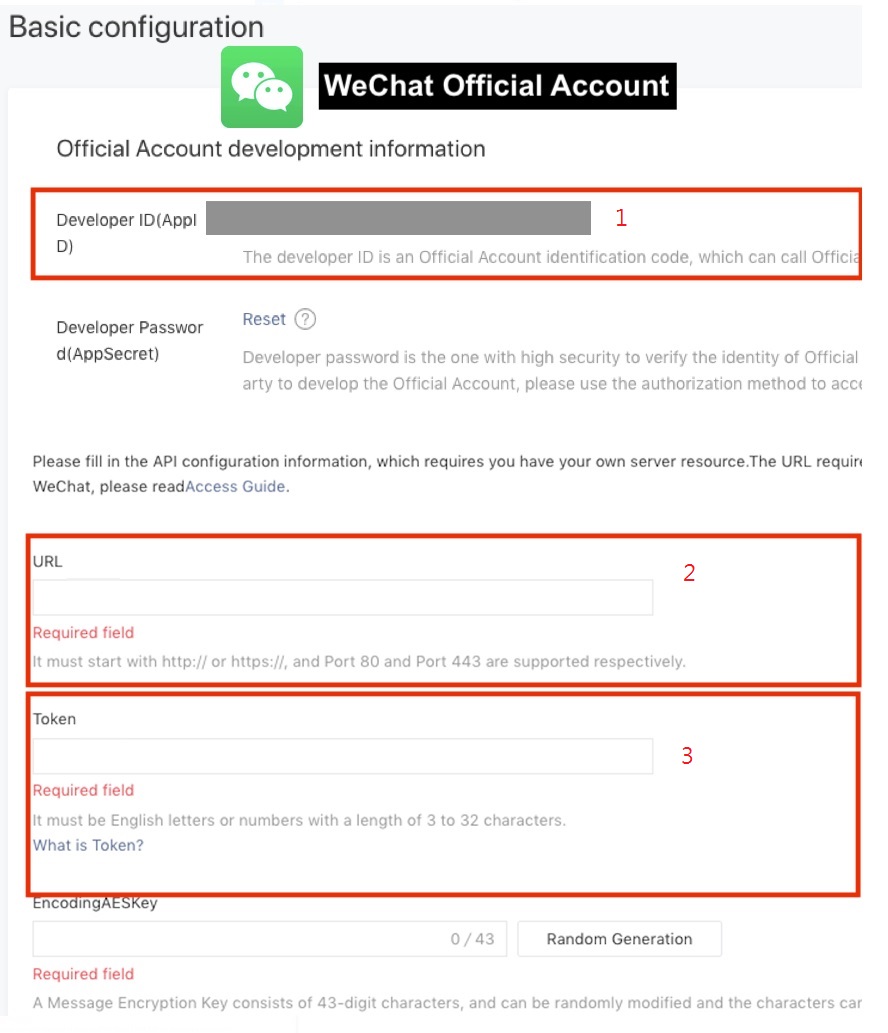
- Developer ID (AppID) (1) - copy the App ID value located in the WeChat Platform > Development > Basic Configuration page and paste it into the CINNOX side.
- Server Address (URL) (2) - copy it that appears on the CINNOX side and paste it on its respective field located in the WeChat Platform > Development > Basic Configuration page.
- Token (3) - copy the Token that appears on the CINNOX side and paste it on its respective field located in the WeChat Platform > Development > Basic Configuration page.
- Developer Password (AppSecret) (4)- Generate the Developer Password located in the WeChat Platform > Development > Basic Configuration and paste it on the CINNOX side.
- Message Encryption Key (EncodingAESKey) (5) - go to WeChat Platform > Development > Basic Configuration, then under Message Encryption Method (消息加解密方式), select Plaintext Mode.
- Click on the Random Generation, copy the code and paste it into the CINNOX side.
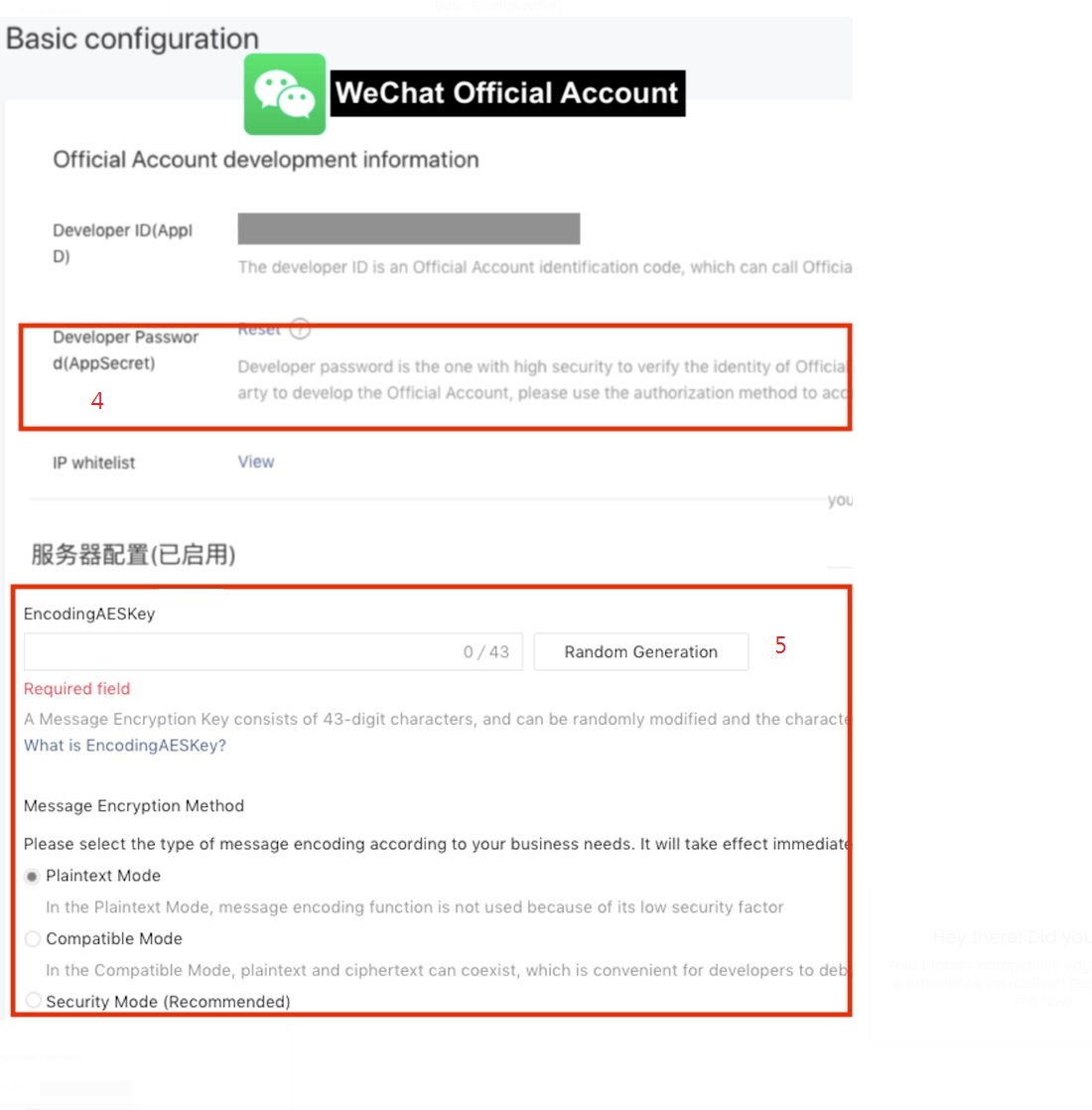
Setting up a new WeChat channel
- Original ID (6) - Go to WeChat Platform > Settings > Account info > Account details, copy the Original ID and paste it on the CINNOX side.
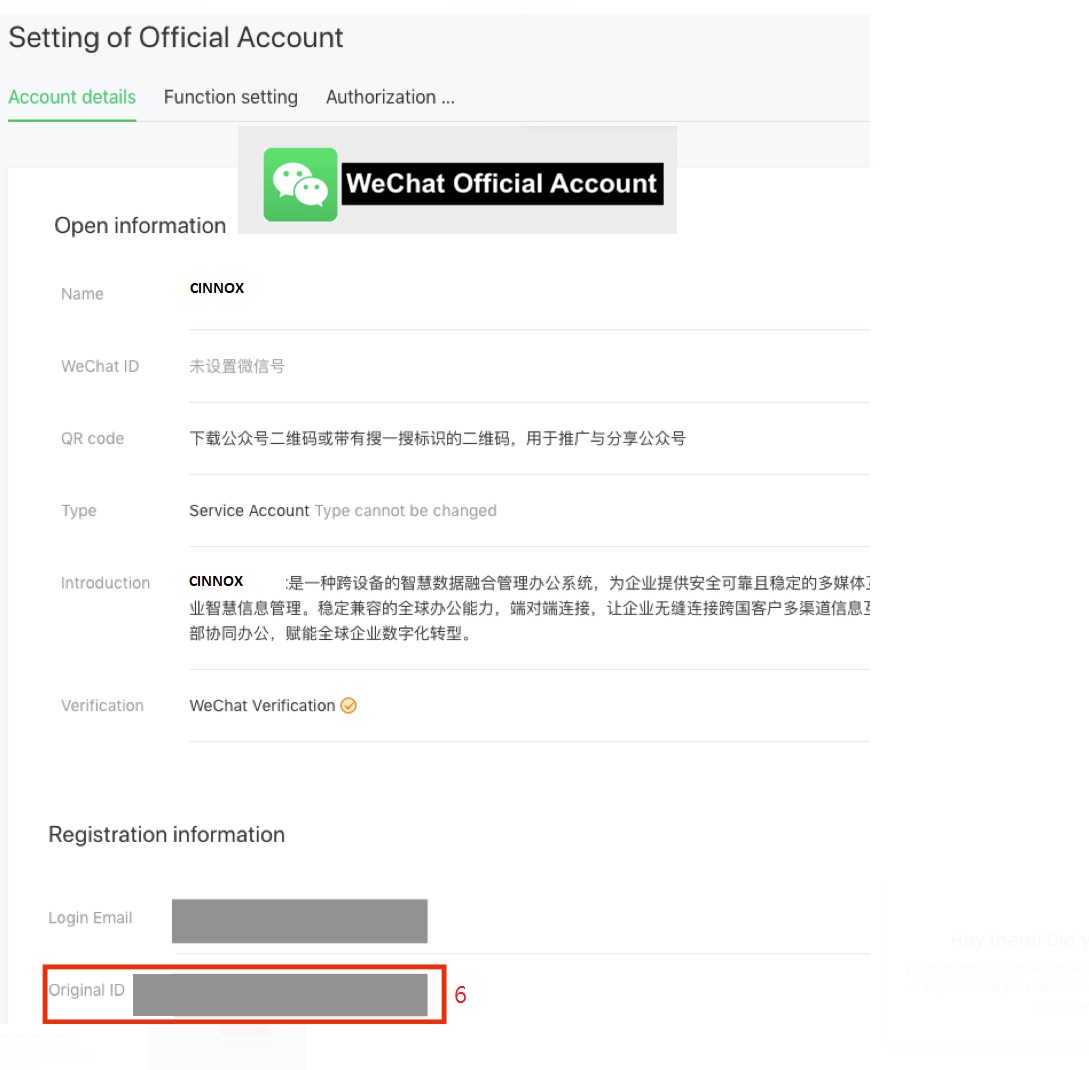
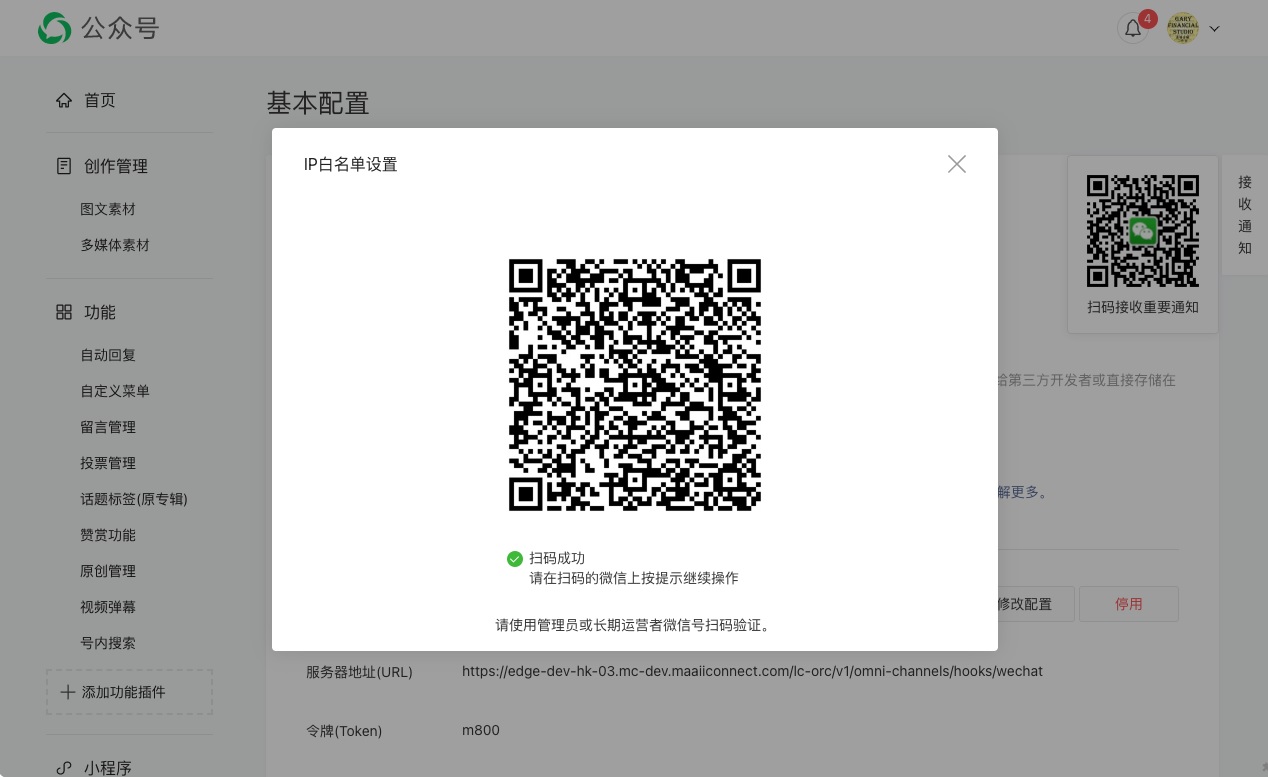
- IP Whitelist (7) - Copy the IP addresses on the CINNOX - IP whitelist section and paste them on the IP whitelist section of WeChat Platform > Development > Basic Configuration page.
- Click on the Config/View link of the IP Whitelist. The IP whitelist setting window will display.
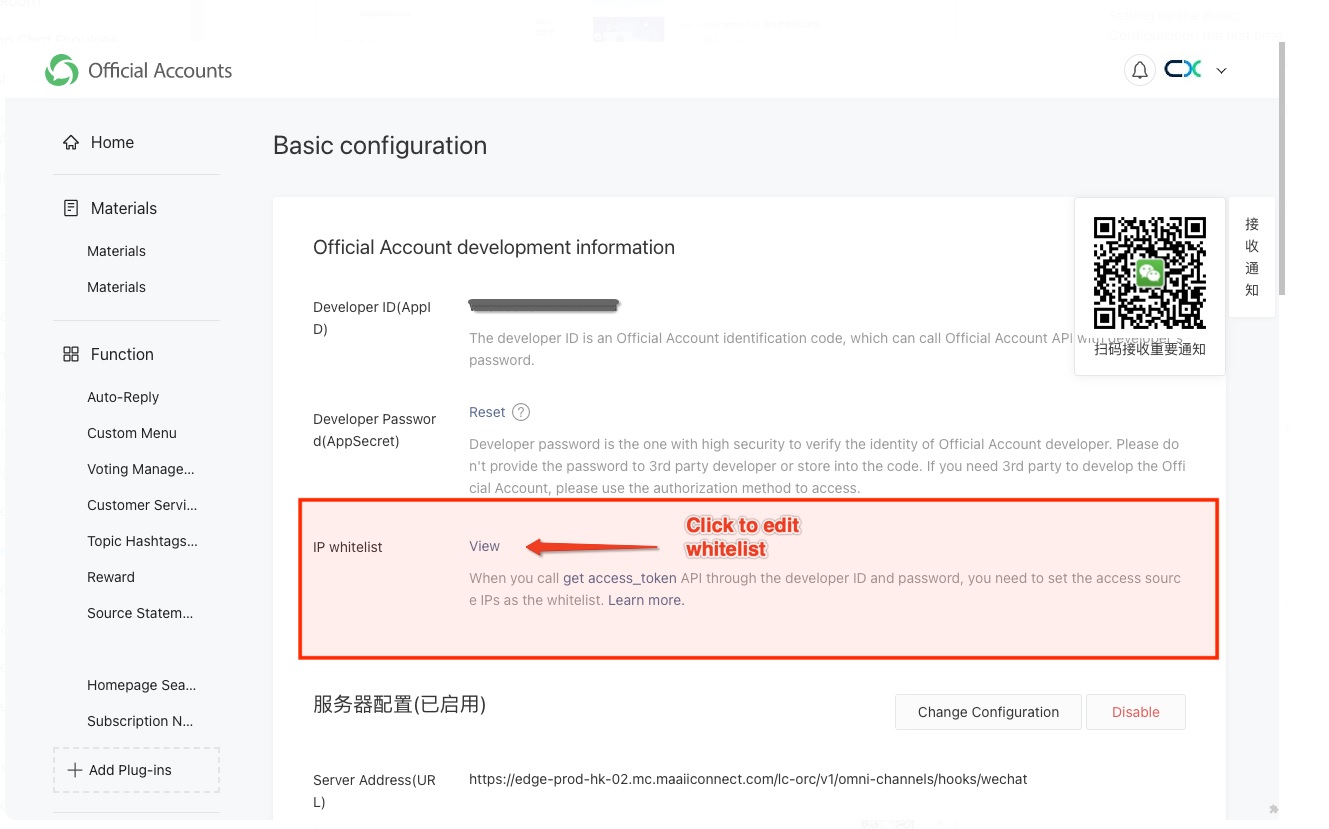
- Add one IP Address to each row of the IP whitelist.
- Click on the Confirm modification button.
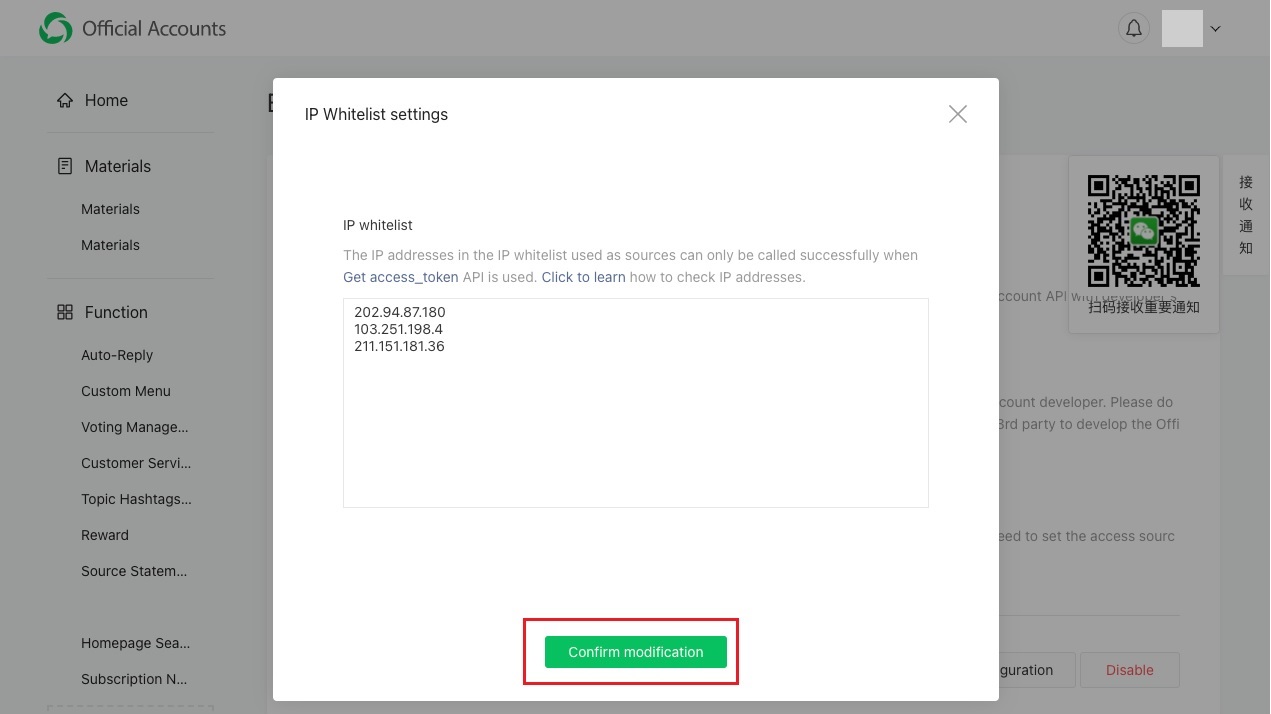
- To confirm and save the change, you must use an administrator account or a long-term operator of the WeChat Official Account to scan the QR Code to verify the action.
- Once all information is given to the CINNOX side, click on the Next button, and you will be redirected to the Configure the settings page and proceed with Step 5: Configure the Routing Rules in CINNOX.
Step 4: Enable Basic Configuration in WeChat
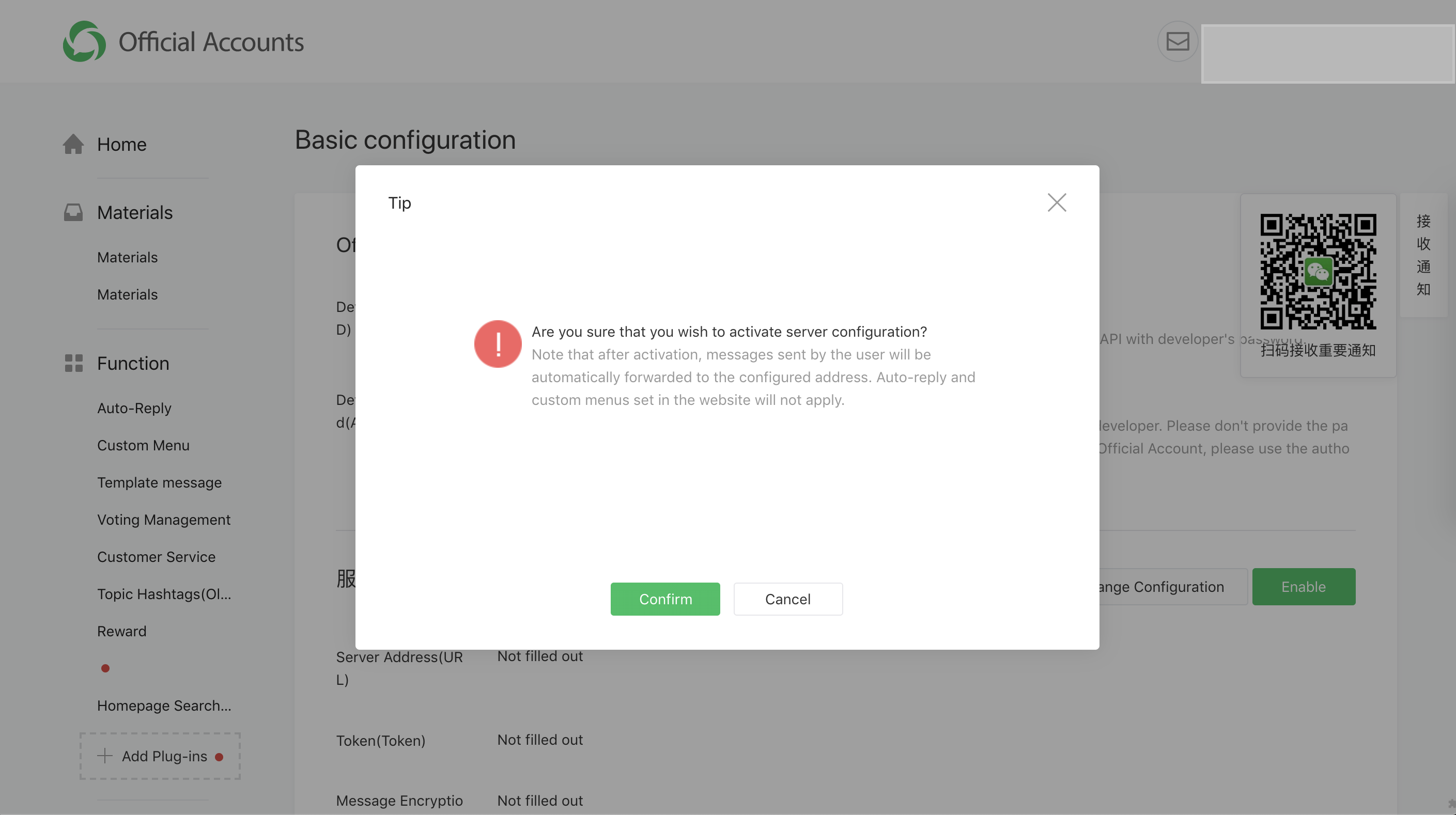
In the WeChat Official Account, click on the "Enable" button
- After you click the Enable (启用), a pop-up message will appear, asking you to confirm the action.
- Click on Confirm.
The following will then happen in the background:
- The WeChat server will send a verification request to the webhook with the query.
- CINNOX will respond to the verification query once it successfully receives it.
Enabling Basic Configuration
Step 5: Configure the Routing Rules in CINNOX
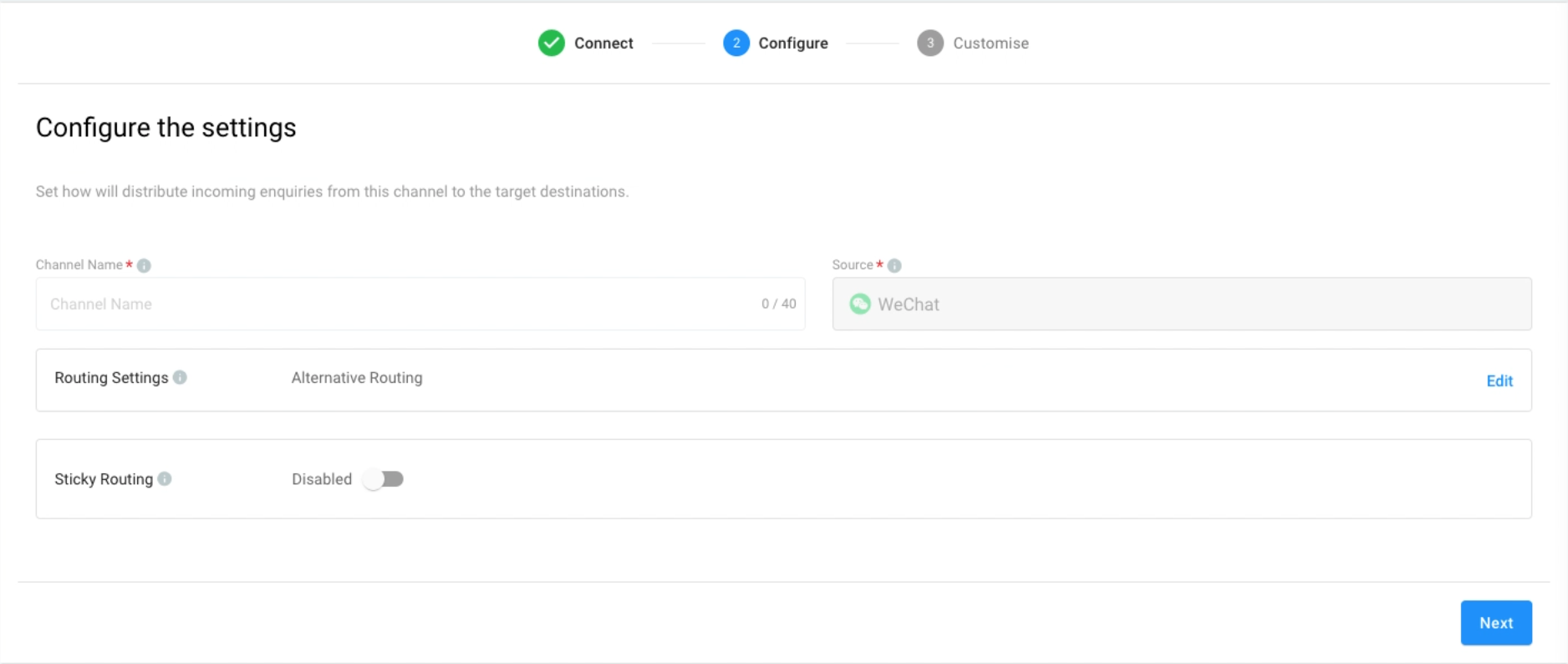
Set how to distribute incoming enquiries from this channel to the target destinations.
Channel Name
- Add a name for your WeChat channel. The channel name can be up to 40 characters.
Channel Name
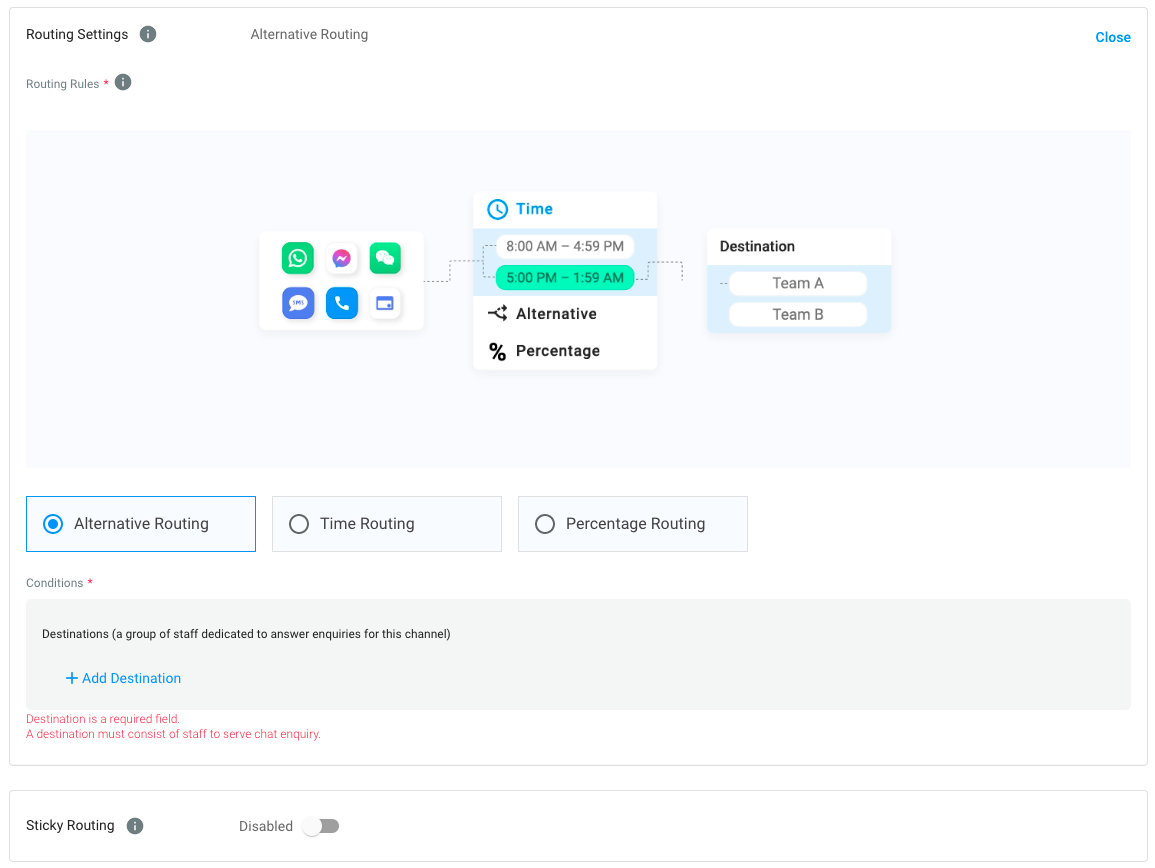
Routing Settings
Select the Routing Rule and add Destinations based on the operational support to your channel.For more information, please check our detailed Guide Alternative, Percentage, Time and Sticky Routing.
Routing Settings
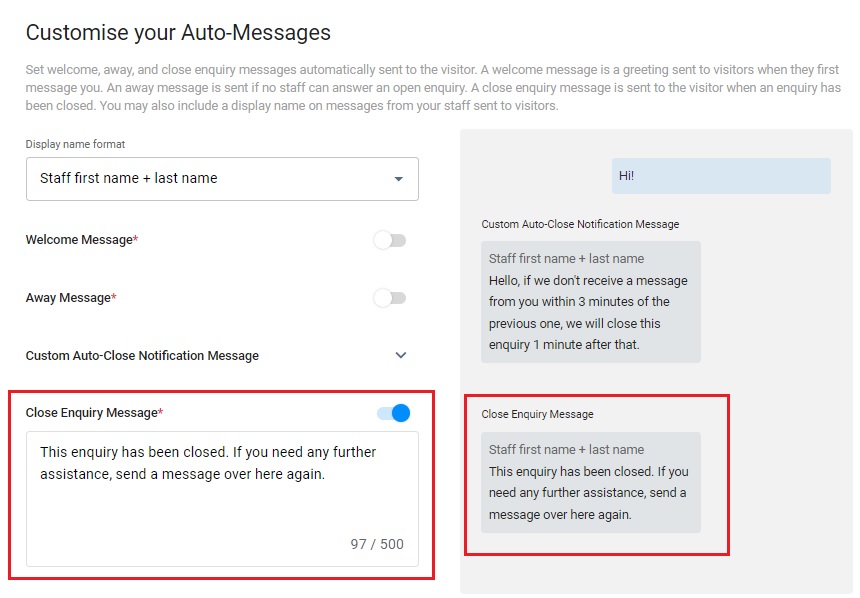
Step 6: CINNOX Auto-Message Settings
You can enable and configure the following Auto-Messages:
- Welcome Message: Greetings are sent to customers when they first message you.
- Away Message: It is only sent if no staff can answer an enquiry.
- Custom Auto-Close Notification Message: It is sent when the chat room doesn't have a new message after 2 minutes, and the enquiry will be closed when the notification has been sent after 1 minute.
- Close Enquiry Message: This will be sent to the visitors' chatrooms when the staff or the system closes the enquiries.
📘
Reminder
- The limit of Welcome, Away, Custom Auto-Close Notification and Closed Enquiry Messages is 500 characters.
- Before configuring the Custom Auto-Close Notification Message function, you must enable the auto close feature for handled enquiries without new messages. For more information, please refer to the Managing Auto Close Enquiry page.
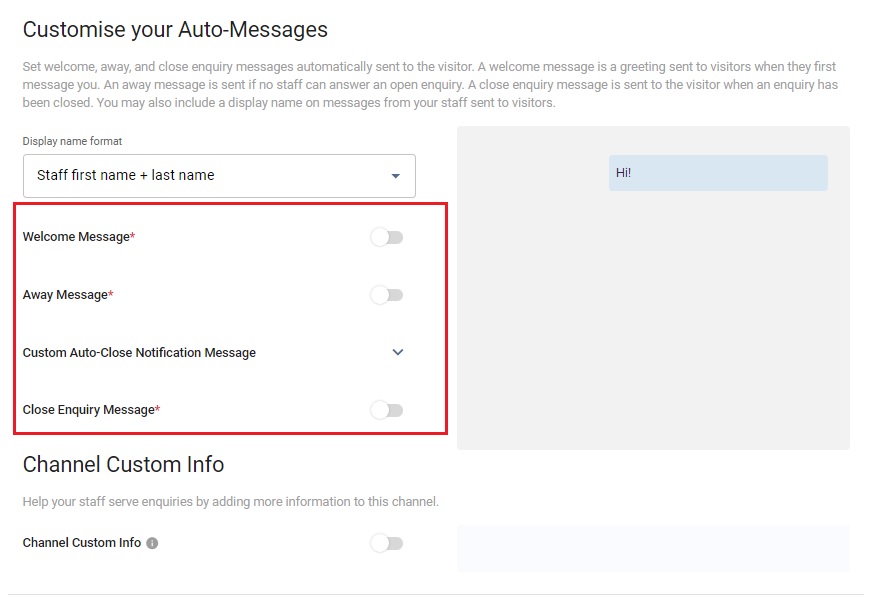
Display Name Format
You may include staff display names in your messages. Choose from the following options:
- No name to display
- Staff first name
- Staff first name + last name
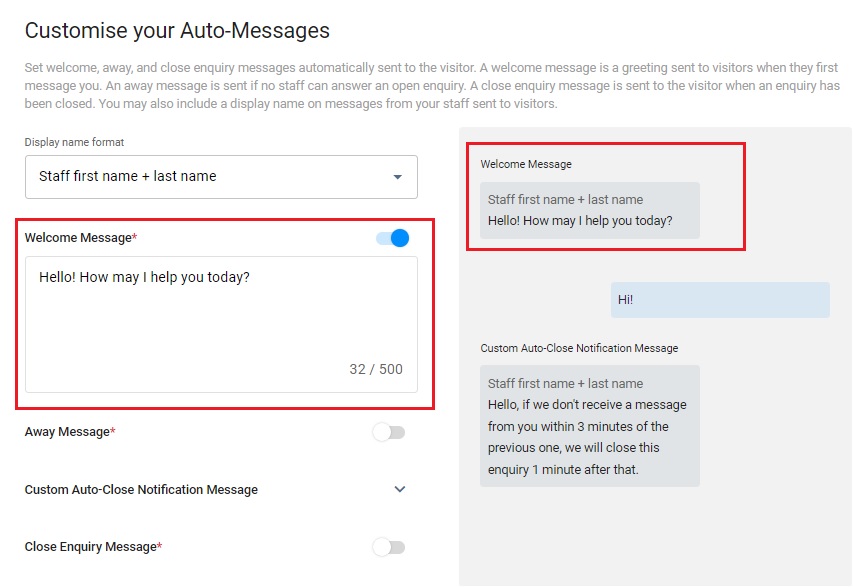
Welcome Message
- CINNOX provides a default welcome message.
- Toggle the switch on to enable it.
- After toggling on it, you can change the default message according to your needs.
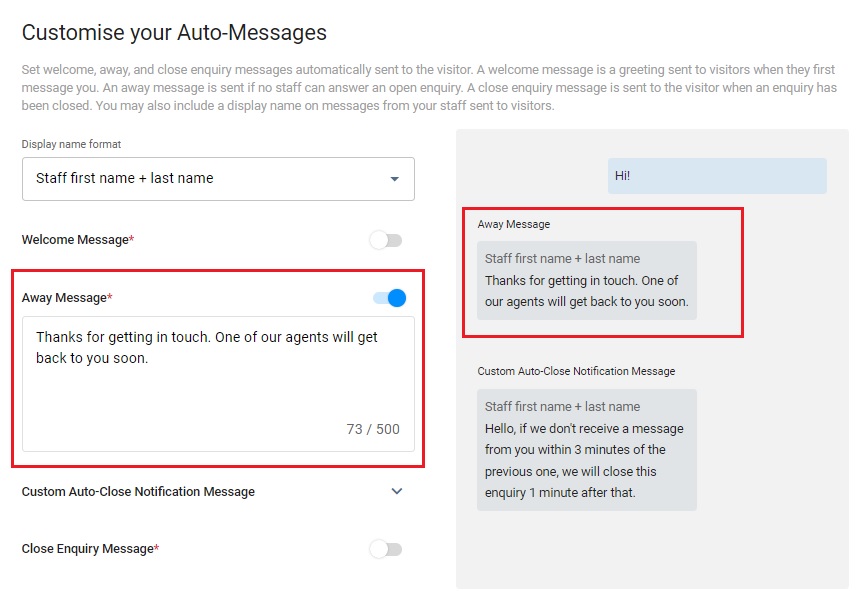
Away Message
- CINNOX provides a default away message.
- Toggle the switch on to enable it.
- After toggling on it, you can change the default message according to your needs.
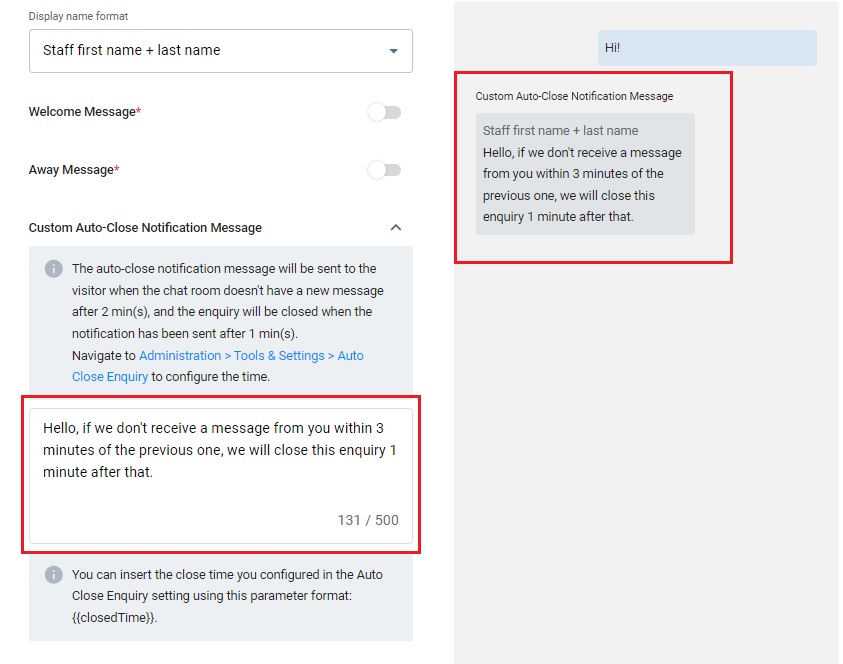
Custom Auto-Close Notification Message
- Click the downward arrow icon.
- Enter your Auto-Close Notification Message in the box.
- You can preview the message in the chat room on the right-hand side of the grey box.
Close Enquiry Message
- CINNOX provides a default close enquiry message.
- Toggle the switch on to enable it.
- After toggling on it, you can change the default message according to your needs.
Step 7: Enable CINNOX Channel Custom Info
Channel Custom Info allows you to add your channel details that your staff would see in the call screen and chat room whenever they are serving an enquiry. The custom info can be about the standard procedure or operation details of handling the enquiry.
- Toggle the switch on to enable the Channel Custom Info.
- A blank space adds the required basic information about the channel.
- Click the Next button to complete all configurations, and the customised info appears on the Channel Custom Info.
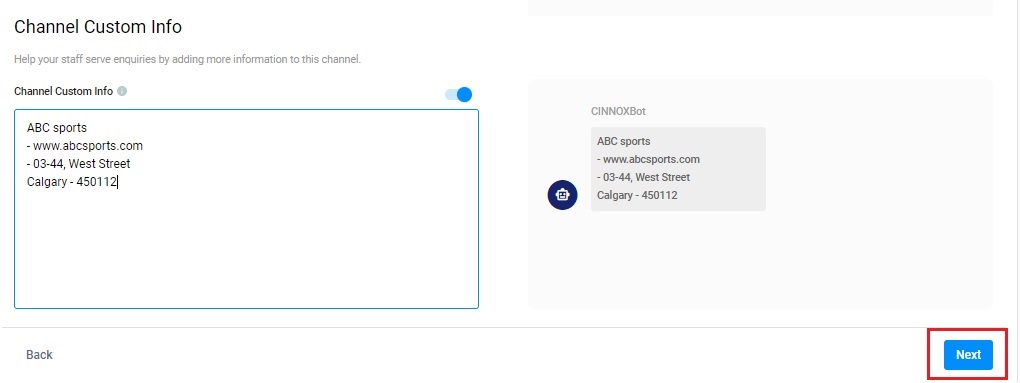
Custom Channel Info
The custom info is displayed on the staff side in the chat room section for the chat enquiry.
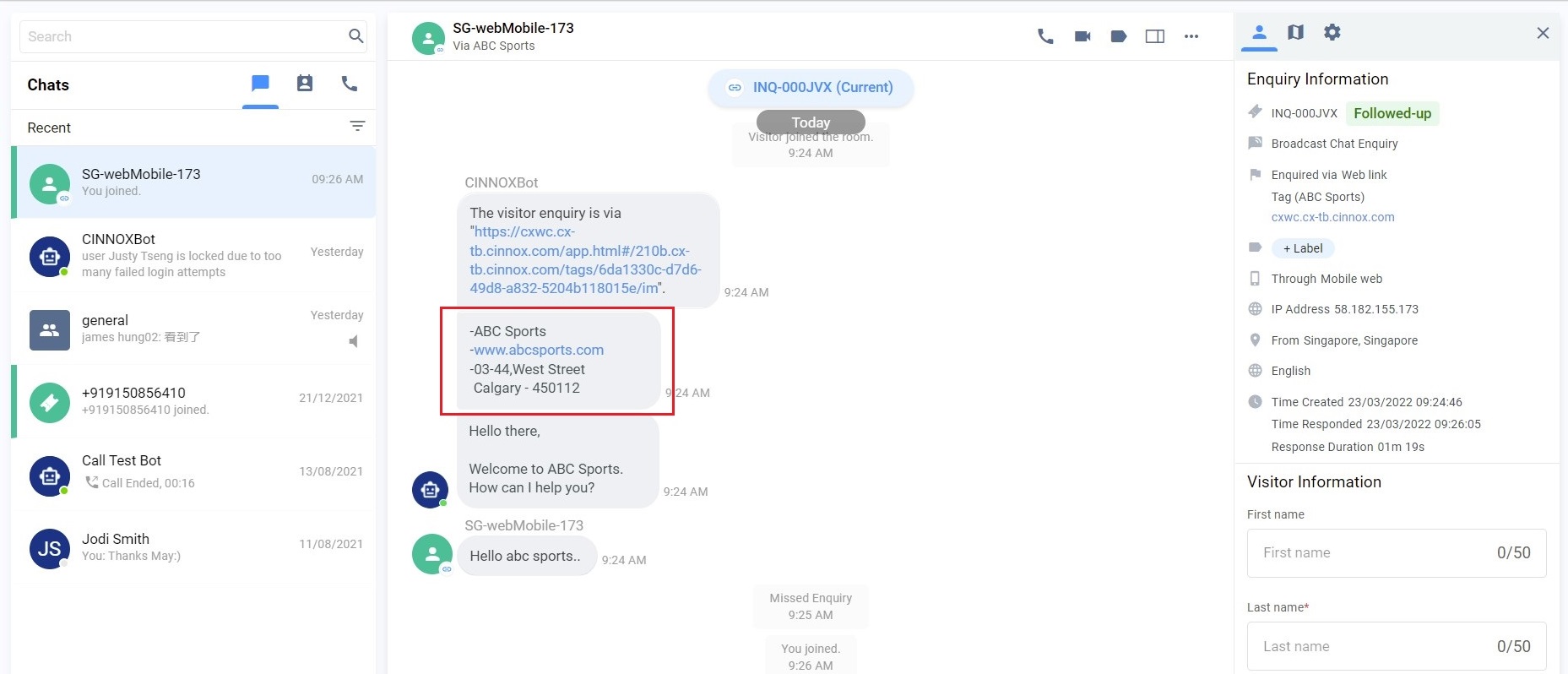
Channel Custom Info on the enquiry page
📘
Important Notes
- You can customise the Channel Custom Info per Channel - Directory/Tag, Number, Social and Third Party Channel.
- Channel Custom Info is available for call and chat enquiries.
- The Channel Custom Info does not support Direct Staff Enquiry and Enquiry from the Campaign Web Link.
- The Channel Custom Info you can add is 10,000 chars per channel. Please ensure it is not more than the limit to work correctly.
- The Channel Custom Info will still be displayed as a chatbot message in the enquiry room if an enquiry is missed.
Manage WeChat Channels in CINNOX
To edit, suspend, or delete your WeChat channels in CINNOX, refer to the Managing Social Pages section of this Guide.
Serving Chat Enquiries
Refer to Serving Chat Enquiries for more information on how to serve an enquiry via the WeChat channel.
How to Reactivate or Edit Custom Menu
If you activate the Developer Mode by default, WeChat will disable your Custom Menu Configuration.
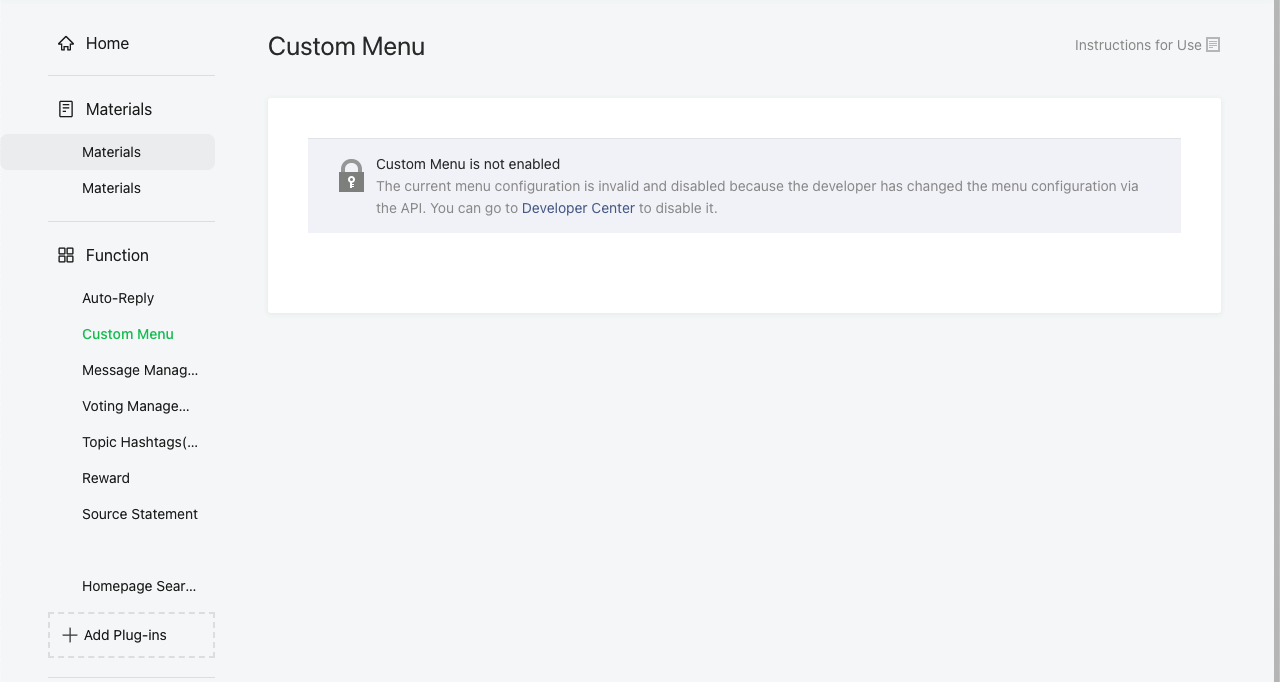
Custom Menu is disabled
Reactivate Custom Menu
To re-enable it after enabling the Developer Mode, please follow the steps below:
- Click + Add Plugin-ins (+ 添加功能插件) and find Custom Menu (自定义菜单).
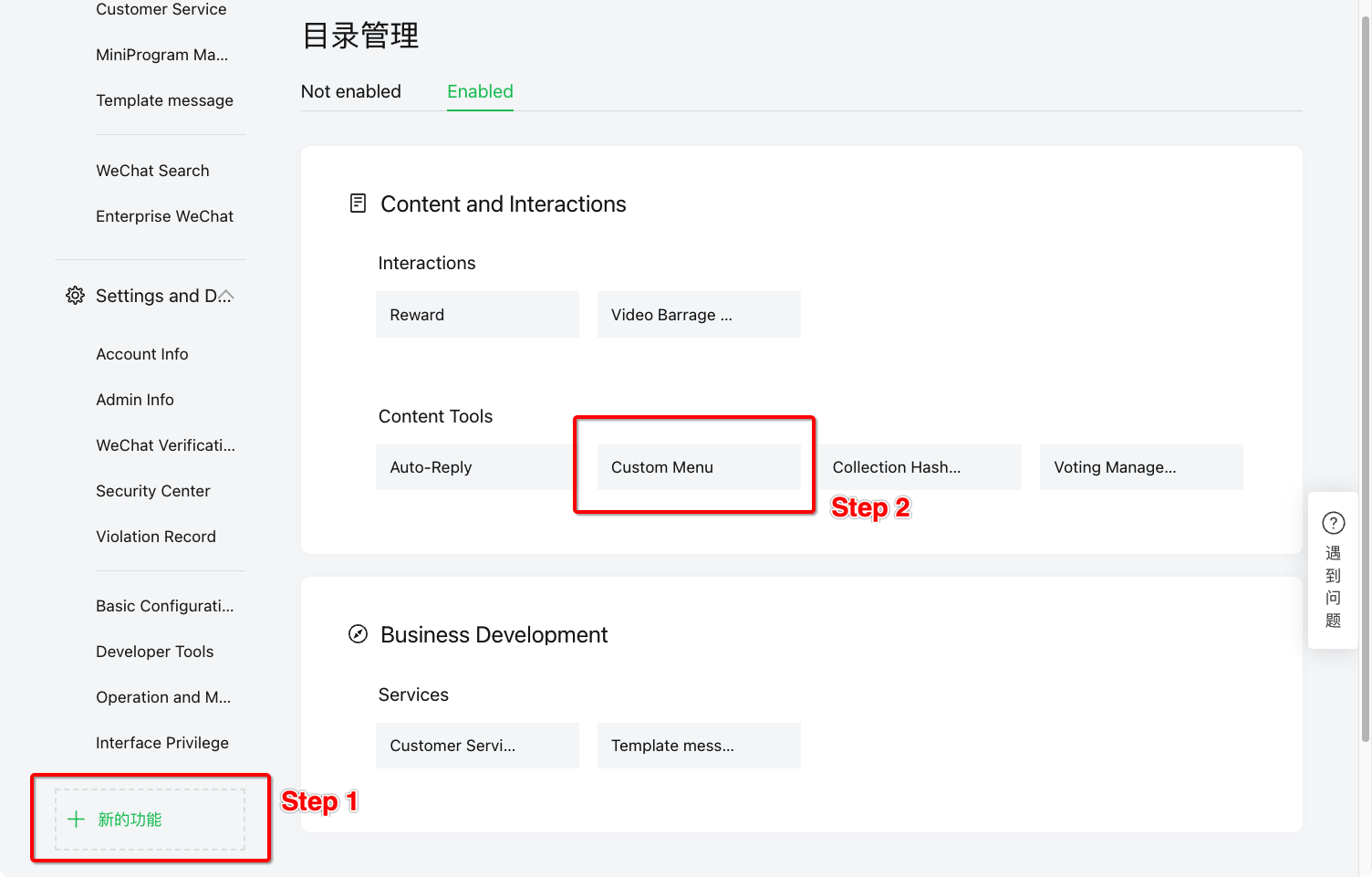
Add Plugin-ins -> Custom Menu
- Select Custom Menu (自定义菜单) and enable it.
- Then, you will see the Custom Menu is back in your WeChat Official Account.
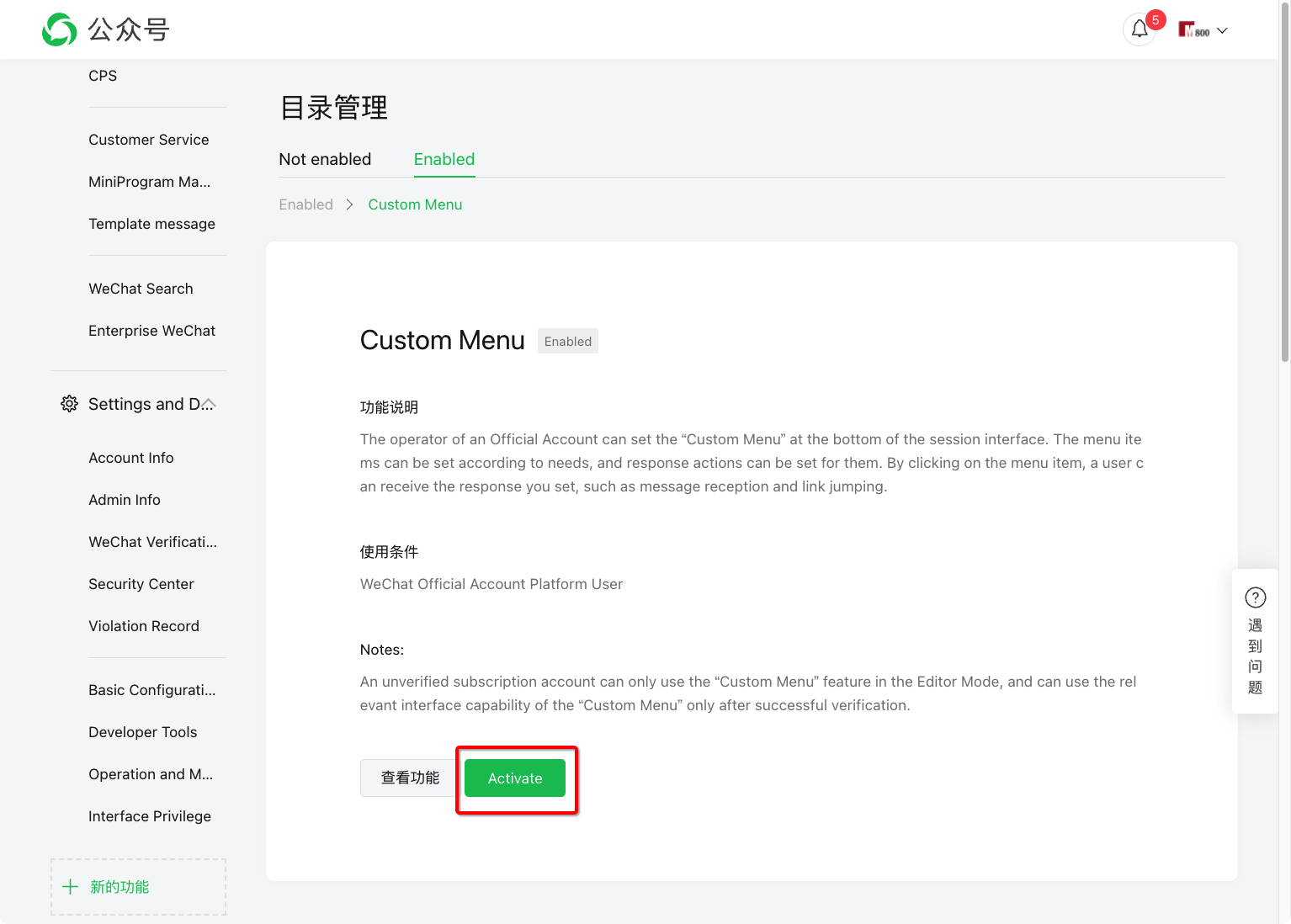
Enable Custom Menu
Edit Custom Menu
In the case that you want to edit the Custom Menu after enabling Developer Mode in the future, please follow the steps below:
- Disable 服务器配置 in the Development > Basic Configuration
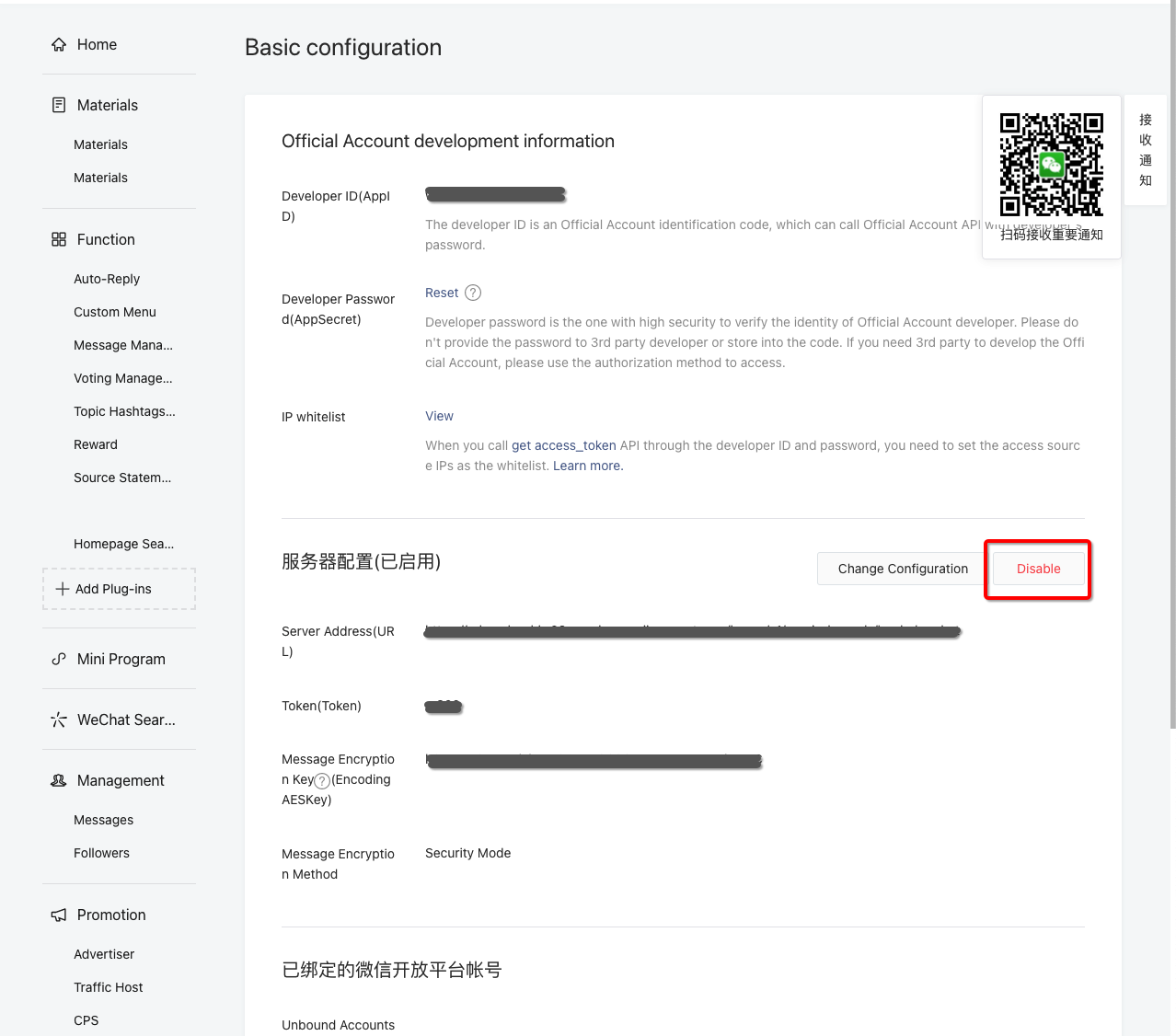
Disable 服务器配置
- Navigate to the Custom Menu in the Function > Custom Menu and click save.
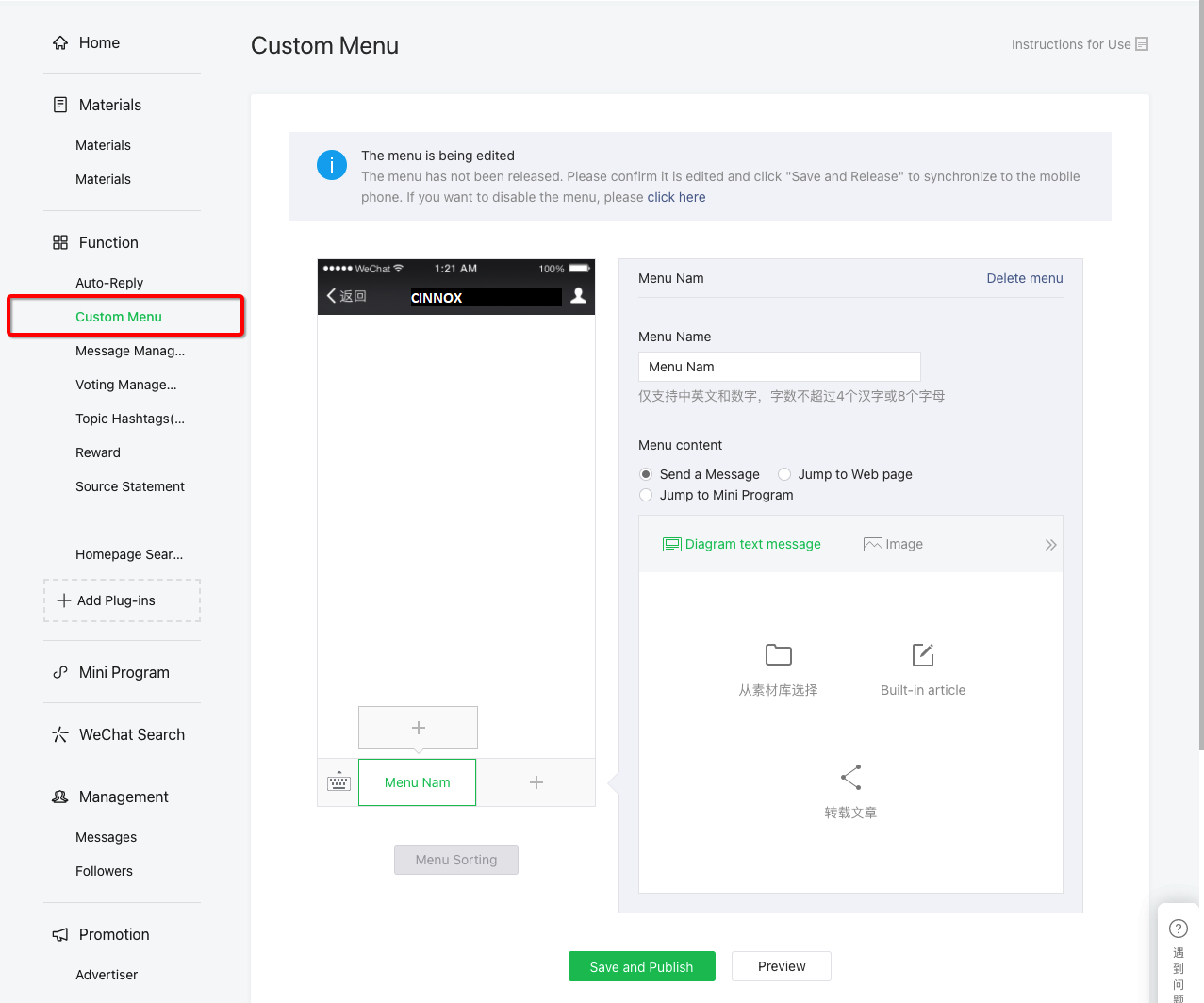
Edit Custom Menu
- Enable 服务器配置 in the Development > Basic Configuration.
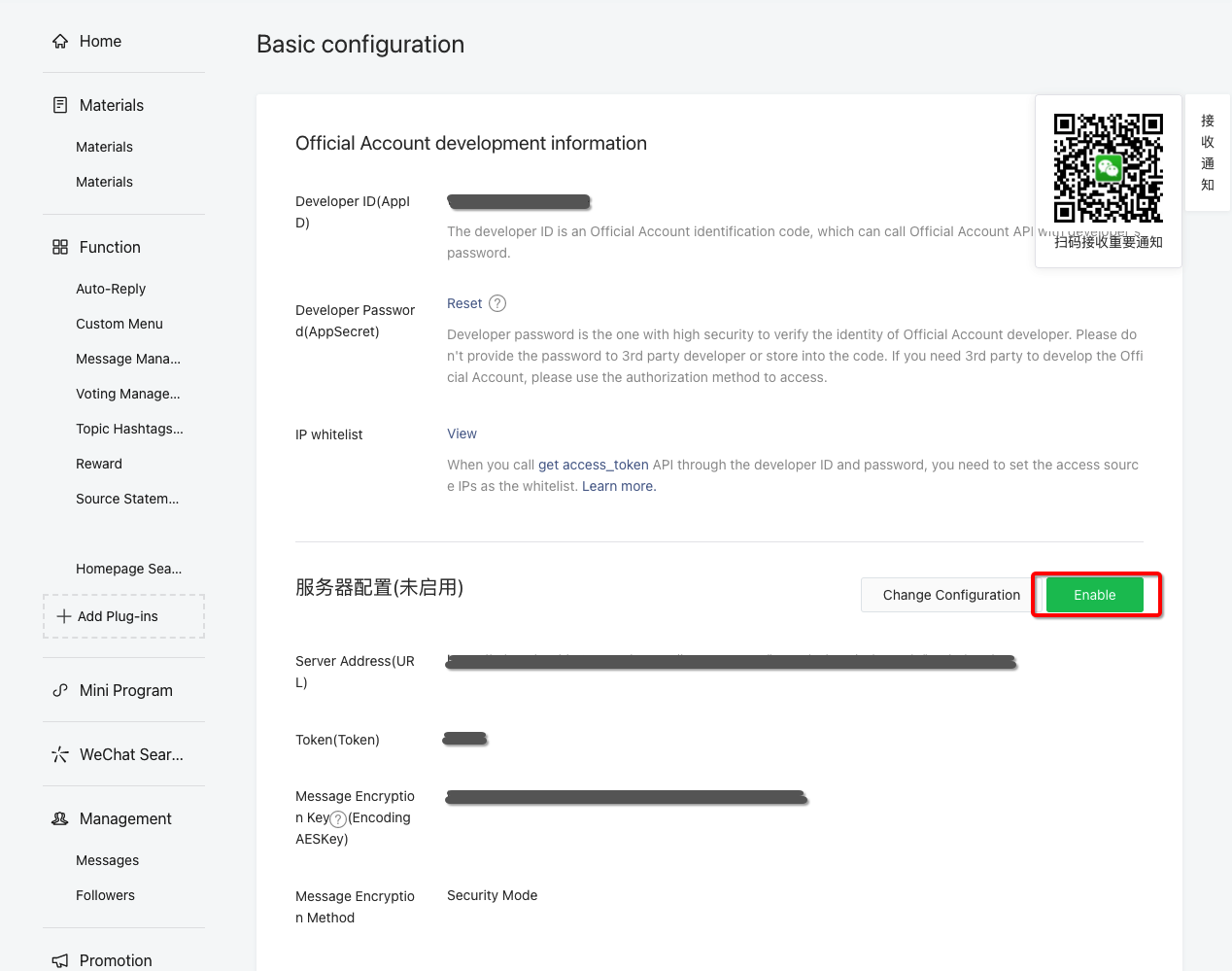
Enable 服务器配置
- Click + Add Plugin-ins (+ 添加功能插件) and find Custom Menu (自定义菜单).
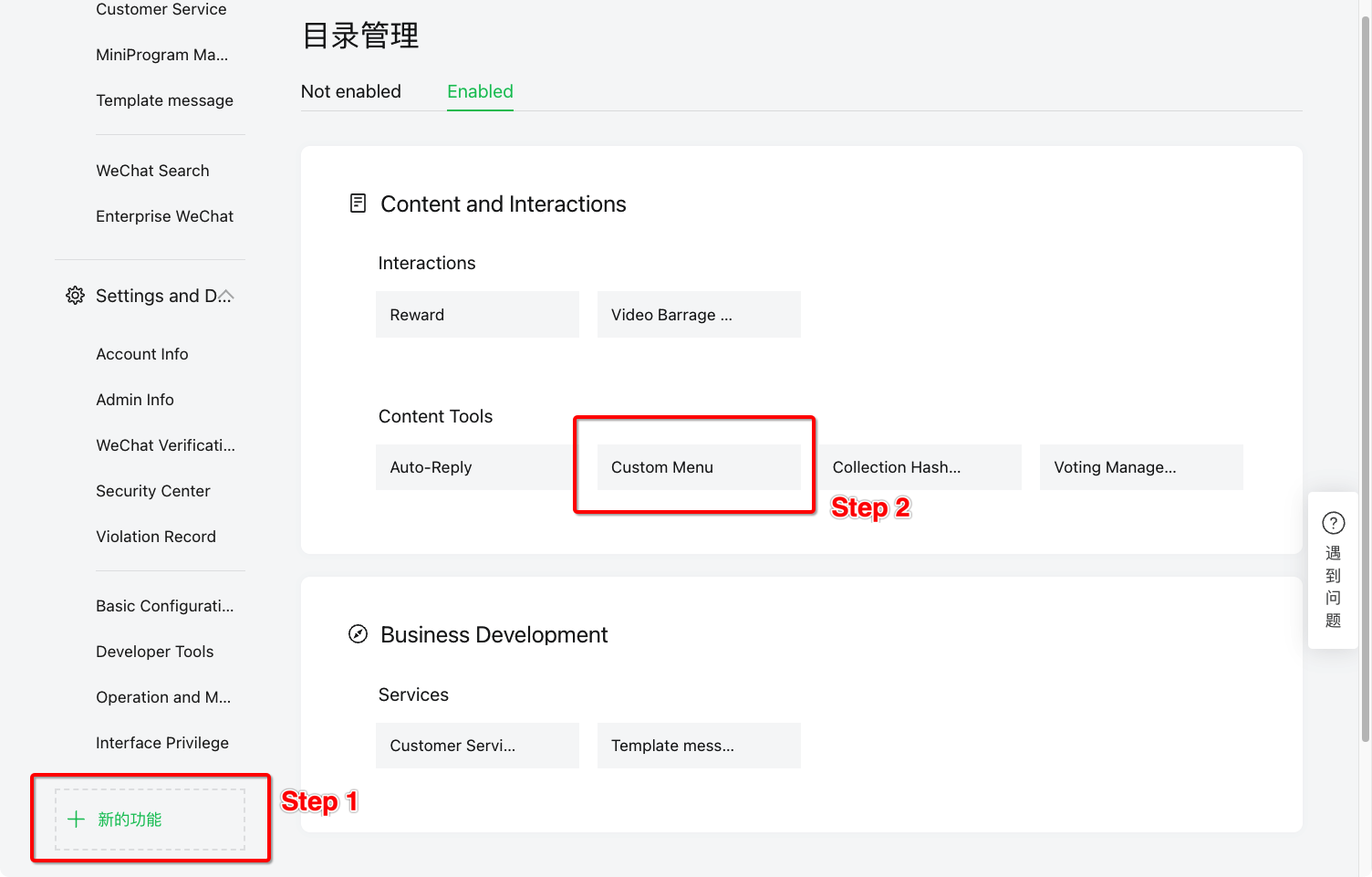
Add Plugin-ins -> Custom Menu
- Select Custom Menu (自定义菜单) and enable it.
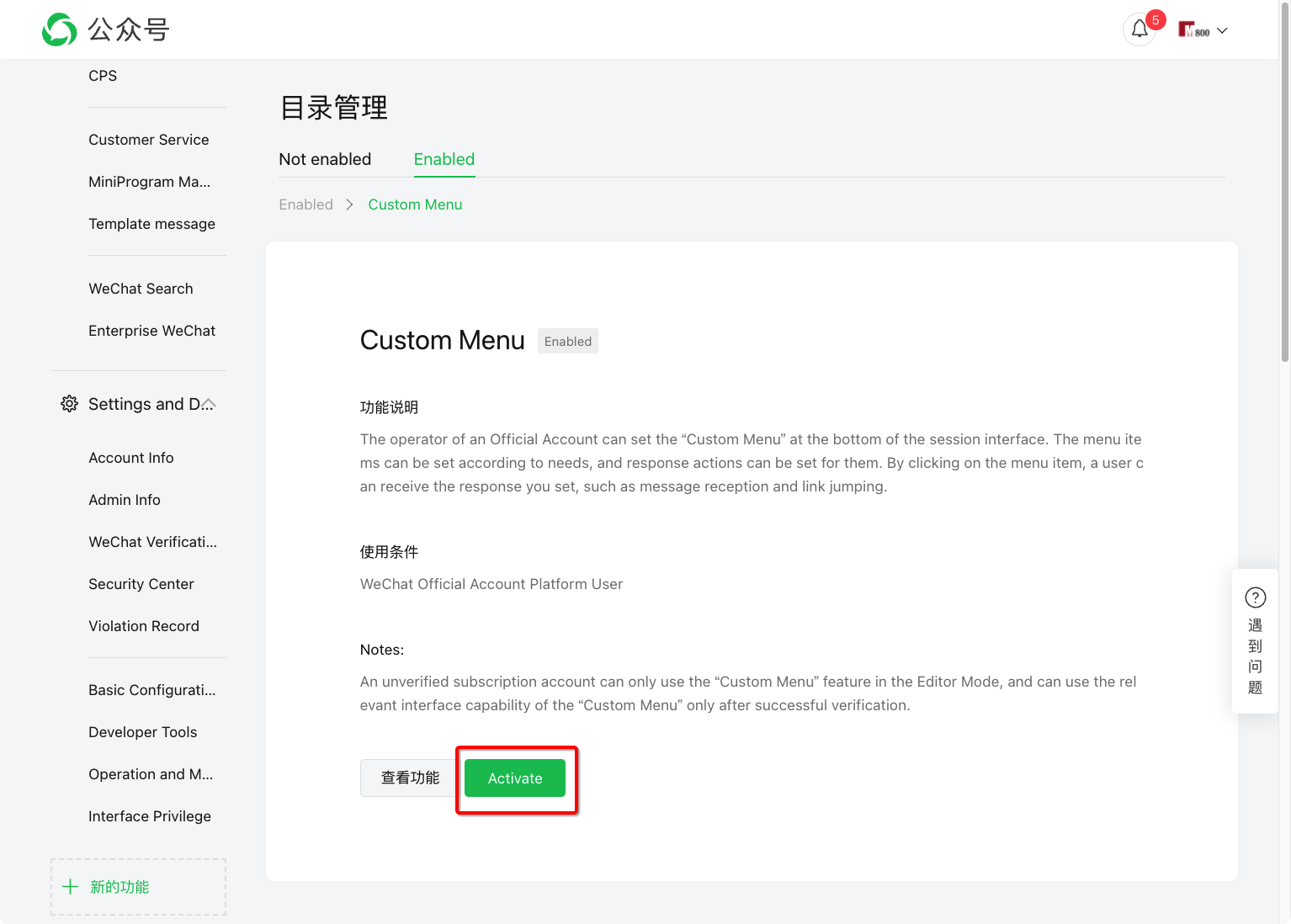
Enable Custom Menu
Connect to WeChat Sandbox
Suppose you want to test the "CINNOX x WeChat" capability before applying for an official business account. You can use the WeChat Official Business Account Sandbox for testing.
Note that the WeChat Sandbox is only available in Simplified Chinese.
📘
Precondition
You will need a WeChat personal account.
Step 1: Go to WeChat Official Business Account sandbox: https://mp.weixin.qq.com/debug/cgi-bin/sandbox?t=sandbox/login
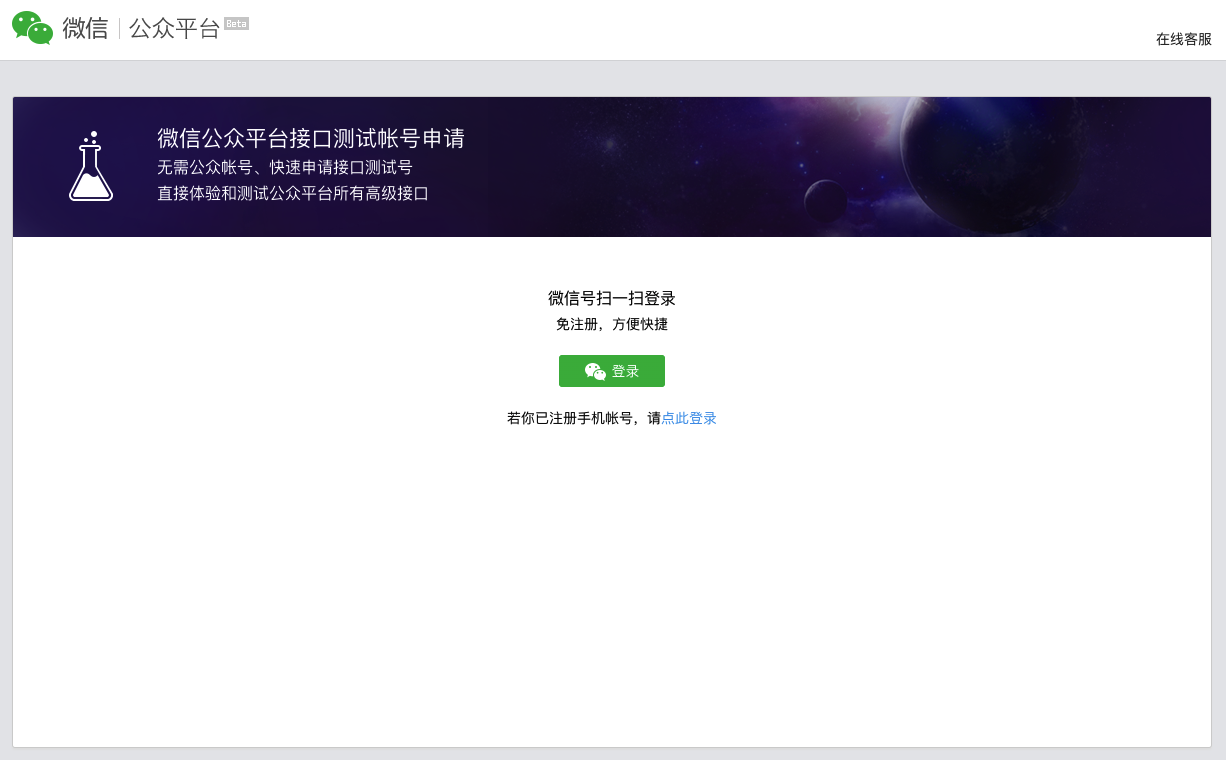
WeChat Official Account Sandbox
Step 2: Scan the QR Code with your WeChat personal account and click confirm to authorise in the WeChat Account pop-up window.
Step 3: In the Sandbox, all information you need is provided on a single page. Input the given information from CINNOX to WeChat Sandbox and vice versa.
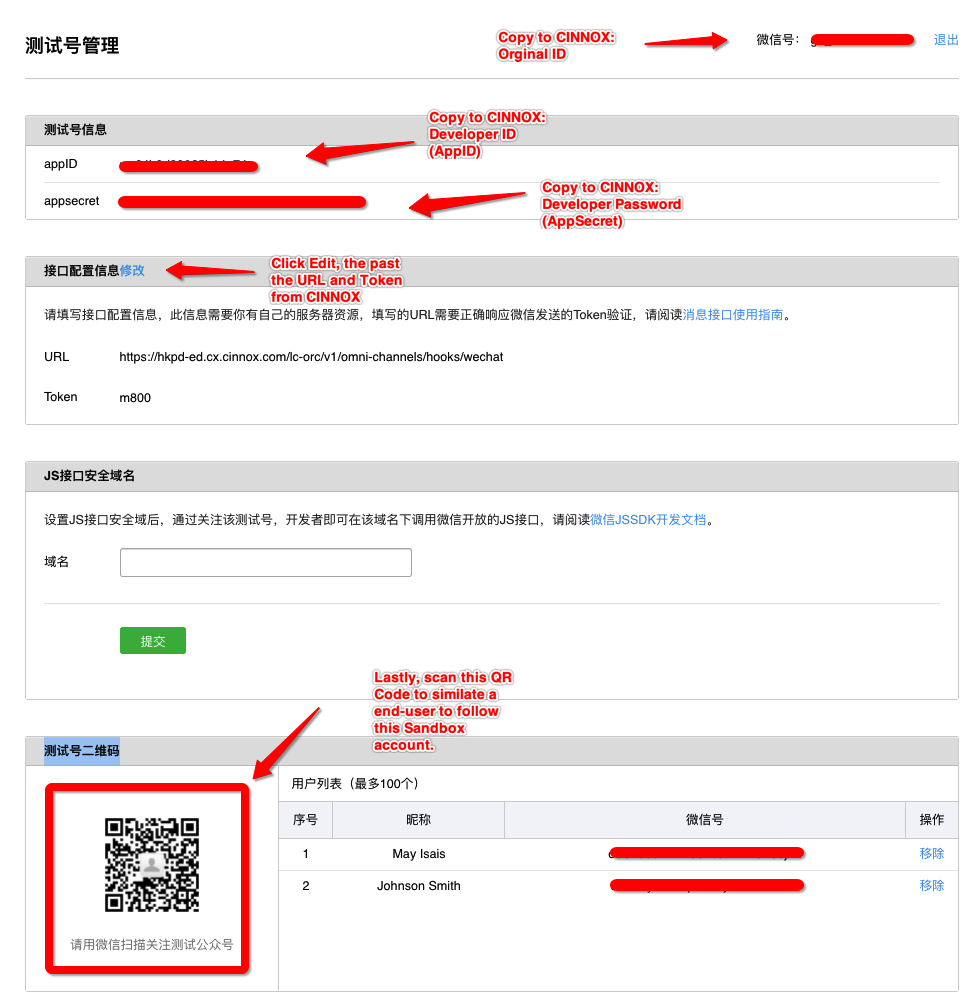
Step 4: Scan the QR Code in "测试号二维码" as an end-user to follow the official testing account.
Step 5: Make sure you have set up the routing in CINNOX for this channel. When the end-user sends a message to this WeChat Business Account, it will create an enquiry to the destination set.
🚧
WeChat Sandbox environment information is different from the production environment.
Unlike the production, the Wechat sandbox does not require allowlisting CINNOX's IP address and does not support encryption options.
Known Limitations
📘
You can only connect your WeChat Official Account to CINNOX. You cannot connect CINNOX to other WeChat accounts (e.g. Personal accounts).
A WeChat Official Account can only connect to one CINNOX service.
Supported Text, Media Content-Types and Size Limit
- You can only send up to 3,900 characters per message.
- You cannot recall messages in any Social enquiries.
- Media (image, audio, video or emoji) is only available for the Chinese WeChat Official Account. It does not support an Oversea WeChat Official Account (it only supports plain text)
- PNG and JPG should not exceed 5 MB for an image
- AAC, MP4, AMR and MPEG and should not exceed 16 MB for audio
- MP4 and 3GPP and should not exceed 16 MB for a video
WeChat Official Account has a 48-hour idle conversation limit.
A message will appear in the chat room when the staff attempts to send a message to the visitor, but the conversation has lapsed due to being idle and has reached the time limit: Sorry, your message can no longer be sent; the 48-hour message window has lapsed. Close this enquiry, or wait until the visitor sends a message again.When a visitor has unsubscribed to your WeChat Official Account, the above message will also appear.
Help and Support
If your CINNOX service is not receiving messages from your WeChat customers and visitors:
- Log into your WeChat Official Account and check your Basic Configuration and Account Details. Please ensure all are the same with your CINNOX channel details.
- Send a test message to your WeChat Official Account and check if your CINNOX service receives it.
If your CINNOX service is still not receiving any messages, contact our CINNOX Support Team.