
Chat Room
The tab panel in the CINNOX App where staff members can send/receive instant messages and share files such as images, videos, documents, voice messages, or SMS texts to their customers or colleagues.
The chat room is not yet visible when you open your CINNOX App for the first time.
As soon as you handle a call or chat enquiry or start chatting with your fellow staff members, the Utility Panel will create rooms as your Recent Connections, and the chat room panels for each conversation will appear.
Chat Functions
Below is a summary of the available chat functions you can use inside a CINNOX Space:
- Text Input can be expanded and collapsed to send long texts flexibly.
- Copy a posted message and paste it to another chat room.
- Recall (delete) a message or a file you posted within five minutes.
- Edit a message you posted within five minutes.
- Reply to a specific message within the chat room.
- Send quick links or text shortcuts to personal and channel web links and phone numbers
- Forward a message to any chat room.
- Image Preview - to staff chat room including enquiry room, Space group chat and conference room.
- Link Preview - to any chat room.
- Share images, videos, documents, and voice messages - refer to this Guide's Sharing Files.
- Use @mention, e.g. use @all or @StaffName to notify all Space members or individuals about a specific message in the Space.
- Sending SMS - refer to this Guide's Sending SMS.
Refer to the Sending and Receiving Chats section of this Guide.
Sharing Media Files
Inside a chat room, you can send the following as part of your 1-on-1 or group Space conversations with your customers, visitors, and fellow staff members:
- Images
- Videos
- Documents
- Voice Messages
For more information, refer to the Sharing Files section of this Guide.
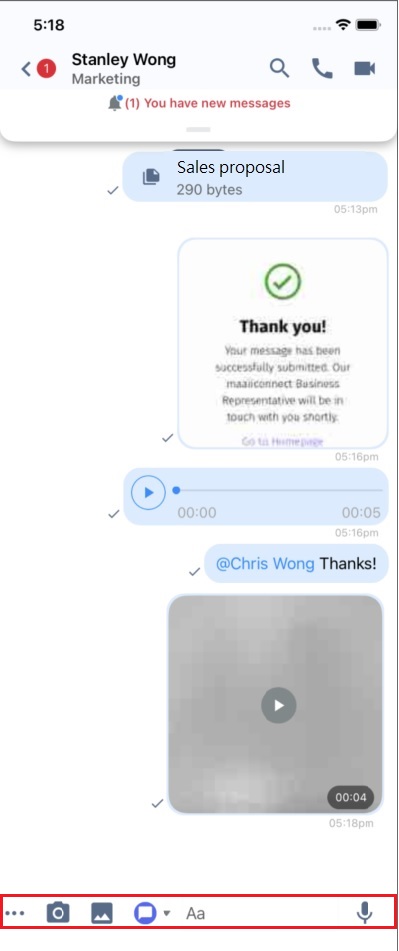
Chat room
Types of Room
The Room Information panel displays different details, depending on the type of room you have in your Recent Connections:
- Enquiry room - for visitor and customer enquiries
- Direct room - for staff-to-staff (chat and call) and external contacts engagements (call)
- Space room - for internal (private and public) group chat
- Conference room - for conference calls
Enquiry Room
The enquiry room provides details to help you know more about the visitor or customer you are engaging with.
Contact Profile: personal, journey, activity and device details.
- Personal: Phone Number, Email, Address, and Sharing Details.
- Journey: Enquiries created by the visitor, date and time, handled by and status.
- Activity: Enquiry History including Enquiry ID, Source of the enquiry like Direct Staff Enquiry, Status of the enquiry.
- Device: Details of the visitor's device to send an enquiry, including Platform, User Agent, Screen Size, Timezone, Local Time Now and Location.
- Enquiry Information:
- Enquiry Information: Enquiry ID, Status, Channel, Channel Details, Label, Platform, Time Created, Time Responded, Response Duration, IP Address, Language and location
- Other Related Enquiries: Details of enquiries, including Enquiry ID, status, and Source of the enquiry.
Other Information:
- Device Information: Details of the agent's device to handle the enquiry, including Platform, Browser, Screen size, Timezone, Local Time Now and Location.
- UTM Information: The Urchin Tracking Module (UTM) Information in the chat room refers to the customisable parameters you can add to a web link. The values of these parameters help you track the source and provide extra information from the enquiries initiated by visitors or customers.
| UTM Information | UTM Parameter | Description |
|---|---|---|
| UTM Campaign | utm_campaign | Recognise the associated campaign. |
| UTM Content | utm_content | Indicate the exact element the visitor clicked in your campaign. |
| UTM Medium | utm_medium | Indicate the channel utilised by the visitor for enquiring. |
| UTM Source | utm_source | Show the source of the visitor. |
| UTM Term | utm_term | Identify the targeted paid keywords within your campaign. |
| UTM {parameter} | utm_{parameter} | This custom UTM allows the agent to define the specific UTM parameter within the weblink. For example, if adding a member ID is necessary, the agent can define "utm_memberid" as a UTM parameter. |
By using UTM parameters, you can track the performance of your campaigns and content and optimise them for better results.
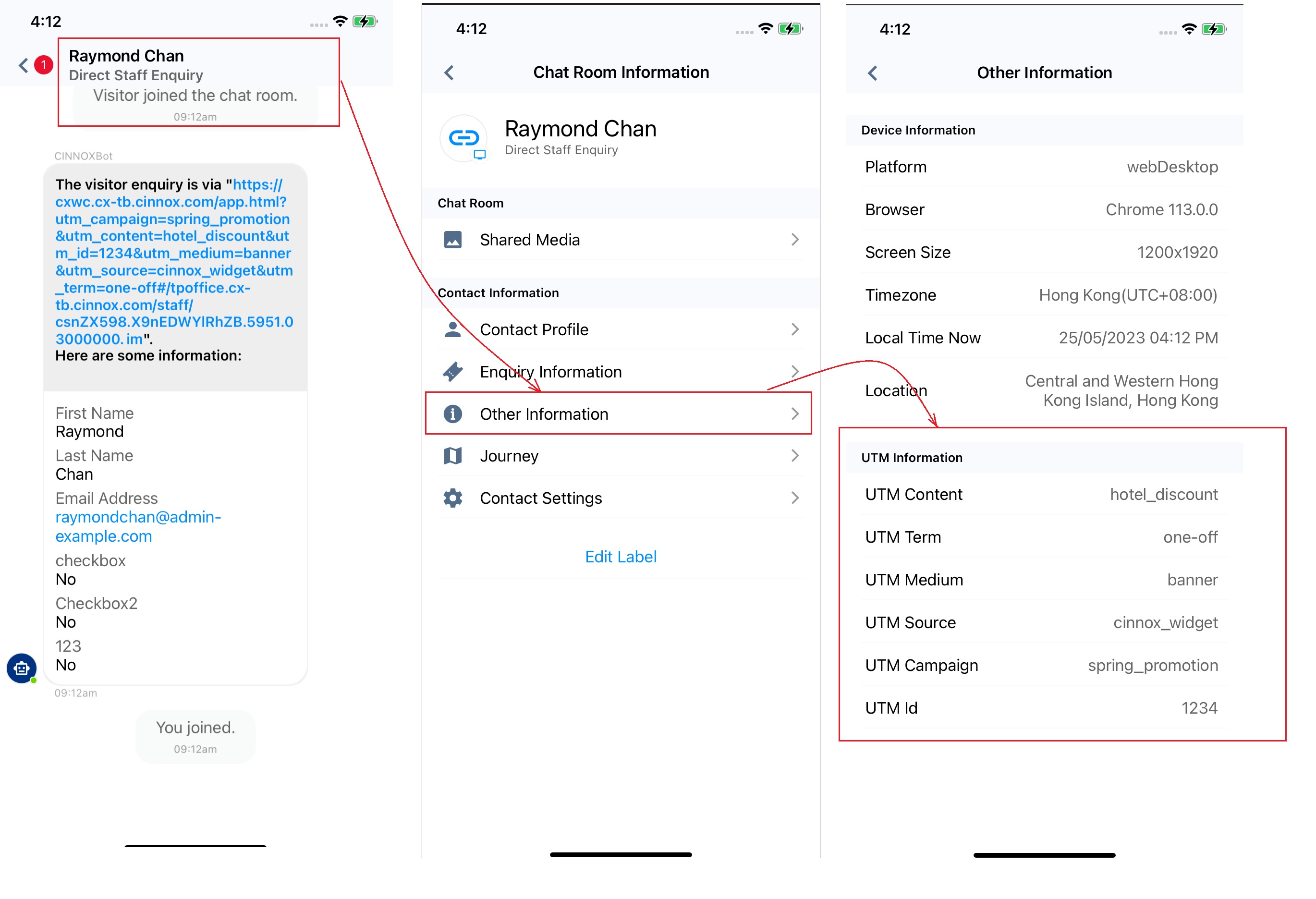
📘
Please note that UTM Information supports enquiries from Weblinks of Direct Chat and Call Enquiry provided by staff agents. However, it does not support originating from Weblinks provided by the Social channels
👍
- You can manually add the UTM parameters to the weblink to collect the UTM information. Or, alternatively, you can use a builder, like Campaign URL Builder, to facilitate the addition of the UTM parameters.
- You can access the UTM Information for more details about your campaign, such as the source, medium, and specific content that drives the enquiry, aiding you in fine-tuning your campaign strategy for better results.
Journey: enquiries created by the visitor, date and time, handled by and status
Contact Settings: Contact owner, Shared with and Change Log
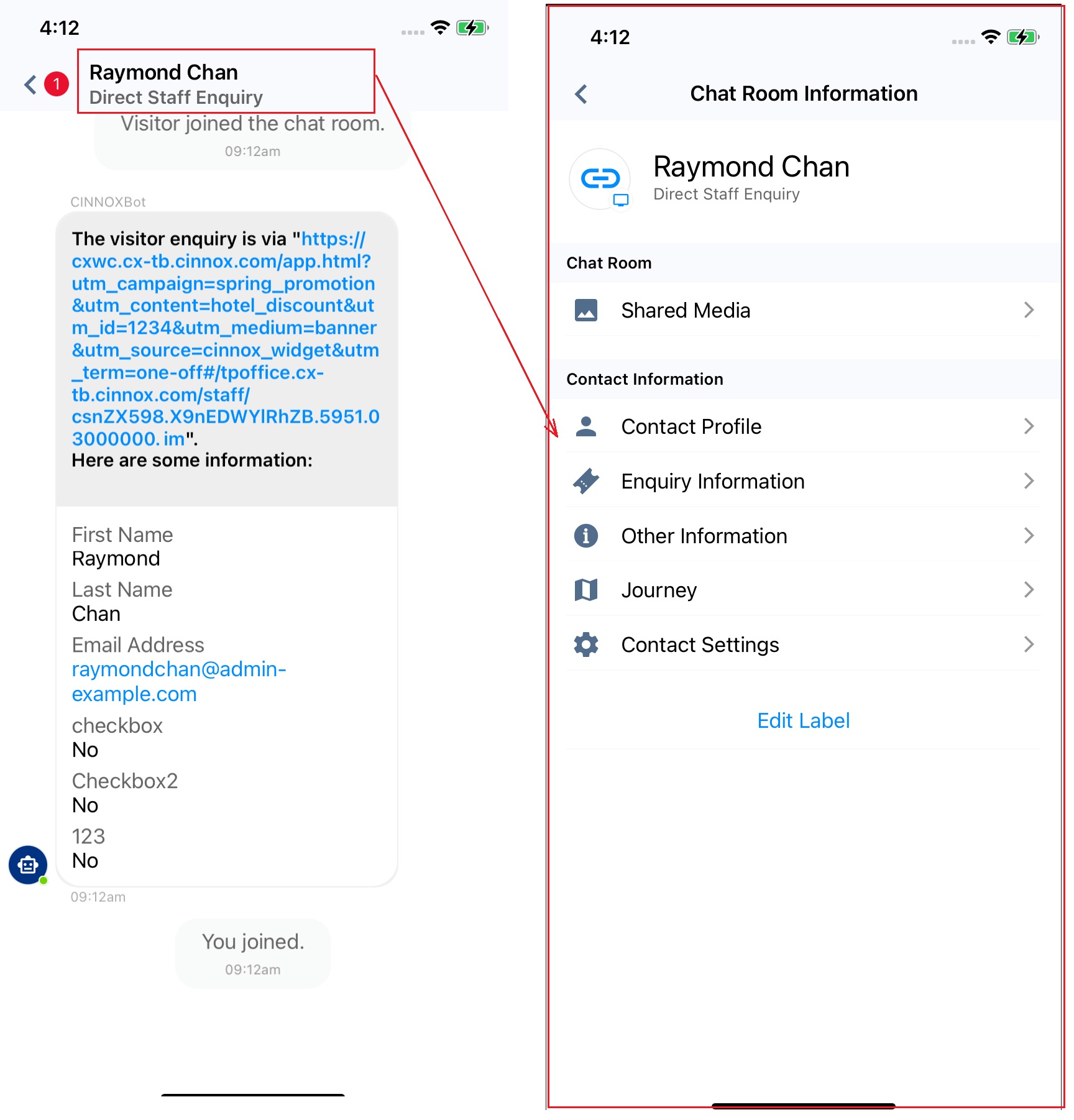
Enquiry Room
In the chat room, the CINNOXBot system message will provide information also such as:
- The visitor enquiry is via "channels such as Tag, Weblink, Virtual Number, Social".
Information gathered from the Visitor Form:
- First Name
- Last Name
- Email Address
- Phone Number
Also, for the UTM Information (when available in the Tag or Direct Weblink)
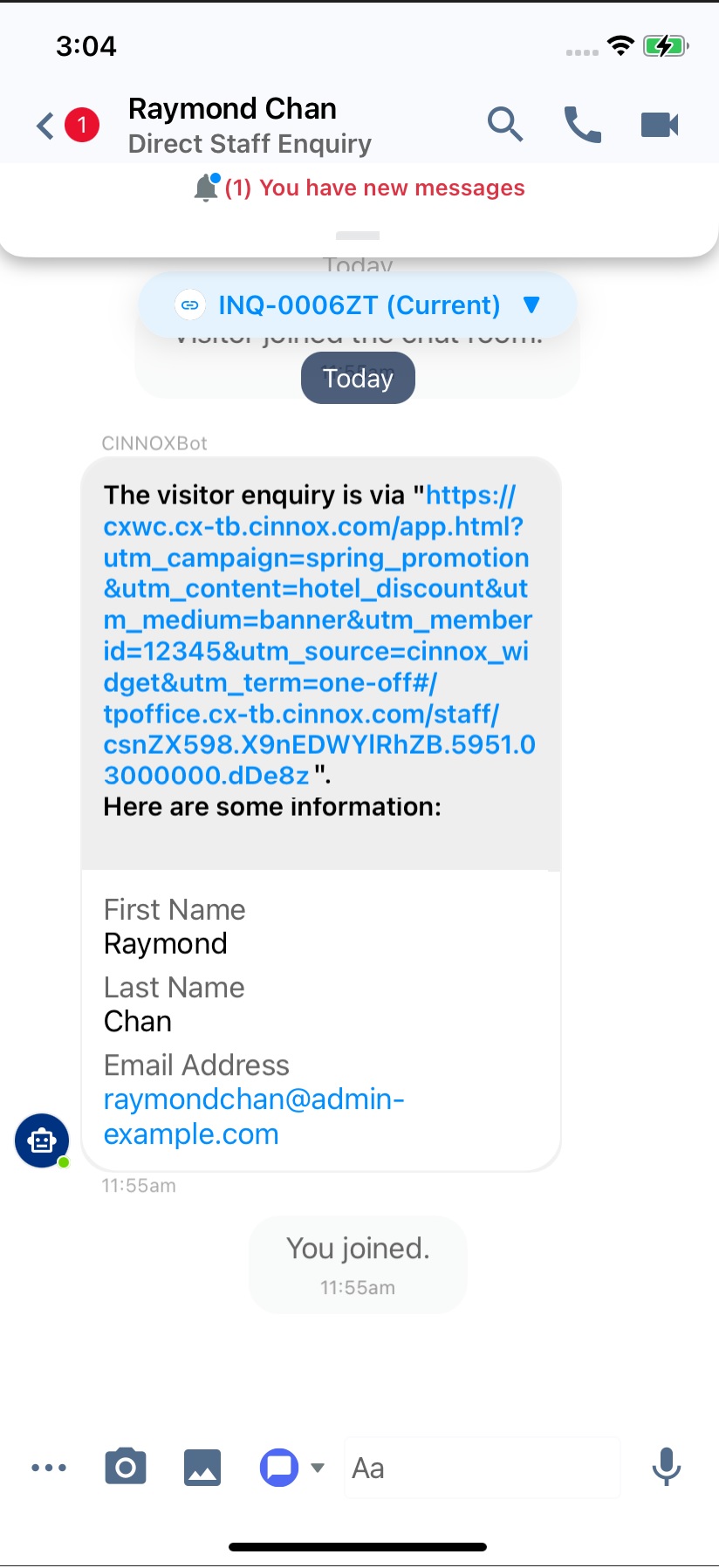
Chat Room Visitor Information
Direct Room
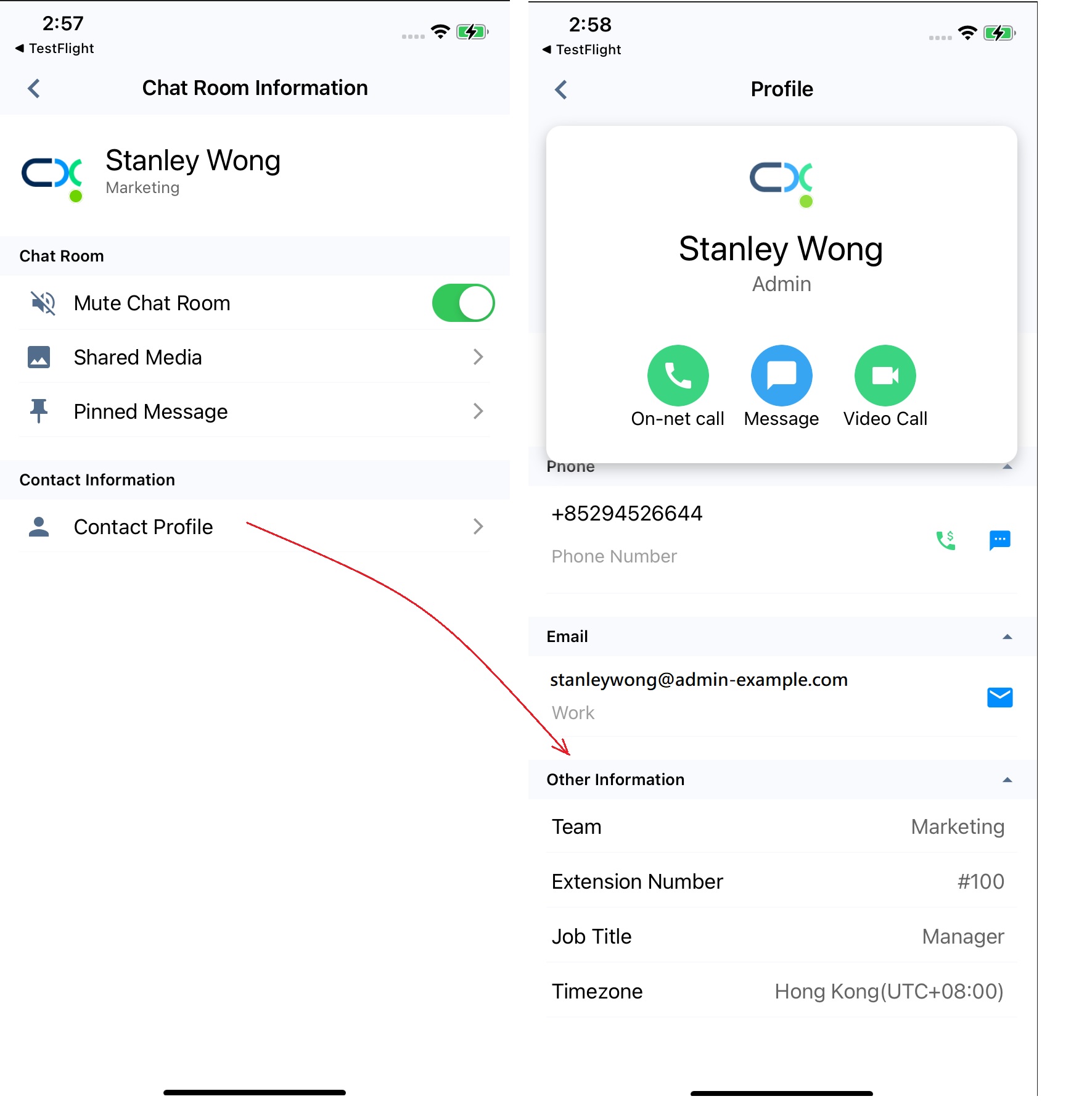
The direct room provides details that will help you know more about the staff member or external contacts (e.g., leads or prospects) you engage with.
Contact Profile
- Phone Number
- Email Address
- Team
- Extension Number
- Job Title
- Timezone
Space (Internal Group Chat) Room
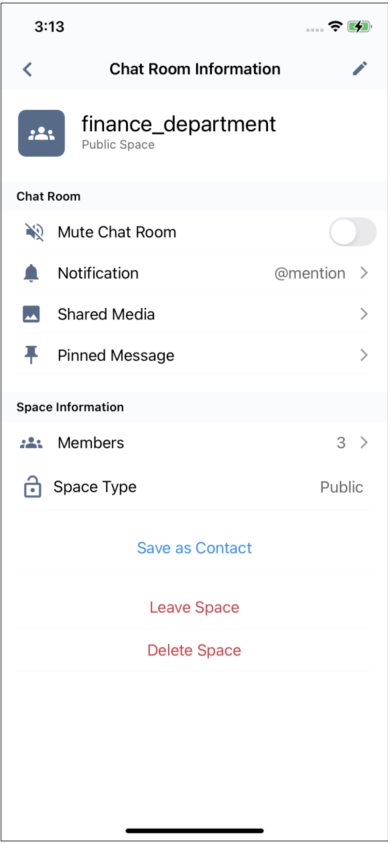
The space room provides details, including what the group is about and its members' list.
Space Details
- Space Name
- Space Description
- Space Members
- Space Type
Space Information
Please refer to the Space for Internal Group Chat section of this Guide for more information.
Conference Room
The conference meeting room provides call log details such as:
- Caller Information (Host)
- Participants
- Chat History
Please refer to the Conference Call section of this Guide for more information.
Muting and Unmuting Room Message Notifications
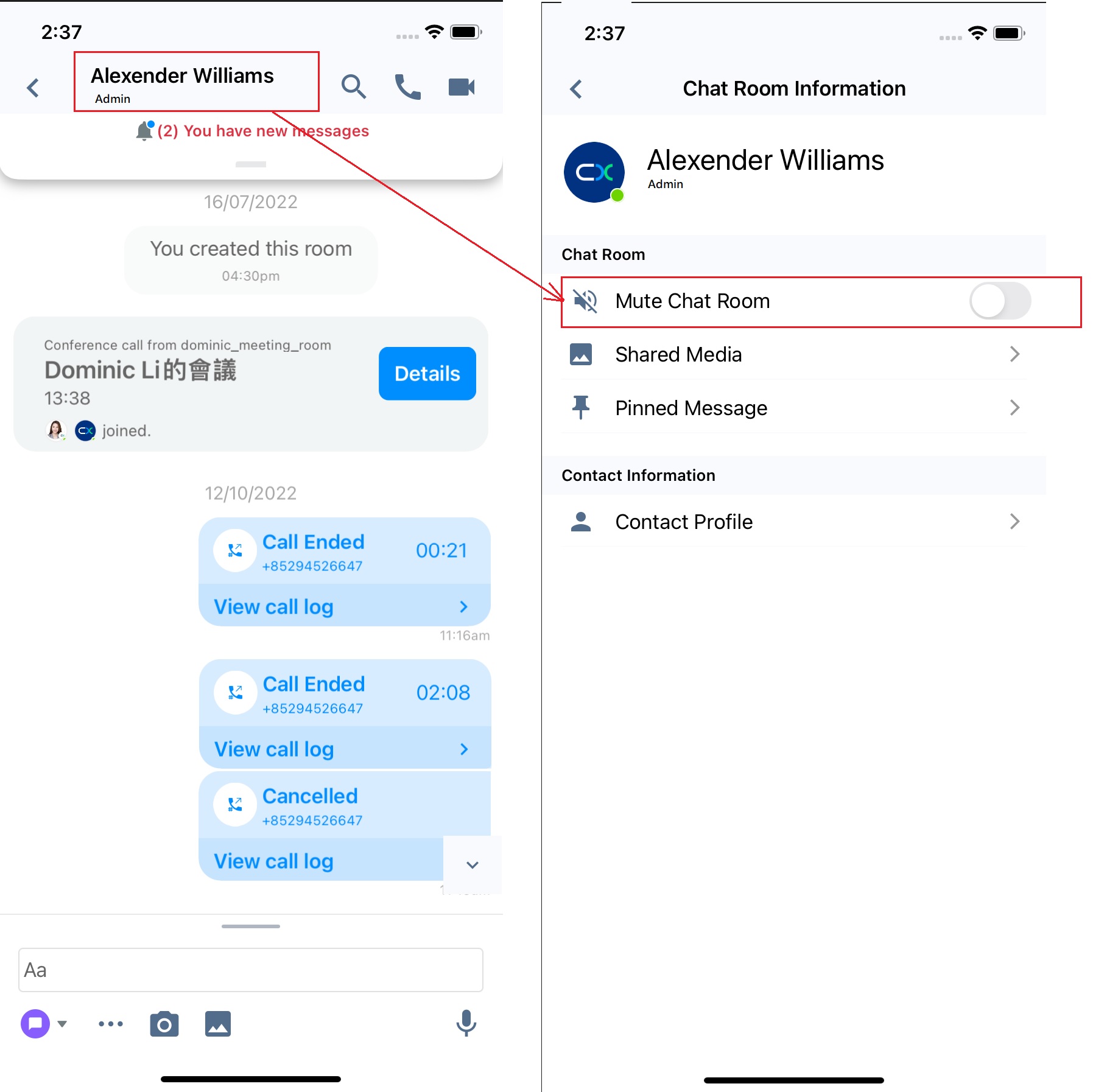
To mute/unmute message notifications for an Enquiry or 1-to-1 Room:
- Inside an enquiry or 1-to-1 room, tap the room name at the top of the screen.
- On the Profile screen that will appear, go to the Chat Room section and toggle the Mute Chat Room button On (green) or Off (grey) to mute or unmute notifications, respectively, depending on the setting you want to apply.
Mute/Unmute Enquiry or 1-to-1 room
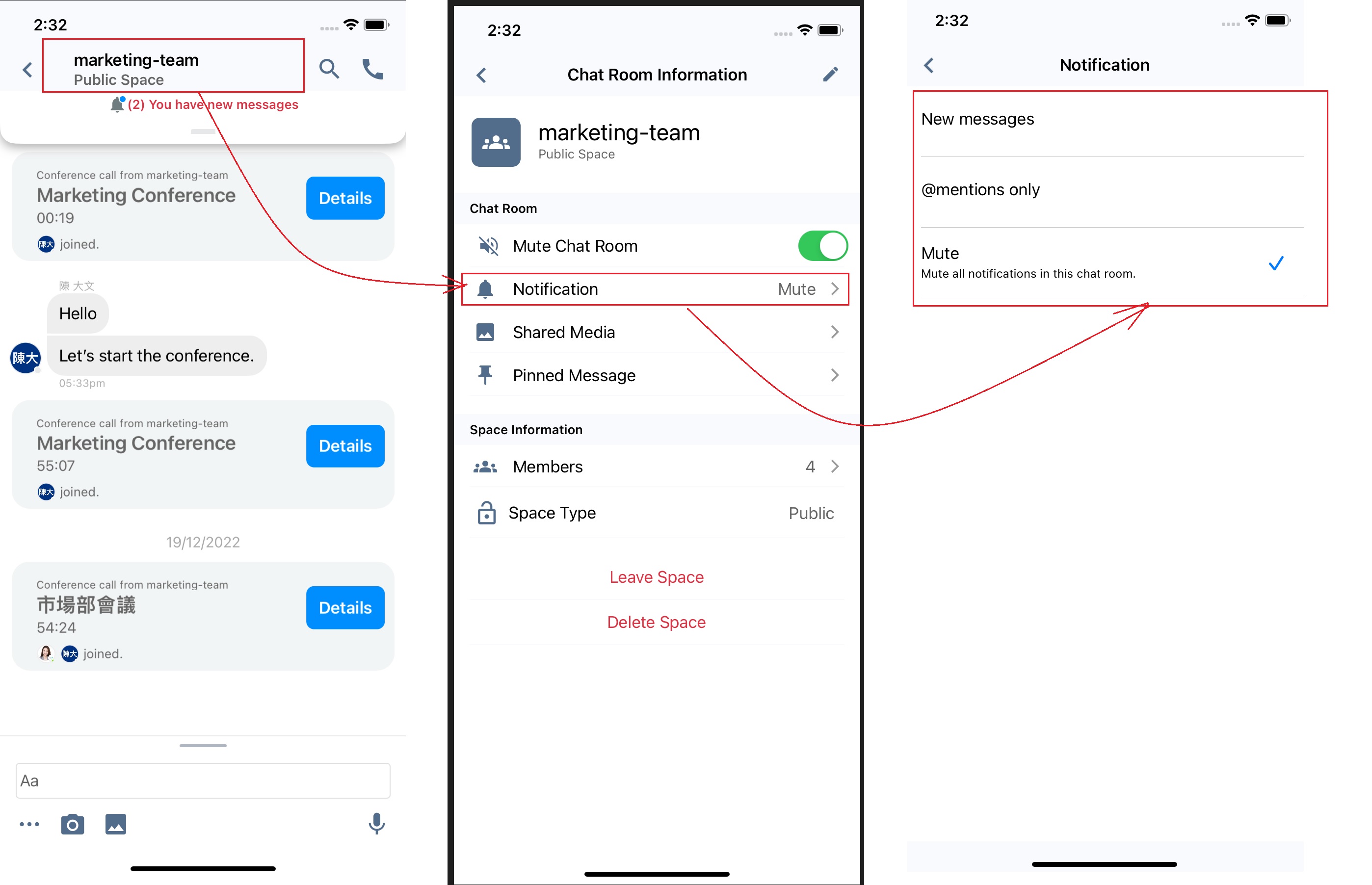
To mute/unmute message notifications for a Space Room
- Inside a Space room, tap the room name at the top of the screen.
- On the Space Information screen that will appear, go to the Notifications section and toggle the Mute Chat room button On (green) or Off (grey) mute or unmute notifications, depending on the setting you want to apply.
- Otherwise, if you want to be notified when your name has been mentioned in a post, tap Notification, then tap @mentions only.
Mute/Unmute Space Room
To mute/unmute directly from the Recent section:
- Swipe a room or name to the left, then tap the Mute/Unmute button that will appear.
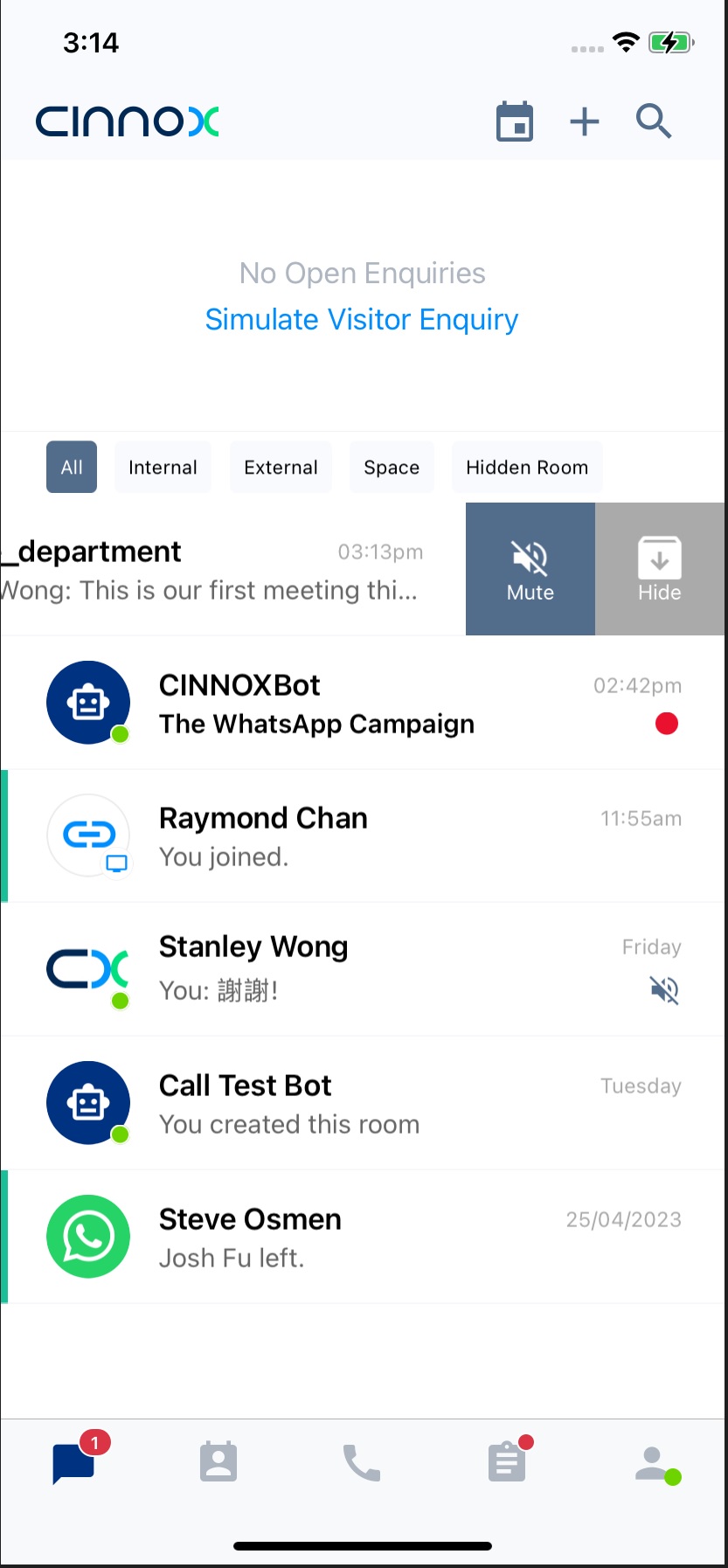
Mute/Unmute a Room in the Recent
Shared Media
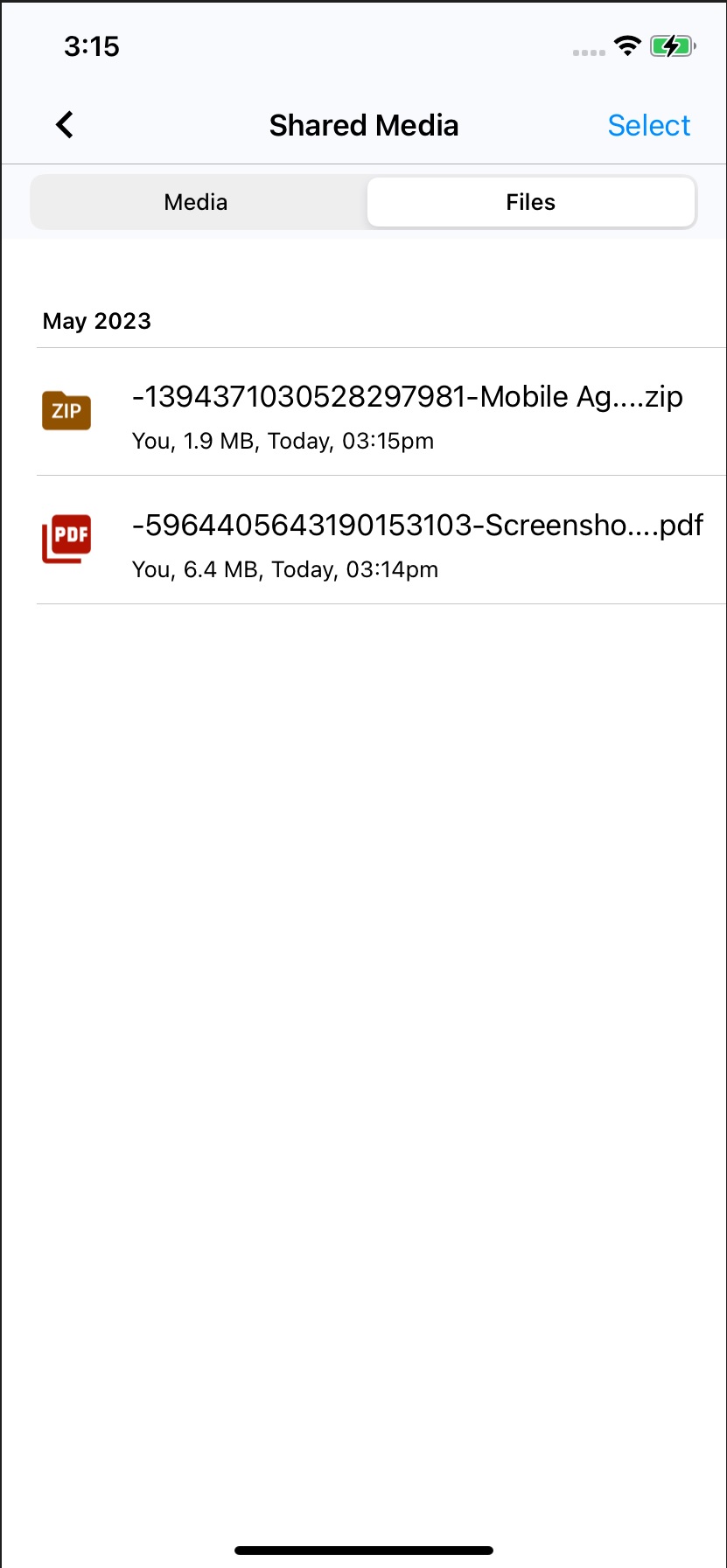
All images, videos and documents sent in the Chat room are in the Shared Media section.
- To view them inside a chat room, tap the room or profile name at the top of the screen.
- On the room/profile screen that will appear, go to the Chat Room section and tap Shared Media
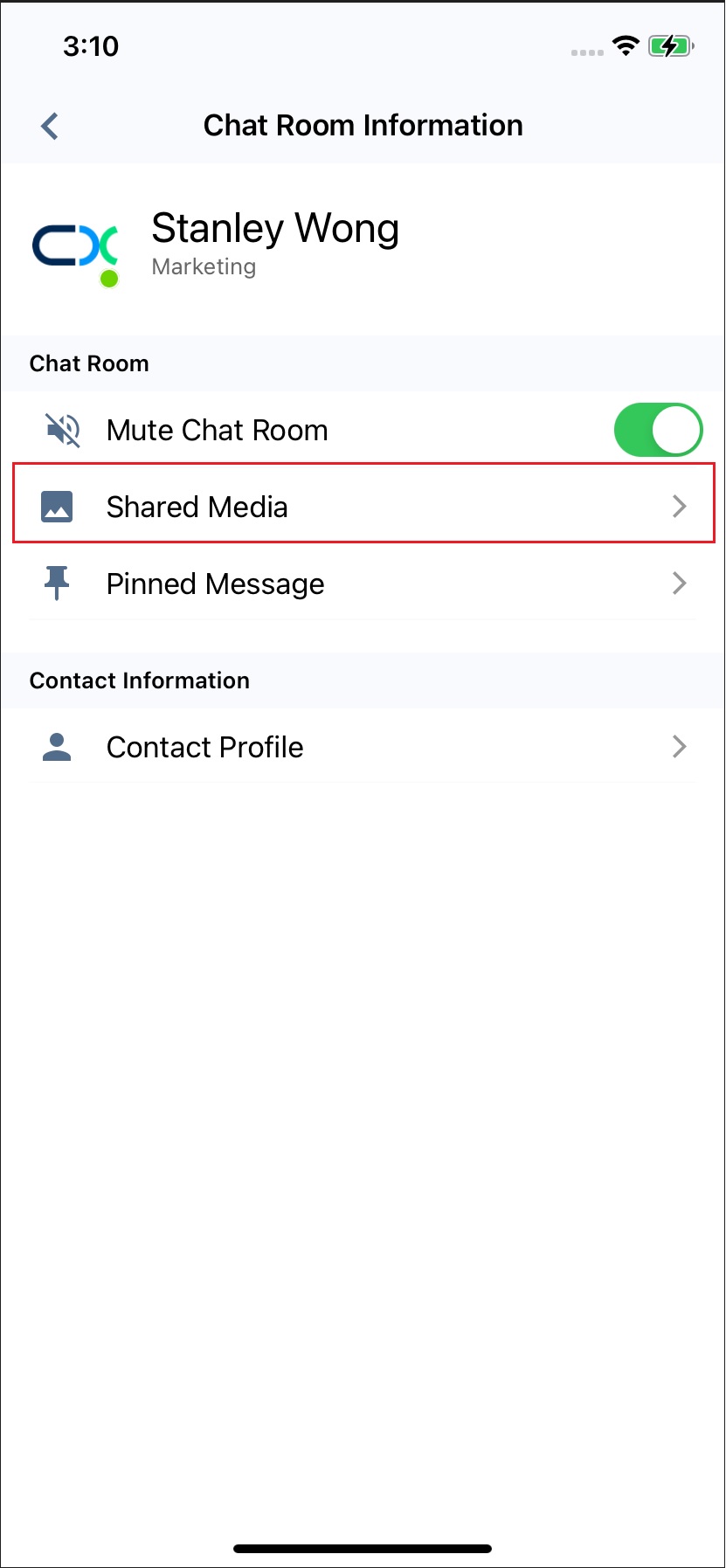
Shared Media
- You will see two tabs for the shared media and files.
Unread Rooms Badge
If you have unread chat rooms in the Utility tab, it will display a red dot badge at the upper right corner of its icon. The count displayed refers to the number of unread rooms in the Recent section.
When you go to a room and read the unread messages in it, the badge will deduct the room from the unread room count. The red badge will disappear after all rooms have opened and their messages are read.
Unread Messages Badge
If you have chat rooms with unread messages, they will display a red dot badge at the lower right corner of the room in the Recent section. The red badge will disappear when you tap open the room to read the messages.
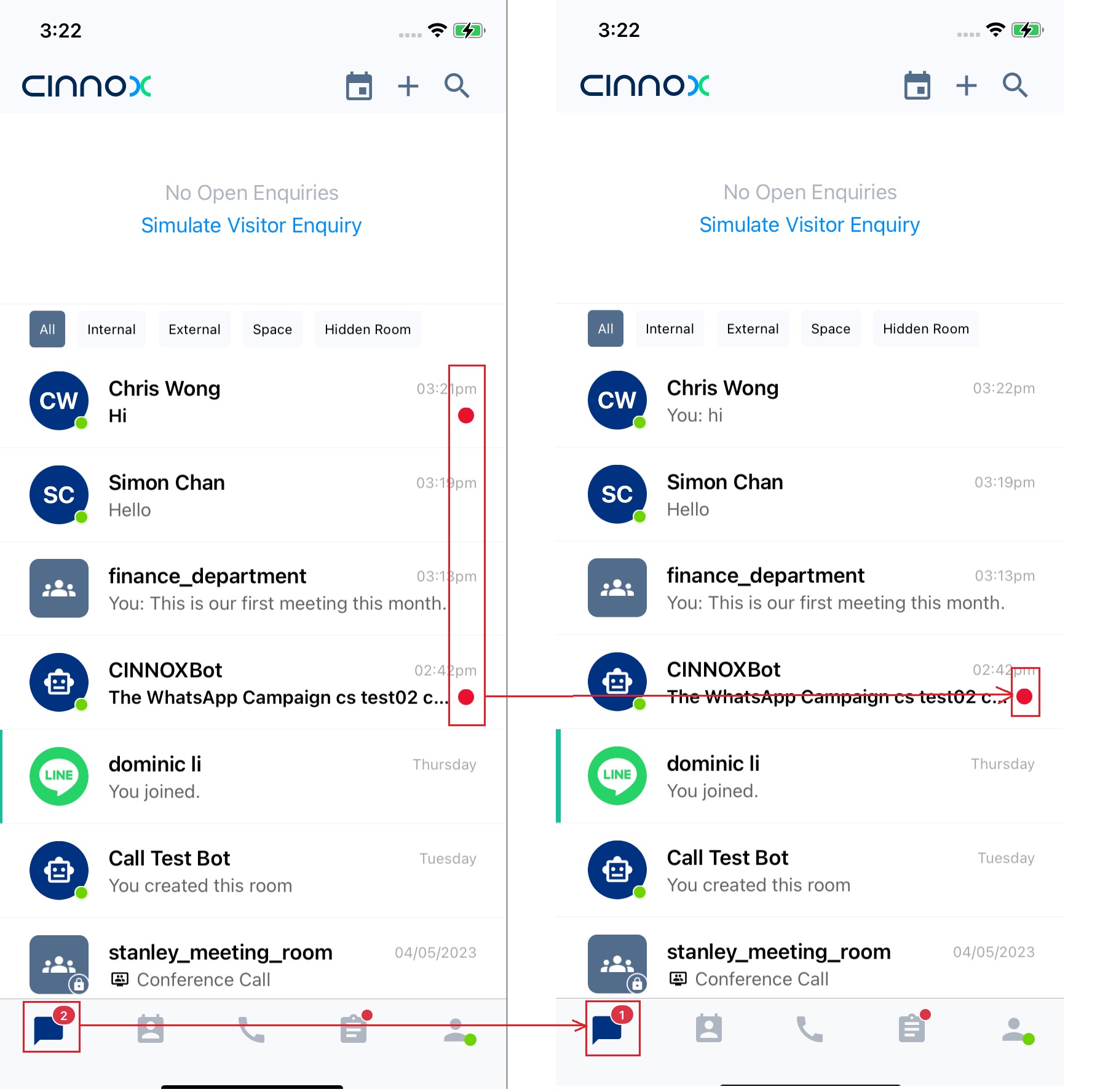
Unread Rooms and Messages Badge