
System App Permissions
While your CINNOX Dashboard primarily relies on the privacy settings and permissions, you set on your web browser. You may also need to check your computer's system (OS) settings to ensure the browser is appropriately set to run your web dashboard.
To fully take advantage of CINNOX's call and messaging features, your browser (Chrome and Safari) should have access to the following system features and peripherals:
- Your device's camera
- Your device's Microphone
- Your system notifications
- Your device's screen recording (on MAC systems)
On Windows systems
- Go to Start menu > Settings, then click on Privacy.
- On the left sidebar, click camera, then turn the toggle button ON under the Allow desktop apps to access your camera.
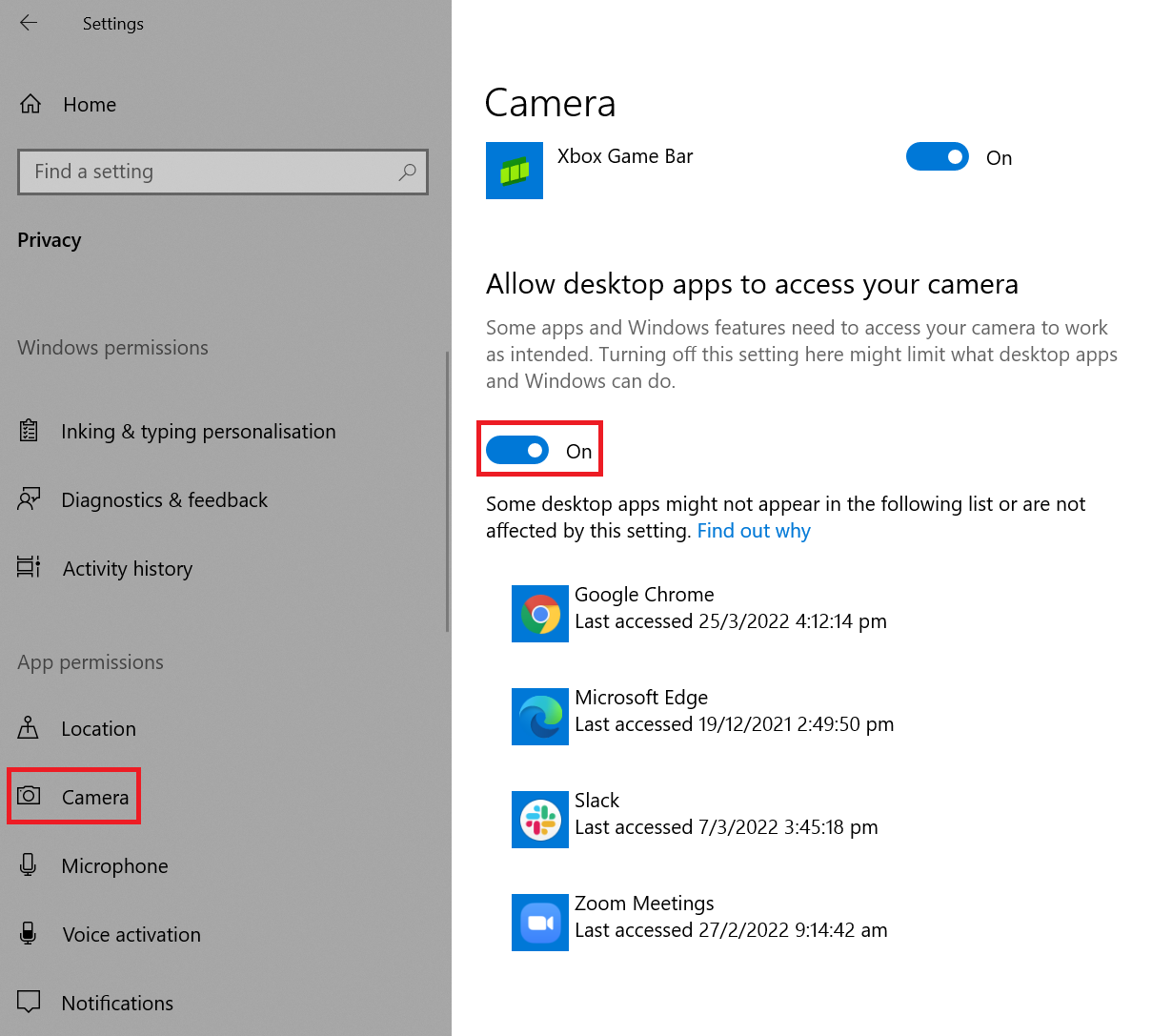
Permission to access the camera
- On the left sidebar, click Microphone, then turn the toggle button ON under the Allow desktop apps to access your microphone.
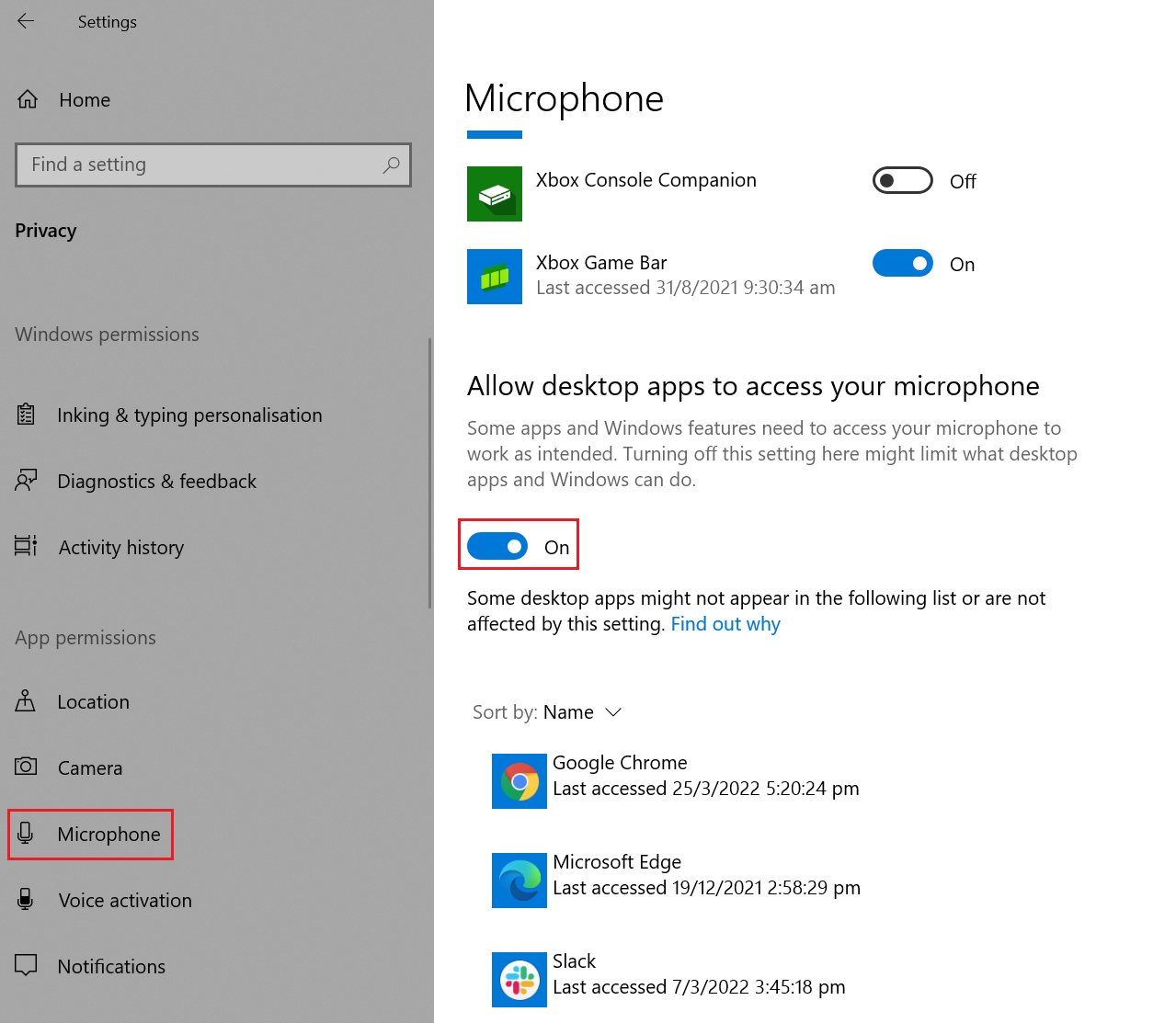
Permission to access the Microphone
- On the left sidebar, click Notifications, then turn the toggle button ON under the Allow apps to access your notifications.
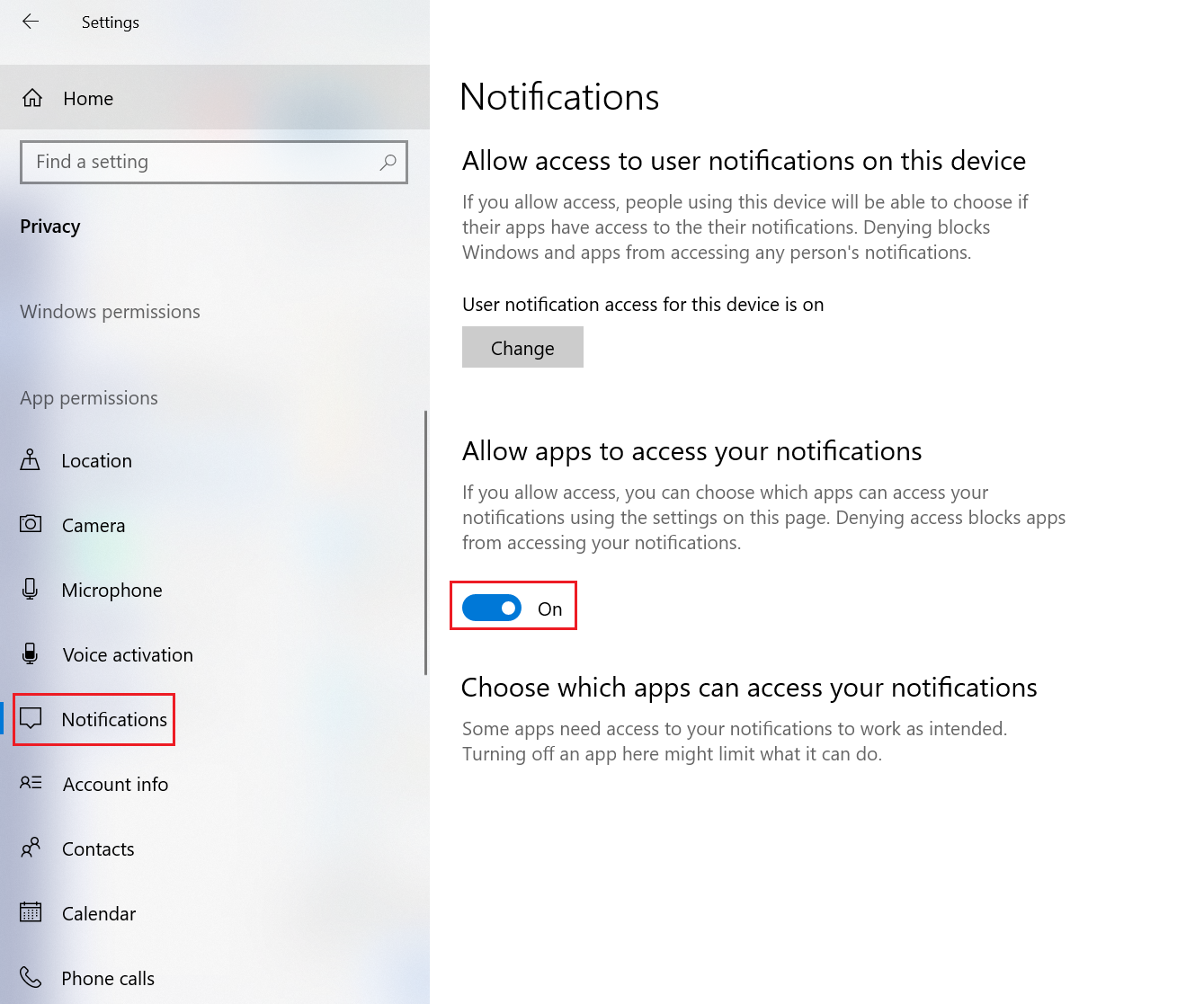
Permission to allow notifications
On Mac systems
Notifications
-
Go to Apple menu > System Preferences, then click on Notifications.
-
On the left sidebar, click on the browser you are using for the CINNOX Web Dashboard, then Toggle On the Allow Notifications
-
Select the preferred option for the messages and call notifications on the browser:
- Show notifications on the lock screen
- Show in Notification Centre
- Badge app icon
- Play sound for notification
-
Select the preferred option to show previews:
- always
- when unlocked
- never
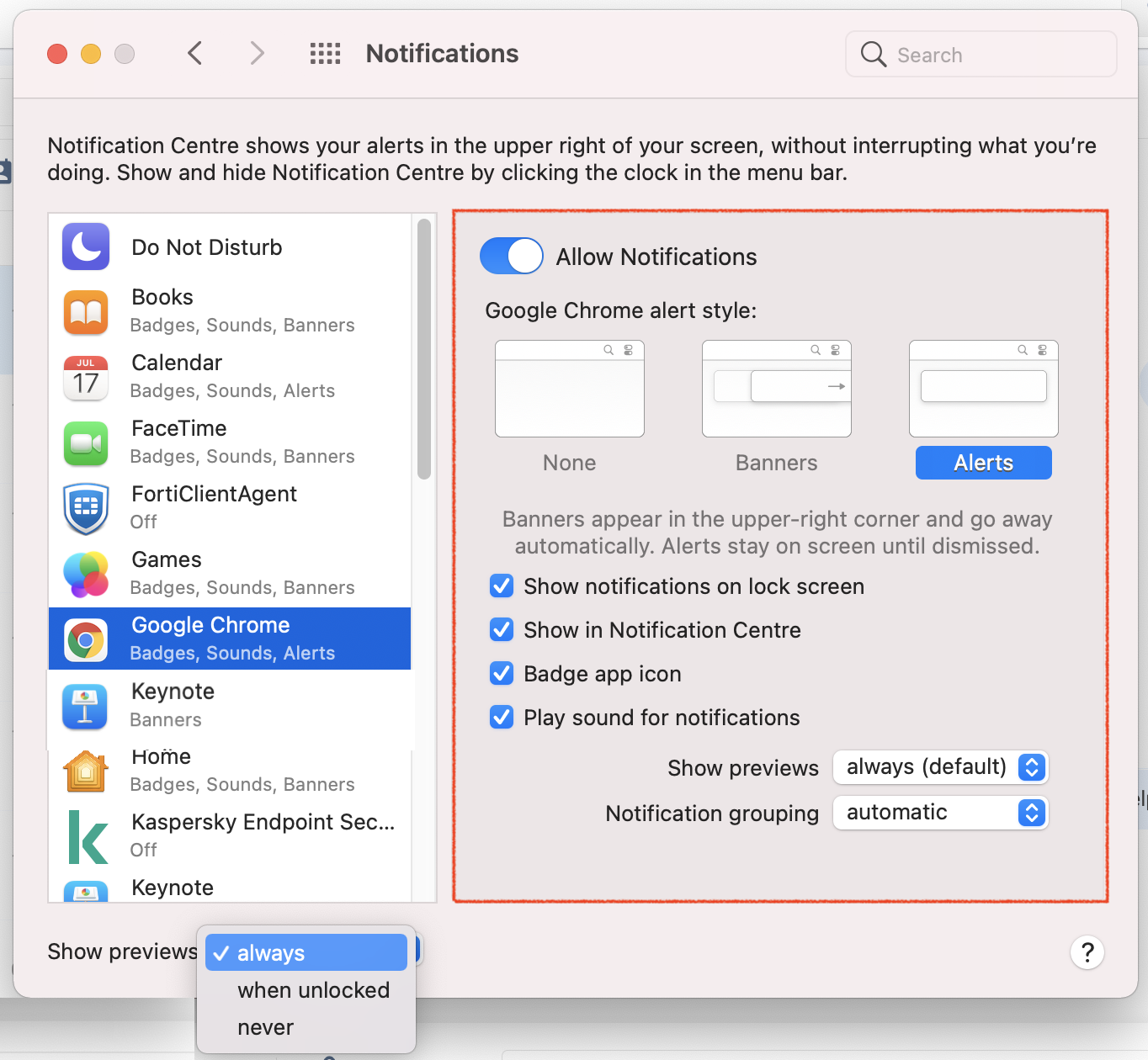
System Preferences > Notifications
Camera, Microphone, Screen Recording
- Go to Apple menu > System Preferences, then click on Security & Privacy.
- Click on the Privacy tab, then click on the lock icon at the lower-left corner of the window to unlock the settings and let you make changes to your preferences.
- On the left sidebar, click on camera, then tick the checkbox next to the name of your browser, e.g. Chrome or Safari.
- On the left sidebar, click on Microphone, then tick the checkbox next to the name of your browser, e.g. Chrome or Safari.
- On the left sidebar, click on Screen Recording, then tick the checkbox next to the name of your browser, e.g. Chrome or Safari.
- Click Quit & Reopen to refresh the permission and try again.
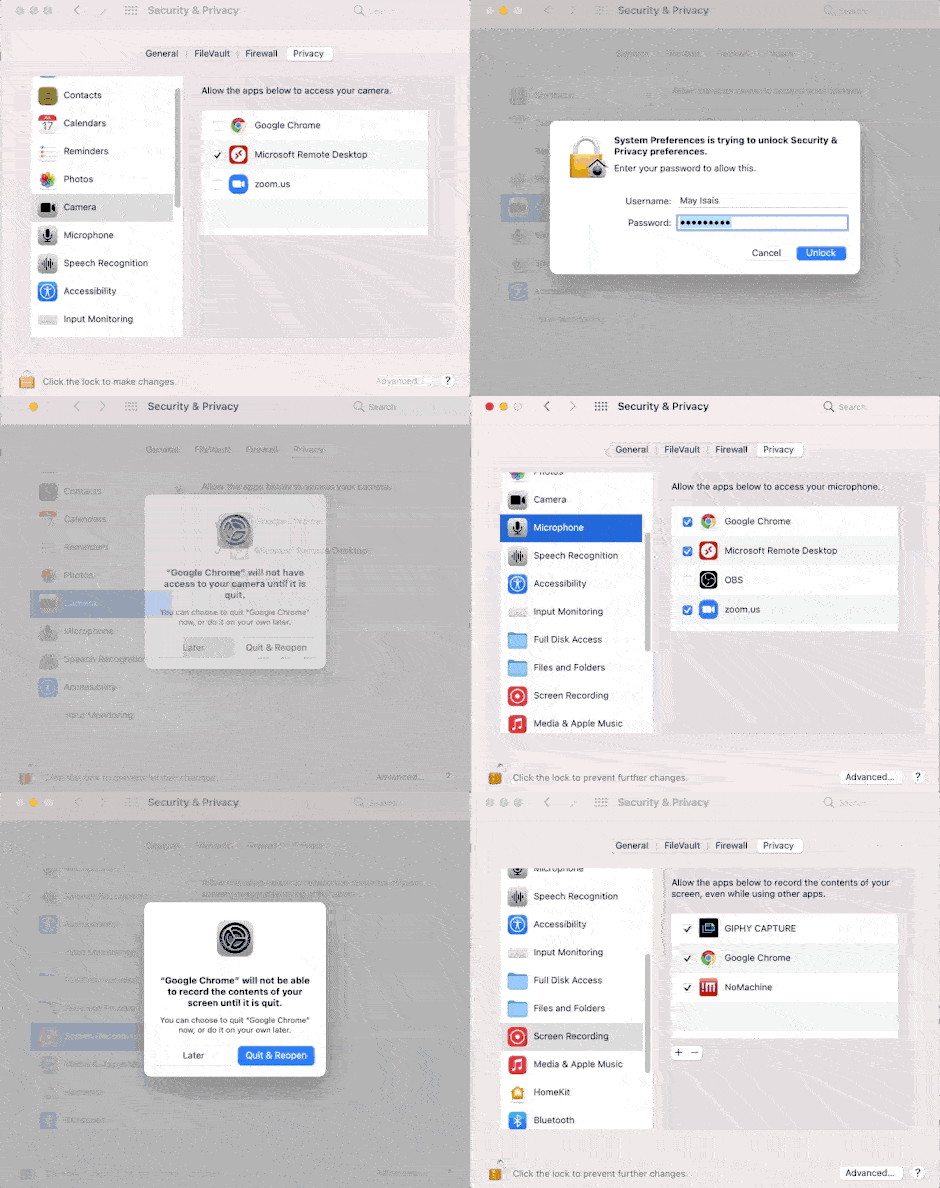
System Preferences > Security & Privacy > Privacy tab > Camera, Microphone, Notifications and Screen Recording
If your browser is already checked in the permission settings but still unable to screen recording
- Please remove it from the list and add it again.
- Click **Quit & Reopen to refresh the permission.
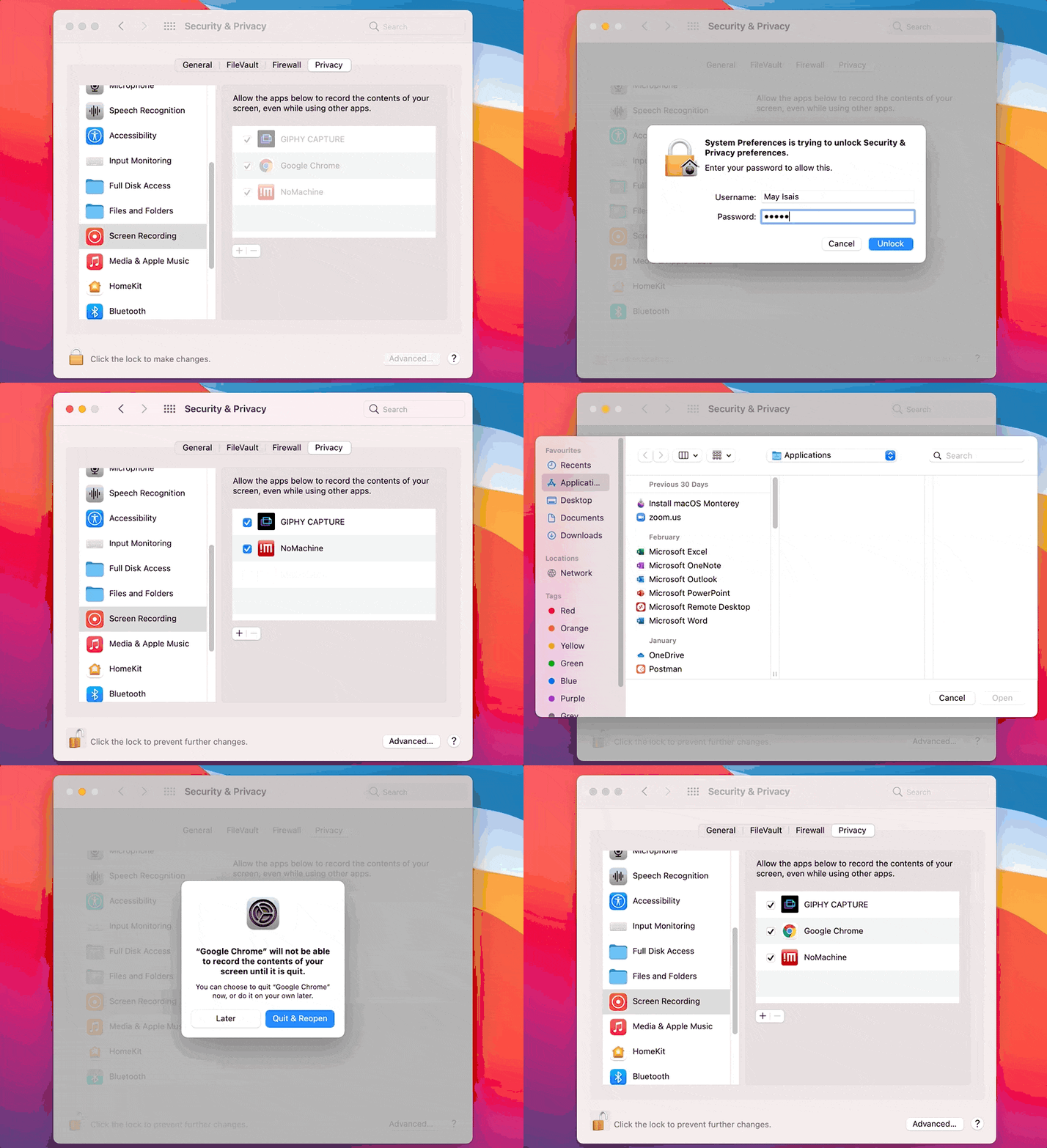
System Preferences > Security & Privacy > Privacy tab > Screen Recording
🚧
If you cannot change the permissions on any of the above, please contact your IT admin for help.
To know about setting permissions at the browser level, refer to the following sections of this Guide: