My Plan
My Plan allows you to view and monitor your company’s subscription details and usage.
Available Sections
- Plan Monitoring
- Billing Profile
- Marketplace
- Call Scripts
- SMS Templates
All prices and rates are in USD.
Additional Sections (Prepaid Accounts Only)
- Business Verification
- Wallet
- Virtual Number Orders
Plan Monitoring
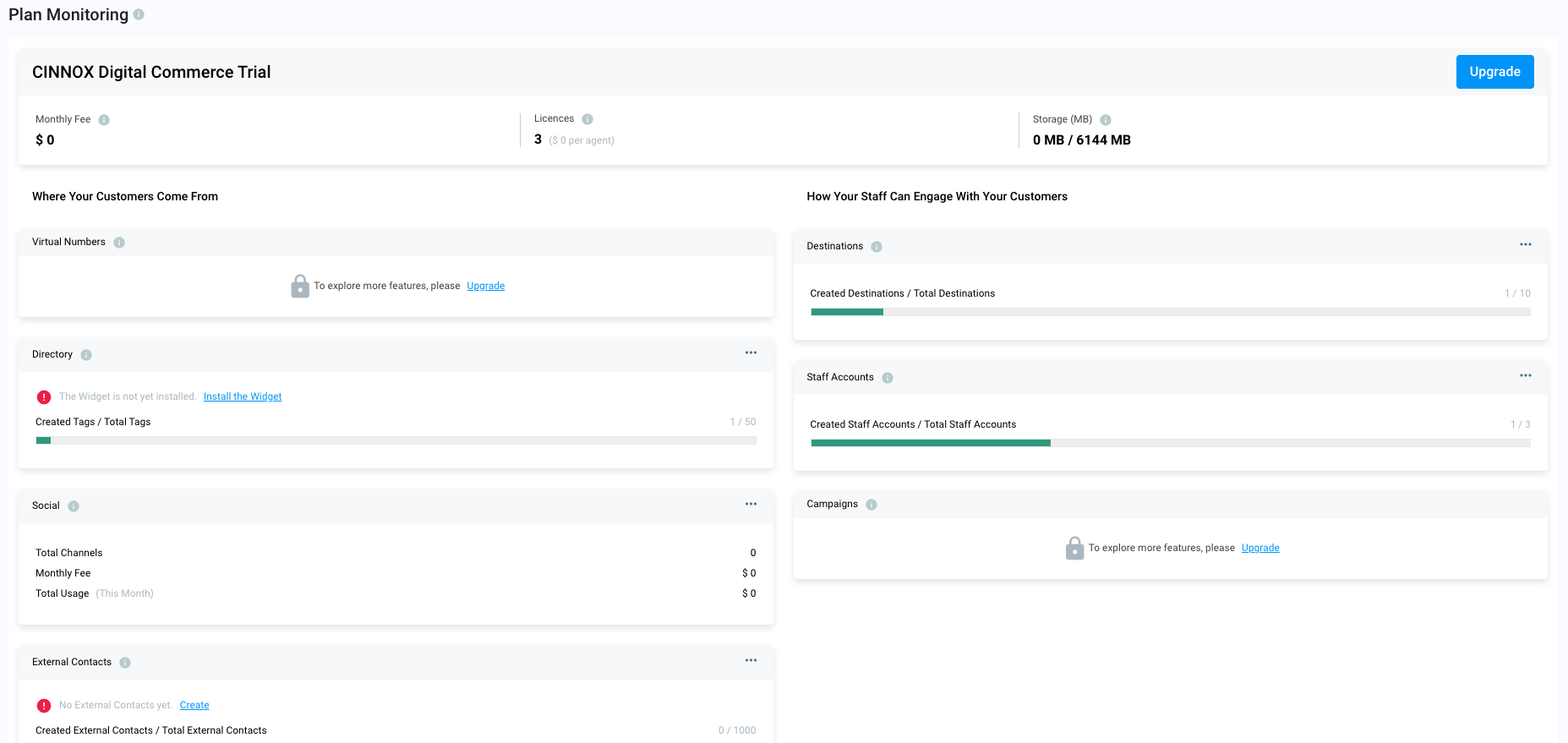
The Plan Monitoring section provides an overview of your subscription, including feature status and usage. It helps administrators manage resources and take action when needed (e.g., upgrading plans or allocating limits).
Data displayed may not be real-time. Please refer to your official monthly invoice for final usage and billing.
To get a copy of your invoice, please request with our customer support.
Key Components
- Subscription Summary
- Upgrade Button
- Customer Acquisition Channels
- Staff Engagement Tools
Subscription Summary
Displays:
- Plan Name
- Next Payment Date
- Monthly Fee
- Number of Staff Licences
- Voice Call Minutes (used/available)
- Video Call Minutes (used/available)
- Storage (GB, used/available)
Upgrade
- Click Upgrade to contact the CINNOX Sales.
Where Your Customers Come From
Shows usage and status for:
- Virtual Numbers
- Directory
- Social Pages
- External Contacts
Use the ⋮ (ellipsis) icon to:
- Create
- Manage
How Your Staff Engages Customers
Shows usage and status for:
- Destinations
- Staff Accounts
- Campaigns
- Audio Transcriptions
Use the ⋮ (ellipsis) icon to manage each feature.
Feature Status Definitions
- Available – Fully active and working
- Pending – Requires setup/configuration
- Processing / Provisioning – Being activated
- Locked – Not included in current plan
Company Profile
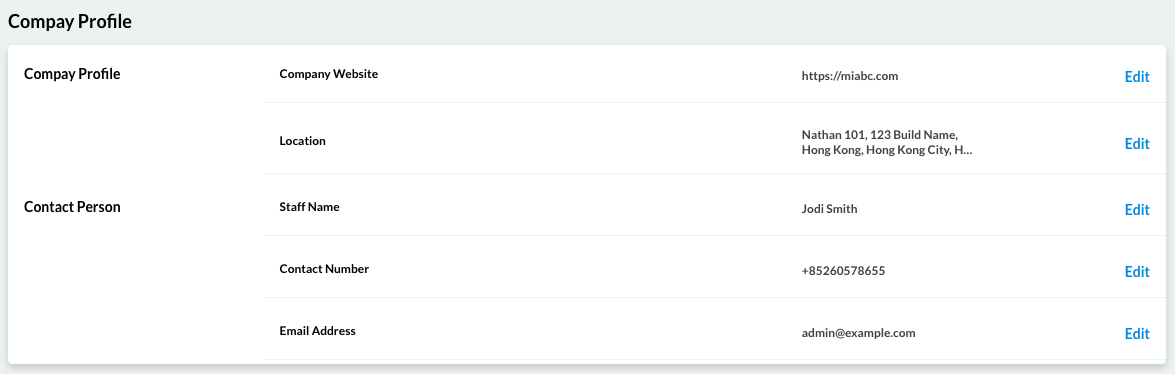
The Company Profile displays your registered business details:
- Location
- Company Website
- Contact Person
- Contact Number
- Email Address
Access
- Go to: My Plan → Billing Profile
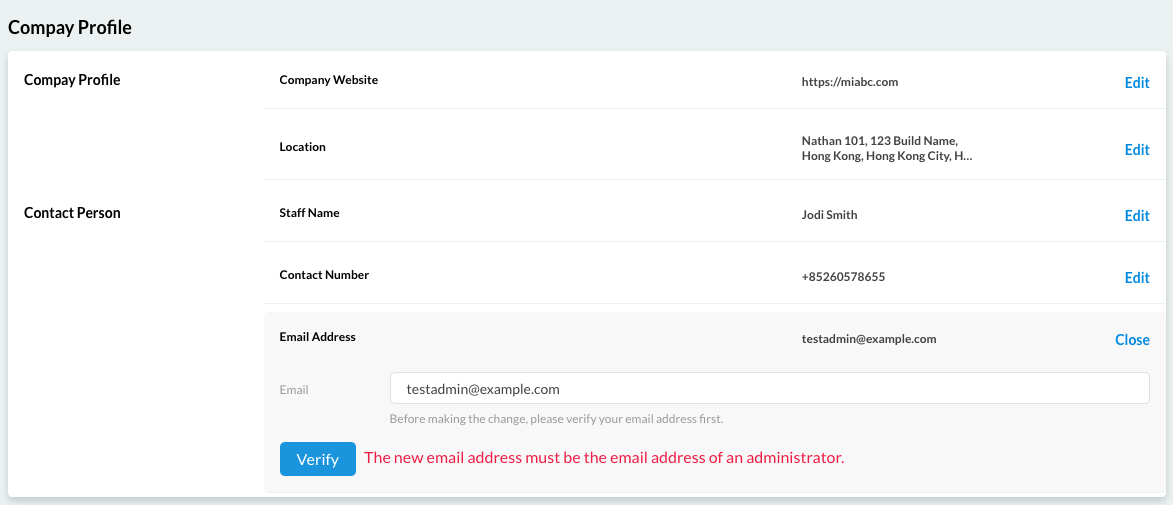
Edit Company Profile
- Click Edit
- Update required fields (*mandatory fields marked with ***)
- Verify admin email if changed
- Click Save
Marketplace
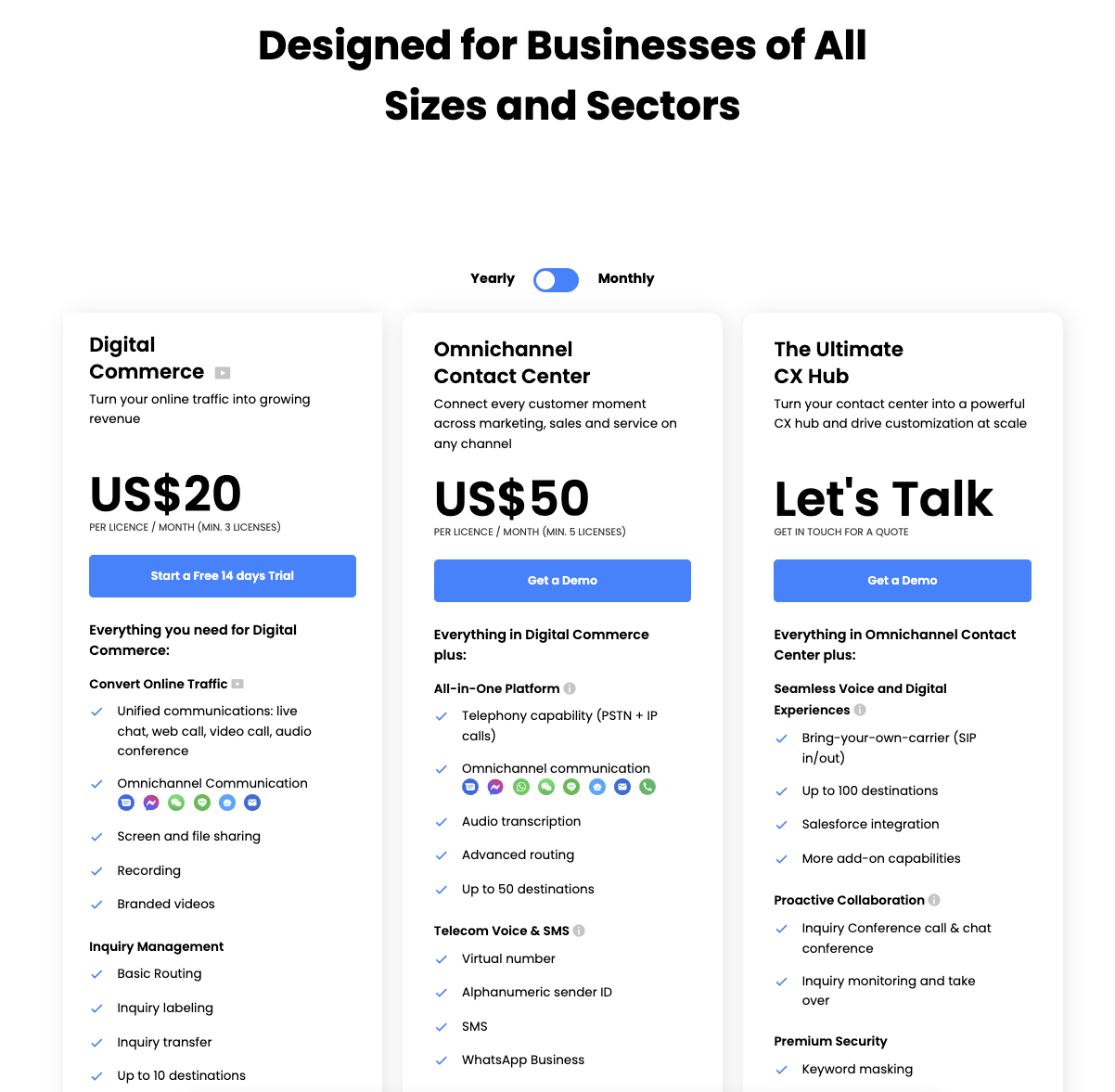
The Marketplace allows you to explore and upgrade your subscription plan.
Actions
- Click See all features to view detailed plan comparisons
- Use Live Support to contact the team for upgrades
Wallet
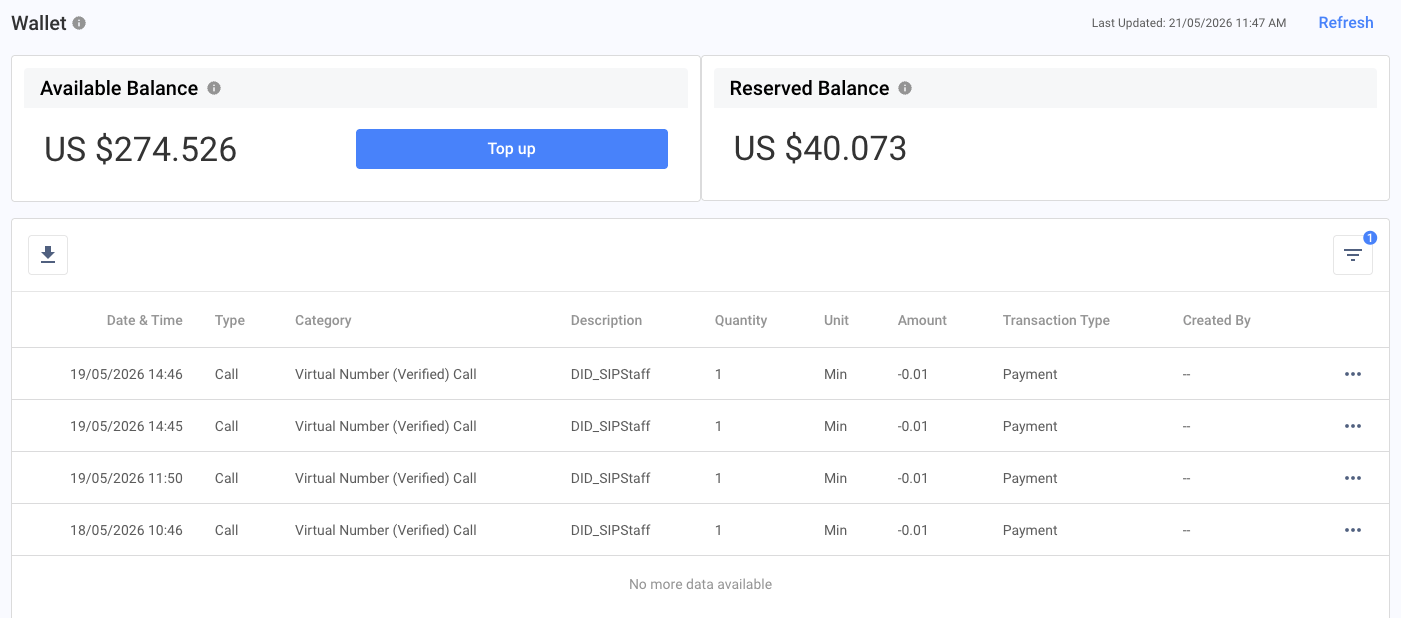
In CINNOX, the Wallet stores your prepaid balance for off-net calls, SMS, campaigns, and other chargeable operations.
Your Wallet is deducted in real time based on both your personal usage and your team’s activity. It also includes scheduled campaigns, where funds are allocated in advance as a Reserved Balance.
Available Balance
Available balance = wallet balance — reserved balance
This represents the funds you can currently use for chargeable activities, such as:
- Off-net calls
- SMS
Reserved Balance
The Reserved Balance represents the total amount set aside for scheduled or pending usage charges, such as:
- SMS campaigns
- 360dialog WhatsApp campaigns
Transaction History
The Transaction History records all wallet activities, including:
- Wallet top-ups
- Call records
- SMS records (sent and received SMS)
- Campaigns
Table Fields
The transaction table displays the following information:
- Date & Time – The exact date and time when the transaction was recorded.
- Type – The main classification of the transaction (e.g., usage, top-up, deduction).
- Category – The specific service or feature related to the transaction (e.g., Call, SMS, Campaign).
- Description – A summary explaining the transaction details.
- Quantity – The amount of units used (e.g., number of SMS sent, minutes consumed).
- Unit – The measurement unit for the transaction (e.g., SMS, minutes).
- Amount – The total charge or value of the transaction in USD.
- Transaction Type – Indicates whether the transaction is a credit (added funds) or debit (deducted funds).
- Created By – The user or system that initiated or generated the transaction.
Filters
You can filter records by:
- Today
- Yesterday
- Last 7 Days
- Last 30 Days
- Last 90 Days
- Custom range
Download
- Click the Download icon to export your Transaction History.
Rate Table
- To view the latest fees and usage rates, please visit: https://www.m800.com/pricing-table
Business Verification
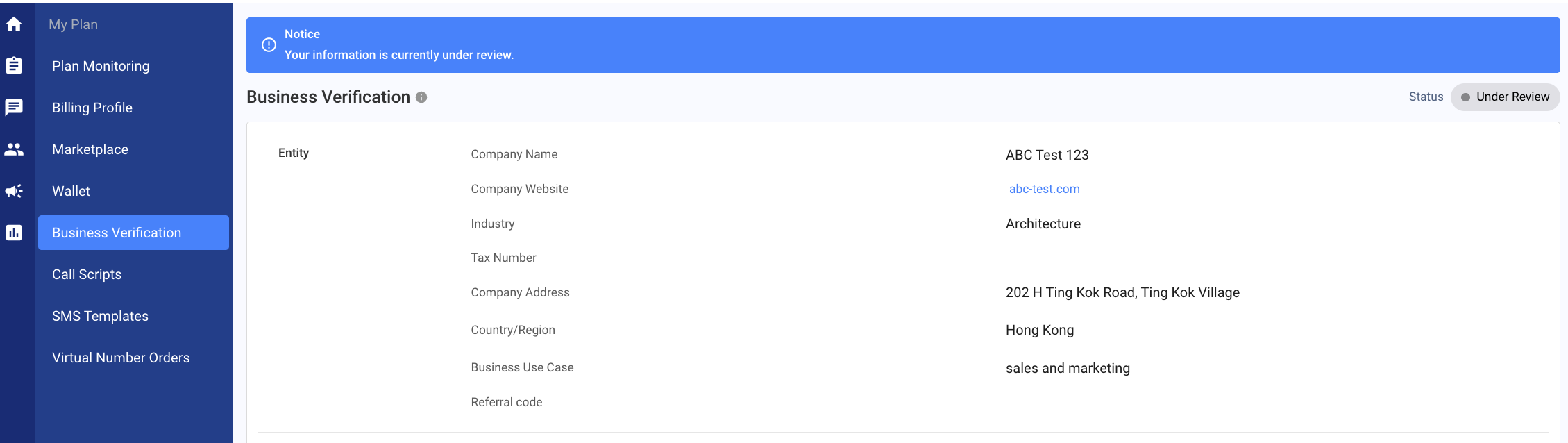
The business information you provide during sign-up is used strictly for verification purposes. This includes:
- Verifying your business identity when purchasing virtual numbers
- Ensuring compliance with local regulations across different countries
- Enabling seamless service activation and connectivity
Your information is securely stored and only used to support your service experience.
Verification Status: Rejected (Disapproved)
If your verification status is Rejected, please:
- Review your submitted business information
- Update any incorrect or incomplete details
- Upload the required supporting documents
- Resubmit for verification
Verification Status: Under Review
- For status "Under Review", our team will do the verification and provide you an update via Email and CINNOX for the status.
Virtual Number Orders
The Virtual Number Orders section allows you to view and manage all your number requests in one place.
You can:
- Monitor order status
- Review purchased numbers
- Take action on pending or failed orders
Important Status Actions
Please take immediate action if your order status is:
- Verification Rejected – Update and resubmit required information
- For Payment – Complete payment to proceed
All your purchased numbers and their current statuses are displayed in this section.
Ordering a New Number
To place a new order:
- Click Order New Number
- The order page will open
- Follow the on-screen steps to complete your request

Call Scripts
A call script is required for certain regions and countries to ensure secure and reliable communication with your customers. A clear and structured script enhances consistency and professionalism, fostering trust and confidence during your outbound calls.
Currently, a call script is required to submit when calling a Chinese phone number.
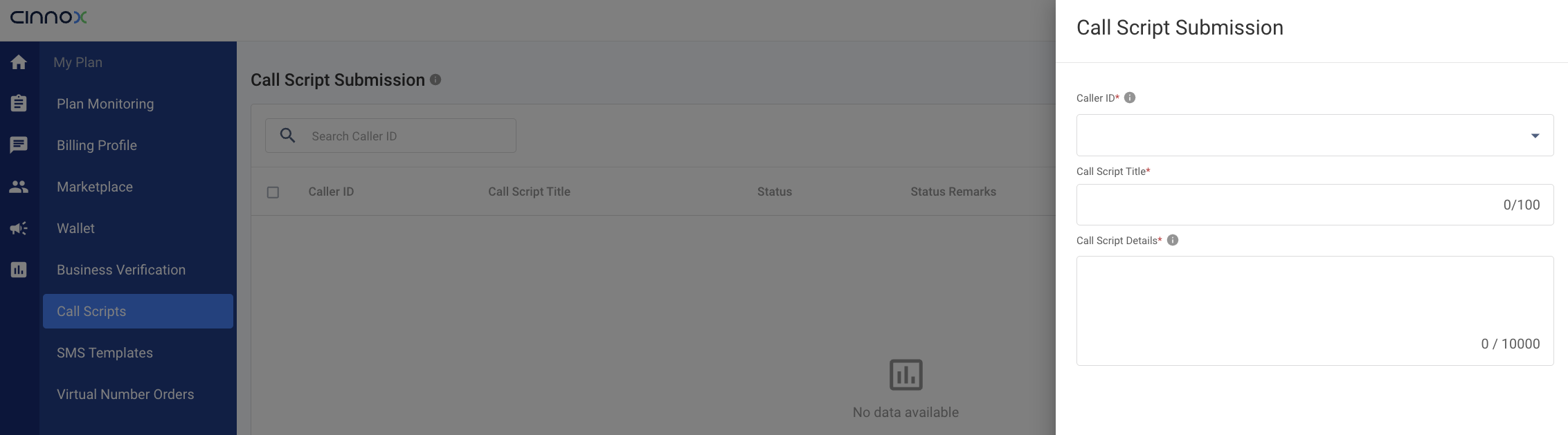
Submit Call Script
- Click Submit Call Script
- Caller ID - please select the virtual number to be used as the caller ID
- Enter the Call Script Title
- Enter the Call Script Details
- Click Submit
Once submitted, our team will review and provide an update on the call script.
SMS Templates
Please submit your SMS template to ensure clear and effective communication with your customers. A well-crafted template enhances consistency and professionalism, fostering trust and confidence in your messages.
Currently, an SMS template is required to submit when sending SMS to a Chinese phone number.
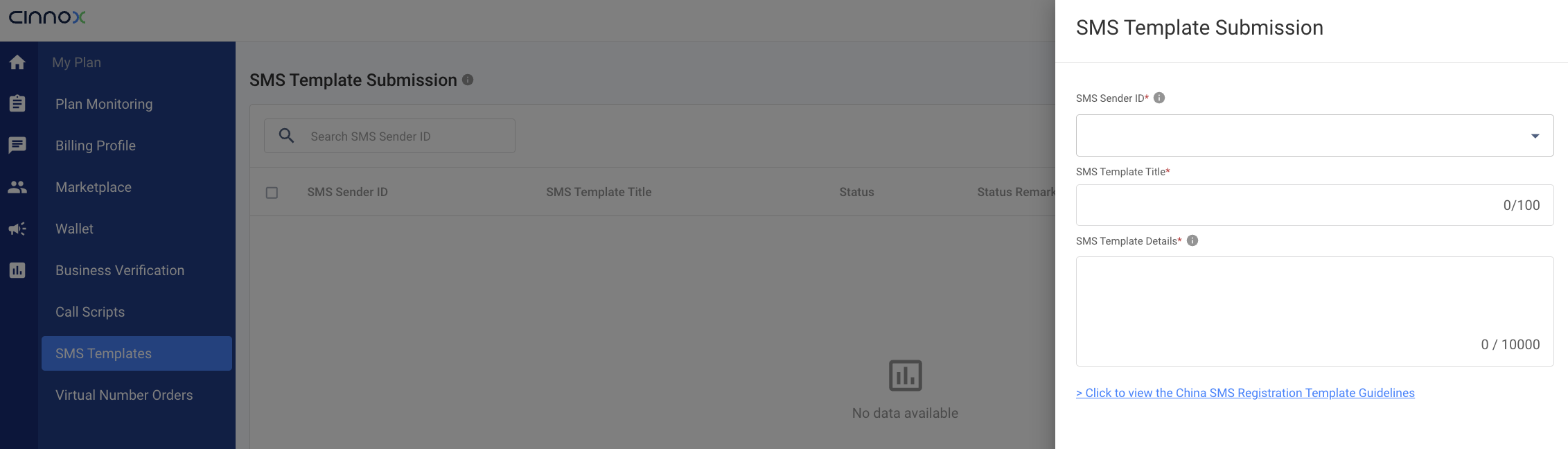
Submit SMS Template
- Click Submit SMS Template
- SMS Sender ID - please select the virtual number to be used as the sender ID for your SMS template.
- Enter the SMS Template Title
- Enter the SMS Template Details
Click to view the China SMS Registration Template Guidelines