
Sending and Receiving Chats
CINNOX chat works the same way as any instant messaging application. You can send and receive instant messages to and from your visitors, customers, and fellow staff members using an internet connection.
Starting a New Chat
Start conversations with your fellow staff members through chat. CINNOX creates a new chat room in your Workspace's Recent Connections area, which you can then access from your existing chat rooms.
To start a new chat:
- On your Workspace, click the (+) icon at the bottom of your Utility panel, then click on **New Chat / Space. "
- Select the staff member you would like to talk with on the "New Chat/Space" that will pop out.
- Click on Create.
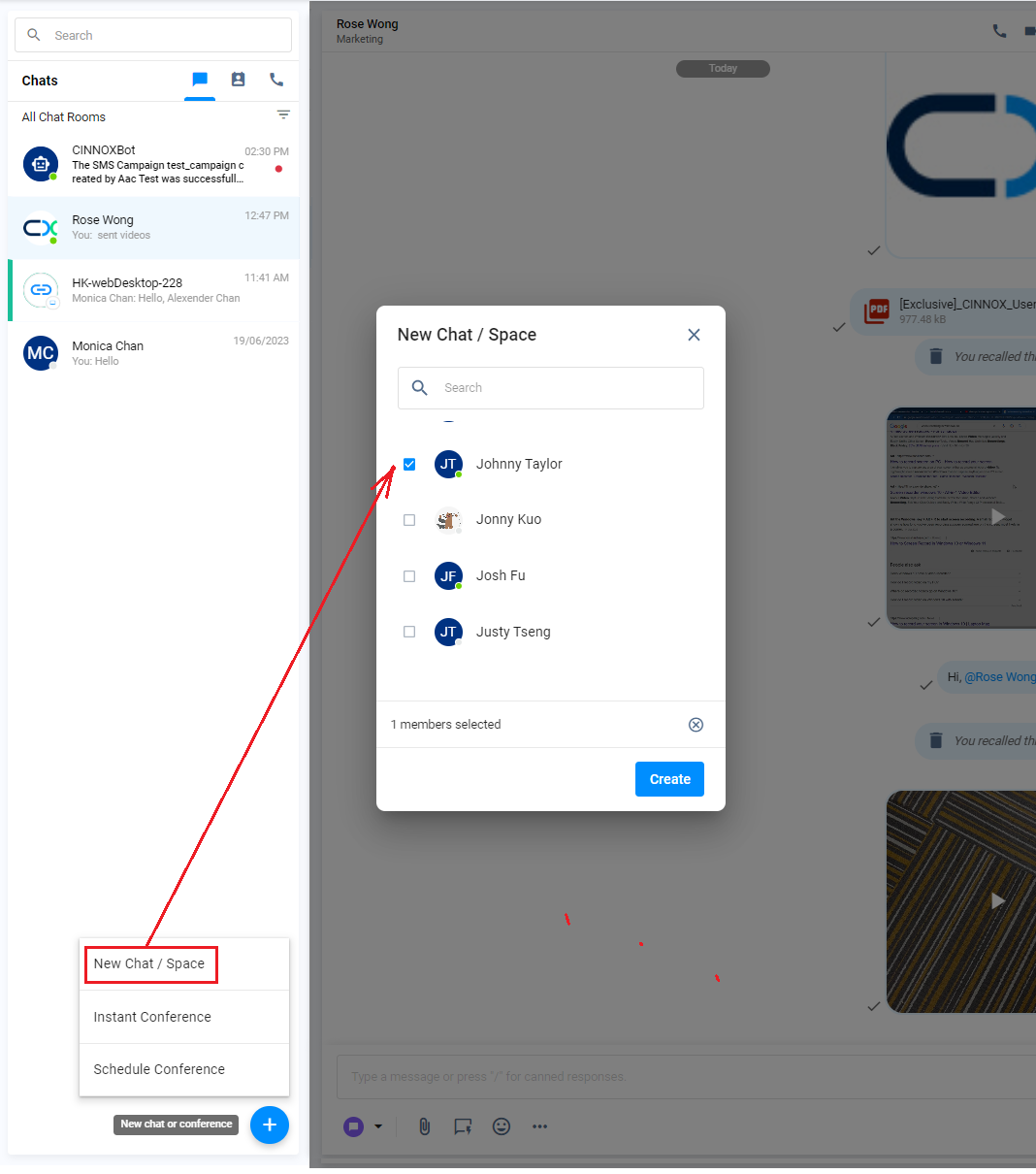
New chat
- On the New Chat Room Panel that will appear on your Workspace, please type your message in the text input bar at the bottom, then click on the Send icon located beside it. Your sent messages will be on the right side, while received ones will be on the left.
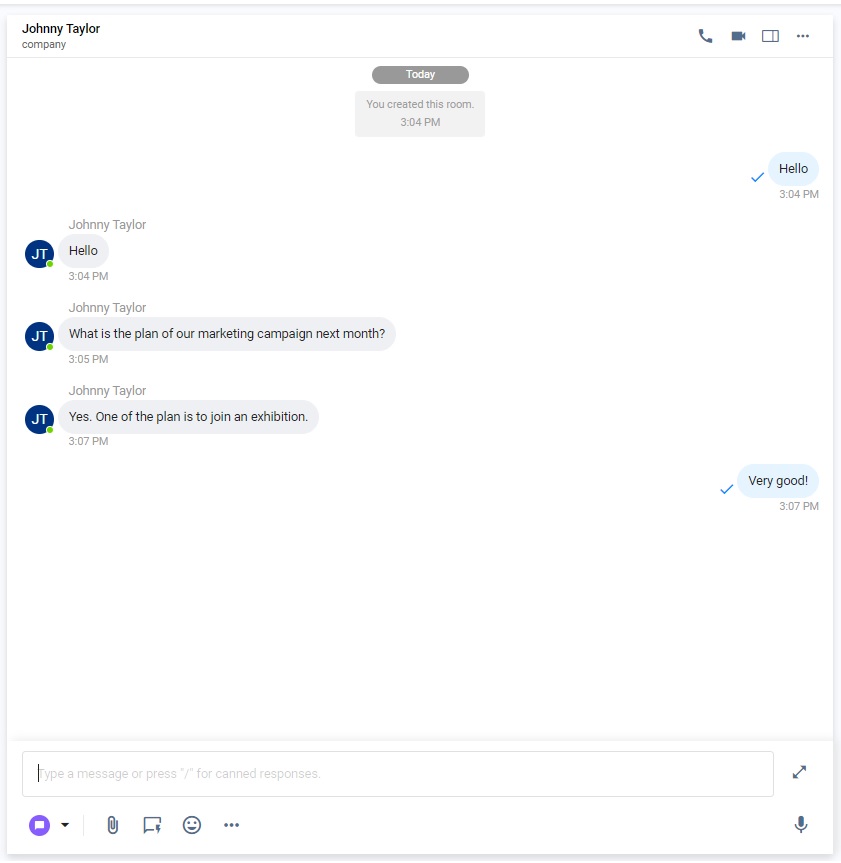
Sending and receiving chats
Chat Functions
Below is a summary of chat functions and their availability to the Visitors and Staff.
| Function | Description | A. Visitor to Staff | B. Staff to Visitor | C. Staff to Staff |
|---|---|---|---|---|
| Copy Message | Copy selected messages in the chat room. | ❌ | ❌ | ✅ |
| Recall Message | Recall a message that has previously been posted within five minutes. | ❌ | ❌ | ✅ |
| Edit Message | Edit a message that has previously been posted within five minutes. | ❌ | ❌ | ✅ |
| Reply Message | Reply to a specific message in the chat room. | ❌ | ✅ | ✅ |
| Expand and Collapse the Text Input Bar | Enlarge and reduce the size of the text input bar. | ❌ | ✅ | ✅ |
| Share File | Share images, videos, documents, and more in the chat room. | ✅ | ✅ | ✅ |
| Send Quick Link | Share a text shortcut of personal and channel web links and virtual numbers without memorising them. | ❌ | ✅ | ✅ |
| Forward Message | Forward a sent message or media file from the current chat room to another. | ❌ | ✅ | ✅ |
| Image Preview | Giving a glimpse of something in part or the whole of the image without opening it. | ✅ | ✅ | ✅ |
| Link Preview | Giving the link an image, title, description, and more to provide contextual information. | ✅ | ✅ | ✅ |
| Zoom in and Zoom out | Make the image appear much more prominent and nearer or smaller and further away. | ❌ | ✅ | ✅ |
Copying a Message
The chat room panel lets you copy a posted message by pointing your cursor at the message and clicking on the Copy option that will appear beside it.
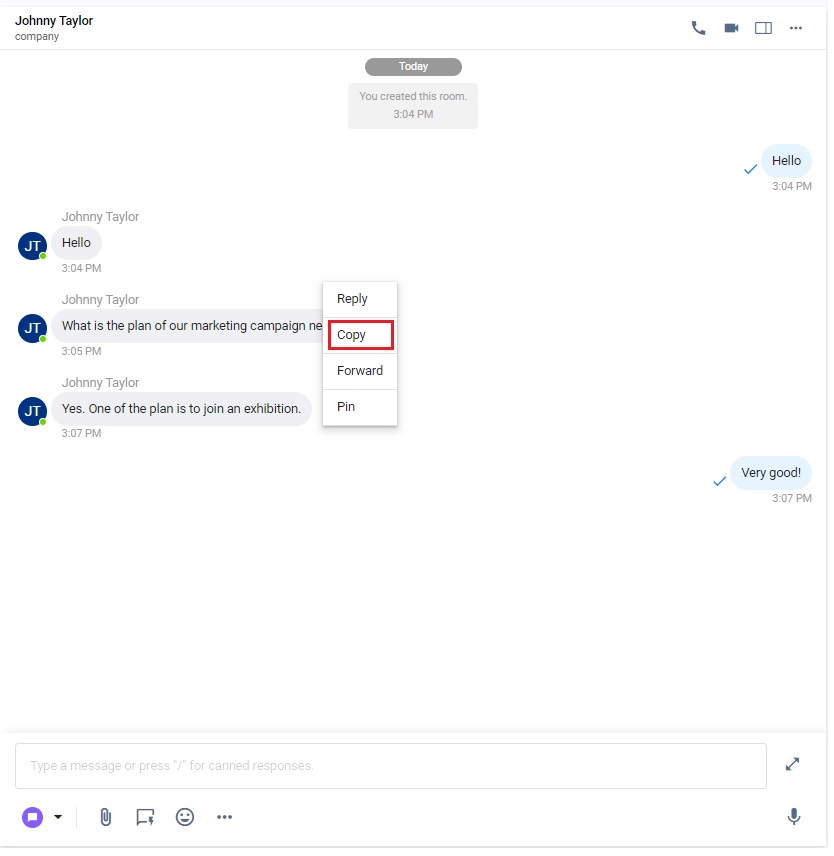
Copy message
Recalling a Message
In direct/1-to-1 and group Space chat rooms, you can recall a message or file you posted within five minutes:
- Point your cursor at the message or file that you want to recall. When the posted message or file was within five minutes, the Recall function would be among the options beside it.
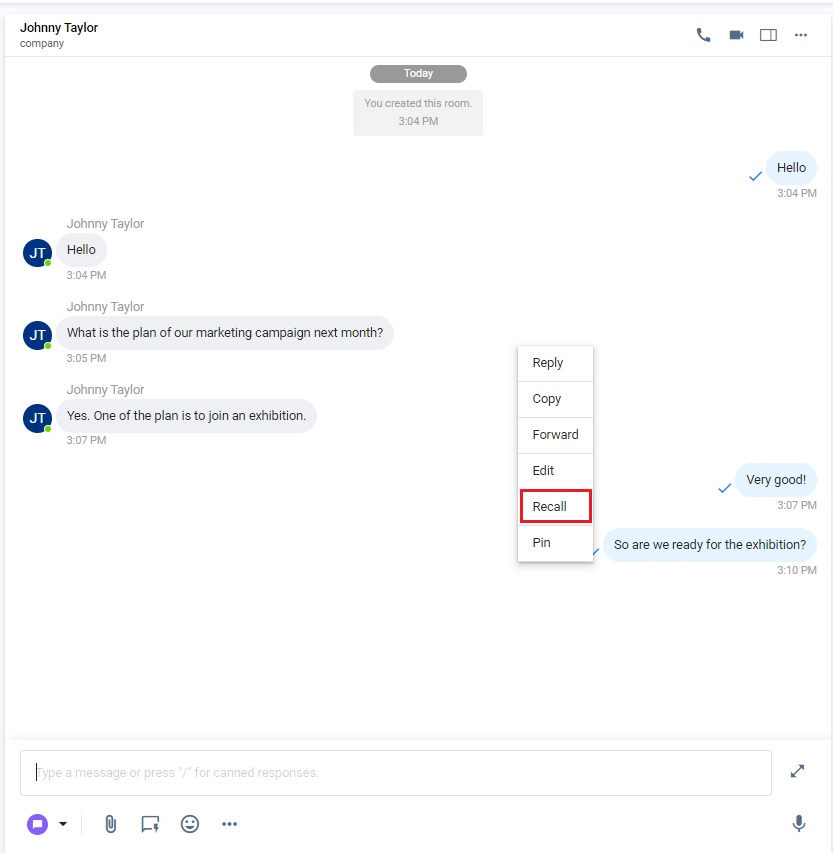
Recall message
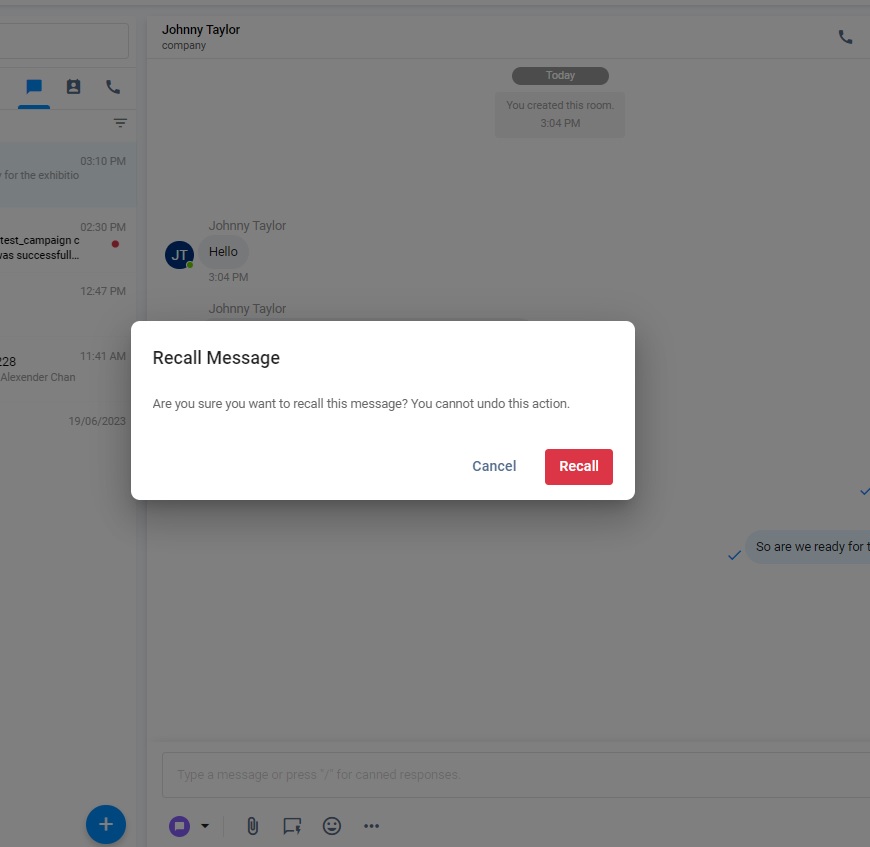
- Click on Recall. A pop-up window will appear, asking you to confirm the action.
Recall message
- Click on Recall.
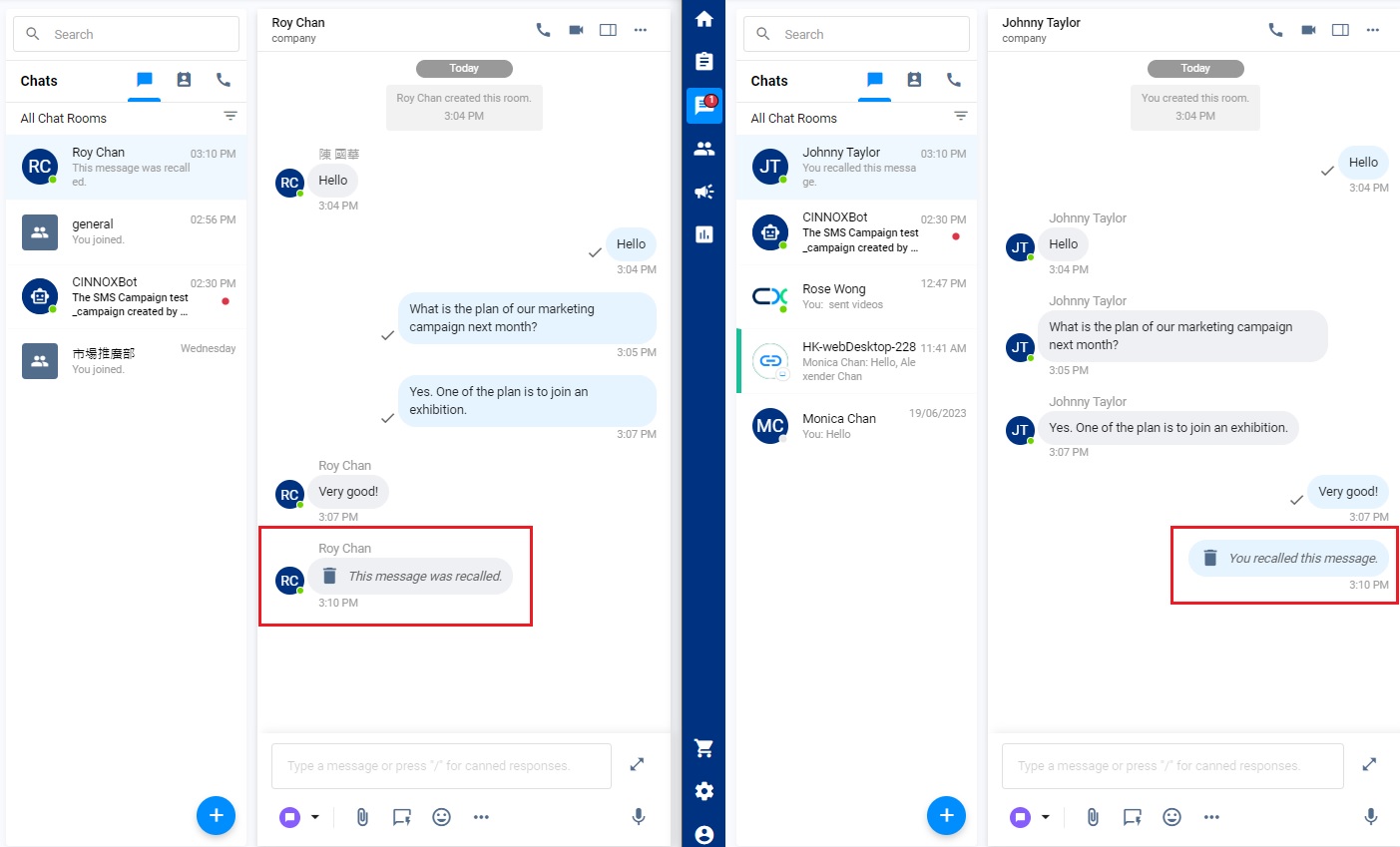
Chat rooms with recalled messages will display the following:
- You recalled this message - displayed on the sender side/the one who recalled the message
- This message was recalled - displayed on the receiver/another side
recall message
Editing a Message
In direct/1-to-1 and group Space chat rooms, you can edit a message you posted within five minutes:
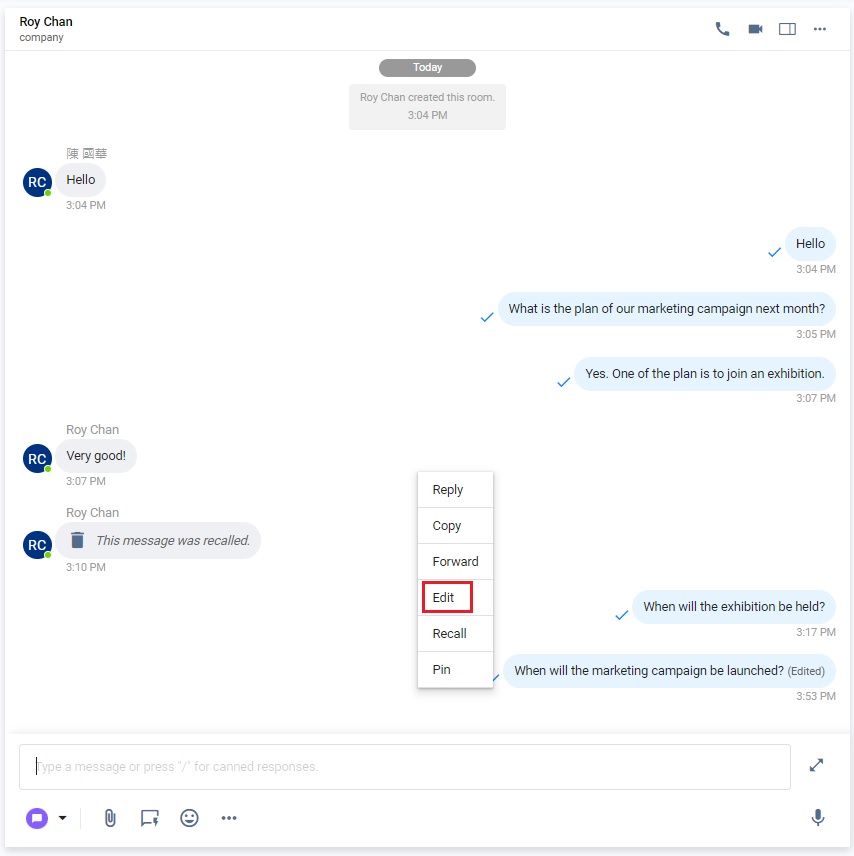
- Point your cursor to the message that you want to edit. If the posted message were within five minutes, the Edit function would be among the options displayed beside it.
Edit message
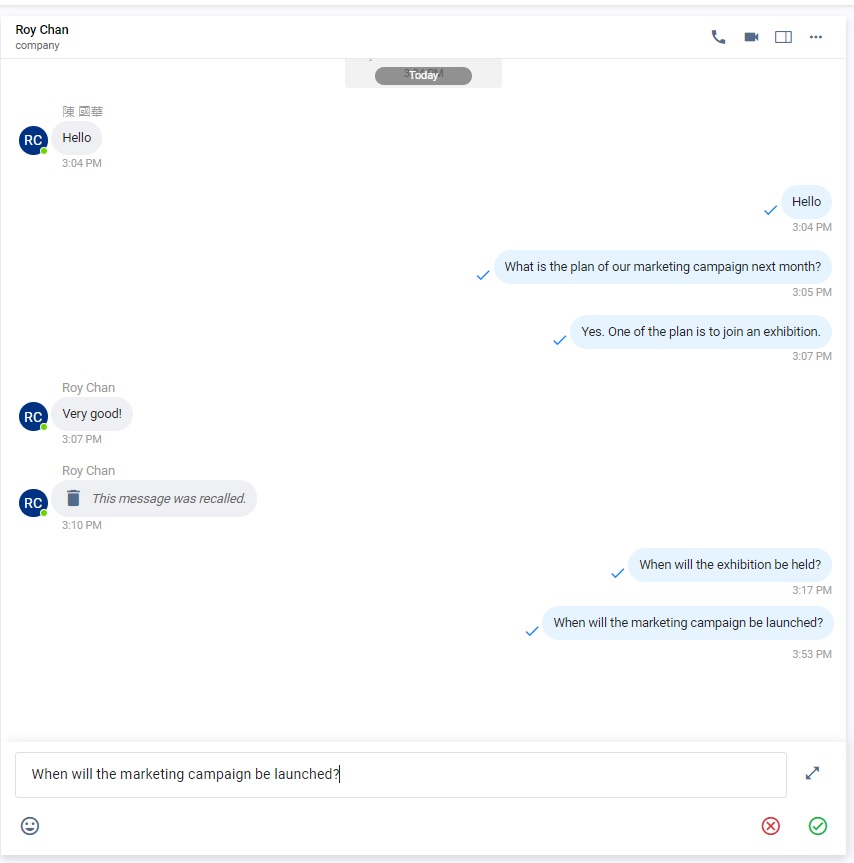
- Click on Edit. Your original message will appear in the text input bar.
- Make the necessary changes to the text, then click on the Send icon.
Edit message
Chat rooms with edited messages will have the text (Edited) beside the post.
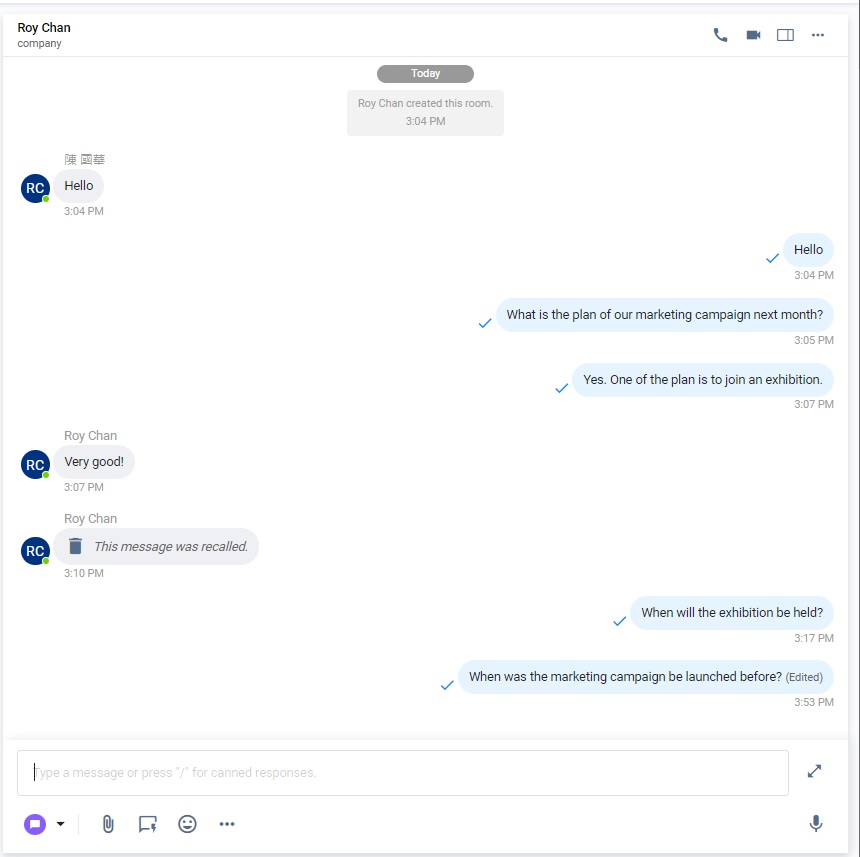
Edit message
Replying to a Specific Message
- Reply to a specific message or quoted reply, as the name implies, mentions the particular message you are replying to, so that the recipient(s) will have an additional context for your message.
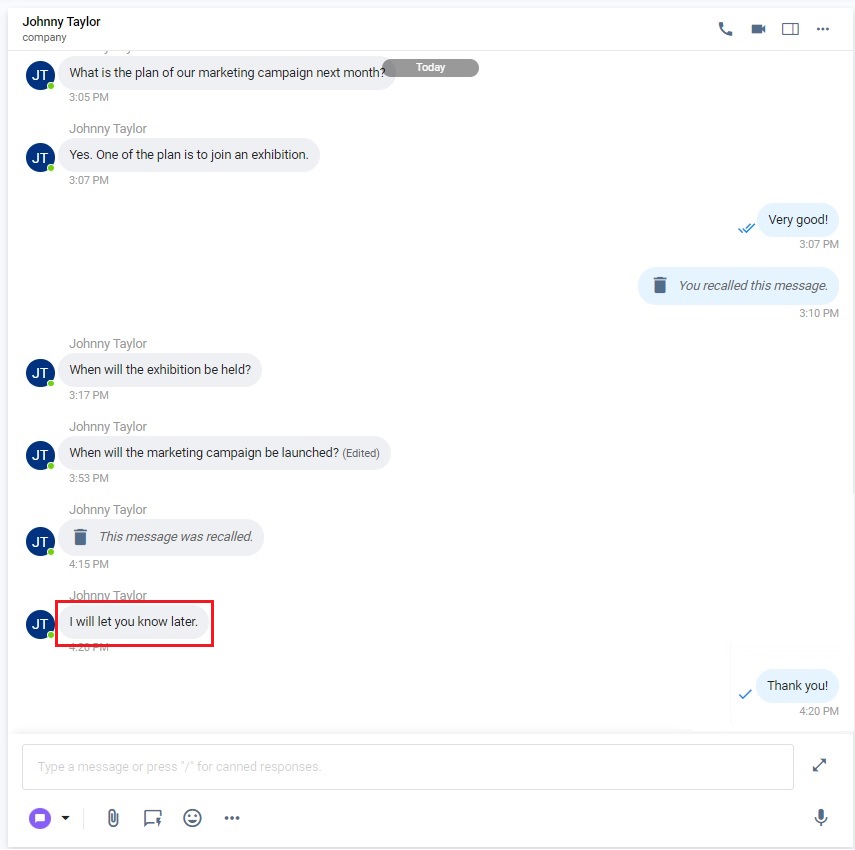
Reply message
To reply to a specific message:
- Point your cursor to the message you want to reply to, then click "Reply" in the options beside it.
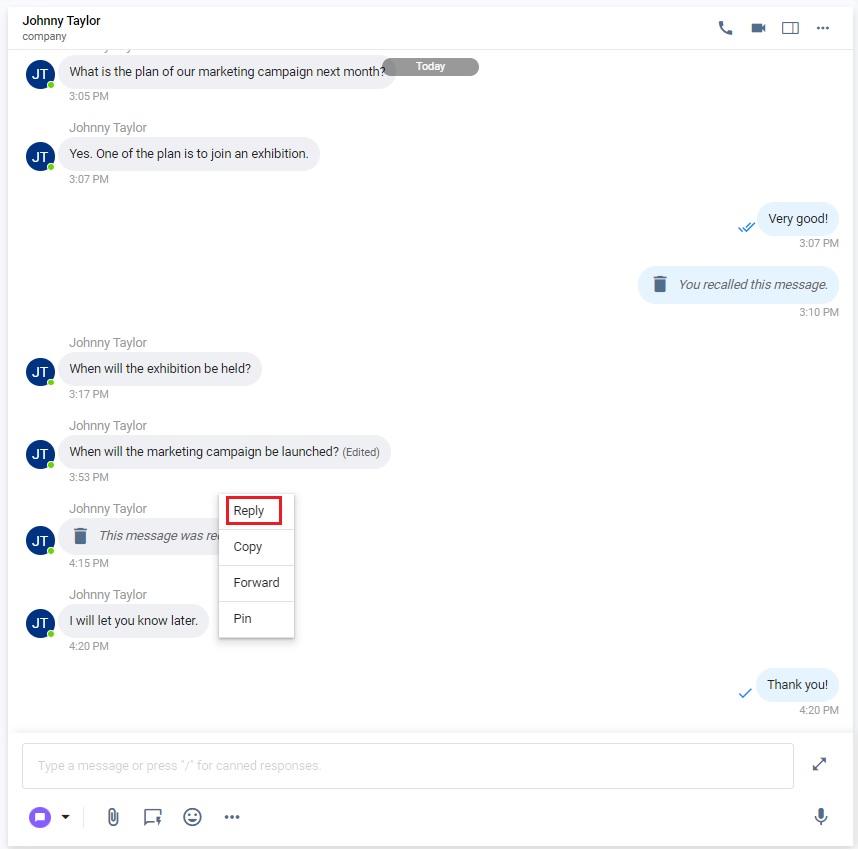
Reply message
- Type your message in the text input bar.
- Note that the quoted message you reply to also appears at the top of the text input bar. To cancel the quote, click the (x) icon.
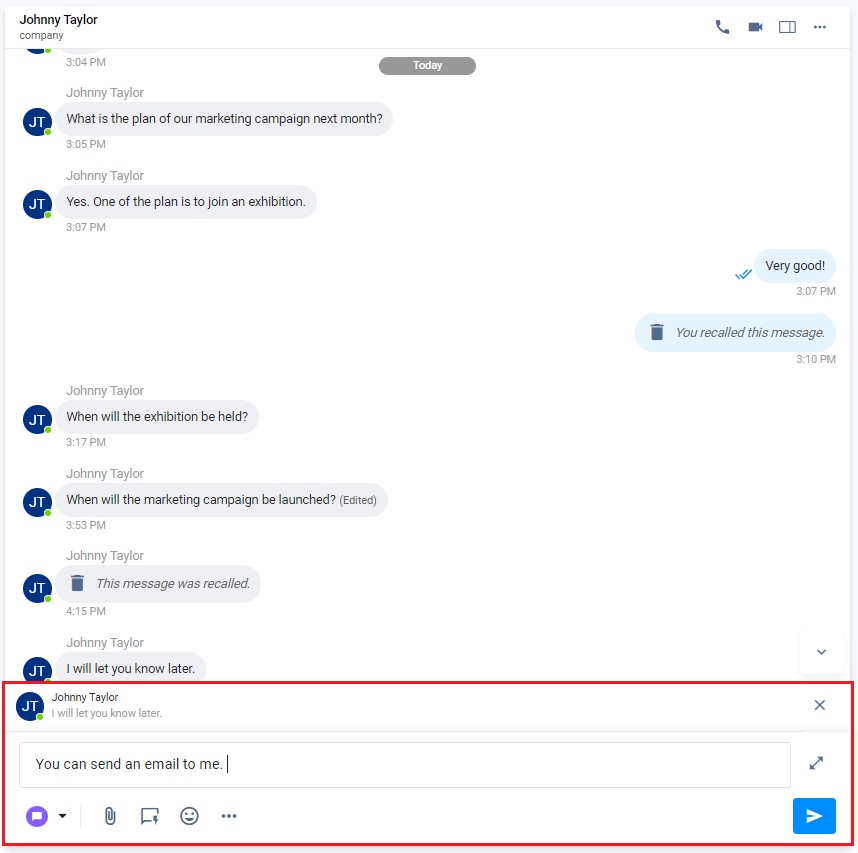
Reply message
- Click on the Send icon.
Expanding and Collapsing the Text Input Bar
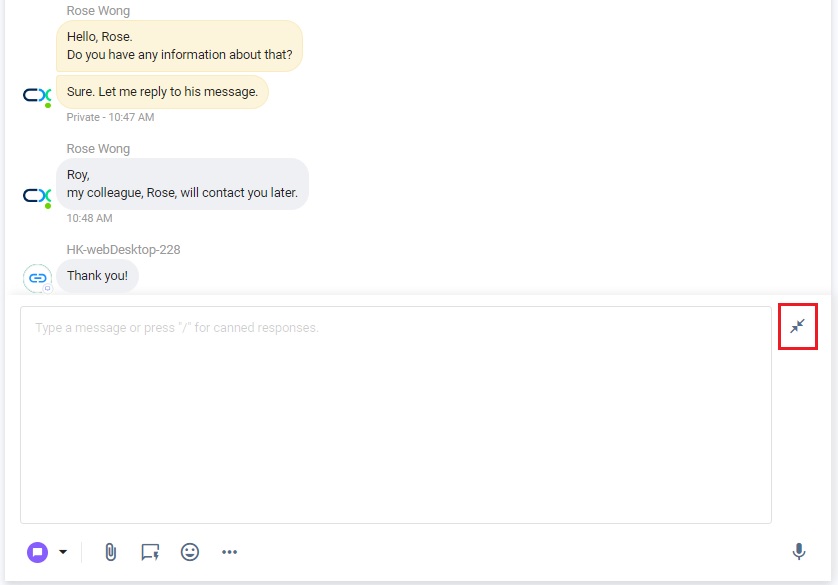
You can adjust the space size of the text input bar for your needs.
- Click on the Expand icon at the right-hand side of the text input bar to expand the text input bar.
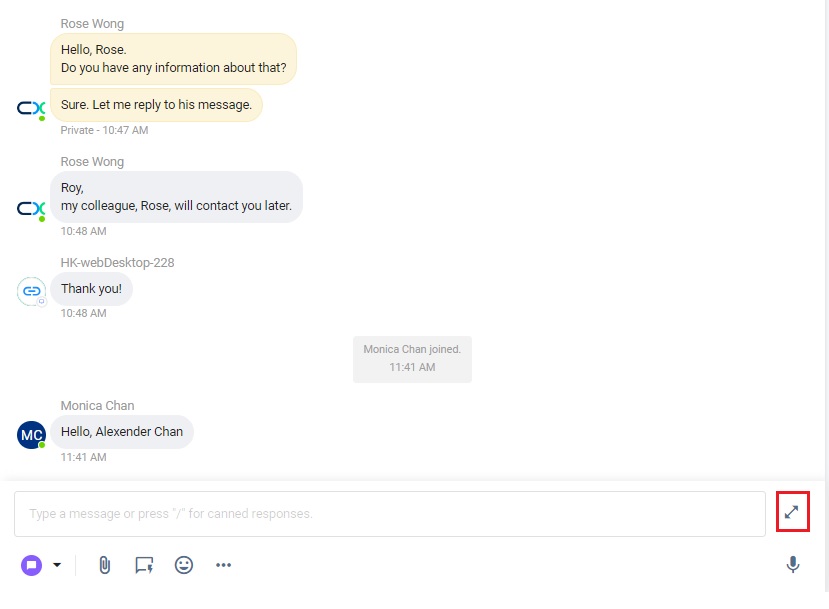
- To collapse the text input bar, click on the Collapse icon at the right-hand side of the bar.
Sharing Files
You can maximise the chat room use and enhance your conversations by sharing images, videos, documents, and more.
For more information on what files you can share in a chat room, refer to the Sharing Files section of this Guide.
Sending Quick Links
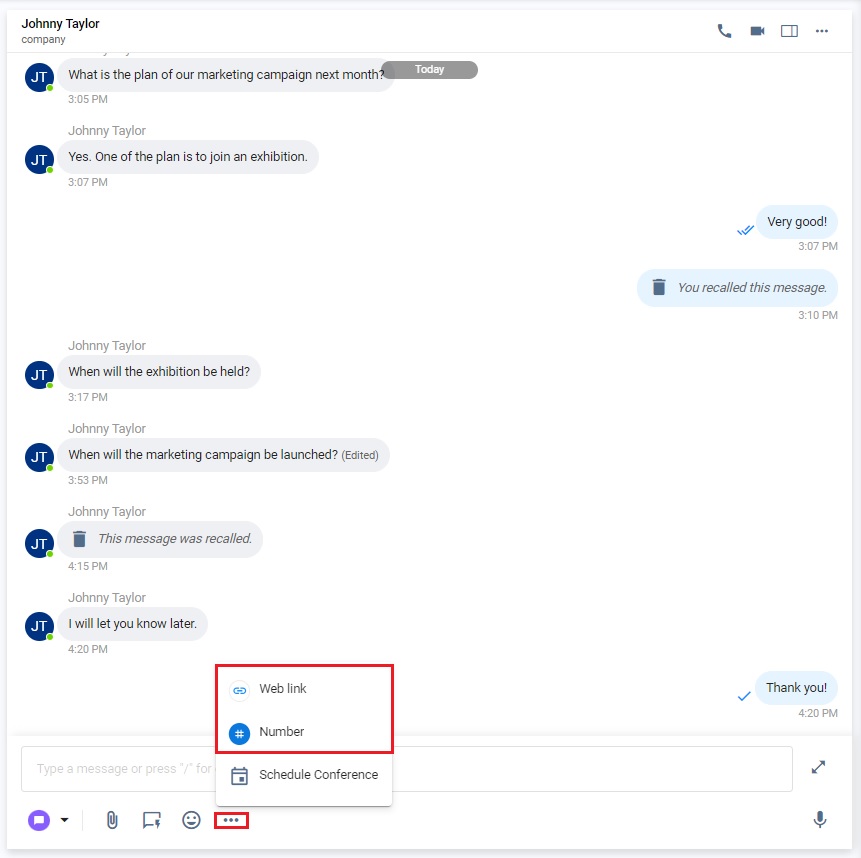
When composing messages, you can add quick links or text shortcuts to weblinks and phone numbers, so you don't have to memorise them every time you send a message. These quick links resolve to their long-form values when their intended recipients read the message.
CINNOX currently supports quick links that direct to the following:
- A staff member's personal Call Weblink
- A staff member's personal Chat Weblink
- Tag Weblinks
- Social Page Weblinks
- Service Numbers
- Personal Numbers
To access the quick links:
- On the chat room panel, click the More (...) icon on the left side of the text input bar. Then, select either Web link or Number from the options that appear.
Send a quick link
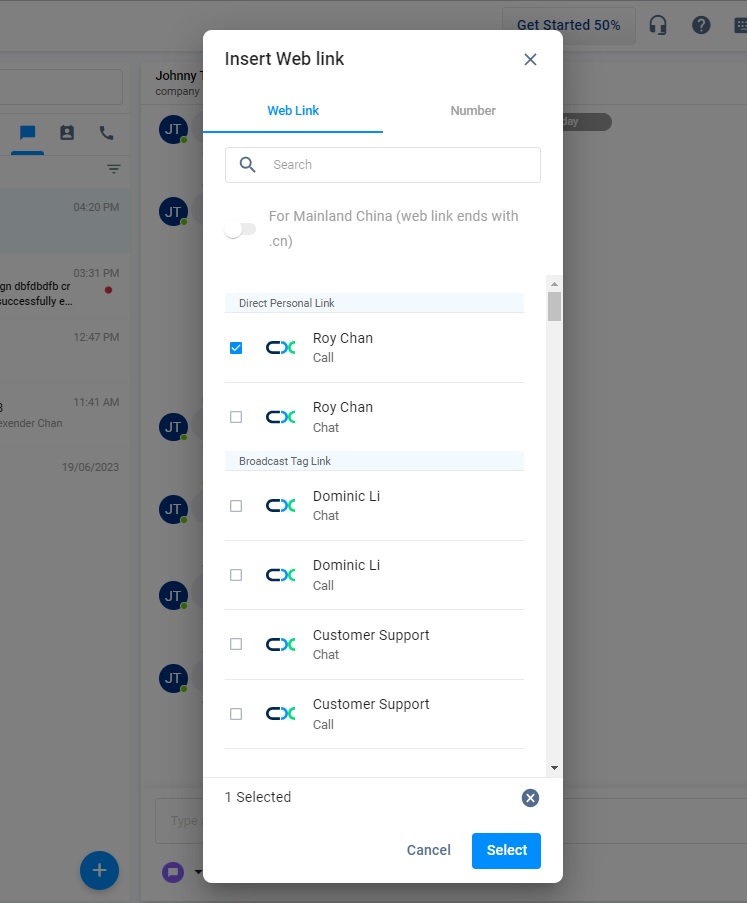
- On the pop-up window that will appear, select the weblink or number you wish to add to your message.
- You may switch between weblinks or numbers by clicking their respective tabs at the top of the pop-up window.
Send a quick link
- Click on Select. The quick link will then appear in the text input field.
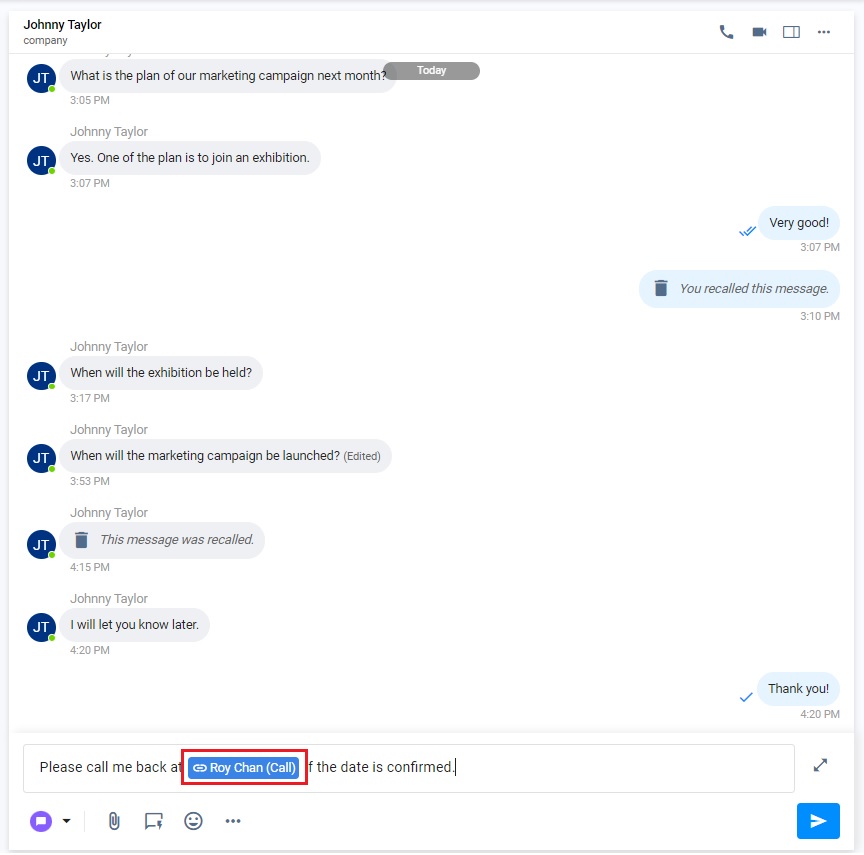
Send a quick link
Forwarding a Message
Forward a sent message or media file from the current chat room to another.
To forward a message:
- Point your cursor at the message you want to forward, then click on the Forward text in the options beside it.
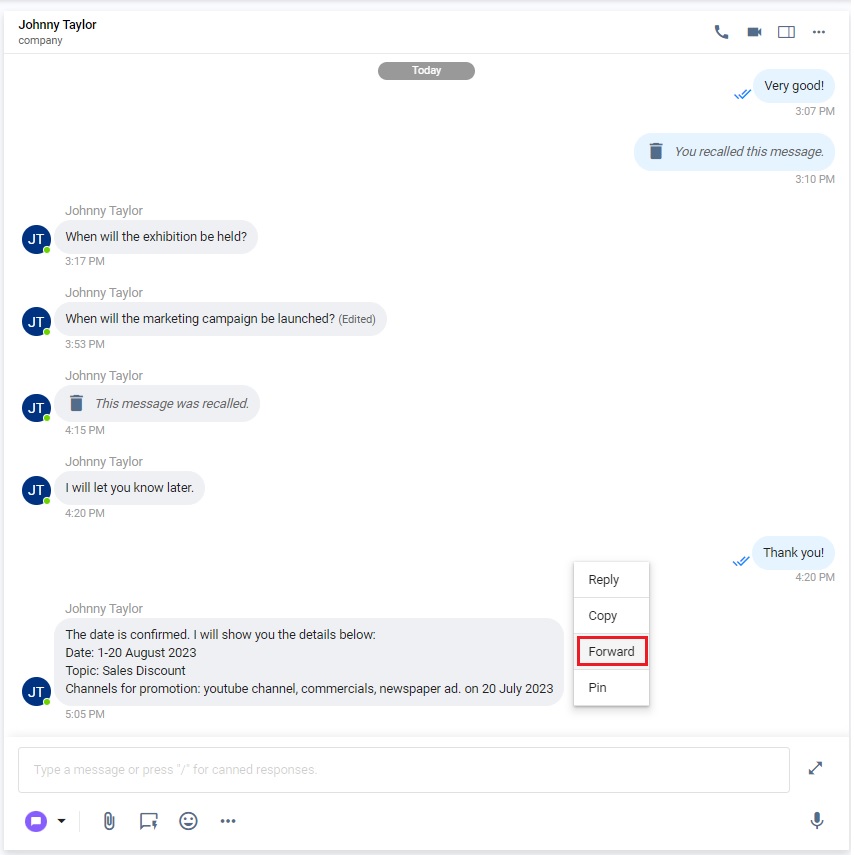
Forward message
- Search for the Staff or Spaces to forward the message.
- Add a caption, but only optional.
- Click on the Send icon.
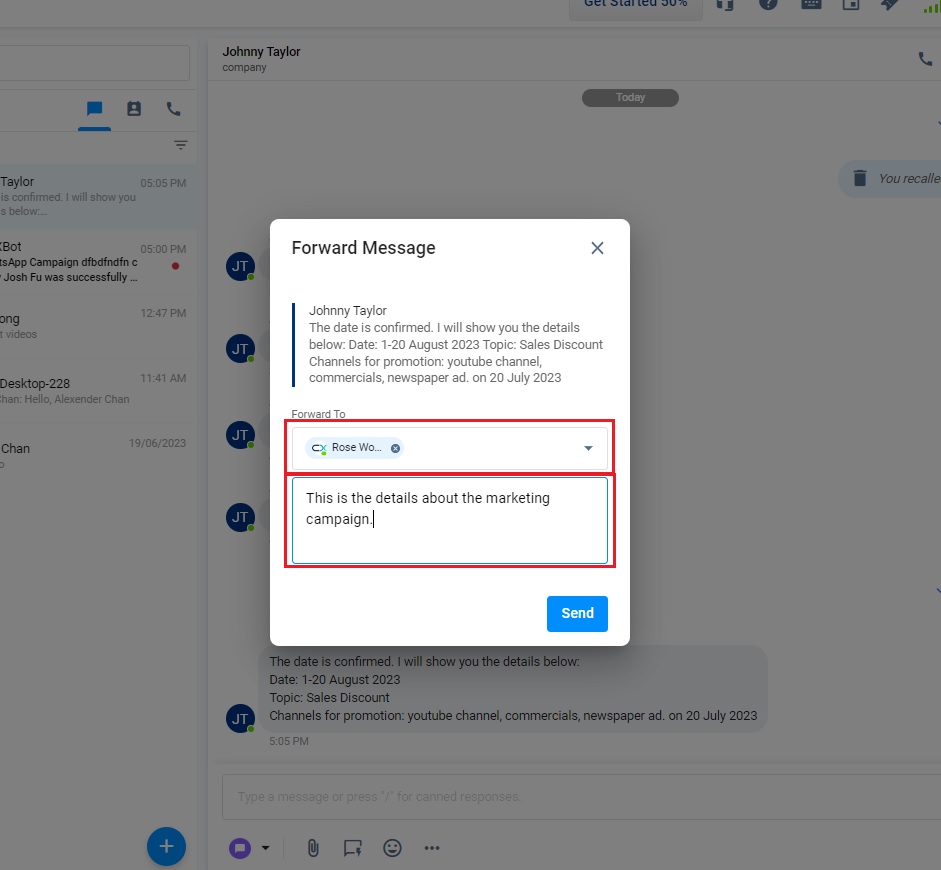
Forward message
- The forwarded message will be displayed in the selected Staff or Space chat room.
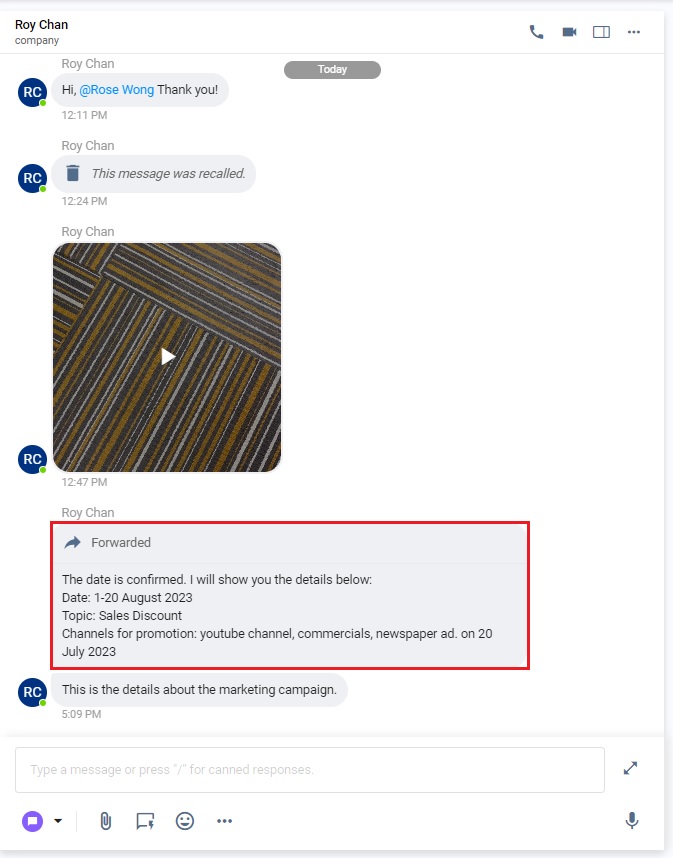
Forward message
Image Preview
- CINNOX lets you glimpse something in part or the whole of the image without opening it.
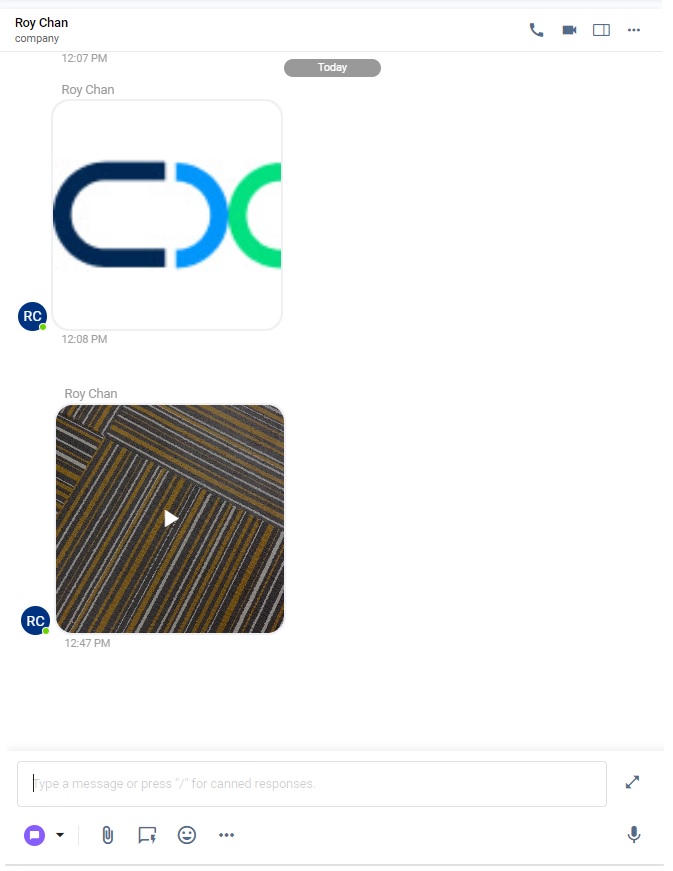
Image preview
Link Preview
CINNOX gives the link an image, title, description, and more to provide contextual information.
- Whenever you, a staff member, visitor or customer, send a link in the chat room, CINNOX
automatically expands the link to preview the web page.
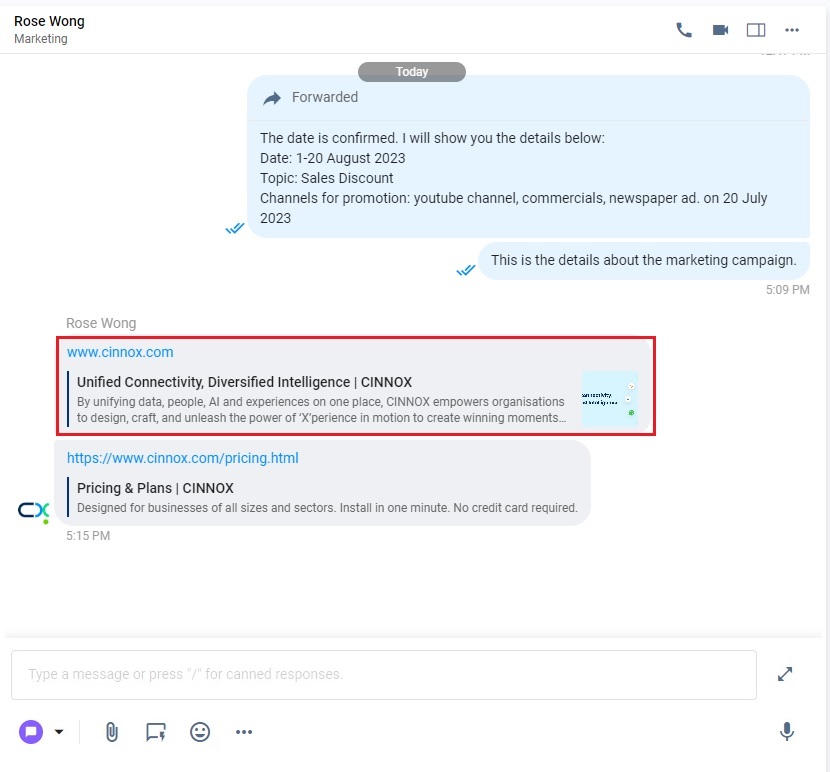
Link preview
Zooming in and Zooming out
CINNOX lets you make the image appear much larger and nearer or smaller and further away.
To zoom in and zoom out an image:
- Click on the shared image you want to preview in the chat room
- Click on the ➕ plus sign icon located at the top-right corner of the window to zoom in on the image
- Click on the ➖ minus sign icon located at the top-right corner of the window to zoom out the image
- Click on the four-arrows icon at the window's top-right corner to restore the image to its original size.
Message Status
During chat conversations, the following indicators let you know the status of the messages you sent:
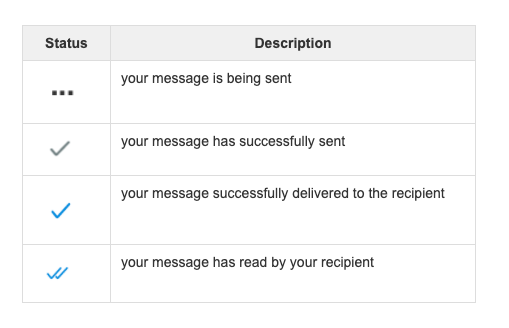
Message statuses
📘
You can only send up to 10,000 characters per message.
Smart Reply
The Smart Reply feature is designed to streamline customer support by automatically generating suggested responses to chat enquiries. Powered by AI and your uploaded chatbot data sources, it ensures that replies are contextually relevant, accurate, and aligned with your brand's tone and knowledge base. This integration ensures that replies are not only fast and relevant but also grounded in your organisation’s trusted content.

- Click Smart Reply to generate a suggested reply to the customer chat enquiry.
- Review and revise (if needed) to ensure it’s appropriate and tailored to the conversation.
- Click Send as your reply to your customer enquiry.
📘
To use the Smart Reply feature, you will need Azure OpenAI account and must be connected to your CINNOX Service Account and data sources are uploaded.