
Serving Call Enquiries
Your website visitors and customers can call you using the CINNOX Widget's Tag Directory, Staff Directory, or click-to-action button. They can also reach you through the weblinks and QR codes you share or post in marketing campaigns and advertisements or by dialling toll-free or local virtual numbers.
You can answer and attend to these calls as enquiries on your CINNOX service. CINNOX lets you switch between calls and chat, depending on the support and response your business support operations need. You can also switch between rooms and reply to messages from your Space group chats.
📘
An open enquiry is displayed in the Enquiry Panel until a staff member has picked up the enquiry or reached the maximum waiting time.
The maximum waiting time is as follows:
- Broadcast Call Enquiry = 30 seconds
- Direct Call Enquiry = 90 seconds
Browser Permissions for Microphone and Camera
When making or answering voice and video calls using CINNOX, your browser needs to access your device's microphone and camera.
Ensure your browser's camera and microphone permissions for the CINNOX Dashboard site or client-side pages (i.e., the pages with the CINNOX web widget or web view) are set to Allow. For more information, refer to this Guide's Microphone and Camera Permissions for Web Browsers section.
Enquiries from the Website
The conversation between you and your website visitor begins when they click on the CINNOX Widget, select the call icon in the Tag or Staff Directory or click a click-to-action (CTA) button (1).
If you are a staff member with ACTIVE availability status and assigned to a Destination that serves the Tag or Staff enquiries, the CINNOX Dashboard or App will alert you of the call. The call will also appear on your Open Enquiry panel (3).
To answer the enquiry, click on its icon in the Open Enquiry panel. This opens the call screen, where you can pick up and answer the call.
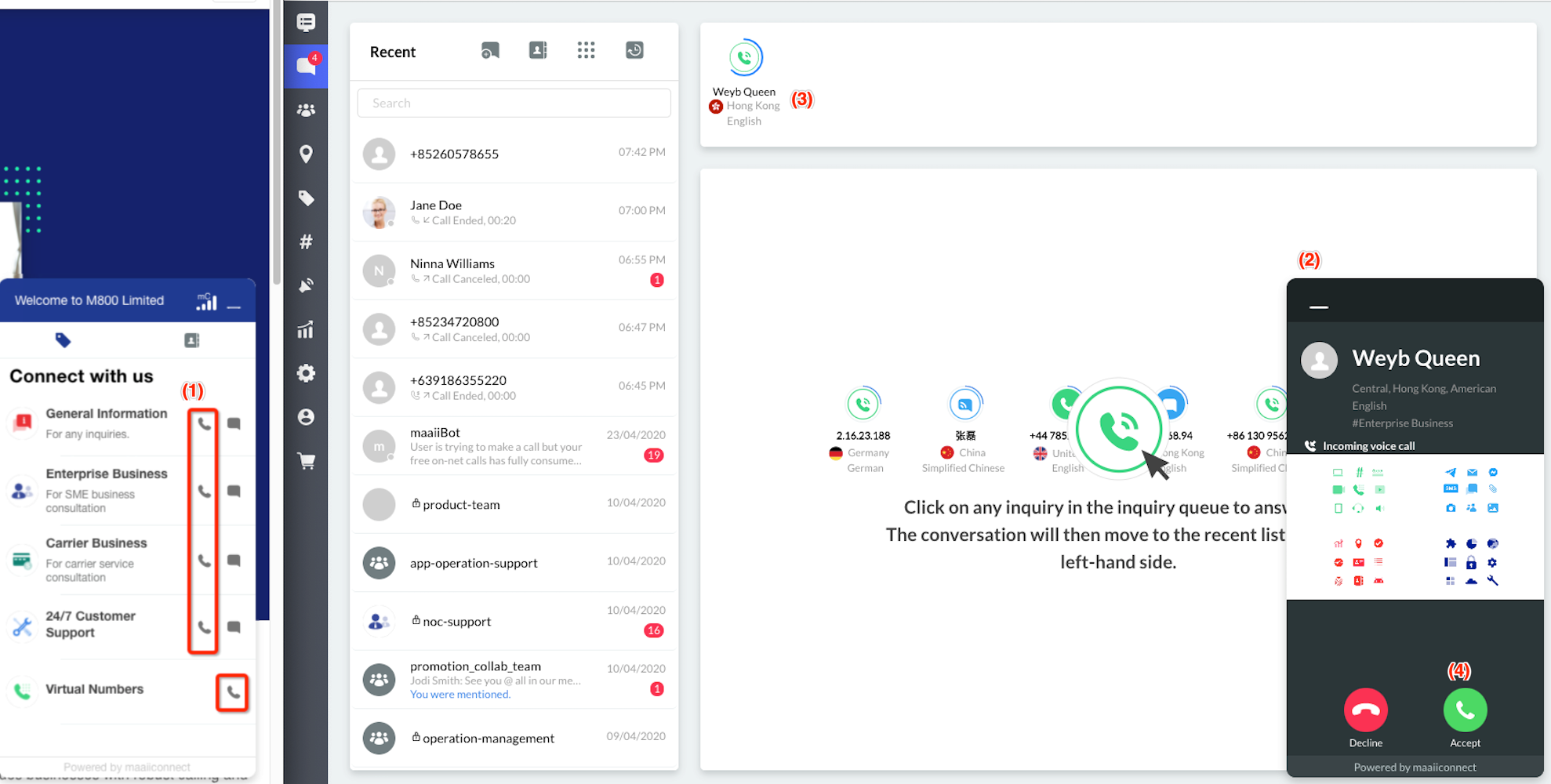
- CINNOX will create an enquiry room and connect your call as soon as you answer the enquiry.
Enquiries from Web links/QR Codes
The conversation between you and your visitor using a CINNOX weblink or QR code begins when they click on the web link or scan the QR Code, then click on the Chat or Call button on the web page that appears.
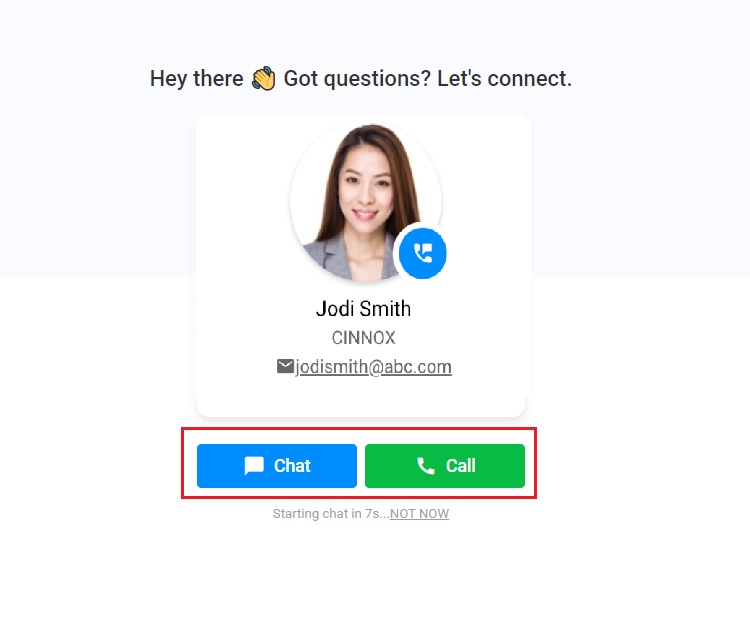
Weblink/QR code visitor web view
If you are a staff member with ACTIVE availability status and assigned to a Destination that serves the Tag or Direct enquiries, the CINNOX Dashboard or App will alert you of the call. The call will also appear on your Open Enquiry panel.
To answer the enquiry, click on its icon in the Open Enquiry panel. This opens the call screen, where you can pick up and answer the call.
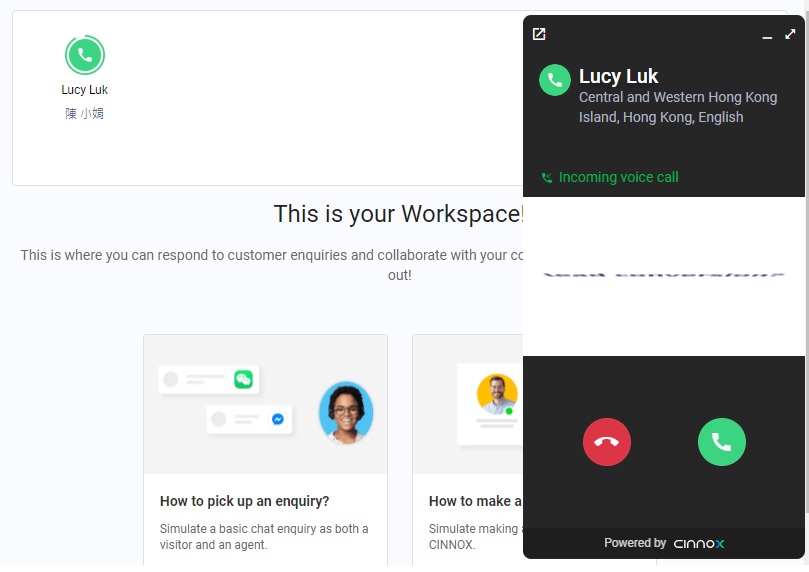
CINNOX will create an enquiry room and connect your call as soon as you answer the enquiry.
Enquiries from Virtual Numbers
The conversation between you and your visitor using your virtual (toll-free or local) number begins when they dial your number using their device.
Suppose you are a staff member with ACTIVE availability status assigned to a Destination serving virtual number enquiries. In that case, the CINNOX Dashboard or App will alert you of the call. The call will also appear on your Open Enquiry panel.
To answer the enquiry, click on its icon in the Open Enquiry panel. This opens the call screen, where you can pick up and answer the call.
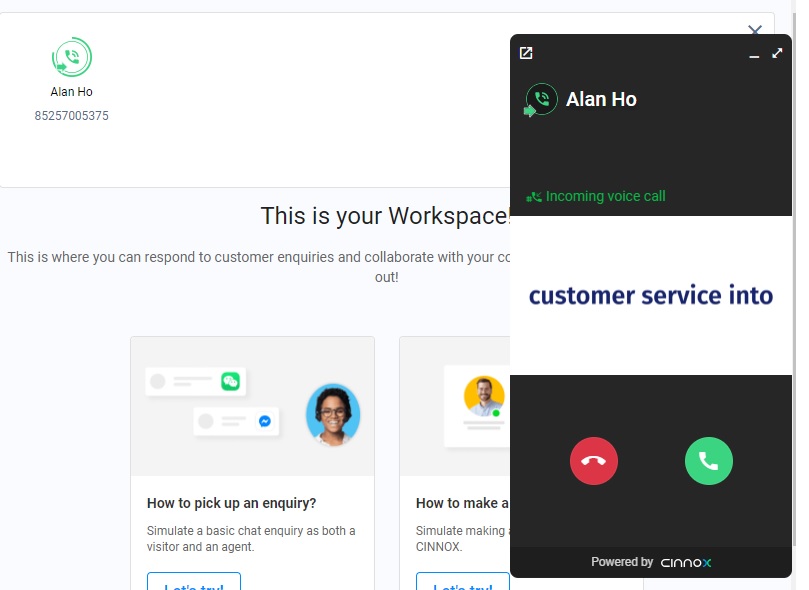
Virtual Number Visitor Enquiry
CINNOX will create an enquiry room and connect your call as soon as you answer the enquiry.
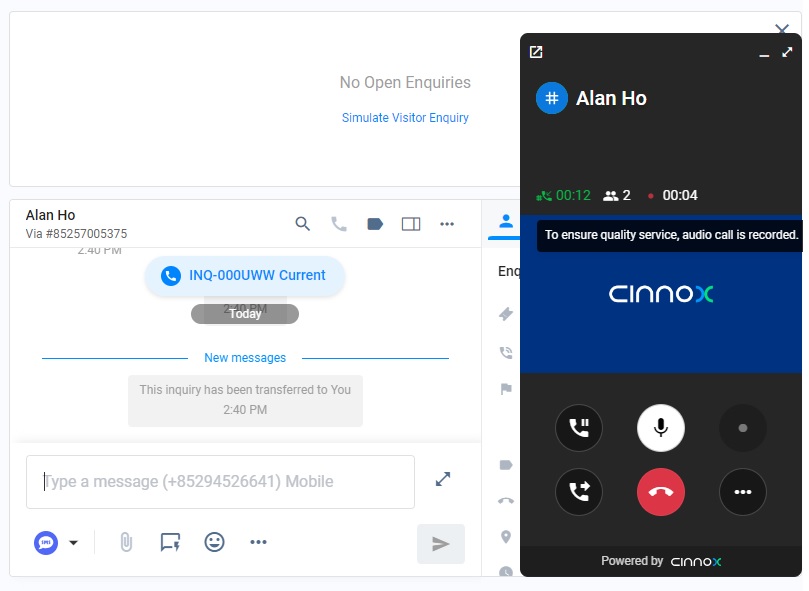
Virtual number visitor and agent call conversation
For more information about toll-free and local virtual numbers, refer to this Guide's Managing Toll-Free and Local Numbers section.
Staff (agent) unavailability to pick up an enquiry
An agent would be unavailable to pick up incoming enquiries when:
- has not logged in to CINNOX platforms
- turns the available status from active to busy mode
- is handling a call enquiry
| Enquiry type | The agent is handling a call enquiry for enquiry follow-up | The agent is handling a call enquiry | The agent is making an outbound call | The agent is handling a chat enquiry |
|---|---|---|---|---|
| Incoming call enquiry | Incoming call enquiry is blocked. | Incoming call enquiry is blocked. | Incoming call enquiry comes through. | There is no effect on the existing chat enquiry handled by the agent. This incoming call enquiry comes through as an open enquiry on the Enquiry Overview page. |
| Incoming chat enquiry | There is no effect on the existing call enquiry handled by the agent. This incoming chat enquiry comes through as an open enquiry on the Enquiry Overview page. | There is no effect on the existing call enquiry handled by the agent. This incoming chat enquiry comes through as an open enquiry on the Enquiry Overview page. | There is no effect on the agent's existing outbound call. This incoming chat enquiry comes through as an open enquiry on the Enquiry Overview page. | There is no effect on the existing chat enquiry handled by the agent. This incoming chat enquiry comes through as an open enquiry on the Enquiry Overview page. |
-
When an agent is unavailable for the abovementioned reasons, the unavailable agent will not be notified of the enquiry.
-
When an agent of the same destination is available, the system will notify the agent to pick up an incoming enquiry.
-
When all agents are unavailable:
- The system will block the chat enquiry; if the voicemail is disabled, the system will block the call enquiry.
Staff Call Screen
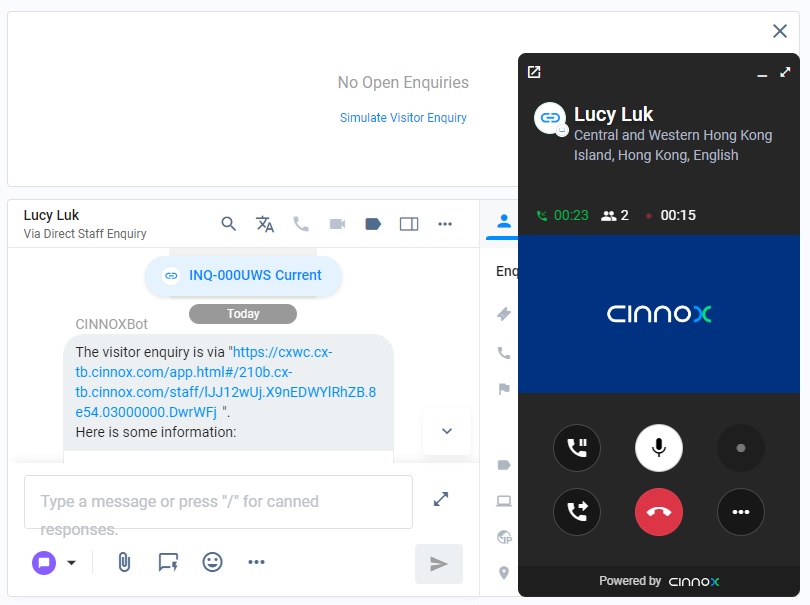
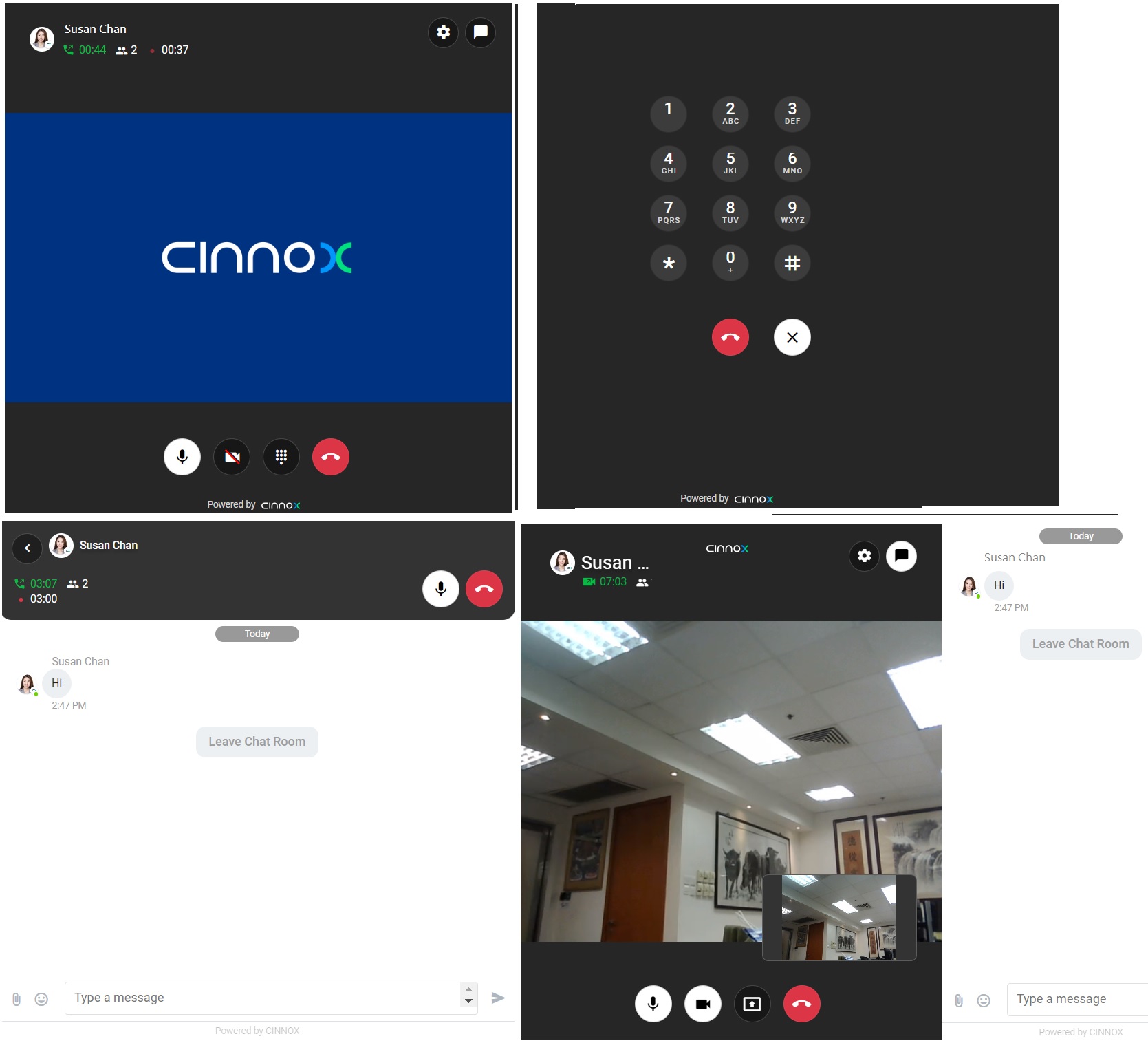
The following buttons will appear on your call screen during a call:
- Hold (1) - Puts the ongoing call on hold.
- Mute (2) - Mutes your microphone. When enabled, the other side will not be able to hear you, but you will still be able to listen to them
- Record (3) - Start call recording. Note that if call recording is automatically set, this button is enabled at the beginning of the call.
- Transfer Call (4) - Let you (warm or blind) transfer the call.
- End Call (5) - Ends the call.
- More (6) - Opens the following additional options:
- Settings for the device - microphone, speaker, and call noise reduction.
- Share Screen - allows you to share the screen from your device.
- Video Call - switches the call into a video call. Note that this feature requires camera permission to work.
- Add Participant - via dialling out a phone number or adding staff members.
- Keypad - lets you access your keypad.
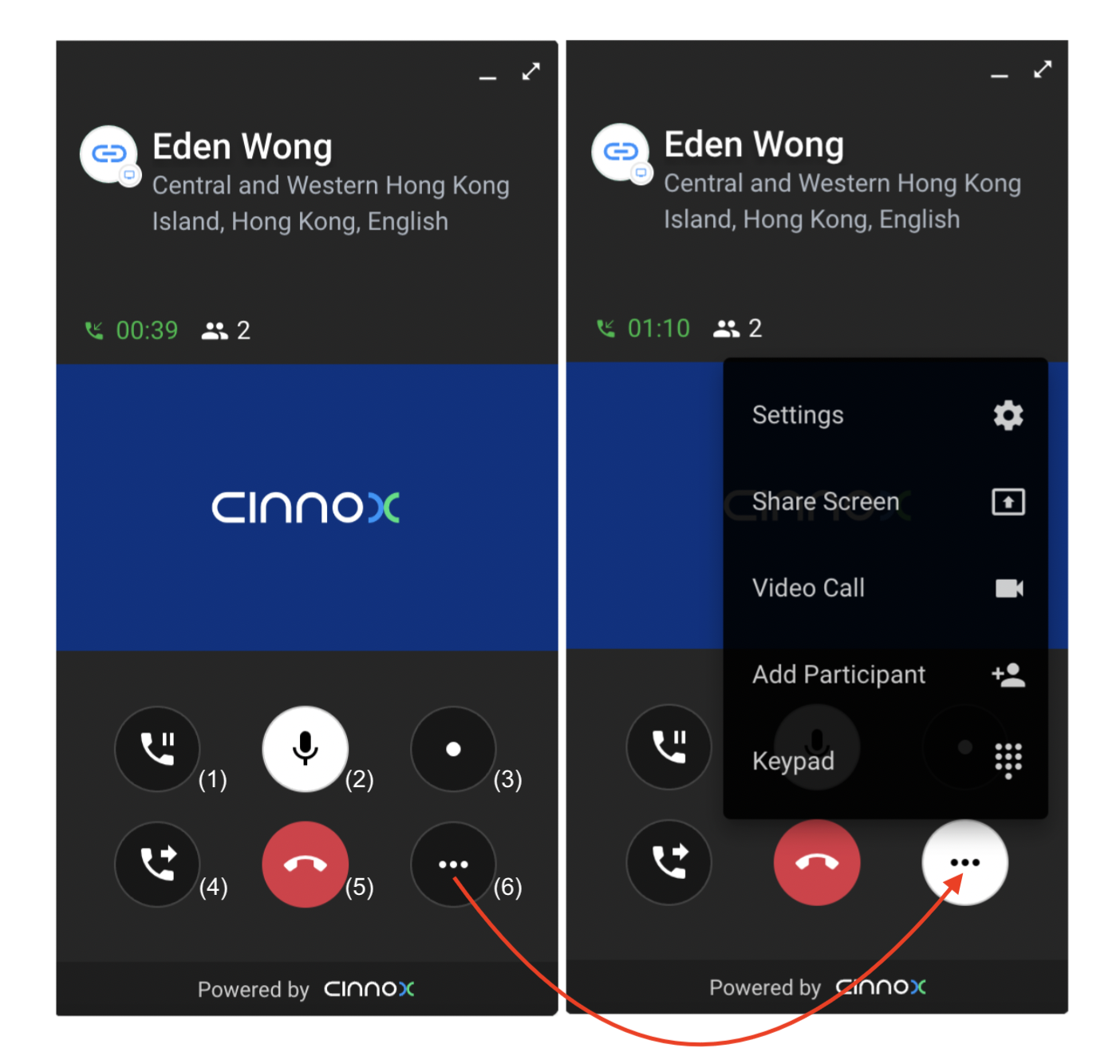
Staff Call Screen Functions
You can switch the call to a video call. Refer to this Guide's Video Call section for more details.
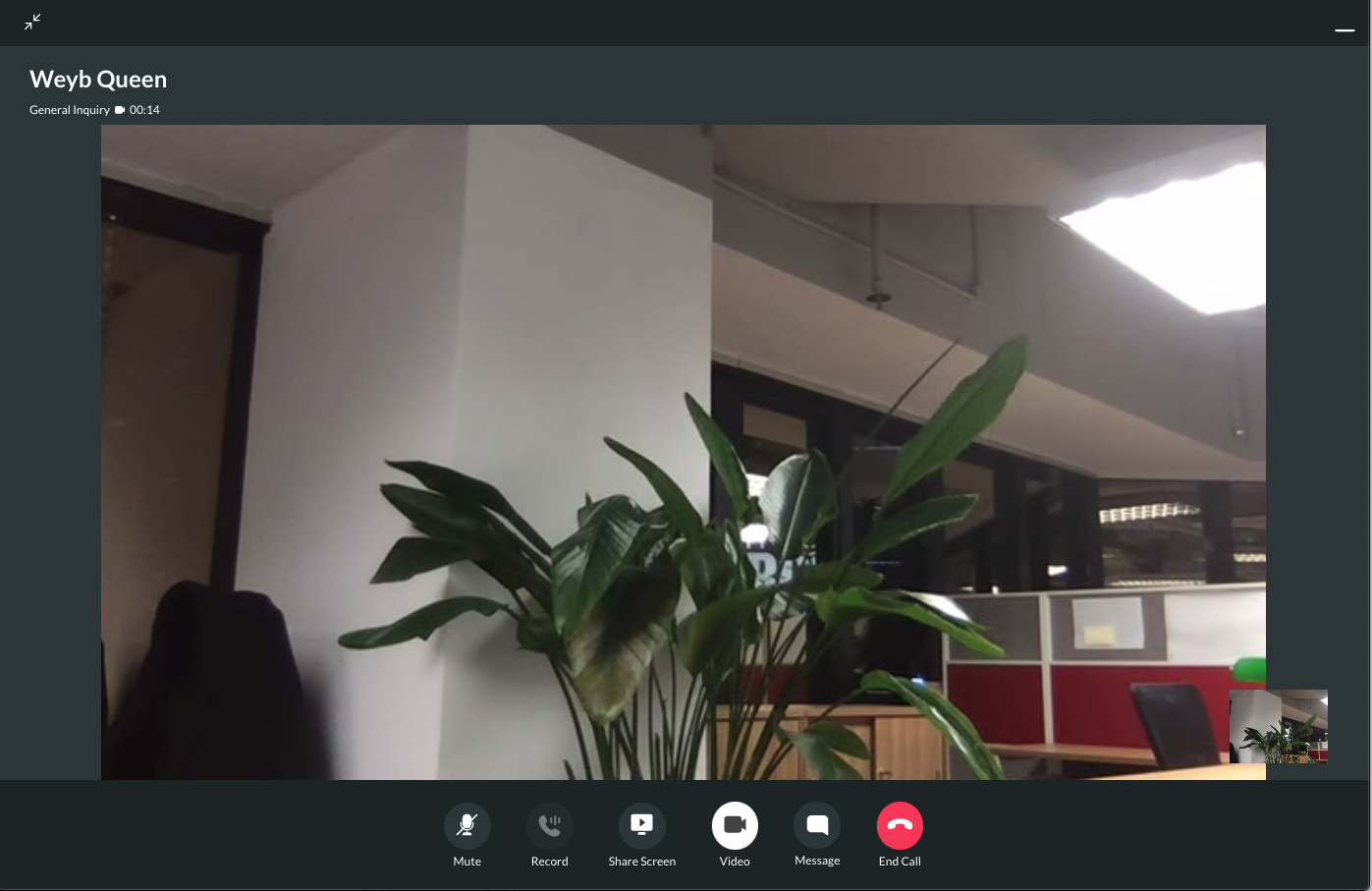
Staff Video Call Screen
Enabled Channel Custom Info
Channel Custom Info allows you to add your channel details that your staff would see in the call screen and chat room whenever they are serving an enquiry. The custom info can be about the standard procedure or operation details of handling the enquiry.
The custom info is displayed on the staff side at the call screen's left window and in the chat room for the call enquiry.
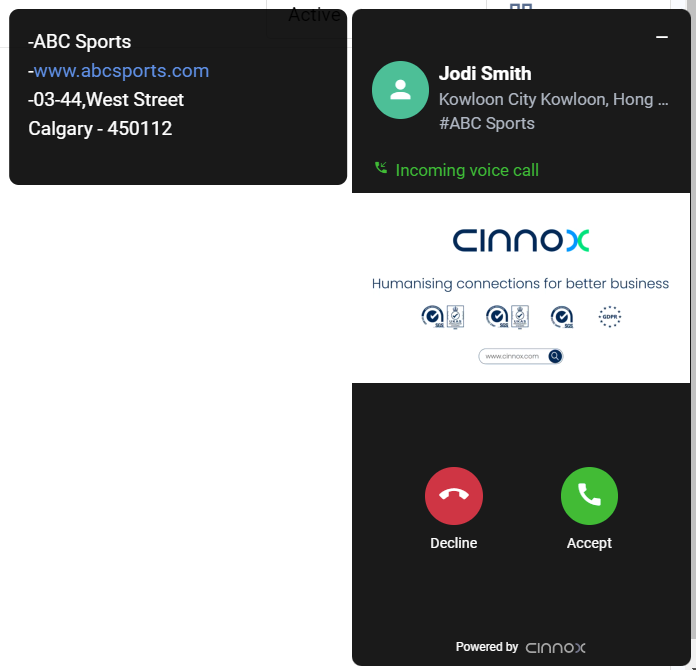
Enabled Channel Custom Info
📘
Important Notes
- Channel Custom Info can be customised per Channel, tag and number.
- Channel Custom Info is only available for inbound service.
- In addition to the Directory weblink, Channel Custom Info does not apply to other agent weblinks and campaign weblinks.
- The system is limited to 10,000 characters; the chatbot message will not be sent if exceeded.
- Channel Custom Info will still be displayed as chatbot messages in the room of missed enquiry.
Visitor Call Screen
Be aware that your visitors also have access to the following buttons in their call screens when engaged in a call with you:
- Keypad - lets your visitors access their keypad to select numbers and navigate the automated systems such as phone menus and other functions related to dual-tone multi-frequency signalling (DTMF). To know more about this topic, refer to the DTMF Wikipedia page.
- Mute - mutes your visitors' microphone (4). You will not be able to hear your visitors when enabled, but they will still be able to listen to you.
- End Call - ends the call.
Switching the call to a video call will also enable the video call on your visitor's end. Note that your visitor's camera permission is also required to work.
Call Log
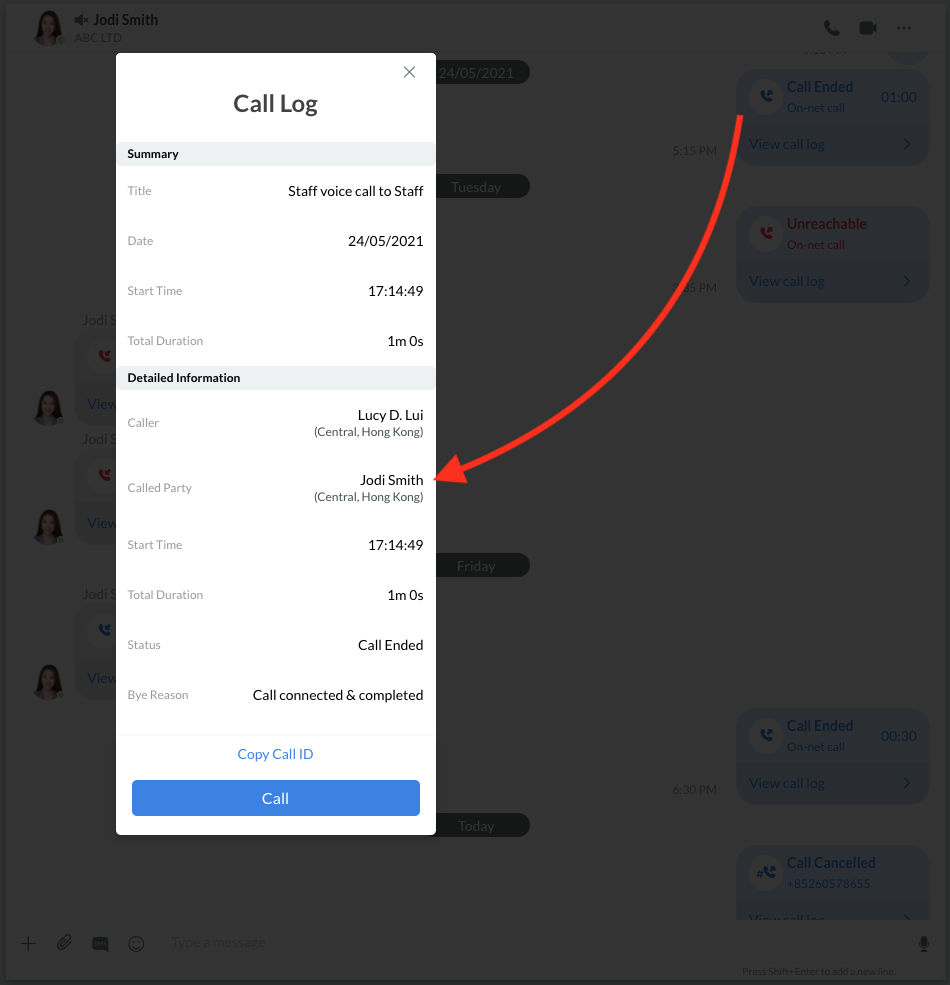
Whenever you or anyone else makes or answers a call on CINNOX, it logs a call history into the room.
This Call Log contains the following details:
Summary
- Title
- Date
- Start of call time
- Total Duration
Detailed Information
- Caller
- Called Party
- Start Time
- Total Duration
- Status
- Bye Reason
To make or return a call, click on the Call button. The call screen will then appear, indicating that the call has started.
For more details about Call Attributes and Call Metrics, refer to this Guide's Viewing the Call Report section.
Transfer an Enquiry
You can enhance your service with your visitors by maximising the use of CINNOX features:
Transfer an enquiry to another staff member directly or to a group of staff agents via Tag, Virtual Number, or Phone Number using Dial Pad.
Refer to this Guide's Transferring Enquiry section for more details.