Viewing the Calls Report
CINNOX Report lets you view all call details - inbound, outbound and internal calls of staff members and visitors in your CINNOX service. Analytics and metrics are ideal for a quick view of all calls made and received according to the chosen period.
From your Web Dashboard, navigate to Reports > Call Report
ℹ️
Changes to the Call Detail Report
From July 1, 2024, we’re launching a new view for our Call Detail Report. This is designed to make it easier to read and understand the journey of each call.
In the New View Report:
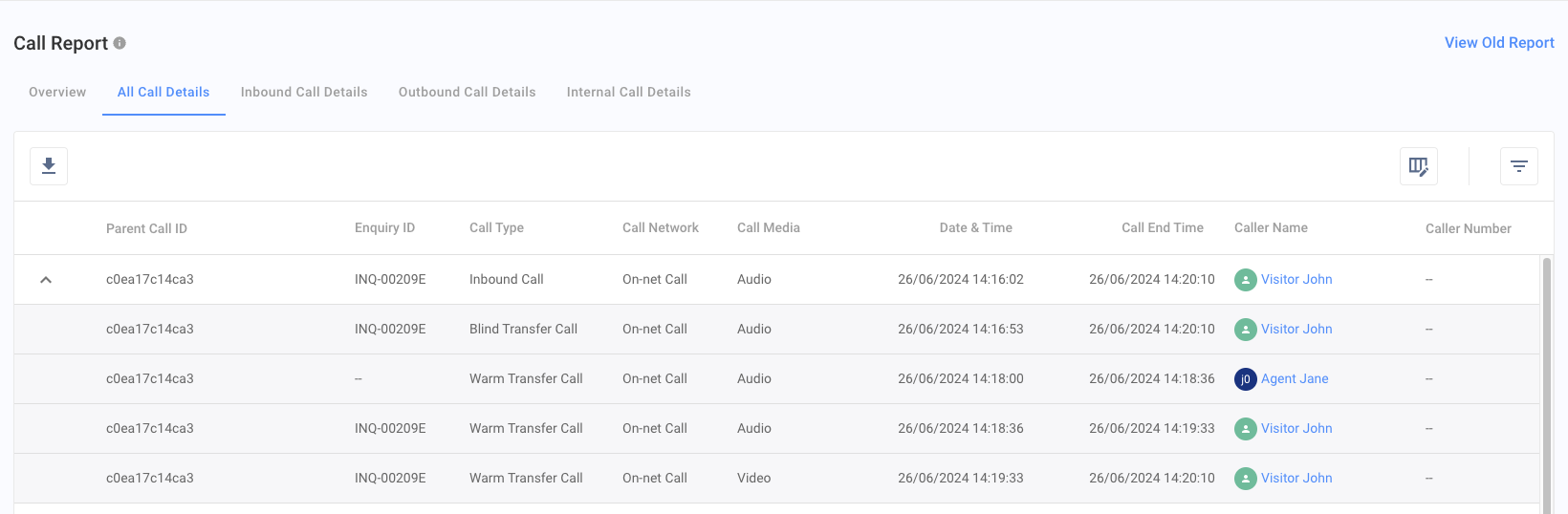
- We’ve removed the summary row and added a new column called ‘Parent Call ID’.
- The first row now shows the first party who handled the call and how long the first part of the call lasted. This change also applies when you download the report as an Excel file.
- The new records created after the launch date will be visible in the new report view.
You can see new and old records in the old report view.
Call Report Overview
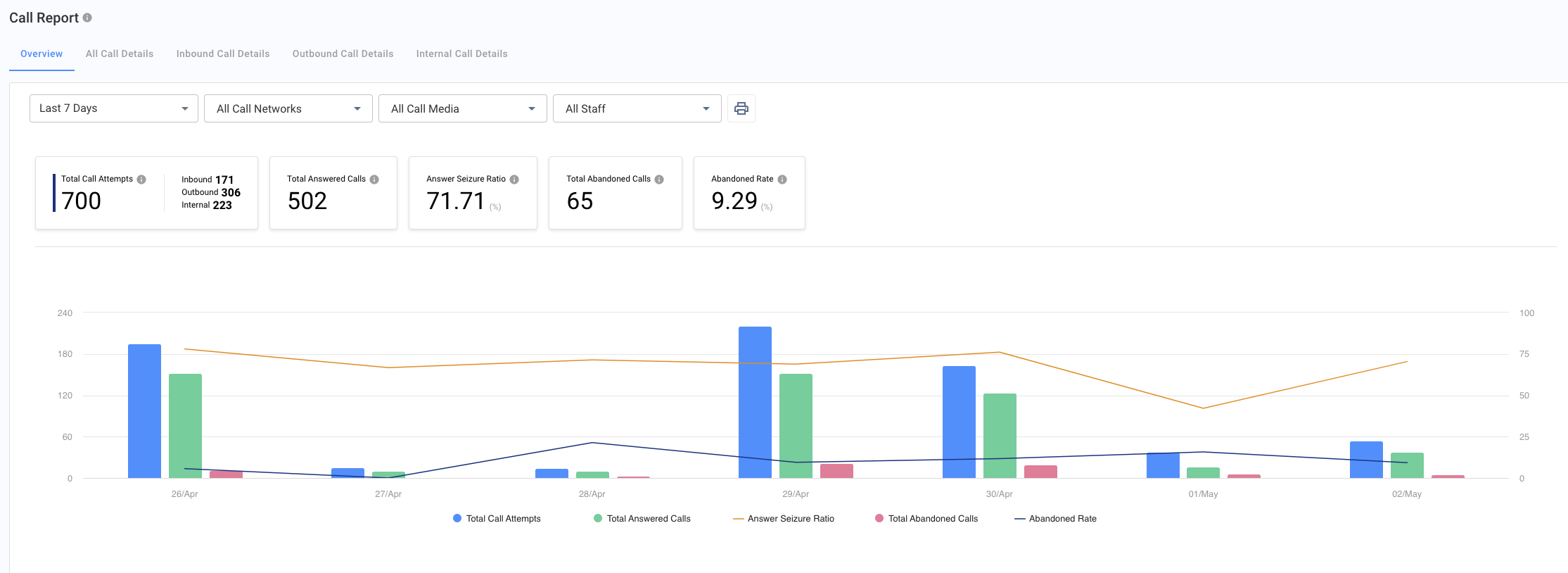
The Overview section consists of Answered Call and Call Duration Analytics with filters, such as the following:
- Date Range: the period selection can be from today or a custom date, default to the Last 7 Days.
- Call Networks: the type of call network can be on-net or off-net calls.
- Call Media: the type of call media can be audio or video calls.
- Staff Name: list all staff member names in your service, default to all staff.
Answered Call Analytics
The following analytics are displayed in individual block panels arranged in rows and an interactive bar and line chart.
Total Call Attempts
- The Total Call Attempts metric represents the total number of call attempts made during the specified period, including on-net and off-net calls from both visitors and staff members.
Please note that the count for inbound, outbound, and internal calls starts on March 1, 2024, which may result in differences between the total call attempts and the individual counts for each call type.
Total Answered Calls
- The Total Answered Calls include:
- Call ended: Completed, connected, or dropped calls.
- Abandoned calls: Instances where the caller hung up while on hold, navigating the IVR system, or leaving a voicemail.
- The last transferred call was before the call ended.
- That covers:
- Call ended: Completed, connected, or dropped calls.
- Abandoned calls: Instances where the caller hung up while on hold, navigating the IVR system, or leaving a voicemail.
- Last transferred call before the call ended.
- See the Call Status for more details.
Answer Seize Ratio (ASR)
- ASR is the percentage of successfully connected calls to the total number of attempted calls.
Calculation: ASR % = (total number of answered calls / total number of call attempts) × 100.
Total Abandoned Call
- The Total Abandoned Calls refers to the number of connected calls that ended before reaching the intended destination. Includes hang-ups during prompts, IVR interactions, on-hold, or transfer to an agent.
Abandoned Rate
- The Abandoned Rate refers to the percentage of total abandoned calls to the total number of attempted calls.
Calculation: Abandoned % = (Total number of abandoned calls / Total number of calls) × 100
Answered Call Analytics
📘
To print the Call Report - Overview graphs and record, click the printer icon located at the top middle of the page.
Call Duration Analytics
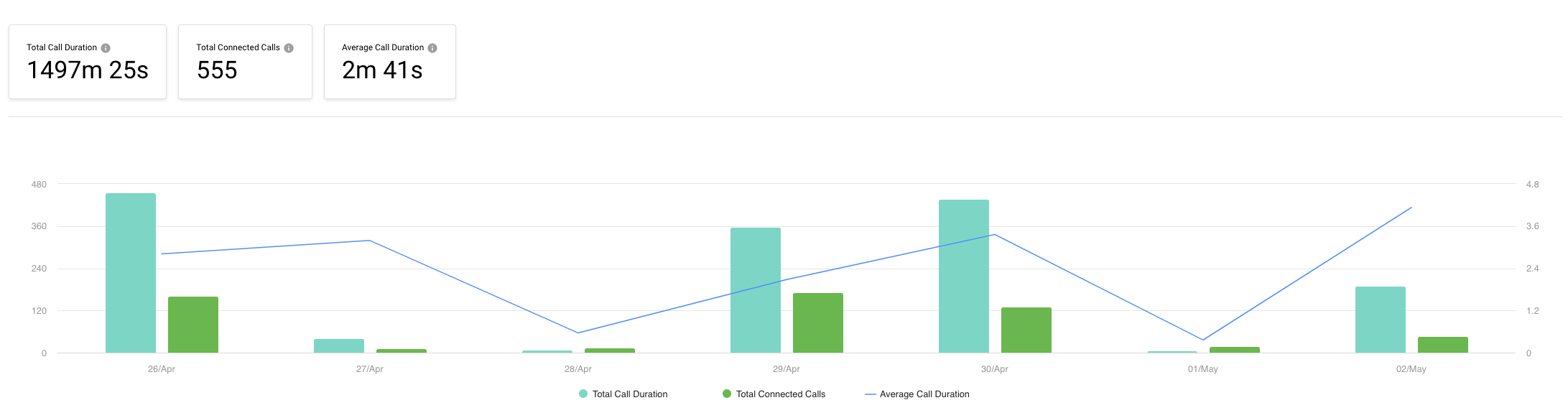
The following metrics are displayed in individual block panels arranged in rows and an interactive bar and line chart.
Total Call Duration
- The Total Call Duration block panel displays the cumulative duration of all connected calls in minutes for incoming and outgoing calls within a given period.
Total Connected Calls
The Total Connected Calls block panel displays the total connected calls made for a given period.
- This includes:
- Call ended: Completed, connected, or dropped calls.
- Abandoned calls: Instances where the caller hung up while on hold, navigating the IVR system, or leaving a voicemail.
- All transferred calls (warm and blind transfers).
Average Call Duration (ACD)
- ACD is the average length of connected calls made.
- Calculation
ACD = total call duration / total successful calls.
Call Duration Analytics
Call Detail Report
Detail Report - Tab Views
Call Report Details are organised into different views.
- All Call Details
- This view shows all calls originating from and outside the CINNOX service (inbound, outbound and internal calls).\
- Inbound Call Details
- This view shows all calls originating outside the CINNOX service (staff received calls).\
- Outbound Call Details
- This view shows all calls originating from the CINNOX service (staff outbound calls).\
- Internal Call Details
- This view shows all calls originating from internal (staff-to-staff calls).\
Detail Report - New and Old Views
From July 1, 2024, when you open the Call Report Details, you’ll see the New Report View automatically. This report will show call records starting from July 1. If you need to check new and old records, click View Old Report.
In this New Report Detail View, the first row won’t show a summary of the calls. Instead, all associated calls (call legs) will be grouped under a Parent Call ID.
Viewing the New Report
Viewing the Old Report
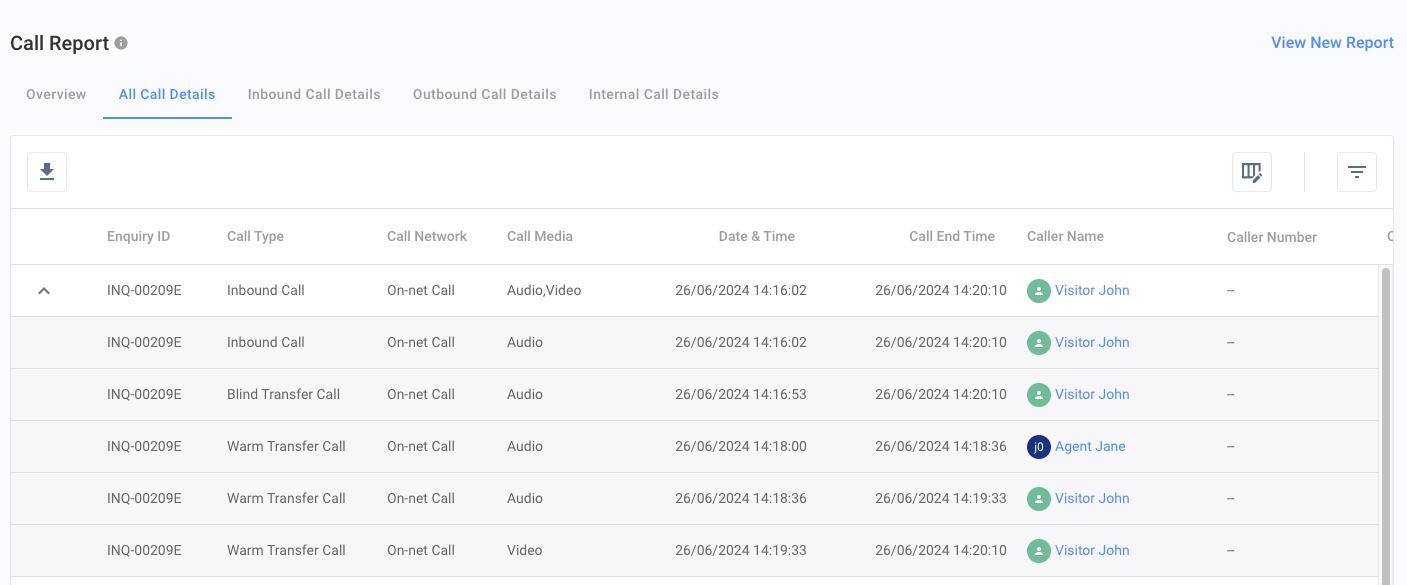
Detail Report - Table Columns
This section lists and defines all headers in the downloaded call report details.
| Attributes | Definition |
|---|---|
| Parent Call ID | The unique identifier is associated with the call ID and related call records. |
| Enquiry ID | The enquiry ID associated with the call. |
| Call Type | Whether a call is inbound or outbound. |
| Call Network | Whether a call is off-net or on-net. |
| Call Media | Whether a call is an audio or video. |
| Date & Time | The start date and time of the call. The value must be in RFC3339 format, e.g. 2022-11-07T00:00:00.000Z. |
| Call End Time | The date and time of the call have ended |
| Caller Name | The name of the caller who initiated the call to the visitor/external contact identifier, staff name, and phone number. |
| Caller Number | For an inbound call, it is a visitor's number, while for an outbound call, it is an agent's number (CLI). |
| Caller Region | The caller region location, |
| Caller Role | The caller's role. |
| Caller Team | The caller's team |
| Channel Type | The type of channel used for the enquiry applies to inbound calls only. |
| Channel Details | The specific details related to the channel used for the enquiry apply to inbound calls only. |
| Receiver Name | The receiver's identification information includes the name, number or both. Please note that onnet calls may not have a calling number. |
| Receiver Number | The name of the call receiver (Called party). |
| Receiver Region | The country/region corresponding to the receiver's IP address or receiver number. |
| Receiver Role | The role of the receiver within CINNOX |
| Receiver Team | The team of the receiver within CINNOX. |
| Call Status | The final status of the call indicates its result. It can be * Call Ended, * Declined, * Busy, * Not Answered, * Cancelled, * Abandoned, * Unreachable, or, * Call Failed. Please refer to the Call Status Metrics section for details. |
| Bye Reason | It shows the reason behind the call disconnection. For details, please refer to the Last Response Code & Bye Reason section. |
| Call Duration (min) | The duration is minutes from when the call was connected and ended. This includes both onnet and offnet calls. |
| Call Duration | The duration is minutes and seconds between when the call was connected and ended. This includes both onnet and offnet calls. |
| Chargeable? | Yes if the call is chargeable |
| First Response Time | The duration, in seconds, between when an enquiry call was connected and when a staff member answered it. If the call was not an enquiry or not answered by a real agent, the FRT is marked as "--," which means it is not applicable. |
| Dialling Duration | The duration, in minutes and seconds, between when an outbound call was initiated and either answered or missed. Applicable to outbound calls only. |
| Dialling Duration (sec) | The duration, in seconds, between when an outbound call was initiated and either answered or missed. Applicable to outbound calls only. |
| Ended By | The party ends the call. If the call is ended by * Call System will show "ACD" (Advanced Call Distribution) or "IVR" (Interactive Voice Response), * Visitor: it will show the visitor's name or * Agent, it will show the agent's name. |
| Call ID | It is a unique string assigned to each call record, "session-2f089b32-7e5e-45b2-8173-84bb18e0aa2d" |
| Attachment | It consists of voice call recording, video call recording, voicemail files and audio transcripts. |
Detail Report - Status Metrics
This section lists and defines all the CINNOX call statuses and whether the call status is part of the ASR.
| Call Status | Definition | ASR & Connected Call included? |
|---|---|---|
| Call Ended | * The call was connected and completed (e.g., normal clearing - ended by caller/receiver) * The call was connected and dropped (e.g., there was a network issue, service congestion, and an unspecified error). | Yes |
| Declined | The receiver rejected the call. | No |
| Busy | The receiver is unable to accept another call. | No |
| Not Answered / No Answer | The receiver did not respond and timed out. | No |
| Cancelled | The ongoing call hung up before the receiver picked up. | No |
| Abandoned | Call established to the receiver, however: * The caller hung up while in the IVR menu * The caller hung up while on Voicemail * The caller hung up while on hold with a staff member (i.e., during call transfer). | Yes |
| Unreachable | The caller cannot reach the receiver due to the following: * Receiver's device is turned off * Receiver has no data connection * Receiver was out of coverage area * Service is temporarily congested. | No |
| Call Failed | In general, the call failed because of call service and network-related issues. | No |
Detail Report - Custom View
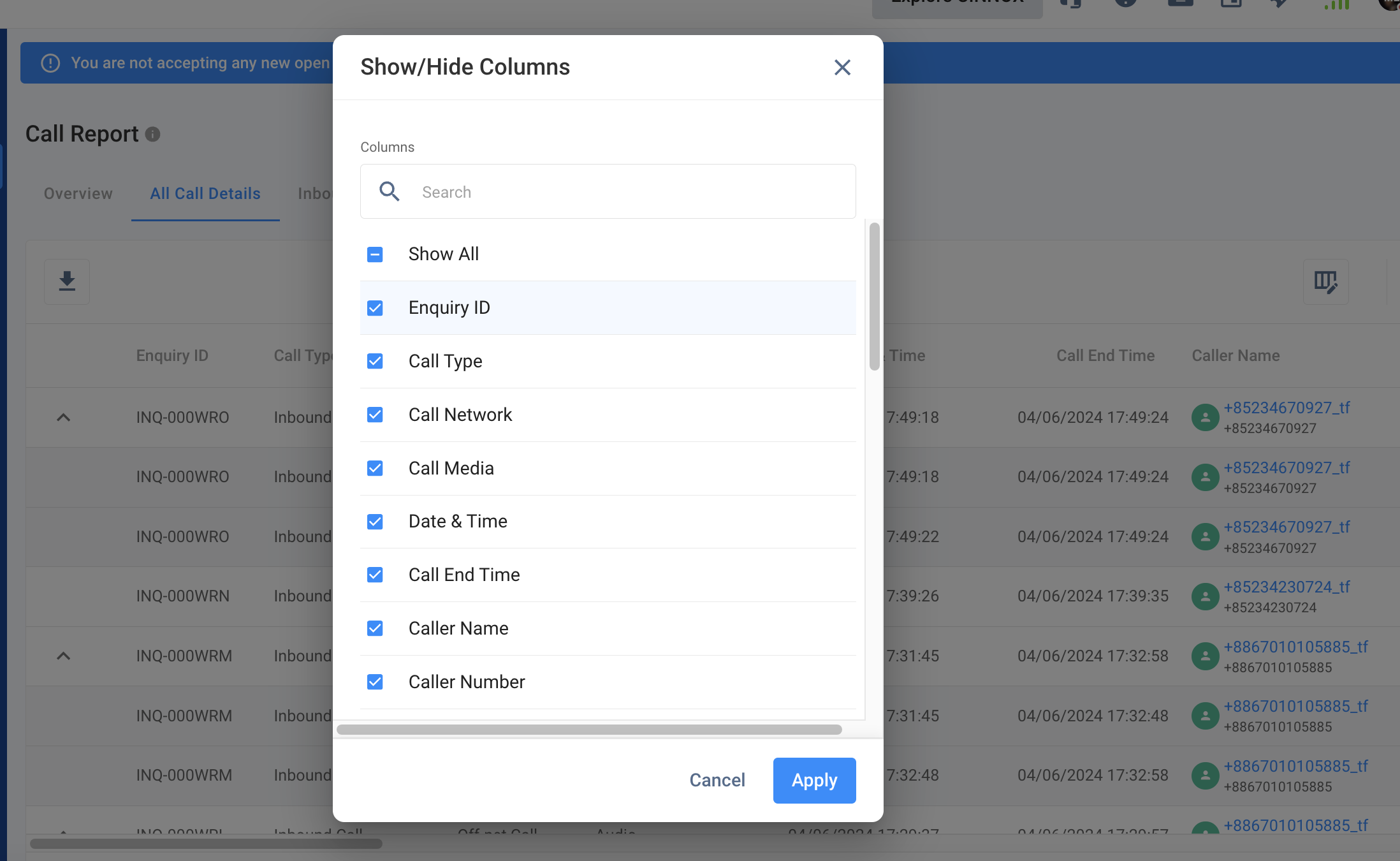
You can select columns and filters in the Enquiry Report and save them as a personalised view.
- Click the Show / Hide Columns located at the top right corner of the Call Report Tab
- Select the columns to hide or view, then click Apply
- Click Save
Call Recording
Voice Call Recording
View the voice recording file or download it to have a local copy.
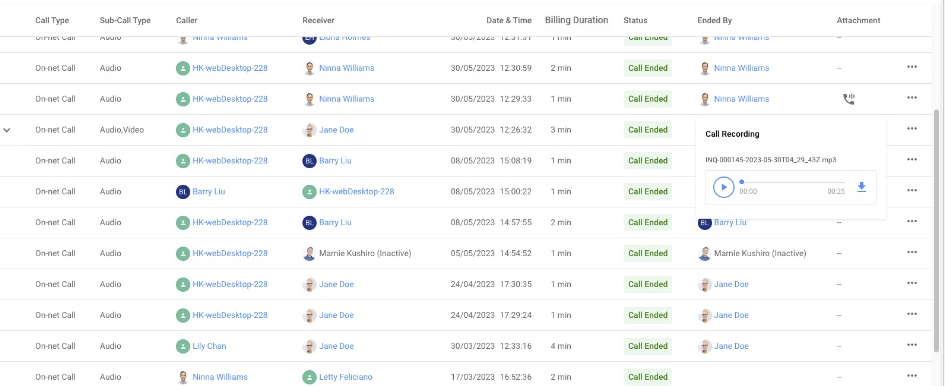
Listen or download a voice call recording
Video Call Recording
Please view or download the video recording file for a local copy.
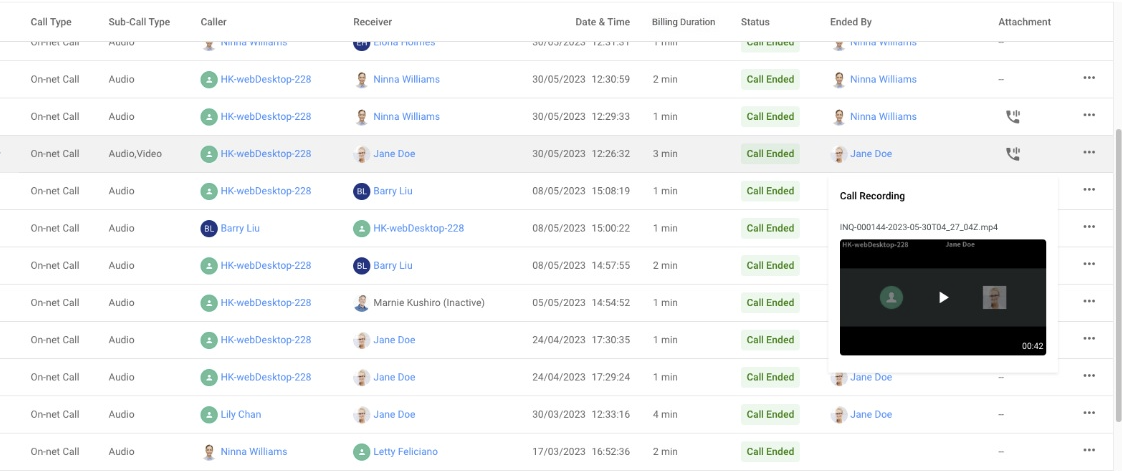
View or download the video call recording
Voicemail
The voice message left by the customer or visitor that can play to listen or download to have a local copy
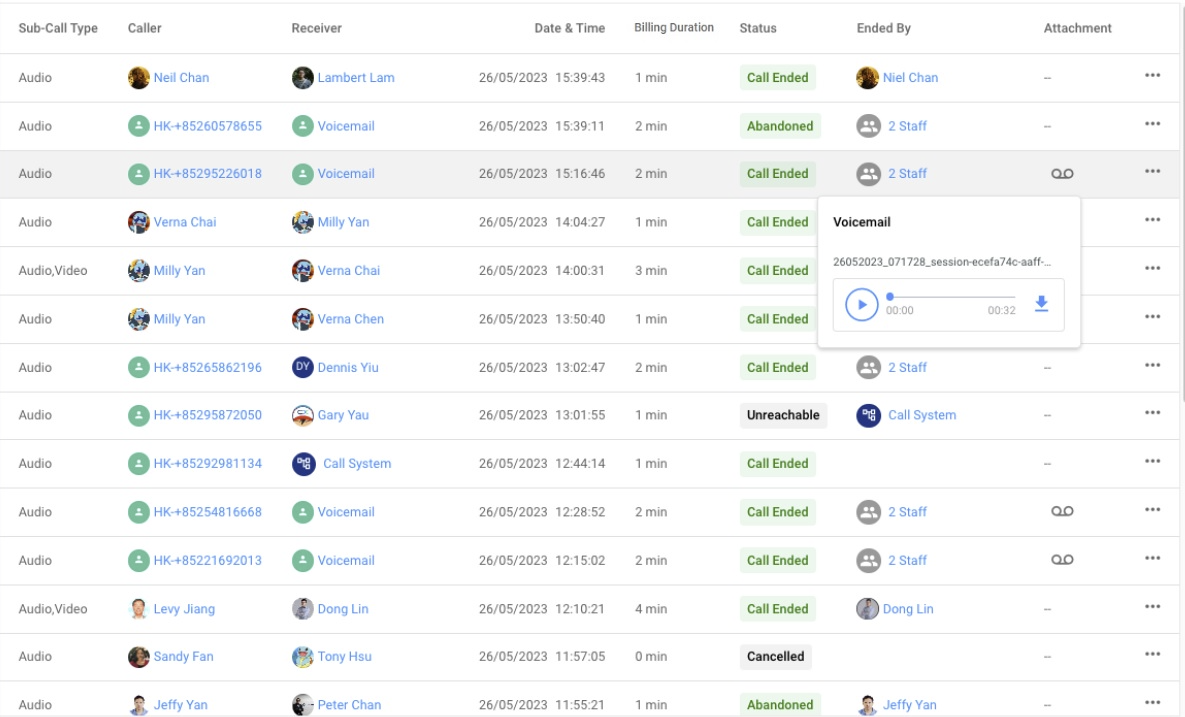
Listen to or download Voicemail
Call Transfer
There will be an arrow for calls with the warm or blind transfer ⬇️ indicator located at the table's left side before the Call Type column.
Warm Transfer Breakdown Illustration:
Summary:
Jon is the caller, while Jane is the last receiver with a 3-minute call duration.
Breakdown:
- 15:36:21 Jon made the call and was picked up by Jodi
- 15:37:08 Jodi made a warm transfer to Jane
- 15:37:21 Jodi confirmed the transfer and left the call; Jon and Jane continued the call
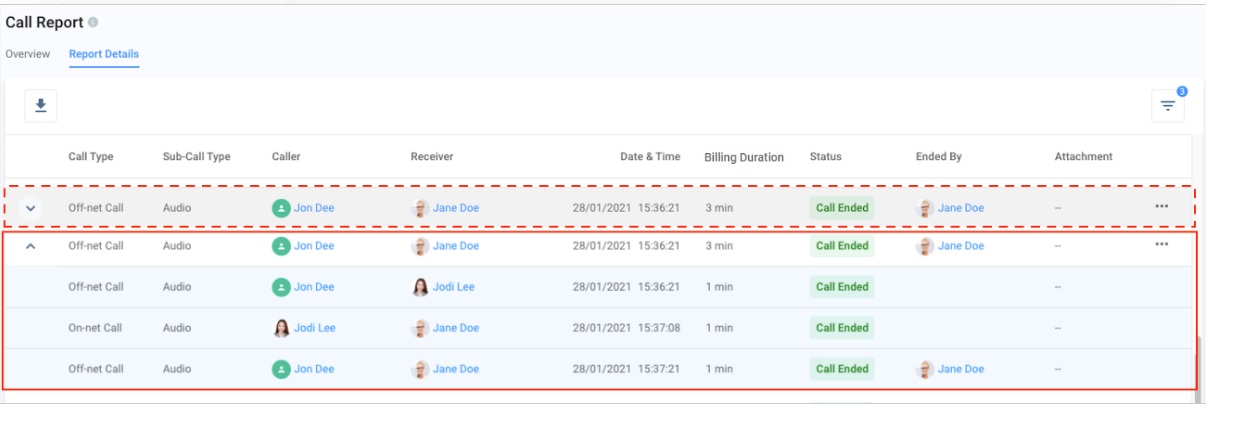
Warm Transfer Breakdown
Blind Transfer Illustration:
Summary:
HK-webDesktop-228 is the caller, while Elona is the last receiver with a 2-minute call duration.
Breakdown:
- 12:36:54 HK-webDesktop-228 made the call and was picked up by Ninna
- 12:37:02 Ninna made a blind transfer to Elona
- 12:37:02 HK-webDesktop-228 and Elona continue the call
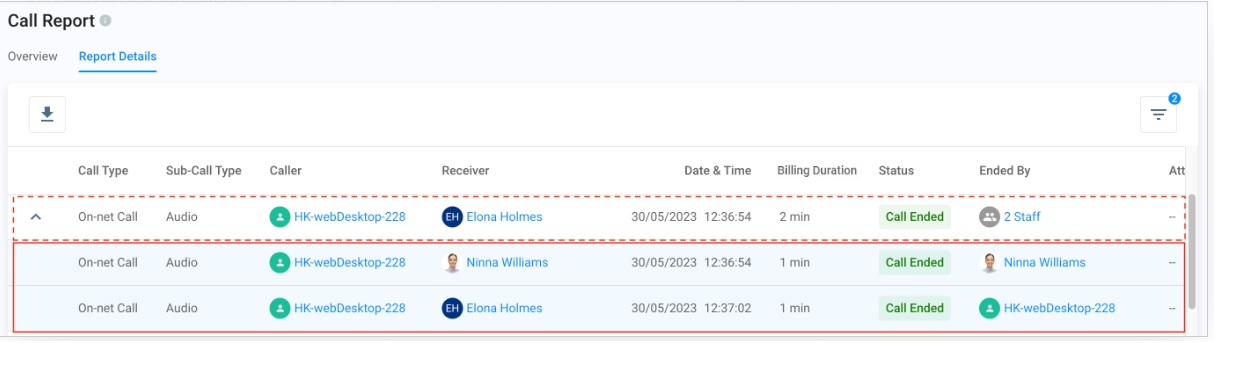
Blind Transfer Breakdown
Enquiry with IVR
Different call scenarios exist when a customer calls and is routed to the IVR.
Customer > IVR System > Call Ends in the IVR Menu
Customer > IVR System > Routes to Agent A > Call Ends by Agent A or Customer
Customer > IVR System > Routes to Agent A > Caller Transfers to Agent B > Call Ends by Agent B or Customer
Customer > IVR System > Routes to Agent A > Switch to Conference Call > Call Ends in the Conference Call
Each movement made in the IVR up to when the call ends creates a record and logs in the Call Detail and Call Log.
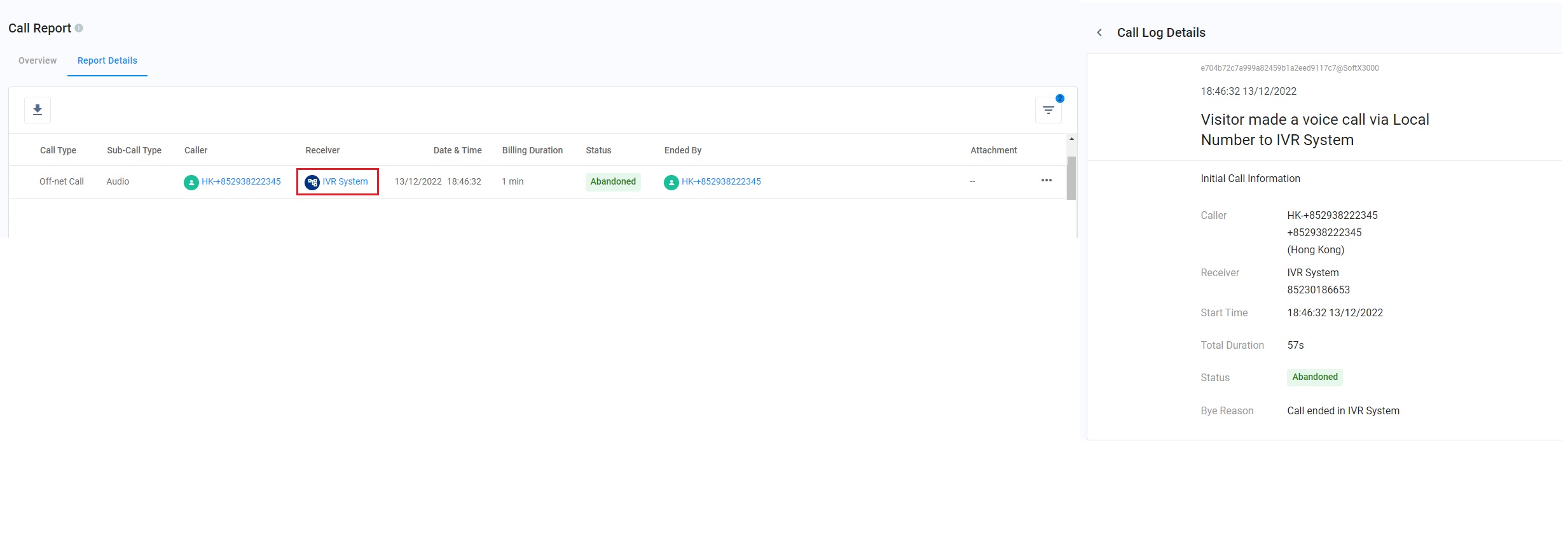
IVR to IVR
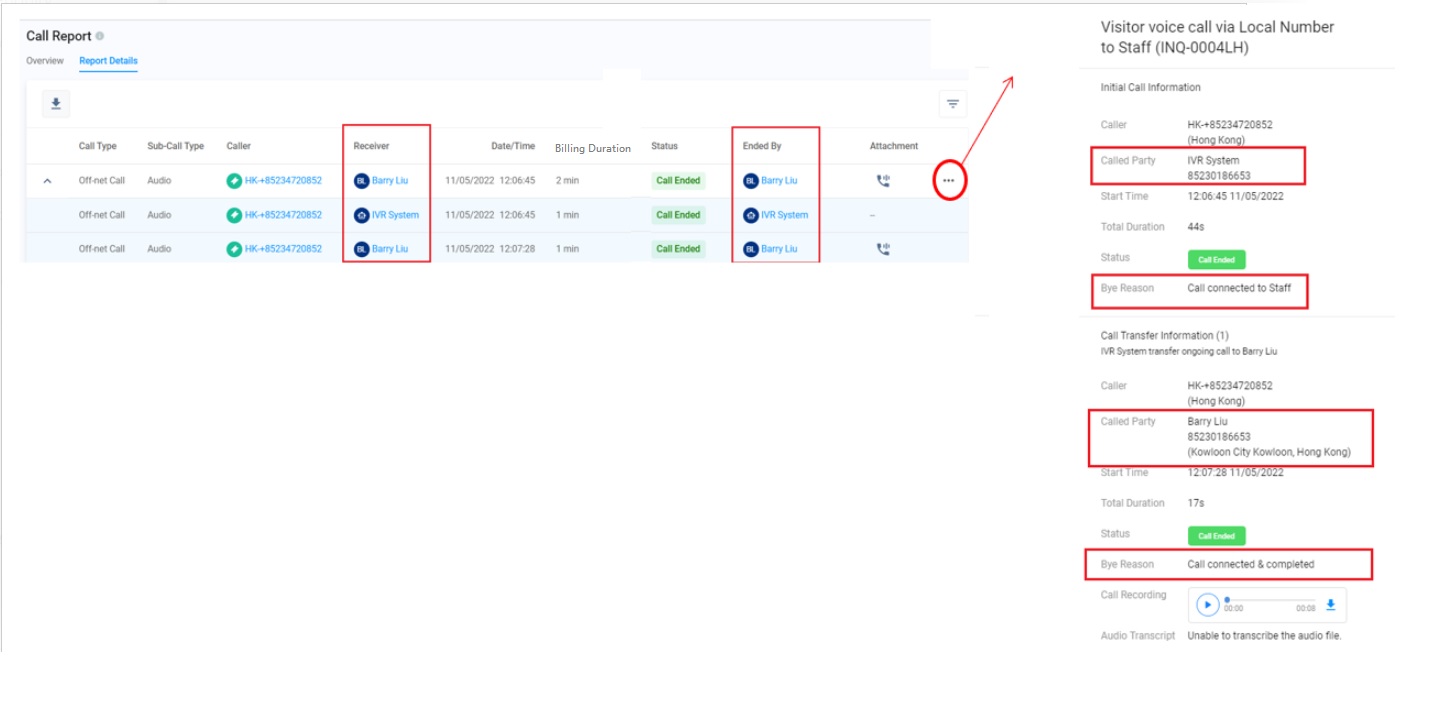
IVR to Staff
Search and Filters
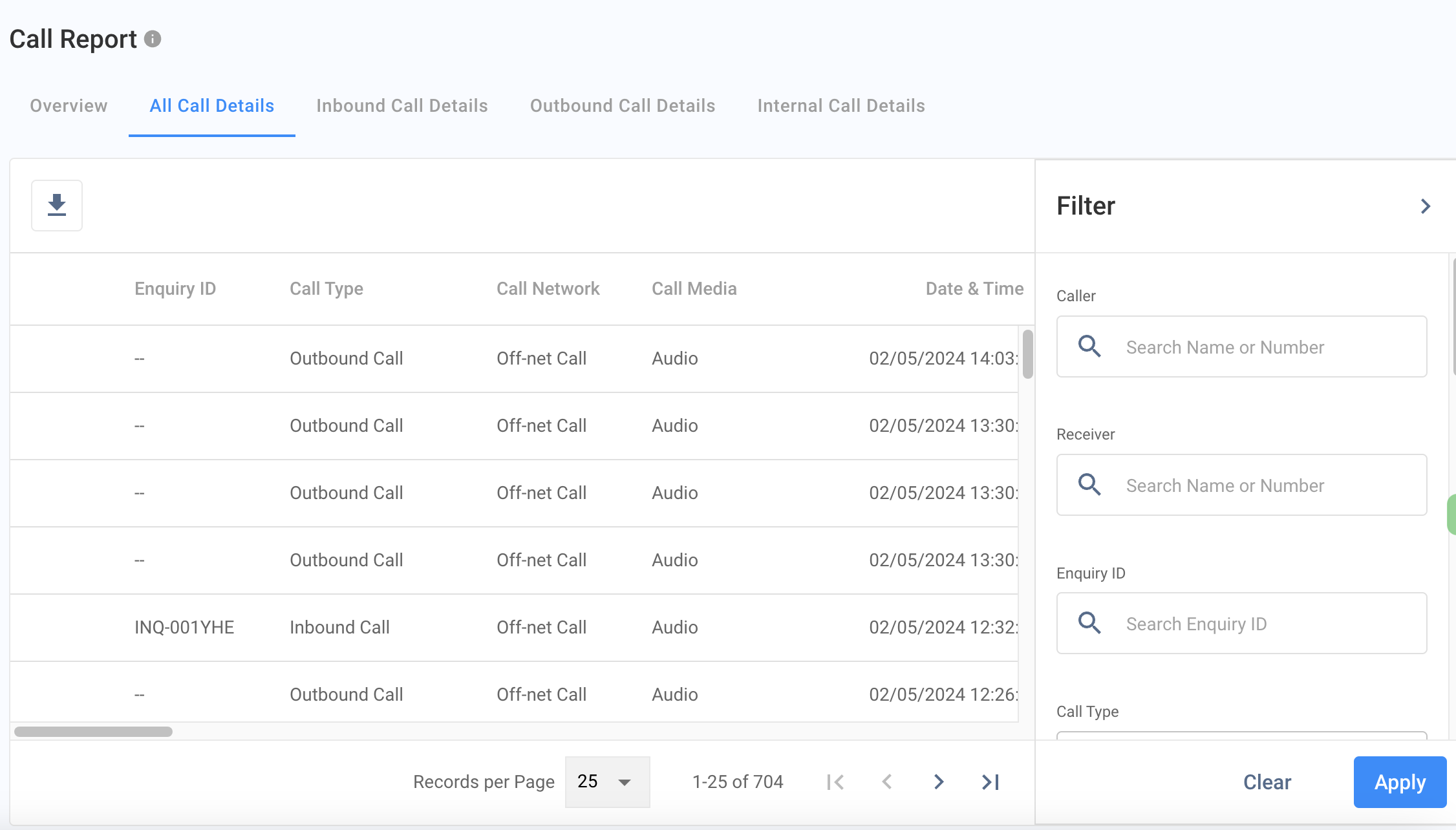
You can filter the Call Detailed Report by the following:
| Filter Name | Description |
|---|---|
| Caller | Search by Caller Name. |
| Receiver | Search by Receiver Name. |
| Enquiry ID | Search by Enquiry ID. |
| Transfer Call | Filter calls with transfers. This filter started on 2024/04/09. Calls made before this date will be categorised as "without transfer". |
| Call Status | Select call status - refer to the Call Status Table for details. Default to all Call Statuses. |
| Staff Role | Select a Staff Role - Admin, Supervisor, Agent, or Custom Role. Default to All Staff Roles. |
| Staff Team | Select the Staff Team created in your Organisation. Default to All Staff Teams. |
| Call Network | Select a call that is on-net, off-net or both. Default to All call networks. |
| Call Media | Select call type - On-net, Off-net, or Smart Calling. Default to All Call Types. |
| Date & Time | Select by date which is "Today", "Yesterday", "Last 7 Days", "Last 30 Days" or "Last 90 Days". "Custom" is also selectable for customised dates and times. Default to Last 7 Days. |
| Attachment | Select a call with: * All Attachments (both Recording and Voicemail) * With Recording * With Voicemail or * No Attachment Default to All Attachments. |
👍
Use the Filter to view the call data record according to your desired results.
Download Call Detail Report
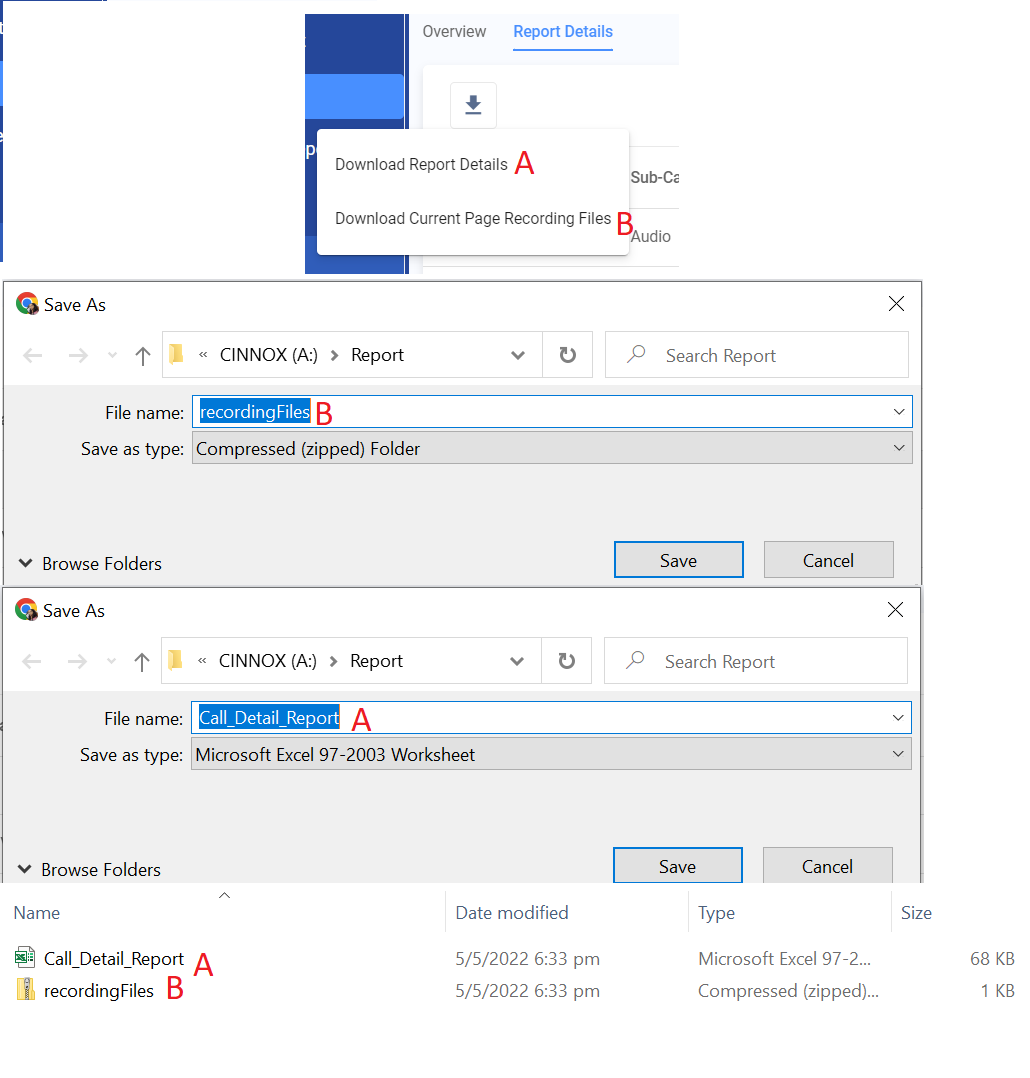
You can download the Call Report Details in an Excel file and the available recorded files as audio files in a zipped folder. There are two options for downloading files:
A. Download Report Details - This option downloads all call records in Excel (XLS) file format.
B. Download Current Page Recording Files - This option downloads call recording files of the current page in a zip file. Each enquiry will be downloaded in MP3 file format.
📘
The maximum number of records on one page is 25.
To download the files,
- Choose Download Report Details or Download Current Page Chat History Files.
The downloaded report and the recorded files will be saved in an Excel and zipped folder in the selected location.
- Unzip the zip folder to exact the content in MP3 format per recording.