
Connecting Gmail/Google Workspace Email
Looking for an Omnichannel Contact Center Solution?
Discover the ultimate Omnichannel Service Solution with CINNOX. Effortlessly handle customer enquiries from any device, anywhere. Our top-notch service covers Gmail, Outlook, WhatsApp, Facebook Messenger, WeChat, other social media channels, live chat, and calls with virtual number offerings. Simplify your customer service and expand your reach today with CINNOX.
Overview
Connect your Gmail or Google Workspace Email to CINNOX to effortlessly manage your customer emails as omnichannel enquiries. Leverage our intent data, insights and analytics to land sales, enhance experiences, and provide outstanding support.
Connect your Gmail/Google Email to CINNOX
Create an Email Channel
- Go to Administration > Channels > Email from the navigation menu.
- Click the Connect Email button in the top-right corner of the main email page.
- On the Create Email Channel page, select your mail server, either Default (CINNOX mail server) or Own mail server.
Use CINNOX Mail Server or Own Mail Server
CINNOX Mail Server
Choosing the CINNOX mail server would forward your customer emails to your CINNOX service and convert them into enquiries. Your CINNOX preferred email address, e.g. email@cinnox.com, will be your email address when you reply to your customers.
- Enter the email display name of your CINNOX preferred email address, which your customers will instantly recognise, just like your company name.
- Enter your CINNOX preferred email address.
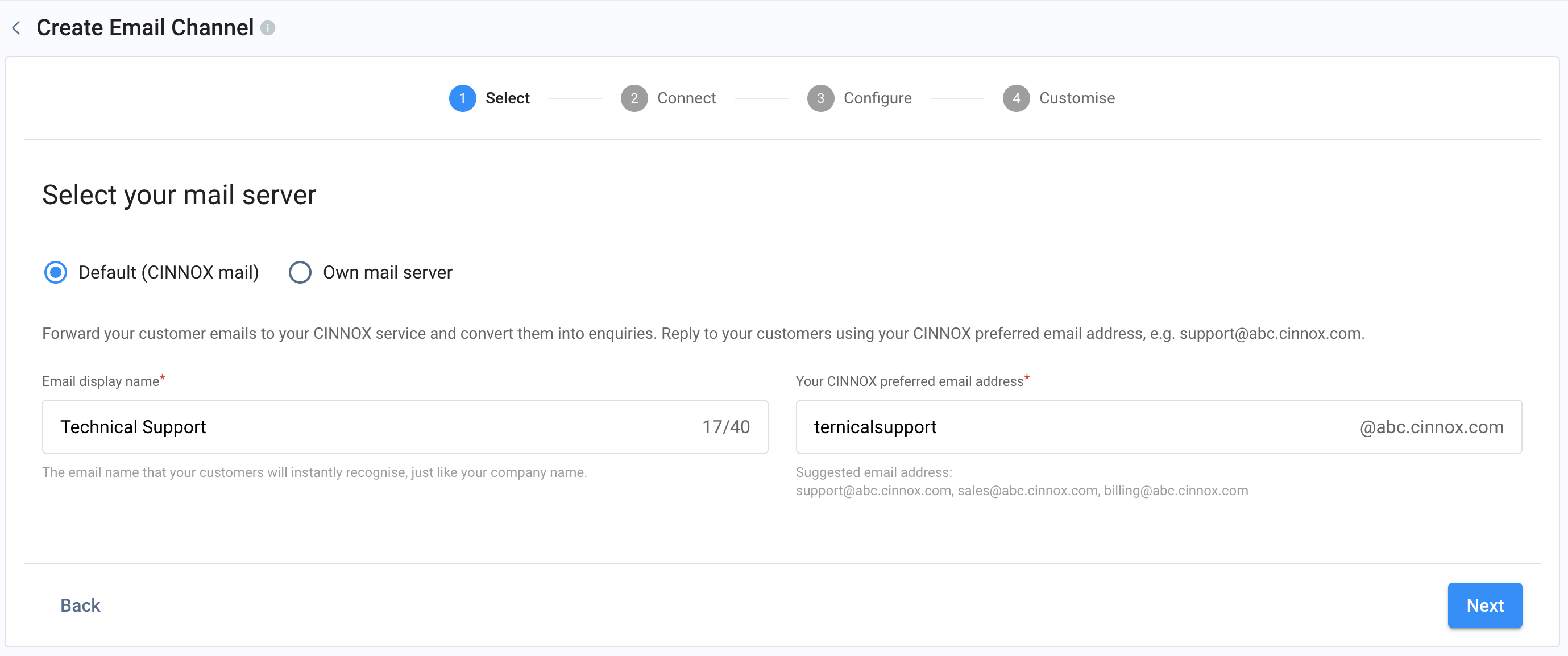
Select Email Server
- Select your email provider as Gmail.
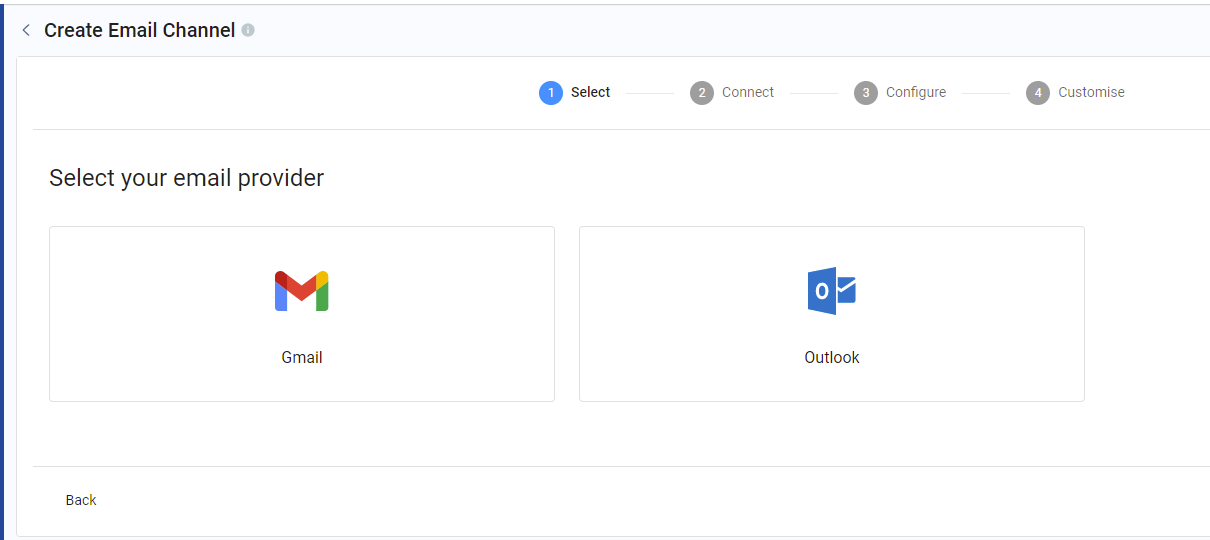
Select Email Provider
📘
IMPORTANT
- The Google account can be a free or Enterprise (Google Workspace) paid version.
Gmail / Google Workspace (CINNOX Mail Server)
- In your CINNOX Dashboard, enter your Gmail address.
- Sign in to your Gmail account to another browser.
- At the top of the Gmail page, select Settings > See all settings.
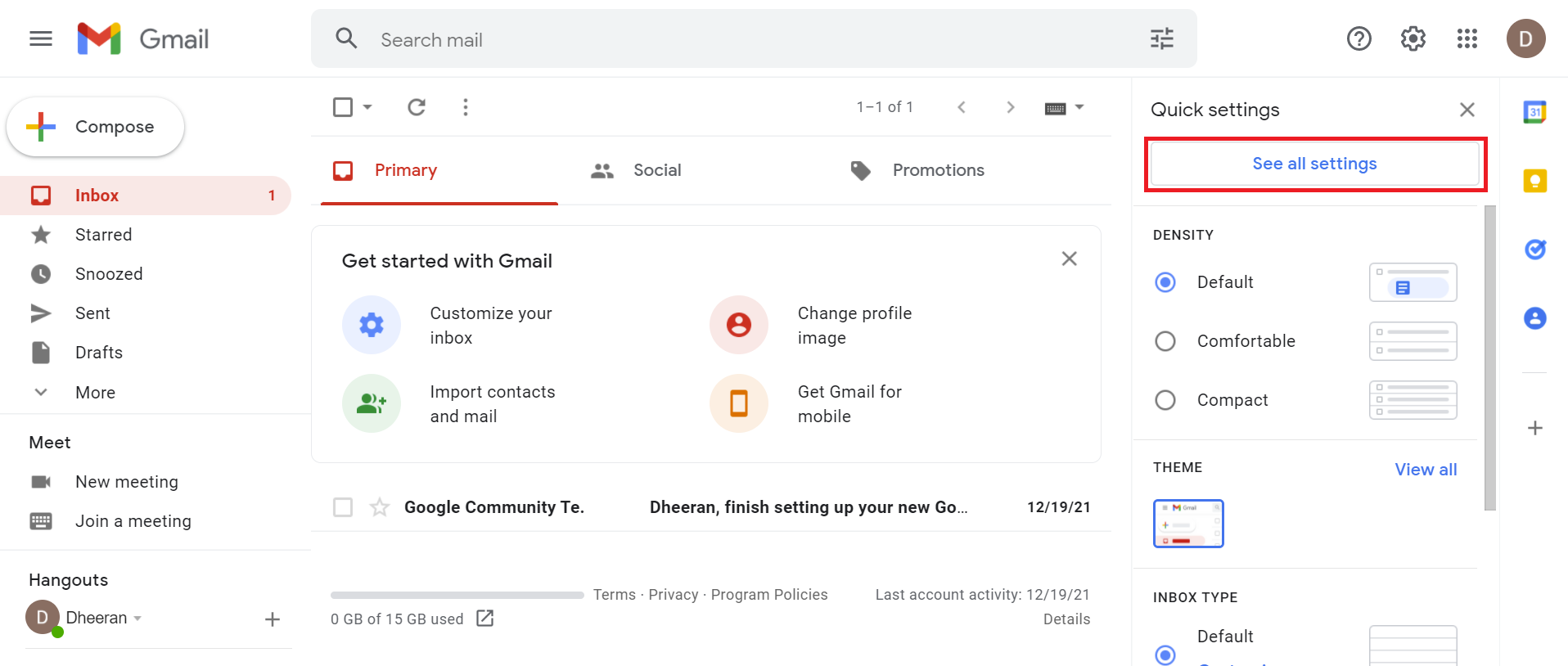
Setting - Gmail
- Select the tab Forwarding and POP/IMAP.
- Click Add a forwarding address.
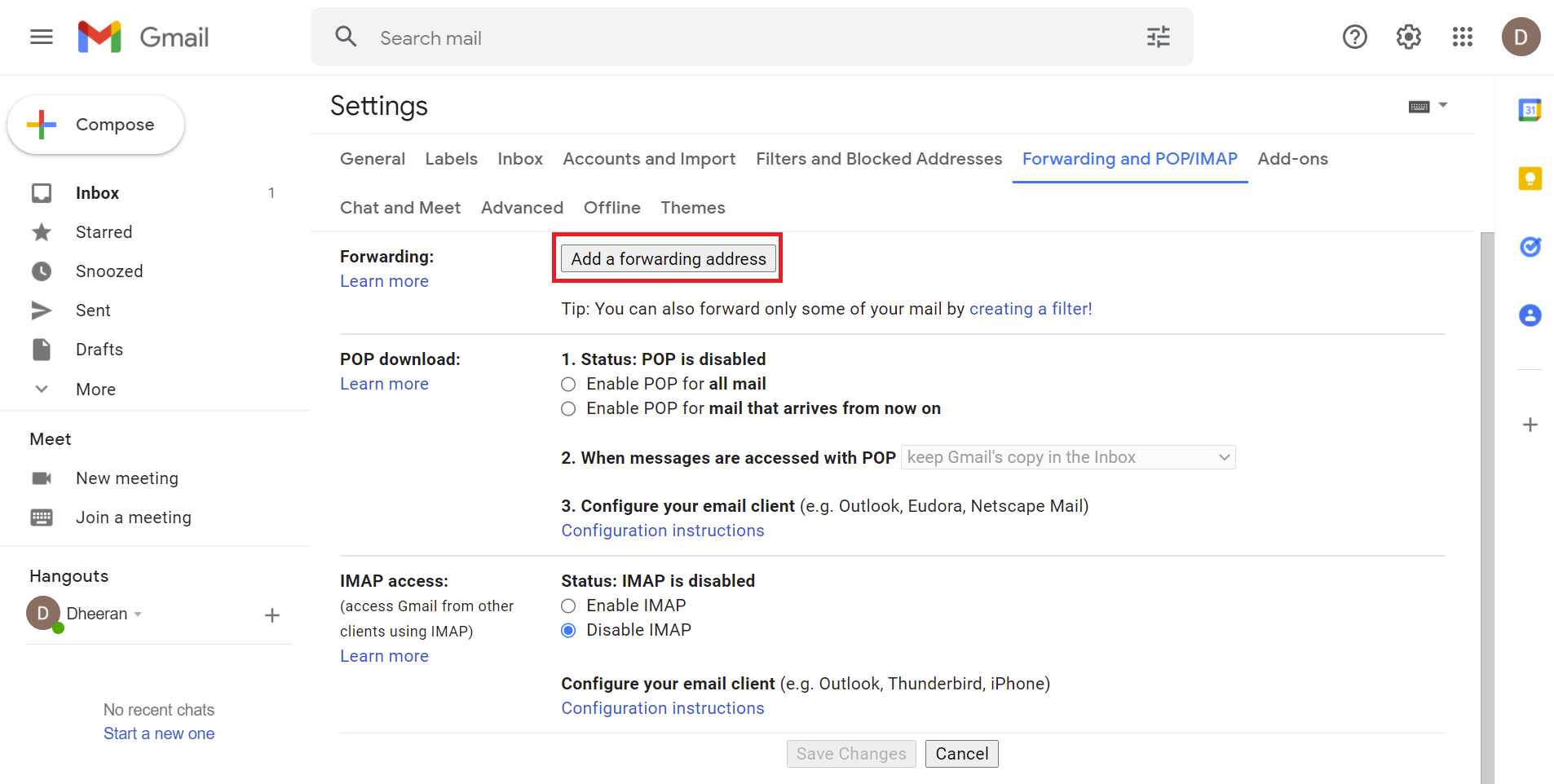
Forwarding and POP/IMAP
- In your CINNOX Dashboard, copy and paste the preferred CINNOX email address to the forwarding email address.
- Click Next.
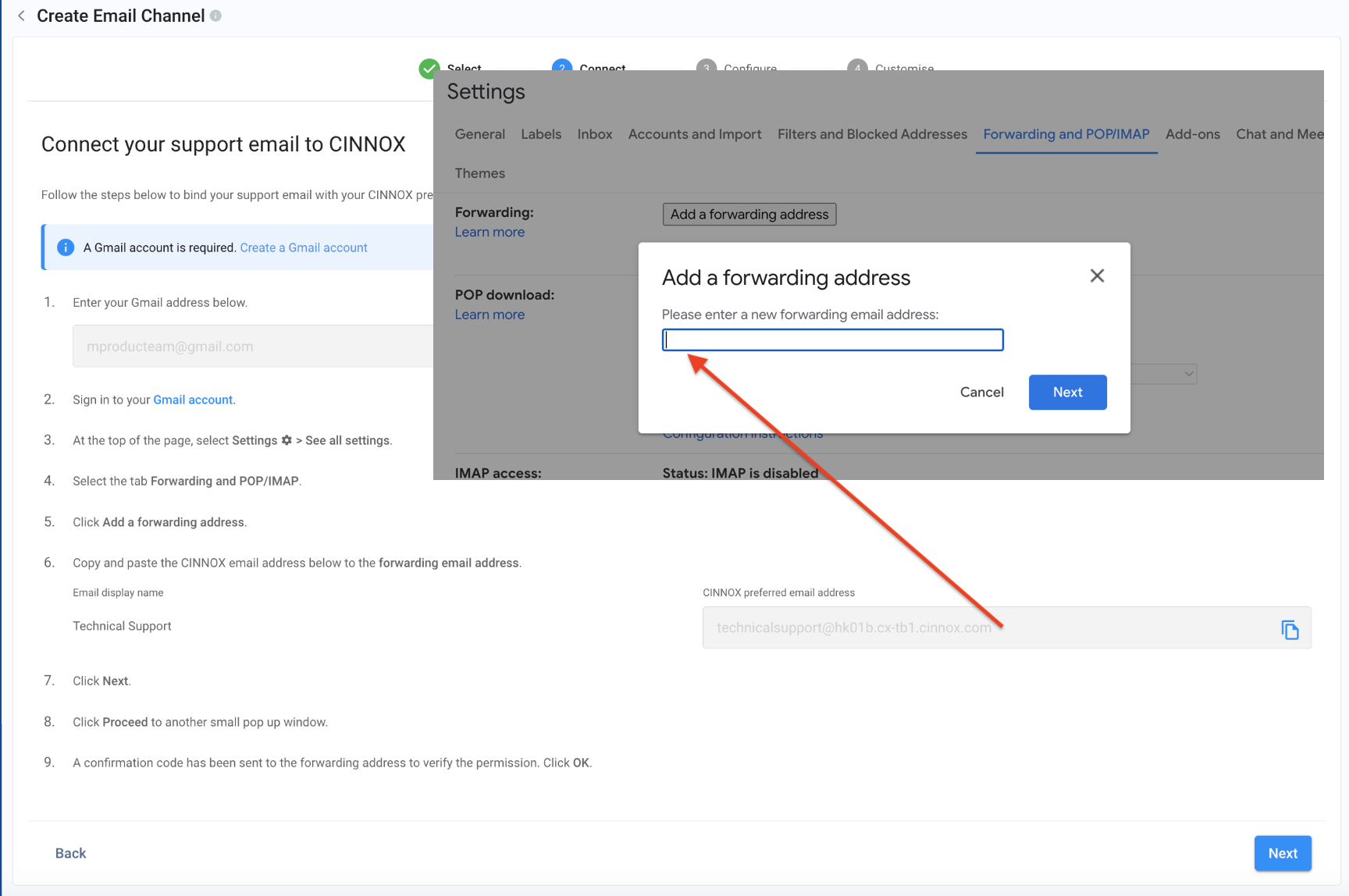
Add forwarding CINNOX Email Address
- Click Proceed to another small pop-up window.
- A confirmation code has been sent to the forwarding address (CINNOX Dashboard) to verify the permission.
- Copy and paste the confirmation code to the Gmail side.
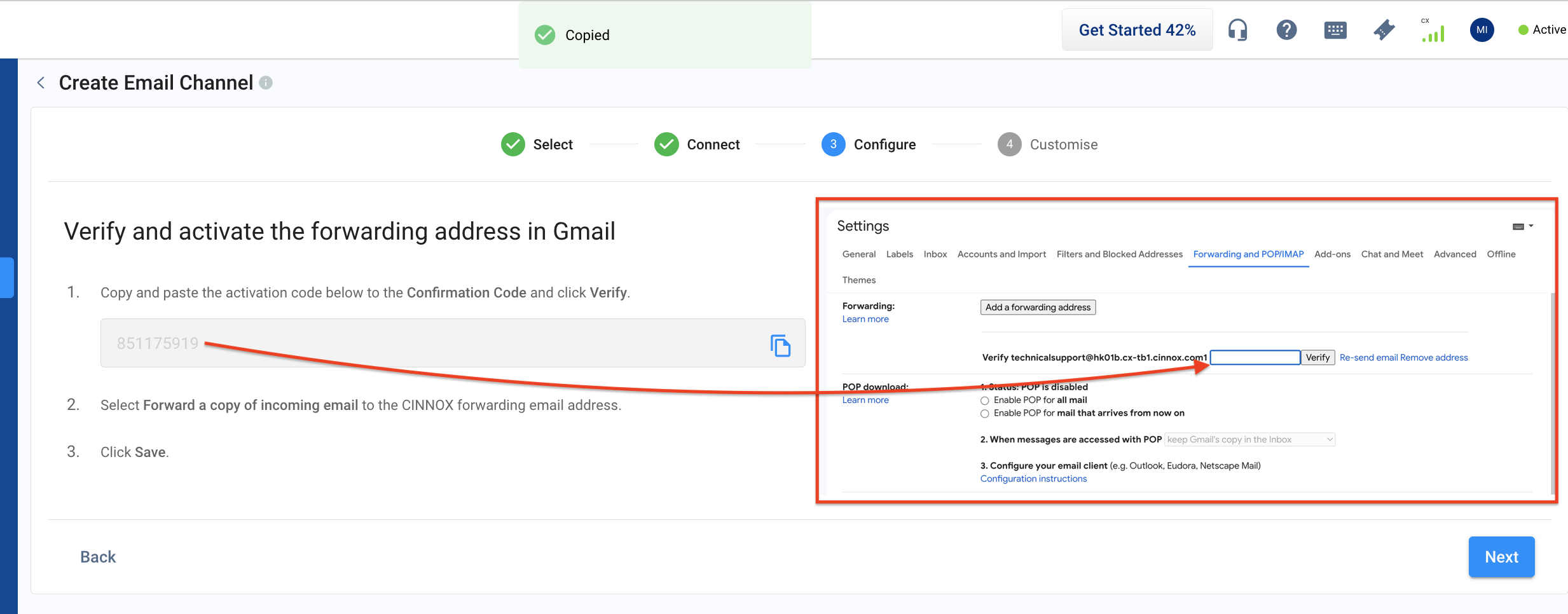
Verify and Activate Email
- Click Verify.
- In your CINNOX Dashboard, click Next to Configure Email Channel.
Own Mail Server
Choosing your own mail server would forward your customer emails to your CINNOX service and convert them into enquiries. Reply to your customers using your email domain, e.g. email@company.com, preserving your company branding.
- Enter the email display name of your CINNOX preferred email address, which your customers will instantly recognise, just like your company name.
- Enter your CINNOX preferred email address.
- Select your email provider as Google Workspace.
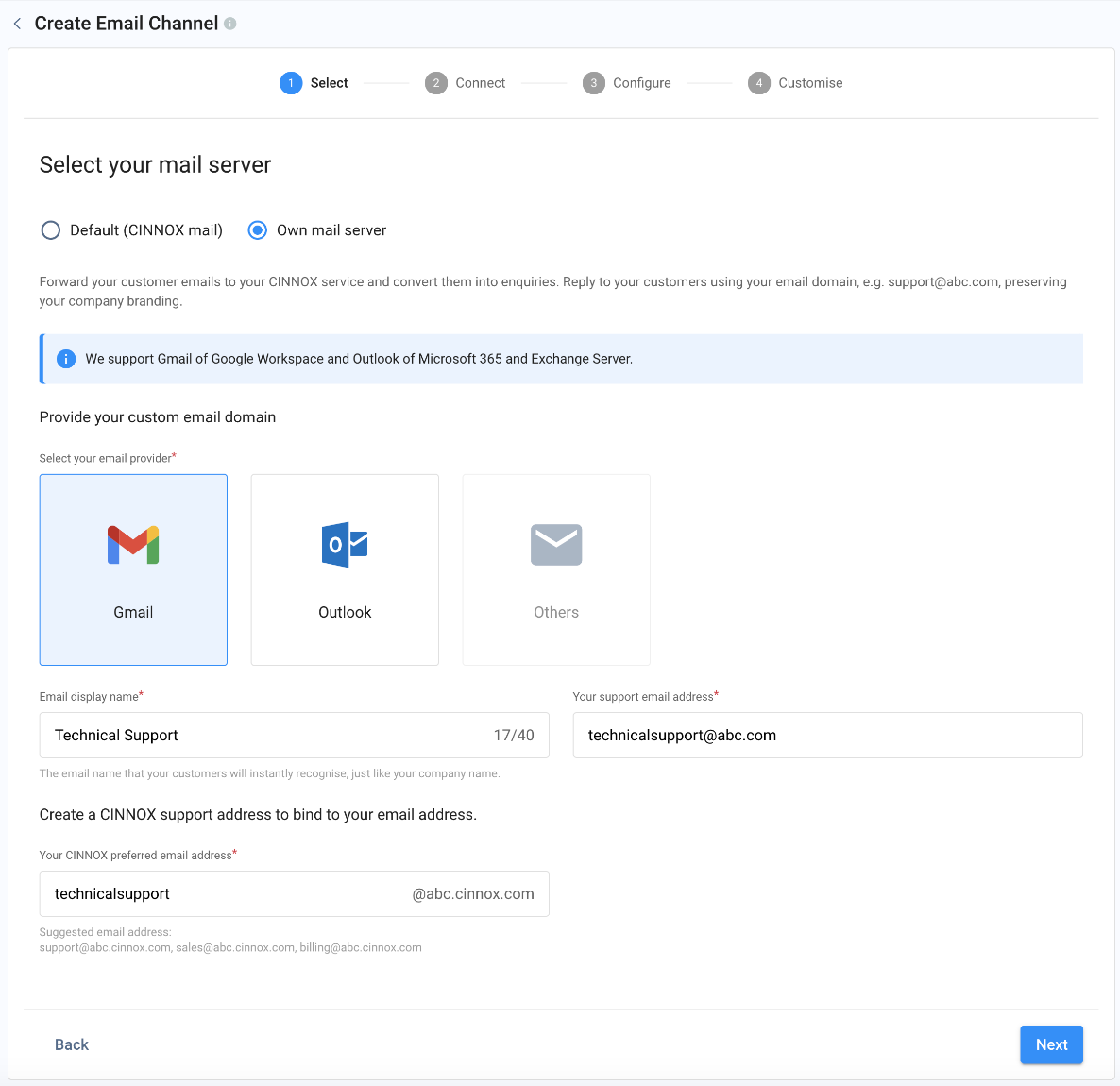
Own Mail Server
Google Workspace (Own Mail Server)
- In your CINNOX Dashboard, enter your Gmail address
- Sign in to your Google Workspace account.
- At the top of the page, select Settings > See all settings.
- Select the tab Forwarding and POP/IMAP.
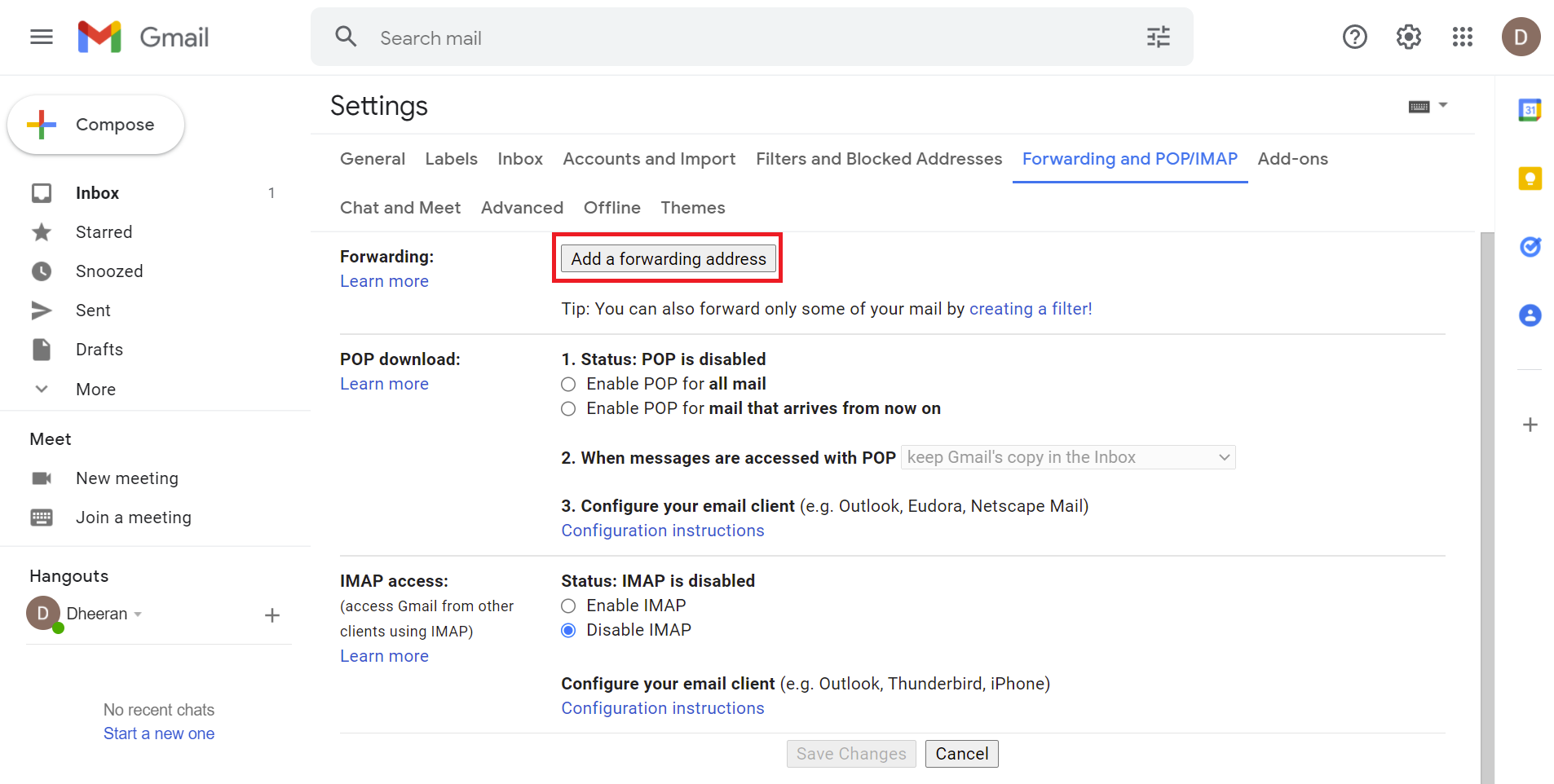
Forwarding Email Setting - Google Workspace
- Click Add a forwarding address.
- Copy and paste the preferred CINNOX email address to the forwarding email address.
- Click Next.
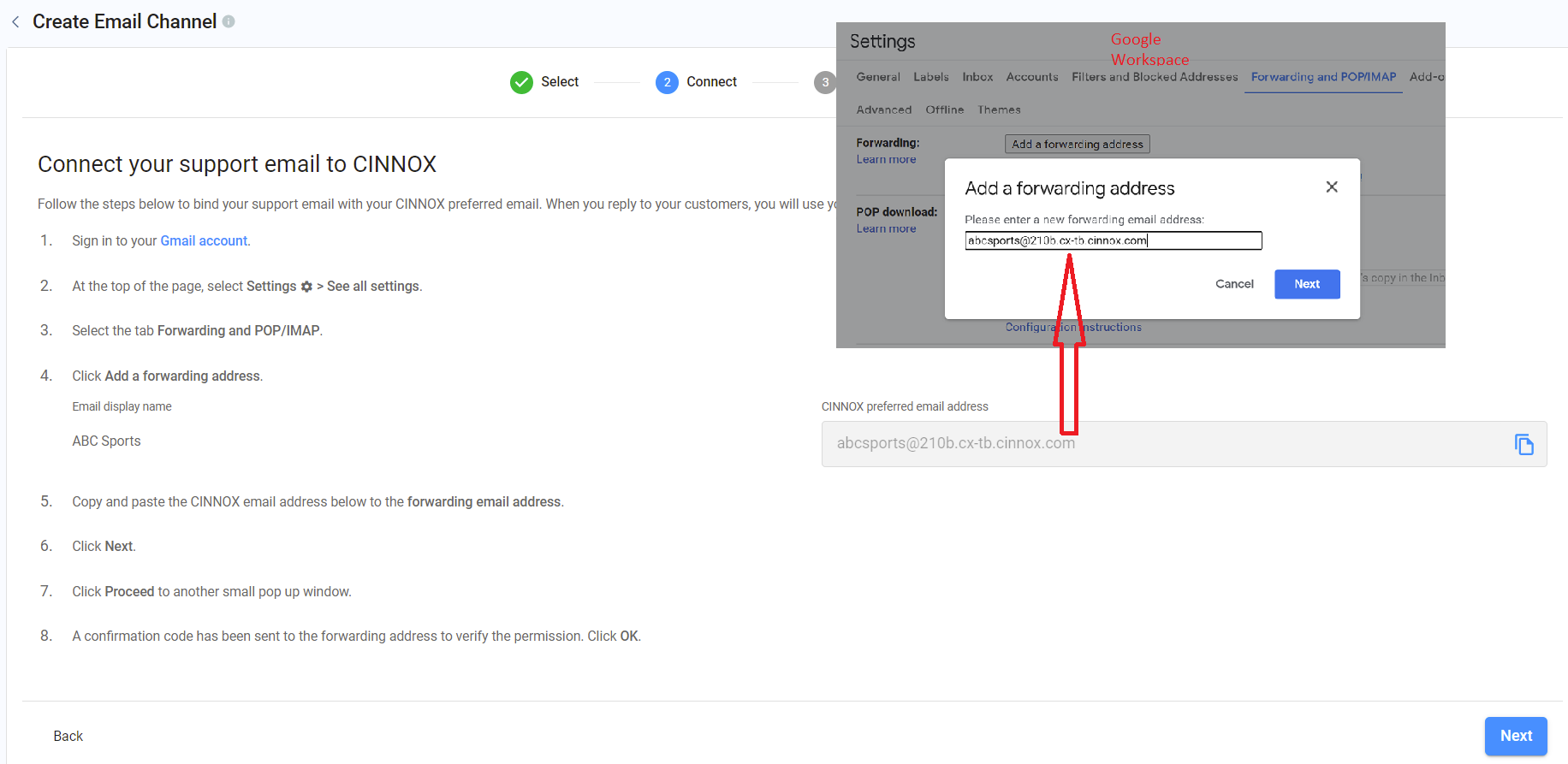
Adding Forwarding Email - Google Workspace
- Click Proceed to another small pop-up window.
- A confirmation code has been sent to the forwarding address to verify the permission.
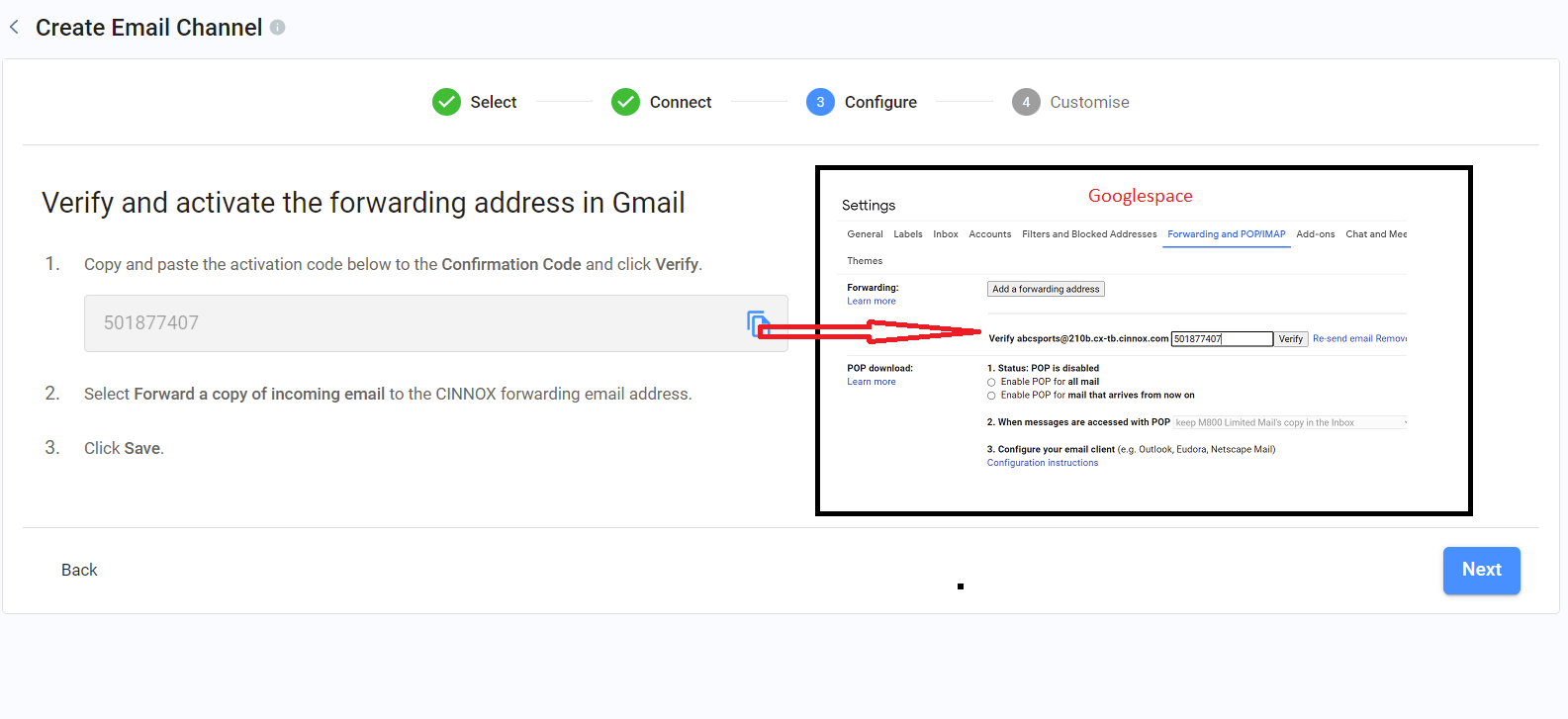
Email Verification - Google Workspace
- Click OK.
- In your CINNOX Dashboard, click Next.
🚧
Setting up email records can be complex since we unusually do it. Different domain providers might have different settings, but the purpose is the same. Contact your IT admin or email provider for help.
- Sign in to your Domain Provider account.
- Add the given TXT value and Host Name to the SPF of your Domain provider.
- Add the given CNAMEs and Host Names to the DKIM of your Domain provider.
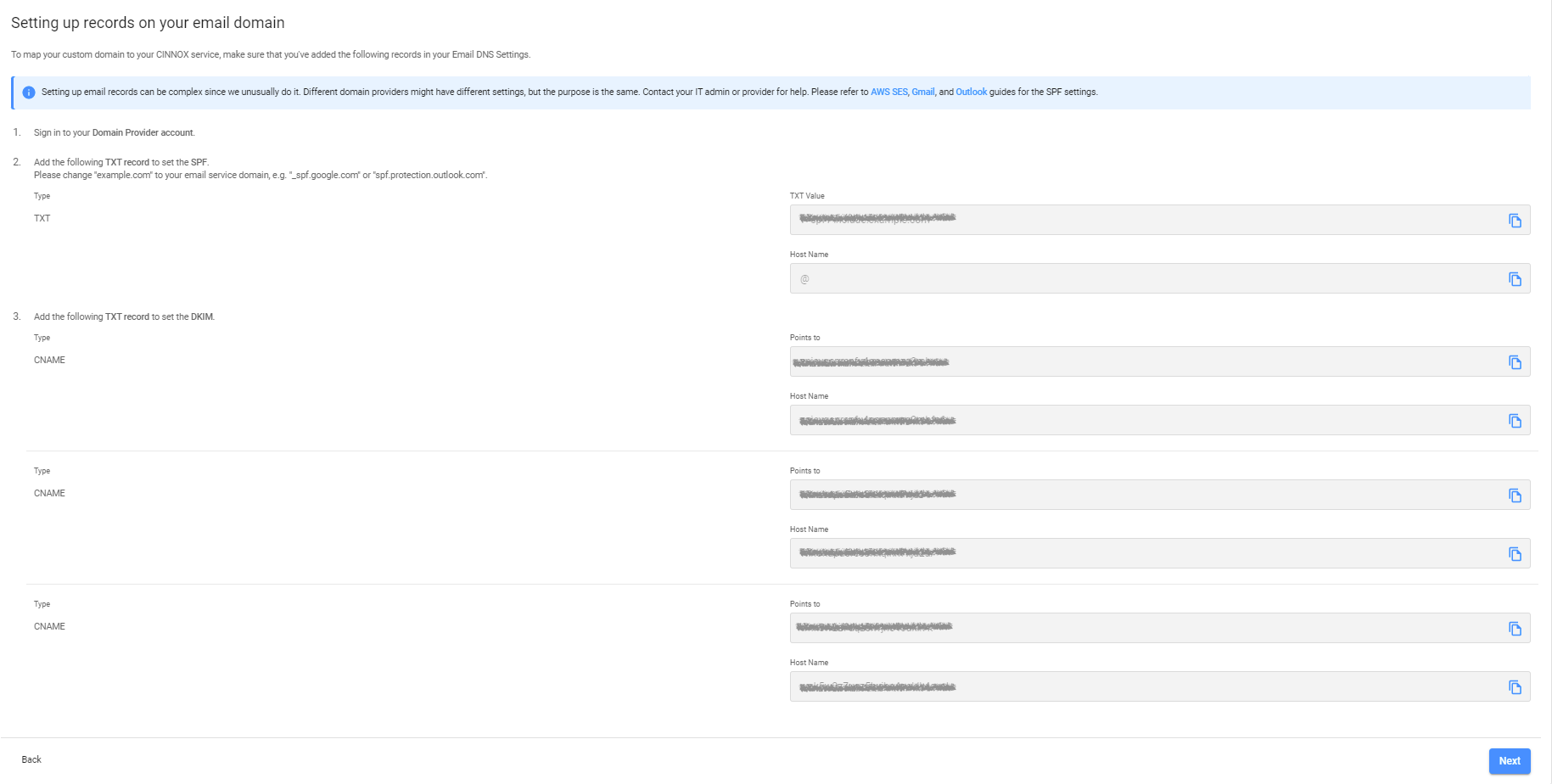
Email DNS Settings
- Click Next when the TXT records are added to your Domain Provider account.
🚧
The DNS changes take place within a few hours to 72 hours.
Receiving email enquiries in your CINNOX service takes place once the DNS changes take effect.
🚧
Updating the DNS settings is just one time. You don't need to update it again when adding your second or more email support addresses to your CINNOX.
Configure the Email Channel and Routing Settings
Channel Name
Add a name for your Email channel. The channel name can be up to 40 characters.
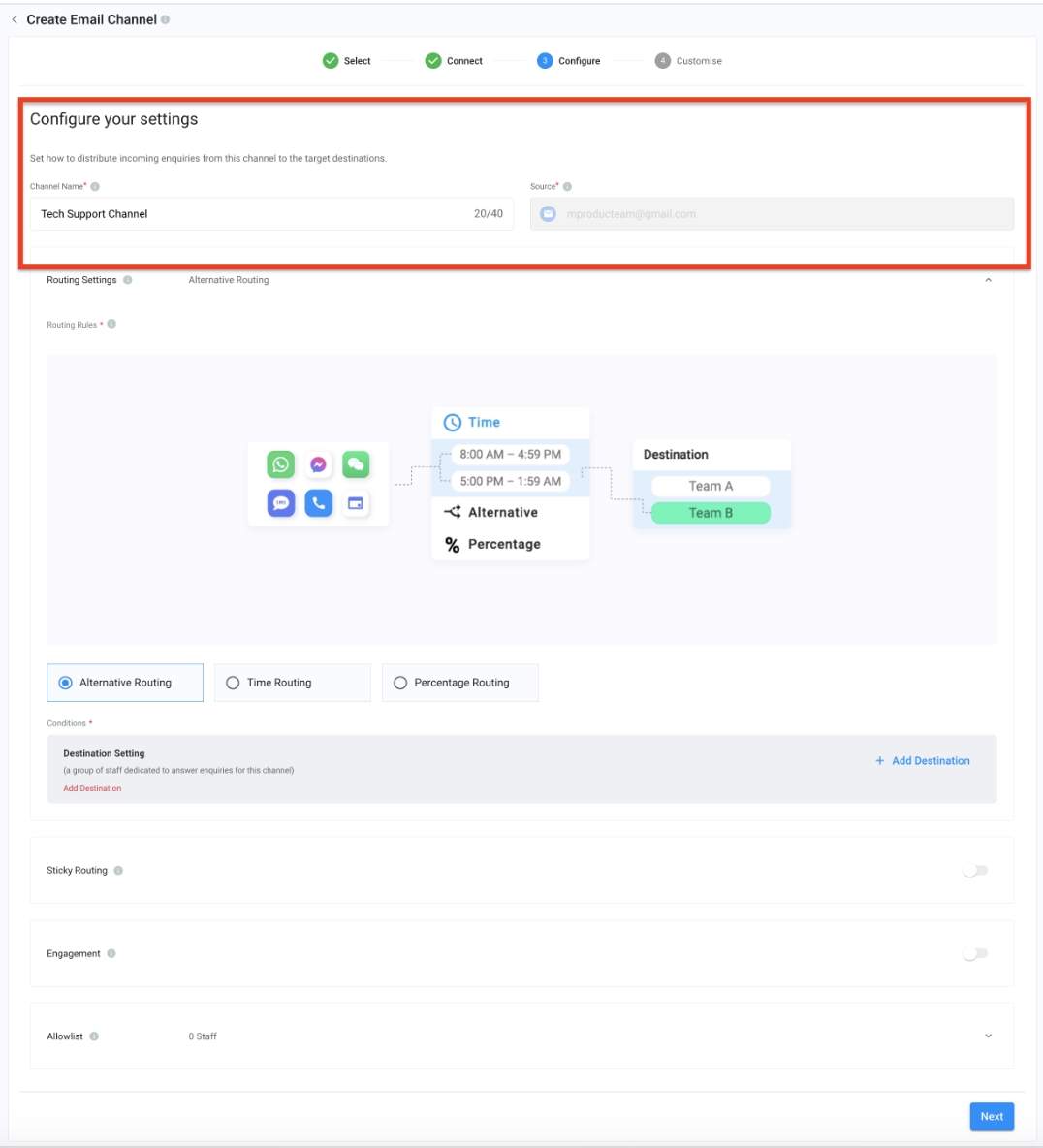
Channel Name
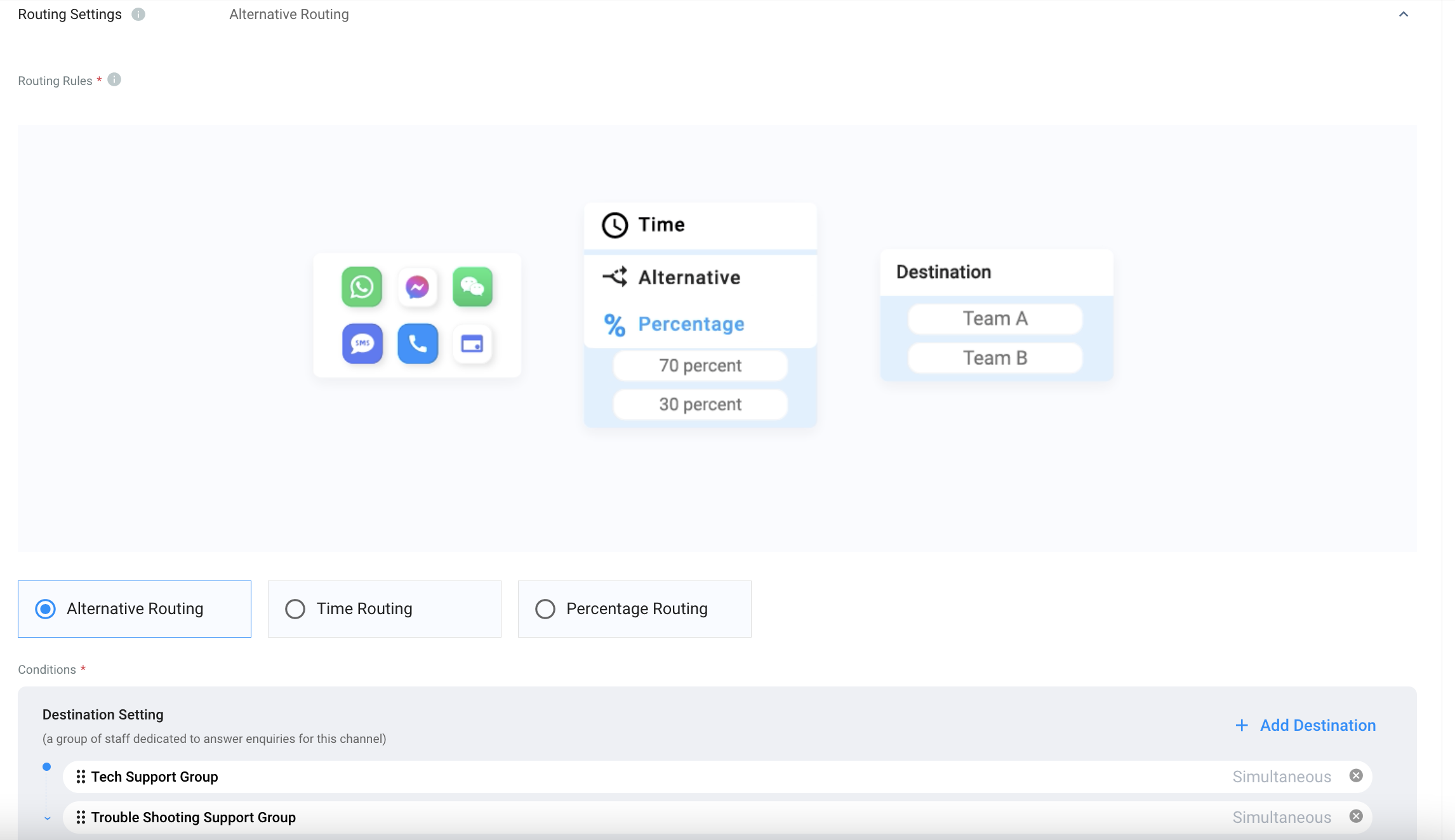
Routing Settings and Sticky Routing
Select the Routing Rule and add Destinations based on the operational support to your channel.
For more information, please check our detailed guide Alternative, Percentage, Time and Sticky Routing.
Engagement
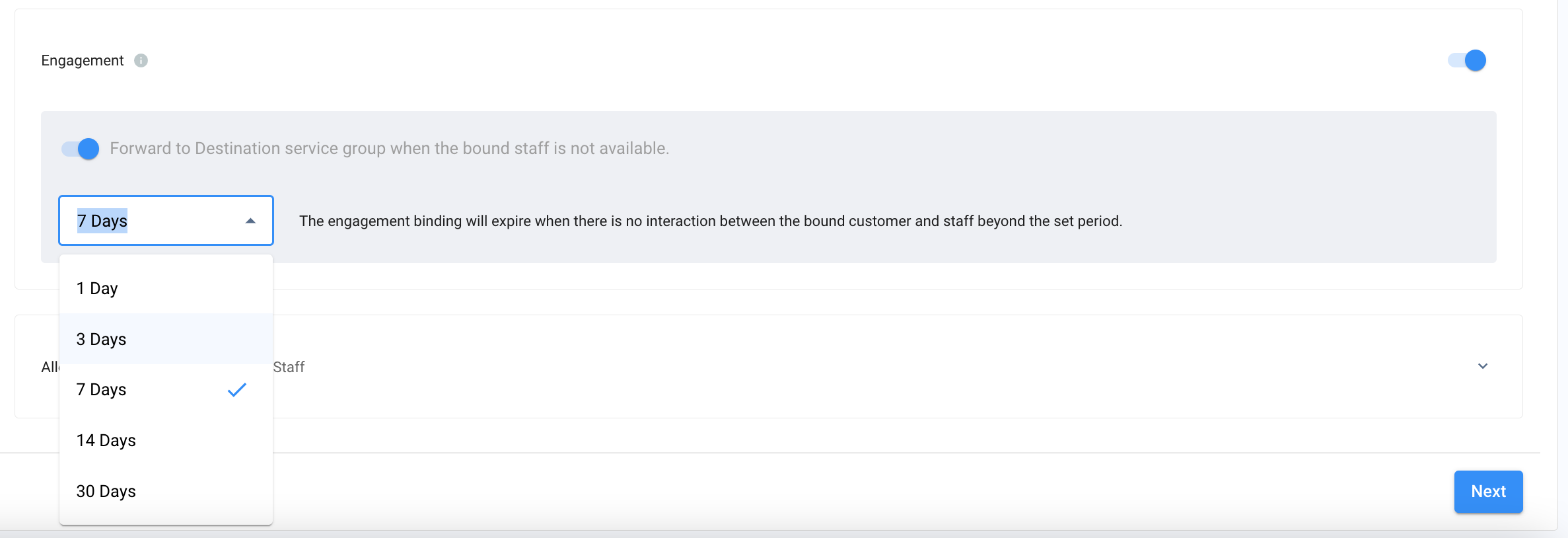
When Enabled, a binding is created between the customer and the staff who attend to an Enquiry from the customer with a CINNOX support email. If the customer replies to the support email, the email will be directly routed to the staff member who attended the customer enquiry for the first time.
- Toggle ON the switch to enable Engagement to send reply emails to your customer's enquiries.
- Toggle ON the switch to forward emails to the Destination service group when the bound staff is unavailable.
- Please choose from the drop-down list the number of days to bind the customer and the staff when there is no interaction between them.
Engagement
Allowlist
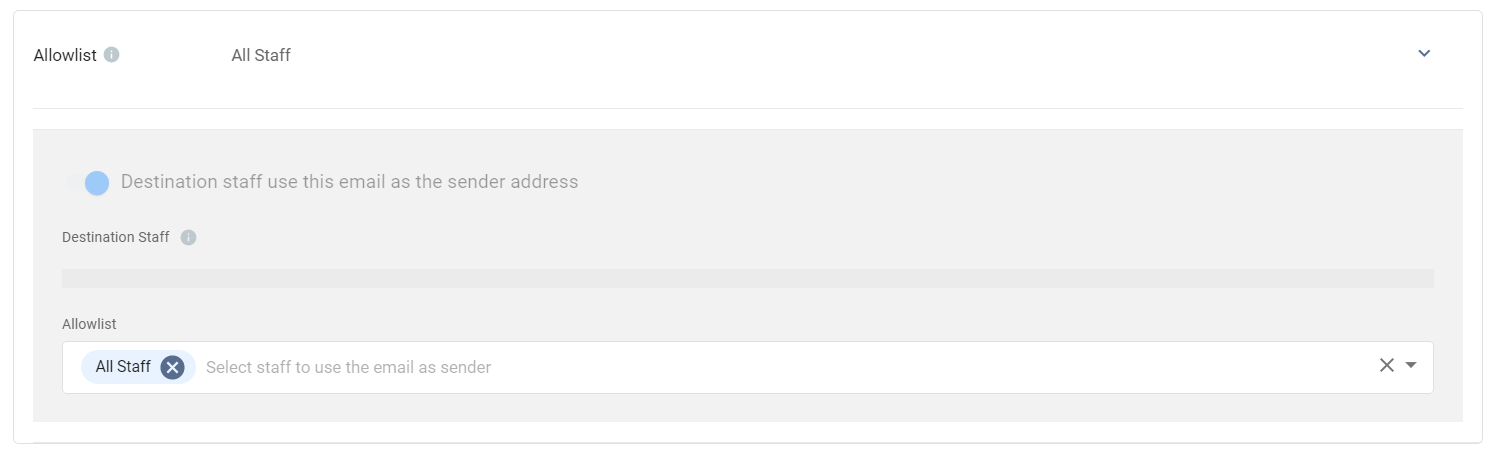
The staff in the Allowlist can send emails to the customer from the created CINNOX support email if the engaged or bound staff is unavailable or suspended.
Allowlist
CINNOX Auto-Email Message Settings
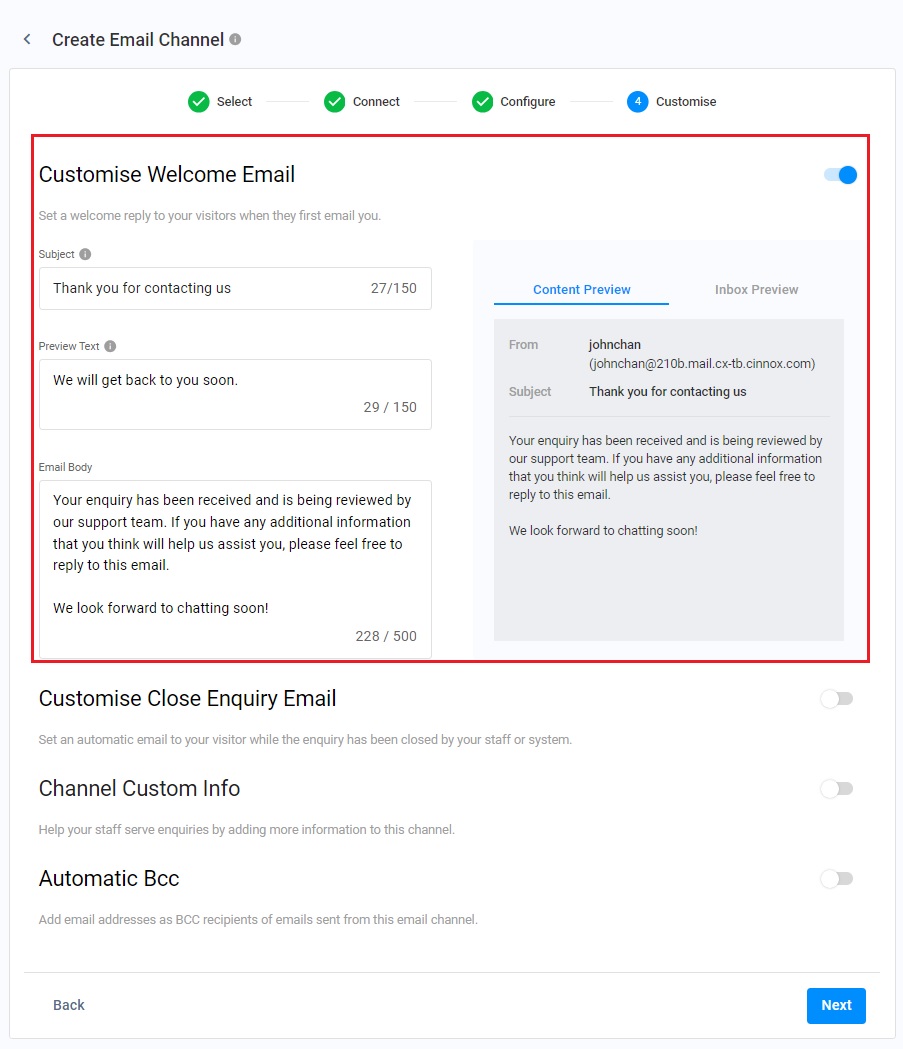
You can configure the Welcome Email, the Auto-Close Notification Email and the Close Enquiry Email to automatically reply to the customer's email.
- To enable customisation of the Welcome Email and Close Enquiry Email sections, toggle ON the switches for each.
- Click the downward arrow icon for the Custom Auto-Close Notification Email to access the customisation options.
📘
Reminder
- The limit of Welcome, Auto-Close Notification and Closed Enquiry Emails is 500 characters.
- Before configuring the Custom Auto-Close Notification Email function, enable the auto-close feature for handled enquiries without new messages. For more information, please refer to the Managing Auto Close Enquiry page.
Welcome Email
- It will be sent to the customers when they send a new email to seek your support.
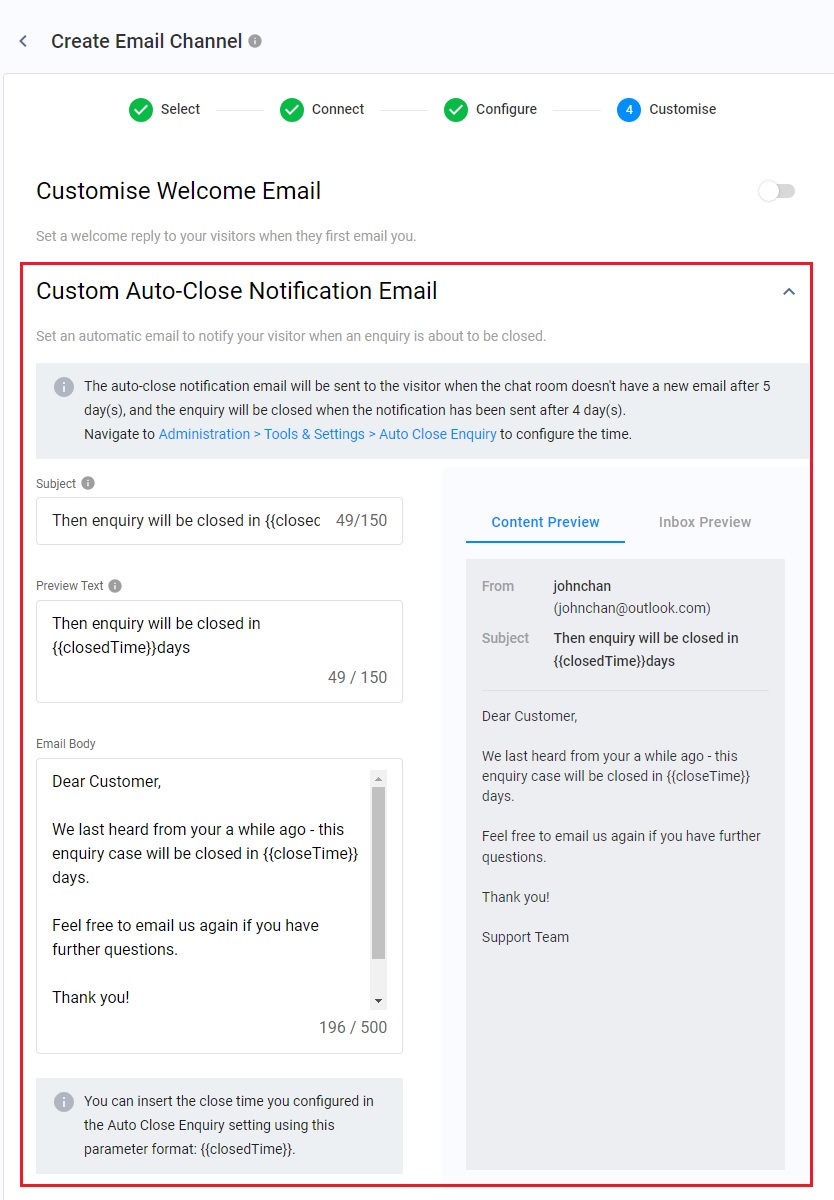
Auto-Close Notification Email
- The auto-close notification email will be sent to the visitor when the chat room doesn't have a new email after 5 days, and the enquiry will be closed when the notification has been sent after 4 days.
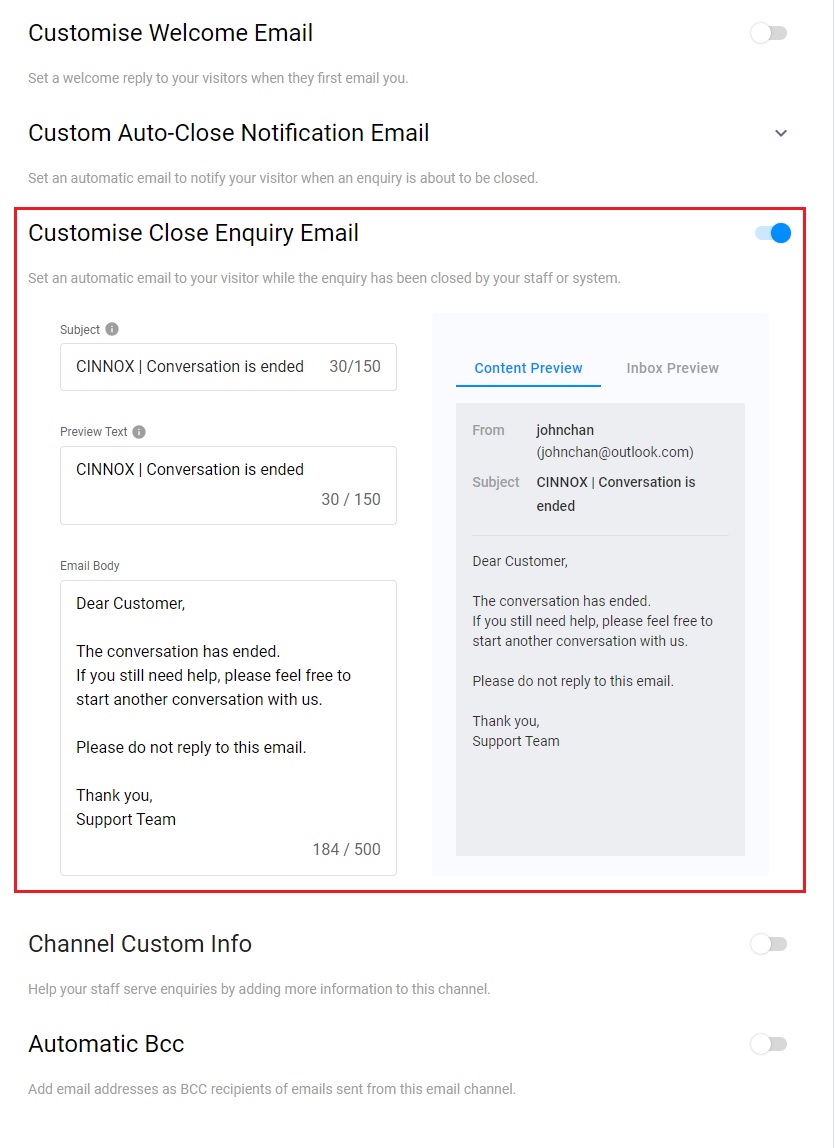
Close Enquiry Email
- It will be sent to the customers when the enquiry has been closed by the staff or the system.
-
The Welcome Email and the Close Enquiry Email have the default values and are ready to use. You are free to change them to fit your business support operation.
-
To set up the Auto-Close Notification Email, provide the content for the Subject, Preview Text, and Email Body fields. You can insert the close time you configured in the Auto Close Enquiry setting using this parameter format: {{closedTime}}.
-
You must fill out the following fields for customisation of the Welcome Email, the Closed Enquiry Email, and the Auto-Close Notification Email.
Subject
The subject line communicates precisely what your email is about so the recipient can prioritise the email's importance without opening the email.
Preview Text
The Preview Text appears next to the subject line like a sub-subject line. This occurs in the inbox; your customer can view this without opening the email.
Email Body
The body of an email message is essentially the letter inside the envelope, which is the actual text of the email. Type the elaborate message that you want to convey to your customer.
CINNOX Channel Custom Info
Channel Custom Info allows you to add your channel details that your staff would see in the call screen and chat room whenever they are serving an enquiry. The custom info can be about the standard procedure or operation details of handling the enquiry.
- Toggle on the switch to enable the Channel Custom Info.
- A blank space appears to add the required basic information about the channel.
- The customised info appears on the Channel Custom Info.
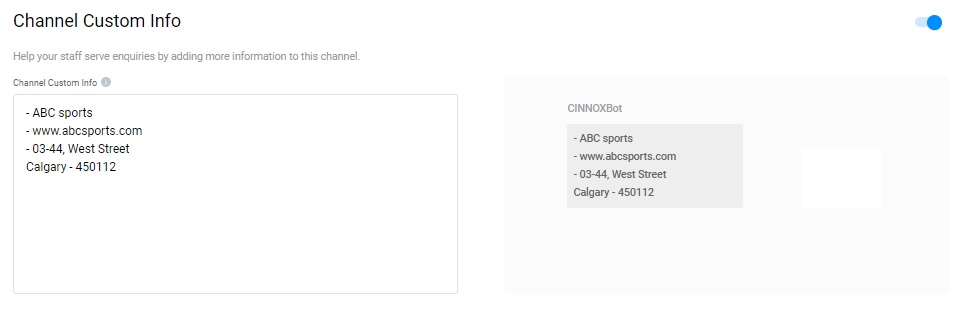
Customise the Channel Custom Info
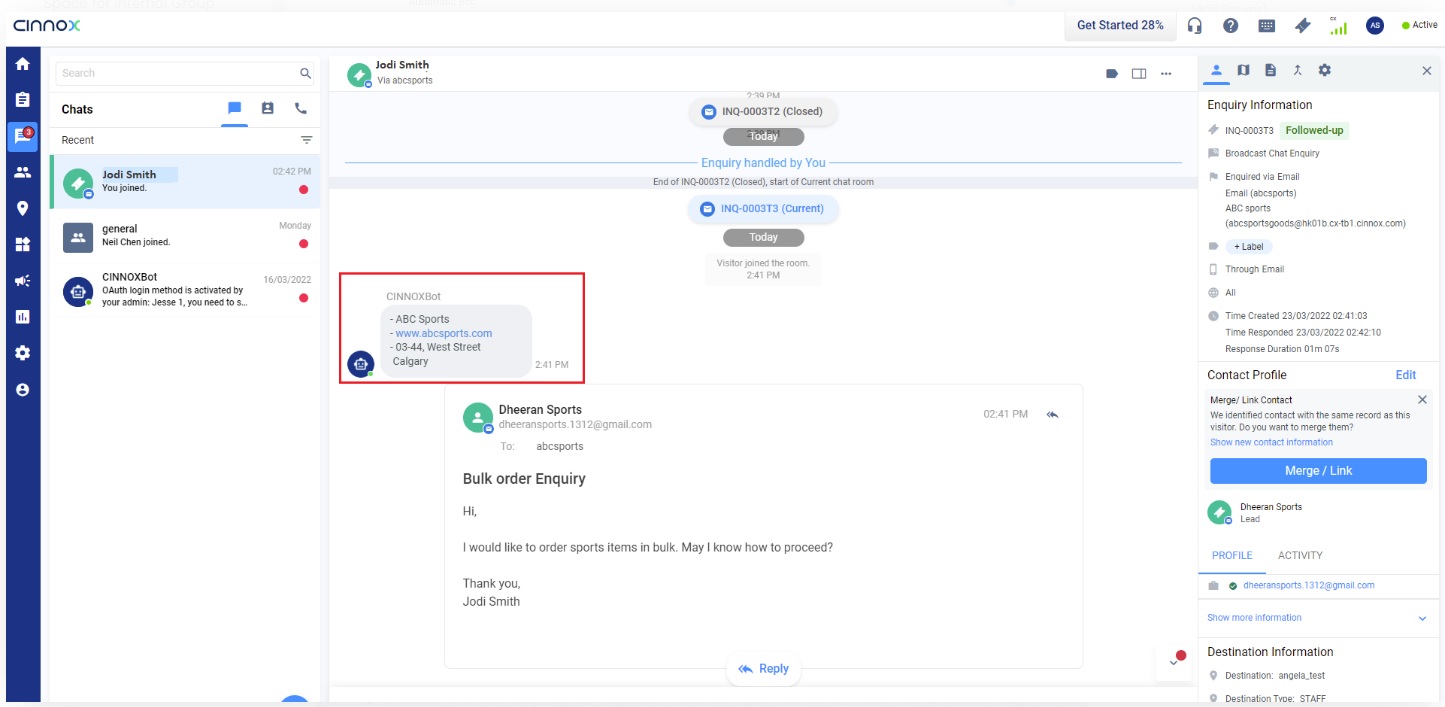
The custom info is displayed on the staff side in the chat room section for the enquiry.
📘
Notice
- Channel Custom Info can be customised per Channel.
- Channel Custom Info is only available for inbound service.
- In addition to the Directory weblink, Channel Custom Info does not apply to other agent's and campaign's weblinks.
- The system is limited to 10,000 characters; if exceeded, the chatbot message will not be sent.
- Channel Custom Info will still be displayed as chatbot messages in the room of missed enquiry.
Automatic BCC
The automatic BCC setting allows you to add your and your teammates' email addresses as BCC for every sent your staff replying to an email.
- Toggle on the switch to enable the Automatic Bcc function.
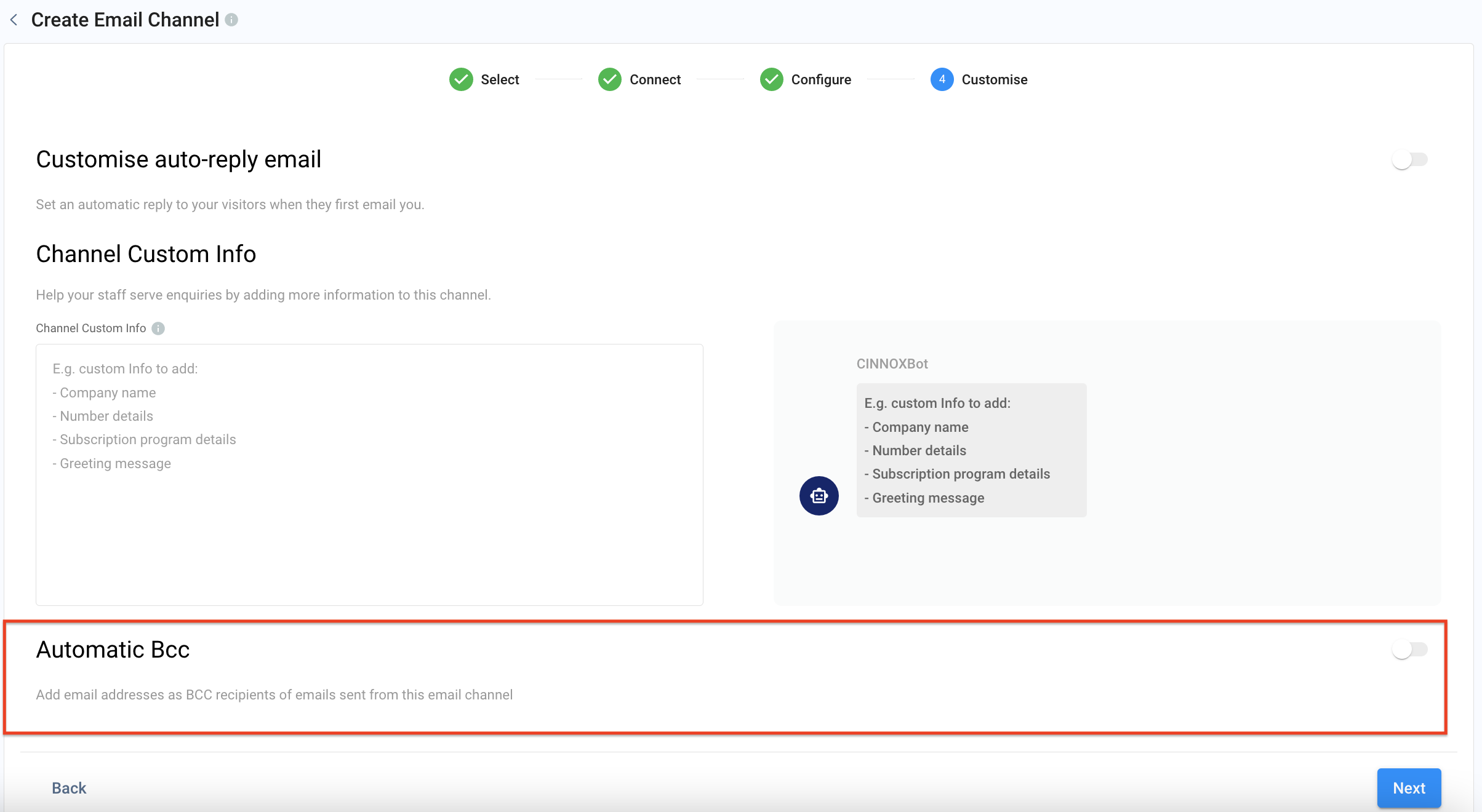
Automatic Bcc
- In the Recipient List, search for the staff name or email address to add. You can add up to 10 email addresses in the BCC.
- Click on Next to complete all configurations.
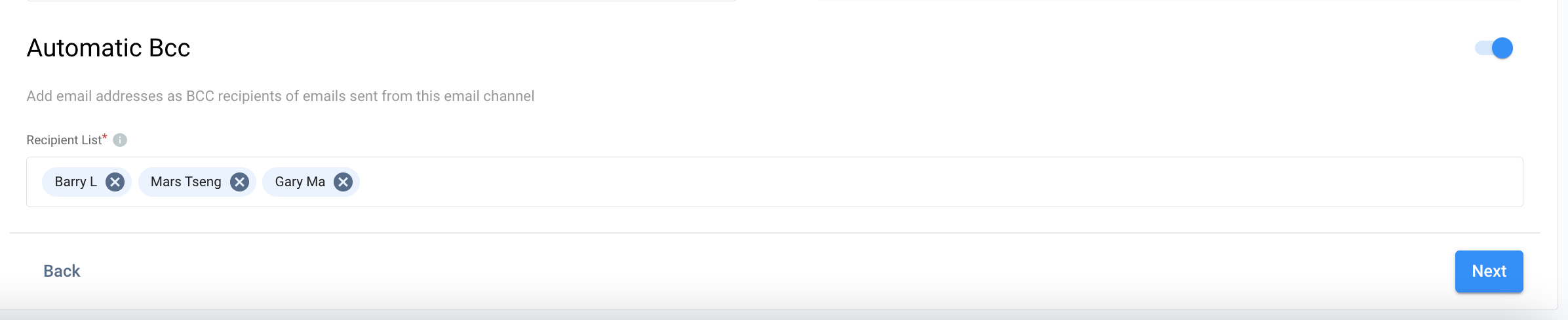
Recipient List
Serving Email Enquiry
Refer to Serving Chat Enquiries for more information on how to serve an enquiry via the Email channel.
All email enquiries and stats can be searched and viewed in your CINNOX Dashboard, Enquiry Overview and Enquiry Detail Report.
When a staff member closes an email enquiry, the visitor will get an email notification that the enquiry has been closed. Hereafter, the visitor cannot respond to the email thread; instead, they must contact the staff through a new email.
Known Limitations
📘
- Organisations may block unauthenticated emails from outside organisations or individuals for security purposes. The administrator must check and customise the anti-spam policy to receive enquiries through CINNOX.
- The visitor has to add the @cinnox.com domain to their email box safelist. Otherwise, there is a chance to receive the email enquiry responses in their Spam/Junk Email folder.
- The DNS changes occur within a few hours to 72 hours for your own mail server. New emails are received in CINNOX as email enquiries when the changes take effect.
- When binding emails with CINNOX, an error may be encountered while sending the verification email. This error may happen if the forwarding time is longer than 5 minuts. In this situation, the administrator or the staff has to wait and bind the email again later.
- When staff receives an enquiry from a new visitor, the visitor's full name will appear in the Last name column of the Enquiry Information panel. The staff can edit the first and last names before saving the contact.
- When a staff copy and paste the email enquiry from a visitor to another staff or admin workspace, it may appear as HTML codes. This is because the email body language uses an HTML body to show the original HTML code when copied.
Help and Support
Please ensure the email forwarding settings correctly bind your support email and CINNOX email address.
When using your mail server, please ensure that the DNS Records for your SPF and DKIM in your DNS settings are correctly copied and pasted.
Send a test email to your email and check if your CINNOX service account receives it.
If your CINNOX service is still not receiving emails, contact our CINNOX Support Team.