
Connecting Whatsapp
Looking for an Omnichannel Customer Service Solution?
Our competitive plans and high-quality service enable you to effortlessly handle customer enquiries and engage with them from any device, anywhere in the world. We've got you covered, from WhatsApp, WeChat, and Facebook Messenger to other social media channels, live chat and calls, local and international calls, and emails. Simplify your customer service and enhance your reach with CINNOX.
For a business frequently interacting with customers on WhatsApp, we suggest you get WhatsApp Account Business API (WABA) from one of our BSP partners to integrate with CINNOX and take advantage of supporting customers with multiple staff on one of the most popular messaging platforms and leveraging CINNOX's other powerful features for customer support, engagement, marketing and contact centre solutions.
CINNOX partnered with 360dialog as WhatsApp Business Solution Provider (BSP) and other BSPs, which you may already have to connect with CINNOX for the WhatsApp channel.
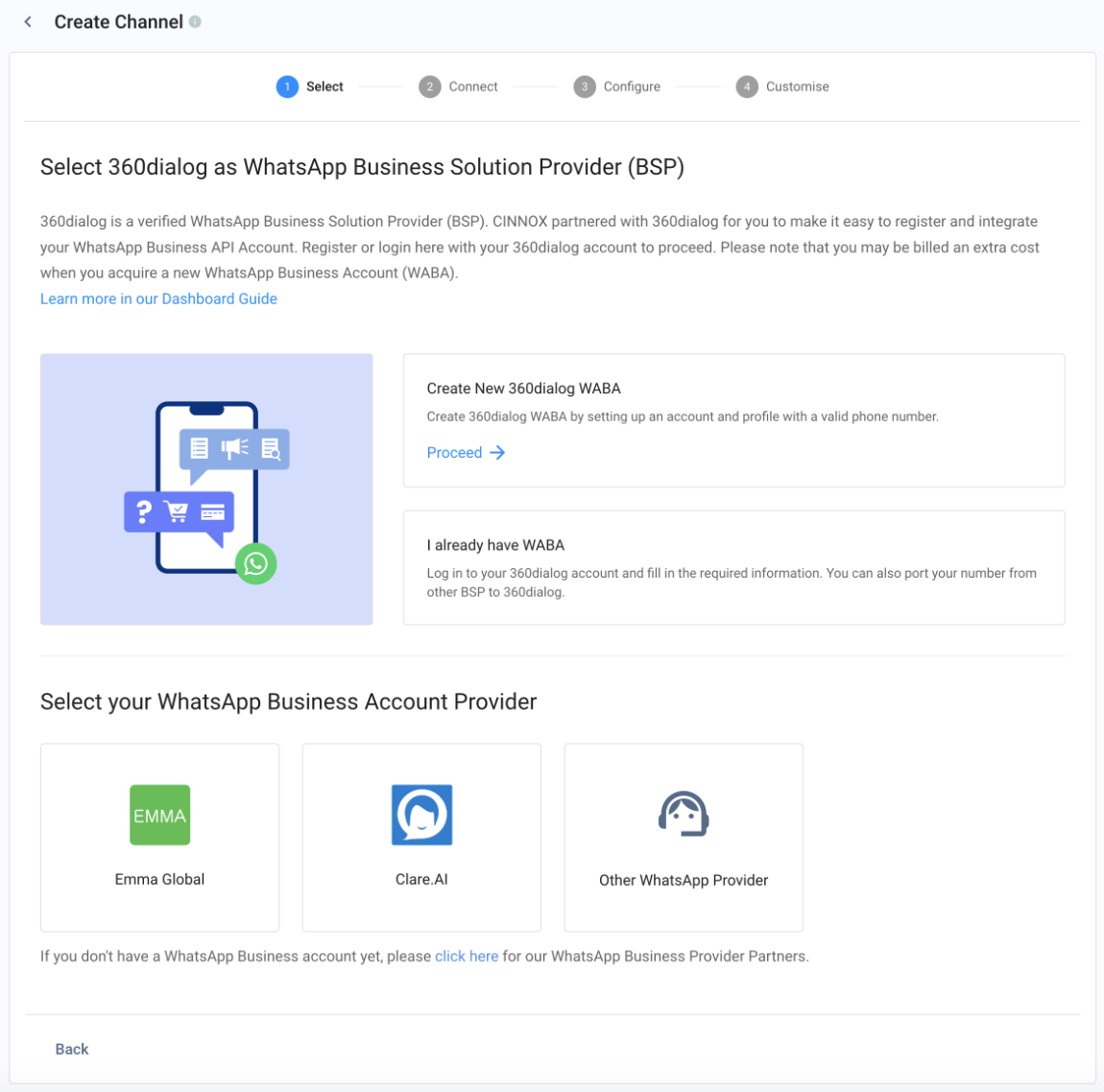
This user manual covers two parts:
- PART I: Get a WhatsApp Business API (WABA) Account
- PART II: Connect your WhatsApp Business API Account to CINNOX
If you already have a WhatsApp Business API Account, you are ready to jump right through Part II.
If your BSP is 360dialog, please refer to our 360dialog Guide.
📘
What are a WhatsApp Business account and a WhatsApp Business API account?
Learn more about WhatsApp Business and the WhatsApp Business API.
PART I - Get a WhatsApp Business API (WABA) Account
Step 1 - Choose your WhatsApp Business Solution Provider (BSP)
- If you don't have a WABA account, you can directly register a WABA from 360dialog BSP on CINNOX. Please refer to our 360dialog User Manual on creating a new WABA account.
- Also, CINNOX has partnered with the following WhatsApp Business Solution Provider (BSP).
| Partner Name | Website |
|---|---|
| 360dialog | 360dialog or www.360dialog.com |
| Clare.AI | www.clare.ai or click Register Now |
| Emma Global | www.emma.hk |
| Or you can find another WhatsApp BSP | Please refer to WhatsApp Business details |
Step 2 - Prepare and apply for the Business API
You must prepare the following information for the partner and apply for the Business API with the BSP.
| Item | Description | Remarks |
|---|---|---|
| WhatsApp Number | Prepare a phone number that has never been registered to any WhatsApp services. Or an existing one, but please delete any other WhatsApp services before registration. The phone number is non-transferable - it cannot be used on other WhatsApp services (such as WhatsApp for Personal App and Business App) after being approved for Business API. | We highly suggest using the CINNOX Local Number as your WhatsApp Business API phone number. You can also use the local number as your Virtual Number so that visitors can directly dial the number and receive the calls as enquiries in CINNOX. |
| Verified Meta Business Account | Meta Business Manager ID: Check your Meta Business Manager ID under the Business Settings. Please click here for more details on how to verify your business. Business Display Name: Choose a display name that will suit your business and will be verified by Meta. The display name is not allowed to change after registration. For the complete guidelines about display names, please click here. |
Step 3 - List your WhatsApp Business API details
CINNOX follows the standard APIs provided by Meta.
Any provider with direct integration to Meta should be compatible with CINNOX.
The following information is required to connect your WhatsApp Business API to CINNOX when you choose either Emma Global or Clare.AI as your provider:
| Item | Description | Example |
|---|---|---|
| Provider Name | Required. This is for CINNOX to comply with the Terms and Conditions of Meta. | Your provider's name |
| WhatsApp Number | Required. This is the number you subscribed to for the WhatsApp Business API. | xxxxxxxxxx |
| Endpoints URL | Required. This is the WhatsApp Server your provider provided. | "https://whatsapp-xxx.supplier.domain" or "https://123.123.123.123:8888" The domain name is recommended for higher security protection. |
| WhatsApp Server User Name | Required. This is the User Name of your WhatsApp Server. | admin The user name should come from your provider. |
| WhatsApp Server User Password | Required. This is the User Password of your WhatsApp Server User Name. | xxxxxxxxxx The user password should come from your provider. |
| Namespace | Optional. This is a Namespace that your provider used. | xxxxxxxx_xxxx_xxxx_xxxx_xxxxxxxxxxxx |
Clare.AI
Once your application is approved, Clare.AI will email your WhatsApp Business API details.
Emma Global
Once your application is approved, Emma Global will email your WhatsApp Business API details.
PART II: Connect your WABA Account to CINNOX
Step 1 - Create WhatsApp Channel:
- Log in to your CINNOX Web Dashboard.
- Go to Administration > Channels > Social from the navigation menu.
- Click the Connect Social button in the top-right corner of the Social page.
- Click Connect on WhatsApp.
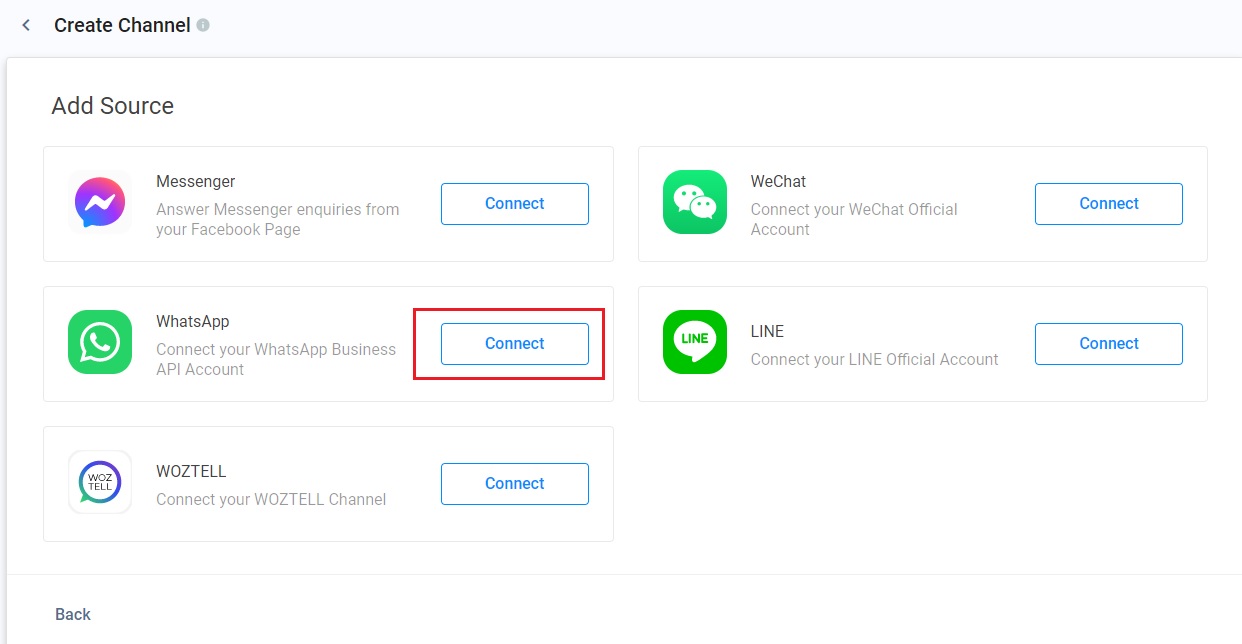
Creating WhatsApp channel
Step 2 - Select your WhatsApp Provider
-
Click + Connect your WhatsApp Business Account
-
Select your WhatsApp Business Account Provider:
-
If you use Another WhatsApp Provider, please contact us through our Live Support web link.
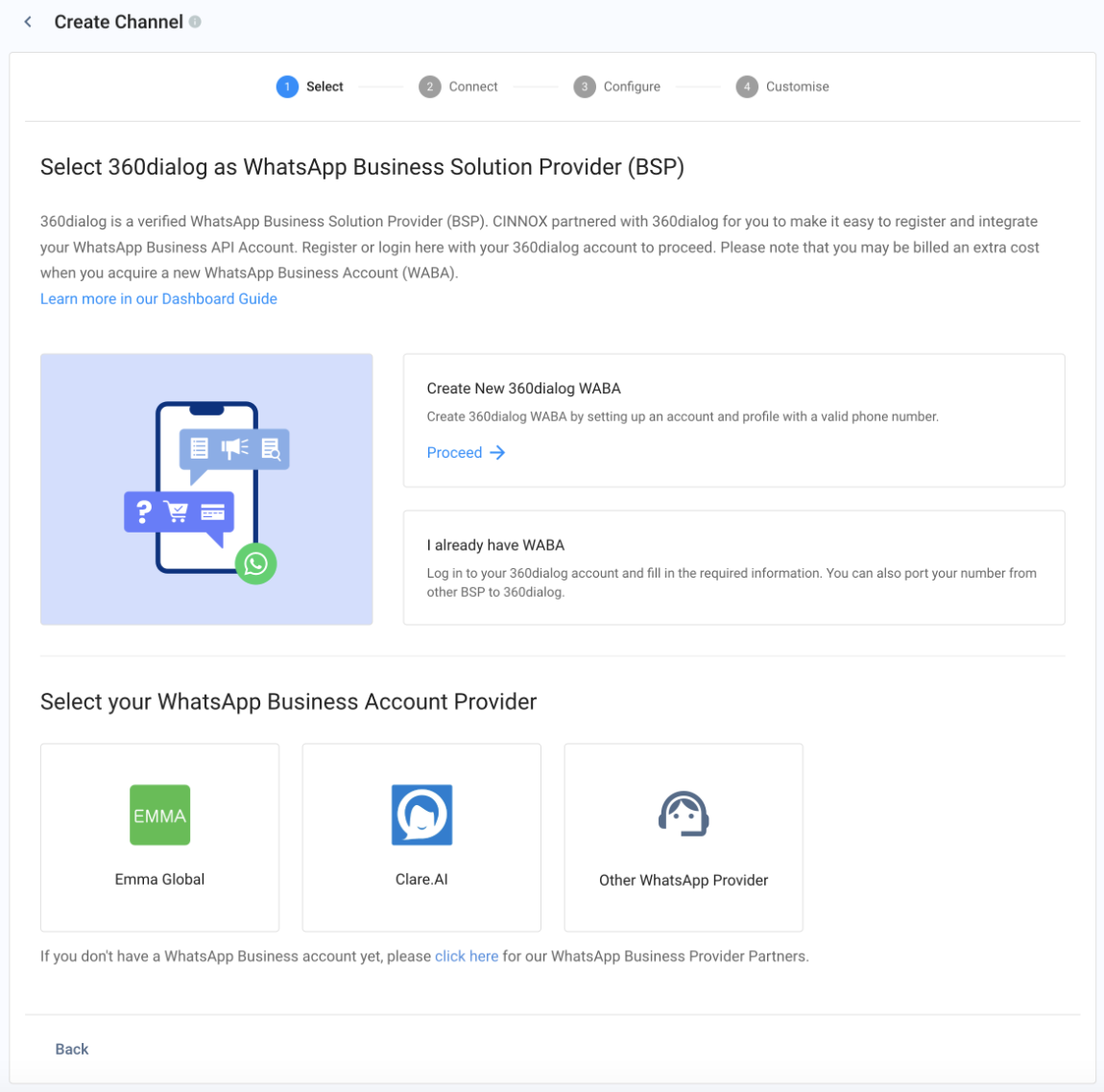
Selecting WhatsApp Provider
📘
The guide below will show you how to create a WhatsApp Channel with Emma Global, Clare.AI or anther WhatsApp BSP. For 360dialog, please refer to our 360dialog Guide.
Step 3 - Connect your WABA
Source Details
- Source name: Input your WhatsApp Display Name registered as your Source Name.
- WhatsApp Number: Input the phone number registered as your Whatsapp Business API
Please provide the information below from your BSP (Emma Global, Clare.AI or another BSP).
- Endpoint URL
- User Name
- User Password
- Namespace
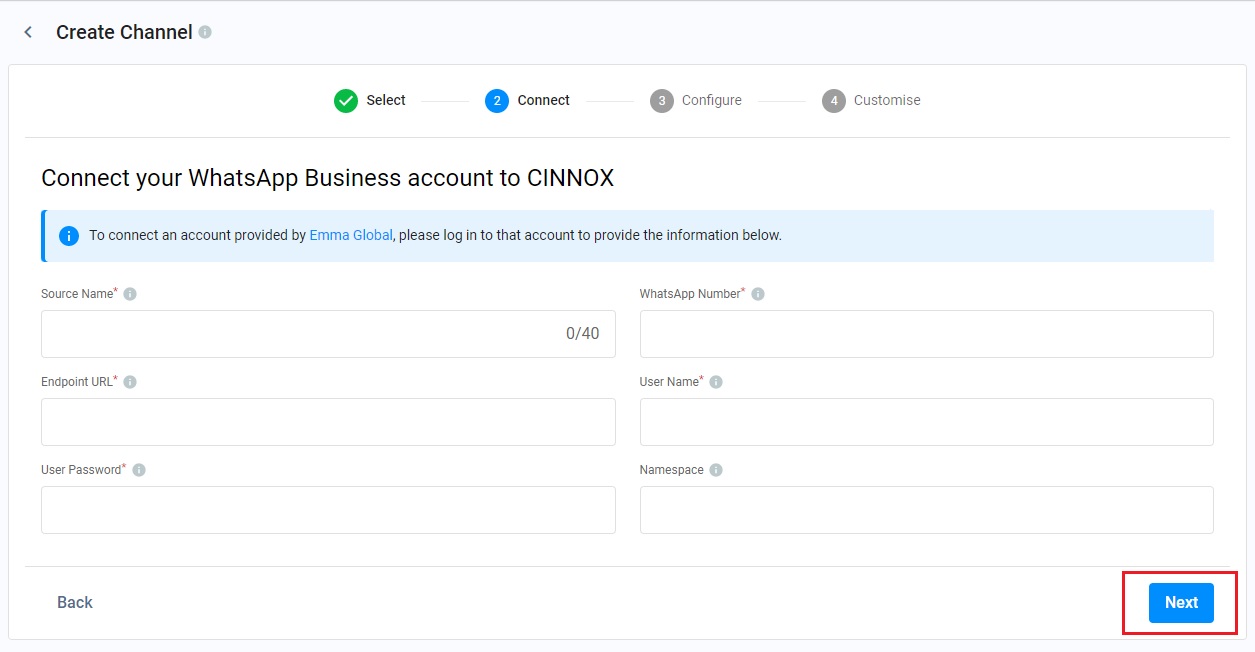
Source Details
Step 4 - Configure the CINNOX Channel and Routing Setting
Channel Name
- Add a name as your WhatsApp channel name. The channel name can be up to 40 characters.
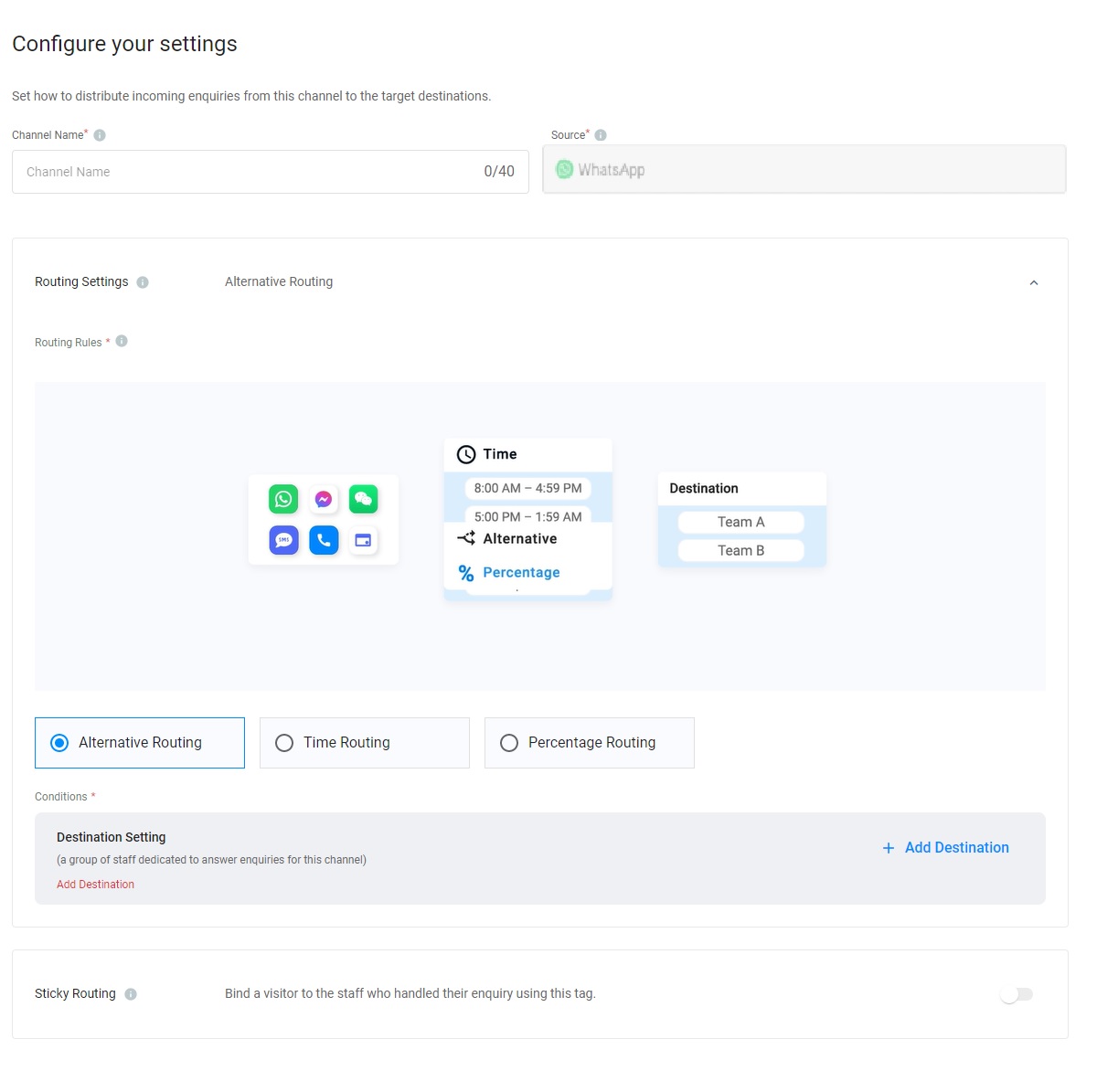
Channel Name
Routing Settings
Select the Routing Rule and add Destinations based on the operational support to your channel.
For more information, please check our detailed guide Alternative, Percentage, Time and Sticky Routing.
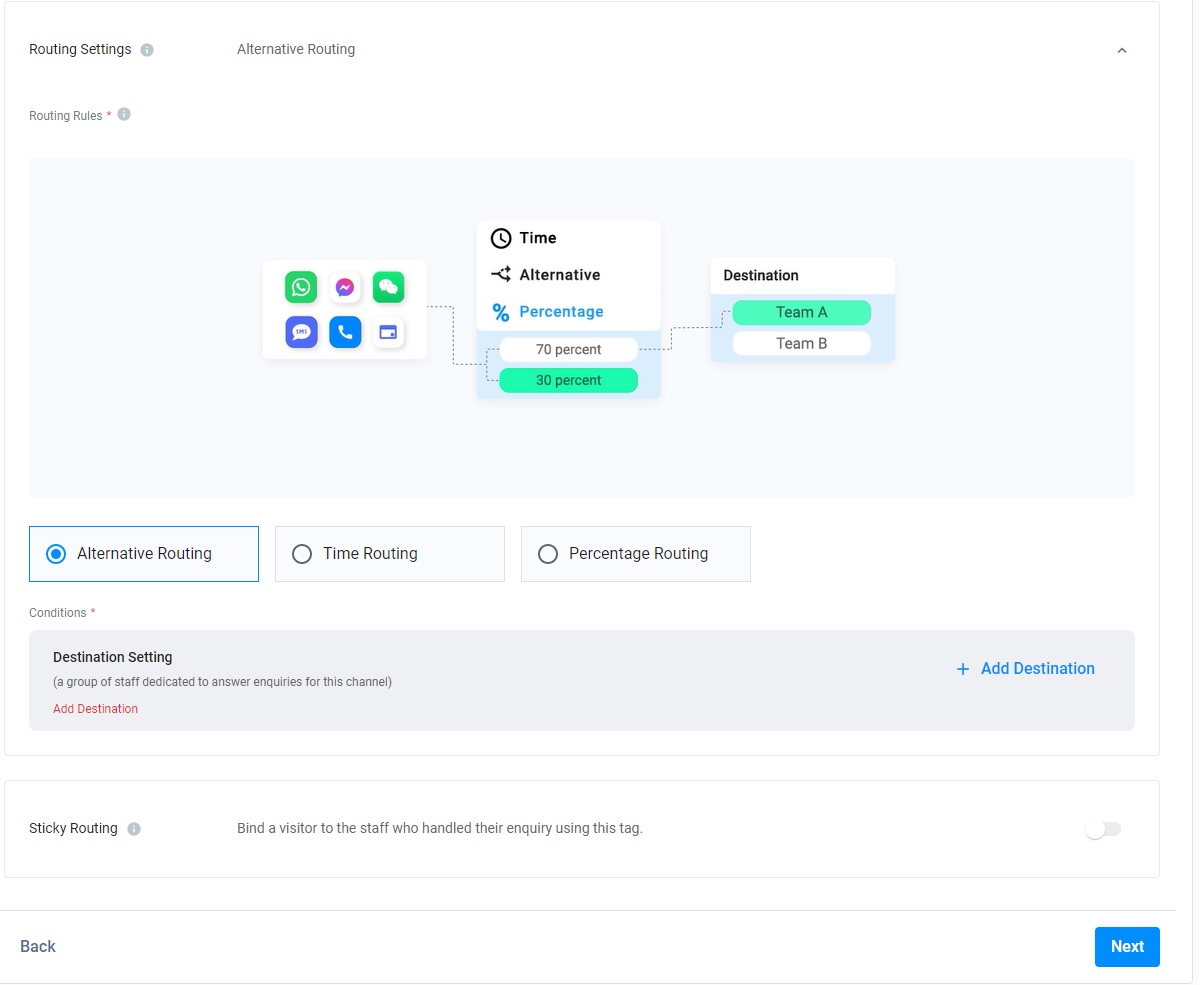
Routing Settings
Step 5 - Set up the Auto-Reply Message
You can enable and configure the following Auto-Reply Messages:
- Welcome Message: Greetings are sent to customers when they first message you.
- Away Message: It is only sent if no staff can answer an enquiry.
- Custom Auto-Close Notification Message: It is sent when the chat room doesn't have a new message after 2 minutes, and the enquiry will be closed when the notification has been sent after 1 minute.
- Close Enquiry Message: This will be sent to the visitors' chatrooms when the staff or the system closes the enquiries.
📘
Reminder
- The limit of Welcome, Away, Custom Auto-Close Notification and Closed Enquiry Messages is 500 characters.
- Before configuring the Custom Auto-Close Notification Message function, you must enable the auto close feature for handled enquiries without new messages. For more information, please refer to the Managing Auto Close Enquiry page.
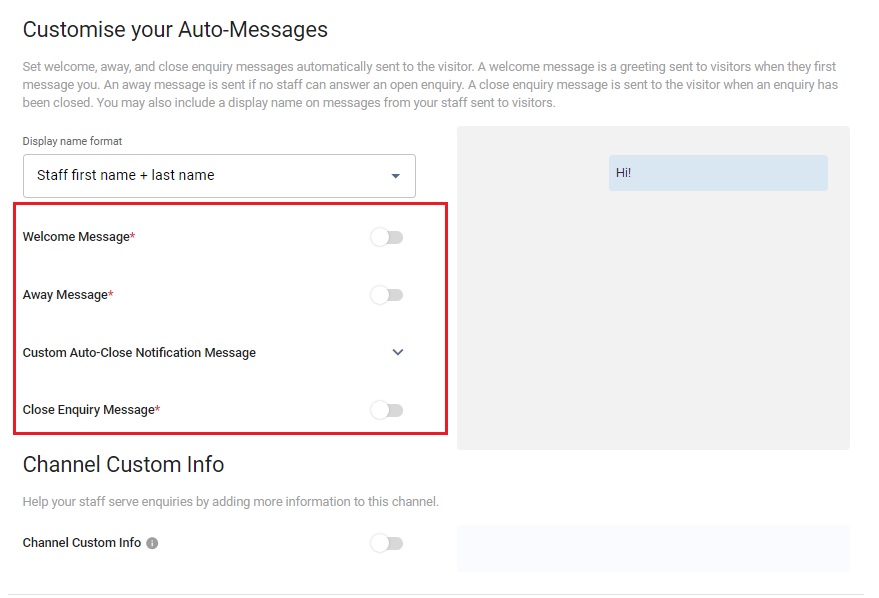
Display Name Format
You may include staff display names in your messages. Choose from the following options:
- No name to display
- Staff first name
- Staff first name + last name
Welcome Message
- CINNOX provides a default welcome message.
- Toggle the switch on to enable it.
- After toggling on it, you can change the default message according to your needs.
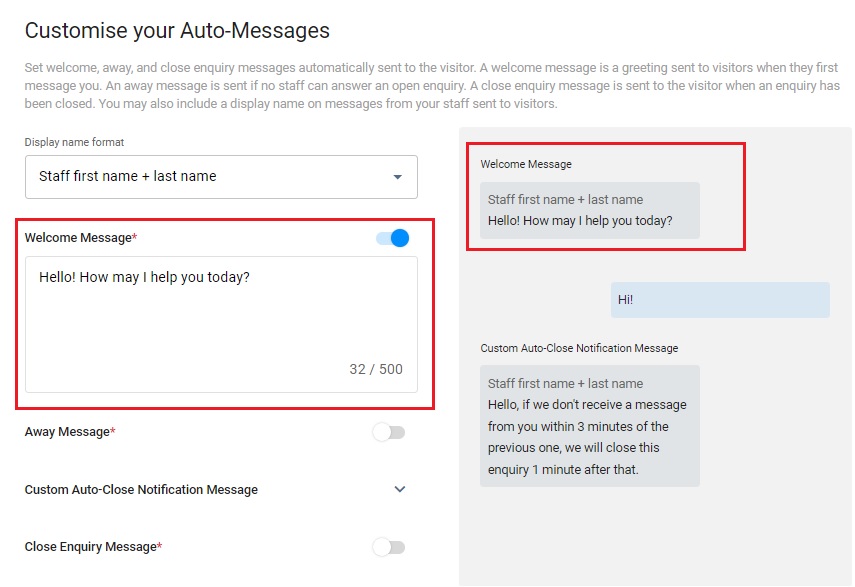
Away Message
- CINNOX provides a default away message.
- Toggle the switch on to enable it.
- After toggling on it, you can change the default message according to your needs.
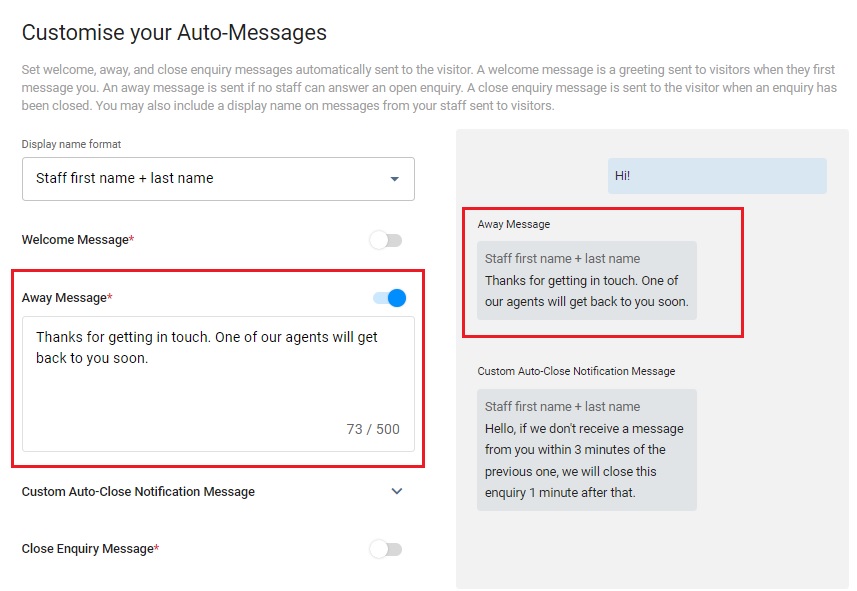
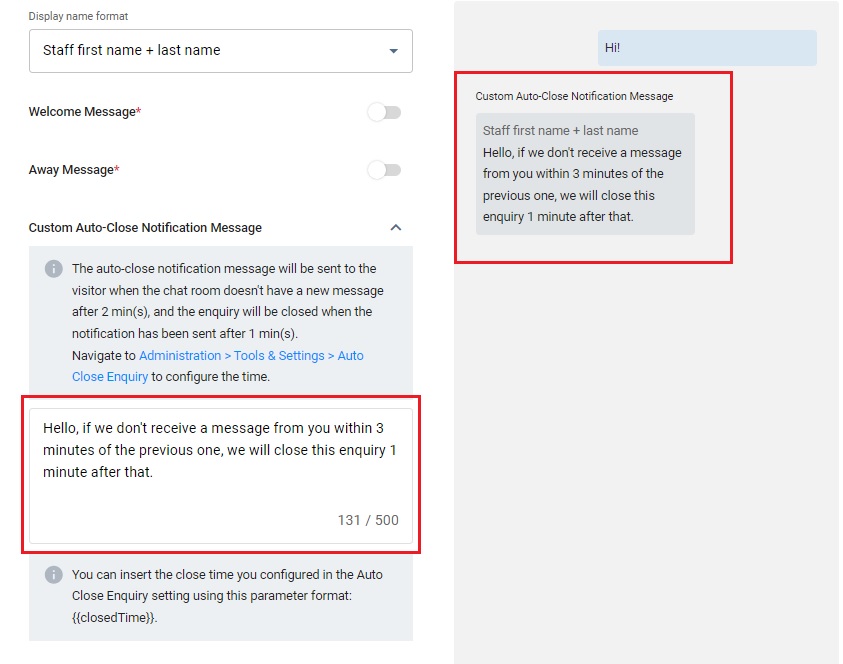
Custom Auto-Close Notification Message
- Click the downward arrow icon.
- Enter your Auto-Close Notification Message in the box.
- You can preview the message in the chat room on the right-hand side of the grey box.
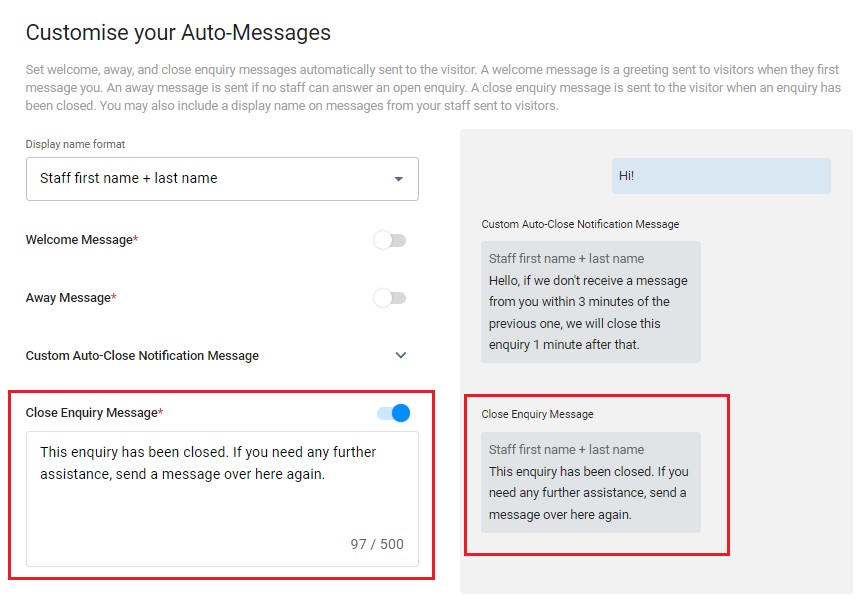
Close Enquiry Message
- CINNOX provides a default close enquiry message.
- Toggle the switch on to enable it.
- After toggling on it, you can change the default message according to your needs.
Enable CINNOX Channel Custom Info
Channel Custom Info allows you to add your channel details that your staff would see in the call screen and chat room whenever they are serving an enquiry. The custom info can be about the standard procedure or operation details of handling the enquiry.
- Toggle the switch on to enable the Channel Custom Info.
- A blank space adds the required basic information about the channel.
- Click the Next button to complete all configurations, and the customised info appears on the Channel Custom Info.
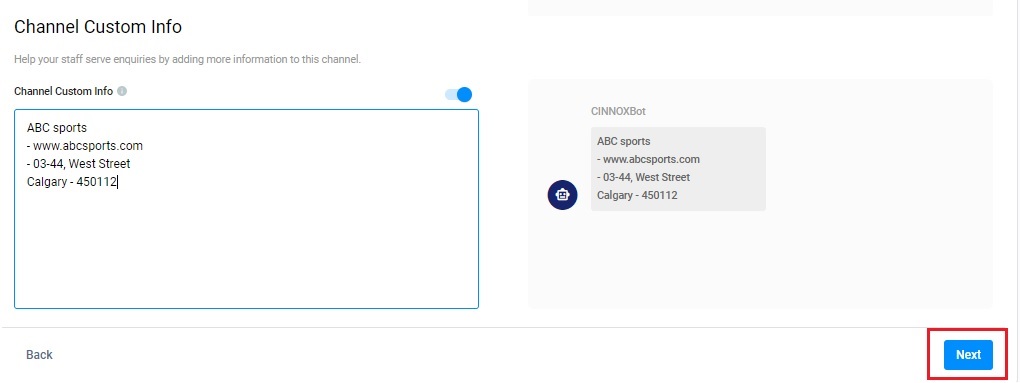
The custom info is displayed on the staff side in the chat room section for the chat enquiry.
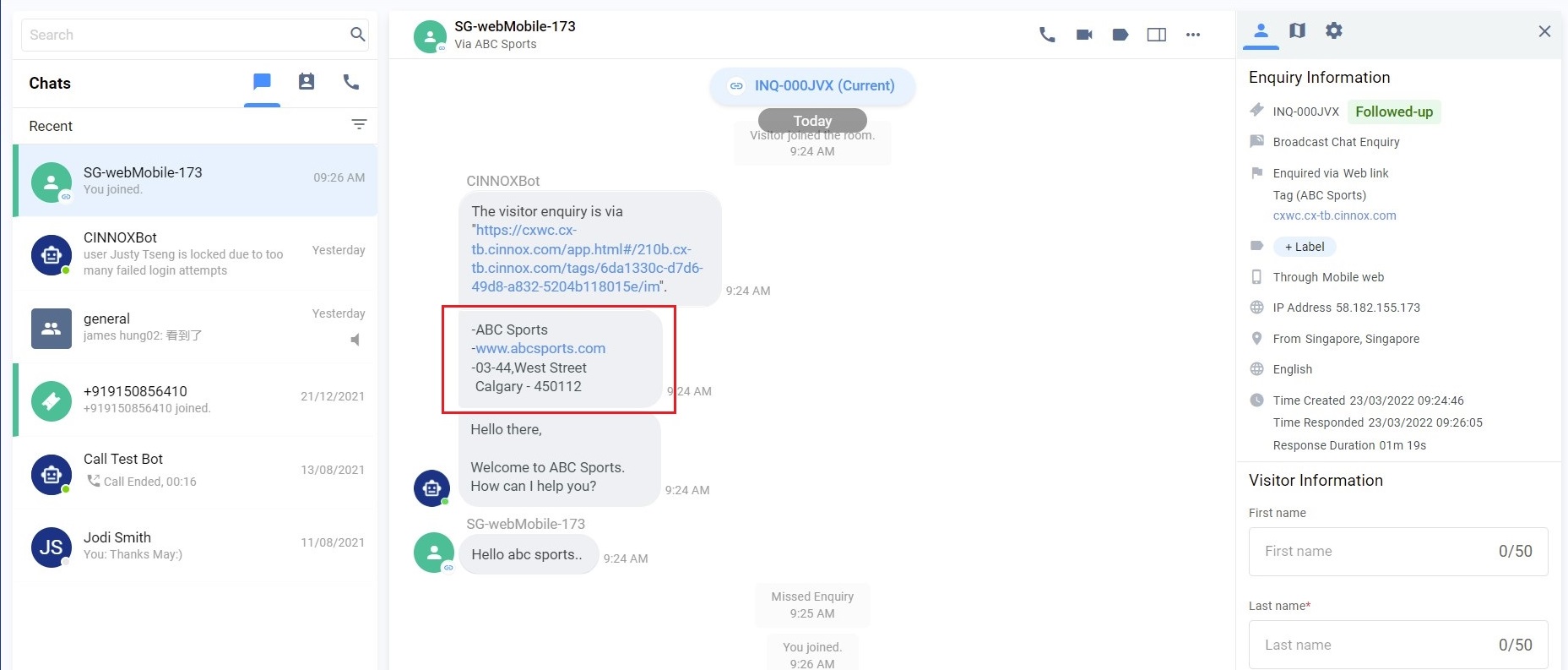
Custom Channel Info on the Enquiry Page
📘
- You can customise the Channel Custom Info per Channel - Directory/Tag, Number, Social and Third Party Channel.
- The custom info is displayed on the staff side in the chat room section for the chat enquiry.
- The Channel Custom Info you can add is 10,000 chars per channel. Please ensure it is at most the limit to work correctly.
- The Channel Custom Info will still be displayed as a chatbot message in the enquiry room if an enquiry is missed.
The created WhatsApp channel is listed on the Social channels.

Others
Manage WhatsApp Channel in CINNOX
To edit, suspend, or delete your WhatsApp channel in CINNOX, refer to this guide's Managing Social Channels section.
Manage Social Channel Source
Refer to the Social Channel Source Guide to view, edit, or delete a channel source.
Serve Chat Enquiries
Refer to Serving Chat Enquiries for more information about serving an enquiry via the WhatsApp channel.
Known Limitations
📘
- You can only connect WhatsApp Business API to CINNOX. You cannot connect to other WhatsApp accounts.
- A WhatsApp Business API account can only connect to one CINNOX service.
- WhatsApp Business API has a 24-hour idle conversation limit.
A message will appear in the chat room when the staff attempts to send a message to the visitor, but the conversation has lapsed due to being idle and has reached the time limit: Sorry, your message can no longer be sent the 24-hour message window has lapsed. Close this enquiry, or wait until the visitor sends a message again.- Supported Text, Media Content-Types and Size Limit. For details, please refer to Meta Supported Files.
Help and Support
Send a test message to your WhatsApp Business API account and check if your CINNOX service receives it as a new enquiry.
If your CINNOX service is still not receiving any messages, contact our CINNOX Support Team.