
Pin/Unpin Messages & Hide/Unhide Chat Rooms
Pin Chat Room and Pin Message feature help you mark essential chat rooms and messages and make your Workspace - Recent Connections neat and organised by hiding inactive chat rooms.
Pin Chat Room - allows you to place your favourite and vital chat rooms on top of your Recent Chats for easy access. It is the best way to quickly open the chat room without searching them in the Recent Chat list.
Pin Message - allows you to bookmark messages to refer back to them quickly without scrolling through the conversation or searching them in the chat room. Pinning a chat is a great way to keep the most important conversations on your radar.
Hide Chat Room - while deleting inactive chat rooms is not a standard practice and not recommended to save conversation history, you can hide inactive ones from your Recent list. The chat room and its conversation will be hidden, but you can permanently unhide them whenever necessary.
Pin and Unpin Chat Room
To pin a chat room - any room such as External (Enquiry Room), Internal (Direct Room) or Space Room:
- Find the chat room to pin in the Chat tab.
- Slide the chat room to the left (for Android devices), while sliding the chat room to the right (for IOS devices).
- Tap Pin.
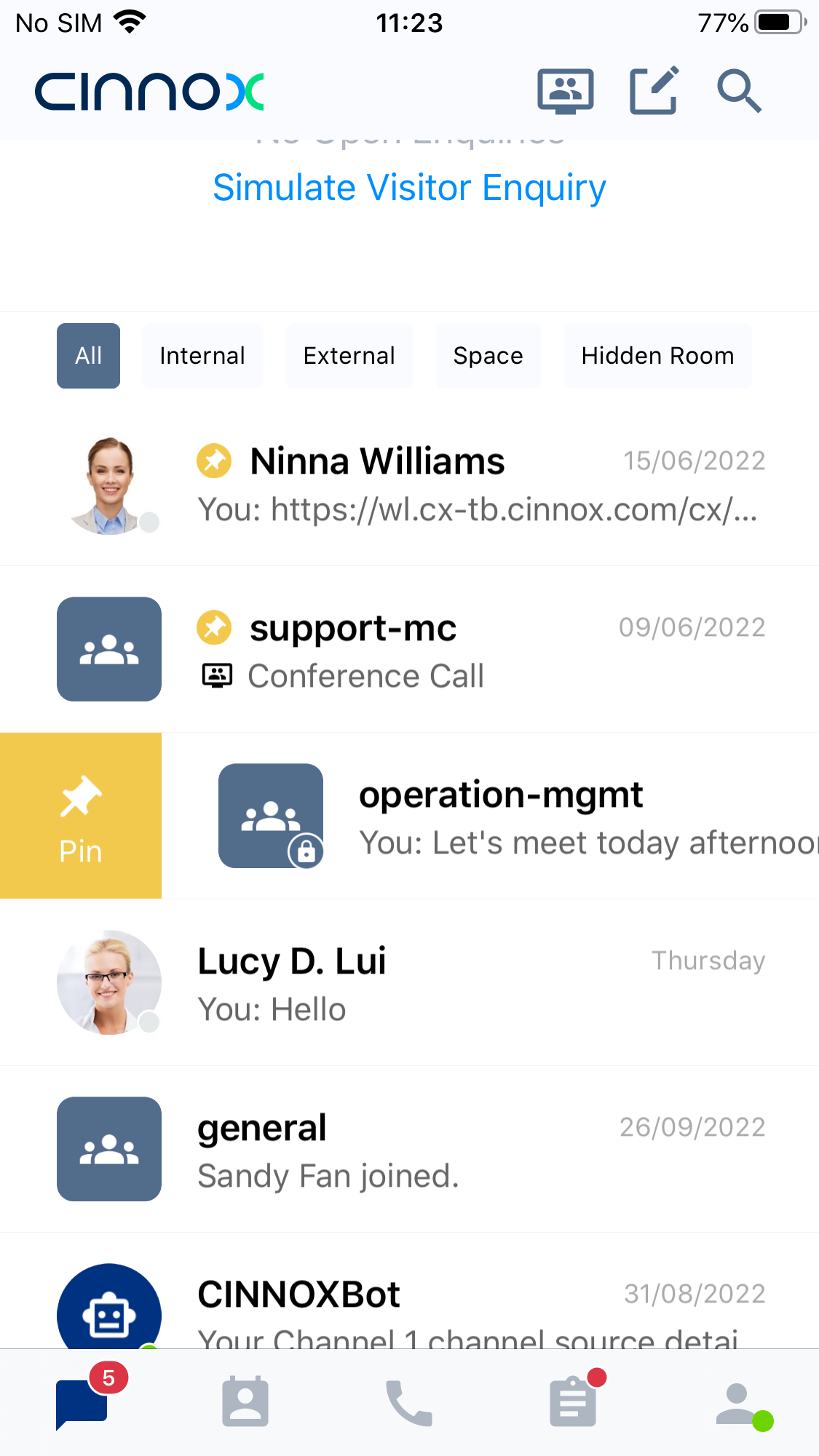
Pin Chat Room
The chat room will be highlighted with the Pin icon and moved to the top of all chat rooms.
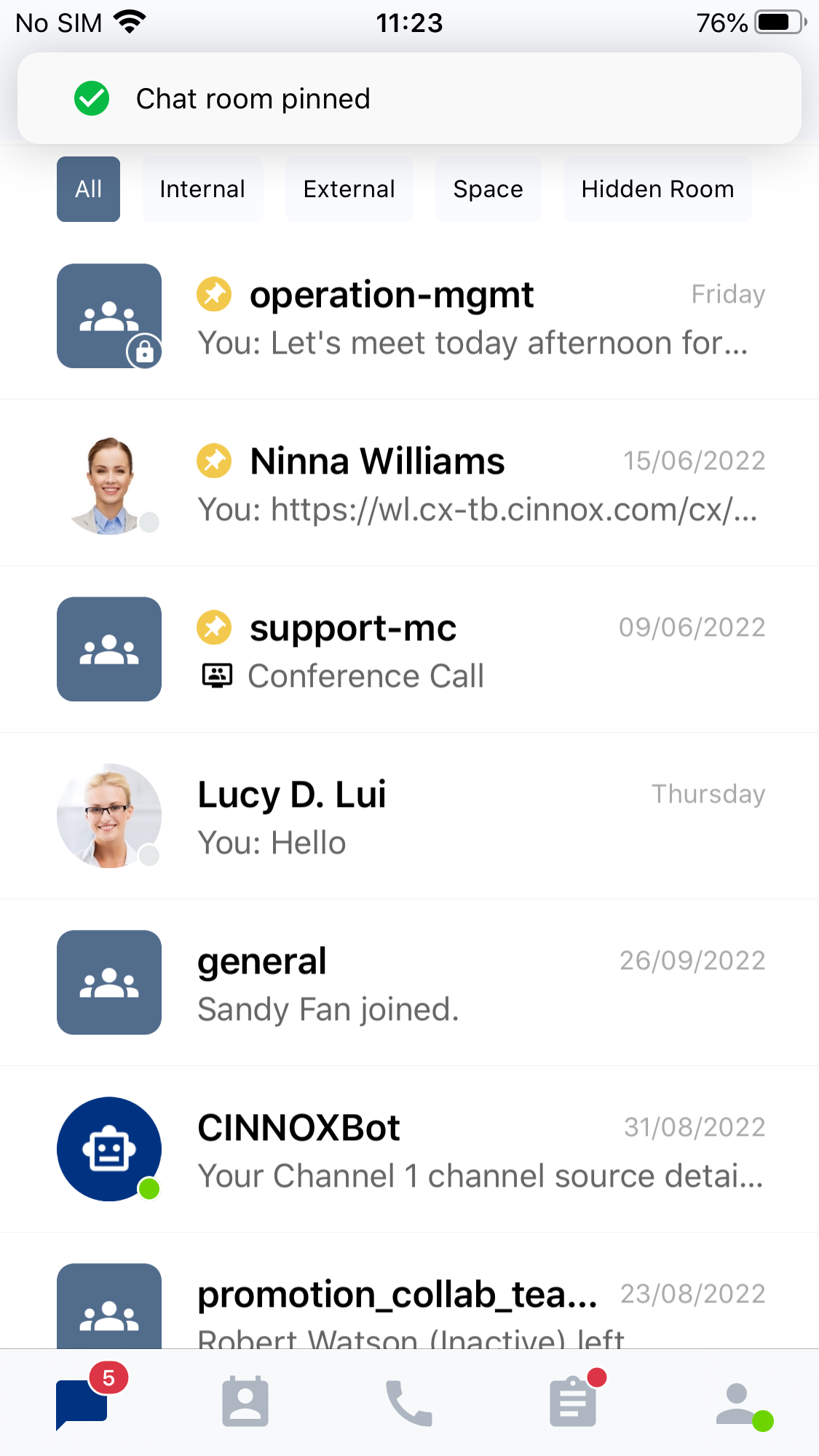
Pinned Chat Room
Unpin Chat Room
To unpin a chat room - any room such as External (Enquiry Room), Internal (Direct Room) or Space Room:
- Find the chat room to pin in the Chat tab.
- Slide the chat room to the left (for Android devices), while sliding the chat room to the right (for IOS devices).
- Tap Unpin.
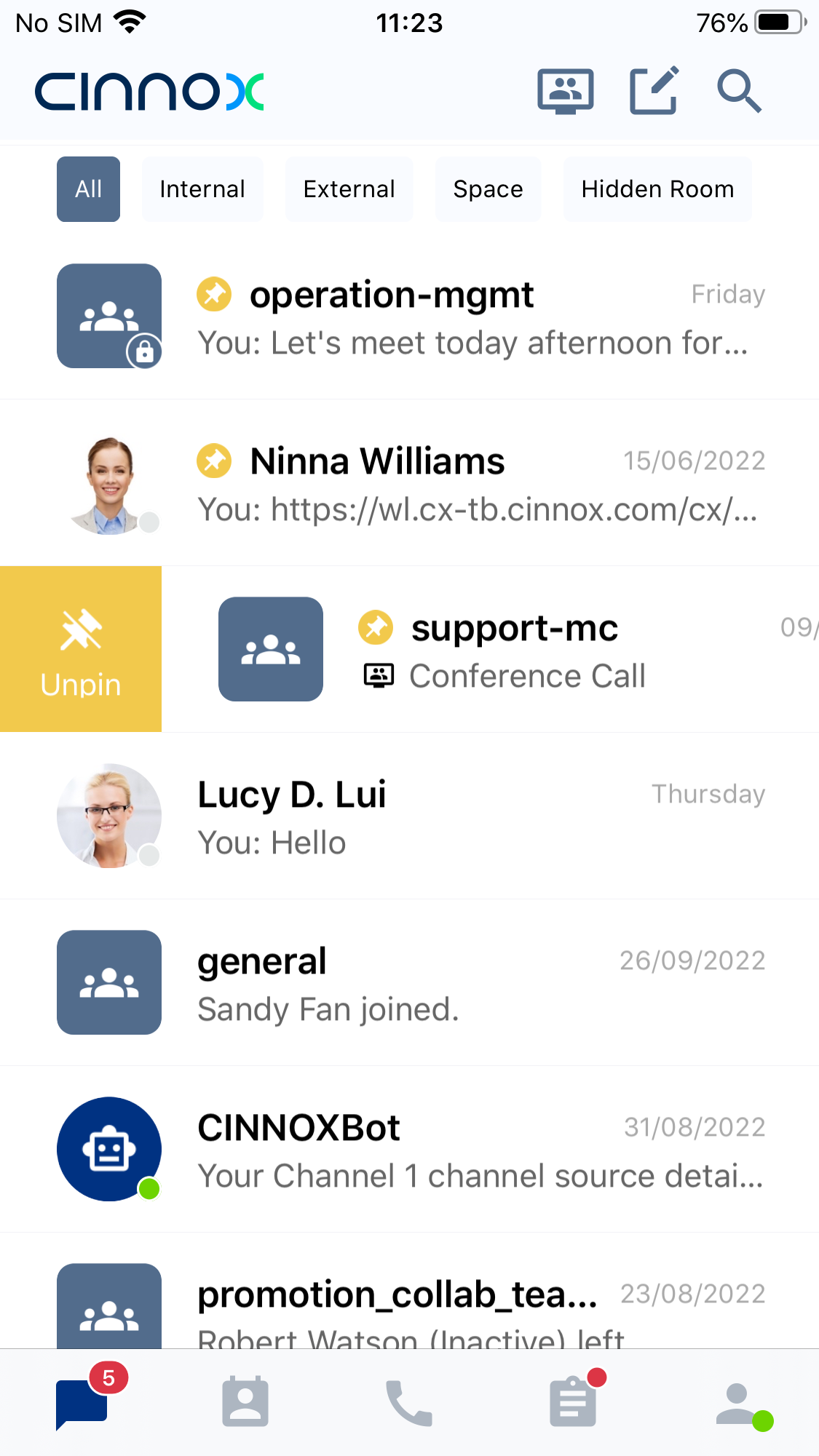
- There will be a toast message that the chat room has been unpinned, and it will return to its original position in the Chat tab - Recent list of your chat rooms.
Pin, View Pinned and Unpin Message
To pin a message:
- Touch and hold the message you want to forward, then tap on the Pin text on the options beside it.
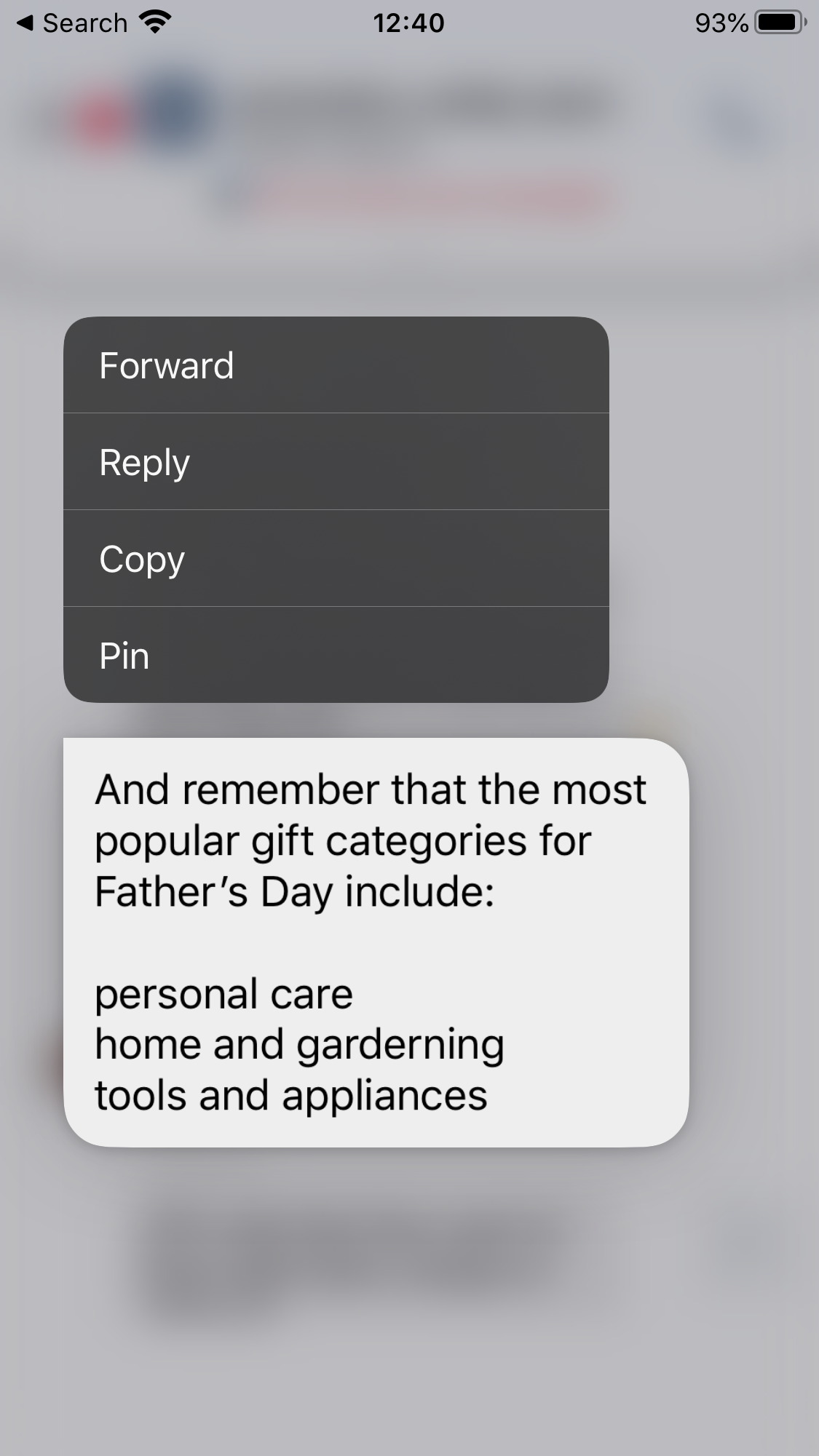
Pin Message
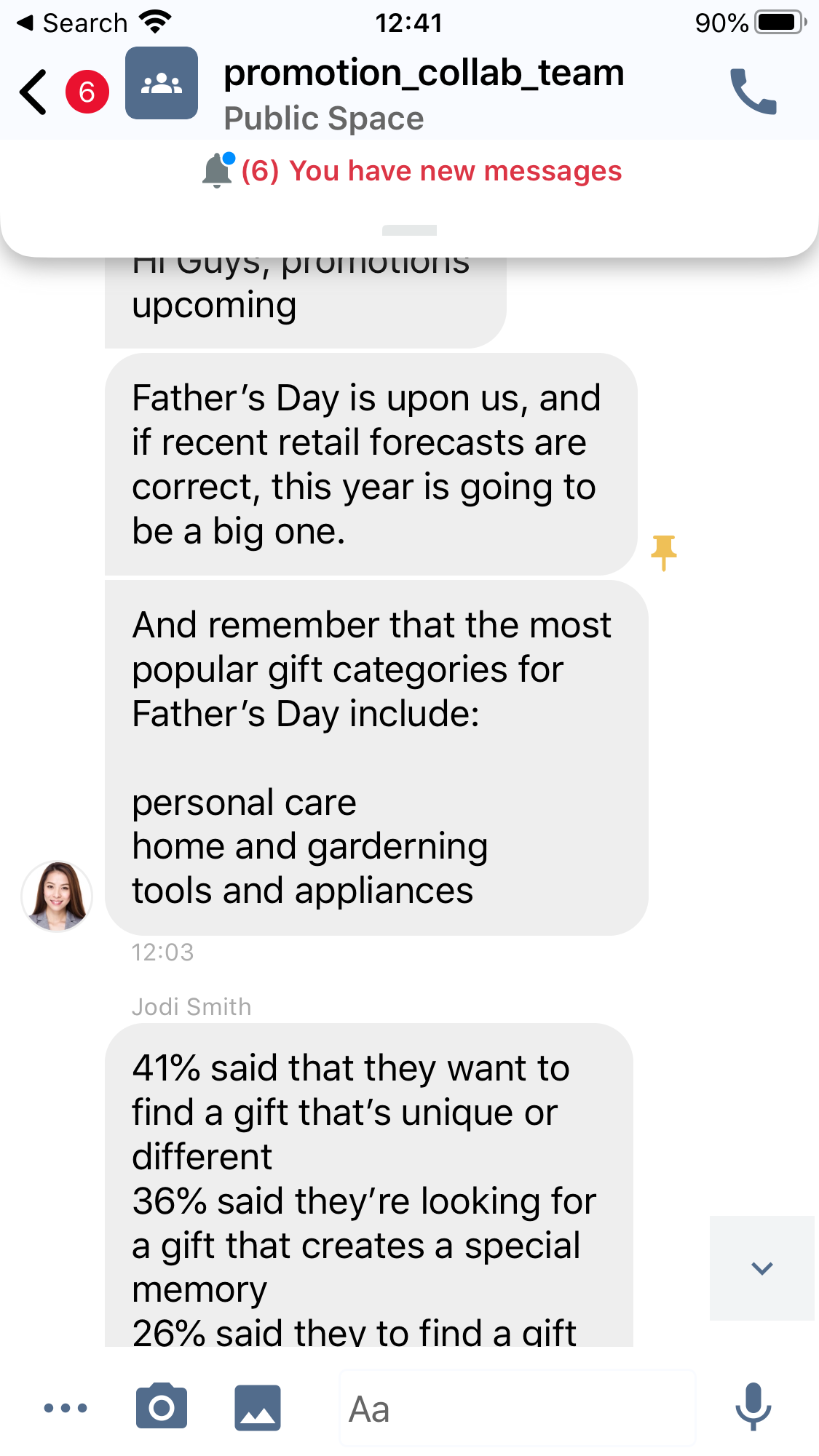
- The Pin icon will appear next to the message.
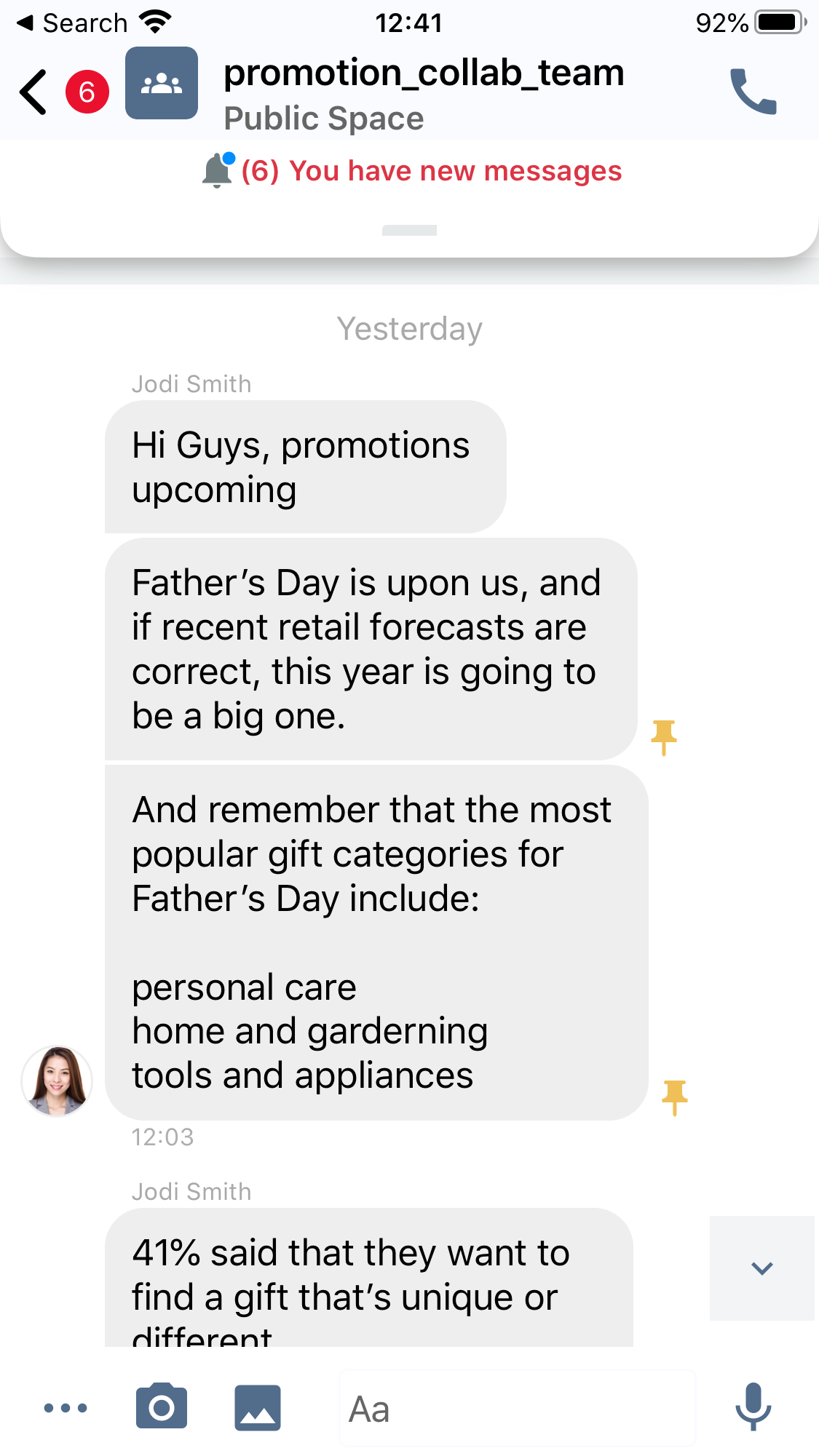
Pinned Message
To view Pinned Messages
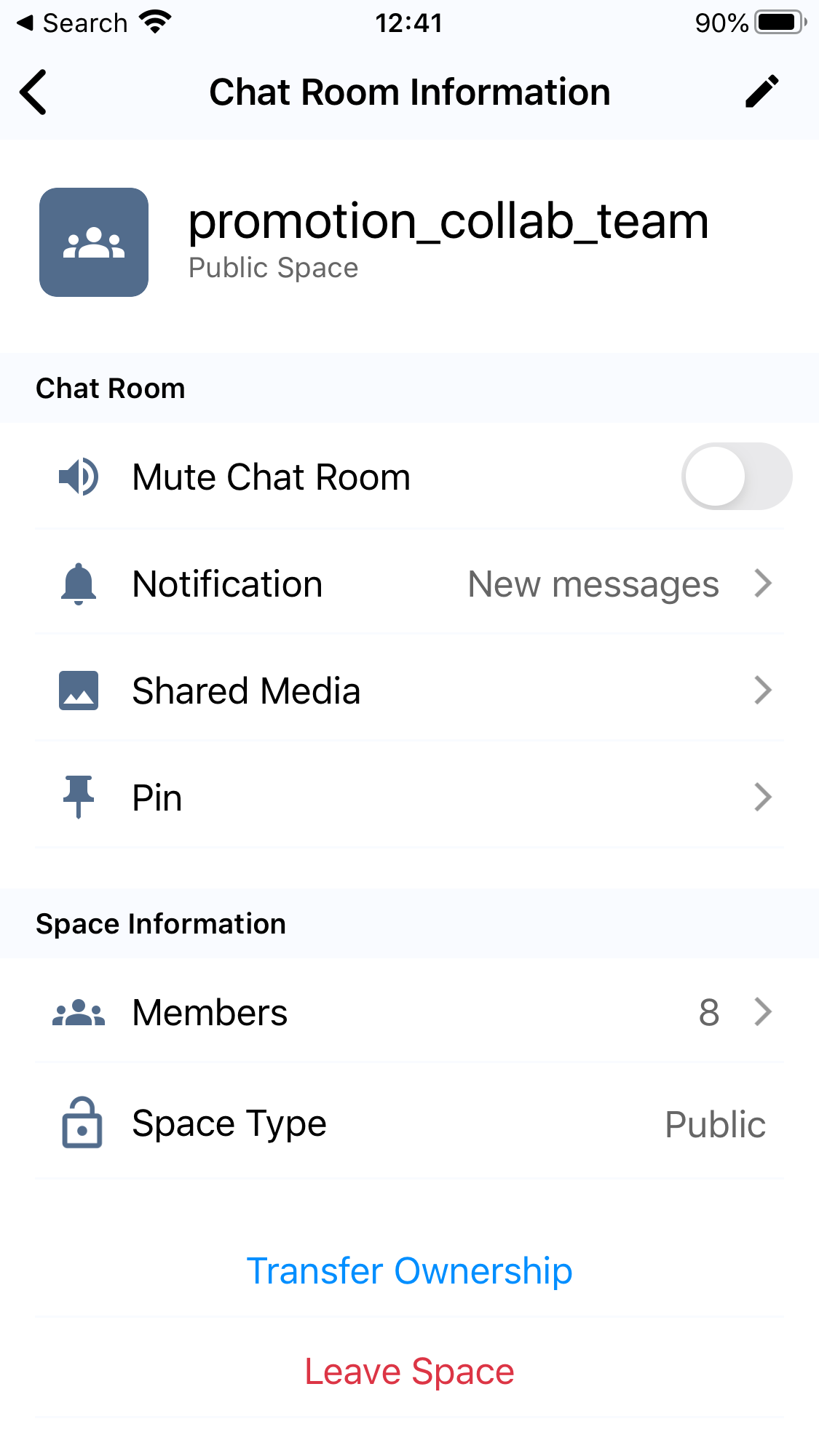
- To view a pinned message, navigate to Chat Room Information and tap Pin.
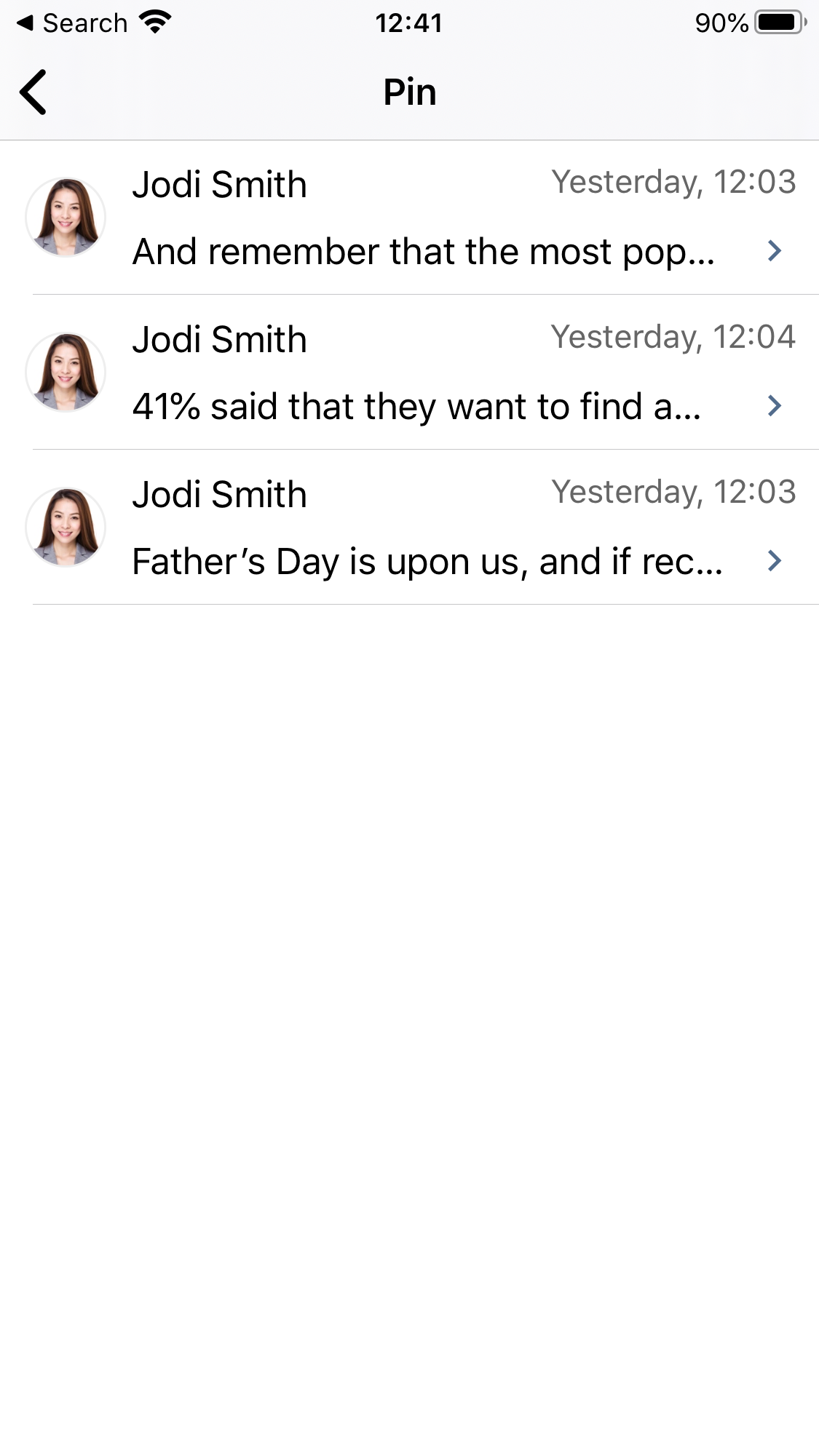
Tap a pinned message, and the chat room will scroll up or down and locate the pinned message.
To Unpin a Message:
- Touch and hold the message in the chat room, then tap Unpin on the options.
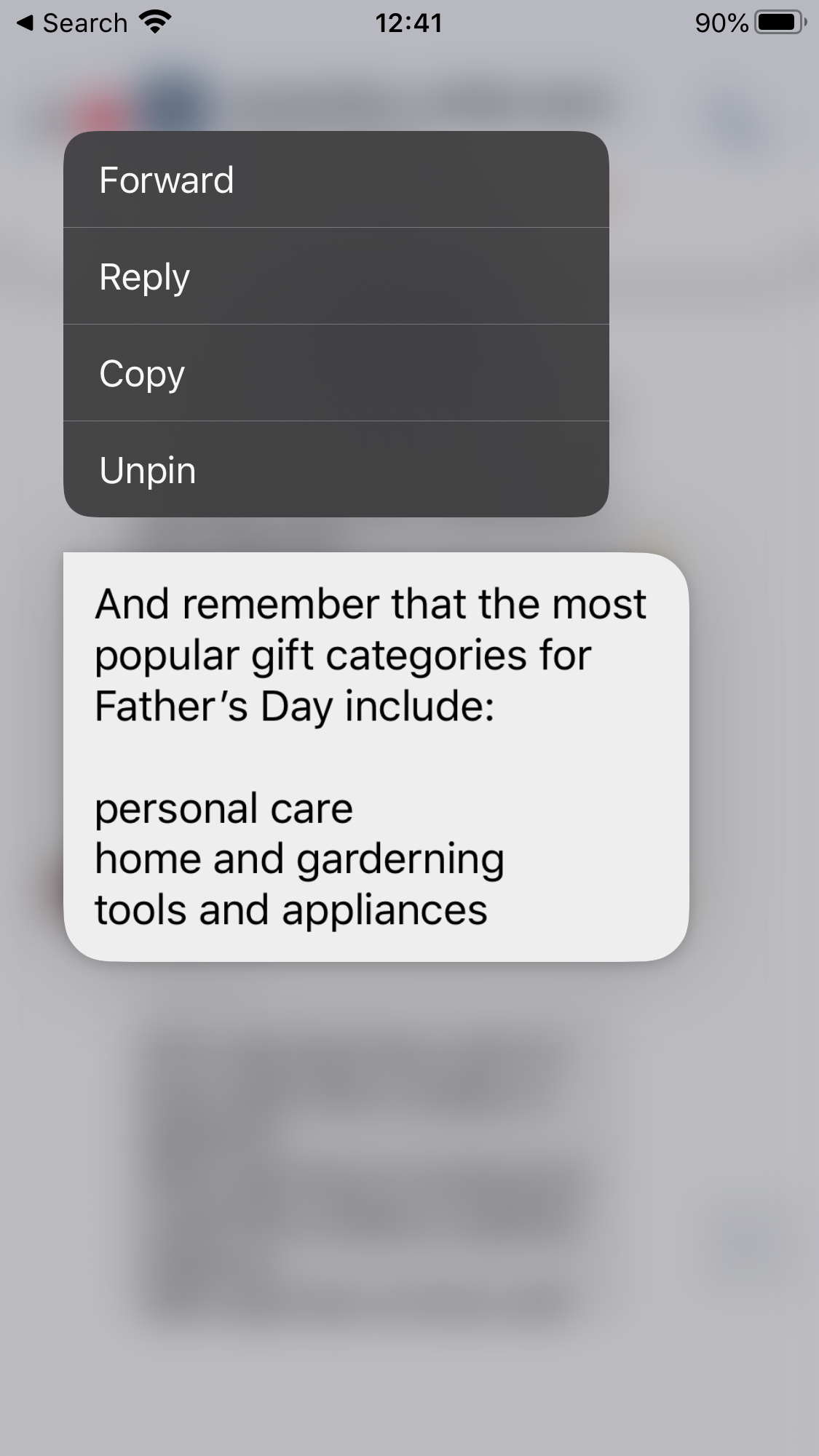
The Pin icon will be removed from the message and the Pinned Message list.
Hide and Unhide Chat Room
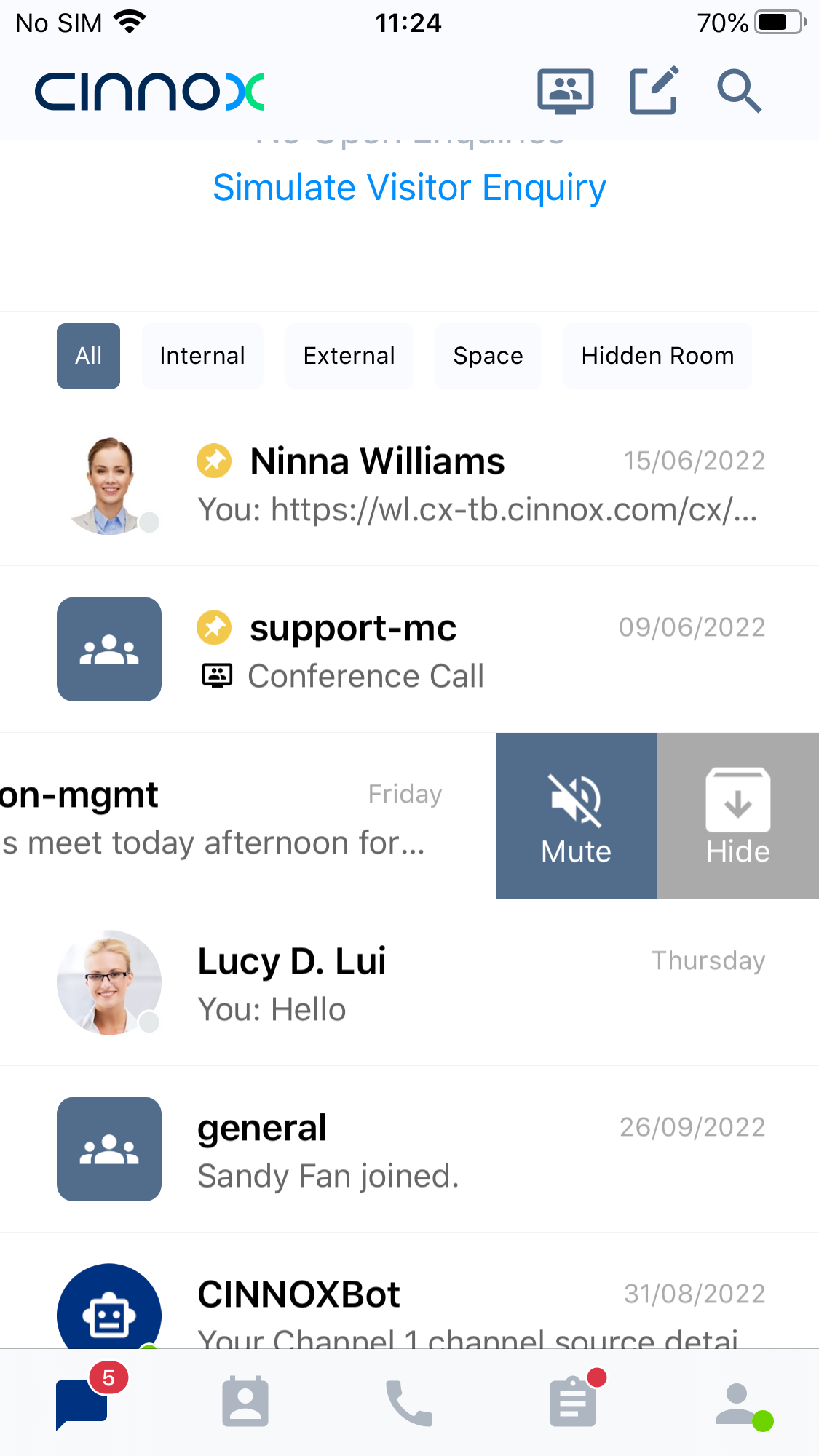
To hide an inactive chat room - any room such as External (Enquiry Room), Internal (Direct Room) or Space Room:
- Find the chat room to hide in the Chat tab - Recent list
- Slide the chat room to the left.
- Tap Hide
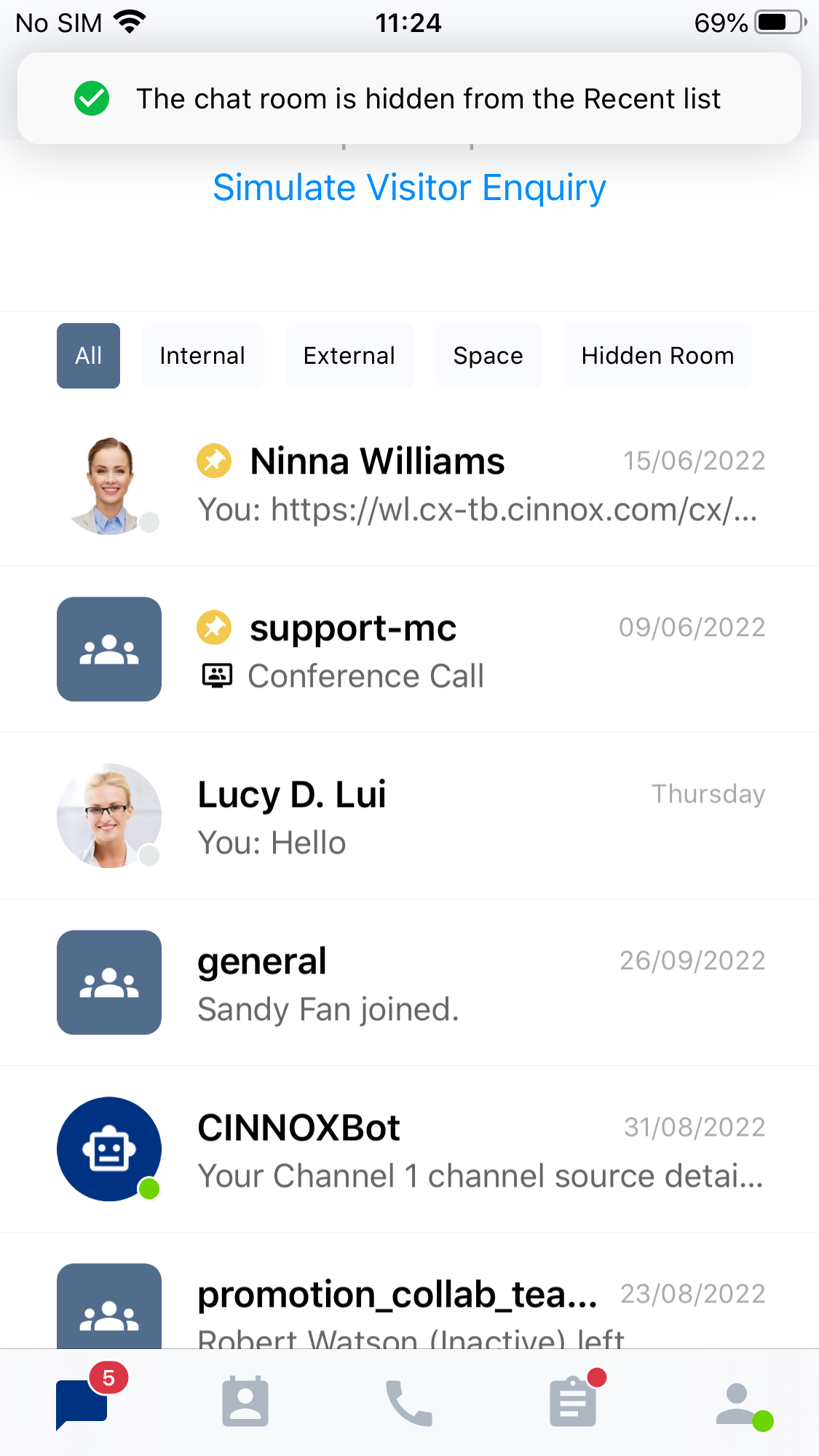
The chat room will be hidden from the Recent list. A toast message will be displayed that the chat room has been hidden.
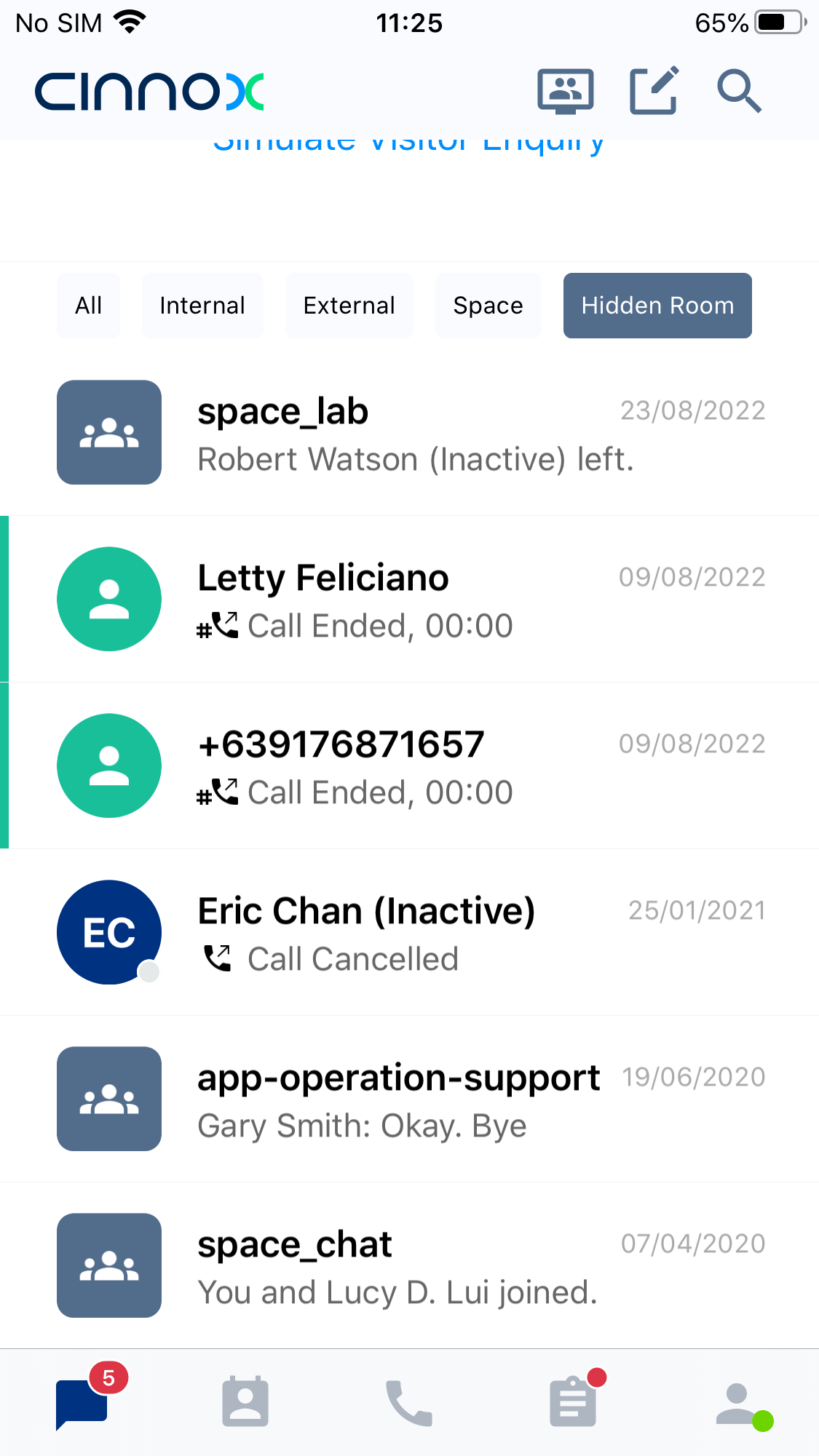
To view hidden chat room:
- On your Chat tab, tap the Hidden Room tab
All chat rooms that have been hidden will be displayed.
To unhide hidden chat room:
- On your Chat tab, tap the Hidden Room tab. All chat rooms that have been hidden will be displayed.
- Find the chat room to unhide in the Hidden Room
- Slide the chat room to the left.
- Tap Unhide located on the right side of the chat room.
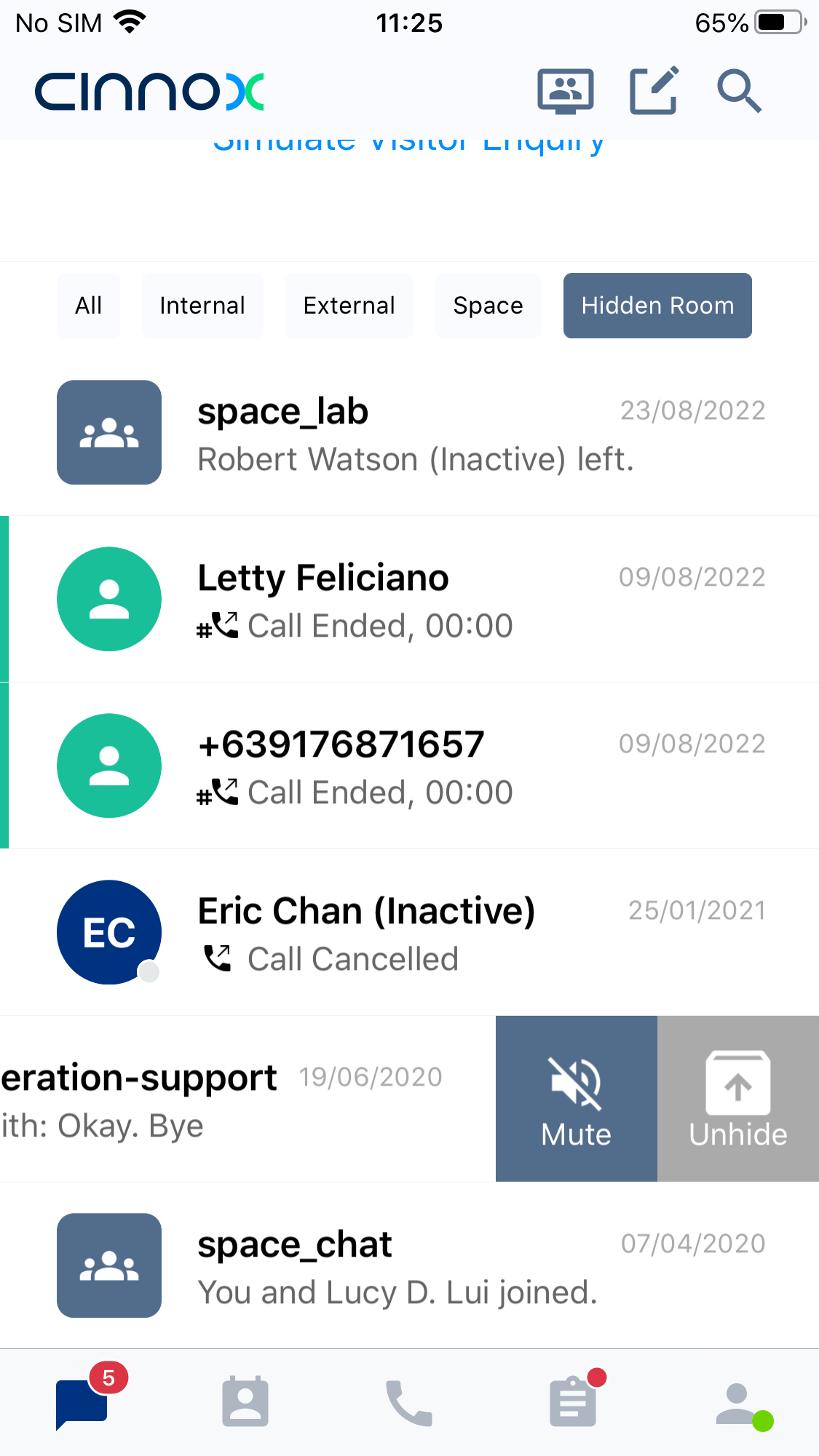
The chat room will be displayed in the Recent List. A toast message will be displayed that the chat room has been unhidden.
To know more about CINNOX Chat Room, see our detailed Guide