
Viewing the Chat Report
Chat Report is a powerful tool that lets you track all the chats in your CINNOX service. With Chat Report, you can monitor the conversations sent and received, such as Text, Image, Video, File, Voice Message, and Email. In this user guide, we'll show you how to use Chat Report to gain insights about your and your team's chat activities.
Go to Reports > Chat Report from the navigation menu to access Chat Report, where you can see an overview of your chats.
The Overview section summarises your chats and a graph that breaks down the different chat types. Here's what you'll see:
- Total Chats: This is the total number of chats (from visitors and staff) sent in your chat rooms. For example, the screenshot shows 27,131 chats from the last 7 days.
- Chat Type Graph: This graph displays the breakdown of chat types (Text, Image, Video, File, Voice Message, and Email) over a selected date range. You can use this graph to identify trends and patterns in your chats.
Breakdown of Chat Types : The Breakdown of Chat Types section provides a detailed view of each chat type, including the number of chats sent.
Here are the totals for the last 7 days:
- Text: 25,361 chats
- Image/Video/File: 1692 attachments (1,386 images, 26 videos, and 280 files)
- Voice Message: 24 voice messages
- Email: 54 emails
Grouping similar chat types shows that most chats contain text messages (93.48%). However, you also receive a significant number of image and file attachments.
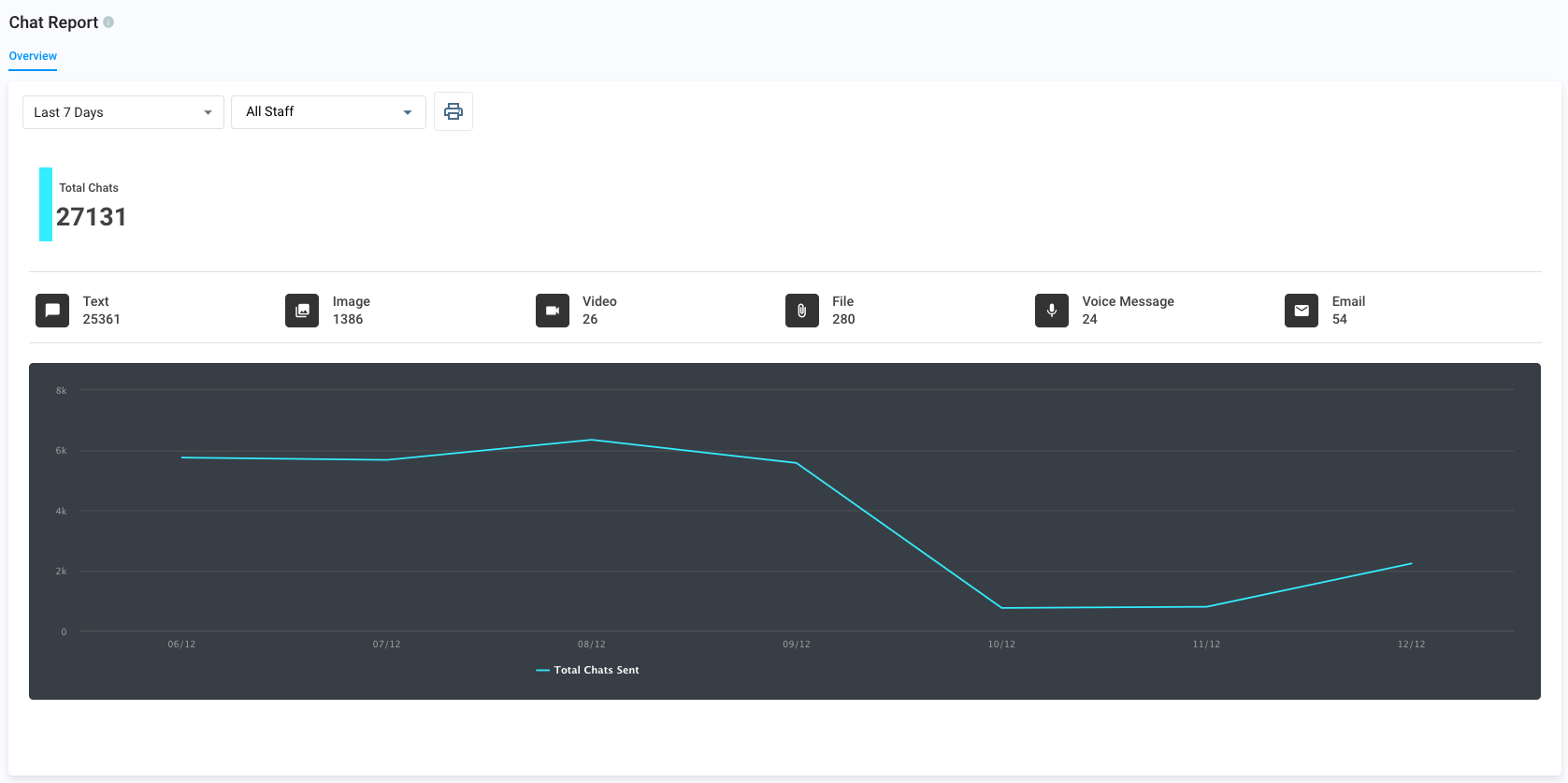
Chat Overview Report
📘
You can filter chat report data by date or staff nameto see specific information about a particular period or team member. Use the interactive bar chart to see the data in an hourly or daily breakdown.
To print the Chat Report - Overview graphs and data, click the printer icon located at the top middle of the page.