
Viewing the Conference Report
The Conference Report page is a tool that allows you to monitor all conference calls within your service. It provides valuable insights into the usage and performance of your conference calling service and can help improve the efficiency and productivity of communication within your organisation.
Conference Report Details
Go to Report > Conference Report from the navigation pane to view Conference Report details.
Search and Filter
You can filter the Conference Call Detailed Report by the following:
| Filter Name | Description |
|---|---|
| Host | Search by Host Name. Default to all Host Names |
| Date and Time | Select by date, which can be customised with time. Default to Last 7 Days |
| Attachment | Select Conference Call with attachment, such as: * With Attachment (both Recording and Audio Transcript) * Without Attachment Default to Conference Call with All Attachments |
Table Details
The Conference Report table displays the following details:
| Column Name | Description |
|---|---|
| Conference ID | A unique, auto-generated ID assigned for each conference call |
| Host | The name of the staff member that initiated the conference call |
| Start Date/Time | The date and time the conference call started |
| Duration | Displays how long in minutes the conference call lasted |
| Status | Indicates whether or not the conference call connected successfully |
| Attachment | The conference call recording and audio transcript |
| Chat History | The chat messages sent by participants during the conference call |
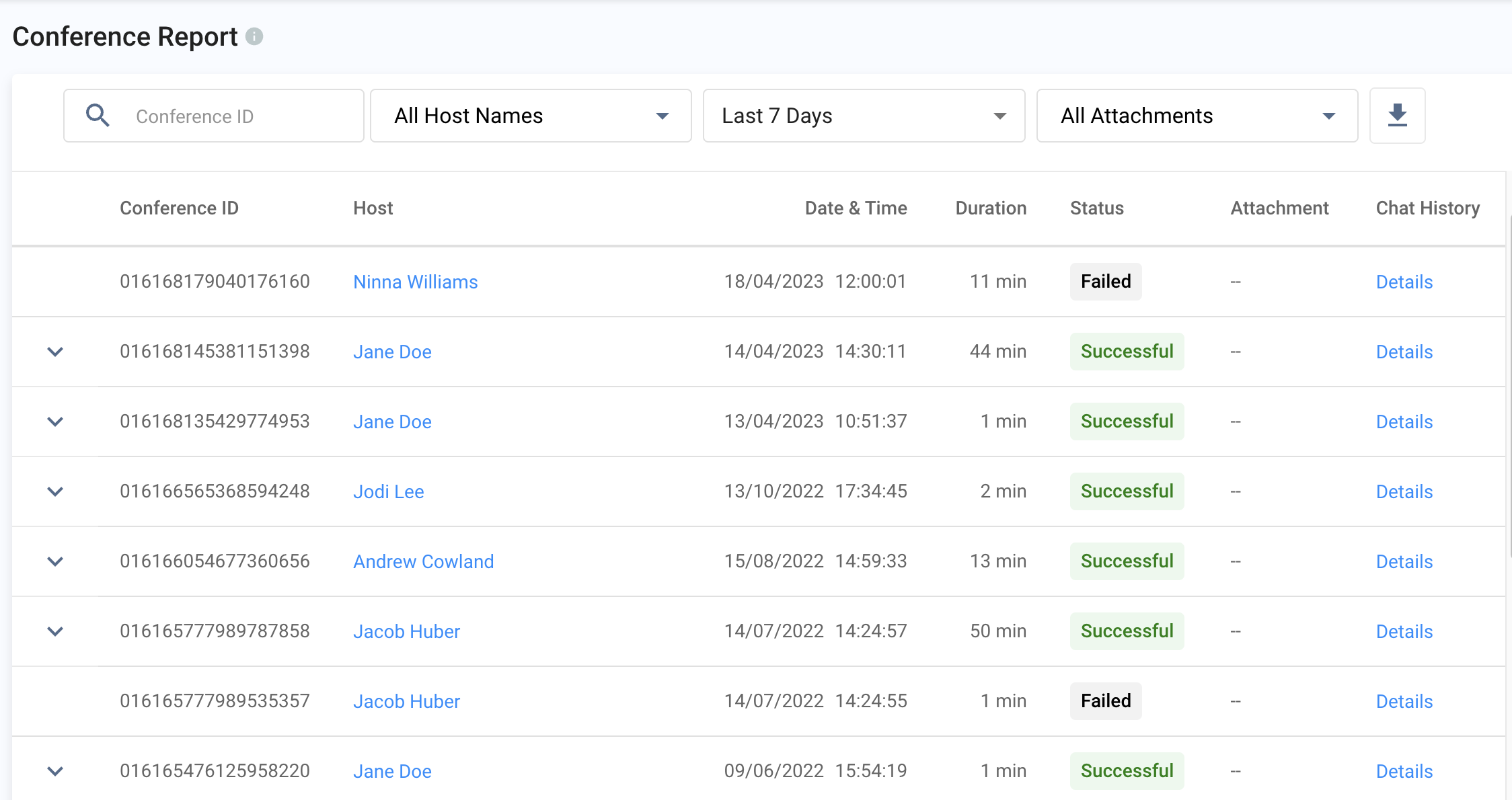
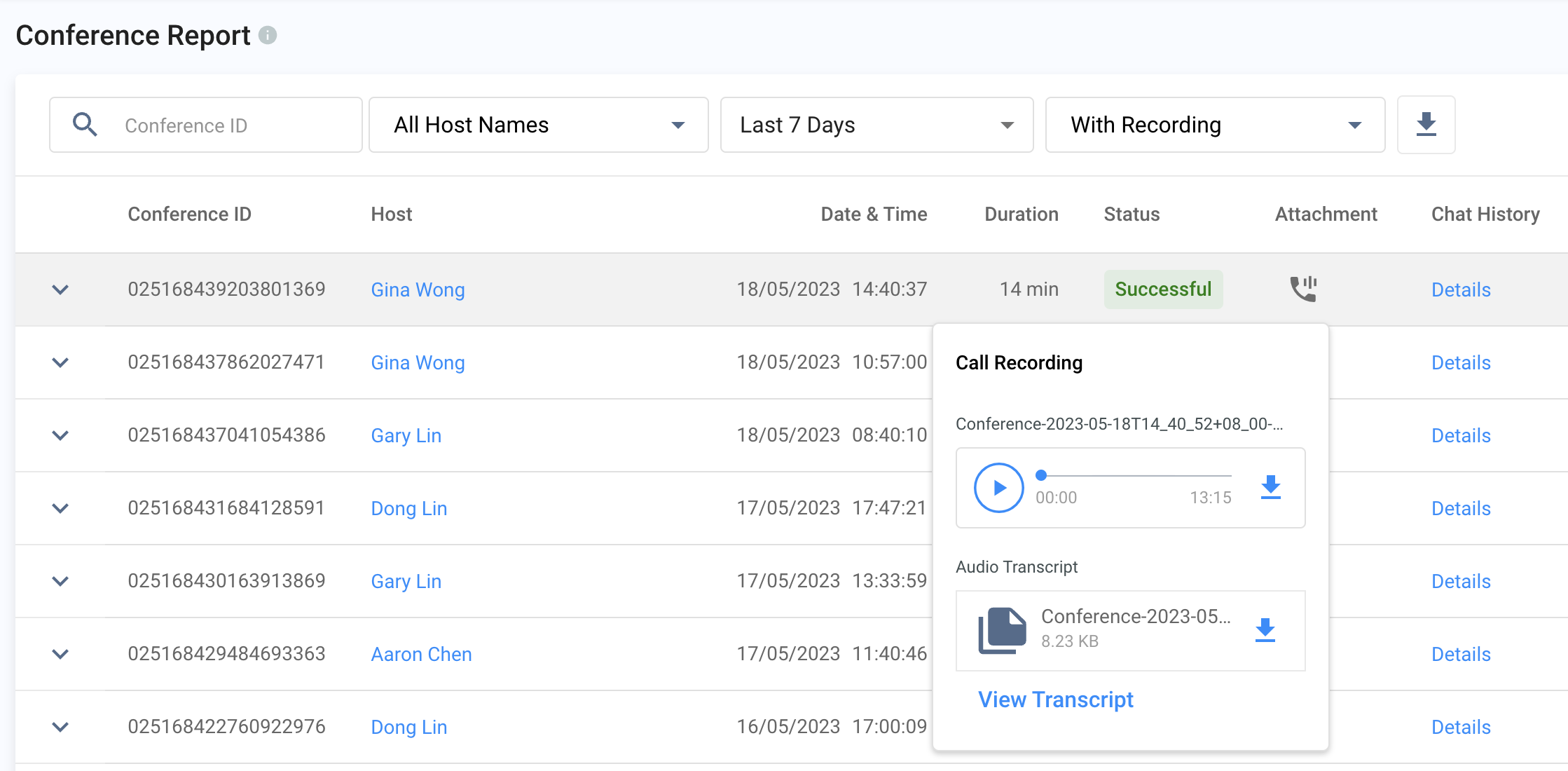
In the Attachment column, you can find the call with a recording and audio transcript:
- Listen to the recording. Click Play, or click Download to save a local copy to your device.
- View chat conversations at the conference. Click on Details.
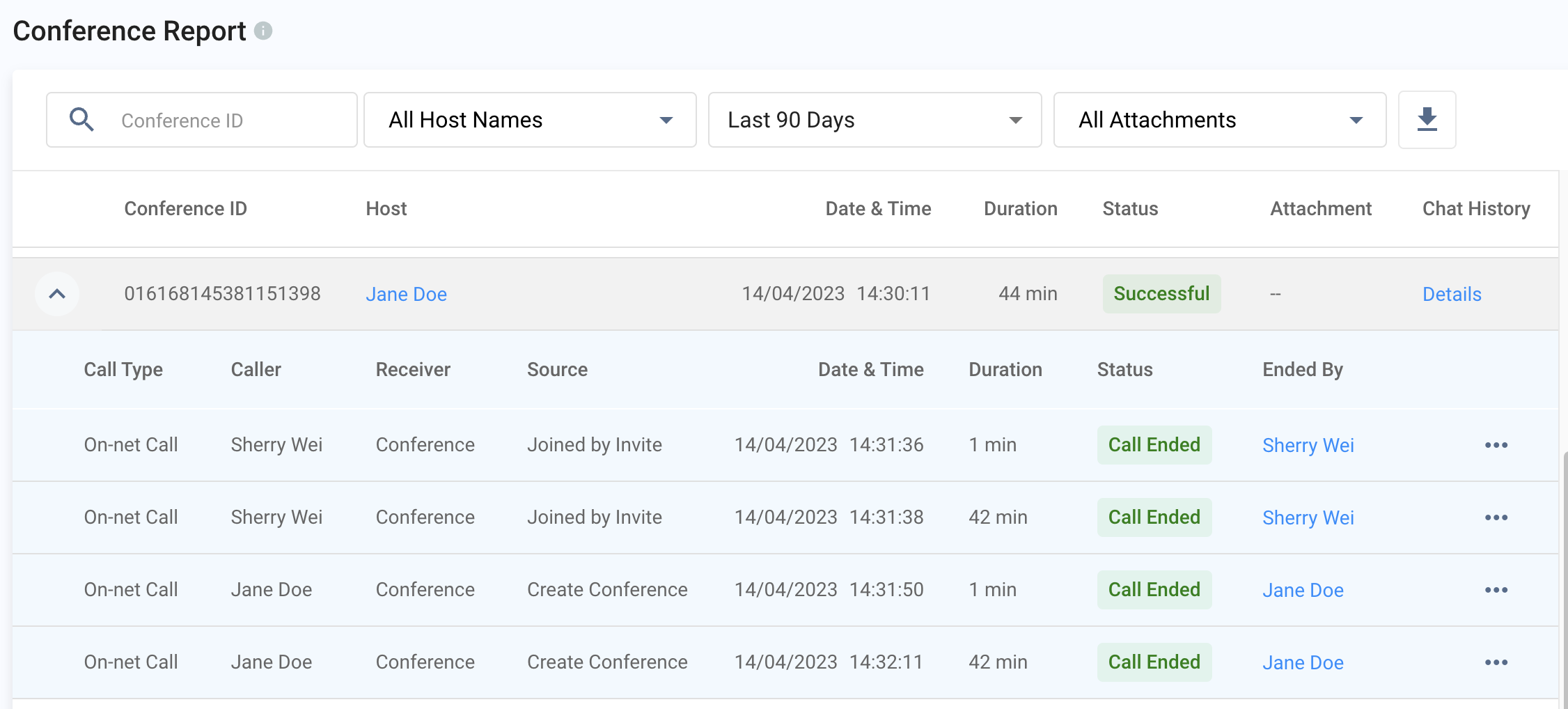
To view the conference call breakdown, click the arrow to expand the call details with the participants who joined the conference with the source and duration.
Download the Conference Details
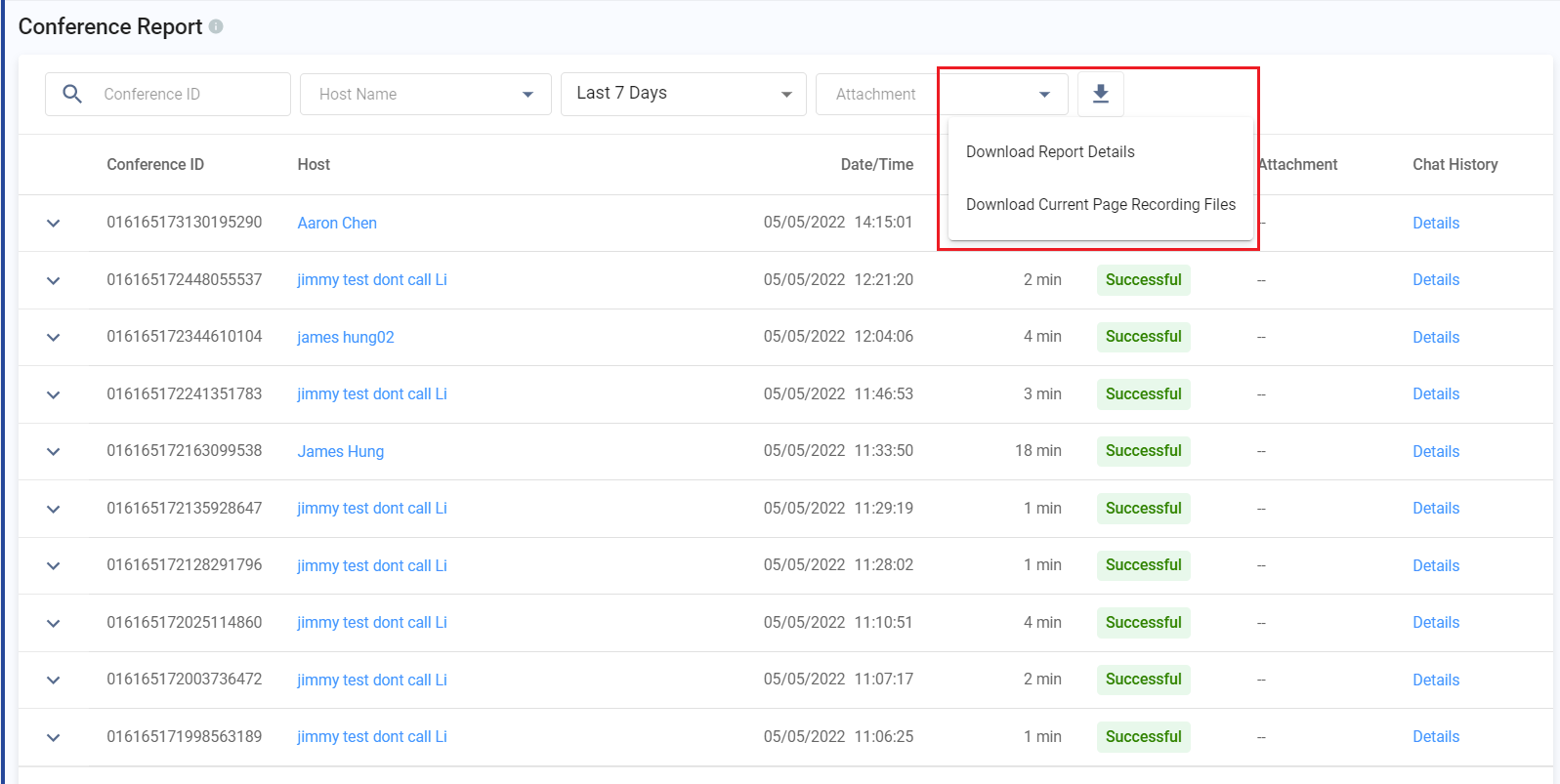
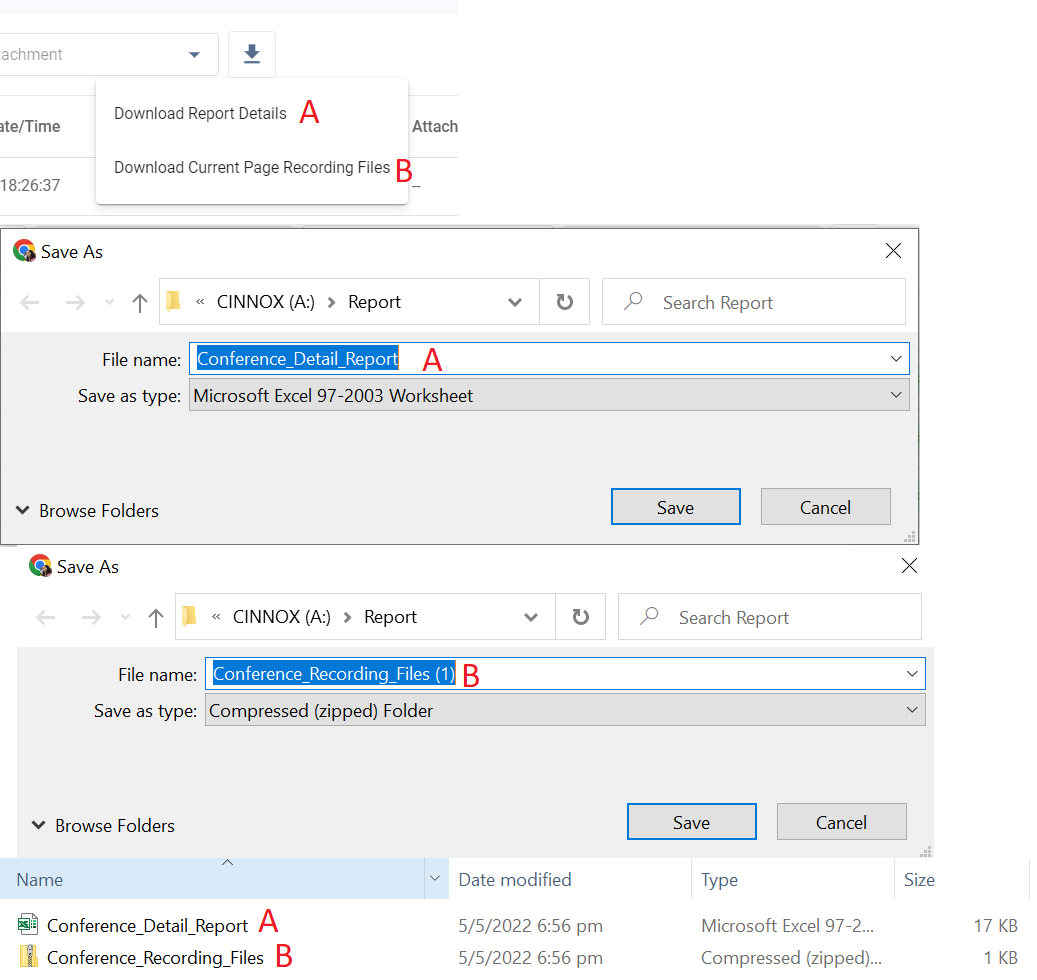
You can download the Conference Report Details and the Conference Recording Files. There are two options for downloading files:
ADownload Report Details - This option is to download all conference records in an Excel (XLS) file format.
BDownload Current Page Recording Files - This option is to download chat history files on the current page in a zip file. Each recording will be downloaded in MP3 file format.
📘
- The maximum number of records on one page is 25.
To download the files,
- Login to your CINNOX account.
- Go to Reports, then Conference Report.
- Click on the download icon at the top of the page.
- Choose Download Report Details or Download Current Page Chat History Files.
Conference Report Detail
The downloaded Report and the Conference recording files will be saved in the selected location as an Excel and zip folder.
- Unzip the zip folder to extract the contents in an MP3 file per recording.
Conference Report Download