Enquiries Monitoring (aka Enquiry Overview)
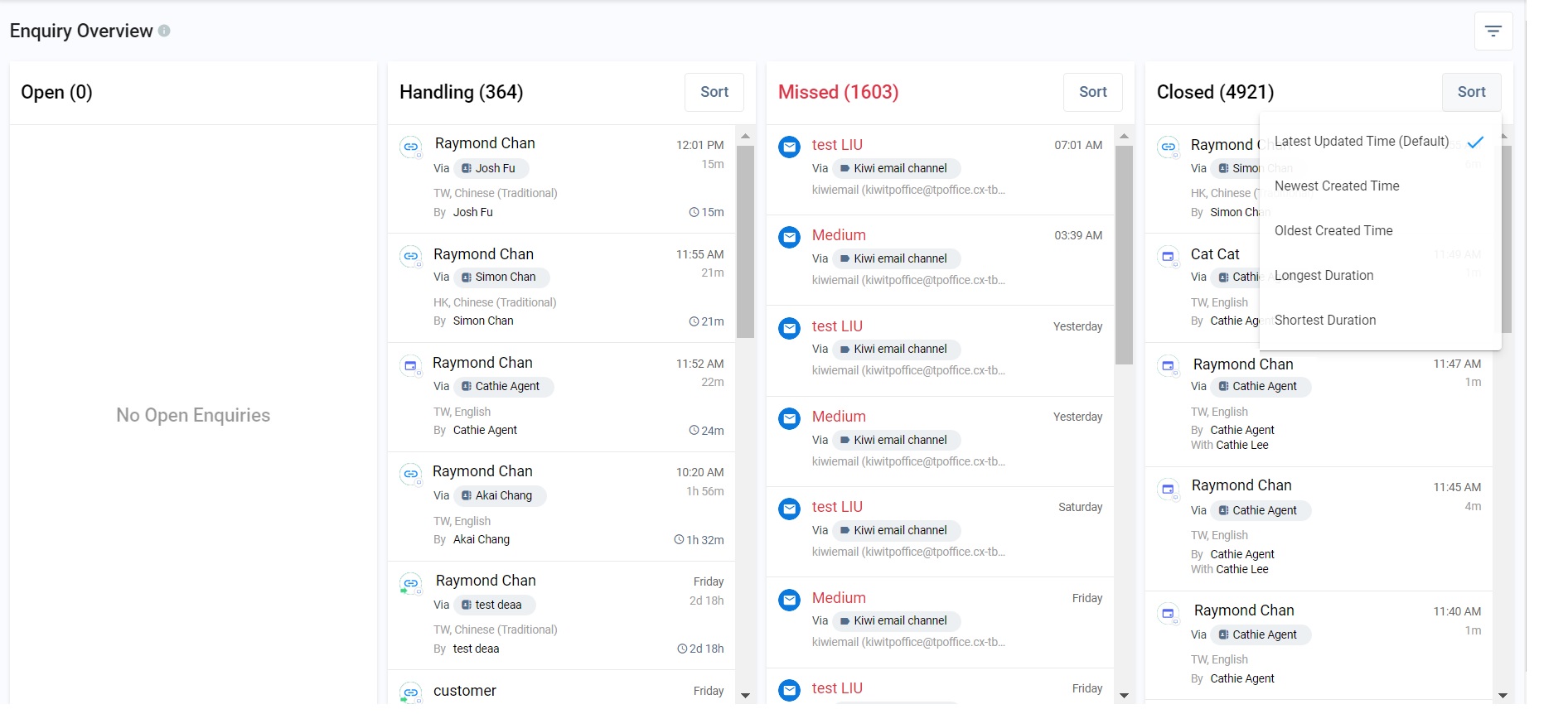
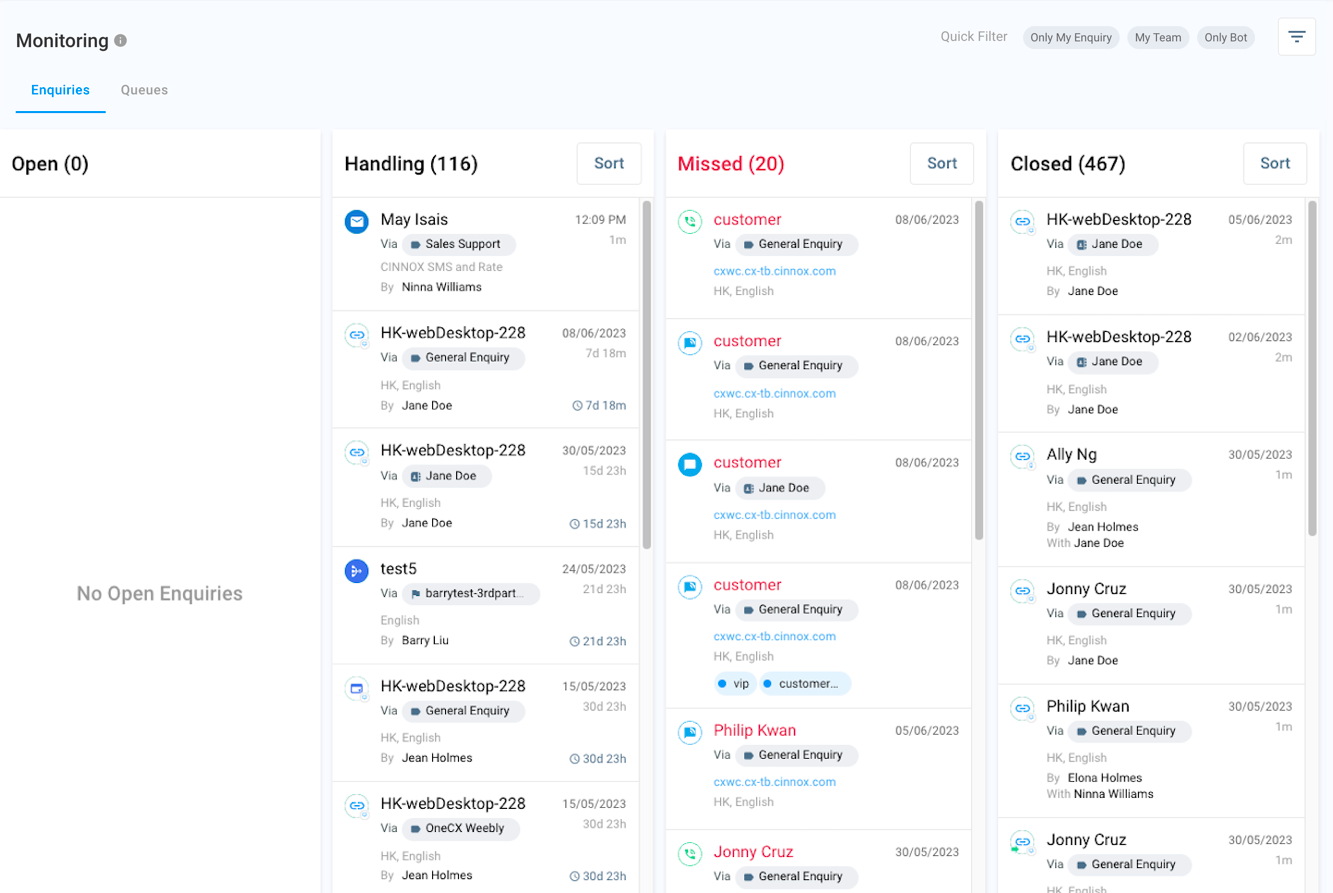
CINNOX staff members (agents) can get a quick snapshot of their service enquiries through the Enquiries Monitoring section. It has four columns that display enquiries according to the following statuses:
- Open: This section displays enquiries in the queue, which the staff members can pick up from here.
- Handling: This section displays ongoing and followed-up enquiries currently handled by the Staff members.
- Missed: This section displays unanswered enquiries to respective staff members belonging to the Routing and Destination Endpoint.
- Closed: This section displays enquiries resolved by the visitor or the Staff member by closing the enquiry room and ending the conversation.
To learn more about the flow of CINNOX enquiries and their different statuses, refer to the Enquiries in CINNOX section of this Guide.
📘
Staff can access the Enquiry Overview and Monitor and Take Action (view, transfer, join, or take over an enquiry) depending on their roles and permissions and if they belong to the Routing Destination of the Channel Enquiry.
Visitor and Enquiry Details
Enquiry details vary depending on the channel in which the visitors raise or send their enquiries.
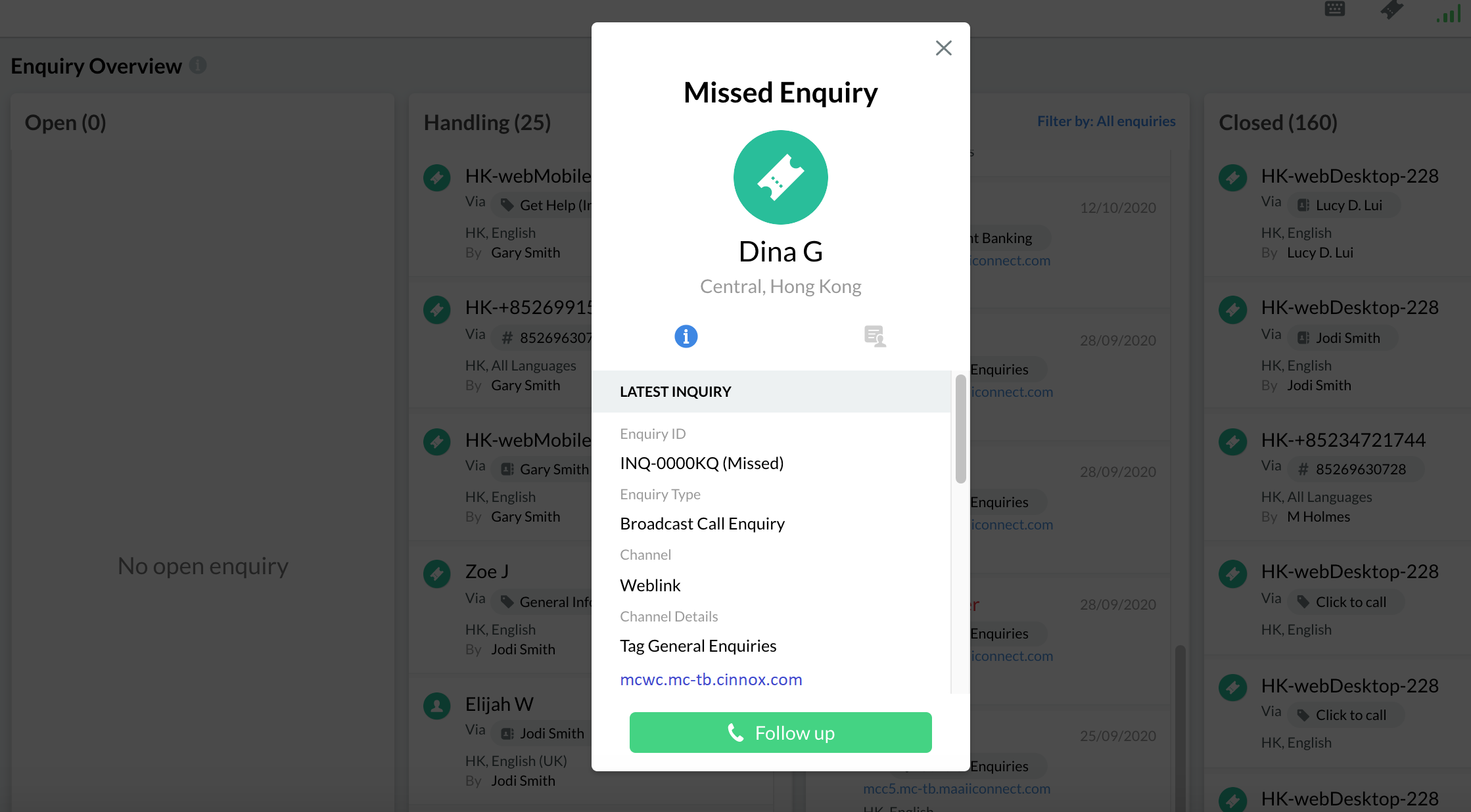
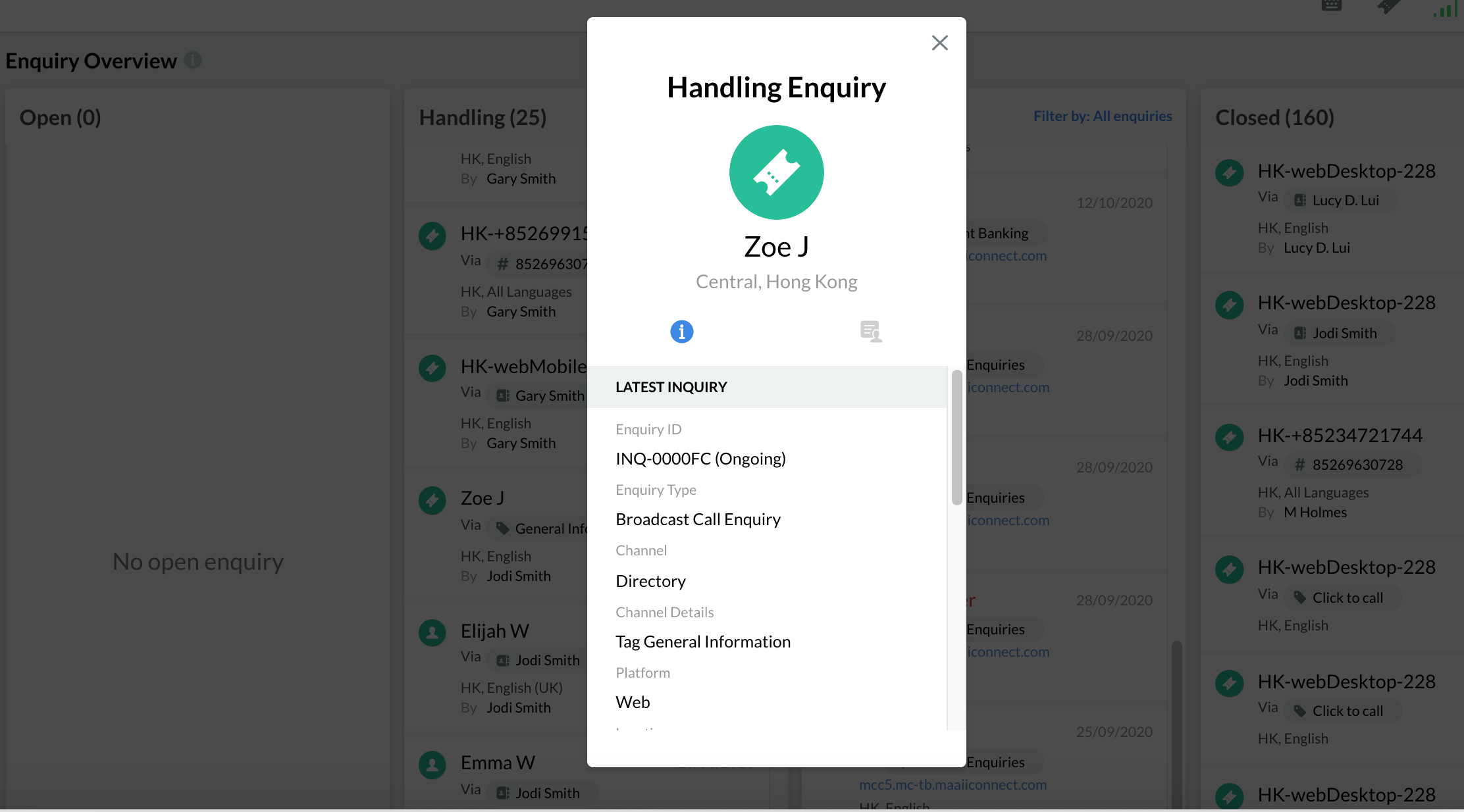
When you click on an enquiry, a pop-up window will display any of the details below.
From a Web Widget, Weblinks, and QR codes
Visitor Forms disabled
If the Visitor Forms (Pre-Chat Form and Offline Support Form) are disabled, only the Enquiry Details will be available:
- Visitor ID (composed of the visitor's country/territory, the platform used to enquire, and the last three digits of their IP address)
- Enquiry ID
- Enquiry Type (if a broadcast call, broadcast chat, direct call, or direct chat)
- Channel (if from Widget/Directory, Weblink, or QR code)
- Channel Details
- Platform
- Location
- Language
- Enquiry Initiate Time
When the Visitor Form is enabled
If the Visitor Forms (Pre-Chat Form or Offline Support Form or both) are enabled, there will be a new section called Visitor Details that may contain the following, depending on how the forms were set and how the visitor fills them out:
- First Name
- Last Name
- Phone
- Company Name
- Job Title
- Department
- Message (available in Offline Support Form only)
From Virtual Number
Visitors who dial a virtual (toll-free or local) number will have the following Enquiry details:
- Visitor ID (composed of the visitor's country/territory and phone number)
- Voicemail message (if Voicemail is enabled)
- Enquiry ID
- Enquiry Type
- Channel
- Channel Details
- Platform
- Location
- Language
- Enquiry Initiate Time
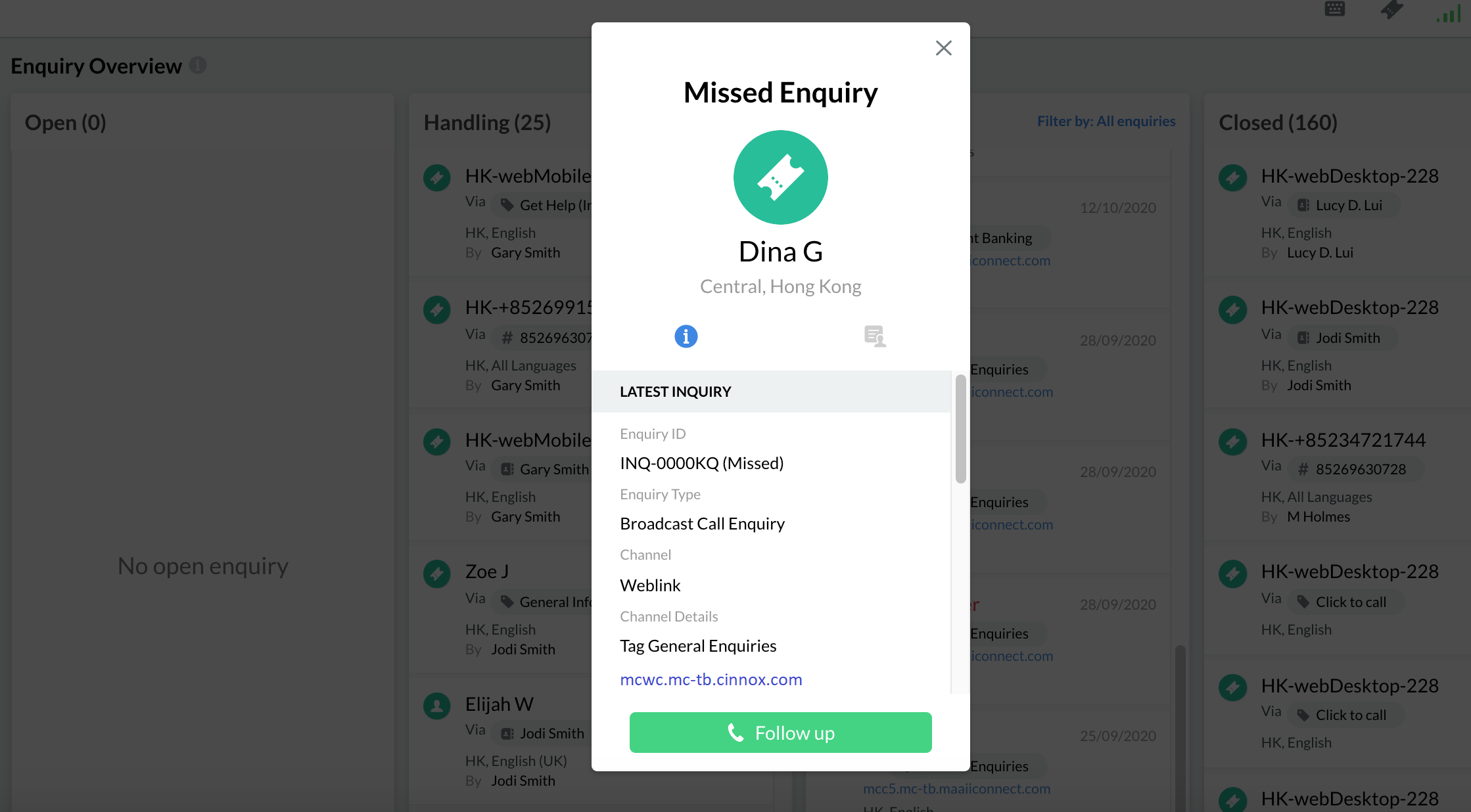
Virtual Number Enquiry Details
From Social
Visitors who send a message from Facebook Messenger, WeChat, WhatsApp, LINE and WOZTELL will have the following Enquiry Details:
- Visitor Name
- Enquiry ID
- Enquiry Type
- Channel
- Channel Details
- Platform
- Location
- Language
- Enquiry Initiate Time
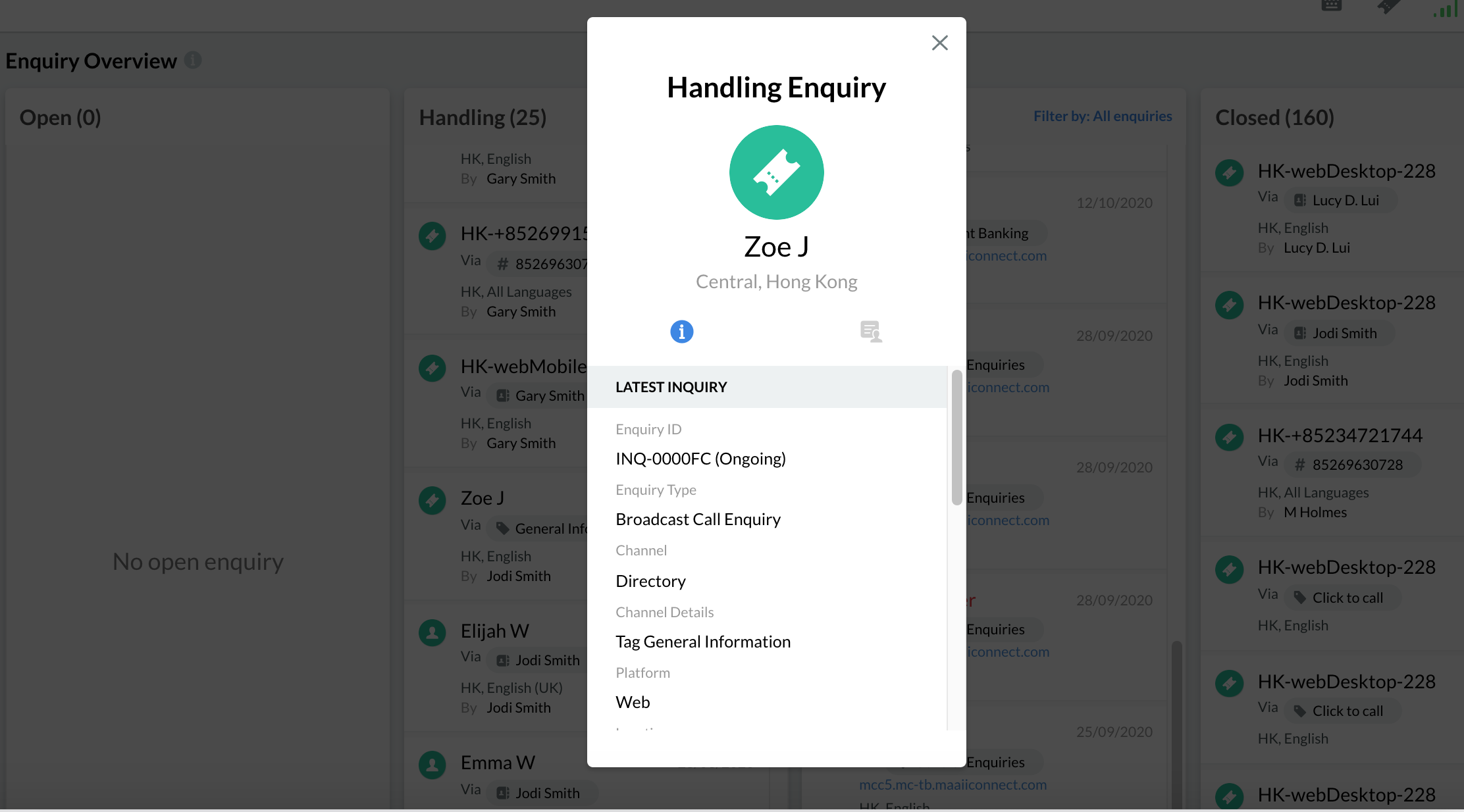
Social Enquiry Details
From Email
Customers who send an email to an email channel will have the following Enquiry Details:
- Customer Name
- Email Address
- Email Subject
- Enquiry ID
- Enquiry Type
- Channel Name
- Channel Details
- Platform
- Enquiry Initiate Time
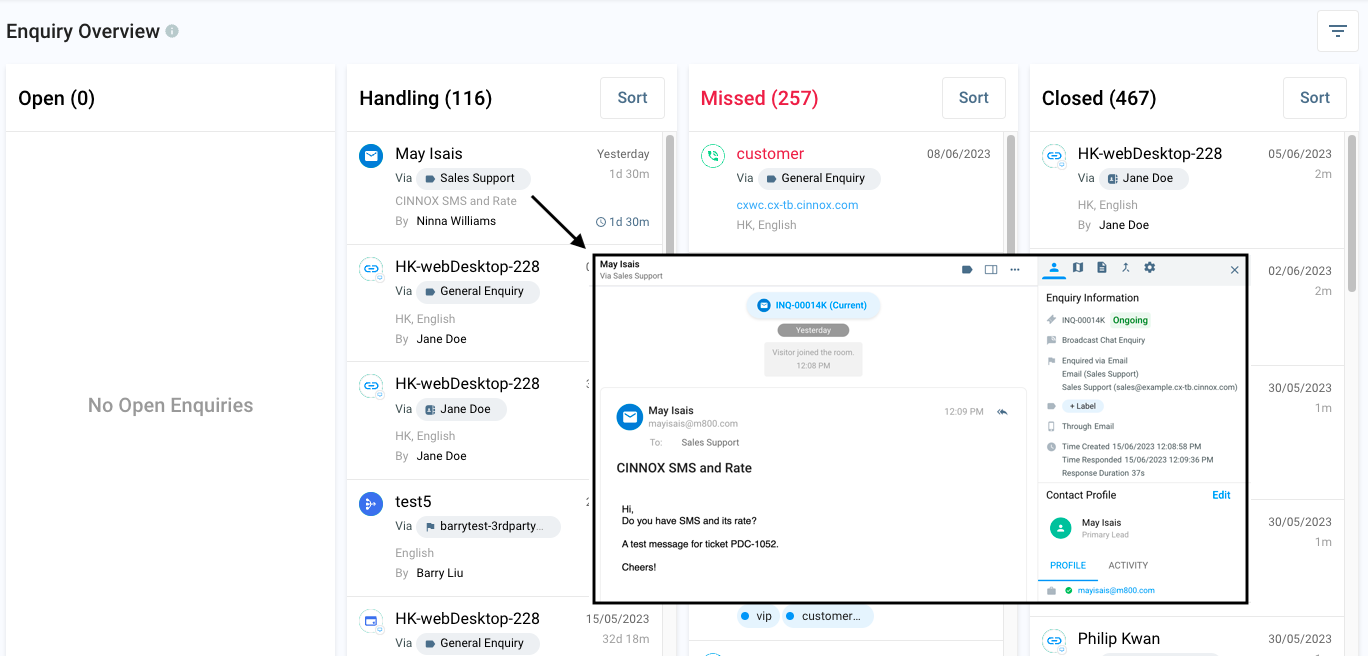
From Third Party
Visitors who send a message from your Third Party Channel have the following Enquiry Details:
- Visitor Name
- Enquiry ID
- Enquiry Type
- Channel
- Channel Details
- Platform
- Location
- Language
- Enquiry Initiate Time
Aggregated Enquiries
Multiple missed enquiries from the same visitor will be aggregated into the visitor's enquiry list.
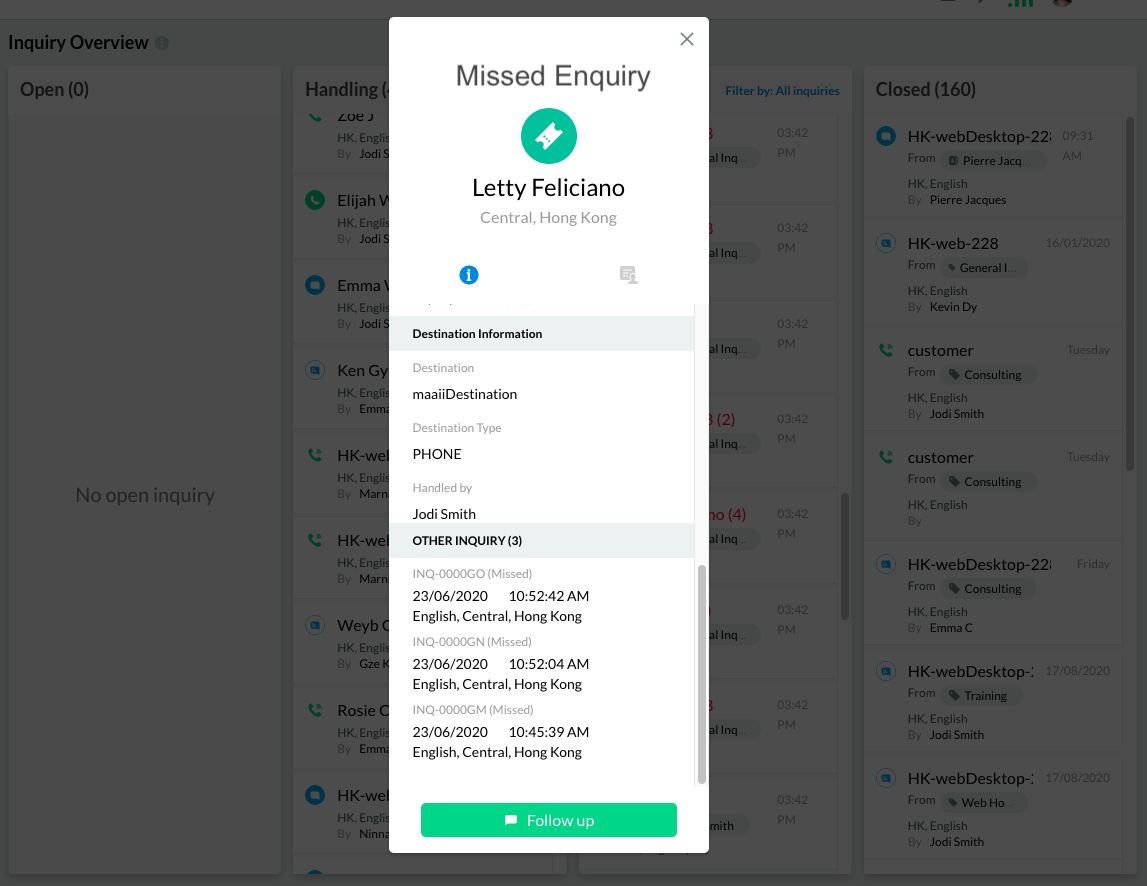
Aggregated Missed Enquiry
Following up on Missed Enquiries
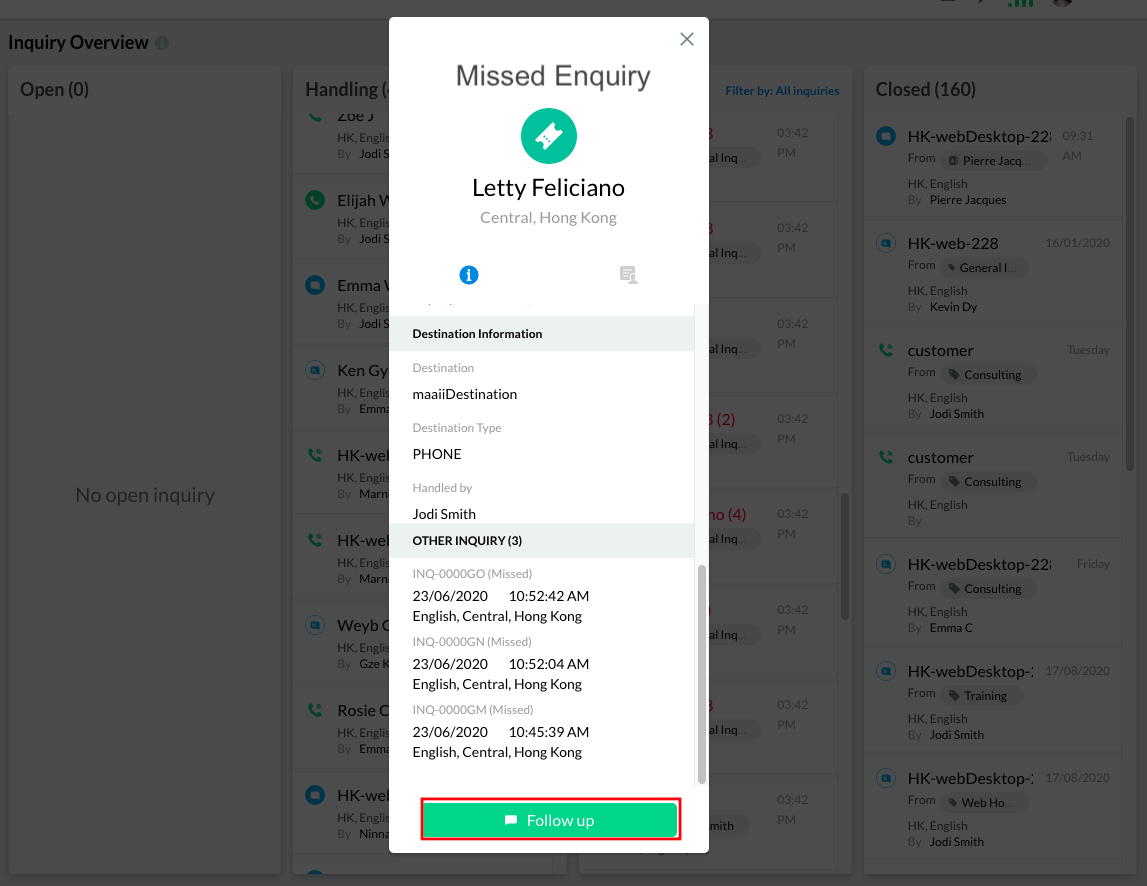
- An Admin or staff member can view and select missed enquiries from the Enquiry Overview and follow up by clicking the Follow Up button at the bottom of the pop-up window.
- Clicking the button will redirect you to your Workspace and create a room to handle the enquiry. The enquiry moved to the Handling section, and its status changed to Followed-Up.
Closing Missed Enquiries in Bulk
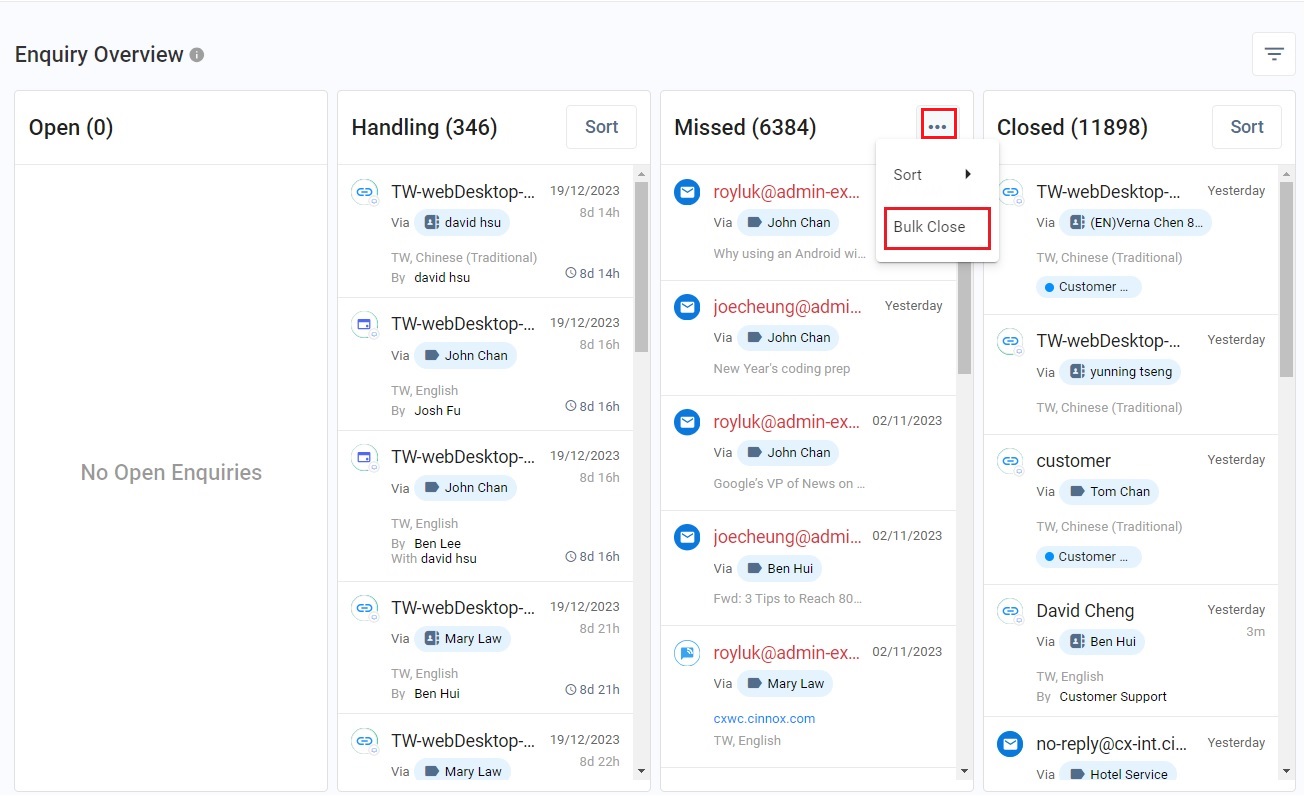
You can close missed enquiries in bulk instead of one by one. This is useful when you have a large number of spam enquiries that you must close in one go.
- Click More (...) and Bulk Close.
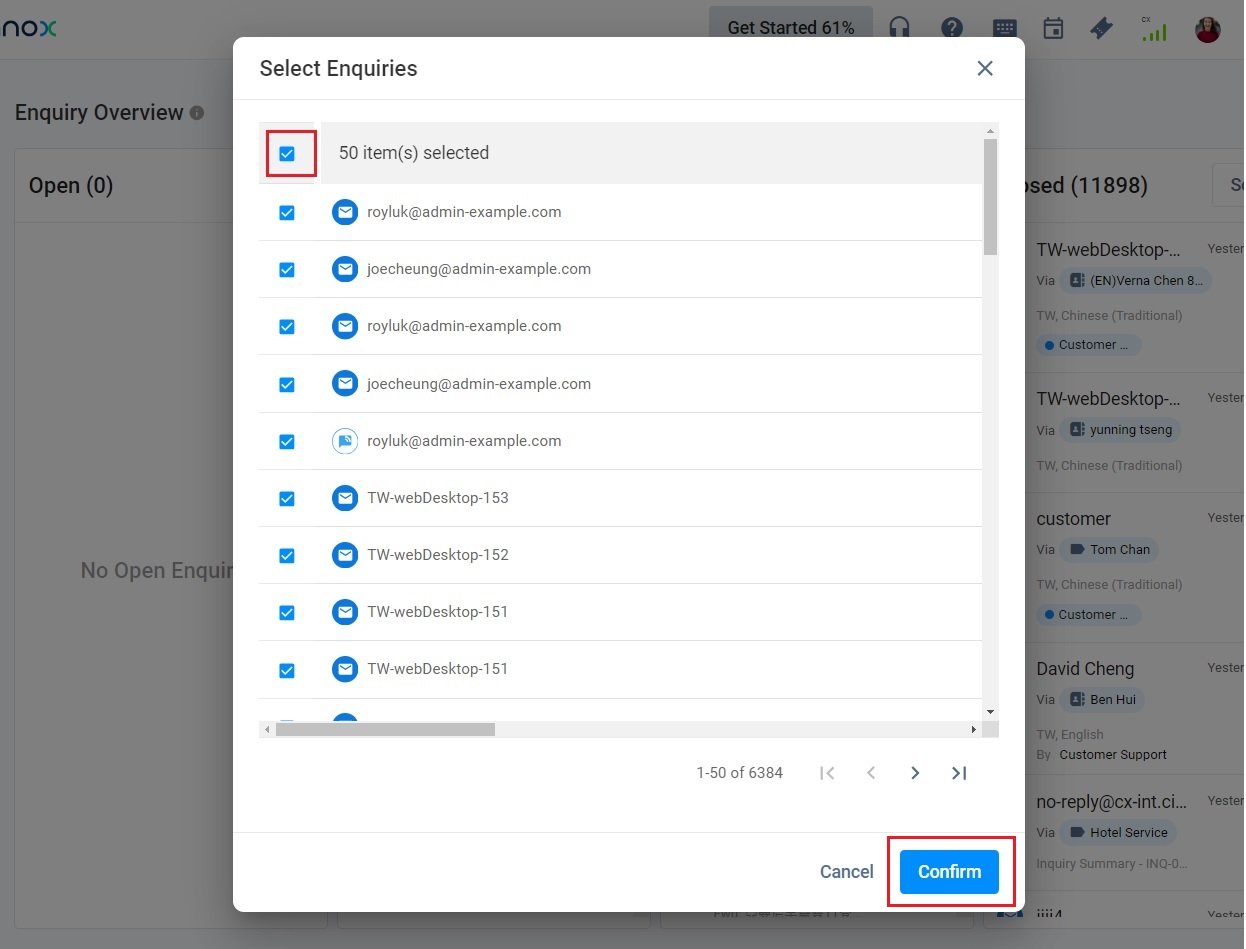
- You can select the missed enquiries you need to close or tick the box on the left side of the pop-up to set all enquiries you need to delete.
- Click Confirm
- Click Confirm in the pop-up message.
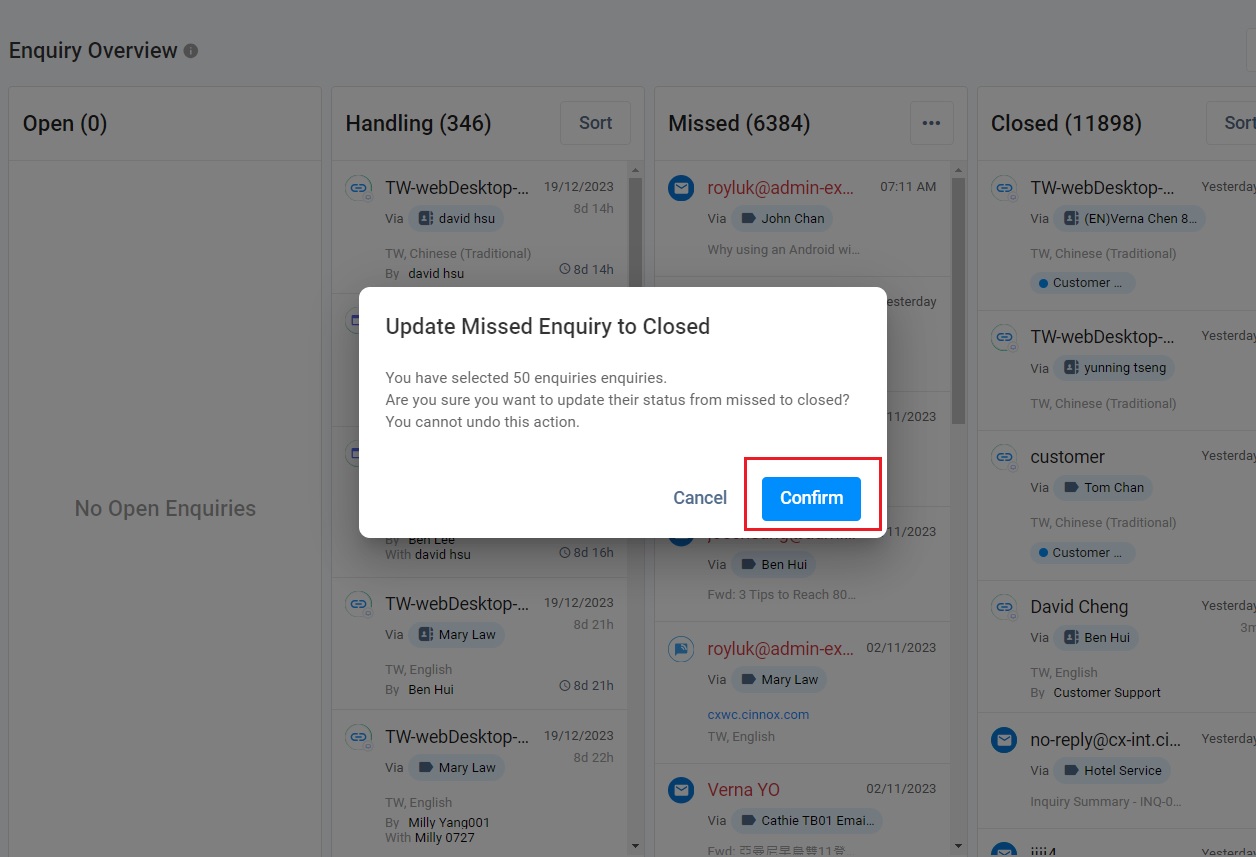
- The missed enquiries closed in bulk will be moved to the closed enquiry column.
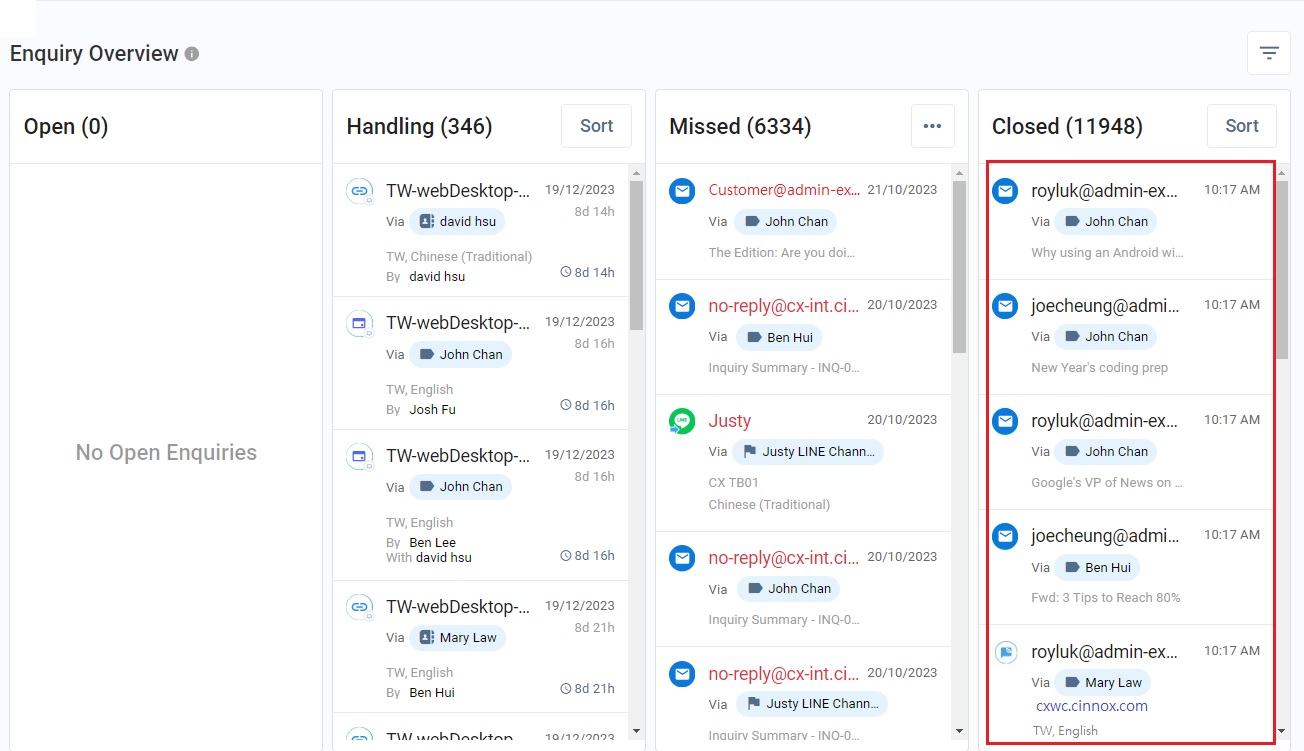
Closed Enquiries
CINNOX archives closed enquiries in the Enquiry Overview.
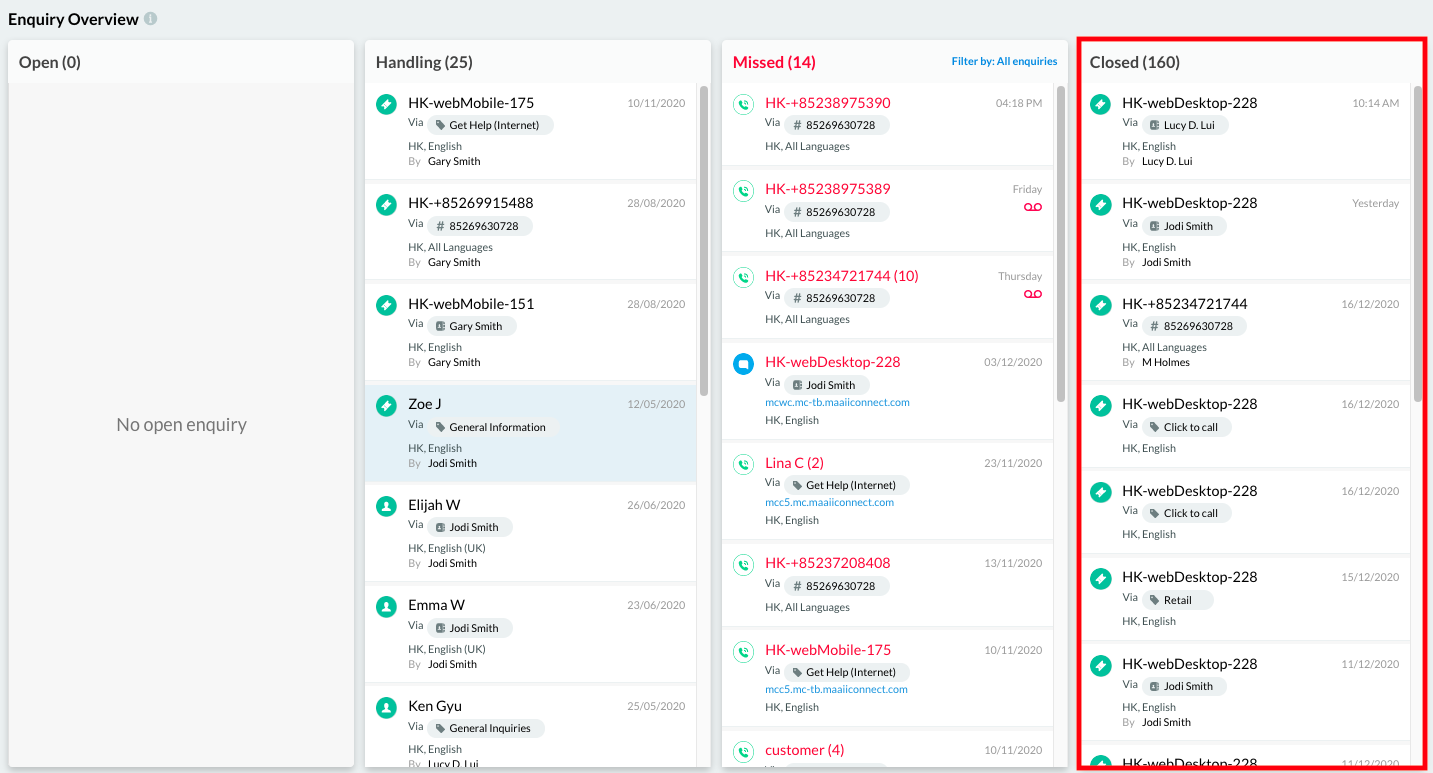
Closed Enquiry archive
You can click on a closed enquiry to view the conversation history between the visitor and the Staff member(s), as well as the following details typically found in the Visitor Enquiry Room of a Staff member's Workspace:
- Enquiry Information
- Visitor Information
- Device Information
- UTM Information - refer to the UTM Information section of this Guide.
- Destination Information
- Visitor Journey
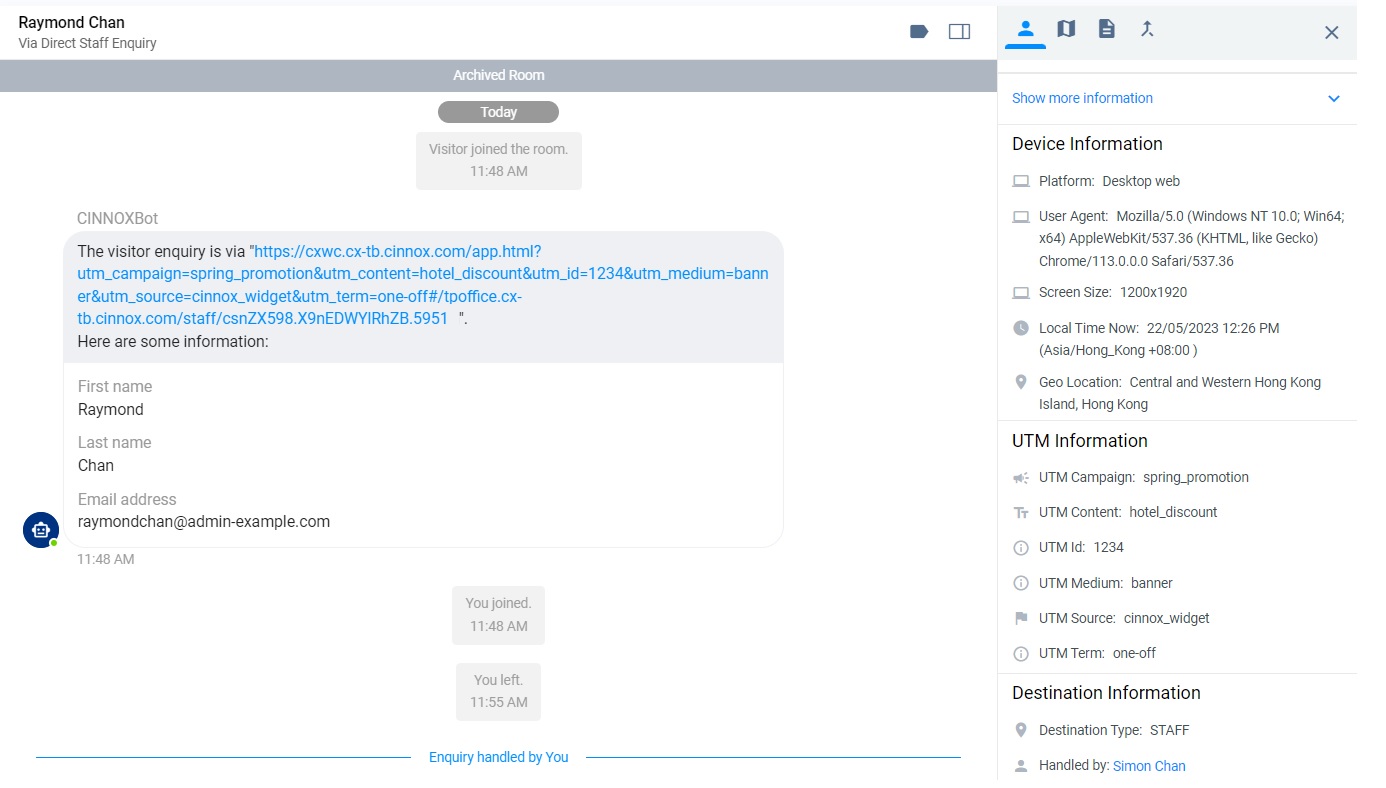
These types of information let you save the visitor's contact details or review and appraise a Staff member's performance for quality assurance, training, and other business-related purposes.
For more information on the Visitor Enquiry Room, refer to the Workspace section of this Guide.
Quick Filters and Filter By
Quick Filters
- Only My Enquiry: To view only the enquiries related to you.
- Only Bot: To view the enquiries handled by the Bot.
- My Team: This is for the admin and supervisor to view the enquiries related to their team members.
Filter By
You can select enquiries to filter - by All or Status (Open, Handling, Missed, Closed).
Also, filter the enquiries that match the following:
| Filter Name | Description |
|---|---|
| Search Staff Name / Case ID | Enter the name of the staff member who handled enquiries or the Case ID. |
| Enquiry Origin | Select the origin of the enquiry, such as All Enquiry Origins(Default), General Enquiry, Campaign (WhatsApp) or Campaign (SMS). |
| Channel Type | Select the preferred Channel Type, such as All Channel Types (Default), Directory, Web link, Virtual Number, Email, Third Party Channel, Messager, WhatsApp, WeChat, LINE or WOZTELL. |
| Channel Name / Number | Select the Channel Name or Number created according to the channel type selected. All Channels are the default. |
| Destination | * Destination Type: Select your required destination type, such as All Destination Types, Staff, PSTN Phone, SIP Trunk or Chatbot. * Last Handled Destination Name: Select the destination service group that handles enquiries. You can also select All Destination Names (Default), including bot names, to show enquiries dealt with by all destinations. * Last Handled Destination Endpoint: Select the last destination endpoint that handled enquiries. You can also select All Destinations Endpoints (Default) to show enquiries dealt with by all destination endpoints.Note: As an agent, you cannot view other staff members handling enquiries except for the Bot. |
| Duration | Please select the period of the enquiry, such as More than 10 Minutes, More than 30 Minutes, More than 1 Day, or Custom (Select your required days, hours, or minutes). |
| Created Date & Time | Select the enquiry created date & time - today, yesterday, last few days or all. |
| Staff Team | Select a specific staff team that handles enquiries. All Staff Teams is the default. |
| Enquiry Label | Select criteria for enquiries with labels, with options including: * Matches any labels (Default) * Match all labels Selecting specific labels to match the chosen option is optional. |
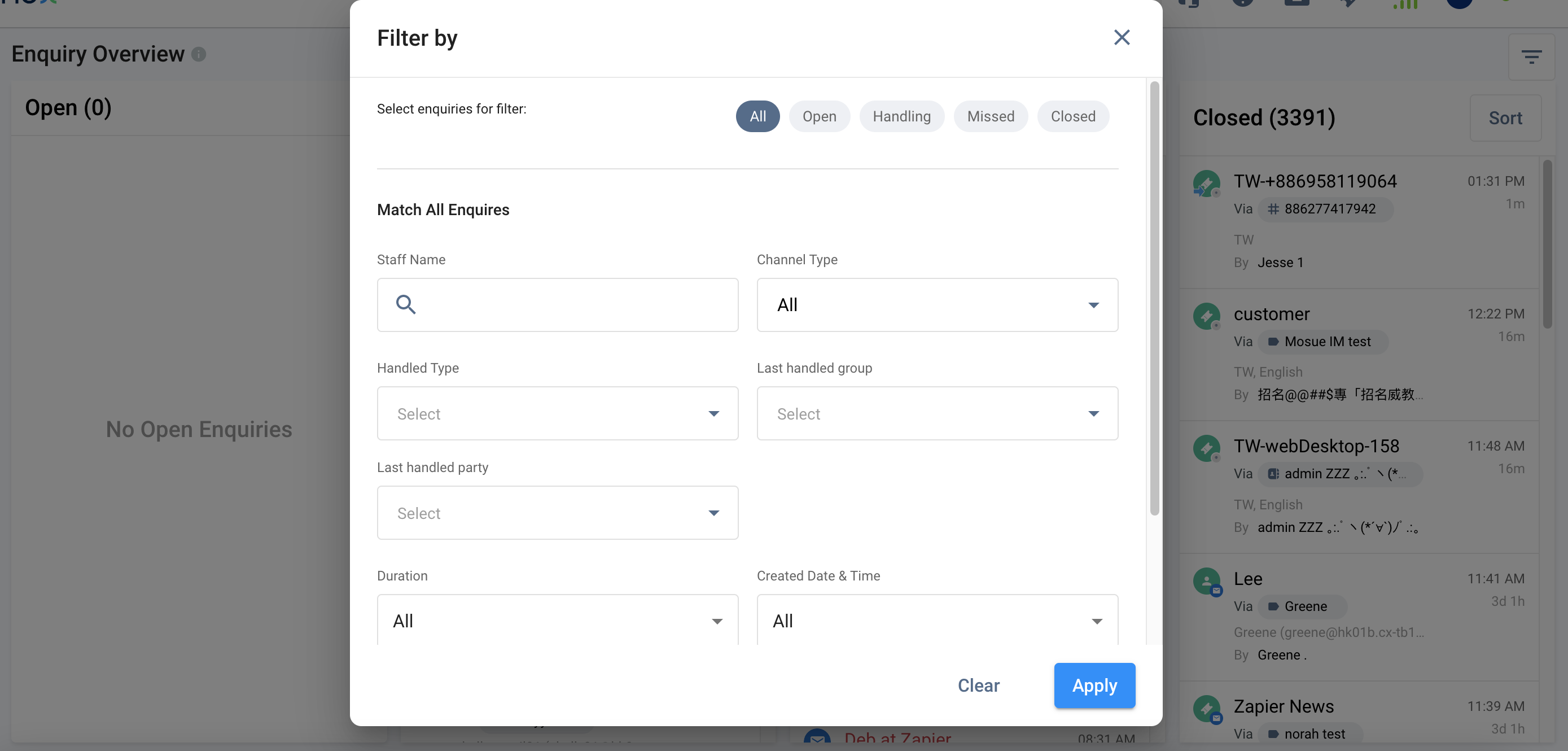
- Click Apply to process the filter request, or click Clear to reset the filter made.
Sort Enquiries
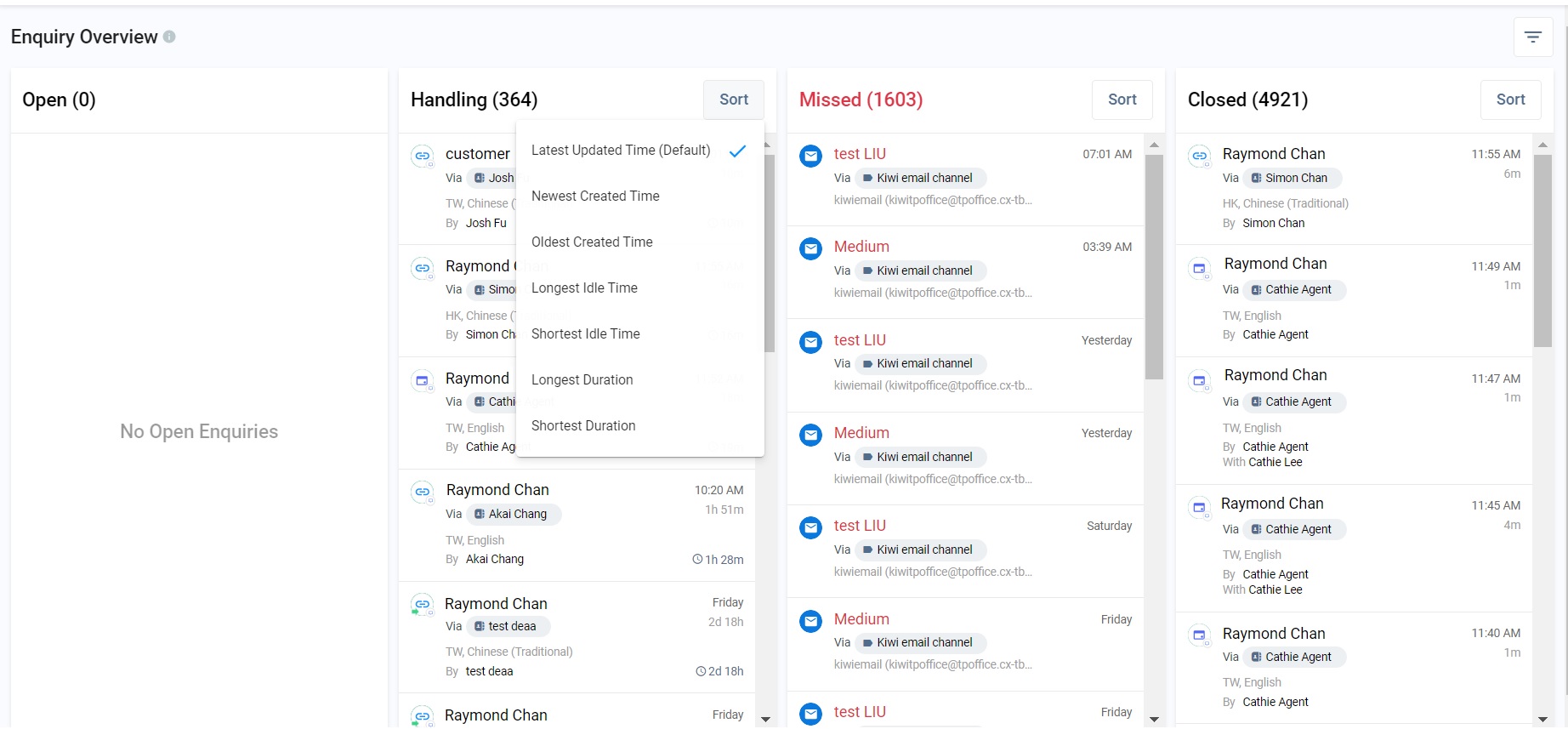
Sort Open & Handling Enquiries
You can sort open (new) and handled enquiries into the following:
- Latest updated time (default)
- Newest created time
- Older created time
- Longest duration
- Shortest duration
- Longest idle time
- Shortest idle time
Sort Missed Enquiries
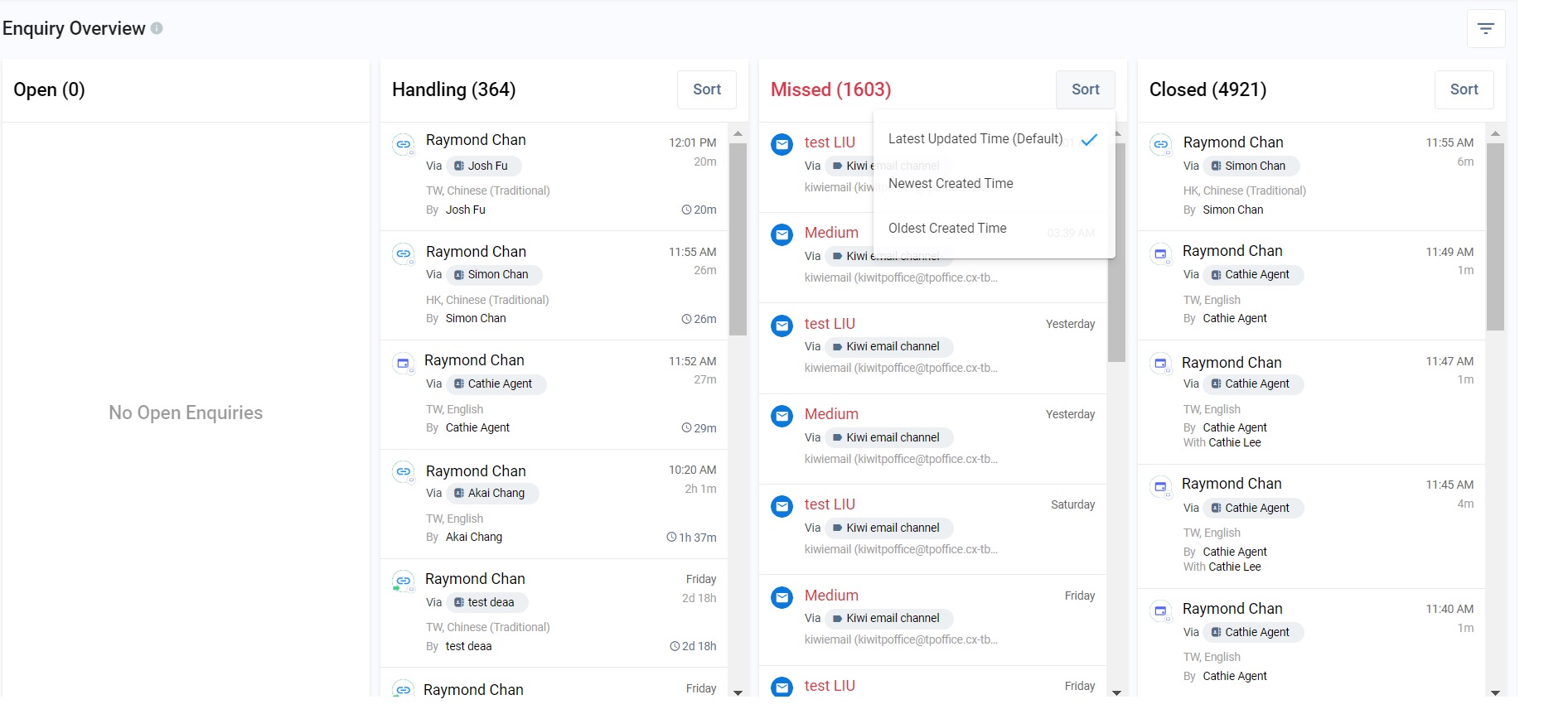
You can sort enquiries that are missed into the following:
- Latest updated time (default)
- Newest created time
- Older created time
Sort Closed Enquiries
You can sort enquiries that are closed into the following:
- Latest updated time (default)
- Newest created time
- Older created time
- Longest duration
- Shortest duration