
360dialog (WhatsApp BSP)
Looking for an Omnichannel Customer Service Solution?
Our competitive plans and high-quality service enable you to effortlessly handle customer enquiries and engage with them from any device, anywhere in the world. We've got you covered, from WhatsApp, WeChat, and Facebook Messenger to other social media channels, live chat and calls, local and international calls, and emails. Simplify your customer service and enhance your reach with CINNOX.
360dialog is a verified WhatsApp Business Solution Provider (BSP) CINNOX partnered with you to make it easy to register and integrate your WhatsApp Business API (WABA), create a WhatsApp Channel and send a WhatsApp Campaign.
As WhatsApp is a real-time communication tool, your customers usually immediately check the incoming messages when you send WhatsApp Campaign. As such, interacting with your customers is a valuable time window to serve your marketing and promotional purpose.
Another benefit of using WhatsApp Campaign is that it supports various message formats, including documents, videos and images, allowing you to tailor-make your message for recipients' different needs.
📘
This User Manual will show you how to create a WhatsApp Channel with 360dialog BSP. For other BSPs, please refer to our Connecting WhatsApp detailed Guid.
This user manual covers two parts:
PART I: Create a New 360dialog WABA Account
If you do not own your 360dialog WABA but need one to connect to CINNOX, you can register a new 360dialog WABA Account via CINNOX. Please browse PART I to learn how to do so.
📘
Please note that you may be billed an additional cost when you acquire a new WhatsApp Business Account (WABA). Also, when you migrate your existing WABA from another 360dialog partner or BSP to CINNOX, the license fee for your WhatsApp number will change and apply CINNOX's rates.
PART II: Connect your 360dialog WABA to CINNOX
In PART II, there are three scenarios that your case may belong to:
- You already have WABA in 360dialog
- You have WABA in other BSP
- Request the partner change to CINNOX
Owning the 360dialog WhatsApp Business Account, you are ready to jump right through Part II.
PART I: Create a New 360dialog WABA
- Log in to your CINNOX Dashboard, and navigate Administration > Channels > Social.
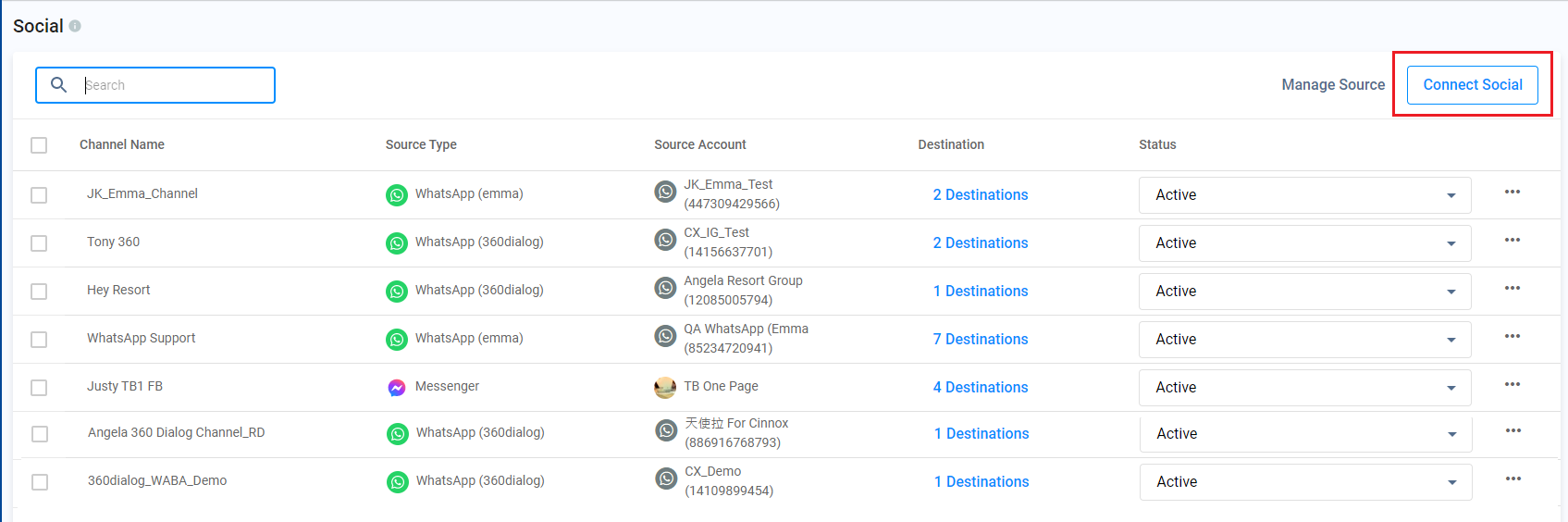
- Click Connect Social.
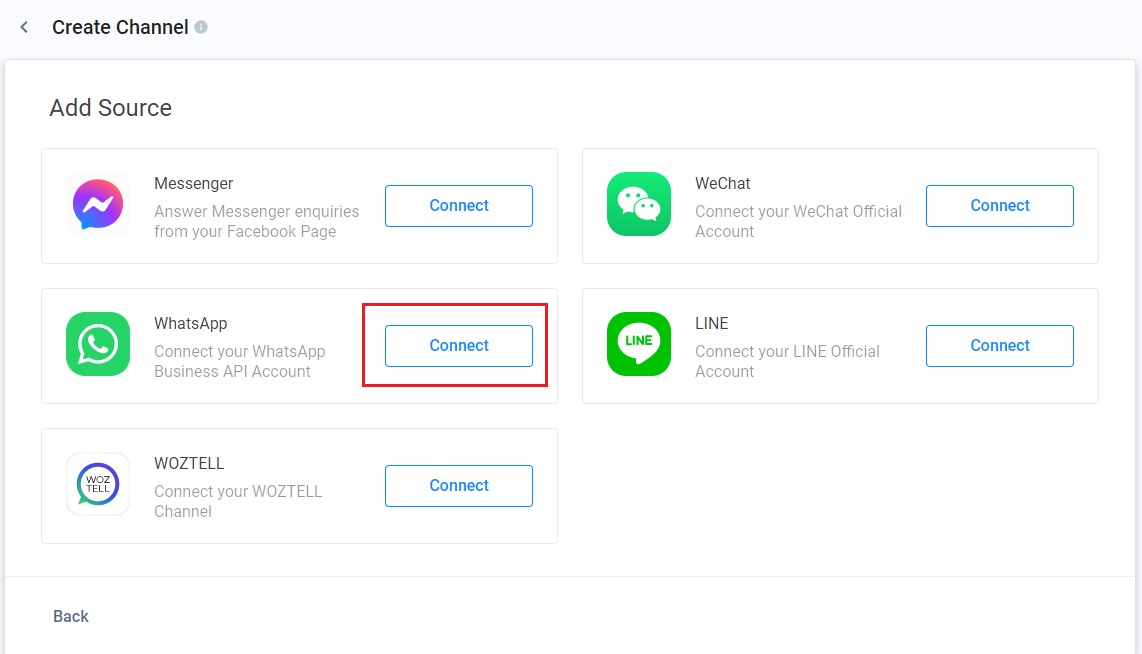
- Click Connect on WhatsApp
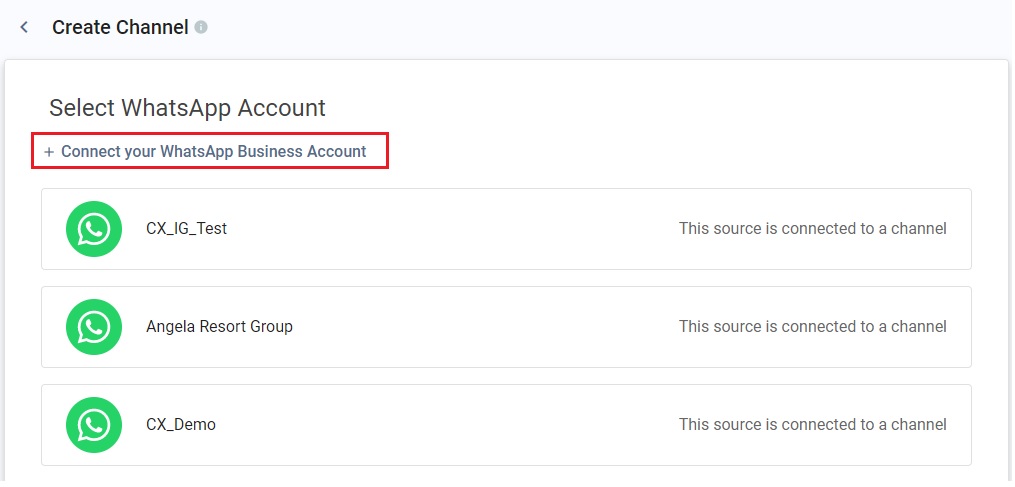
- Click**+ Connect your WhatsApp Business Account**.
- Select Create New 360dialog WABA.
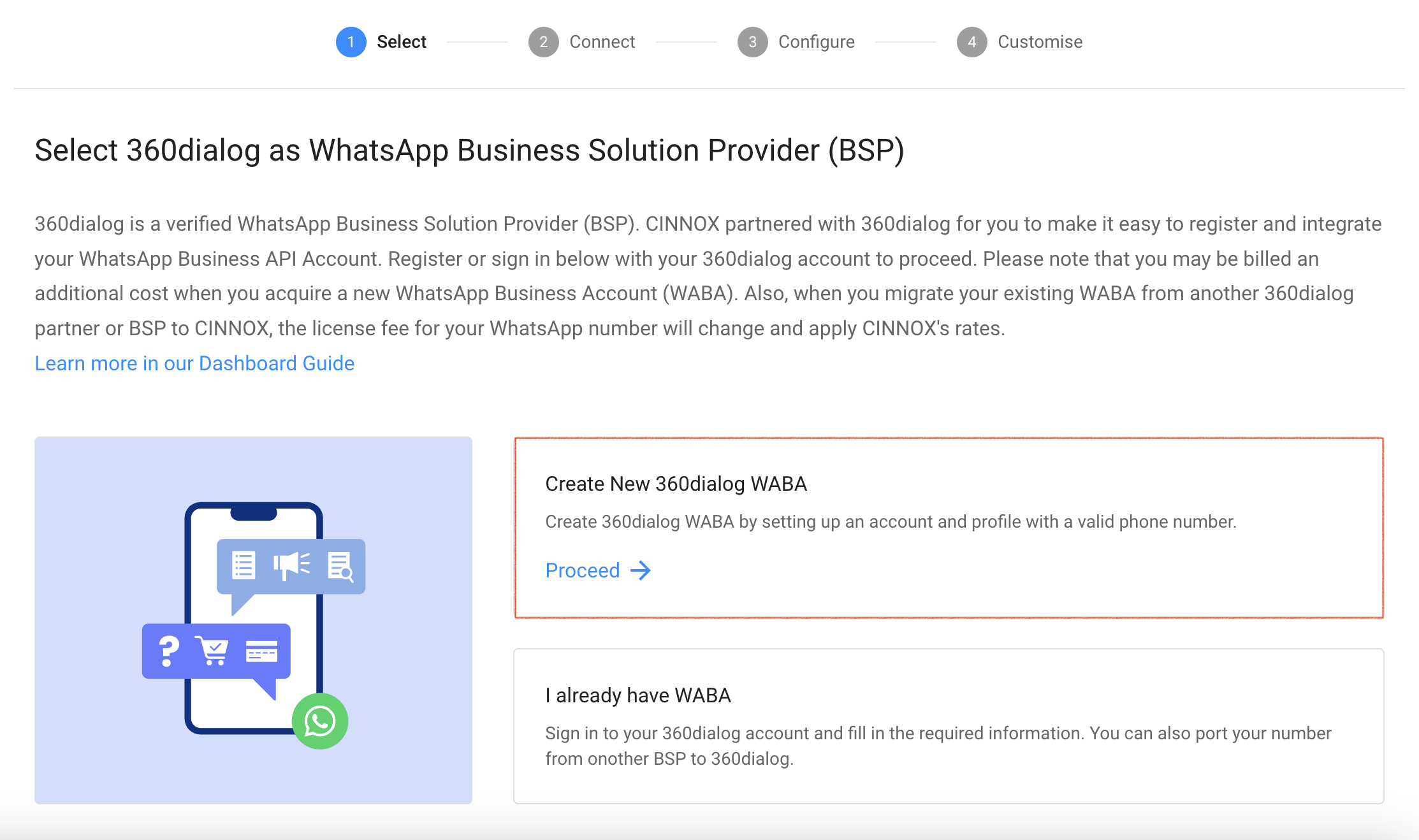
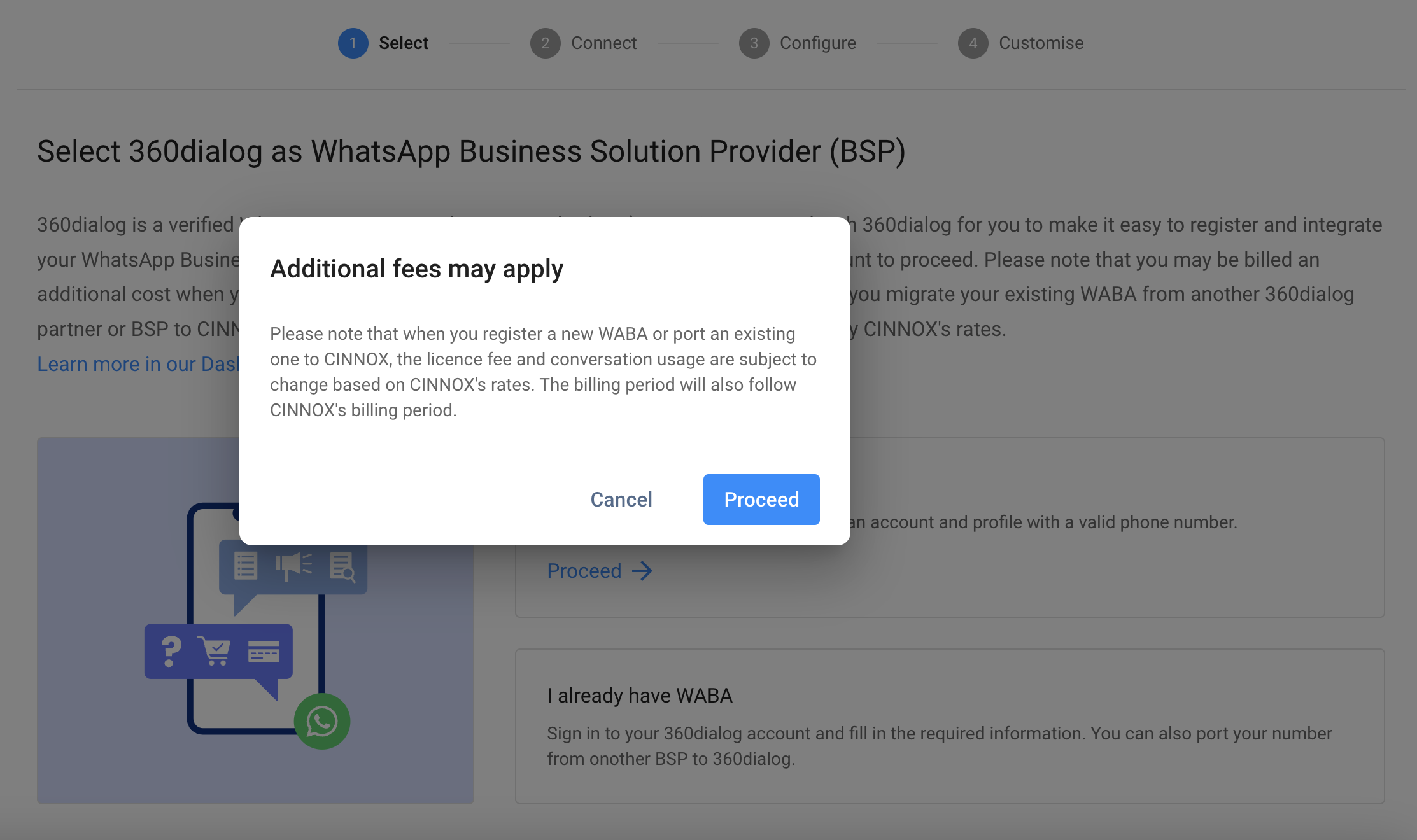
- A pop-up will appear for the notice when registering a new WABA or porting an existing one to CINNOX; the licence fee and conversation usage are subject to change based on CINNOX's rates. The billing period will also follow CINNOX's billing period.
- Click Proceed.
- Choose your number type, the Phone Number or the Virtual Number to create your new 360dialog WABA.
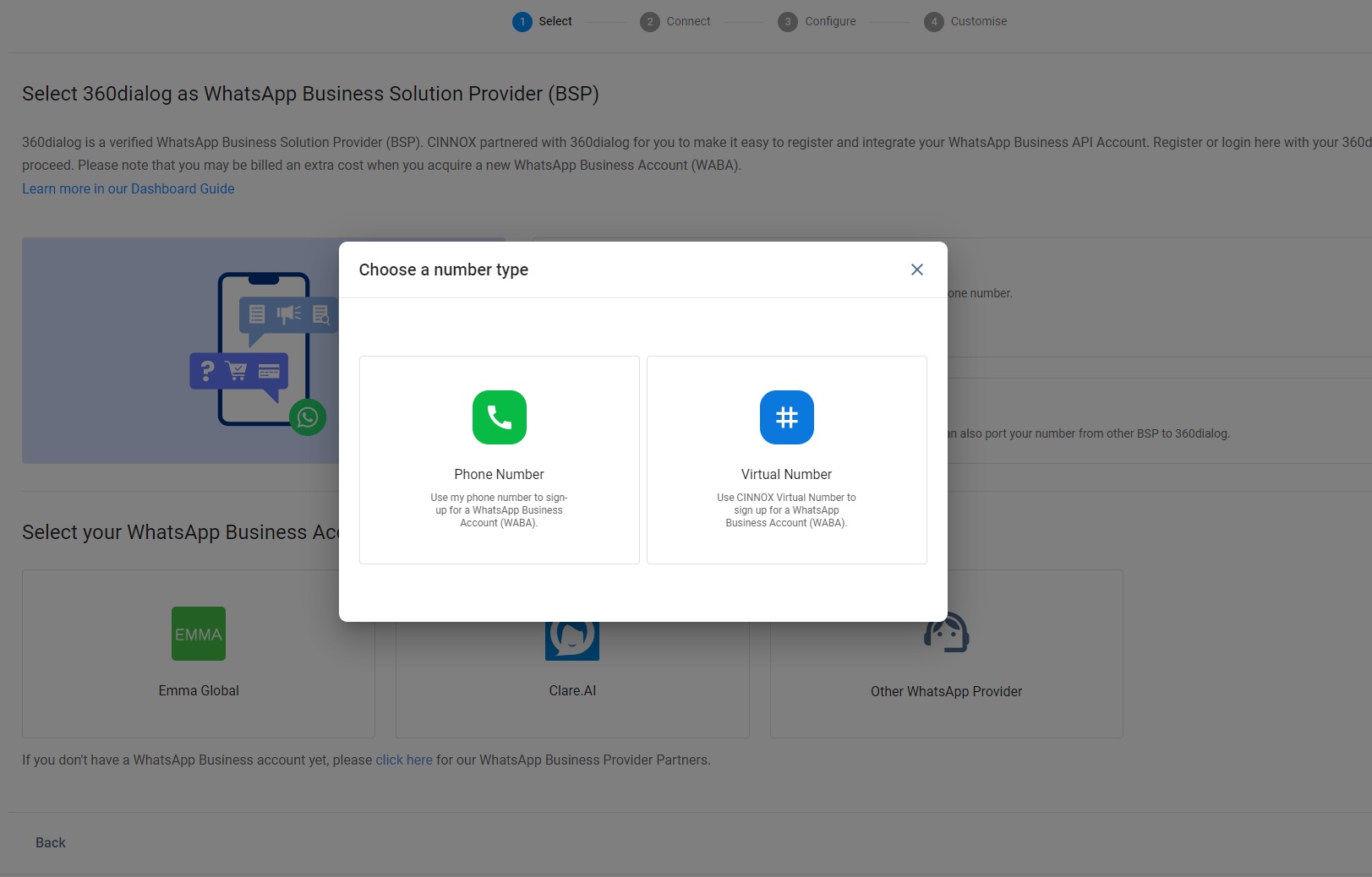
Option A - Using Own Phone Number
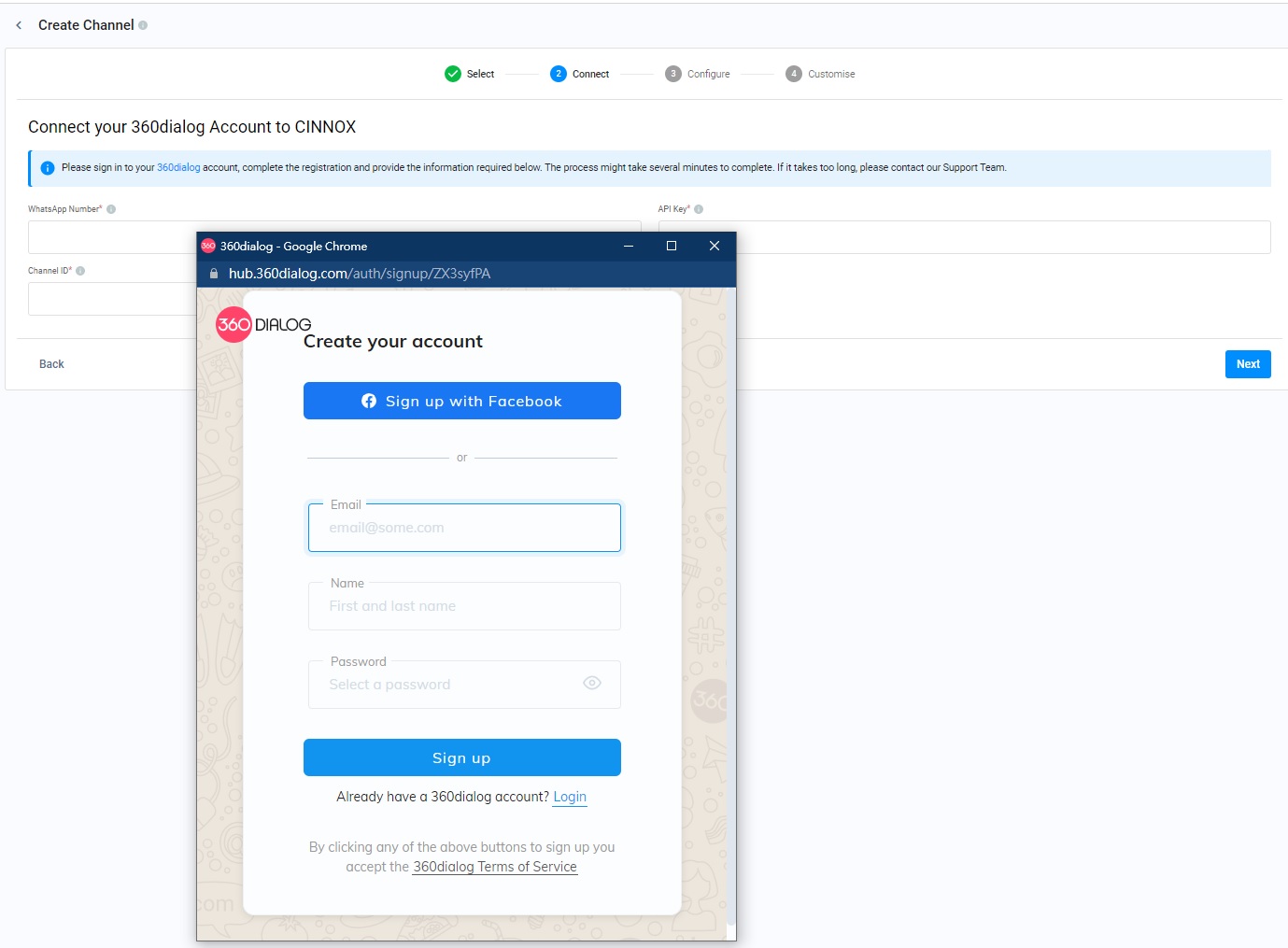
- Select the Phone Number.
- Sign up for your 360dialog WABA via your Facebook account or email, name and password on the 360dialog pop-up window. (Please remember your 360dialog account and password to log in to the 360dialog Client Hub.)
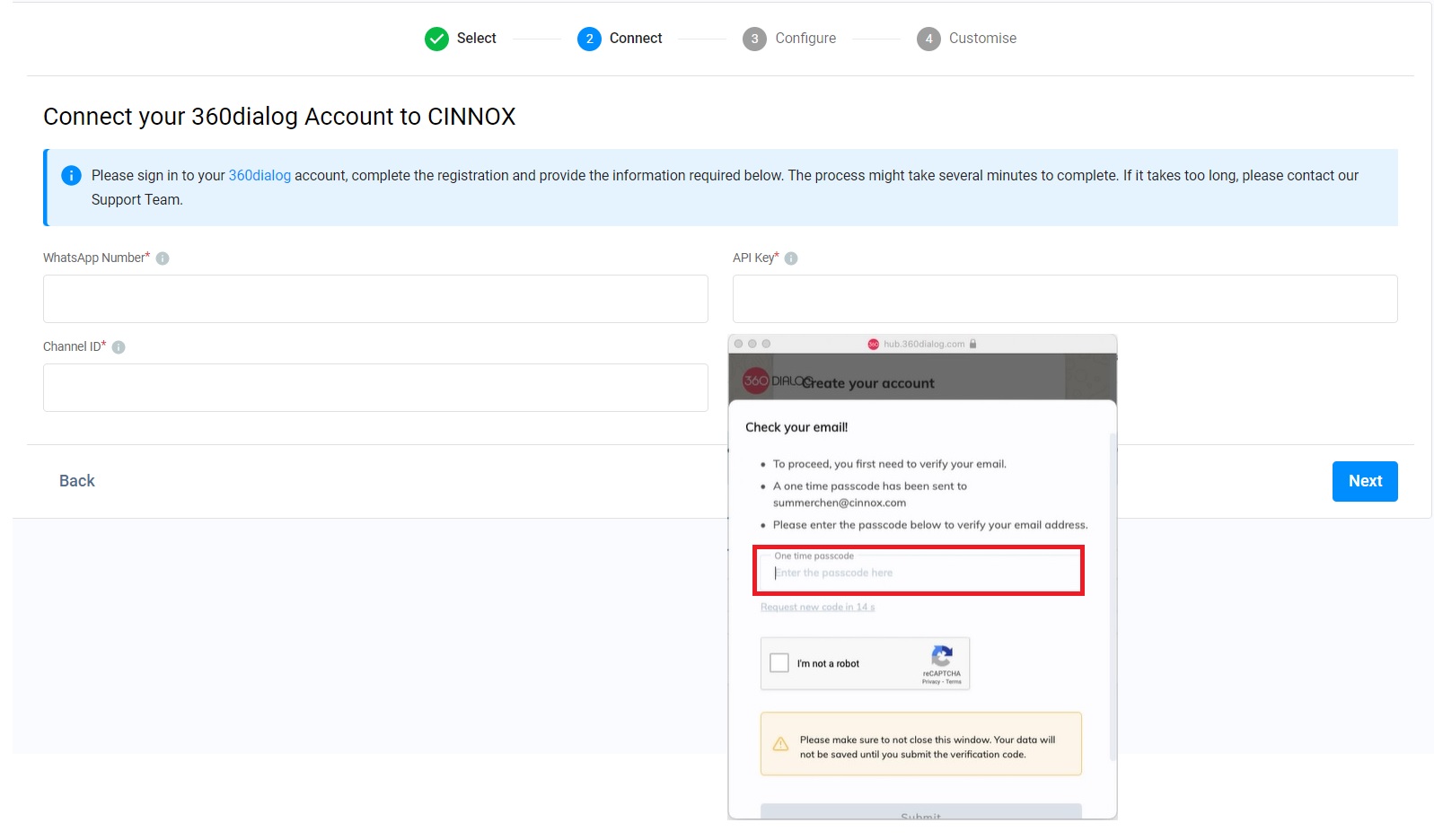
- Enter your one-time passcode sent to the email address used for your sign-up.
- If required, click the "I'm not a robot" checkbox and complete the CAPTCHA challenge.
- Click Submit.
- Click the required three checkboxes. Clicking the "You already have a Facebook business account, which is verified" check box is optional.
- Click Continue with Facebook.
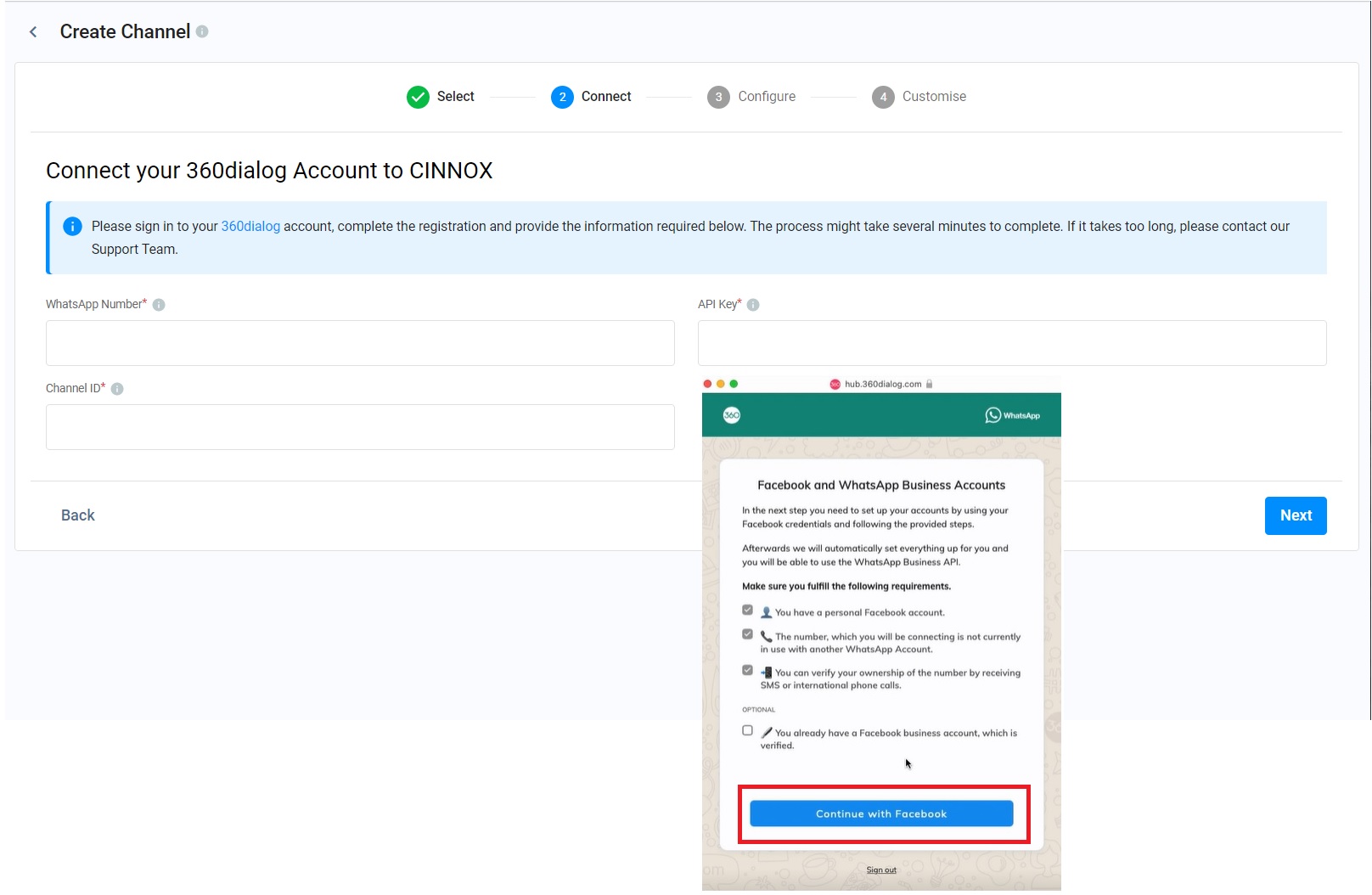
- Login to your Facebook account.
- Enter the 6-digit code for the two-factor authentication if required.
- Click Continue as {your account name}.
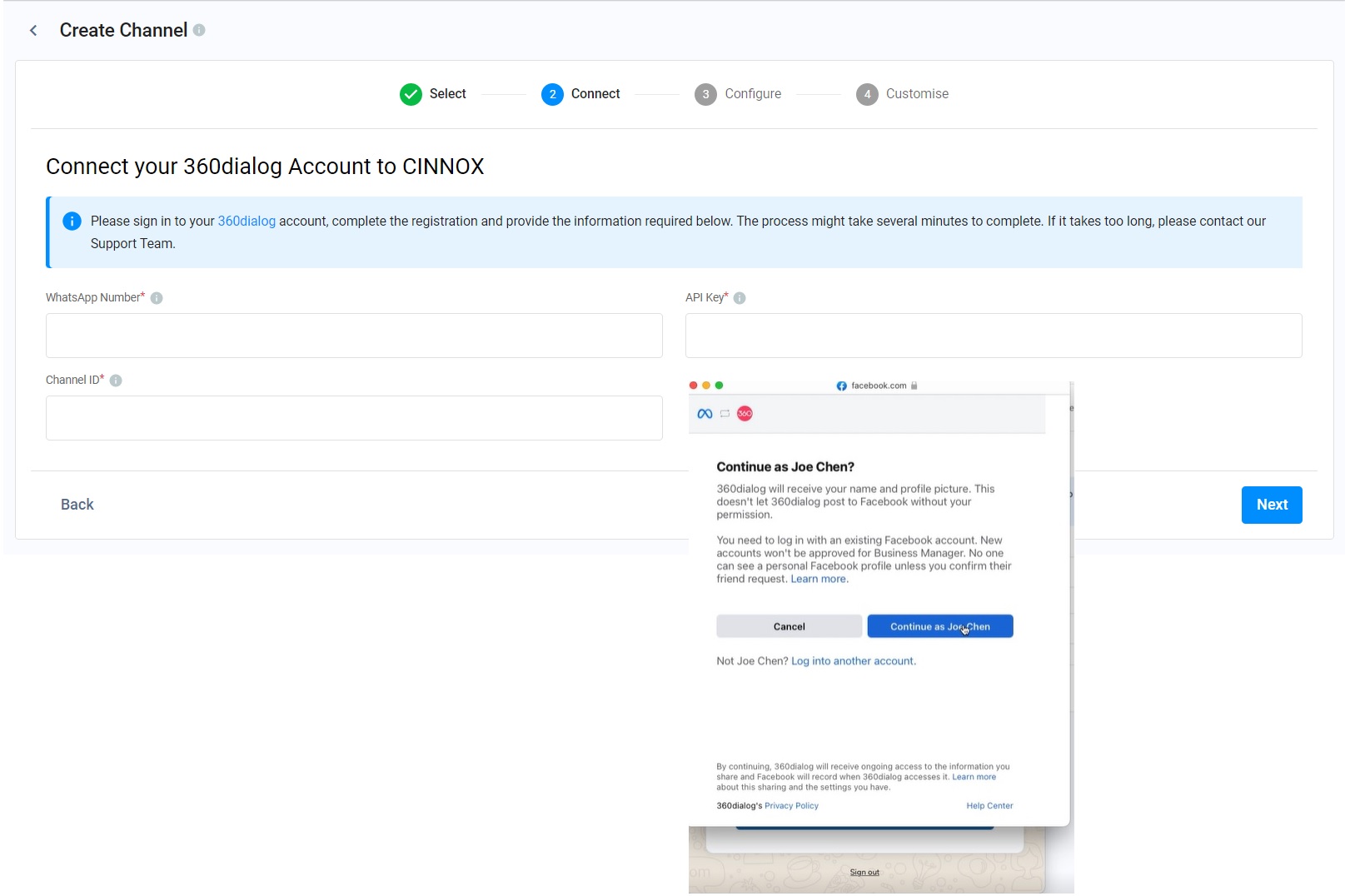
- Click Get Started.
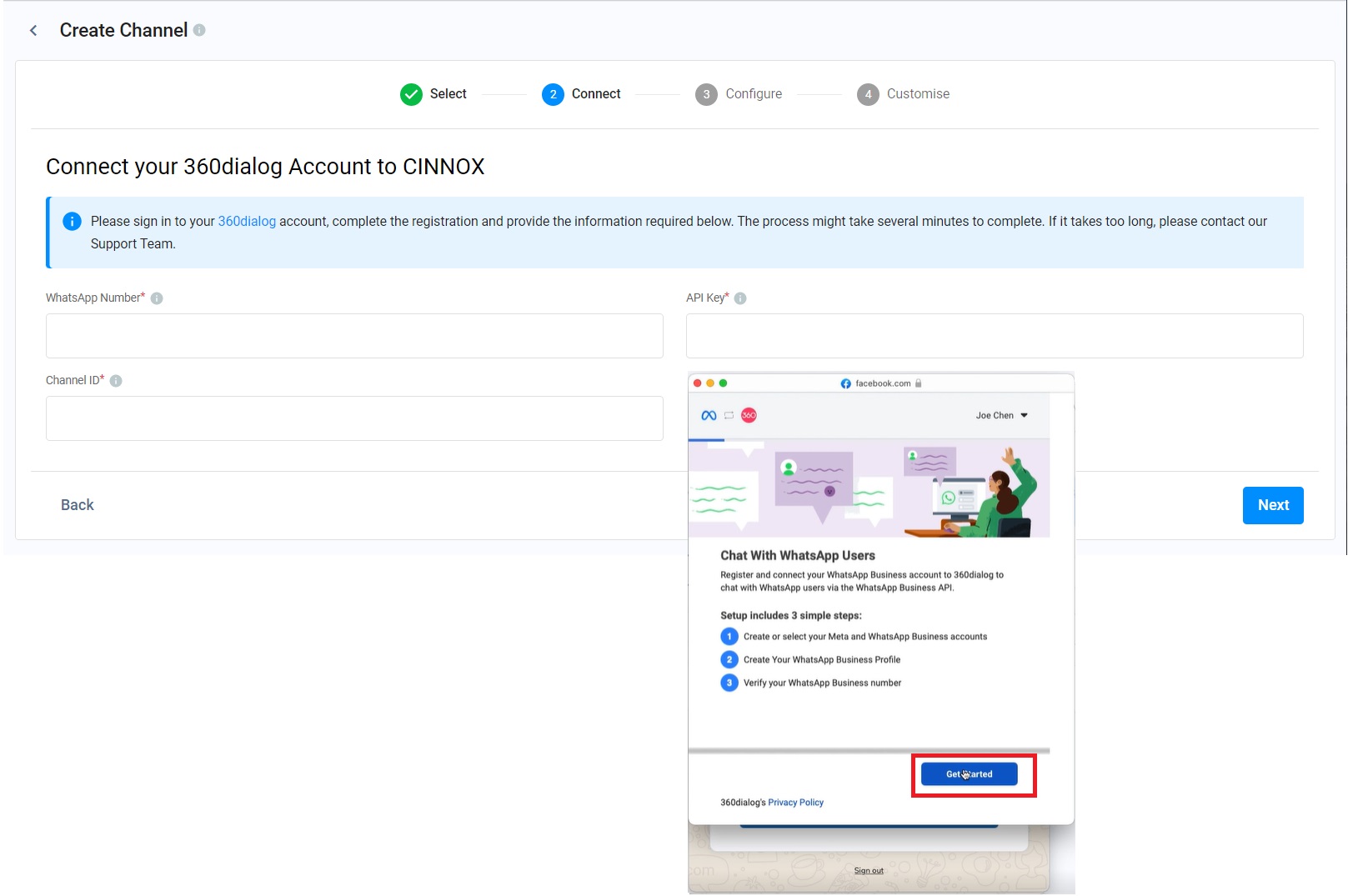
- Click Continue.
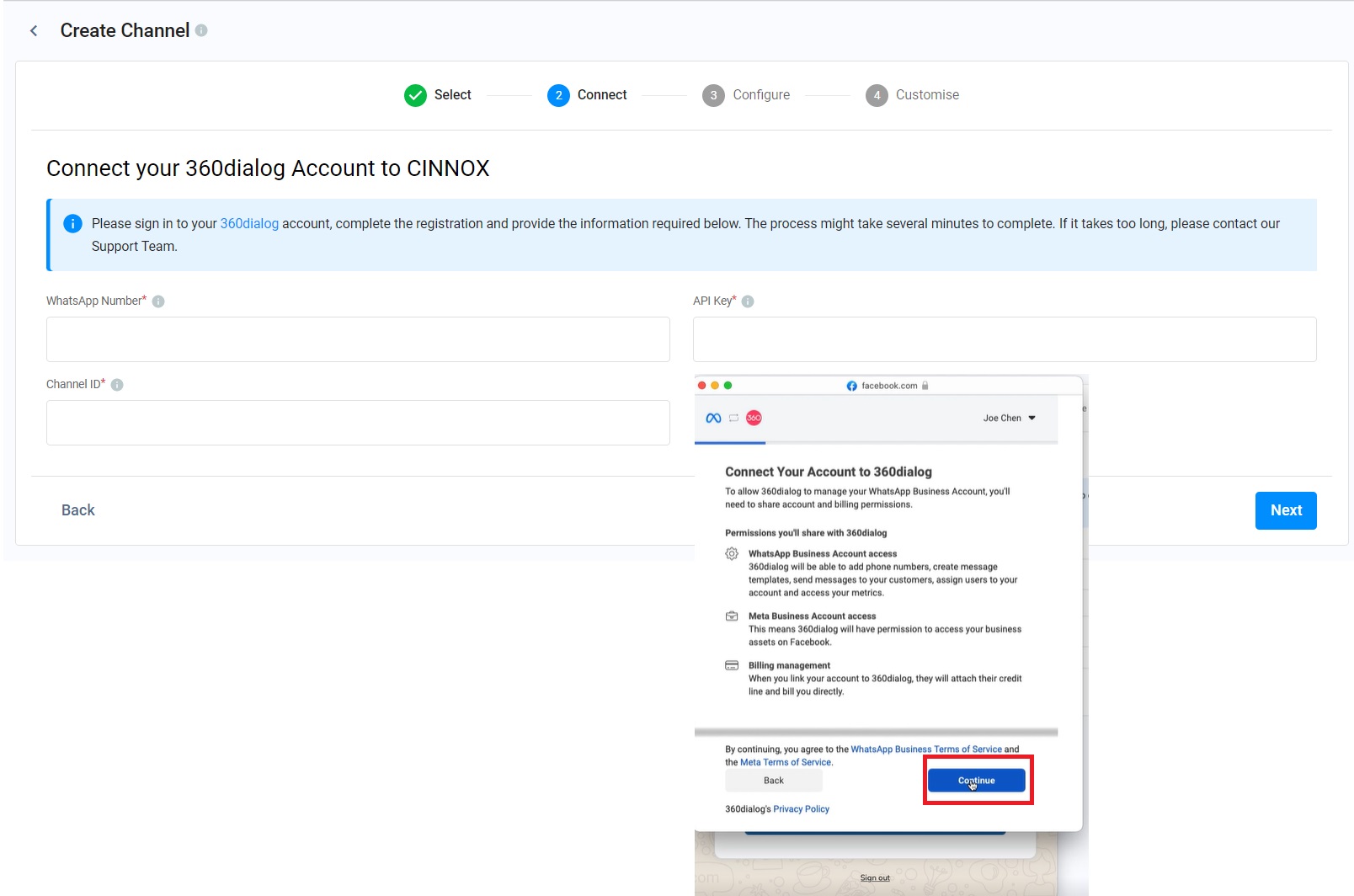
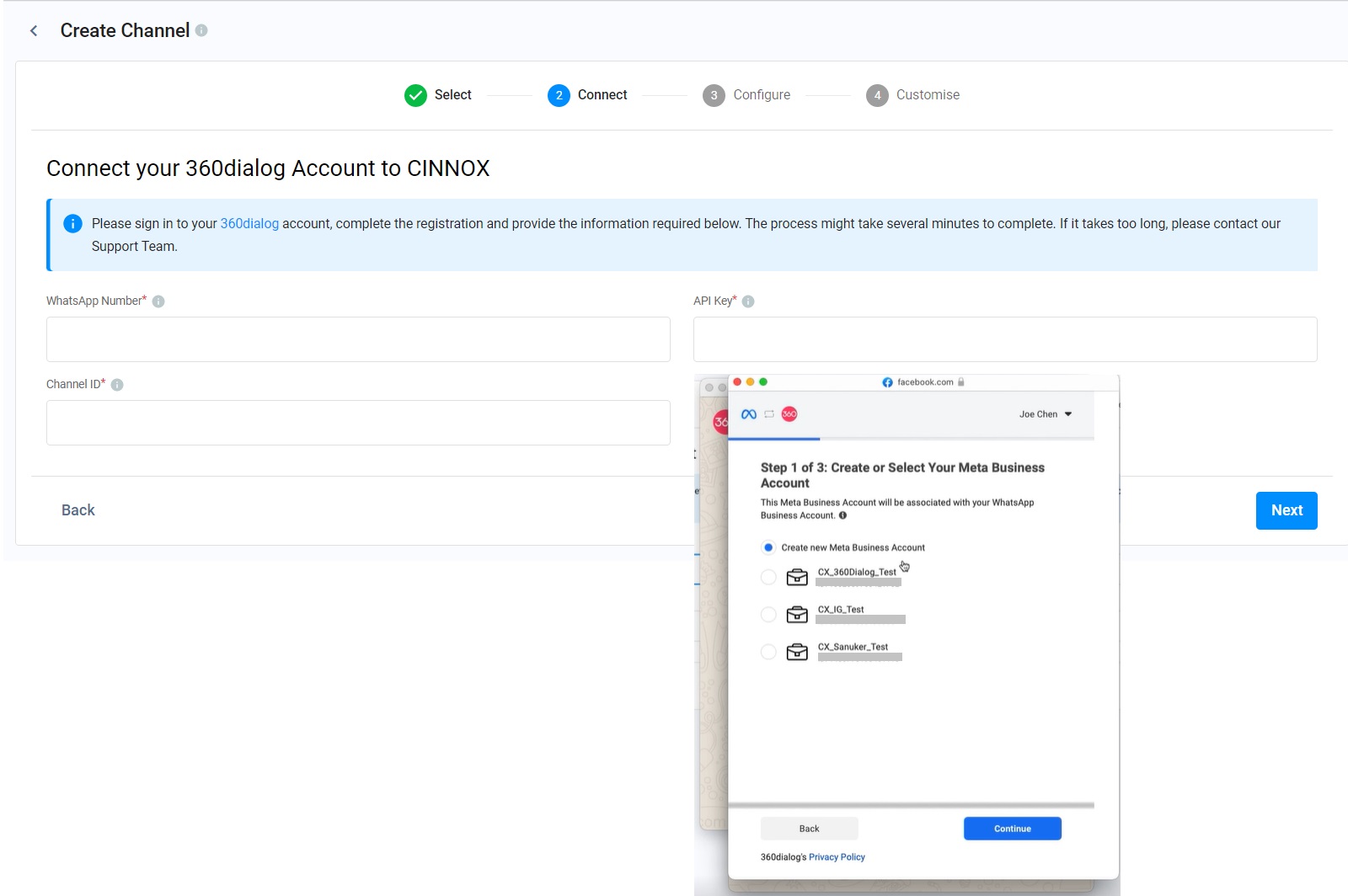
- Create a new Meta Business Account or select the existing Meta Business Account if available.
- Click Continue.
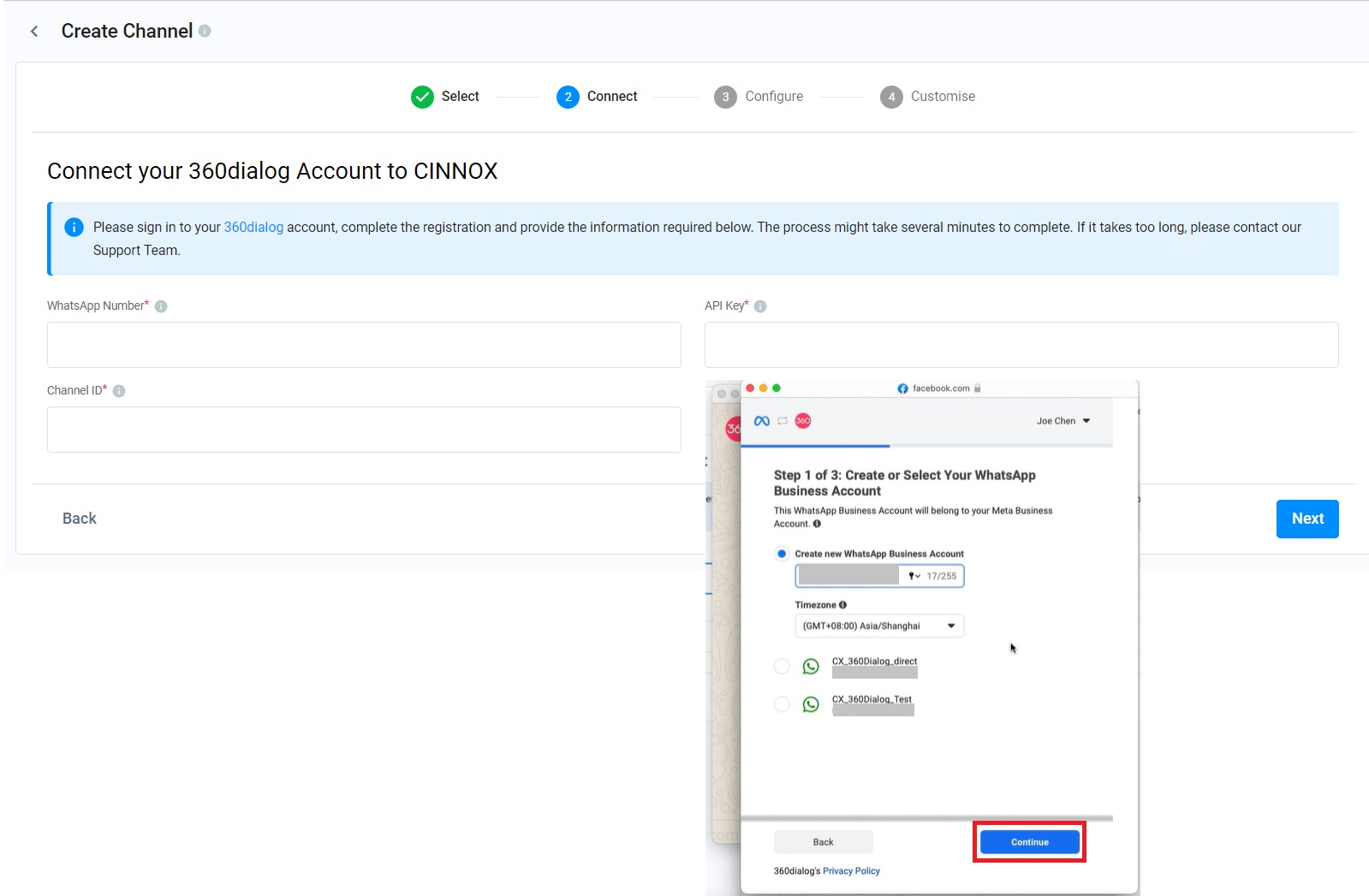
- Create a new WhatsApp Business Account or select an existing one.
- Click Continue.
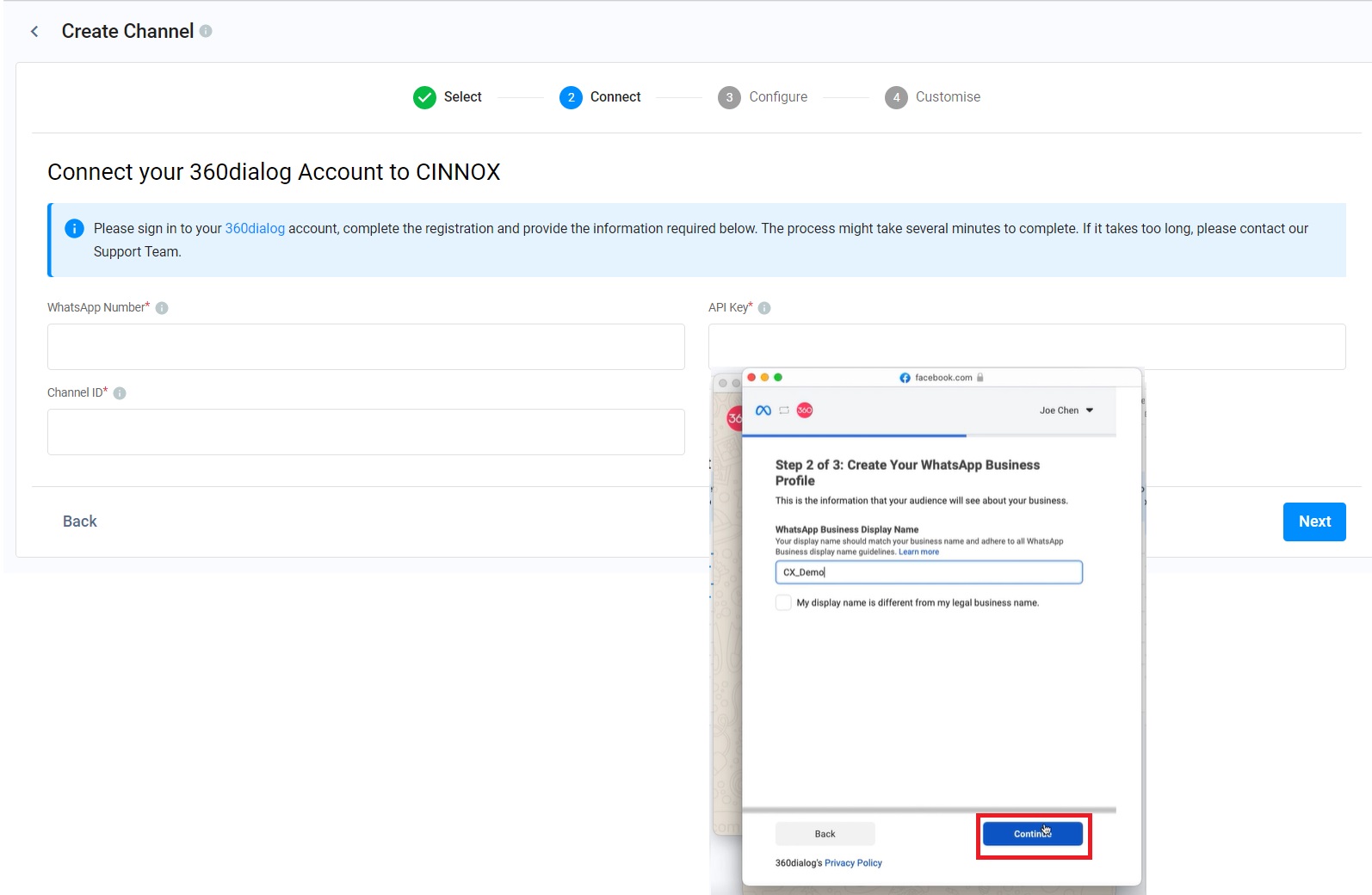
- After your information verification, click Continue to Step 2.
- Enter your WhatsApp Business Display Name and click Continue.
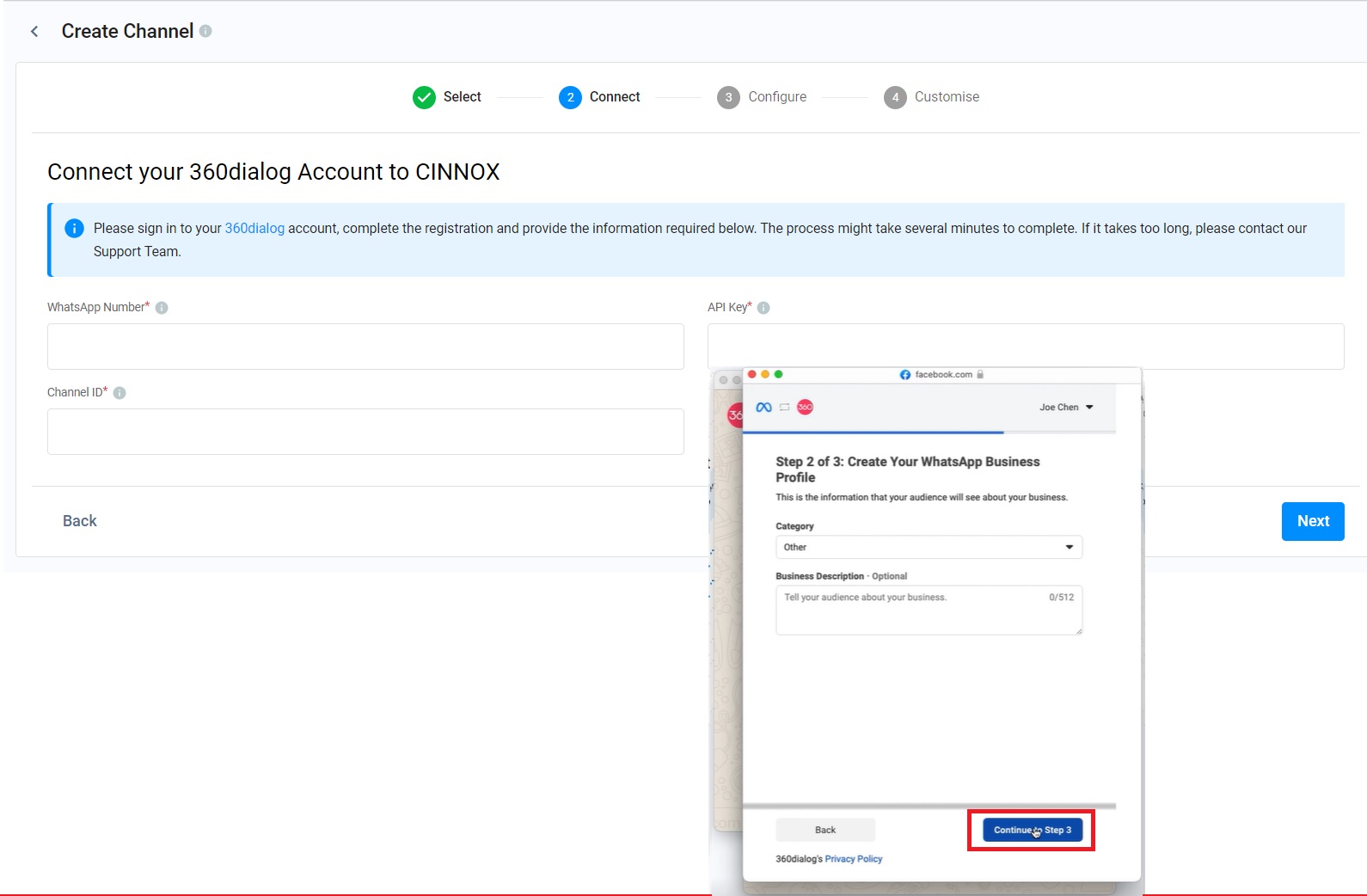
- Click the drop-downCategory drop-down menu to select your business category. You can add the business description if required.
- Click Continue to Step 3.
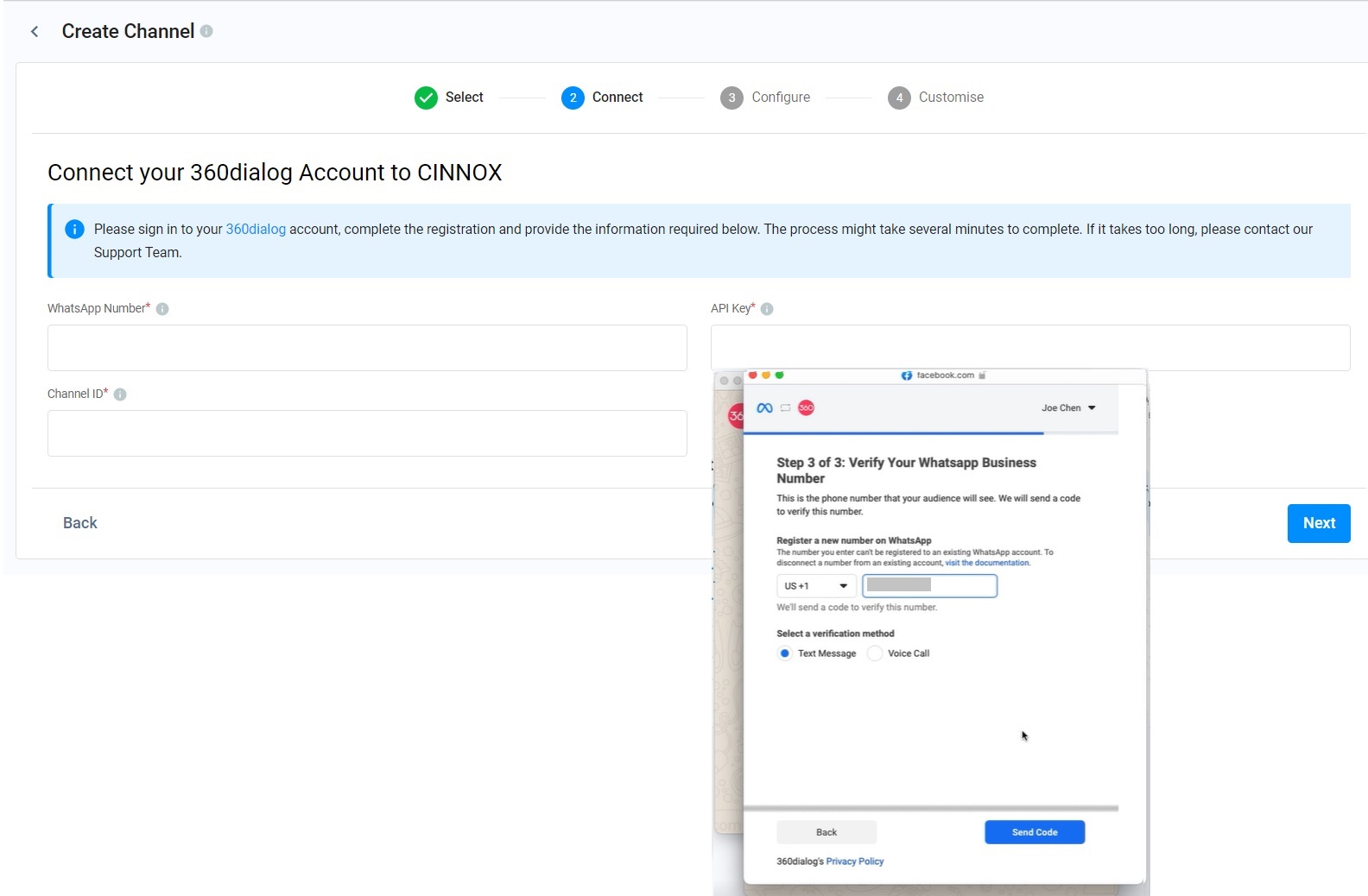
- Register a new number on WhatsApp.
- Select a verification method: Text Message or Voice Call.
- Click Send Code.
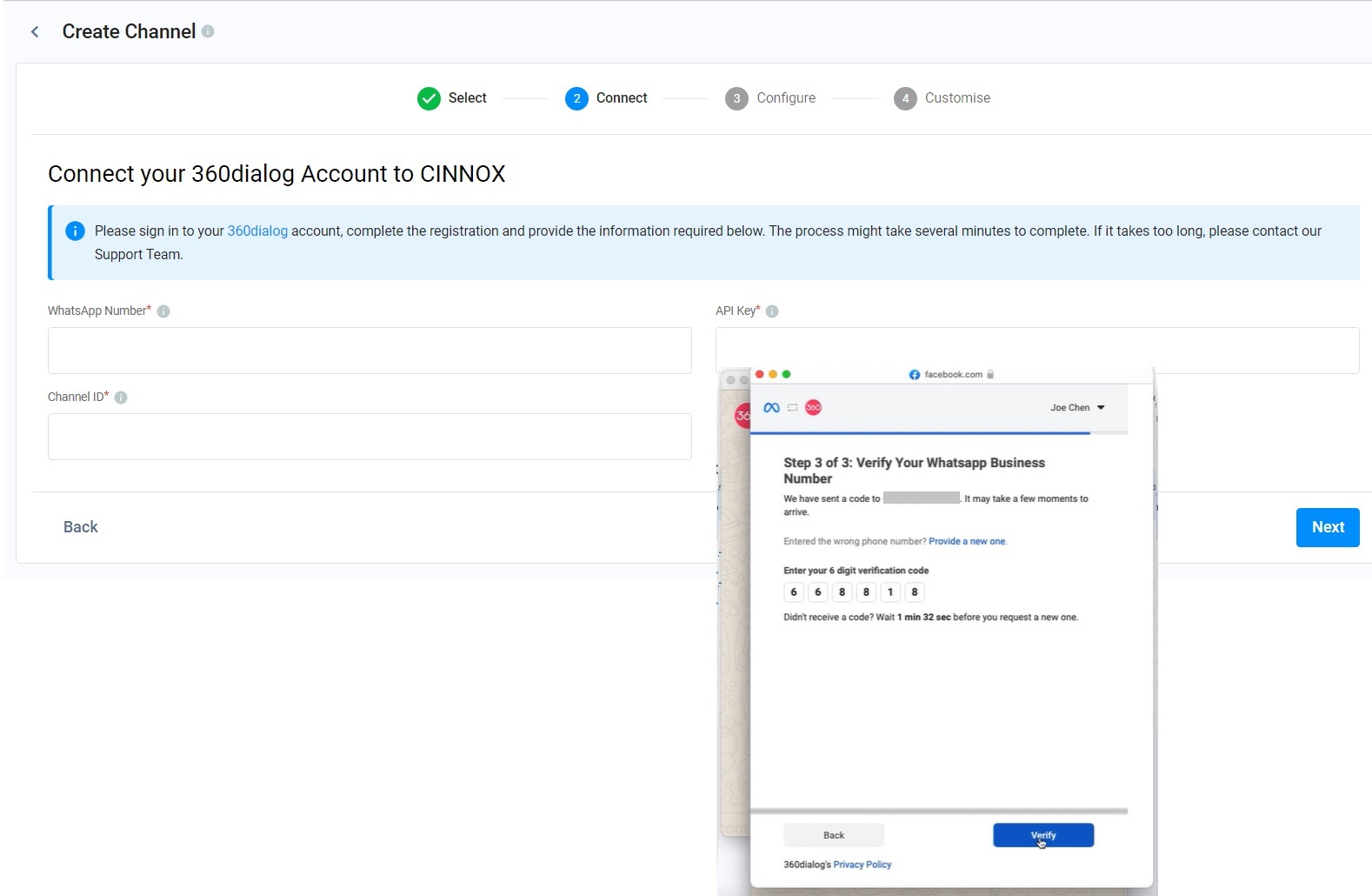
- Enter the 6-digit verification code you received from your selected verification method.
- Click Verify.
- Click OK.
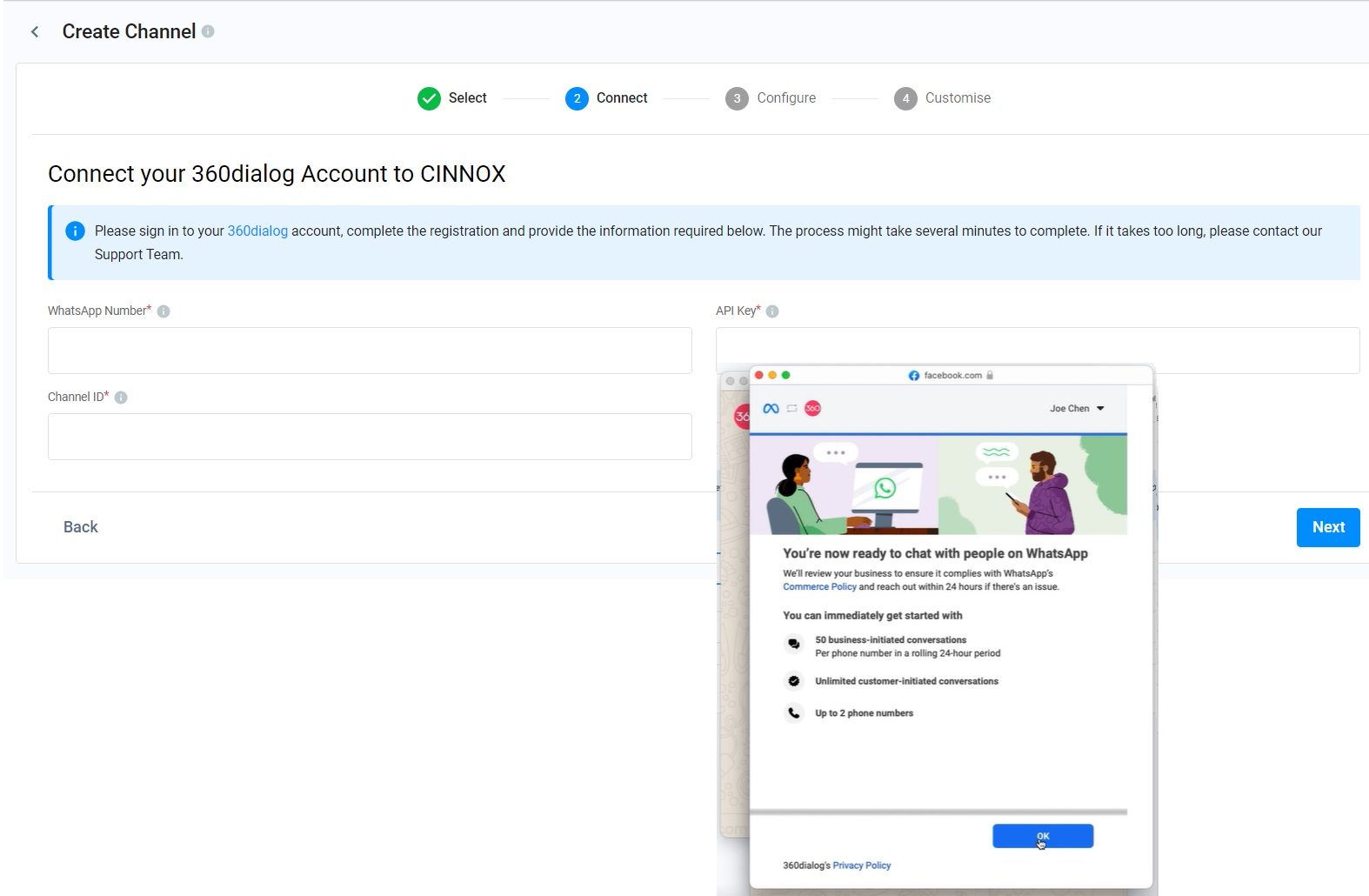
- After you click OK on the Facebook pop-up window, the 360dialog pop-up window shows Accounts successfully created!
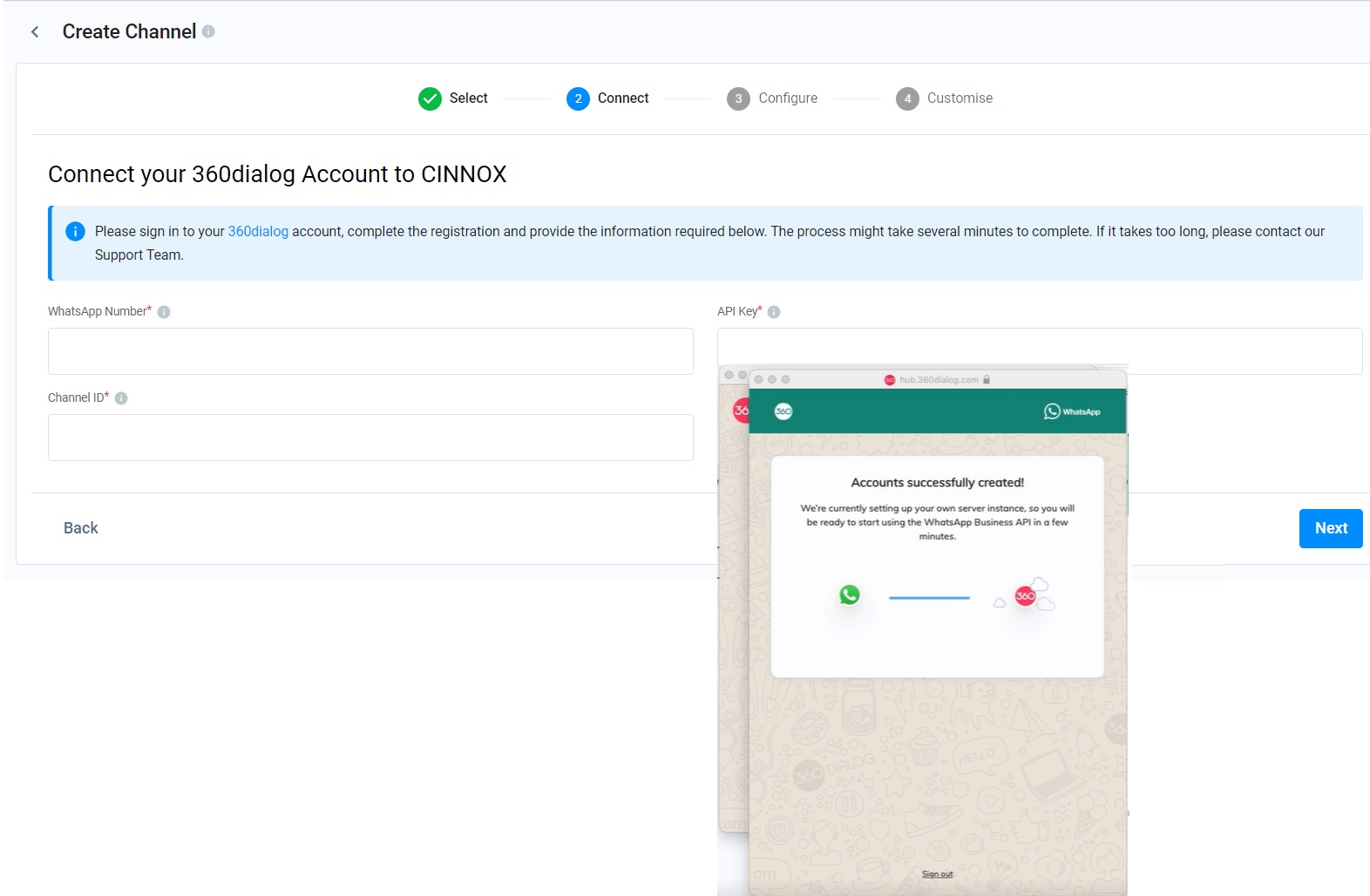
- Select your WhatsApp number to connect to CINNOX.
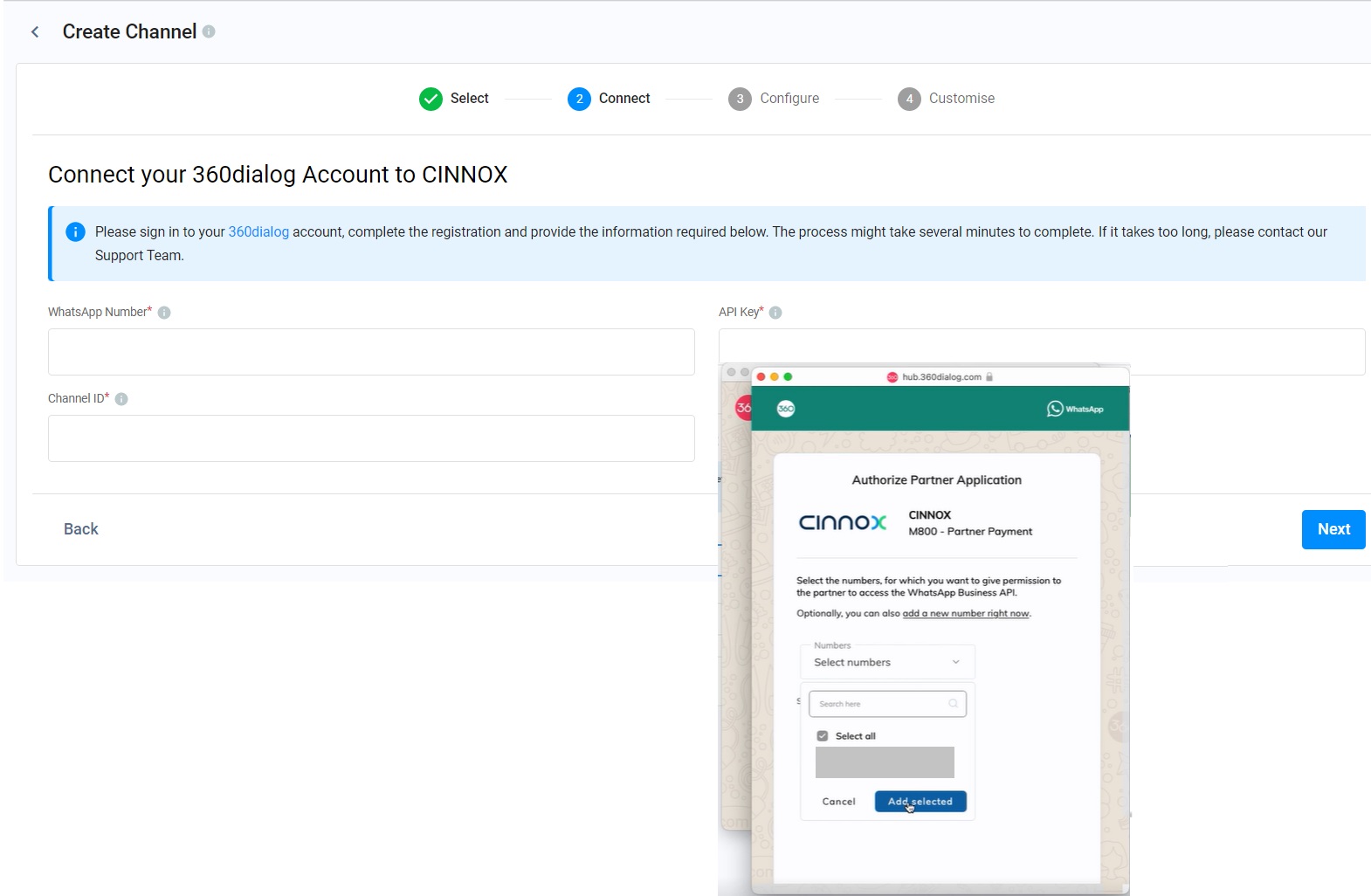
- Click Save selection.
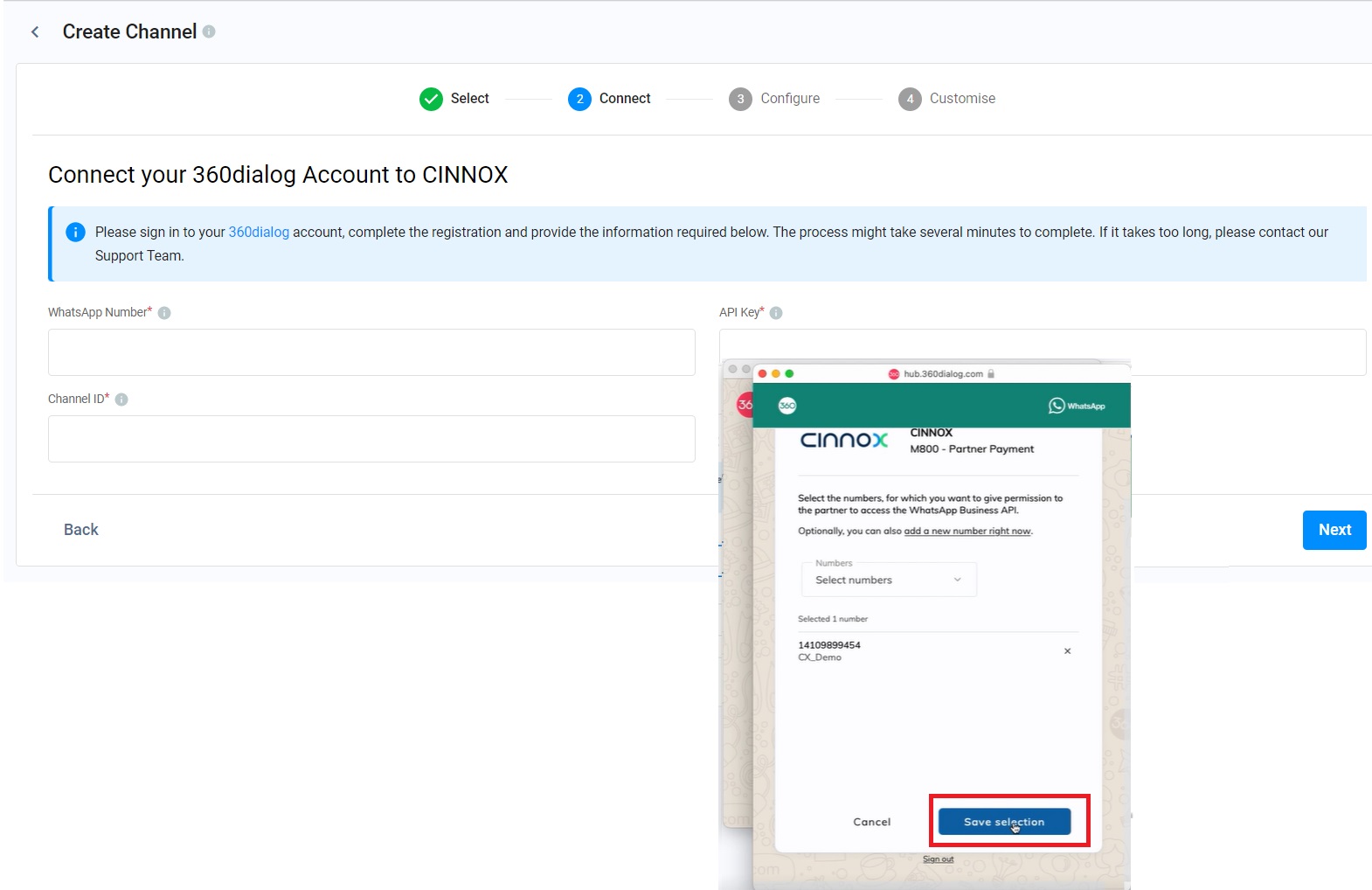
- Once the pop-up shows "Partner application authorised!", the WhatsApp Number, API Key, and Channel ID are automatically filled out.
- Click Next.
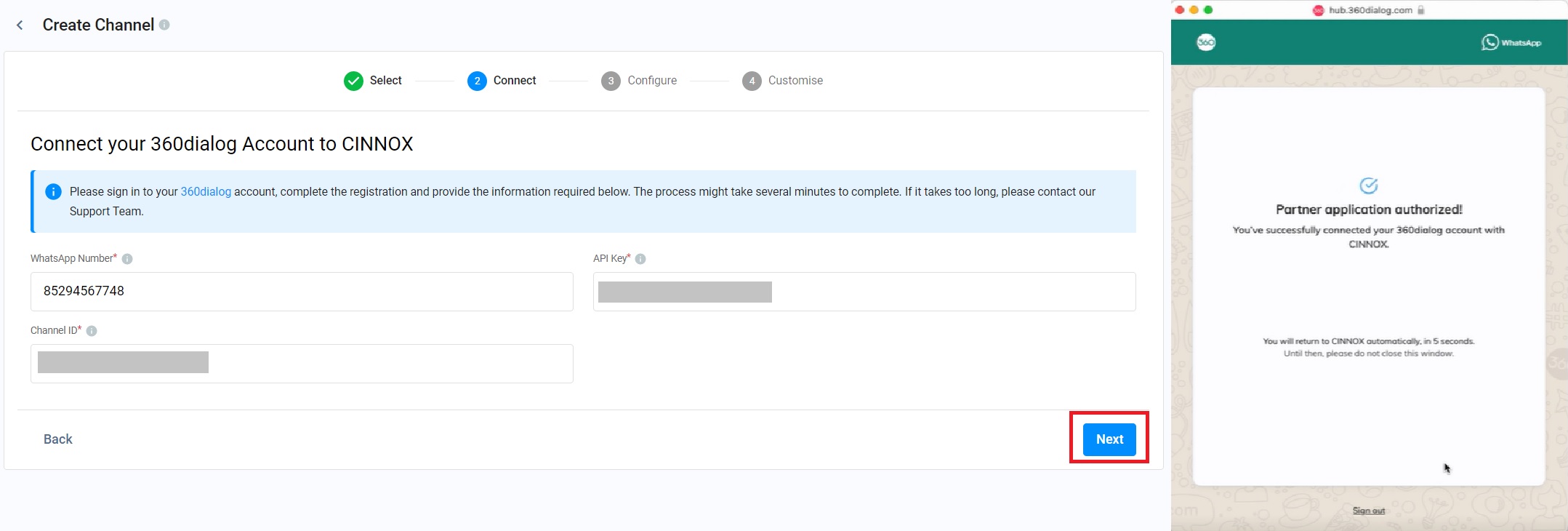
After clicking Next, Configure the CINNOX Channel and Routing Settings and CINNOX Auto-Message Message Settings are the next steps.
📘
Error handling
- Please refer to the Possible Errors during the Embedded Signup for more information about the errors of the account disconnected after its creation.
- Please refer to the WABA account: Embedded Signup for details about the account creation process.
📘
Please contact our Sales Team to acquire virtual numbers.
Option B - Using Virtual Number
- Select the Virtual Number.
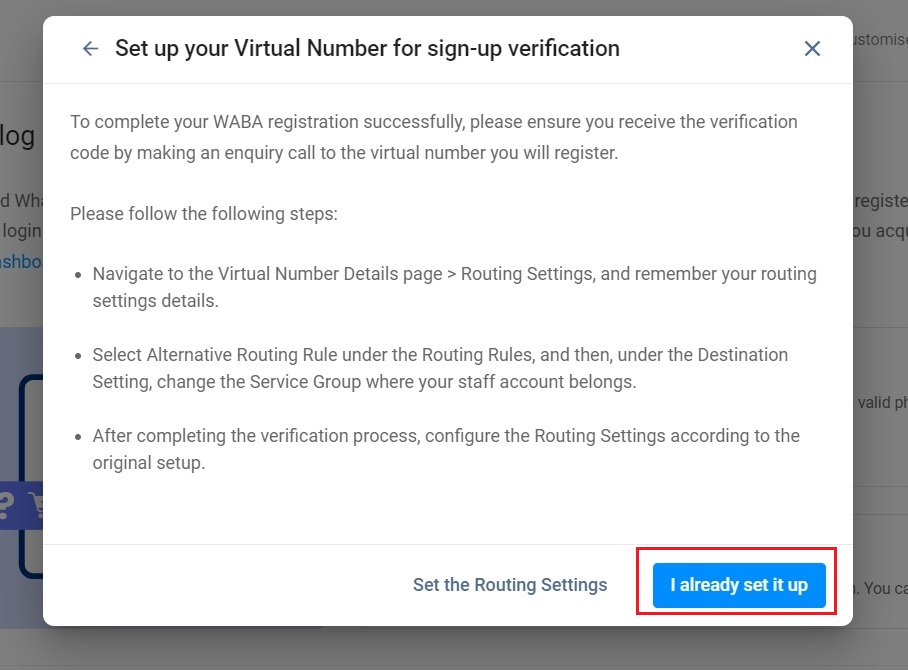
- Select either Set the Routing Settings or I already set it up.
For "I already set it up"
- The routing and destination of your virtual number must have been set up. Please ensure you or the staff member responsible for the WABA registration can receive the verification code by accepting a call through the virtual number.
The procedure for signing your 360dialog WABA is similar to that in Part I, Option A.
For "Set the Routing Settings"
- You will be redirected to the Numbers page for your routing settings of the virtual number.
Please refer to the page Alternative, Percentage, Time and Sticky Routing to set the routing and assign the destination with your staff account. - After setting the routing and destination of your virtual number, sign up for a 360dialog WABA and ensure you can receive the verification code by accepting a call through the virtual number. Please follow the sign-up procedure in Part I, Option A.
📘
- Please refer to the Virtual Numbers for details of the Virtual Numbers.
- One business can only have one verified Meta Business Manager Account.
- You can create unlimited WABA under a Meta Business Manager.
- Every WABA can contain up to 25 phone numbers and can expanded to 120 on request (An unverified Meta Business Account can only have up to 2 digits).
PART II: Connect your 360dialog WABA to CINNOX
This part is intended for those who already own a 360dialog WABA and need not create a new 360dialog WABA. You can select one of the following options based on your situation, namely holding your WABA registered via CINNOX in 360dialog, migrating your WABA from another BSP to CINNOX, or changing your 360dialog partner to CINNOX to connect your WABA to CINNOX.
📘
Please note that you may be billed an additional cost when you acquire a new WhatsApp Business Account (WABA). Also, when you migrate your existing WABA from another 360dialog partner or BSP to CINNOX, the license fee for your WhatsApp number will change and apply CINNOX's rates.
Option A - I already have WABA in 360dialog
As you already registered a 360dialog WABA via CINNOX, you can directly connect your 360dialog WABA to CINNOX.
Option B - I have WABA in other BSP
You can select this option and fill out the "WhatsApp Business API Account Submission" to port your WABA to 360dialog, and CINNOX will become your 360dialog partner. Once the submission is completed, you can follow PART II, Option A's procedure to connect your WABA to CINNOX.
Option C - Request Partner Change to CINNOX
You can select this option when you have your 360dialog WABA in other partners instead of CINNOX. After you complete the partner change, the partner of your WABA becomes CINNOX, and you can follow the procedure in PART II, Option A, to connect your WABA to CINNOX.
Create WhatsApp Source
- On your CINNOX Dashboard, navigate to Administration > Channels > Social
- Click Connect Social.
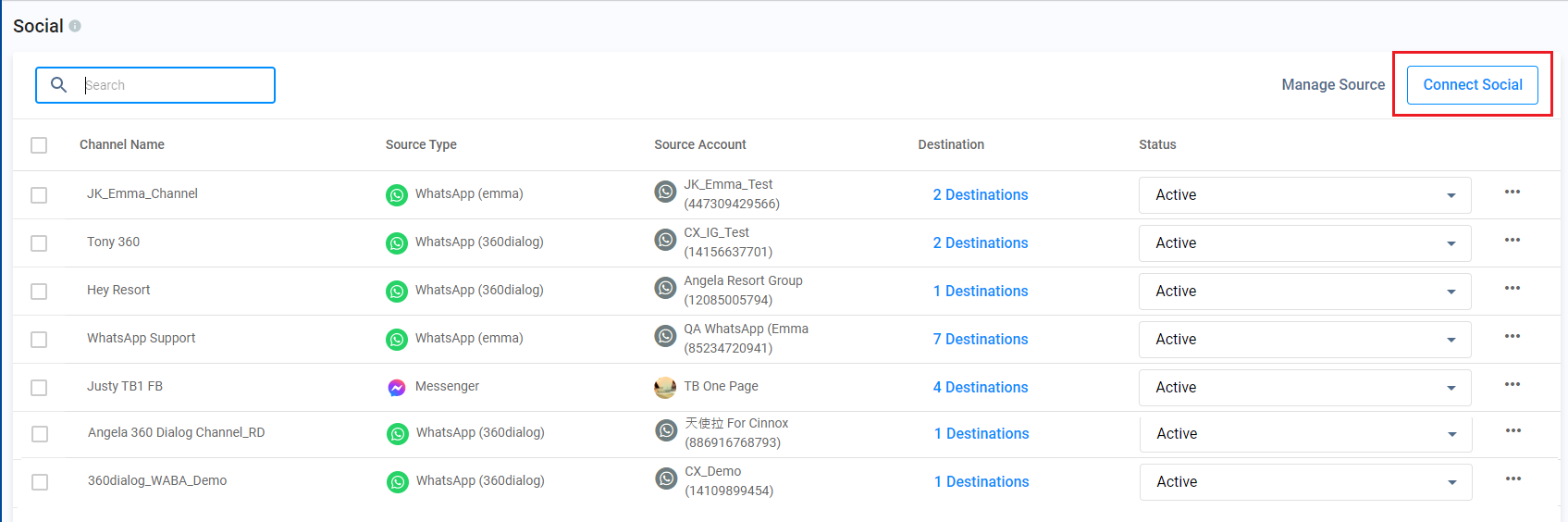
- Click Connect on WhatsApp.
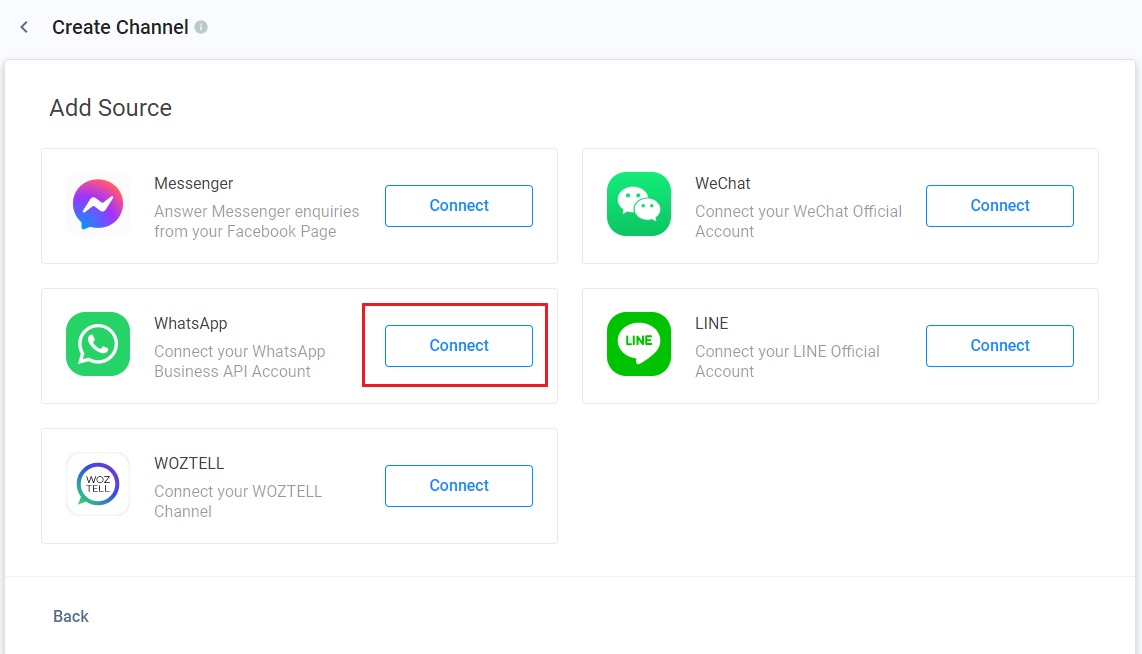
- Click + Connect your WhatsApp Business Account.
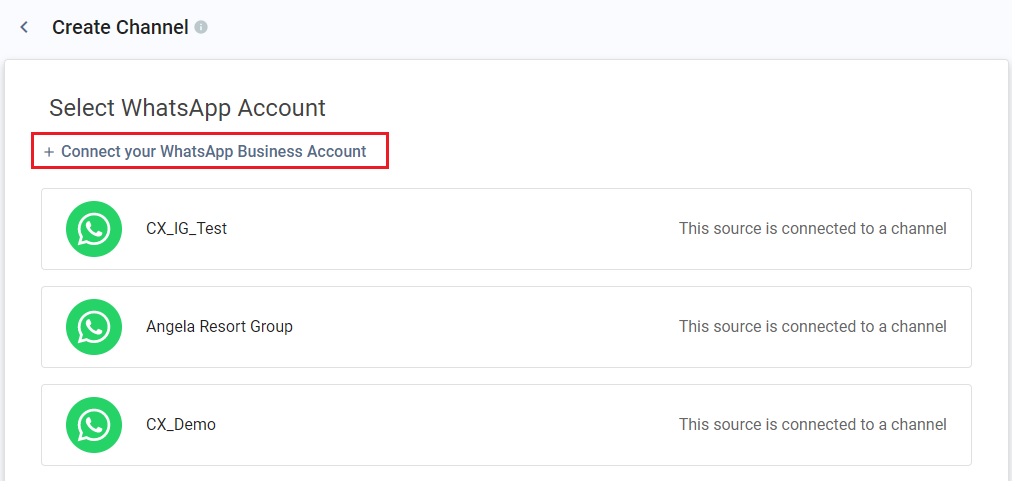
- Select I already have WABA.
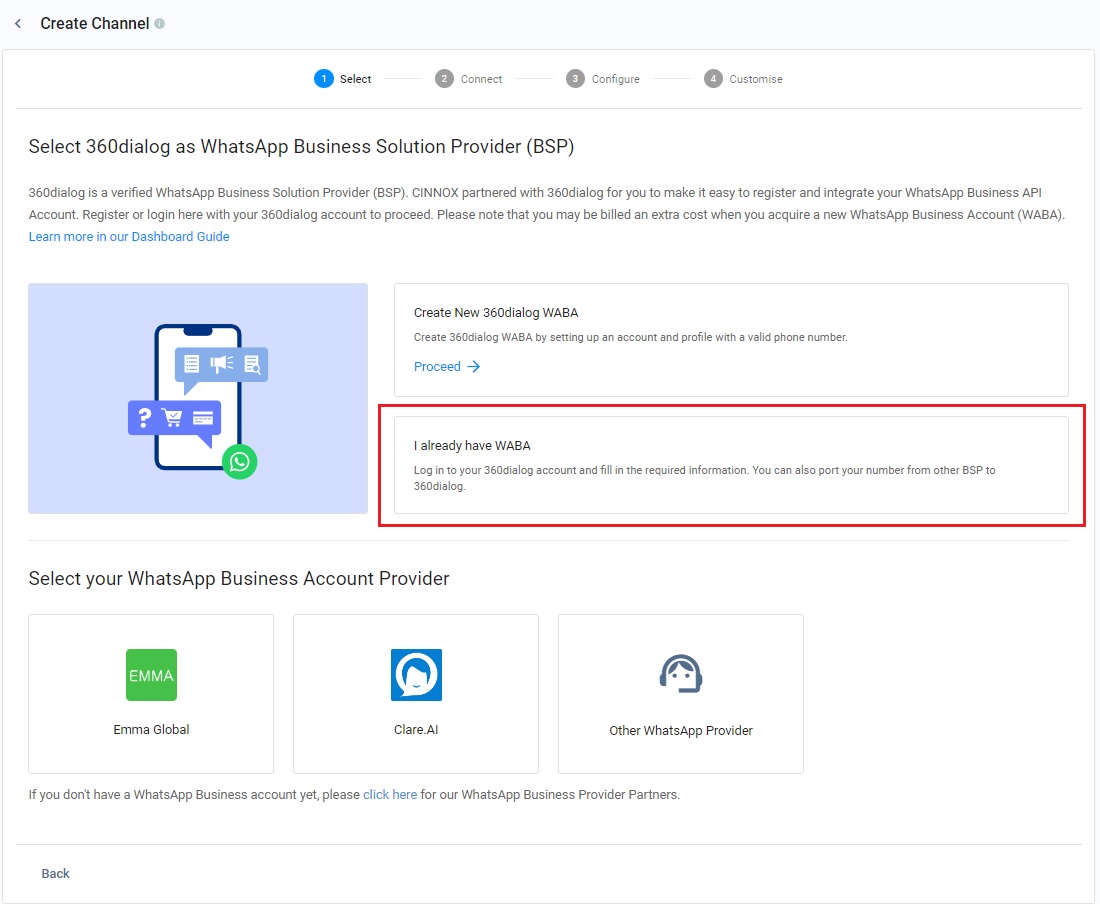
- Select your WABA source to connect CINNOX. It can be I already have WABA in 360dialog or I have WABA in another BSP.
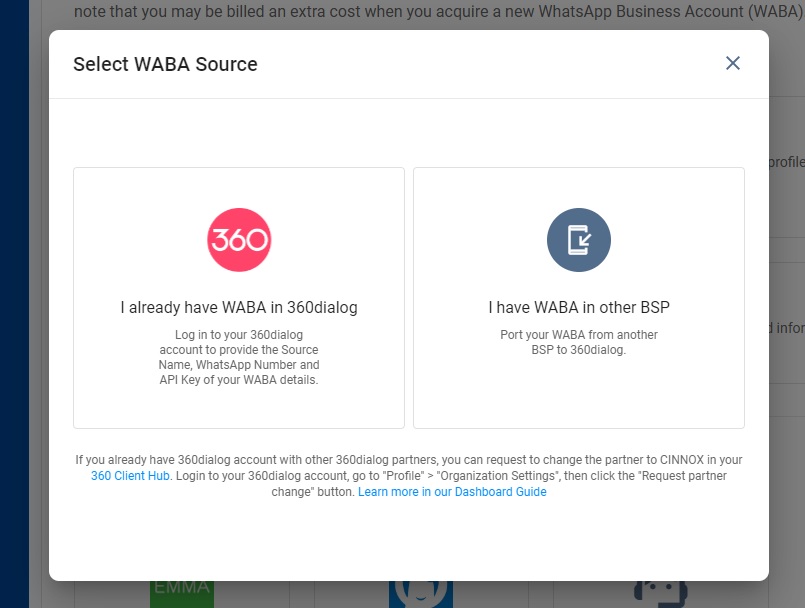
Option A - For "I already have WABA in 360dialog"
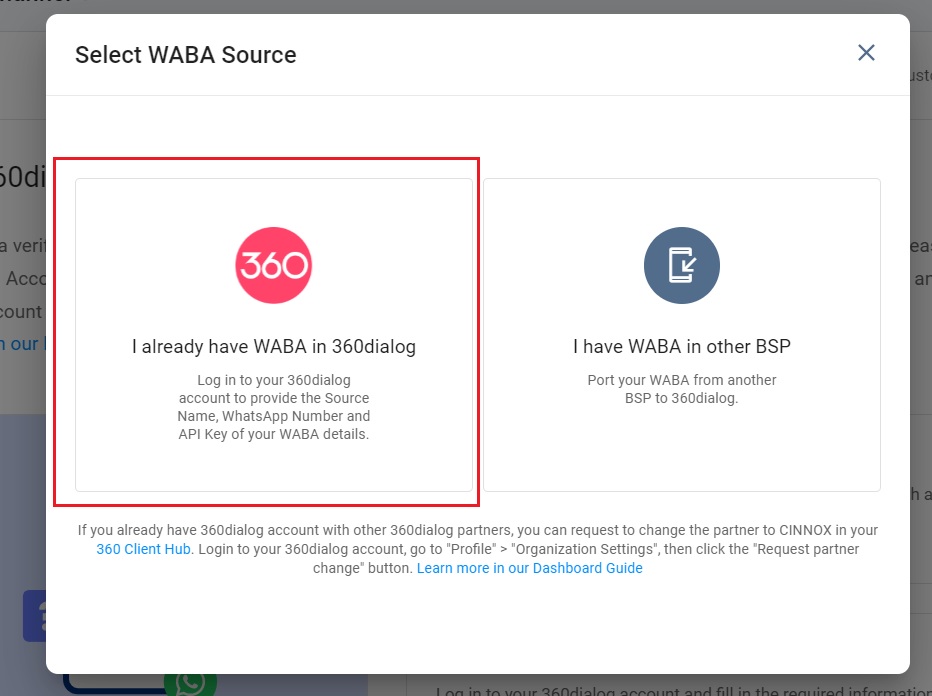
- Select I already have WABA in 360dialog.
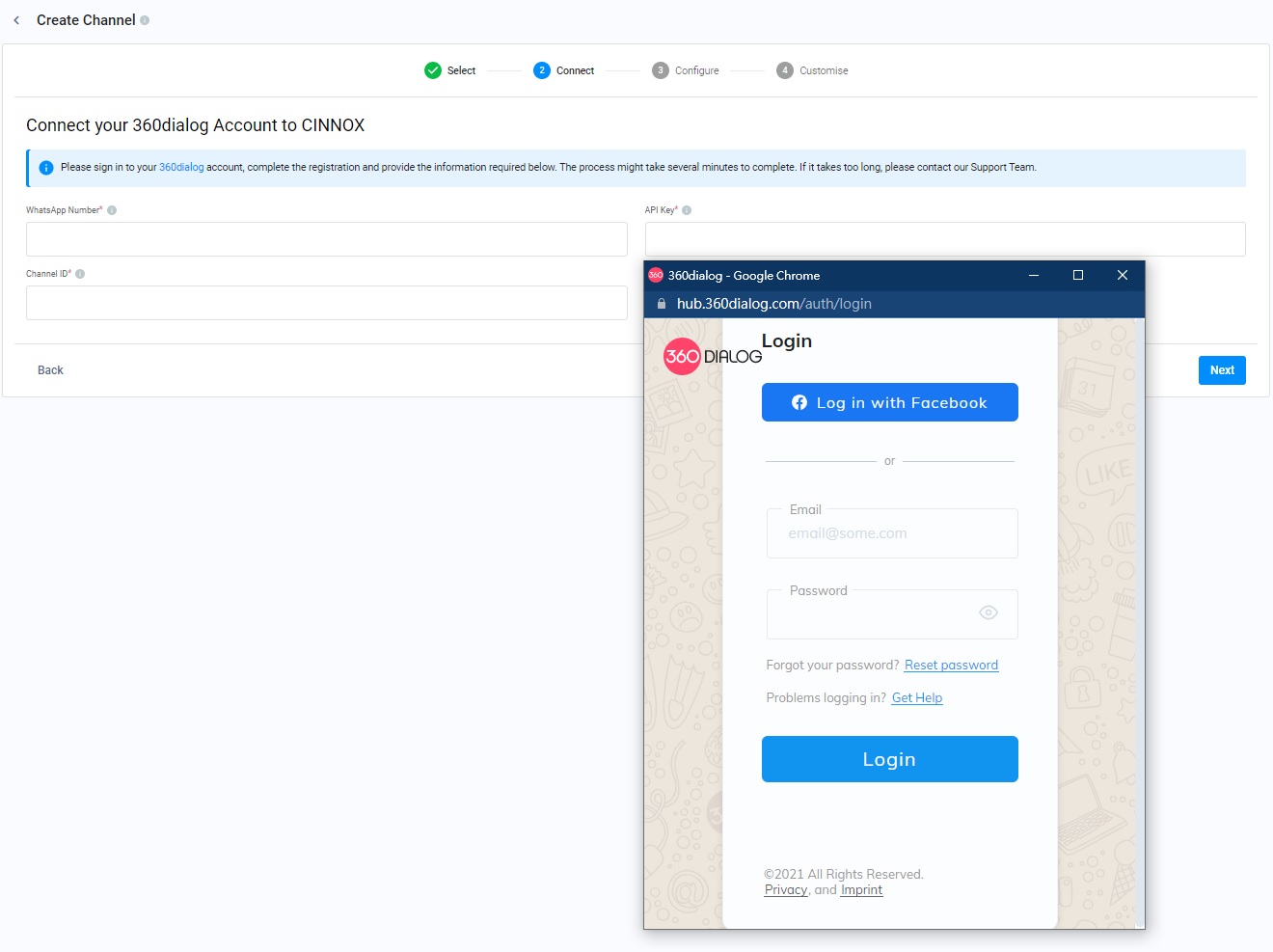
- You will be redirected to the Connect your 360dialog Account to CINNOX page.
- Log in with your 360dialog account.
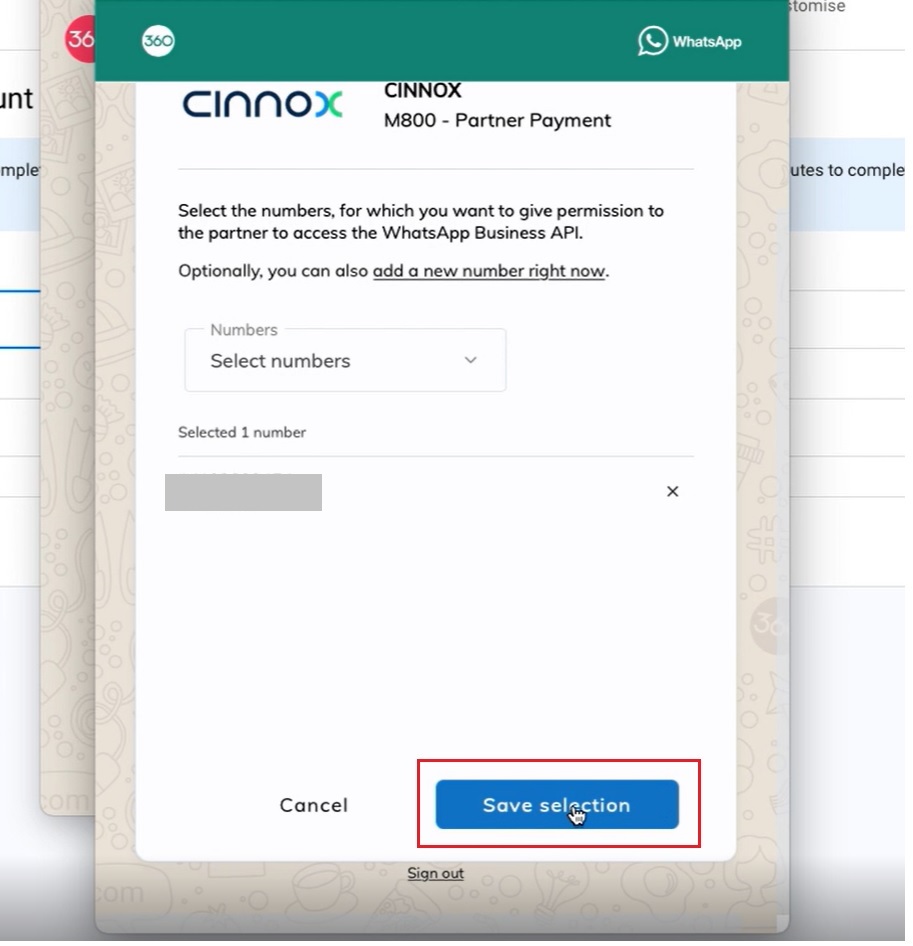
- Select your WhatsApp number to connect to CINNOX.
- Click Save selection.
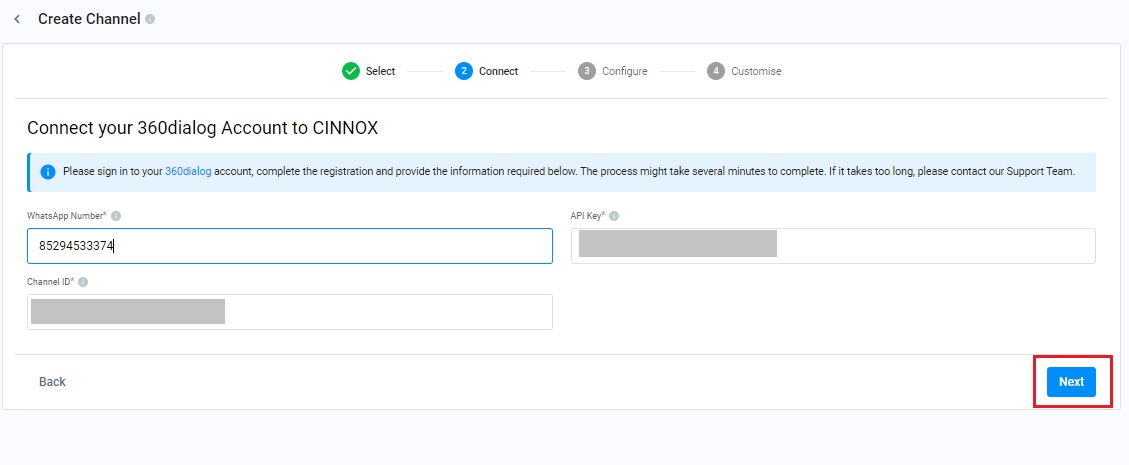
- Once the pop-up shows "Partner application authorised!", the WhatsApp Number, API Key, and Channel ID are automatically filled out.
- Click Next.
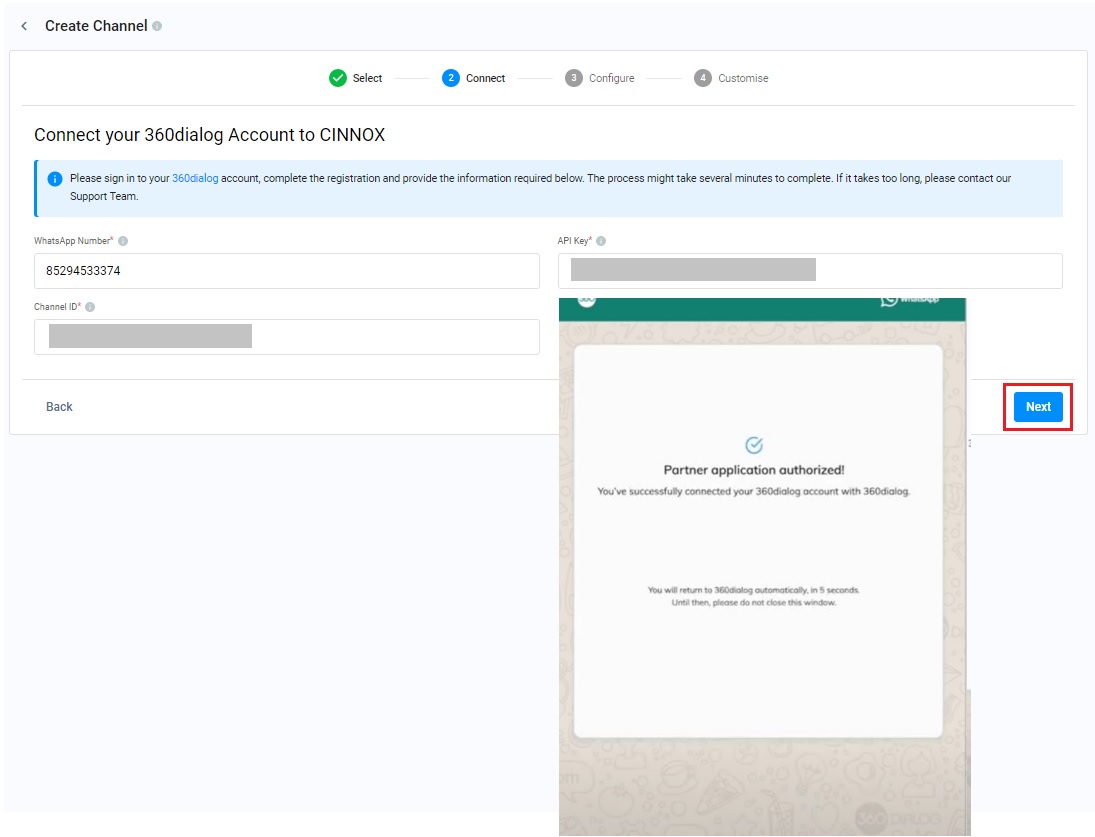
After clicking Next, the next step you will take is Configure the CINNOX Channel and Routing Settings and CINNOX Auto-Message Message Settings.
Option B - For "I have WABA in another BSP."
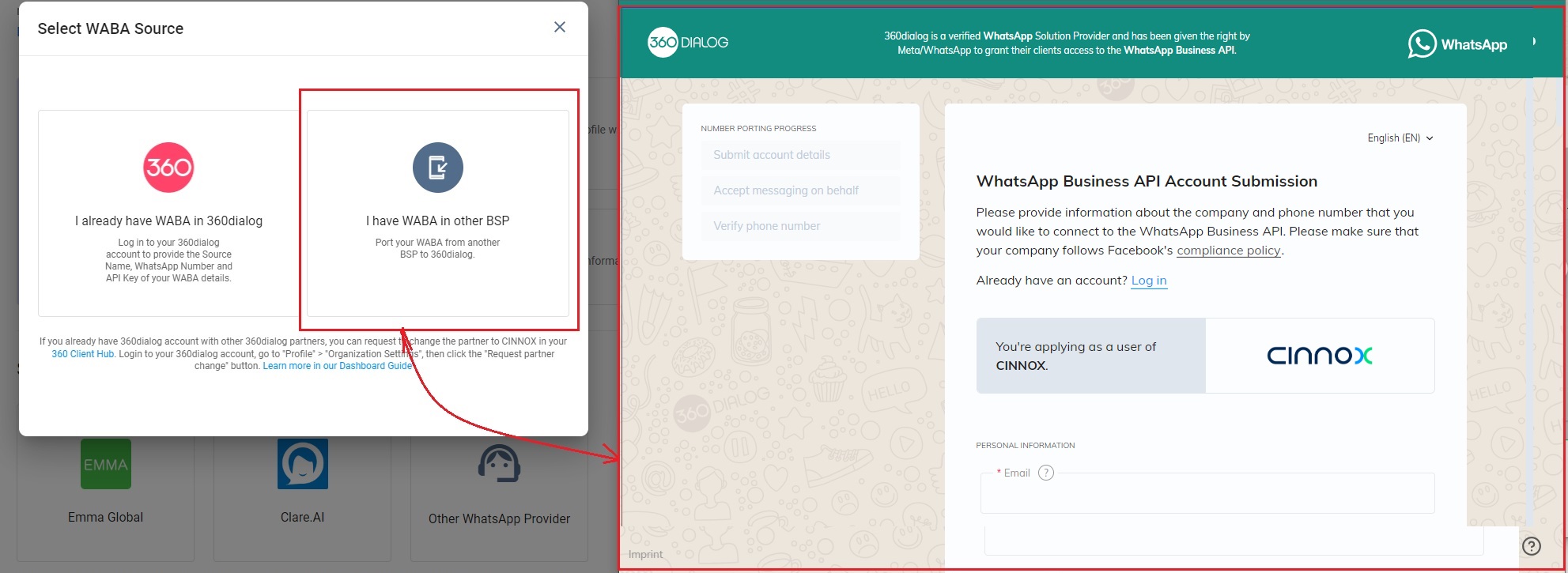
- Select I have WABA in another BSP.
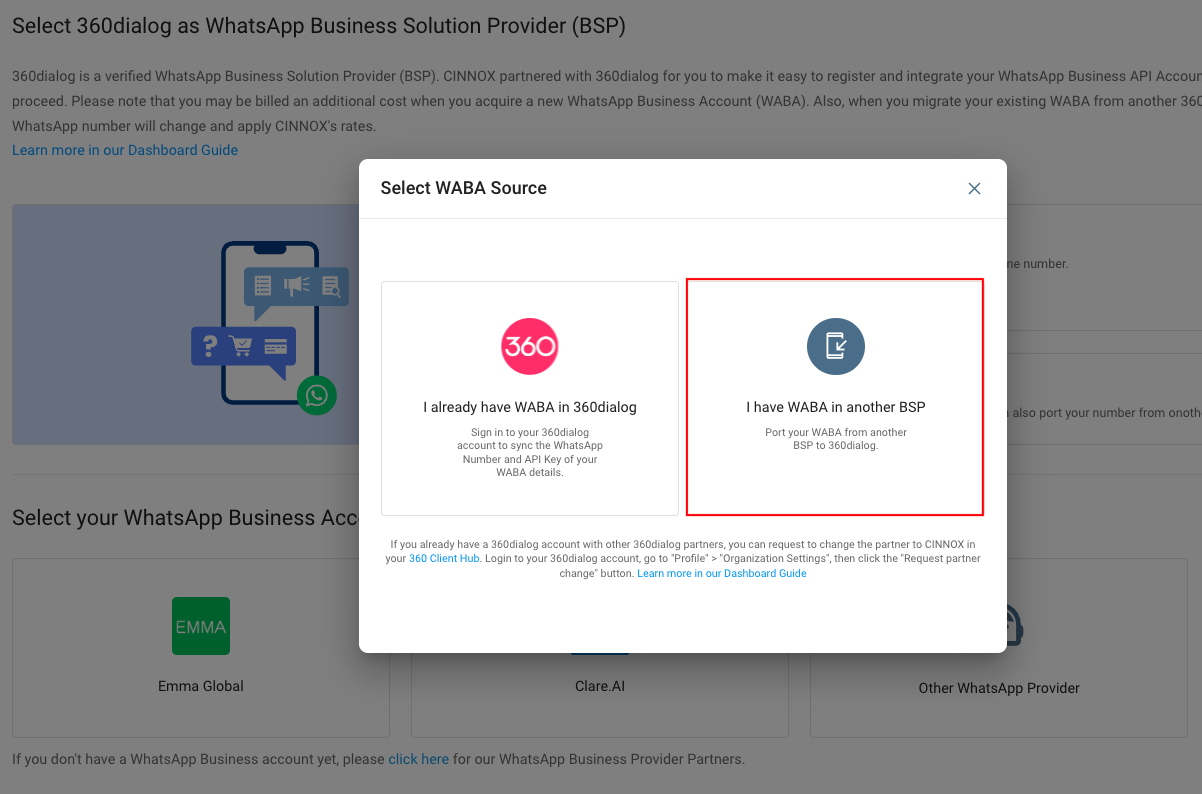
- In a new browser tab, you are redirected to an online form, WhatsApp Business API Account Submission.
- Fill out the online form and follow the 360dialog instructions to complete the process.
- You can click the link: https://docs.360dialog.com/docs/360-client-hub/number-porting#number-porting-process for more details.
- After completing the submission, go back to CINNOX to continue the WhatsApp source setup.
- Select the "I already have WABA in 360dialog" to log in to your 360dialog account and select the WhatsApp number to connect to CINNOX.
👍
The preparation is required for success in the number porting in Option B. Please refer to Prerequisites for Number Porting for more details.
Option C - For "you already registering WABA with other 360dialog partners"
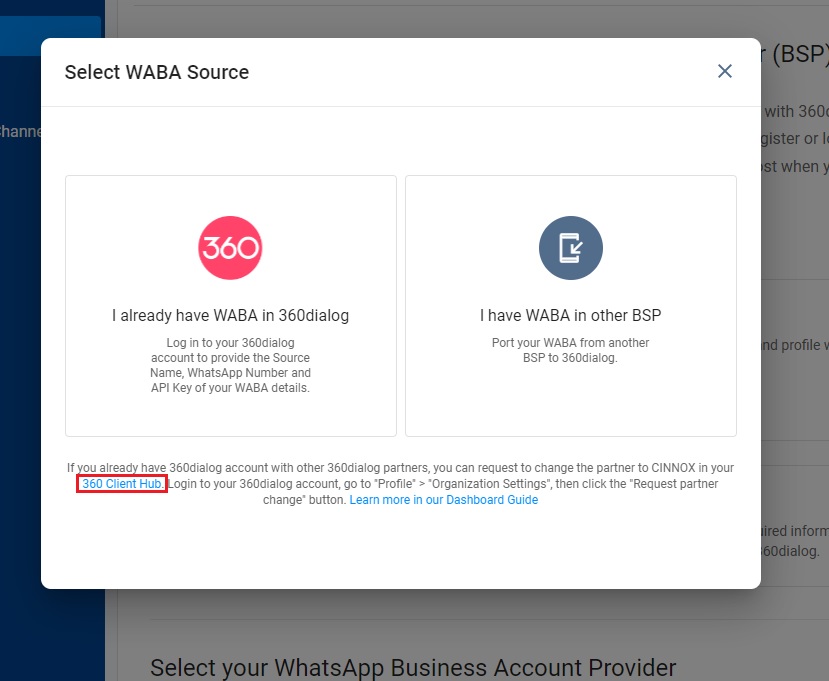
- Already registering WABA in other 360dialog partners, you must request changing the partner from other 360dialog partners to CINNOX.
- To request the partner change, click the 360 Client Hub.
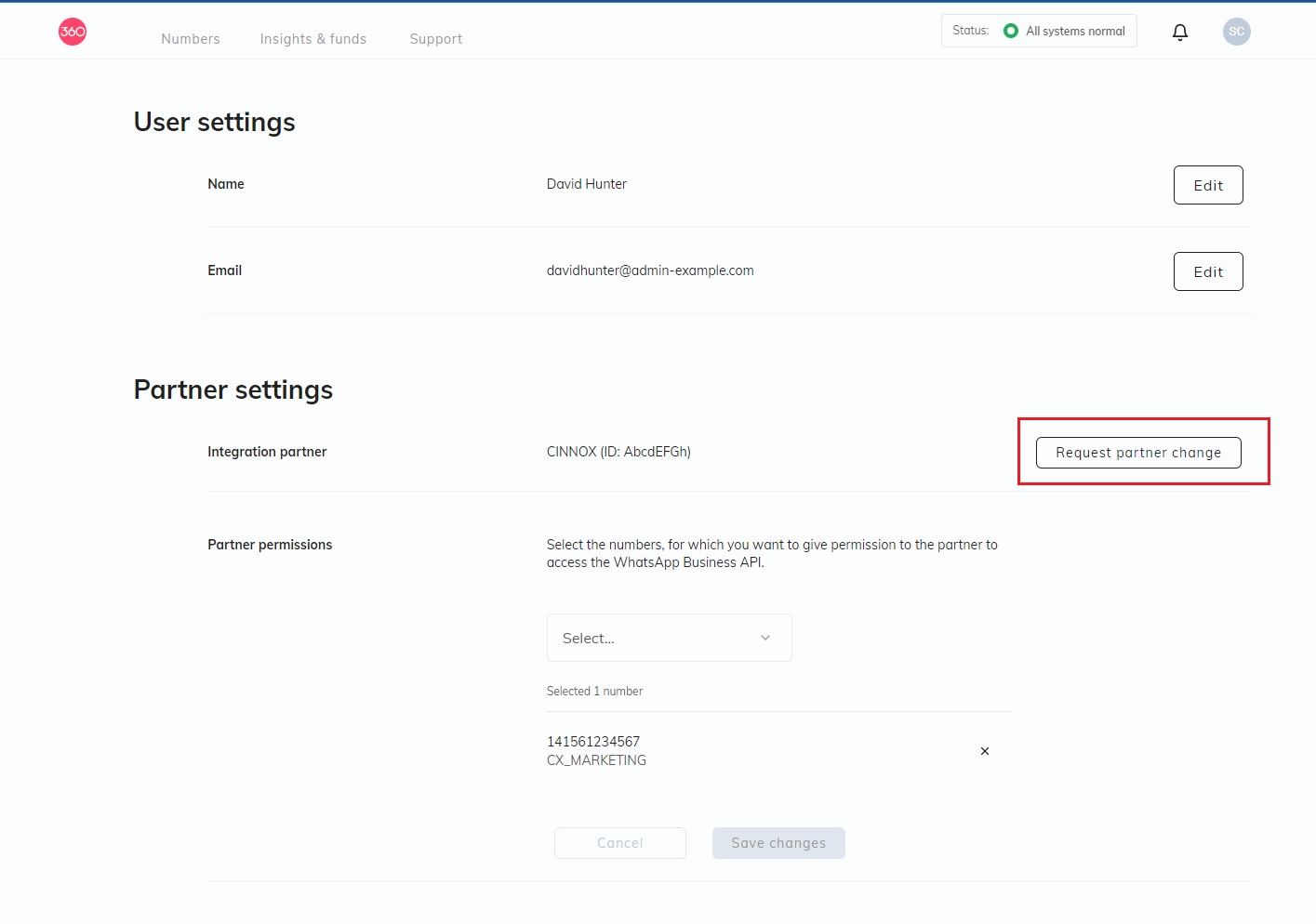
- You will be redirected to the page in the 360dialog Client Hub.
- Click Request partner change on the right-hand side of the screen.
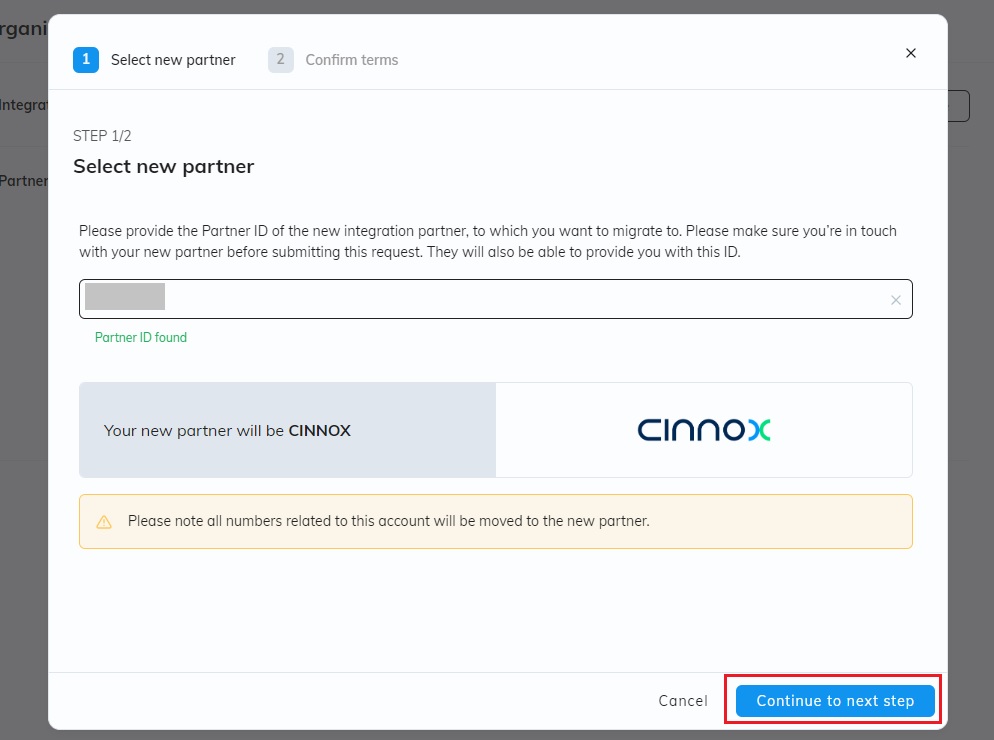
- Contact your Account Manager to get CINNOX's partner ID. Enter the CINNOX's partner ID and click Continue to the next step.
- Please click here to learn more about the complete procedure of the Request Partner Change.
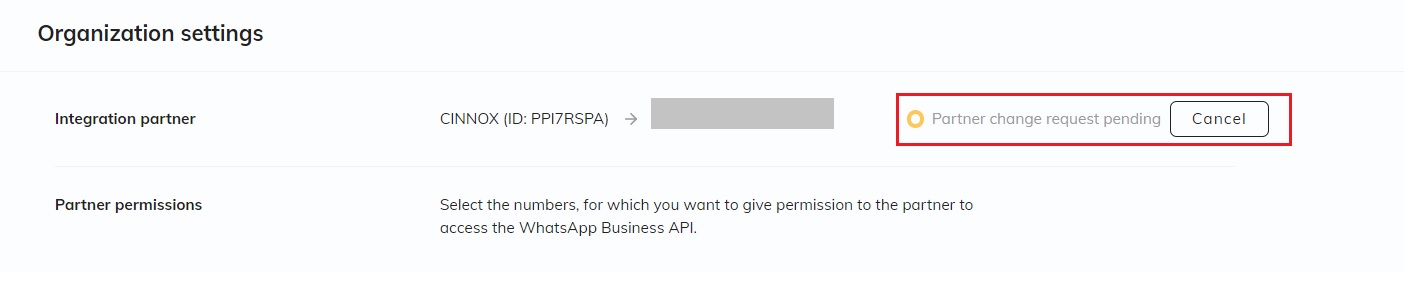
- Confirm the terms and click the Submit partner change request.
- After the partner change request is successful, go back to CINNOX to set up your WhatsApp source. Click "I already have WABA" to connect your 360dialog WABA to CINNOX.
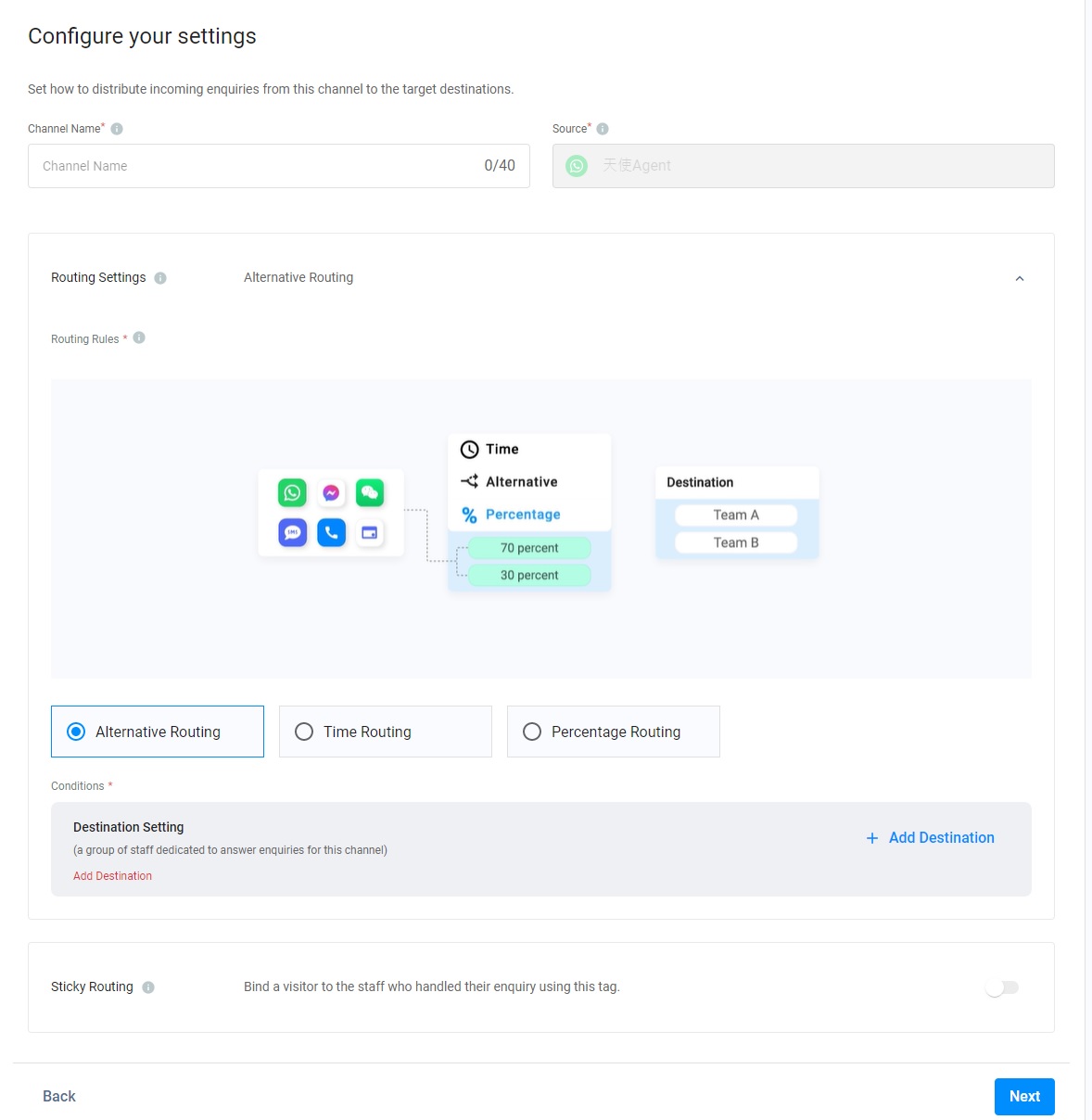
Configure the CINNOX Channel and Routing Settings
Channel Name
- Add a name for your WhatsApp channel. The channel name can be up to 40 characters.
Routing Settings
- Select the Routing Rule and add Destinations based on the operational support to your channel. For more information, please check our detailed guide Alternative, Percentage, Time and Sticky Routing.
📘 Advanced Routing Flow
When a WhatsApp channel is created successfully, you can migrate it to the Advanced Routing Flow to leverage the Queue and Distribution Methods. See the Advanced Routing Flow section below.
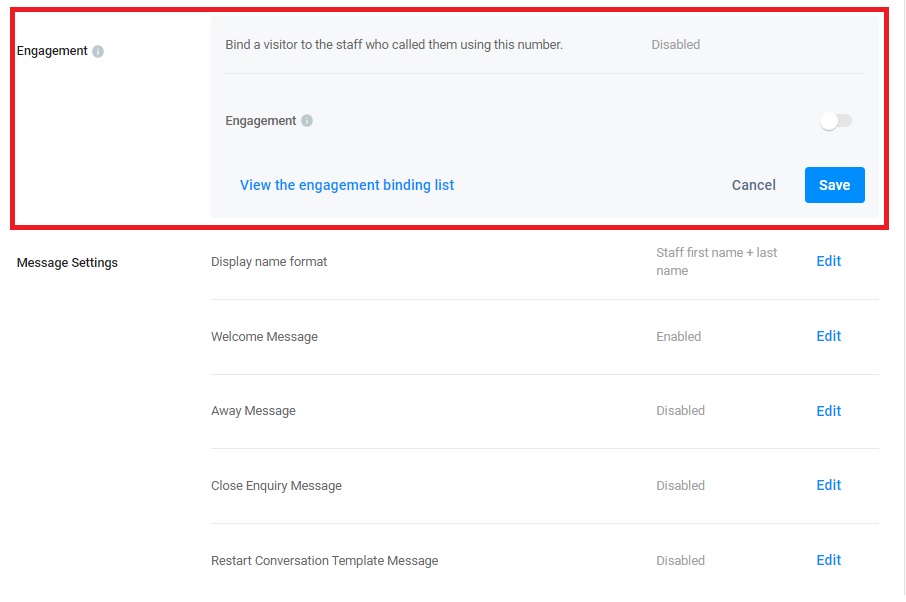
Engagement
You can click Edit and toggle on the button to enable the engagement mode and configure the engagement settings if you must adopt this channel to send WhatsApp messages to visitors, customers, and staff members. Refer to the WhatsApp Engagement Guide for more details on WhatsApp Engagement.
Set up the Auto-Reply Message
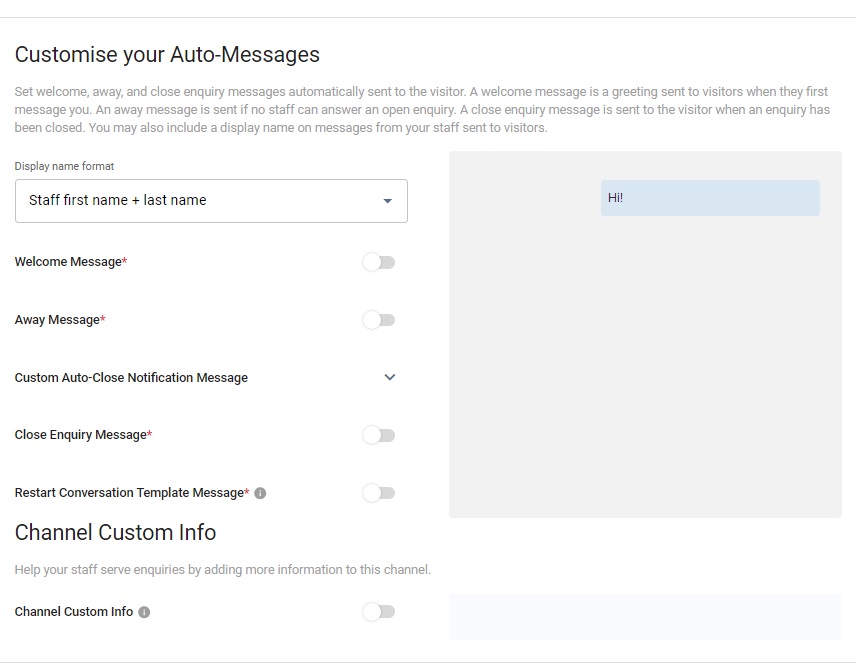
You can enable and configure the following Auto-Reply Messages:
- Welcome Message: Greetings are sent to customers when they first message you.
- Away Message: It is only sent if no staff can answer an enquiry.
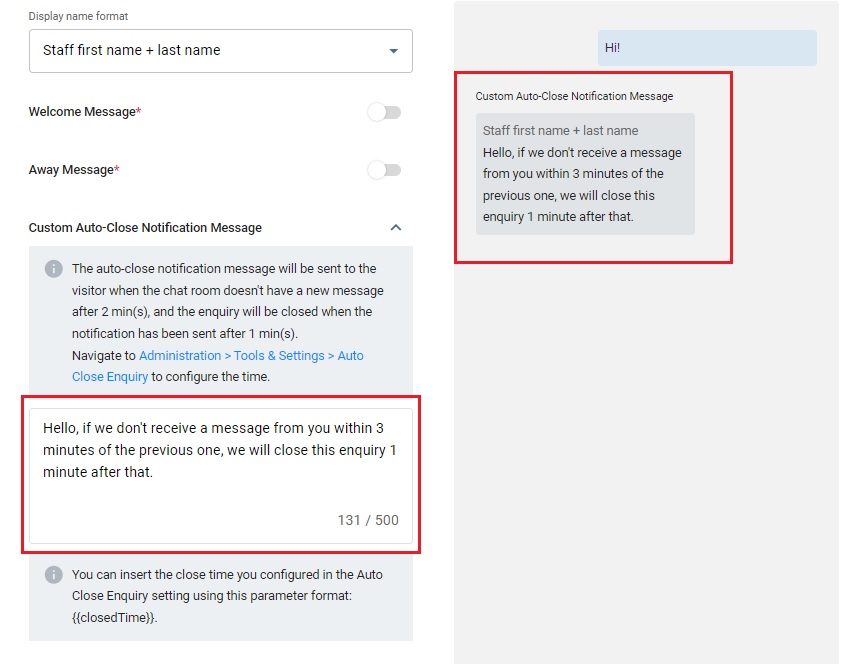
- Custom Auto-Close Notification Message: It is sent when the chat room doesn't have a new message after 2 min(s), and the enquiry will be closed when the notification has been sent after 1 min(s).
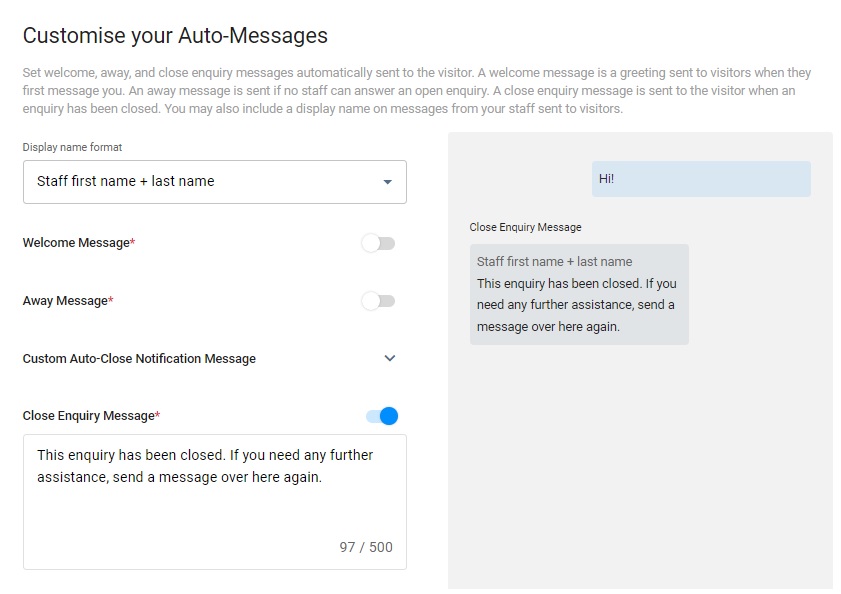
- Close Enquiry Message: This t will be sent to the visitors' chatrooms when the staff or the system closes the enquiries.
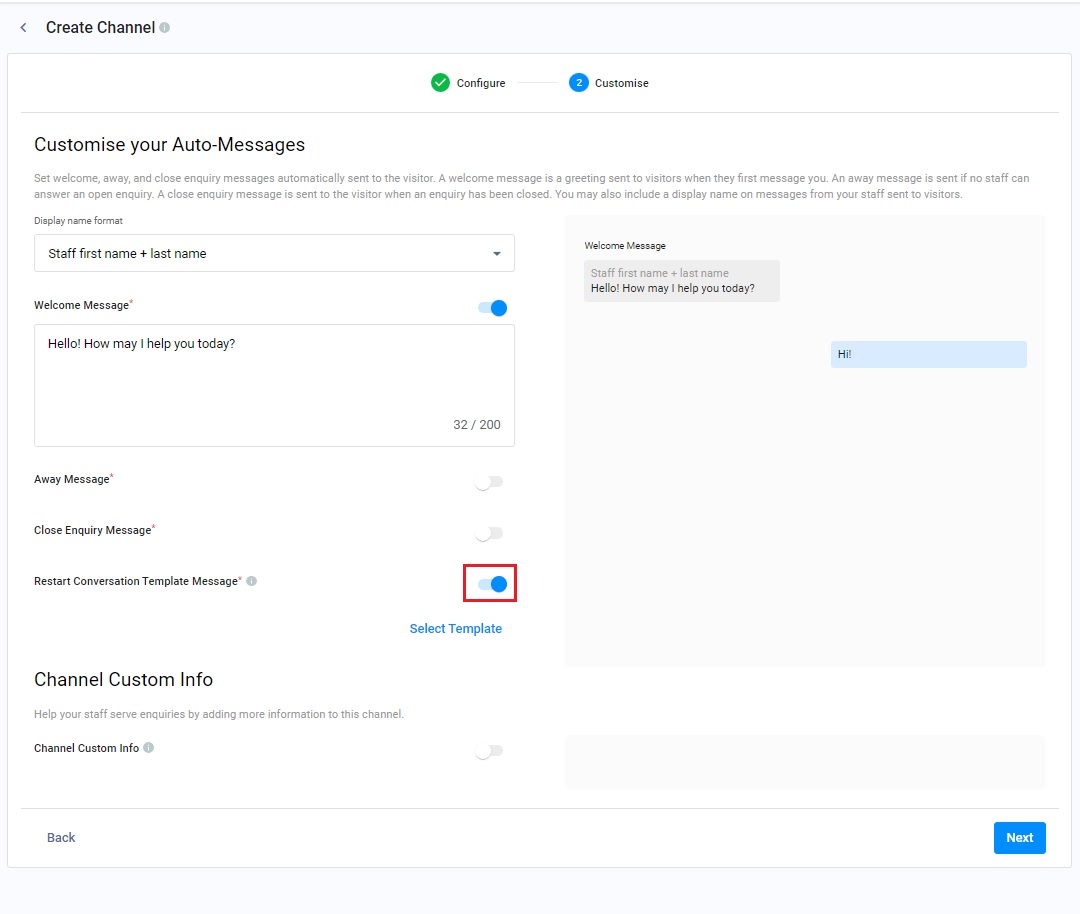
- Restart Conversation Template Message: Select WhatsApp message templates for your agents to choose when sending restart conversation message template to your visitors when the 24-hour message window has lapsed.
📘
Reminder
- The limit of Welcome, Away, Custom Auto-Close Notification and Closed Enquiry Messages is 500 characters.
- Before configuring the Custom Auto-Close Notification Message function, you must enable the auto close feature for handled enquiries without new messages. For more information, please refer to the Managing Auto Close Enquiry page.
Display Name Format
You may include staff display names in your messages. Choose from the following options:
- No name to display
- Staff first name
- Staff first name + last name
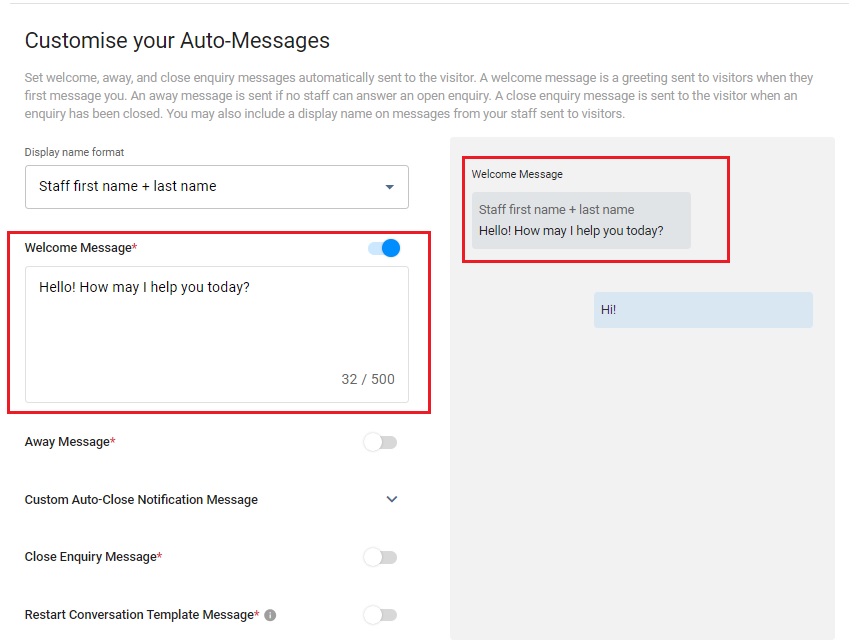
Welcome Message
- CINNOX provides a default welcome message.
- Toggle the switch on to enable it.
- After toggling it on, you can change the default message according to your needs.
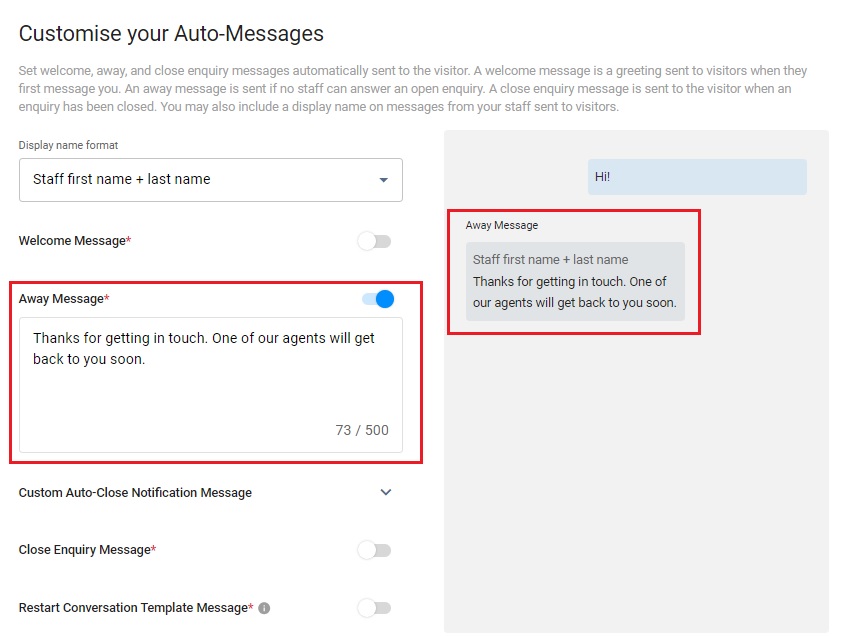
Away Message
- CINNOX provides a default away message.
- Toggle the switch on to enable it.
- After toggling it on, you can change the default message according to your needs.
Custom Auto-Close Notification Message
- Click the downward arrow icon.
- Enter your Auto-Close Notification Message in the box.
- You can preview the message in the chat room on the right-hand side of the grey box.
Close Enquiry Message
- CINNOX provides a default close enquiry message.
- Toggle the switch on to enable it.
- After toggling it on, you can change the default message according to your needs.
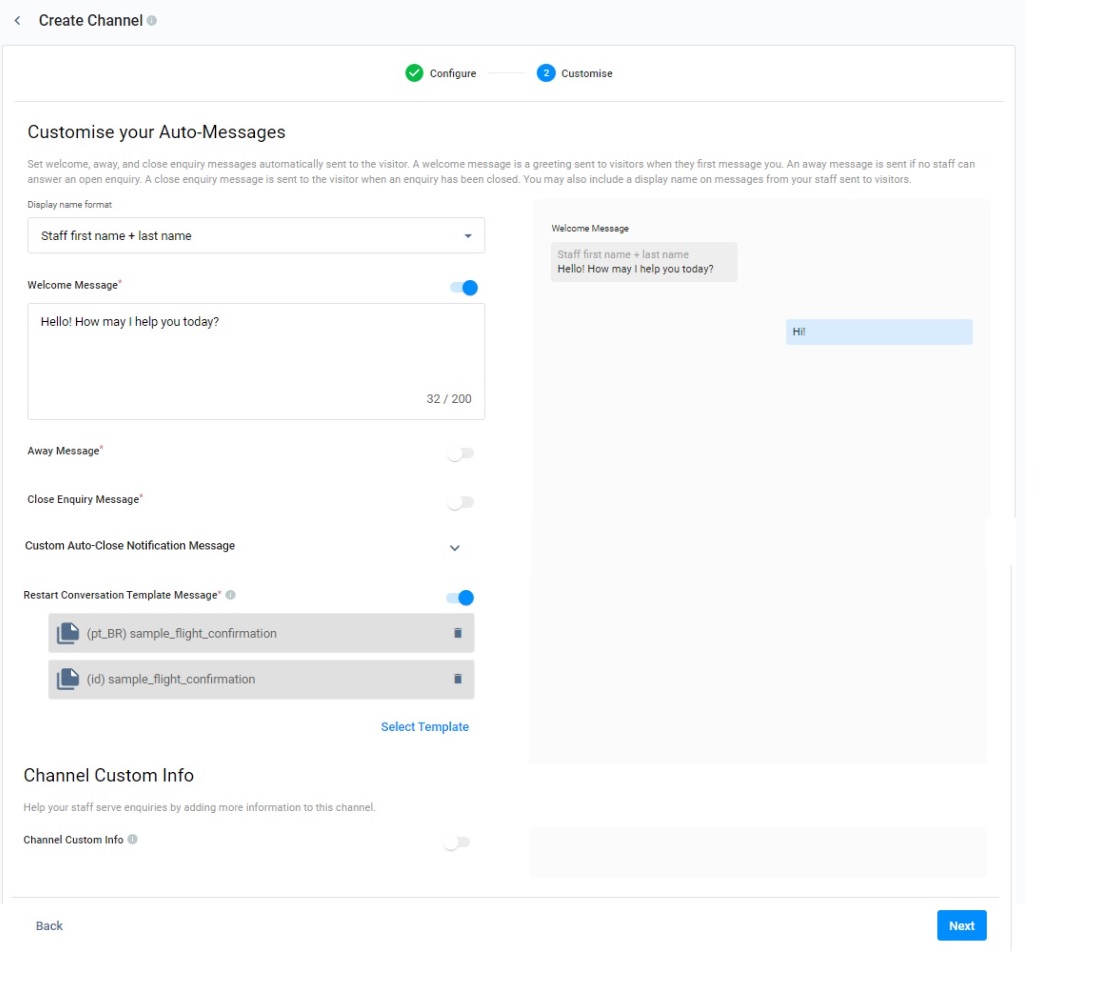
Restart Conversation Template Message
- The staff can send a message template in an enquiry room to restart the conversation with the visitor when the 24-hour message window has lapsed.
- Toggle the switch on to enable it.
- Click Select Template.
- Enter the template keywords into the search box to search for the required template. Alternatively, filter the template list by selecting one or multiple template types such as All, Marketing, Utility or Authentication from the drop-down list.
- Click on Sync to update the list of templates if required.
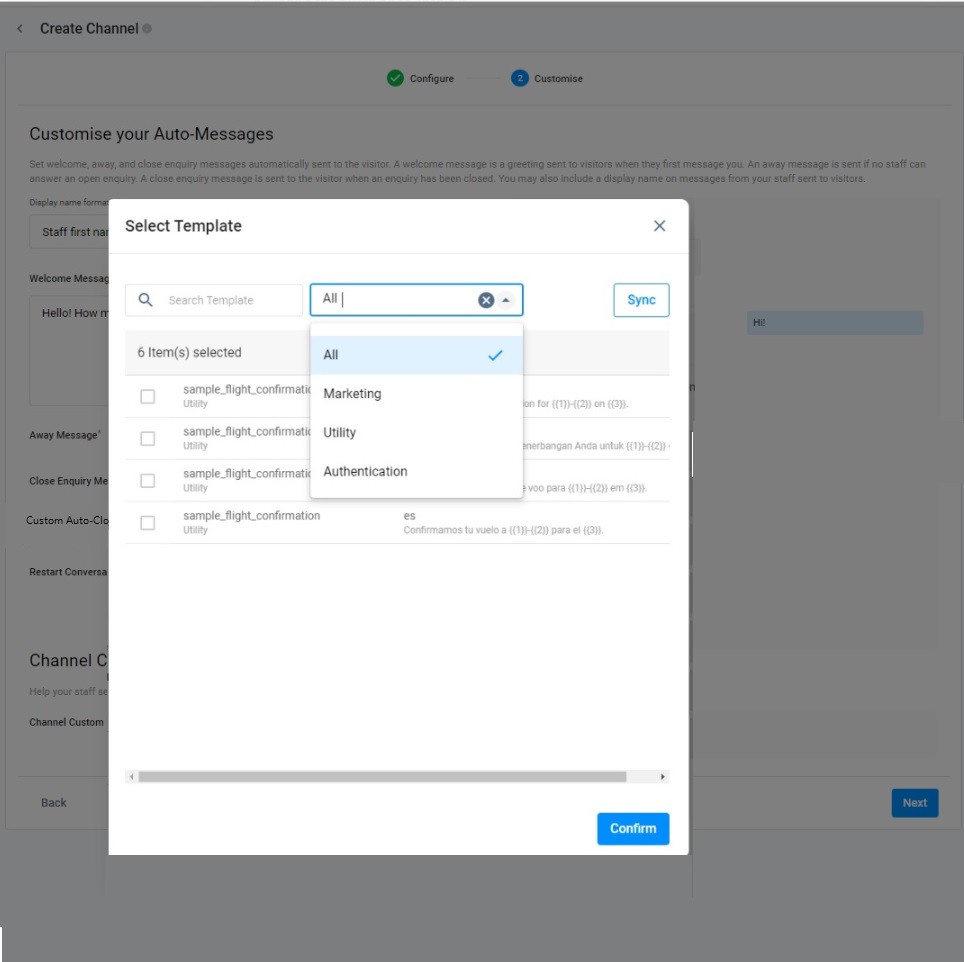
- Tick the required templates and click Confirm.
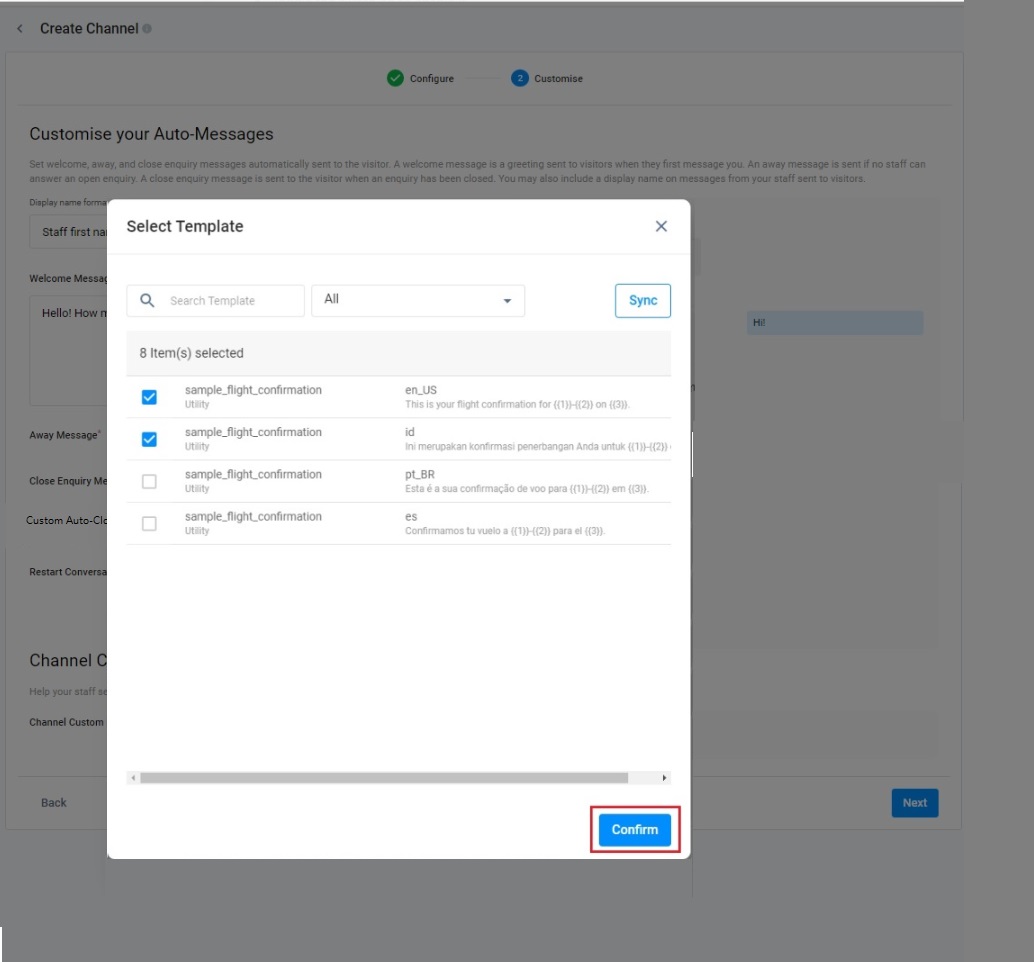
- The selected templates are added as the Restart Conversation Template Message.
📘
- You can only select up to 20 templates to be used by your staff replying to a WhatsApp Enquiry.
- Staff can select a message template from the template pool and send it to restart the conversation with visitors after the 24-hour window has lapsed. For details on restarting the conversation with visitors, please refer to the 360dialog - Restart the Enquiry Conversation.
Enable CINNOX Channel Custom Info
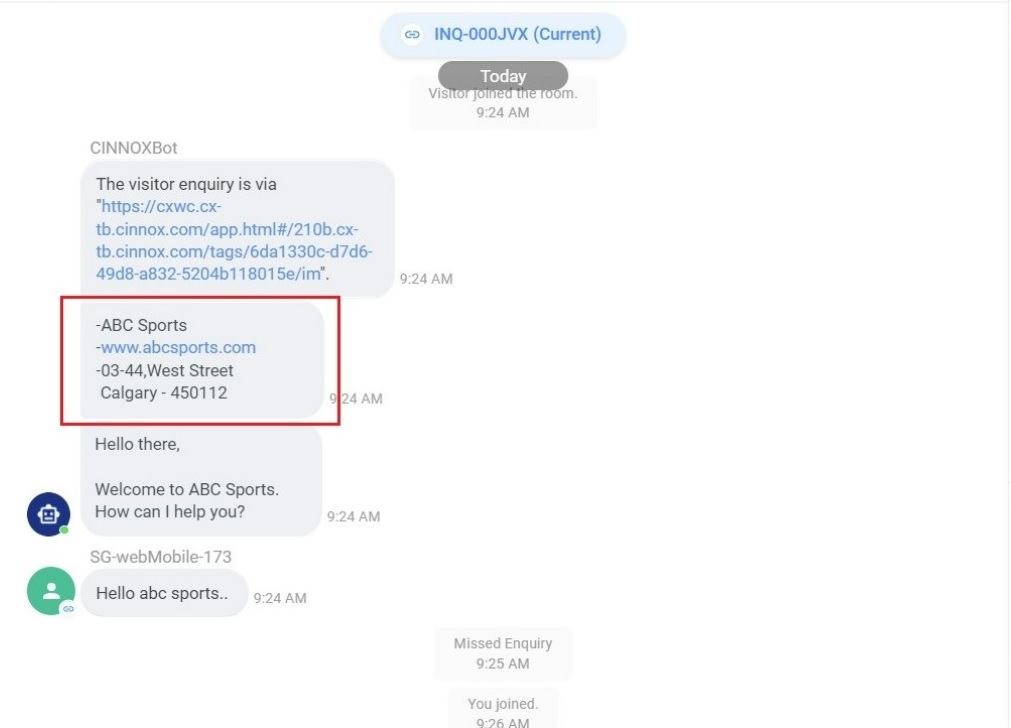
Channel Custom Info allows you to add your channel details that your staff would see in the call screen and chat room whenever they are serving an enquiry. The custom info can be about the standard procedure or operation details of handling the enquiry.
- Toggle the switch on to enable the Channel Custom Info.
- A blank space adds the required basic information about the channel.
- Click the Next button to complete all configurations, and the customised info appears on the Channel Custom Info.
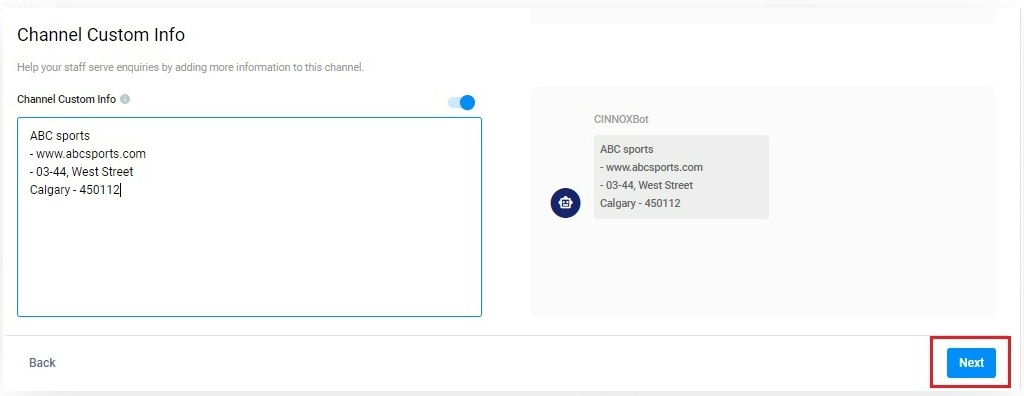
The custom info is displayed on the staff side in the chat room section for the chat enquiry.
📘
- The custom info is displayed on the staff side in the chat room section for the chat enquiry.
- The Channel Custom Info you can add is 10,000 chars per channel. Please ensure it is at most the limit to work correctly.
- The Channel Custom Info will still be displayed as a chatbot message in the enquiry room if an enquiry is missed.
- Your account is successfully created after configuring the CINNOX Channel, the Routing Settings, and the Auto-Message Message Settings.
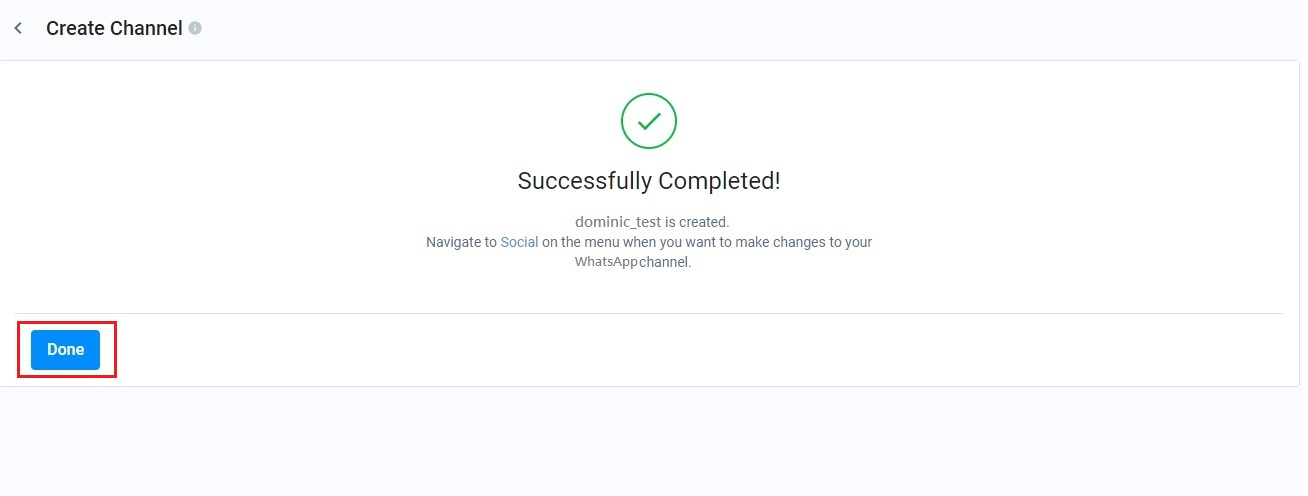
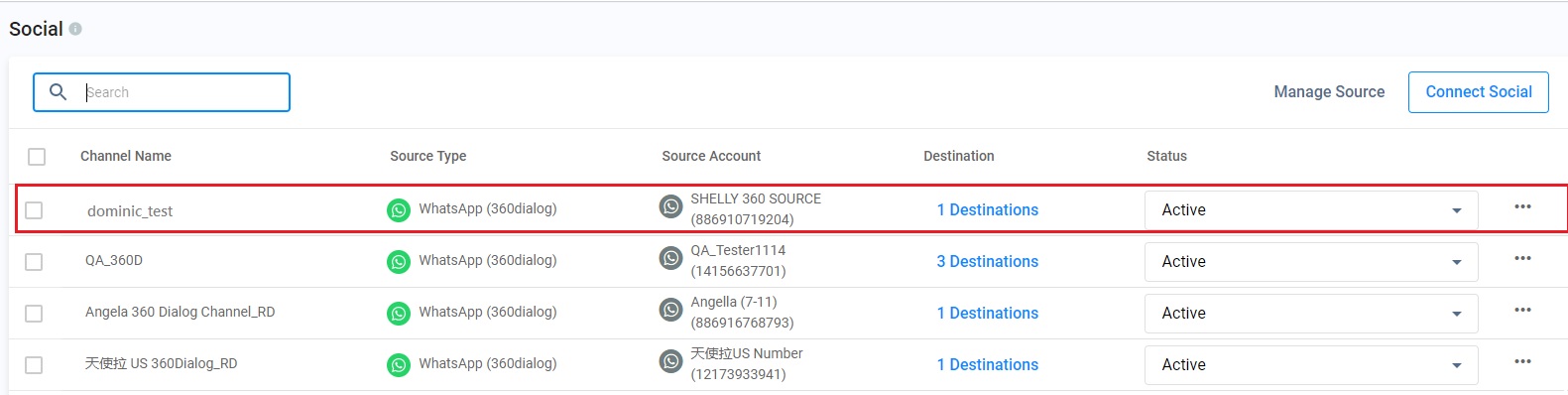
- When you click Done, your newly created account is displayed in the table.
Advanced Routing Flow
Advanced Routing Flow is now available for the WhatsApp channel. You can migrate this channel from the Routing Settings to the Advanced Routing Flow to build a visual routing flow for your enquiries.
- Chat Routing Flow with components such as Time Routing, Queue, Auto-Message and Auto-Update of Enquiry Status.
📘 Before you migrate
- Create the Chat Routing Flow first, then add it as the Advanced Routing Setting in this channel.
- Once migrated, you cannot roll back to the previous Routing Settings, but you can still view them for reference.
- Percentage Routing is not available in Advanced Routing Flow. Please review your current setup carefully before migrating.
- If the Advanced Routing Flow feature is not yet enabled for your service account, please contact your Account Manager.
For more information on building and managing your routing flows, please refer to our Advanced Enquiry Routing Flow Detailed User Guide.
Others
Manage WhatsApp Channels in CINNOX
Refer to the Managing Social Pages Guide to edit, suspend, or delete your WhatsApp channels in CINNOX,
Manage Social Channel Source
To view, edit, or delete a channel source, refer to the Social Channel Source Guide.
Serve Chat Enquiries
Refer to Serving Chat Enquiries Guide for more information about serving an enquiry via the WhatsApp channel.
Termination
If the customer decides to terminate the 360Dialog WhatsApp service with CINNOX, it is hereby agreed that such termination shall be executed by CINNOX no less than two (2) months in advance. CINNOX reserves the right to continue charging the customer for the 360Dialog WhatsApp service for an additional two (2) months beyond the termination date. These charges are intended to cover maintenance and administrative costs associated with the cessation of services, ensuring a smooth transition and the preservation of necessary technical functionalities during the post-termination period.
Known Limitations
✅ You can only connect WhatsApp Business API to CINNOX. You cannot connect to other WhatsApp accounts.
✅ A WhatsApp Business API account can only connect to one CINNOX service.
✅ WhatsApp Business API has a 24-hour window period when you can send messages and respond to enquiries. The following message appears when the window period has lapsed: Sorry, your message can no longer be sent; the 24-hour message window has lapsed. Close this enquiry, or wait until the visitor sends a message again.
✅ Supported Text, Media Content-Types and Size Limit. For details, please refer to Meta Supported Files.
Help and Support
📘
Send a test message to your WhatsApp Business API account and check if your CINNOX service receives it as a new enquiry.
If your CINNOX service is still not receiving any messages, contact our CINNOX Support Team.