
General Integration for Chatbot (with Streaming Message Support)
Overview
Integrating a General Chatbot into CINNOX allows you to connect chatbots from any third‑party platform and handle customer enquiries seamlessly within the CINNOX ecosystem.
In addition to the existing JSON-based response, CINNOX now supports Streaming Messages (Server‑Sent Events, SSE) for General Chatbots. This allows chatbot replies to be rendered progressively (token‑by‑token) in the chat, instead of waiting for the full response to be returned at once.
Streaming messages are optional and fully backward compatible. Existing chatbot integrations will continue to work without any changes.
This integration requires configuring a destination URL, request method, optional parameters, and HTTP headers in CINNOX.
When to Use Streaming Messages
Streaming messages are useful when:
- Your chatbot response is generated progressively (for example, AI or LLM responses)
- You want users to see replies appearing in real time
- You want to improve perceived response speed and conversational experience
If streaming is not enabled or supported, CINNOX will automatically fall back to the standard non‑streaming JSON response.
Enabling Streaming Messages
Prerequisites
Streaming messages will only be used when all of the following conditions are met:
- Chatbot Source is General Chatbot
- The chatbot HTTP Headers include:
{
  "Accept": "text/event-stream"
}- The end‑user is using a CINNOX native channel (Web Widget, Workspace, or in‑app messaging)
Note
External omni‑channels (such as WhatsApp, LINE, WeChat, Facebook, etc.) do not support streaming and will > always use the non‑streaming JSON response.
General Chatbot - Admin Configuration
Chatbot Source
To create a general chatbot:
- From the navigation menu, go to Administration > Channels > Destinations.
- Click the Chatbot tab.
- In the top‑right corner of the chatbot list, click Create Chatbot.
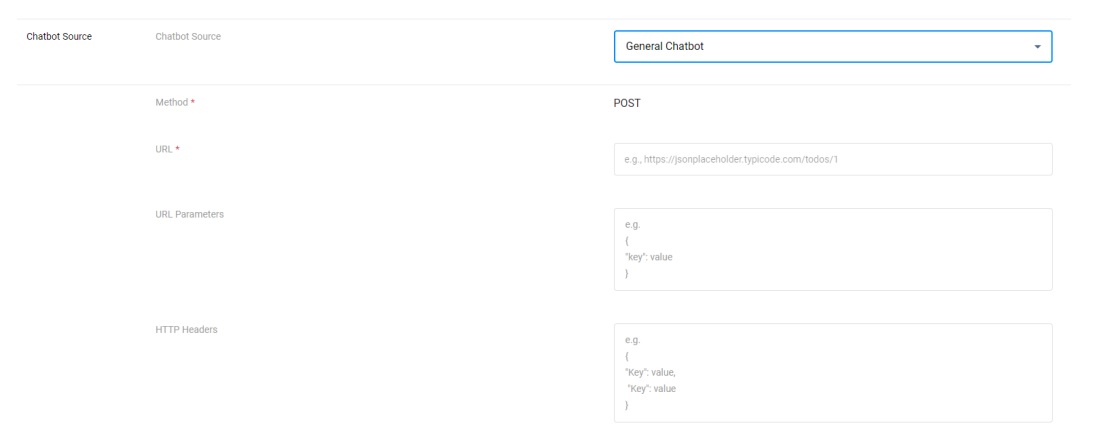
- In the Chatbot Source dropdown, select General Chatbot.
Configure Chatbot Connection Settings
Fill in the required fields to connect CINNOX with your chatbot endpoint.
Method
- Select POST
The HTTP method is fixed to POST and cannot be changed.
This HTTP method means CINNOX will send data to your server to create or update a resource.
URL (required)
- Enter the endpoint URL of your chatbot server.
- E.g., https://jsonplaceholder.typicode.com/todos/1
- This is where CINNOX will send enquiries and message requests.
URL Parameters (Optional)
- Enter key‑value pairs if your chatbot requires additional parameters.
- E.g., "enquiryType":chat
- These parameters will be included in the request sent from CINNOX.
HTTP Headers (Optional)
- Enter any required HTTP headers needed by your chatbot service.
- E.g., "Content-Type": application/json
Enable Streaming Messages (Optional)
- To enable Streaming Messages (SSE), add the following header:
{
  "Accept": "text/event-stream"
}
Note
Removing this header will convert the chatbot to the standard non‑streaming JSON response.
Chatbot Basic Information
Fill in the Basic Information section for the General Chatbot
-
Enter a name for the chatbot. This name appears in the chatbot list.
Maximum length: 50 characters.E.g., Support Chatbot
-
Upload an avatar image to represent the chatbot.
Use a simple icon or brand‑aligned image for better user recognition.
This is Optional.
-
Enter a short description to explain the chatbot’s purpose.
E.g., Chatbot for the ABC website.
Support Language
- Select the language(s) supported by this chatbot.
- CINNOX routes enquiries to the chatbot based on the selected language configuration.
Support Location
- Use this setting to control where the chatbot is available.
- Select All Countries/Regions, or specify individual countries, regions, and states.
Transfer Chatbot to Live Agent
- When enabled, the chatbot can allow a web visitor to transfer their conversation from the chatbot to a live support agent.
Blind Transfer
- This option determines what happens if a conversation is transferred, but no agent is available.
- When this is enabled, an unattended transferred enquiry will be marked as a Missed Enquiry.
The conversation will not return to the chatbot. - When this is disabled, if no agent is available, the enquiry will automatically loop back to the
chatbot.
Note
To use live agent transfer, ensure service groups and staff assignments are configured in advance.
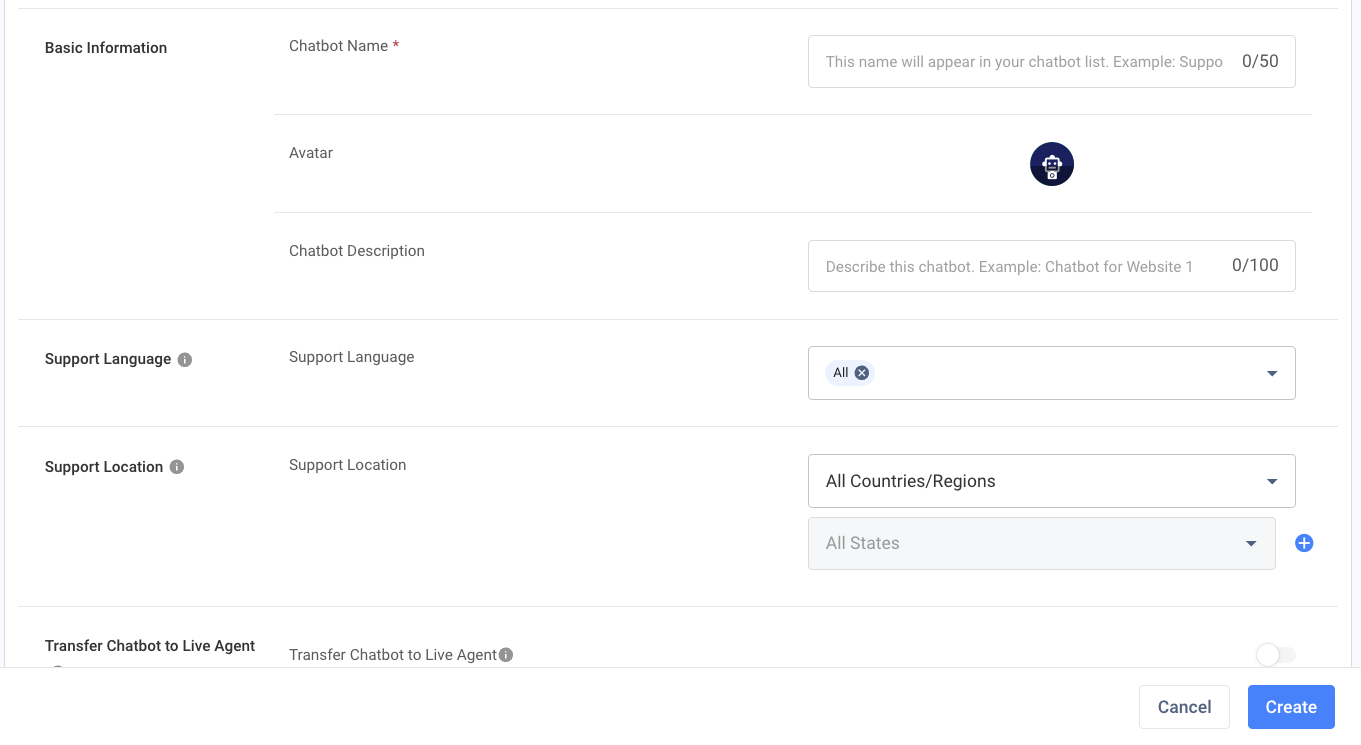
- Click Create after all fields are set.
Other Means to Transfer an Inquiry from Chatbot to the Live Agent
DirectTransferTag string = DIRECT_TRANSFERtag="(tag ID)"
DirectTransferStaff string = DIRECT_TRANSFERstaff="(staff ID)"
Refer to this guide for Retriving IDs in CINNOX: https://docs.cinnox.com/docs/retrieving-id-cinnox-elements
Request from CINNOX
After the required fields are configured, CINNOX sends a request to the destination chatbot whenever the chatbot needs to handle an enquiry.
Request Example
{
  "query": "user message text",
  "queryParams": {
    "key": "value"
  },
  "inquiryID": "string",
  "action": "input.unknown"
}
Request Fields
| Field | Type | Description |
|---|---|---|
| query | String | The message sent by the visitor |
| queryParams | Object | Key‑value parameters configured in URL Parameters |
| inquiryID | String | Present when the message comes from an enquiry room |
| action | String | Always input.unknown for standard messages |
Backward Compatibility
CINNOX also supports the legacy request format:
{"queryResult":{"queryText":"..."}}
Streaming Response Behavior (Optional)
When Streaming Messages are enabled, the chatbot may return responses progressively using Server‑Sent Events (SSE).
Streaming Text Message Example
{
  "message": {
    "type": 1,
    "text": "partial text",
    "streamType": "delta"
  }
}- The final response:
- Does not include
streamType - Uses the same format as a standard Text Message response
- Does not include
Streaming Error Handling (Informational)
If a streaming response is interrupted or cannot be completed, CINNOX automatically handles the condition and logs the error.
Depending on the situation:
- The partial response may be finalized and displayed
- Or the enquiry may end without a chatbot response
No additional configuration is required by administrators.
Additional Context Information (Optional)
Depending on the enquiry source and channel, CINNOX may include additional contextual metadata in the request payload.
This information can be used by your chatbot to understand the enquiry context, such as the originating channel, visitor details, or routing information.
Example of possible context fields:
{
  "tagType": "string",
  "tagId": "string",
  "tagName": "string",

  "channelType": "string",
  "channelId": "string",
  "channelName": "string",
  "channelSourceName": "string",
  "channelPhoneNumber": "string",

  "visitorName": "string",
  "visitorPhone": "string",

  "omniType": "string"
}
Note
These fields are provided for context only.
Their presence may vary depending on the channel and configuration, and chatbot implementations should not > rely on any specific field being mandatory.
Response to CINNOX
The response from the third‑party chatbot must be returned to CINNOX so that it can reply to the enquiry accordingly.
CINNOX supports two response types for a General Chatbot:
- Text Message
- Advanced Message
📘 Note
Responses must be returned to CINNOX in JSON format.
When Streaming Messages are enabled, responses are delivered using Server‑Sent Events (SSE), but the message > object structure remains the same.
Text Message
A Text Message allows the chatbot to reply with plain text or trigger specific actions.
| Key | Type | Description |
|---|---|---|
| message.type | Number | Must be 1, which represents a Text Message |
| message.text | String | Text content or a supported action keyword |
Supported message.text Values
-
Custom text
The exact message CINNOX displays in the enquiry chatroom.
Example: "Please contact our customer service support." -
DIRECT_TRANSFER
Transfers the enquiry from the chatbot to a live agent.
Requires Transfer Chatbot to Live Agent to be enabled. -
CLOSE_ENQUIRY
Automatically closes the enquiry.
Example: Text Message Response
{
  "message": {
    "type": 1,
    "text": "Please contact our customer service support."
  }
}
Streaming Limitation for Text Messages
📘 Important
When Streaming Messages (SSE) are enabled:
- Only Text Messages (message.type = 1) are supported
- Advanced Messages are not supported
- Streaming responses may be returned progressively using streamType: "delta"
Advanced Message
An Advanced Message allows the chatbot to reply with rich, interactive content, such as formatted text, buttons, and media files.
Advanced Messages are useful for:
- Guided user interactions
- Menu‑based navigation
- Presenting structured information
- Call‑to‑action workflows (transfer, links, close enquiry)
Important Notes
📘 Advanced Message Limitation
- Advanced Messages are only supported in non‑streaming JSON responses
- Advanced Messages are not supported when Streaming Messages (SSE) are enabled
- If your chatbot needs to send an Advanced Message, ensure Streaming Messages are disabled
Advanced Message Fields
Advanced Messages are identified by the following values:
| Key | Type | Description |
|---|---|---|
| message.type | Number | Must be 5, which represents an Advanced Message |
| message.advanced | String | Must be "AdvancedMessage" |
Example: Basic Advanced Message (Bubble with Text)
{
  "message": {
    "type": 5,
    "advanced": "AdvancedMessage",
    "advancedItems": [
      {
        "type": 1,
        "items": [
          {
            "type": 9,
            "title": "Title",
            "text": "Body text",
            "footer": "Footer text"
          }
        ]
      }
    ]
  }
}
📘 Advanced Message Limitation
Advanced Messages are only supported in non‑streaming JSON responses.
Format of Message
Advanced Messages support the following formats:
| advanced.type | Format |
|---|---|
| 1 | Bubble |
| 2 | Carousel |
| 3 | Quick Reply |
| 4 | List |
| 9 | Text |
📘 Display Order Requirement
Message content must be displayed in the following order:
Text → Media File → Button
Message Components
Text
Advanced Messages can include different text styles such as Title, Text, and Footer.
| Key | Type | Description |
|---|---|---|
| advanced.type | Number | 1 = Bubble, 2 = Carousel |
| advanced.items.type | Number | Must be 9 to represent a text component |
| advanced.items.title | String | Title displayed in the message |
| advanced.items.text | String | Main body content |
| advanced.items.footer | String | Footer content |
📘 Note
Title, text, and footer fields support a maximum of 10,000 characters.
Button
Advanced Messages can include buttons with different actions.
| Key | Type | Description |
|---|---|---|
| advanced.items.type | Number | Must be 12, which represents a button |
| advanced.items.text | Number | Button display text (max 20 characters) |
| advanced.items.action.type | String | Action type definition |
| advanced.items.action.text | String | Postback text or action keyword |
| advanced.items.action.url | String | URL opened when action type is URL |
Supported Button Actions
-
Postback (type = 1)
Displays text in the chatroom when pressed -
Open URL (type = 2)
Redirects the visitor to the specified URL -
DIRECT_TRANSFER
Transfers the enquiry to a live agent (requires Transfer Chatbot to Live Agent) -
CLOSE_ENQUIRY
Automatically closes the enquiry
Media Files
Advanced Messages can include images, videos, and audio files.
| advanced.items.type | Media Type |
|---|---|
| 10 | Image |
| 11 | Video |
| 13 | Audio |
| Key | Type | Description |
|---|---|---|
| advanced.items.fileUrl | String | Publicly accessible media file URL |
📘 Supported Formats
- Image: JPEG, JPG, PNG, WebP
- Audio: M4A, W4A, MP3, WAV, MPEG, AAC
- Video: MP4, 3GPP
Maximum file size: 20 MB
Examples of Advanced Messages
Your existing examples remain valid and can be kept as‑is:
- Quick Reply
- Button List
- List Message
Each example demonstrates how different formats, buttons, and media components can be combined to create customized chatbot replies.
1. Quick Reply
Example: Quick Reply
{
  "message": {
    "type": 5,
    "advanced": "AdvancedMessage",
    "advancedItems": [
      {
        "type": 1,
        "items": [
          {
            "type": 9,
            "title": "Good Result Learning Center",
            "text": "Your Exam Expert",
            "footer": "Join us now!"
          },
          {
            "type": 10,
            "fileUrl": "https://www.grlc/teaching.png"
          }
        ]
      },
      {
        "type": 3,
        "items": [
          {
            "type": 12,
            "text": "Website",
            "action": {
              "type": 2,
              "url": "https://www.grlc.com"
            }
          },
          {
            "type": 12,
            "text": "Email",
            "action": {
              "type": 1,
              "text": "[email protected]"
            }
          },
          {
            "type": 12,
            "text": "Address",
            "action": {
              "type": 1,
              "text": "Flat 3, 2/F, ABC Building, Castle Peak Road, Tsuen Wan, N.T."
            }
          }
        ]
      }
    ]
  }
}
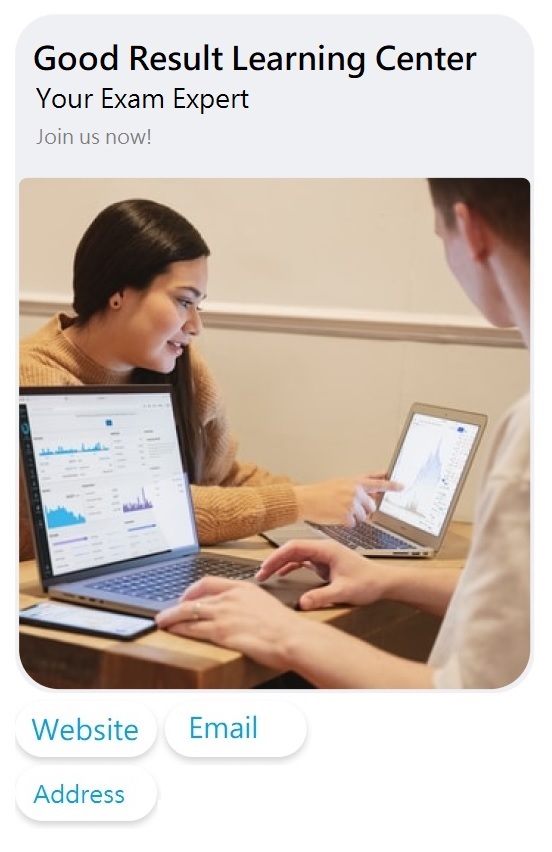
The image below is an example of advanced messages that will reply to the enquiry based on the example keys and values.
- Button List
Example: Bubble Button 1
{
  "message": {
    "type": 5,
    "advanced": "AdvancedMessage",
    "advancedItems": [
      {
        "type": 1,
        "items": [
          {
            "type": 10,
            "fileUrl": "https://www.grlc/teaching.png"
          },
          {
            "type": 12,
            "text": "Button1",
            "action": {
              "type": 1,
              "text": "123"
            }
          },
          {
            "type": 12,
            "text": "Button2",
            "action": {
              "type": 2,
              "url": "https://www.grlc.com"
            }
          }
        ]
      }
    ]
  }
}
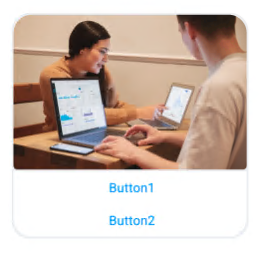
The image below shows how the Advanced Message is rendered in the enquiry chat, based on the example keys and values above.
Example: Bubble Button 2
{
  "message": {
    "type": 5,
    "advanced": "AdvancedMessage",
    "advancedItems": [
      {
        "type": 1,
        "items": [
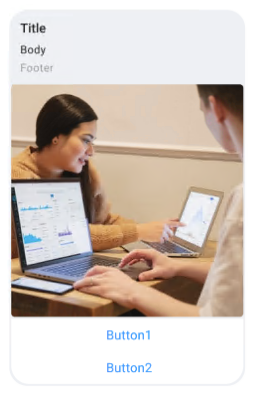
          {
            "type": 9,
            "title": "Title",
            "text": "Body",
            "footer": "Footer"
          },
          {
            "type": 10,
            "fileUrl": "https://www.grlc/teaching.png"
          },
          {
            "type": 12,
            "text": "Button1",
            "action": {
              "type": 1,
              "text": "123"
            }
          },
          {
            "type": 12,
            "text": "Button2",
            "action": {
              "type": 2,
              "url": "https://www.grlc.com"
            }
          }
        ]
      }
    ]
  }
}
The image below shows how the Advanced Message is rendered in the enquiry chat, based on the example keys and values above.
- List Message
Example: List Message
{
  "message": {
    "type": 5,
    "advanced": "AdvancedMessage",
    "advancedItems": [
      {
        "type": 4,
        "items": [
          {
            "type": 9,
            "title": "I am title",
            "text": "I am subtitle"
          },
          {
            "type": 12,
            "title": "I am item title 1",
            "text": "I am item description 1",
            "action": {
              "type": 1,
              "text": "I am info key 1"
            },
            "items": [
              {
                "type": 10,
                "fileUrl": "I am imageUri 1"
              }
            ]
          },
          {
            "type": 12,
            "title": "I am item title 2",
            "text": "I am item description 2",
            "action": {
              "type": 1,
              "text": "I am info key2"
            },
            "items": [
              {
                "type": 10,
                "fileUrl": "I am imageUri 2"
              }
            ]
          }
        ]
      }
    ]
  }
}Click Create after all fields are set.
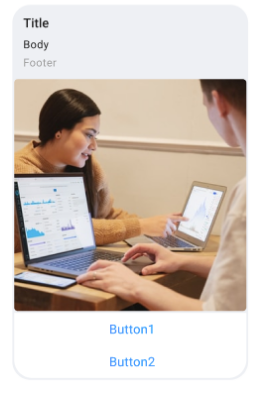
The image below shows how the Advanced Message is rendered in the enquiry chat, based on the example keys and values above.
Streaming Limits
When Streaming Messages (SSE) are enabled, the following limits apply:
| Item | Limit |
|---|---|
| Maximum total response time | 120 seconds |
| Maximum size per streamed event | 1 MB |
| Maximum cumulative response size | 4 MB |
If these limits are exceeded, CINNOX may stop reading the response.
Backward Compatibility
- Vendors that do not configure the
Accept: text/event-streamHTTP header will continue to use the standard non‑streaming JSON response. - Enabling Streaming Messages is a vendor‑only change and does not require any CINNOX deployment or coordination.
- To roll back to non‑streaming behavior, simply remove the
Accept: text/event-streamheader from the chatbot configuration.
The next request will automatically use the standard JSON response format.