
App Sign In and Sign Out
After downloading and installing the CINNOX App, you will be asked to sign in to your CINNOX subdomain.
App Sign In
Use the subdomain and domain name provided from the sign-up as your login instance, e.i,
Subdomain: example.cinnox.com or example.cinnox.cn
Your Subdomain: example
Domain Name: cinnox.com or cinnox.cn
To sign in to the CINNOX App:
- Open the CINNOX app on your mobile device.
- On the sign-in screen, enter your Subdomain.
- Select the domain name of your subdomain (service), cinnox.com or cinnox.cn
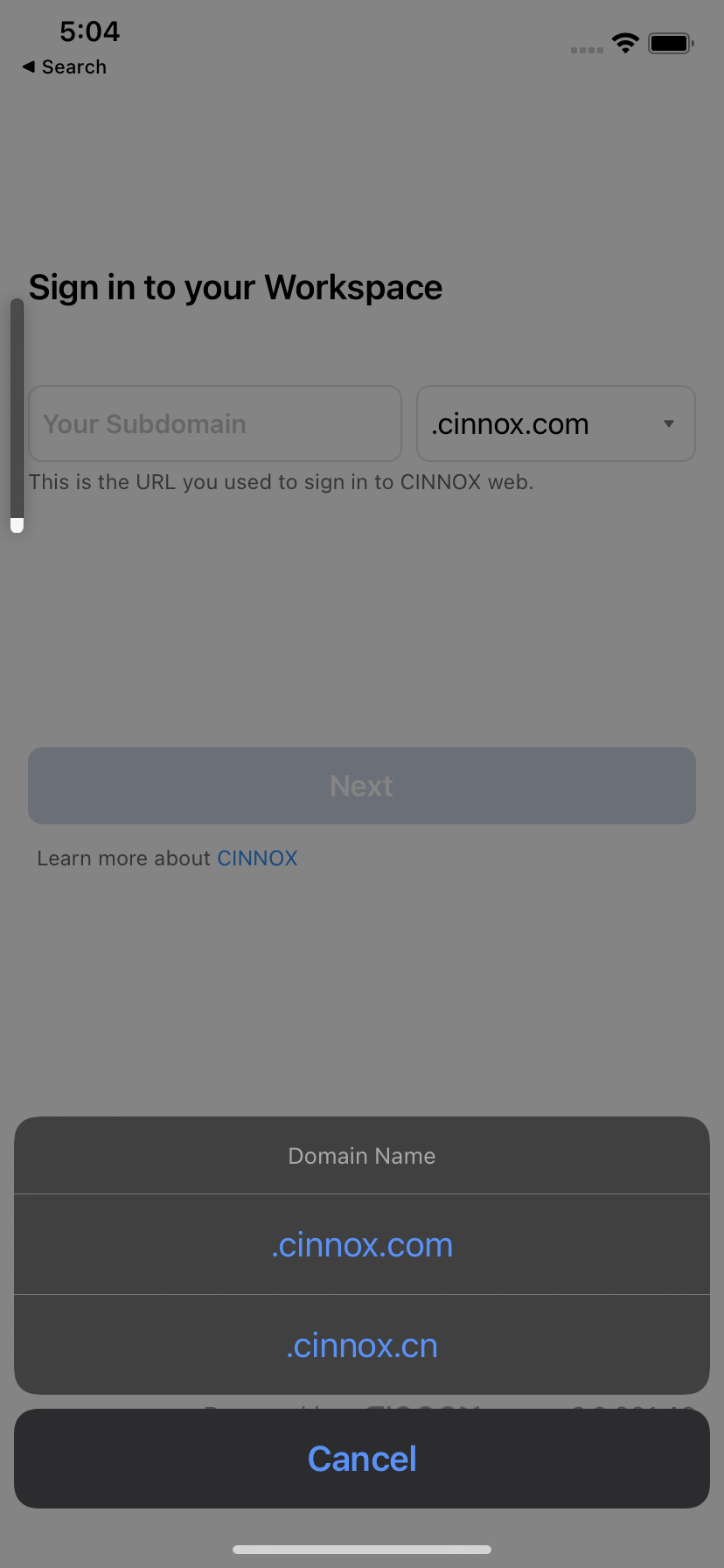
CINNOX App Sign In
- Contact your administrator if you do not know or remember your CINNOX subdomain.
- Tap Terms of Service and Privacy Policy on the sign-in screen to read and learn more about CINNOX's Terms of Service and Privacy Policy, respectively.
📘
By tapping Sign in, you agree to our Terms and Conditions and Privacy Policy.
- Tap Next.
- If you have entered an incorrect subdomain, the screen will display the following message: Incorrect subdomain. Please get in touch with your administrator.
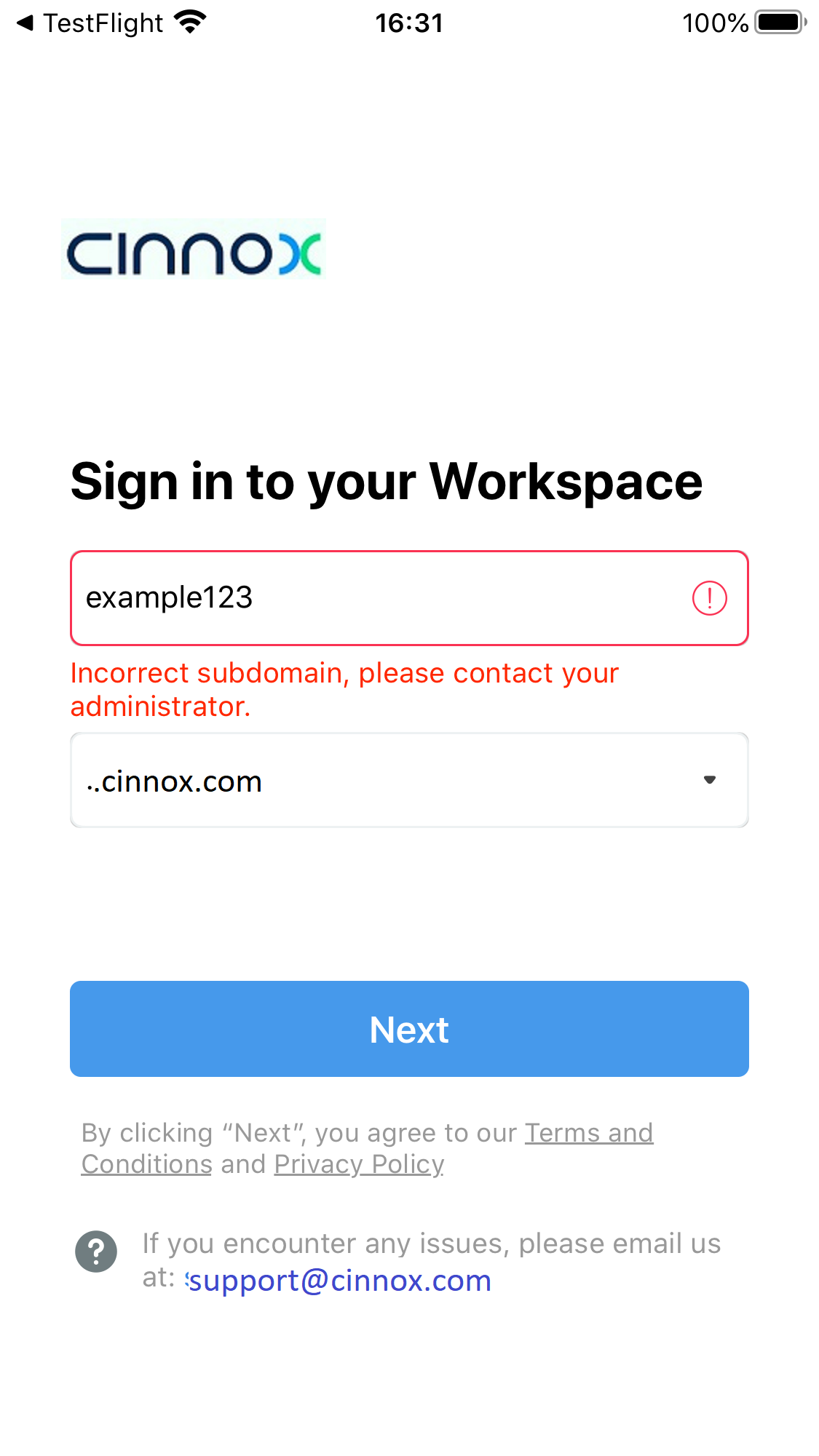
CINNOX App Sign In
On the next screen:
- Enter your Email Address registered in CINNOX
- Enter your Password
- Tap Sign in.
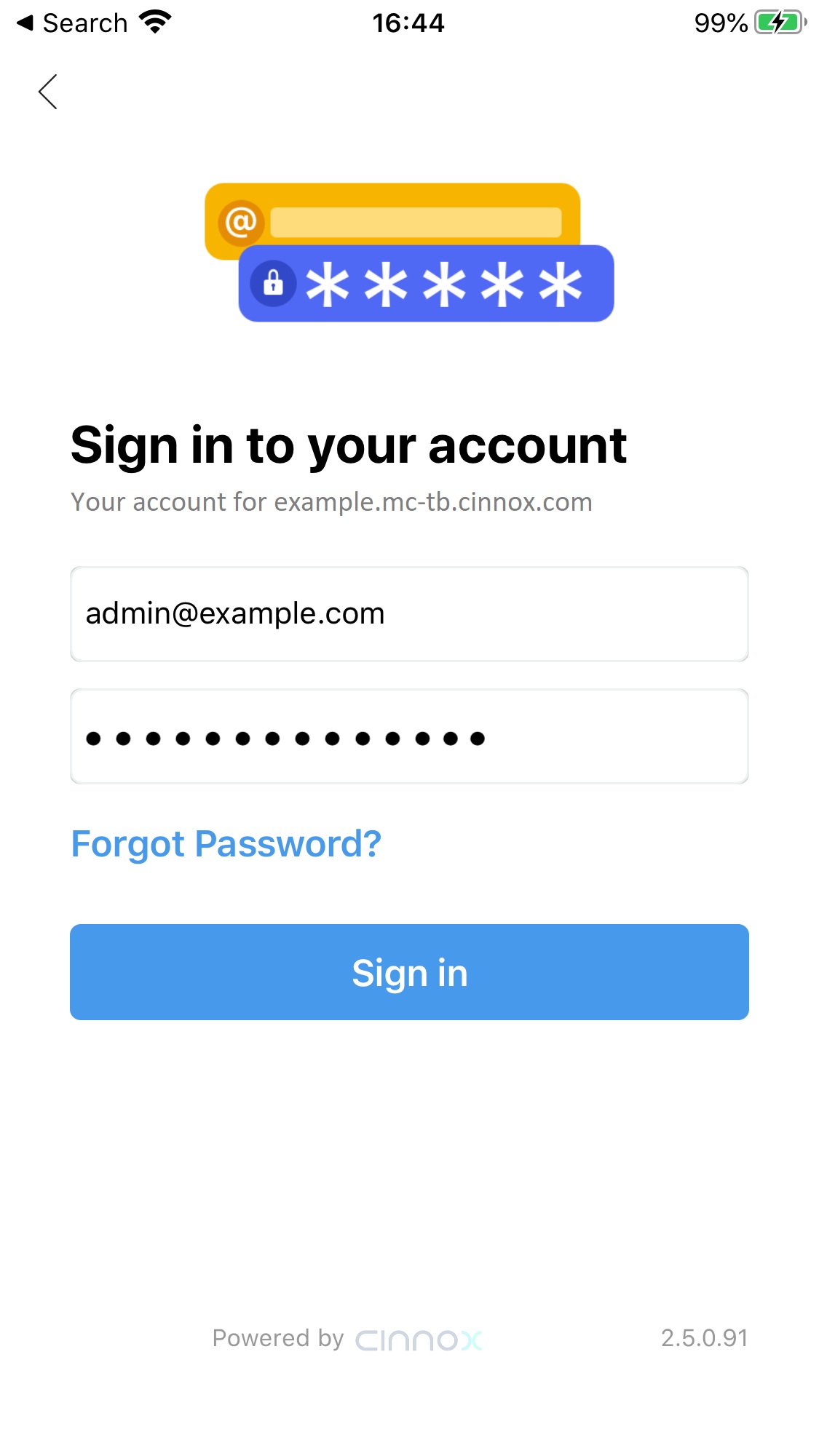
CINNOX Email and Password Sign In
- If you have entered incorrect sign-in credentials, the screen will display the following message: Your login email and password do not match.
Two-Factor Authentication
If your account has enabled the Two-Factor Authentication, you must enter your authentication app's six-digit code.
Refer to the Two-Factor Authentication section of this Guide for more information.
Third-Party Authentication
When a Staff administrator enables third-party authentication, you can use your Microsoft AD credentials to log in to the CINNOX service.
Refer to the Third-Party Authentication section of this Guide for more information.
Welcome Page
Once you have successfully signed in, the CINNOX App will display a welcome page that introduces the different CINNOX features and capabilities.
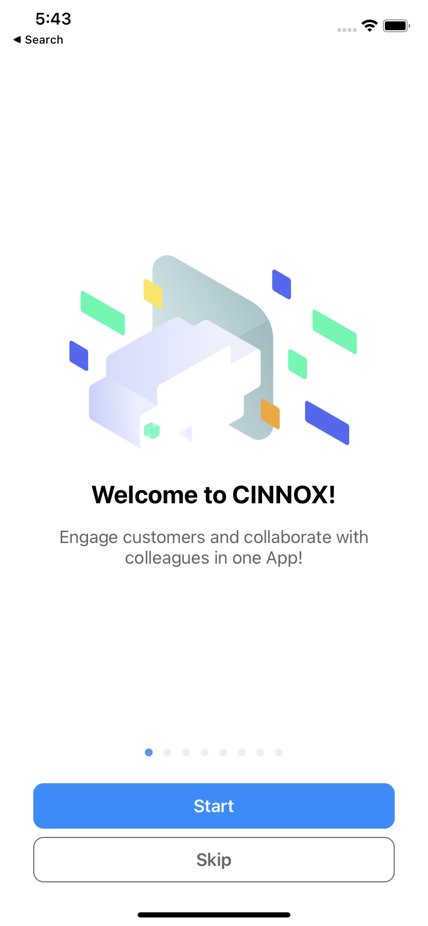
Tap > or Next to view the next slide, or click < to view the previous slide.
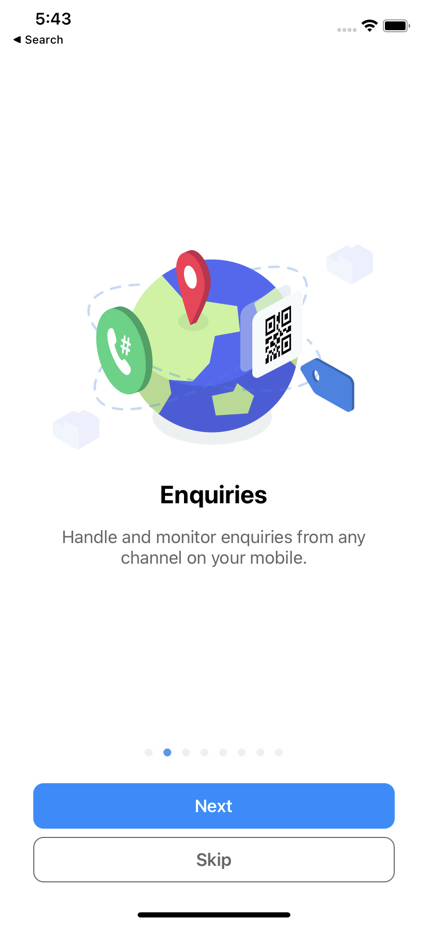
Alternatively, tap Skip to close the welcome page and immediately access your Workspace.
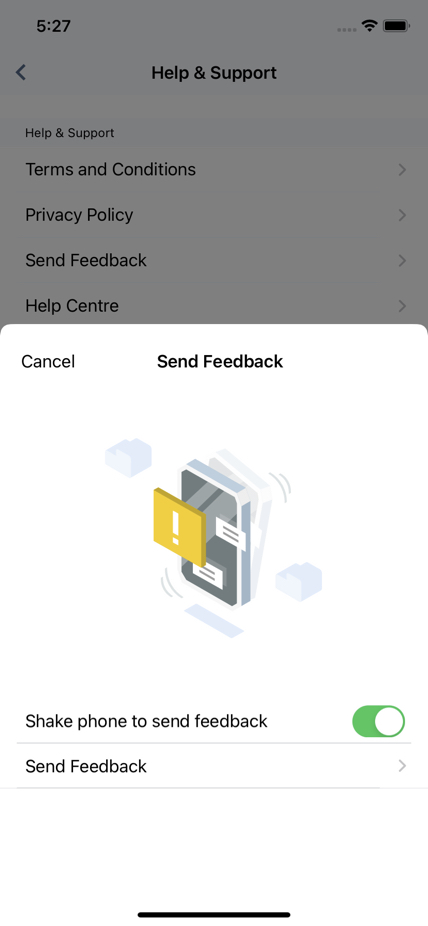
Default Screen
Once you close the welcome page, the CINNOX App will display the Utility tab. This will also be the app's default landing screen when you open the app the next time.
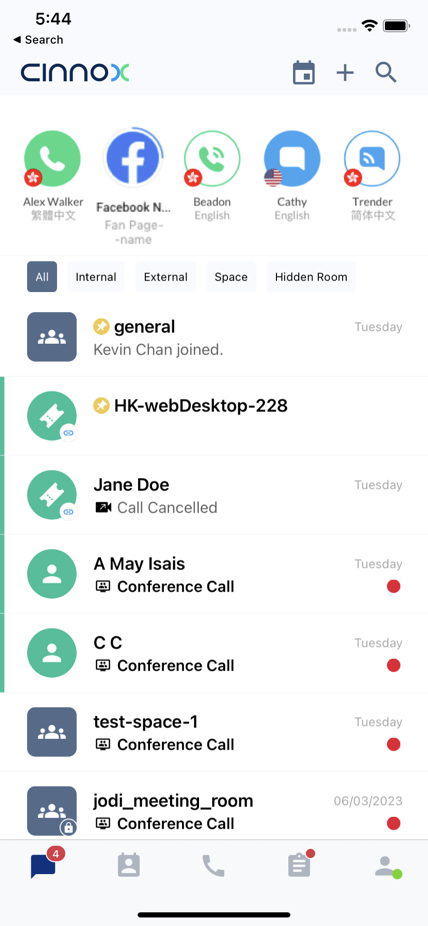
Default Screen
Simulation and Help Centre
- Visitor Enquiry Simulation - simulate how a visitor creates a chat enquiry and, as an agent, picks up the enquiry and replies to the visitor's message.
- Staff Call Simulation - make a call test with our CINNOXBot to experience how a call works.
- Help Centre - visit our Help Centre to check out our comprehensive guides and FAQs to help you get started with CINNOX.
App Sign Out
To sign out from the CINNOX App:
- Go to My Account from the menu tab, then tap Sign out. A pop-up message will appear, asking you to confirm the action.
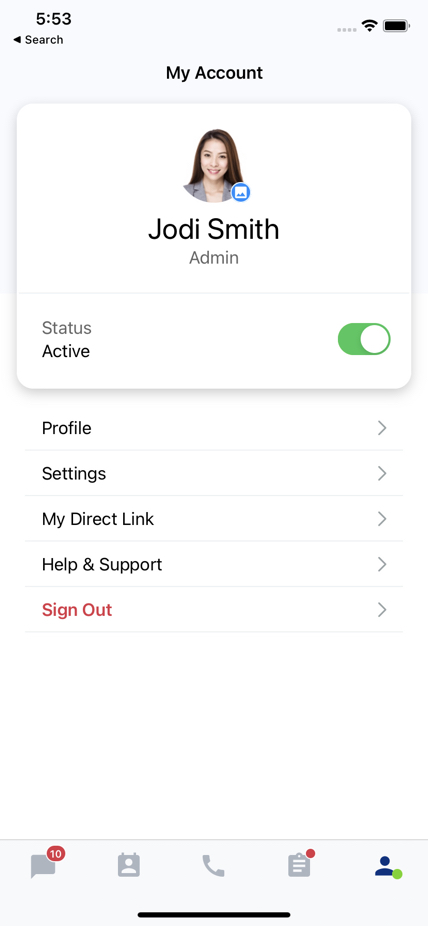
My Account
- Tap Confirm.
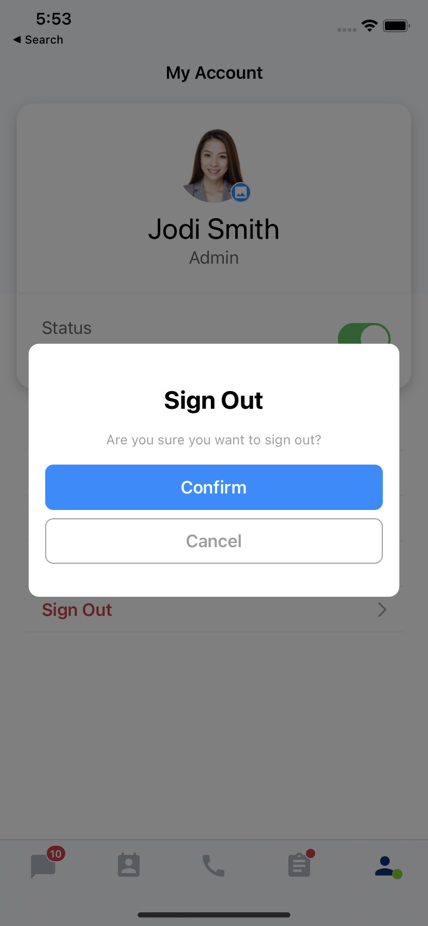
CINNOX App Sign out
Once you successfully sign out, the app will redirect you to the sign-in page.